What the Enable App.OnStart Property Setting Does in Power Apps

Power Apps Studio has a setting called Enable App.OnStart property, with a warning that OnStart "can cause delays when loading an app". It's tempting to switch it off to keep an app fast. This guide tested what the switch actually changes, and the result is a little surprising: in Studio, an OnStart formula still ran with the switch off.
Why OnStart Has a Switch at All
App.OnStart runs a formula when the app starts. Microsoft now recommends alternatives because OnStart can slow loading:
- Named formulas in App.Formulas for values the app needs; see How to Use Named Formulas in Power Apps.
- App.StartScreen to choose the first screen; see How to Set the Start Screen in Power Apps.
- A screen's OnVisible for logic that runs when a screen opens.
Microsoft's App object reference also says that "depending on your context, the OnStart property might be disabled by default", and that if you don't see it, you can check the app's settings for a switch to enable it. This is that switch.
Prerequisites
- A canvas app open in Power Apps Studio. The example is the Career Development Plan app from the Career Development Plan series. Its OnStart is empty.
Step 1: Find the Switch
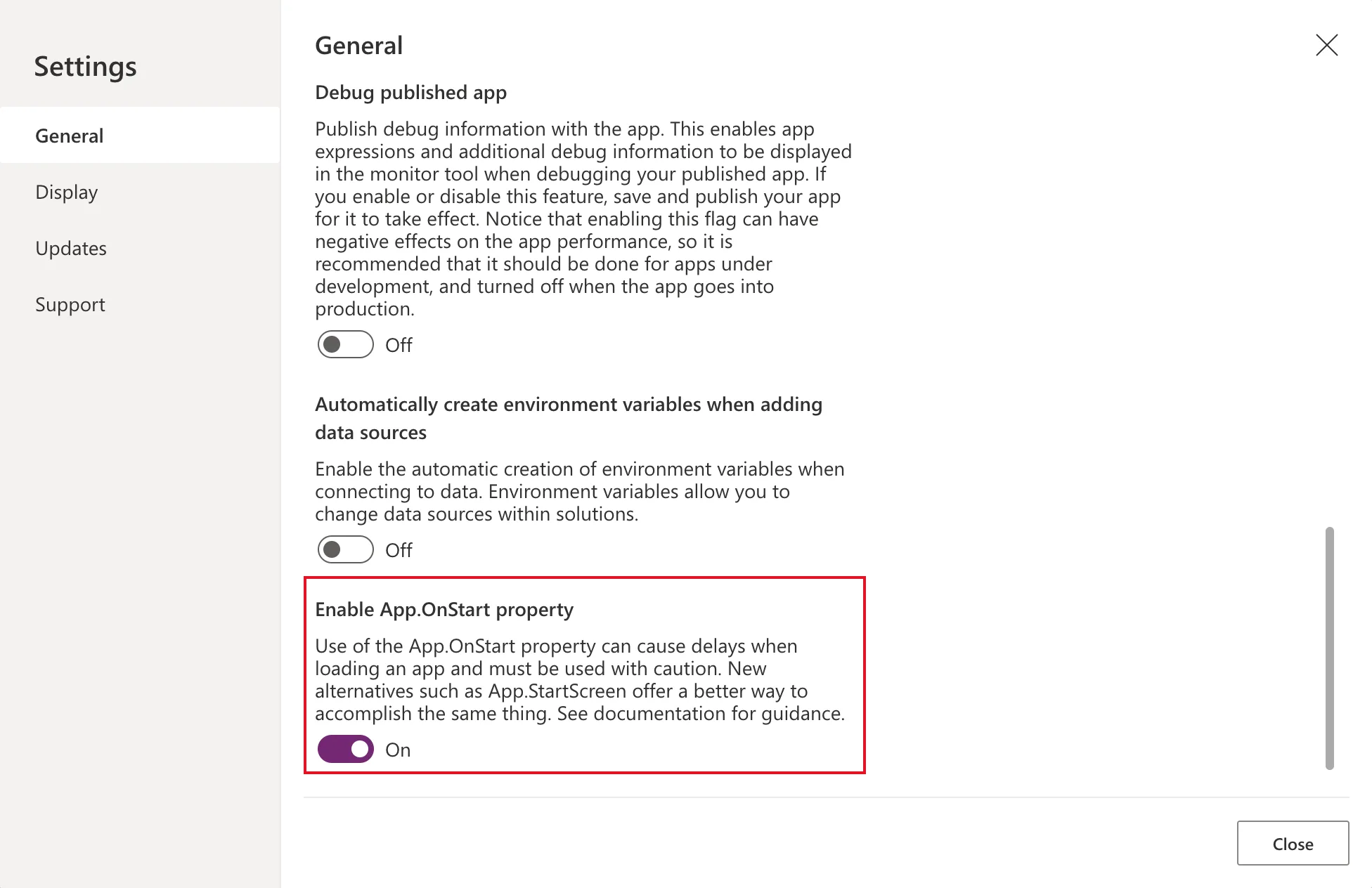
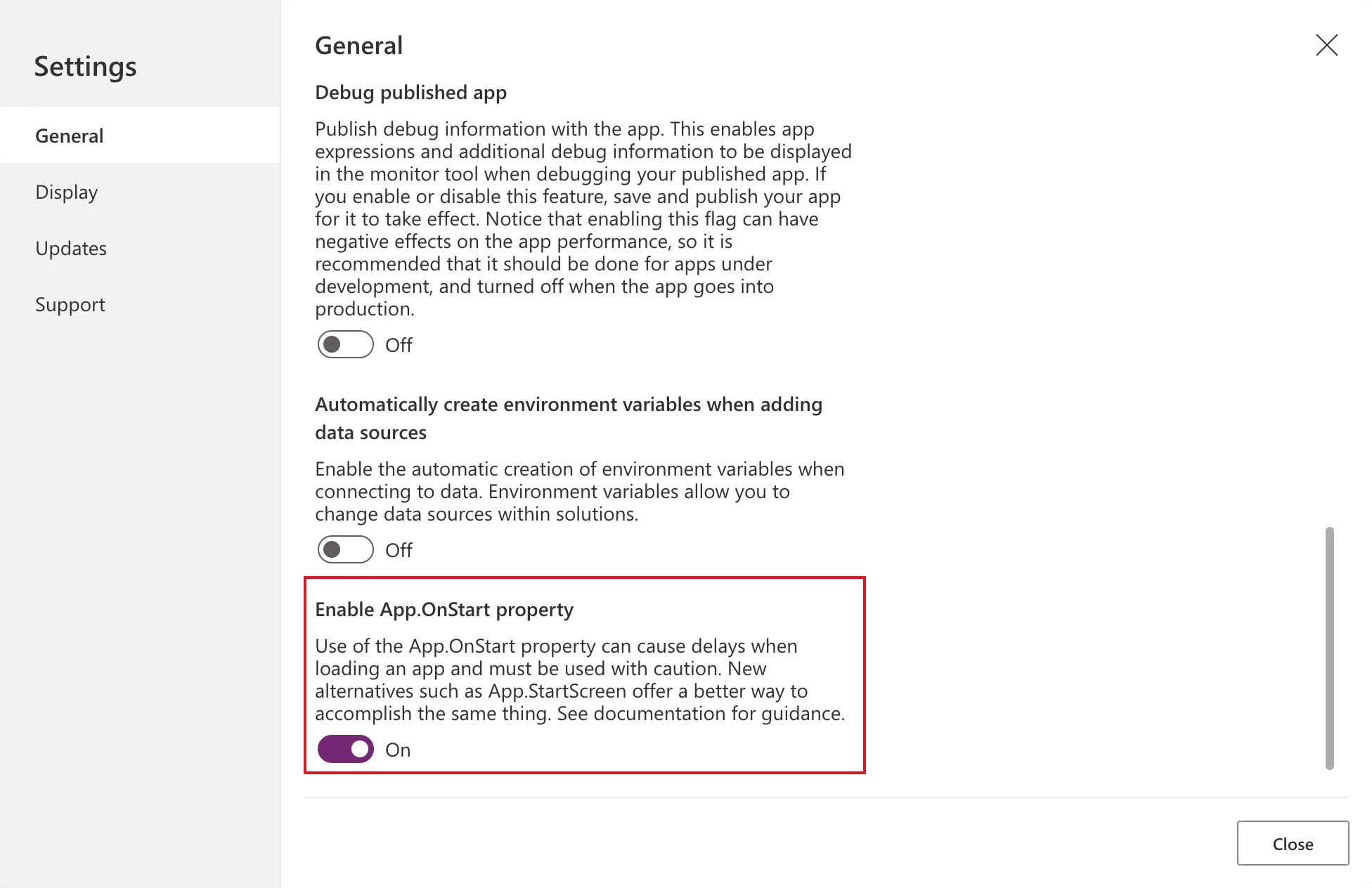
Open Settings → General. Near the bottom is Enable App.OnStart property, with Microsoft's description:
Use of the App.OnStart property can cause delays when loading an app and must be used with caution. New alternatives such as App.StartScreen offer a better way to accomplish the same thing.
In the example app it was On:
Step 2: Turn It Off
Select the switch. Studio asks you to save and reload:
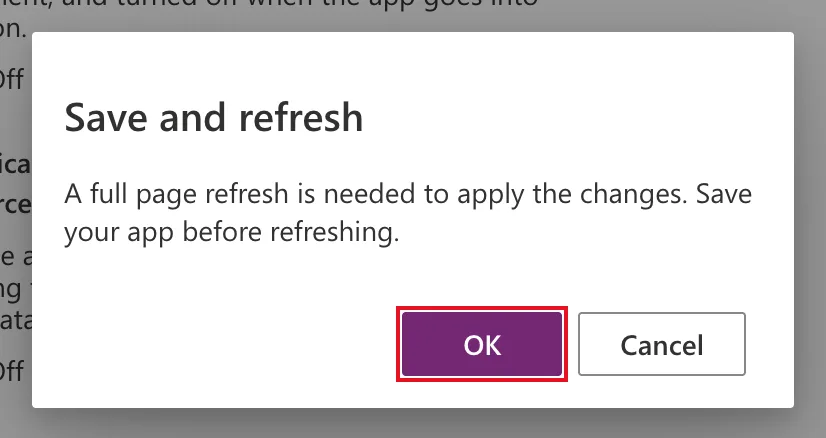
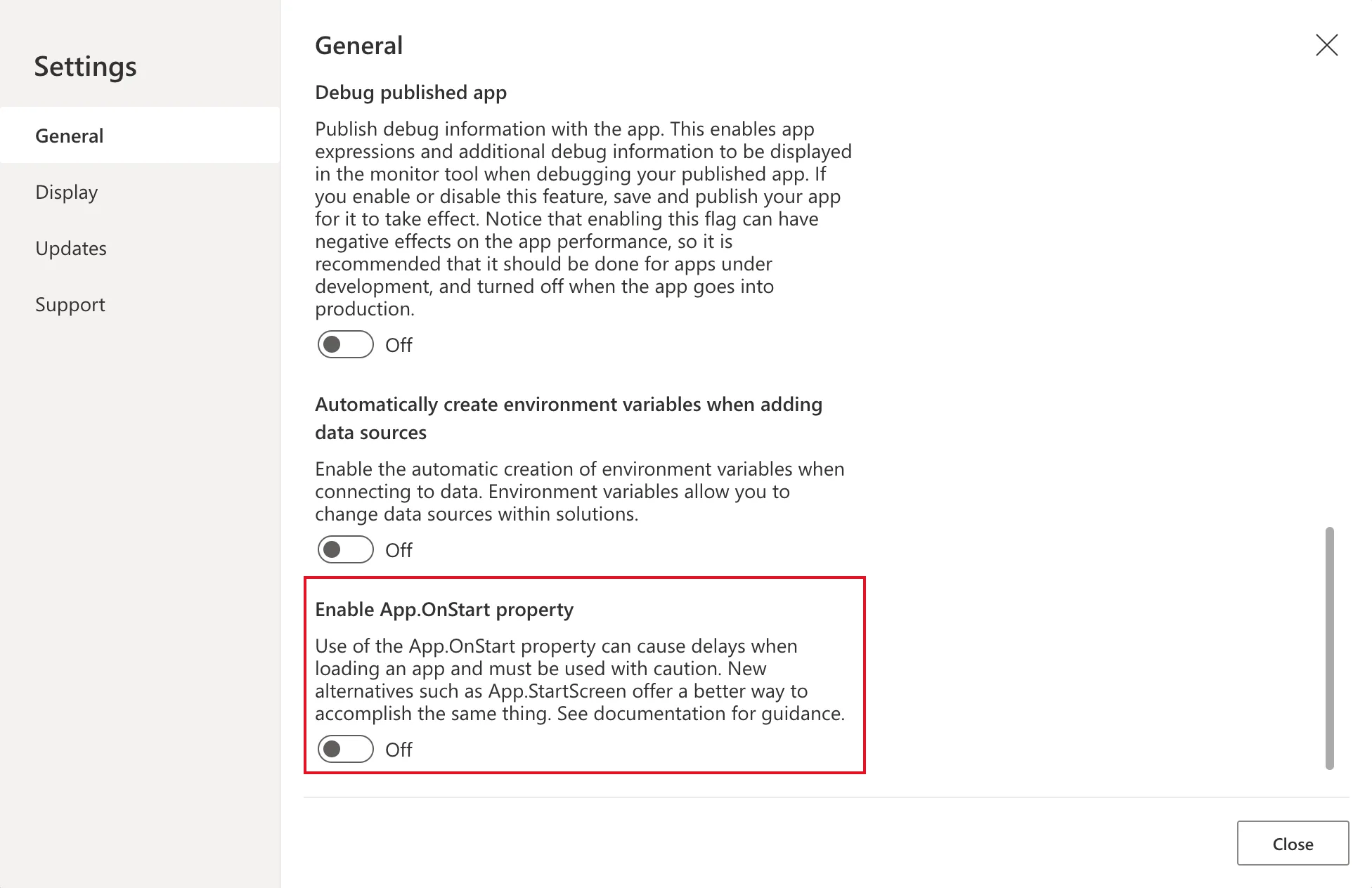
Select OK. Studio saves the app, reloads and reopens Settings with the switch Off:
Step 3: What Changed, and What Didn't
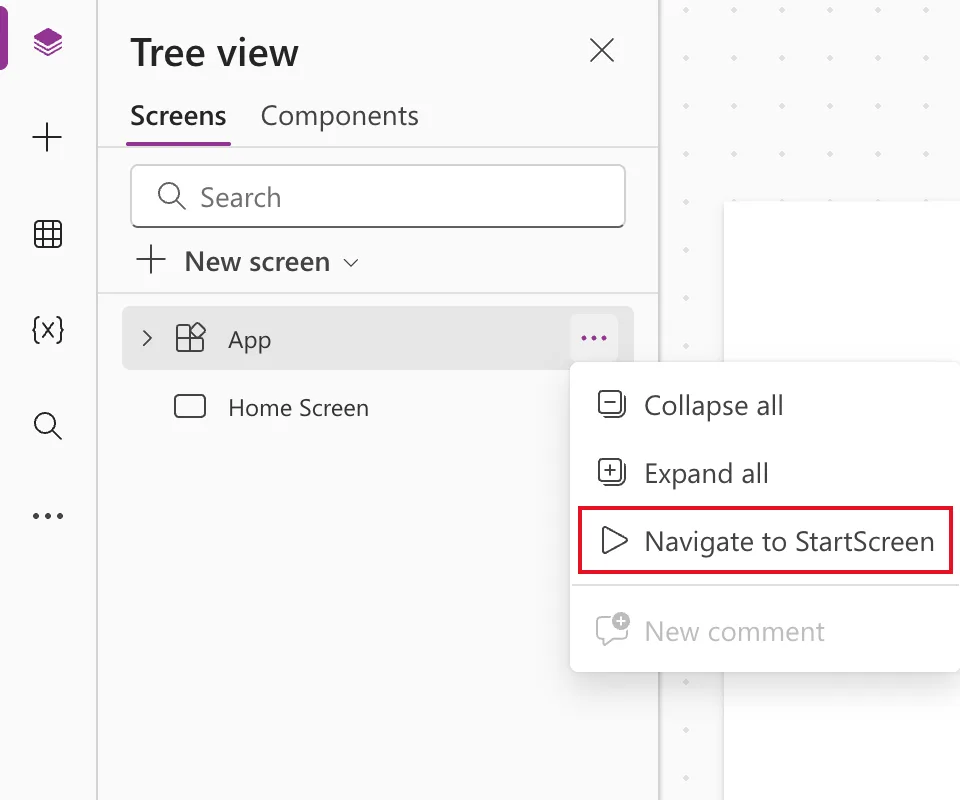
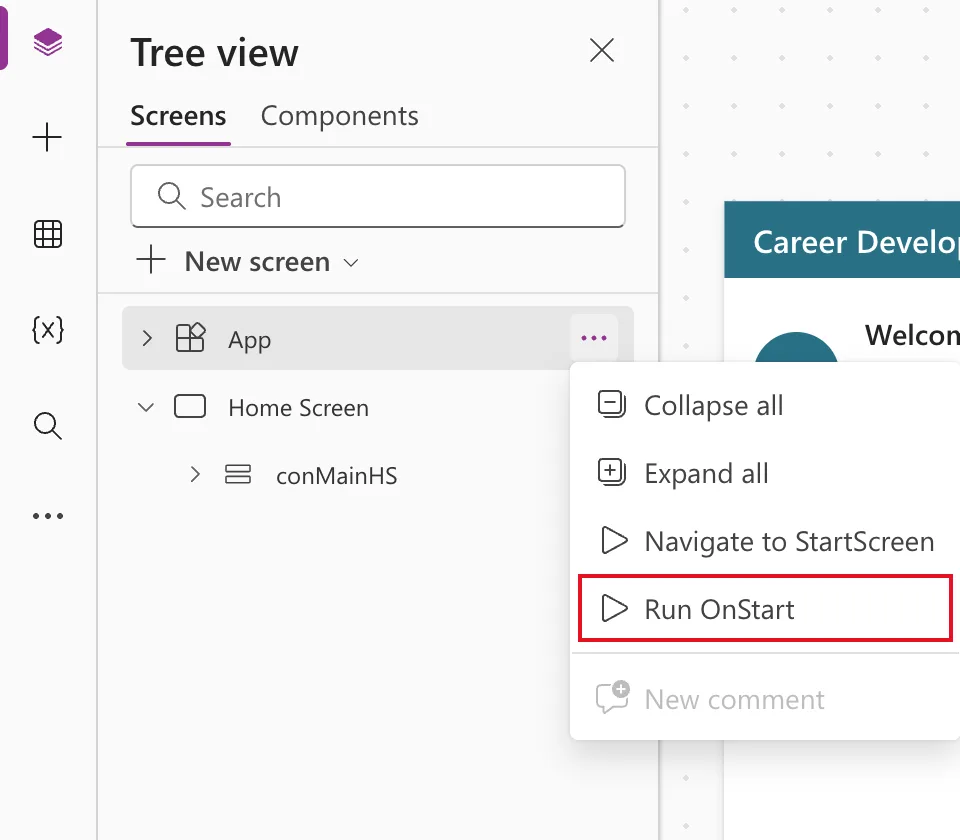
Run OnStart is gone. With the switch on, the App menu in the tree view has Run OnStart, to test the formula without reopening the app. With it off, the menu had only Collapse all, Expand all, Navigate to StartScreen and New comment:
OnStart itself is still there. It stayed in the App property list, and Studio accepted a formula in it with no error:
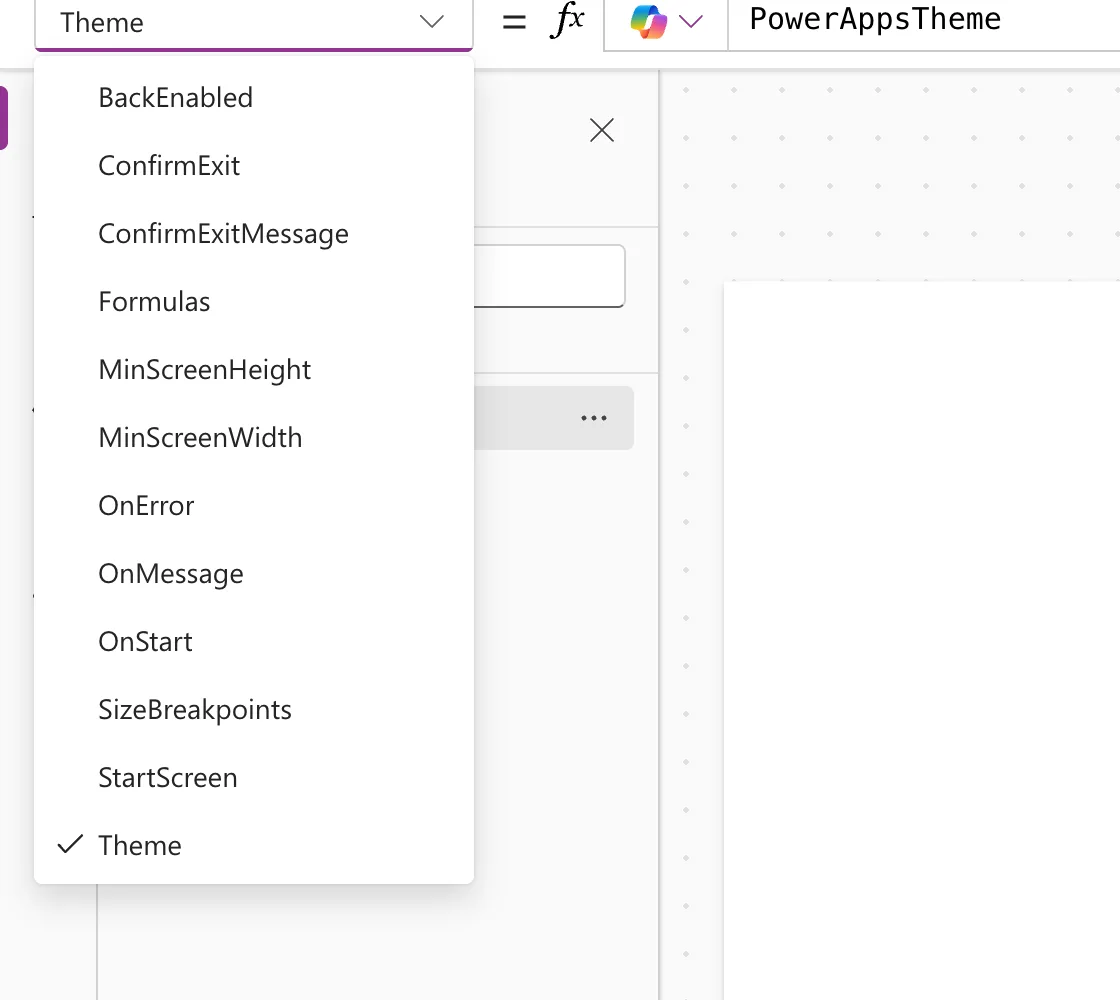
And it still ran. As a test, OnStart was set to this, the app was saved and Studio was reloaded:
Set(gblOnStartTest, "OnStart ran")
After the reload, the Variables pane showed the variable set, so the formula had run while the app loaded in Studio:
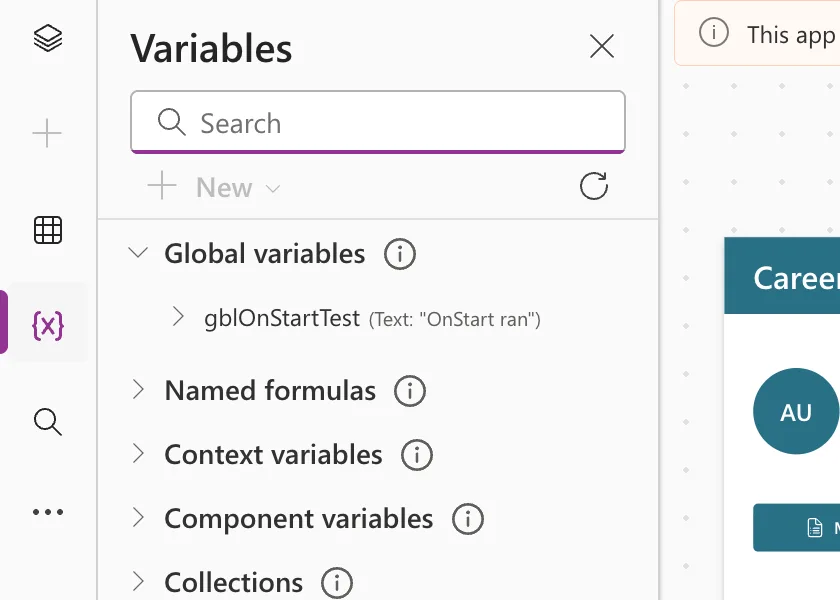
So, in this test, the switch didn't stop OnStart from running in Studio. It wasn't tested in a published app, and Microsoft doesn't document exactly what the switch does at run time.
Step 4: Turn It Back On
The test formula was removed, leaving OnStart empty, and the switch was turned back On through the same Save and refresh:
Run OnStart came back to the App menu:
What to Do Instead
Treat the switch as a convenience, not a lock. What keeps an app fast is what's in OnStart:
- Leave OnStart empty, and use named formulas and StartScreen instead.
- If you inherit an app whose OnStart is missing, turn the switch on to get it back.
Common Mistakes
| Mistake | What happens | Do this instead |
|---|---|---|
| Turning the switch off to stop slow OnStart logic | The logic may still run | Move the logic to named formulas or OnVisible |
| Switching it without saving first | The reload loses unsaved work | Select OK in Save and refresh, which saves first |
| Looking for Run OnStart with the switch off | It isn't in the menu | Turn the switch on |
Troubleshooting
| Symptom | Likely cause | Fix |
|---|---|---|
| OnStart isn't in the property list | The switch is off for this app | Turn it on in Settings → General |
| Run OnStart is missing | The switch is off | Turn it on |
| Studio opens read-only after you reload the page yourself | The earlier session still holds editing control | See Fixed: "This App Is Read-Only Because You Already Have Editing Control Elsewhere" |
FAQ
Should I turn it off in new apps?
There's no need. Keep OnStart empty instead; the test above showed that the switch alone doesn't stop a formula in it from running.
Does the switch affect App.Formulas or App.StartScreen?
Not that the test showed. The example app's named formulas were written, and its StartScreen set, while the switch was off, and both worked.
Is it per app?
Yes, like every setting under Settings.
Conclusion
Enable App.OnStart property needs a Save and refresh, and turning it off removes Run OnStart from the App menu. In this test, it didn't stop an OnStart formula from running in Studio. Keep OnStart empty and use named formulas and App.StartScreen; that's what keeps load times down.
Additional Resources
- App object: OnStart property: what OnStart does and its alternatives.
- Build large and complex canvas apps: using App.Formulas instead of App.OnStart.
- Code optimization: App.StartScreen instead of Navigate in OnStart.
