Self-Host Dewiride Analytics on Ubuntu Server — Part 6: Backups, Updates and Day-2 Operations

A running installation is not a finished one. This part backs up both stores with the two different methods they actually need, proves the backups restore, automates them with a systemd timer, updates the stack without losing anything — and shows you how to remove the whole thing cleanly if you decide it is not for you.
This is Part 6 of a 6-part series.
- Part 1: Run the Stack with Docker Compose
- Part 2: Close the Ports Docker Opened Behind Your Firewall
- Part 3: Custom Domain and Free HTTPS with Caddy
- Part 4: Claim the Install and Add Your First Website
- Part 5: Read the Dashboard — Humans, Bots and Engagement
- Part 6: Backups, Updates and Day-2 Operations (you are here)
Two Stores, Two Backup Methods
Docker does not back anything up. Containers are disposable by design; your data lives in volumes, and volumes are your problem.
This installation has two databases and they need different methods. That is not fussiness:
| PostgreSQL | ClickHouse | |
|---|---|---|
| Holds | Accounts, websites, settings, job queue | Every page view, click and classification |
| Shape | Thousands of rows that change | Millions of rows that never change |
| Right method | pg_dump — a logical dump | BACKUP — the server's own copy command |
| Why | Small, and restores into a different version cleanly | A logical dump of a columnar store is absurdly slow and large |
| Restores to | A different PostgreSQL version | The same major ClickHouse version |
A single "back up the volumes" approach can work, but only with everything stopped — otherwise you copy files mid-write and get a backup that looks fine until the day you need it. Both methods below run while the stack is up.
Step 1: Give ClickHouse Somewhere to Write
PostgreSQL's dump comes out on standard output, so it needs no setup. ClickHouse writes backups itself, and refuses to write anywhere it has not been explicitly told is allowed.
cd ~/dewiride-analytics
mkdir -p backups/postgres backups/clickhouse
nano local/clickhouse-backup-disk.xml
<?xml version="1.0"?>
<clickhouse>
  <storage_configuration>
    <disks>
      <backups>
        <type>local</type>
        <path>/backups/</path>
      </backups>
    </disks>
  </storage_configuration>
  <backups>
    <allowed_disk>backups</allowed_disk>
    <allowed_path>/backups/</allowed_path>
  </backups>
</clickhouse>
Declaring the disk is not enough on its own — allowed_disk has to name it too, or every BACKUP fails with a permission error that sounds like a filesystem problem and is not.
Mount it by extending the clickhouse service in compose.prod.yaml:
  clickhouse:
    ports: !reset []
    volumes:
      - ./local/clickhouse-concurrency.xml:/etc/clickhouse-server/config.d/zz-concurrency.xml:ro
      - ./local/clickhouse-backup-disk.xml:/etc/clickhouse-server/config.d/zz-backup-disk.xml:ro
      # A bind mount rather than a named volume, so backups land somewhere on the host you can
      # copy off the machine without digging into Docker's storage.
      - ./backups/clickhouse:/backups
One more thing, and it is the step that trips people up. The ClickHouse server runs as uid 101 inside the container, so it cannot write to a directory owned by you:
sudo chown 101:101 backups/clickhouse
docker compose up -d --wait
ls -ln backups/
drwxrwxr-x 2 101  101  4096 Aug 19 21:34 clickhouse
drwxrwxr-x 2 1001 1001 4096 Aug 19 21:34 postgres
If you run ls -l rather than ls -ln you will see two unrelated account names against that directory — on my server, uuidd and syslog. Nothing has gone wrong. Uid 101 belongs to different accounts inside the container and on the host, and ls is simply looking the number up in the host's list. ls -ln shows the number, which is the thing that actually matters.
Keep the two directories separate and separately owned. ClickHouse writes its own file as uid 101; the PostgreSQL dump is written by your shell as you. One directory cannot be owned by both, and chowning the lot to 101 locks you out of your own dumps.
Step 2: Take a Backup of Each
cd ~/dewiride-analytics
set -a; . ./.env; set +a
STAMP=$(date -u +%Y%m%d-%H%M%S)

docker compose exec -T postgres \
  pg_dump -U "$POSTGRES_USER" -d "$POSTGRES_DB" --format=custom \
  > "backups/postgres/control-plane-$STAMP.dump"

docker compose exec -T clickhouse clickhouse-client \
  --user "$CLICKHOUSE_USER" --password "$CLICKHOUSE_PASSWORD" \
  --query "BACKUP DATABASE $CLICKHOUSE_DB TO Disk('backups', 'telemetry-$STAMP.zip')"
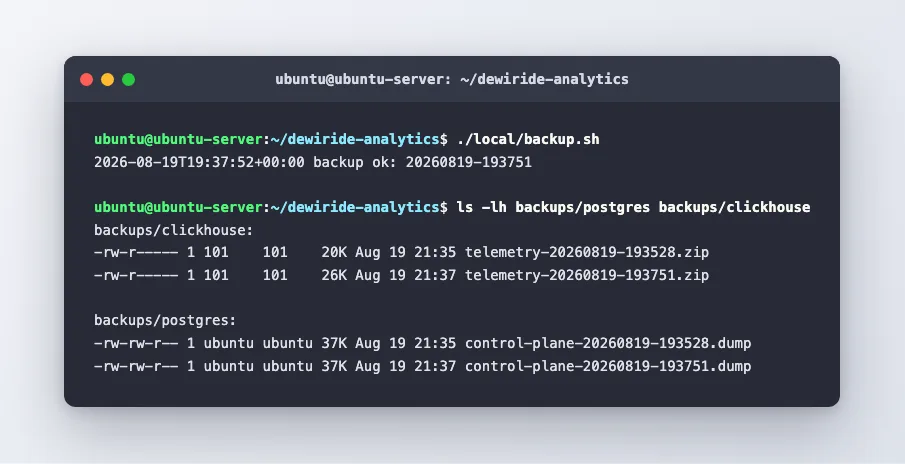
49b8d20a-3f1e-4047-a0b6-b797ab99c5f3 BACKUP_CREATED
set -a; . ./.env; set +a loads the passwords from your settings file into the shell so they are not typed on the command line, where they would land in your shell history.
--format=custom rather than plain SQL is worth the flag: the dump is compressed, and pg_restore can later pick out individual tables instead of forcing an all-or-nothing replay.
Both files are tiny on a fresh installation — 37 KB and 20 KB here. They grow with your traffic, and ClickHouse compresses well.
Step 3: Prove the Backups Actually Restore
This is the step everybody skips, and it is the only one that matters. A backup you have never restored is a hypothesis.
Check the PostgreSQL dump is readable without restoring anything:
docker compose exec -T postgres pg_restore --list \
  < backups/postgres/control-plane-*.dump | grep -cE "^[0-9]+;"
96
Ninety-six objects. pg_restore --list reads the dump's table of contents and prints it; it writes nothing anywhere.
For ClickHouse, restore into a scratch database and count what arrives:
CHZIP=$(basename "$(ls -t backups/clickhouse/*.zip | head -1)")

docker compose exec -T clickhouse clickhouse-client \
  --user "$CLICKHOUSE_USER" --password "$CLICKHOUSE_PASSWORD" \
  --query "RESTORE DATABASE $CLICKHOUSE_DB AS restore_check FROM Disk('backups', '$CHZIP')"

docker compose exec -T clickhouse clickhouse-client \
  --user "$CLICKHOUSE_USER" --password "$CLICKHOUSE_PASSWORD" \
  --query "SELECT name FROM system.tables WHERE database = 'restore_check' ORDER BY name"
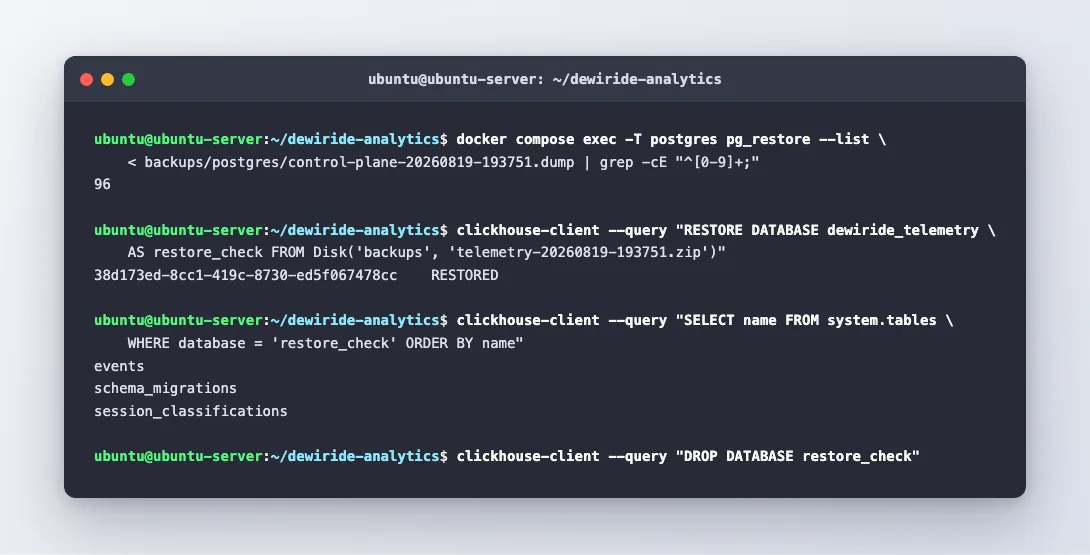
38d173ed-8cc1-419c-8730-ed5f067478cc	RESTORED
events
schema_migrations
session_classifications
RESTORED, and the three tables that should be there. The AS restore_check clause is the important part — it restores under a different name, so your live data is never touched by the test.
Clean up the scratch database when you are satisfied:
docker compose exec -T clickhouse clickhouse-client \
  --user "$CLICKHOUSE_USER" --password "$CLICKHOUSE_PASSWORD" \
  --query "DROP DATABASE restore_check"
Read that command twice before running it. restore_check is the scratch database. Typing your real telemetry database name there deletes every measurement you have, with no confirmation and no undo.
Step 4: Automate It
A backup you have to remember is a backup you will stop taking. Put it in a script:
nano local/backup.sh
chmod +x local/backup.sh
#!/usr/bin/env bash
# Backs up both stores, then deletes anything older than KEEP_DAYS.
# Exits non-zero if either backup fails, so a timer reports the failure rather than
# silently producing nothing.
set -euo pipefail

PROJECT_DIR="${PROJECT_DIR:-$HOME/dewiride-analytics}"
KEEP_DAYS="${KEEP_DAYS:-14}"

cd "$PROJECT_DIR"
set -a; . ./.env; set +a
STAMP=$(date -u +%Y%m%d-%H%M%S)

docker compose exec -T postgres \
  pg_dump -U "$POSTGRES_USER" -d "$POSTGRES_DB" --format=custom \
  > "backups/postgres/control-plane-$STAMP.dump"

docker compose exec -T clickhouse clickhouse-client \
  --user "$CLICKHOUSE_USER" --password "$CLICKHOUSE_PASSWORD" \
  --query "BACKUP DATABASE $CLICKHOUSE_DB TO Disk('backups', 'telemetry-$STAMP.zip')" >/dev/null

find backups/postgres   -name '*.dump' -mtime "+$KEEP_DAYS" -delete
find backups/clickhouse -name '*.zip'  -mtime "+$KEEP_DAYS" -delete

echo "$(date -uIseconds) backup ok: $STAMP"
set -euo pipefail is doing real work in a backup script: -e stops at the first failure instead of carrying on to delete old backups after failing to make a new one, and -o pipefail makes a failure anywhere in a pipeline count.
Now a systemd timer rather than cron, because systemd will tell you when it fails:
sudo nano /etc/systemd/system/dewiride-backup.service
[Unit]
Description=Back up the Dewiride Analytics stores
# Docker has to be up, or every run fails with a connection error rather than a backup.
Requires=docker.service
After=docker.service

[Service]
Type=oneshot
User=ubuntu
Group=ubuntu
WorkingDirectory=/home/ubuntu/dewiride-analytics
ExecStart=/home/ubuntu/dewiride-analytics/local/backup.sh
[Unit]
Description=Daily backup of the Dewiride Analytics stores

[Timer]
OnCalendar=*-*-* 03:20:00
RandomizedDelaySec=900
# If the machine was off when the timer was due, run it once on the next boot rather than
# skipping that day entirely.
Persistent=true

[Install]
WantedBy=timers.target
Replace ubuntu with your own username in both paths and in User=.
sudo systemctl daemon-reload
sudo systemctl enable --now dewiride-backup.timer
systemctl list-timers dewiride-backup.timer --no-pager
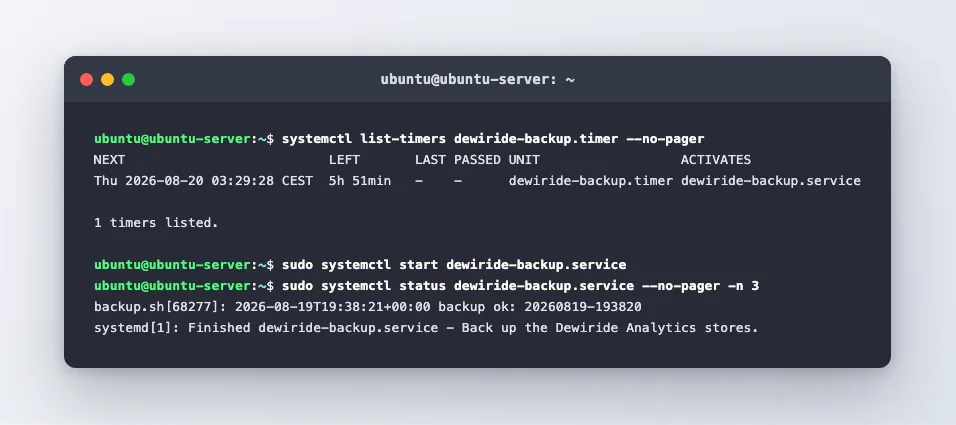
NEXT                             LEFT      LAST PASSED UNIT                  ACTIVATES
Thu 2026-08-20 03:29:28 CEST     5h 51min  -    -      dewiride-backup.timer dewiride-backup.service
Test it immediately rather than finding out in a month:
sudo systemctl start dewiride-backup.service
sudo systemctl status dewiride-backup.service --no-pager
backup.sh[68277]: 2026-08-19T19:38:21+00:00 backup ok: 20260819-193820
systemd[1]: Finished dewiride-backup.service - Back up the Dewiride Analytics stores.
These backups are on the same disk as the thing they are backing up. That protects you from a bad upgrade or a mistaken delete. It protects you from nothing at all if the machine dies, the provider loses it, or someone gets in.
Copy them somewhere else — rsync to another machine on a timer of its own, rclone to object storage, or your provider's snapshots. Any offsite copy beats a perfect local one.
Step 5: Update Without Losing Anything
cd ~/dewiride-analytics
./local/backup.sh          # always, before an upgrade
git log --oneline -1       # write this down — it is what you roll back to
git pull --ff-only
docker compose up -d --build --wait
git pull --ff-only refuses to create a merge commit. If upstream has rewritten history you get an error instead of a surprising merge, which on a deployment is exactly what you want.
Your own files are safe because none of them are tracked:
git status --short
?? compose.prod.yaml
?? local/
Two untracked entries, and backups/ is not even listed — the project's own .gitignore already covers it. This is the payoff for never editing compose.yaml in Part 2. A pull can never conflict with a file it does not track.
Schema changes apply themselves. The engine runs its migrations as it starts and its readiness check does not pass until they have finished, so --wait returning means the new version is genuinely ready — not merely started against a half-migrated database.
If nothing has changed, the rebuild is almost instant because every layer is cached:
real 0m3.750s
Rolling back
git checkout <the-commit-you-wrote-down>
docker compose up -d --build --wait
Be aware of the asymmetry: code rolls back, schema migrations generally do not. If an upgrade added a column, going back to older code that does not know about it usually still works; if it changed how data is stored, it may not. This is exactly why the backup comes first, and why you should read the release notes before a major version jump.
Watching It
Memory
docker stats --no-stream --format "table {{.Name}}\t{{.MemUsage}}\t{{.MemPerc}}"
NAME                              MEM USAGE / LIMIT     MEM %
dewiride-analytics-clickhouse-1   127.3MiB / 2GiB       6.22%
dewiride-analytics-postgres-1     34.73MiB / 11.68GiB   0.29%
dewiride-analytics-web-1          71.06MiB / 11.68GiB   0.59%
dewiride-analytics-api-1          269MiB / 11.68GiB     2.25%
Only ClickHouse has a limit, and that is deliberate: it sizes its caches against whatever it is allowed, so without one it would size them against the entire machine. The figure comes from CLICKHOUSE_MEMORY in .env. Raise it if you have memory to spare and your queries feel slow; lower it to fit a smaller server.
The other three show the host's total as their limit, which means unlimited. On a busy server it is worth adding mem_limit to them too, so that one runaway process cannot take the machine down with it.
Disk
docker system df
TYPE            TOTAL     ACTIVE    SIZE      RECLAIMABLE
Images          5         4         2.12GB    25.87kB (0%)
Containers      4         4         204.8kB   0B (0%)
Local Volumes   3         3         241.3MB   0B (0%)
Build Cache     43        0         3.26GB    2.89GB
Build cache is usually the biggest thing on the disk and the least useful. 3.26 GB here, of which 2.89 GB is reclaimable, against 2.12 GB of actual images. Reclaim it when space is short:
docker builder prune
It only costs you a slower next build. Do not reach for docker system prune -a on a whim — that removes images too, including ones you would then have to rebuild from source.
Watch the volumes, though. 241 MB is mostly the reference data; the telemetry store is what grows with your traffic.
Logs
docker compose logs -f --tail 50 api
-f follows new output; --tail 50 starts with the last fifty lines rather than replaying everything. Swap api for web, postgres or clickhouse.
Docker's default log driver keeps writing forever. On a long-lived server that is a slow disk leak, so cap it:
{
  "log-driver": "json-file",
  "log-opts": { "max-size": "10m", "max-file": "3" }
}
sudo systemctl restart docker
That caps each container at 30 MB. The setting applies to containers created after the restart, so recreate the stack with docker compose up -d --force-recreate to have it take effect now.
Is it actually up?
curl -sf http://127.0.0.1:8080/health/ready && echo " — ready"
That is the one-line check worth putting in an uptime monitor. It passes only when both stores are reachable and migrations have been applied, so it means usable rather than running.
Removing It Completely
If you decide this is not for you, here is the honest, complete list. Read it before running any of it — the second command destroys every measurement you have ever collected, and nothing brings it back.
Run these yourself, in order, once you are sure:
# 1. Stop the stack (data survives this).
cd ~/dewiride-analytics && docker compose down

# 2. Destroy the data. THIS IS THE IRREVERSIBLE ONE.
docker compose down --volumes

# 3. Remove the built images.
docker image rm dewiride-analytics-api dewiride-analytics-web

# 4. Reclaim build cache.
docker builder prune -a

# 5. Stop the backup timer.
sudo systemctl disable --now dewiride-backup.timer
sudo rm /etc/systemd/system/dewiride-backup.{service,timer}
sudo systemctl daemon-reload

# 6. Remove the site from Caddy, then reload it.
sudo nano /etc/caddy/Caddyfile
sudo systemctl reload caddy

# 7. Remove the project folder — including your .env and any backups still in it.
rm -rf ~/dewiride-analytics

# 8. Delete the DNS record at your registrar.
Take a final backup and copy it off the machine before step 2 if there is any chance you will want the data later. Your server is then exactly as it was, with Docker and Caddy still installed.
Common Mistakes
| Mistake | What happens | Fix |
|---|---|---|
| Backing up only the volumes, while running | Files copied mid-write; the backup fails when you need it | Use pg_dump and BACKUP, which are consistent |
| Never testing a restore | You find out it never worked on the worst day | Restore to a scratch name, monthly |
| Backups on the same disk only | Machine dies, backups die with it | Copy offsite on a schedule |
| One directory for both stores | Either ClickHouse or you cannot write to it | Separate directories, separately owned |
Declaring the disk but not allowed_disk | BACKUP fails with what looks like a filesystem error | Both entries are required |
| Upgrading without a backup | A migration you cannot reverse | ./local/backup.sh first, every time |
docker system prune -a to free space | Images gone, next start rebuilds everything | docker builder prune reclaims the bulk of it |
| Typing the real database name in the restore test | Every measurement deleted, instantly | Always AS restore_check, and read before running |
Troubleshooting
| Symptom | Likely cause | What to do |
|---|---|---|
Permission denied writing a backup | backups/clickhouse not owned by uid 101 | sudo chown 101:101 backups/clickhouse |
Disk backups is not allowed for backups | allowed_disk missing from the config | Add it, then recreate the container |
| Timer never runs | Enabled but not started | sudo systemctl enable --now dewiride-backup.timer |
| Timer runs, produces nothing | docker unusable for that user | The unit's user must be in the docker group |
pg_dump: server version mismatch | Running pg_dump from the host, not the container | Always via docker compose exec -T postgres |
| Disk filling steadily | Container logs uncapped | Set max-size in /etc/docker/daemon.json |
| Stack unhealthy after an update | A migration failed | docker compose logs api. Roll back to the noted commit, restore, read release notes |
git pull refuses | Local changes to tracked files | git status. Move your changes into compose.prod.yaml or local/ |
FAQ
How often should I back up? Daily is right for most self-hosted analytics — the timer above. Losing a day of traffic figures is an annoyance, not a disaster. If it would be a disaster for you, back up more often and get the copies offsite.
How big will the backups get? On a fresh installation, 37 KB and 20 KB. Growth is almost entirely ClickHouse and roughly proportional to traffic; it compresses well because the data is so repetitive.
Can I restore into a different ClickHouse version? Across patch versions, yes. Across major versions, do not count on it — restore into the same major version and upgrade afterwards. PostgreSQL's logical dumps are far more forgiving.
Do I need to stop the stack to back up? No. Both methods are consistent while running. That is exactly why they are used here instead of copying volumes.
What if I only care about one of the two? Back up both anyway. The telemetry is worthless without the PostgreSQL side, which is what says which site an identifier belongs to and who may read it.
Does the reference data need backing up? No. It is a public file from DB-IP and iptoasn.com, re-downloaded automatically. Losing it costs one download.
How do I move to a bigger server?
Back up, install Docker and Caddy on the new machine, clone, copy .env, compose.prod.yaml and local/ across, restore both stores, then point DNS at the new address. The certificate is obtained fresh in seconds.
Conclusion — and the Whole Series
Six parts ago this was a bare Ubuntu server. It now runs a full web analytics engine that you own, on your own domain, with a certificate that renews itself, nothing exposed to the internet except one web port, and a nightly backup that has been proven to restore.
What each part covered:
- Run the stack — four containers, one command, and a health check that means what it says.
- Close the ports — why your firewall was never consulted, and the override that made it irrelevant.
- Domain and HTTPS — six lines of Caddy, a free certificate, and the forwarded-header setting that decides whether you measure anyone at all.
- Claim it and add a site — the one-time owner screen, the tracking code, and the origin rule that explains why
localhostreports nothing. - Read the dashboard — telling the people apart from everything else, with the evidence for each verdict.
- Back it up and keep it running — this part.
The real argument for self-hosting is not cost. It is that the numbers are yours, they are not sampled, nothing is being resold, and when something looks wrong you can go and read the code that produced it. That last one is worth more than it sounds.
← Previous: Part 5: Read the Dashboard — Humans, Bots and Engagement
