Search for users (V2) Example in Power Automate (Microsoft Flow)

Sooner or later a flow needs to find a person — the manager to notify, the owner of a request, the account behind an email address. The Search for users (V2) action from the Office 365 Users connector does exactly that: give it part of a name or an email address and it returns every matching Microsoft 365 user.
What You Will Build
In this guide you will create a small instant cloud flow that:
- Searches your organization's directory with Search for users (V2) using a partial name.
- Inspects the raw result with a Compose action, so you can see the output is a list, not a single user.
- Loops over every matching user with Apply to each and prints each Display name.
- Reads the results back from the run history, one iteration at a time.
Along the way you will learn what the Top and Is search term required parameters do, how the search term actually matches, and the expressions you need to count results, grab the first match, or check whether anyone was found at all.
This post is a 2026 rewrite of an article first published in January 2022. The seven screenshots are the originals from that article, captured in the classic Power Automate designer, and have not been re-captured. Microsoft has since made the new designer the default for cloud flows, so a few things look different on screen. Every step still works the same way; use this table to translate:
| In the screenshots (classic designer) | What you see today (new designer) |
|---|---|
| New step button below the last card | A + button between cards, which opens the Add an action pane |
| Fields shown on the card itself | Fields shown in a configuration pane on the left when you select the card. If you still see the fields on the card, your designer is in inline layout — the Layout button at the bottom-left switches it |
| Show advanced options link | An Advanced parameters dropdown where you tick the parameter you want, or choose Show all |
| Add dynamic content link under a field | A lightning-bolt button (dynamic content) and an fx button (expression) next to the field |
| … menu → Configure run after | The Settings tab of the configuration pane → Run after section |
| Run history opens the card inline | Selecting an action in a run shows its inputs and outputs on the Run results tab of the same left-hand pane; Show raw outputs is there too |
If you would rather match the screenshots exactly, turn off the New designer toggle in the top-right corner of the designer and the flow reloads in the classic view.
Prerequisites
Before you start, make sure that you have:
- A Microsoft 365 work or school account and access to Power Automate. The Office 365 Users connector reads your organization's directory, so a personal Outlook.com or Hotmail account will not work.
- A mailbox in Exchange Online. In practice any normal Microsoft 365 mailbox qualifies; accounts with no mailbox, or with an on-premises-only mailbox, cannot create the connection.
- Permission to create flows in your environment.
- No premium license. Office 365 Users is a Standard connector, so everything here is included with the Power Automate rights that come with Microsoft 365 plans.
- A member account, not a guest. A guest is someone invited into your directory from outside the organization — a partner or contractor signing in with their own email. Guests are limited by design in Microsoft Entra ID, and the action typically fails for them with a
403error. More on that in Troubleshooting.
Step 1: Create an Instant Cloud Flow
Sign in to Power Automate, select Create in the left navigation, and choose Instant cloud flow. In the Build an instant cloud flow dialog, give the flow a name, pick Manually trigger a flow as the trigger, and select Create.
A manual trigger is ideal for this kind of experiment: you can run the flow on demand as many times as you like, and the run history captures the exact output of every action.
Step 2: Add the Search for users (V2) Action
Add a new action below the trigger and search for Search for users (V2). It belongs to the Office 365 Users connector, so the first time you add it Power Automate asks you to sign in and create a connection. Sign in with the same work account you use for Power Automate.
The action has a single visible field, Search term, and the grey hint text inside the empty box (the placeholder) tells you exactly which profile fields the search applies to.
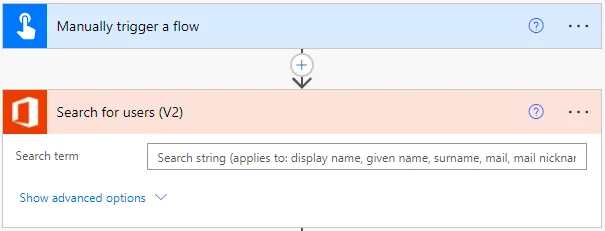
Read that placeholder carefully, because it is the whole contract of the action. The search term is matched against six fields of each user's profile:
| Searched field | Example |
|---|---|
| Display name | Jagdish Kumawat |
| Given name | Jagdish |
| Surname | Kumawat |
jagdish@contoso.com | |
| Mail nickname | jagdish |
| User principal name (UPN) — the account's sign-in name, which usually looks like an email | jagdish@contoso.com |
Department, job title, city, office location and phone number are all returned by the action, but they are not searched. Group membership is not returned at all — use the Office 365 Groups connector for that. If you need to find users by a field that is not searched, see the FAQ.
The action picker also lists a plain Search for users with no version suffix. That is the deprecated V1 action; Microsoft's own reference says to use Search for users (V2) instead. The two also behave differently: V1 returned every match by default (its Top had no default), while V2 returns at most 1000 unless you change Top.
Step 3: Enter a Search Term
Suppose the directory contains two accounts, jagdish@contoso.com and jagdish.kumawat@contoso.com. Both begin with jagdish, so that single word is enough to find both. Type jagdish in Search term.
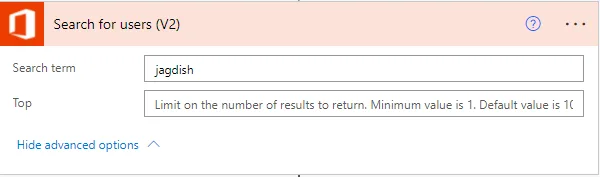
A word about how the term matches, because it trips up a lot of people. Microsoft does not document the matching rule, but community moderators and many flow makers report that the term is matched against the beginning of the searched fields — the start of a name, an email address, or a word inside the display name. A fragment taken from the middle of a value, such as umawat or @contoso.com, usually returns nothing at all. So when you are unsure of the spelling, search for the first few letters you are sure of — the start of a name or an address — not a piece taken from the middle.
In the screenshot above the Top field is also visible. In the classic designer it appears when you select Show advanced options; in the new designer open the Advanced parameters dropdown and tick Top.
Step 4: Understand the Optional Parameters
Search for users (V2) has two optional parameters besides the search term. Neither is needed for this example, but you should know what they do before you rely on the action in a real flow.
Top
Top limits the number of users returned. Its placeholder tells you the rules: the minimum value is 1 and the default is 1000. Set it to 1 when you expect exactly one match (for example, when searching by full email address) — the results are not ranked by relevance, so 1 on an ambiguous term just returns whichever matching user comes first. Set it to a small number when you are feeding a picker or an approval and do not want hundreds of results. Leave it blank for this walkthrough.
Because the default is 1000, a search with a very broad term — or no term at all — stops silently at roughly a thousand users. If your directory is bigger than that, see Getting More Than 1,000 Results.
Is search term required
This parameter did not exist in 2022 when the first version of this post was written, and it fixes a genuine trap. Reveal it the same way as Top. It controls what happens when the search term is empty — for example, when it comes from a variable that turned out to be blank. Set to Yes, an empty term returns no users. Set to No, an empty term applies no filter and returns the whole directory, up to Top. Microsoft does not document which of the two applies when you leave the parameter unset, but in practice a blank term has always returned the directory, so do not rely on the default.
If the search term comes from user input, a trigger, or an earlier action, set Is search term required to Yes. It costs nothing and it stops a blank value from pulling your entire organization into the flow.
Step 5: Explore the Dynamic Content
Add a Compose action after the search — you will use it in the next step anyway — select its Inputs box, and open the dynamic content list: the Add dynamic content link in the classic designer, the lightning-bolt button in the new one. Dynamic content is the list of values produced by earlier steps; each entry, called a token, is a chip you drop into a field instead of typing a value.
Look under Search for users (V2). The action exposes a fixed set of seventeen profile properties: User id, City, Company name, Country, Department, Display name, Given name, Job title, and more, down to Email, Surname, Telephone number and User Principal Name (UPN). Mobile phone, user type and the rest of the Microsoft Graph user properties are not included — use Get user profile (V2) for those.
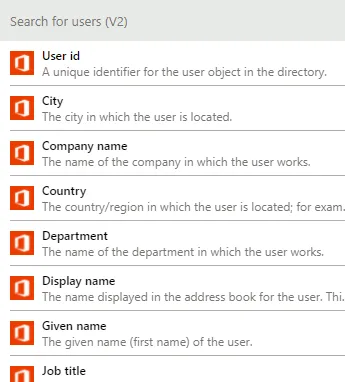
Scroll to the bottom of that group — it is below what the screenshot shows, and in the new designer you may need to select See more — and you will find one more entry that matters more than all the others: value. That token is the whole result — an array (Power Automate's word for a list) of user records, one record per matching person. Every other token in the list (Display name, Email, and so on) is a property of a single record inside that array. Power Automate knows this, which is why picking one of them into an action automatically wraps the action in a loop, as you will see in the next step.
The block below is an example of the shape the action returns. It is built from Microsoft's connector reference, not copied from a run, and trimmed to the fields you will use most; your real output has the same keys for every user. Note how the property names (the keys) are written: every word capitalised and run together with no spaces — DisplayName, Mail, UserPrincipalName (developers call this PascalCase). This matters as soon as you write an expression, because the other Office 365 Users actions such as Get user profile (V2) start with a lowercase letter instead (displayName, mail), and the two spellings are not interchangeable.
{
  "value": [
    {
      "Id": "00000000-0000-0000-0000-000000000001",
      "AccountEnabled": true,
      "DisplayName": "Jagdish Kumawat",
      "GivenName": "Jagdish",
      "Surname": "Kumawat",
      "Mail": "jagdish@contoso.com",
      "MailNickname": "jagdish",
      "UserPrincipalName": "jagdish@contoso.com",
      "JobTitle": null,
      "Department": null,
      "BusinessPhones": []
    },
    {
      "Id": "00000000-0000-0000-0000-000000000002",
      "AccountEnabled": true,
      "DisplayName": "JD Bots",
      "GivenName": "JD",
      "Surname": "Bots",
      "Mail": "jagdish.kumawat@contoso.com",
      "MailNickname": "jagdish.kumawat",
      "UserPrincipalName": "jagdish.kumawat@contoso.com",
      "JobTitle": null,
      "Department": null,
      "BusinessPhones": []
    }
  ]
}
null means the profile has no value for that field; [] is an empty list. Two details worth noticing: BusinessPhones is itself a list (a user can have several numbers), and AccountEnabled tells you whether the account is active. Disabled accounts are returned just like enabled ones, so filter on AccountEnabled yourself if you only want people who can still sign in.
Step 6: Loop Over the Results with Apply to each
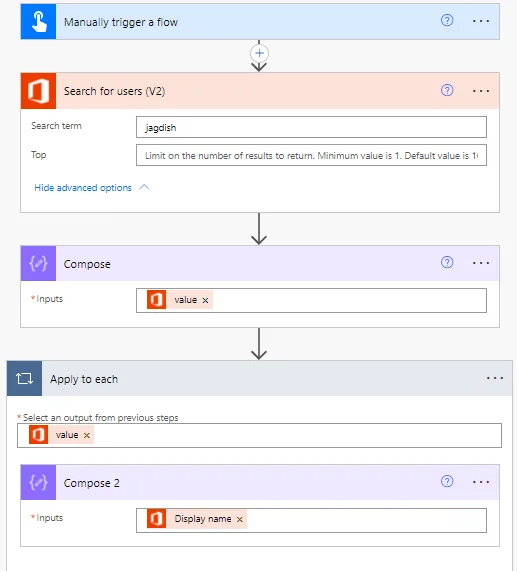
Because value is an array, you have to loop over it, one user at a time, to reach the individual users. Add three actions — a Compose, an Apply to each, and a second Compose inside the loop:
- A Compose action (under Data Operation) with value as its input — the one you added in Step 5. Compose is the simplest action in Power Automate: it takes whatever you put in its input box and shows it, unchanged, in the run history. Think of it as a window for looking at a value. This one is optional, but it is the quickest way to see the complete raw result of the search.
- An Apply to each action (under Control), with value in its Select an output from previous steps field. Inside the loop, add a second Compose action and set its input to Display name.
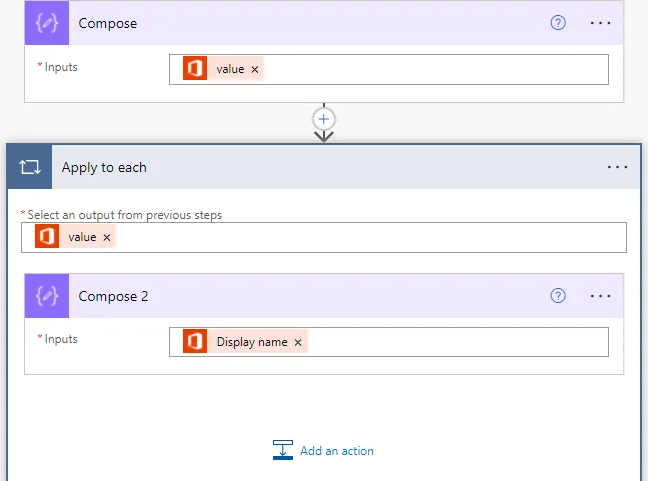
Either route gives the same flow — the loop is added by hand here so it is visible in the screenshots. In practice you rarely have to add it yourself: if you add a Compose action directly after the search and pick Display name from the dynamic content, Power Automate sees that you are using a property of an array item and inserts the Apply to each around your action automatically. Both designers do this; it is a feature, not a mistake, even though it surprises everyone the first time.
Inside the loop, the current user is available through the items() function. An expression is a short formula you type instead of picking a token. To enter one, select the field, then choose the Expression tab in the dynamic content window (classic) or the fx button next to the field (new designer), paste the text below and select OK (classic) or Add (new). Apply_to_each is the loop's name with the space replaced by an underscore — that is how every action is referred to inside an expression.
items('Apply_to_each')?['DisplayName']
The property name is DisplayName, capital D and capital N, because the search action returns PascalCase keys. displayName would silently come back as null — Power Automate's word for "nothing here" — instead of an error.
Step 7: Review the Complete Flow
At this point the flow has five parts: the manual trigger, Search for users (V2), the Compose that shows the full array, and an Apply to each over value containing Compose 2, which prints one display name per user.
Save the flow.
Step 8: Run the Flow and Read the Output
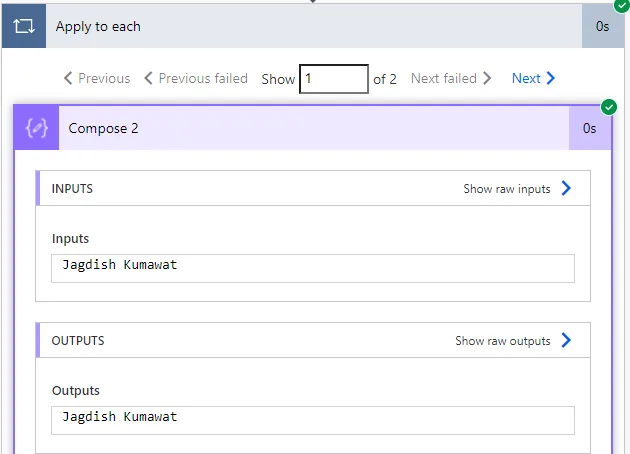
Select Test in the top-right, choose Manually in the Test flow pane, select Test, then select Run flow in the Run flow pane. When the run finishes, select Done to open it. Every card shows a green check mark, and the Apply to each card reports how many times it ran. With two accounts starting with jagdish, that is 2 iterations.
Open the Apply to each card. In the screenshots the counter reads Show 1 of 2 with Previous and Next links either side; the new designer shows the same counter on the loop card and lets you step between iterations from there. The first iteration shows Compose 2 with Jagdish Kumawat as both its input and its output:
Move to the next iteration and it shows the other matching account, JD Bots:
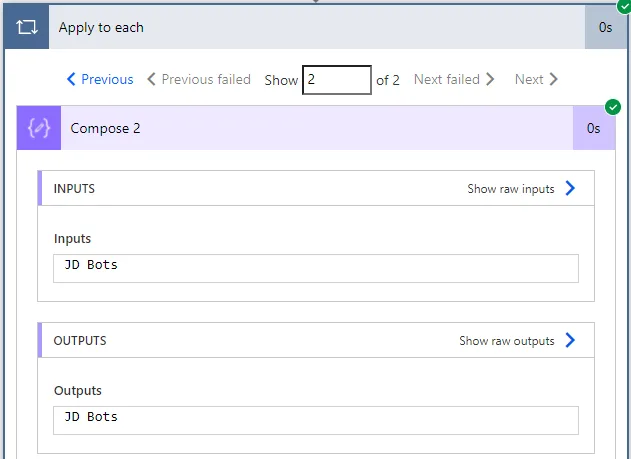
Two users, two iterations, two display names — exactly what the search term promised. If you want to see the full profile of each user rather than a single field, open the first Compose action instead and select Show raw outputs: it contains the entire value array in the shape shown in Step 5.
Working with the Results in Expressions
Printing display names proves the action works, but in a real flow you usually want to decide something based on the result. Every expression below refers to the action by its encoded name, Search_for_users_(V2) — the display name with spaces replaced by underscores and the (V2) kept exactly as it is. If you renamed the action, use its new name instead, with every space replaced by an underscore.
Get the Whole Array
outputs('Search_for_users_(V2)')?['body/value']
body/value means "the value list inside the action's response body". This is the same thing as the value token, and it is the building block for everything else.
Check Whether Anyone Was Found
A search that matches nobody does not fail — it succeeds with an empty array, and an Apply to each over an empty array simply runs zero times. To branch on "no user found", add a Condition: put the expression below in the left box (via the fx button), choose is equal to, and type 0 in the right box. The If yes branch is then your "no user found" path.
length(outputs('Search_for_users_(V2)')?['body/value'])
Or, if you prefer a true/false test, empty() returns true when the array has no items:
empty(outputs('Search_for_users_(V2)')?['body/value'])
Take the First Match Without a Loop
When you searched by a full email address and expect exactly one result, a loop is overkill. first() returns the first item of the array, and from there you can read any property:
first(outputs('Search_for_users_(V2)')?['body/value'])?['Mail']
The ? before each [ is the null-safe operator. first() returns null when the array is empty, and ?['Mail'] then returns null instead of failing the run when it is asked for a property of that null. Combine it with the check above so a null never reaches an action that needs a real value.
Filter Search for users (V2) by AccountEnabled
Add a Filter array action, put value in its From field, then select Edit in advanced mode under Filter Query to filter on the account status:
@equals(item()?['AccountEnabled'], true)
The leading @ is specific to Filter array's advanced mode, which expects the expression written the way it is stored in the flow definition. In the ordinary fx expression editor you leave the @ off.
Shrink Each User to the Fields You Need
If the next step is a table in an email or a Teams message, add a Select action, put value in its From field, and in the Map table enter only the key/value pairs you need:
| Key | Value |
|---|---|
Name | item()?['DisplayName'] |
Email | item()?['Mail'] |
Title | item()?['JobTitle'] |
Type the Key column as plain text. Enter each Value as an expression (Expression tab or fx button, as in Step 6) — typed as ordinary text it would be copied literally instead of evaluated.
Select changes the shape of every item but never the count; Filter array changes the count but never the shape. Use them together when you need both.
Search for users (V2) vs Get user profile (V2)
The Office 365 Users connector also has Get user profile (V2), and beginners often reach for the wrong one. The difference is simple:
| Action | Input | Output | Use it when |
|---|---|---|---|
| Search for users (V2) | A partial name or email; empty allowed | value — an array | You do not know the exact identity, or you expect several matches |
| Get user profile (V2) | An exact User (UPN) — the user principal name or the User id (an email works only when it is the UPN) | A single user object | You already have the UPN and want that one profile |
Get user profile (V2) fails the run when the user does not exist, so it needs a Run after rule on the next action (the Settings tab → Run after section in the new designer; … → Configure run after in the classic designer) that lets that action run even when the lookup has failed. Search for users (V2) just returns an empty array, which is why it is the friendlier action for a "does this user exist?" check: search by the email address, then test empty() as shown above.
Getting More Than 1,000 Results
Two limits stack up here. Top defaults to 1000, and raising it does not help on its own. Microsoft does not document what Search for users (V2) calls behind the scenes, but Microsoft Graph — the Microsoft 365 service the connector talks to — returns users in pages of at most 999, and community reports consistently show the action stopping at 999 results no matter how high Top is set. The practical effect is that a broad search in a large organization stops at roughly a thousand users.
The fix is the action's Pagination setting. Select the action, open its Settings (in the new designer, the Settings tab of the configuration pane; in the classic designer, the … menu on the card), turn Pagination on, and set a Threshold to the number of users you want back. There is no connector-specific cap; the documented ceiling is Power Automate's paginated-items limit, which depends on the flow's performance profile — 5,000 items on the Low profile that Microsoft 365 licenses get, 100,000 on Medium and above. With pagination on, Power Automate follows the "next page" link in each response (@odata.nextLink) and joins the pages into a single value list before the next action runs. Flow makers report that this works for Search for users (V2) even though the connector reference does not list it.
Every page fetched counts as one action run against the daily allowance of actions your license gives each user (the Power Platform request limit), and the connector itself refuses more than 1000 calls per connection per minute. Pulling the whole directory in a loop that runs often is the quickest way to hit both. Narrow the search term whenever you can.
Common Mistakes
| Mistake | What happens | Do this instead |
|---|---|---|
| Treating the output as a single user | Tokens like Display name nest your action inside a loop, or you get an array where you expected text | Loop with Apply to each, or use first() when you expect one result |
Searching for a fragment from the middle of a name or an @domain | Usually an empty result, no error | Search by the start of a name or an email address |
| Using Search for users (V2) when you already have the UPN | An array and a loop for what is really a single lookup | Use Get user profile (V2) with the UPN |
| Leaving the search term blank, or feeding it an empty variable | The whole directory comes back, up to 1000 users | Set Is search term required to Yes |
| Picking Business phones from dynamic content | A second, nested Apply to each appears | It is a list — pick one entry by position instead of looping: items('Apply_to_each')?['BusinessPhones']?[0] is the first number, or null if there is none |
Writing displayName in an expression | The expression returns null | The keys are PascalCase: DisplayName, Mail, UserPrincipalName |
| Expecting to search by department, job title or office location | No results | Those fields are returned, not searched — filter the results, or query Microsoft Graph |
| Choosing the un-versioned Search for users action | You are on a deprecated action with different defaults | Always pick Search for users (V2) |
Troubleshooting
| Symptom | Likely cause | Fix |
|---|---|---|
403 Insufficient privileges to complete the operation | The connection belongs to a guest user; guests are limited by design (the exact behaviour depends on your tenant's guest-access settings) | Run the flow with a member account's connection. For flows guests need to start, share the flow with them as run-only users and, in the sharing dialog, choose the owner's Office 365 Users connection |
AADSTS53003: Access has been blocked by Conditional Access policies | A Microsoft Entra Conditional Access policy blocks token issuance for the connector | Ask your Entra admin to exclude the connection account, or the Power Automate app, from the policy |
401 Unauthorized on an action that used to work | The connection's token expired, the password changed, or it was idle for 90 days | Open Connections, fix or re-create the Office 365 Users connection, and re-run |
| Results stop at 999 or 1000 even with a large Top | Pagination is off, so only the first page is returned | Turn on Pagination in the action's settings and set a threshold |
| The search returns nothing but the user definitely exists | The term is probably not the start of a name or address, or the account is missing that field (for example no mail) | Try the display name's first word, the UPN prefix, or the mail nickname |
| The flow is slow or times out on the search | A very broad term in a large directory | Narrow the search term, lower Top, or split the work across runs |
429 / "Rate limit is exceeded" | More than 1000 calls per minute on one connection, usually from a loop | Add a Delay inside the loop, lower loop concurrency, or enable a retry policy with exponential back-off in the action settings |
FAQ
Does Search for users (V2) search by department or job title?
No. The search term applies only to display name, given name, surname, mail, mail nickname and user principal name. Department and job title are returned in the results, so you can search broadly and then use a Filter array with @equals(item()?['Department'], 'Sales'). The alternative is to call Microsoft Graph's GET /users?$filter=department eq 'Sales' (an OData filter meaning "department equals Sales") — note that this needs the HTTP action, which is Premium; the Office 365 Users connector's own Send an HTTP request action only supports /me and /users/<id> sub-resources, not a filtered user list.
Is Search for users (V2) case-sensitive?
Microsoft does not document it. In the original run the lowercase term jagdish found both accounts, and flow makers generally report that the search is not case-sensitive. Do not rely on capitalisation to narrow a search either way — the thing that matters is that the term is the start of a name or address.
Does Search for users (V2) return guest users and disabled accounts?
The action does not filter on account status, so disabled accounts come back with AccountEnabled set to false — filter on AccountEnabled if you only want active users. Microsoft does not document whether guest (external) accounts are included; in tenants where they are, you can recognise them by the #EXT# in their User Principal Name. Guests being returned is a separate question from guests running the flow — the latter fails with 403.
Is the Office 365 Users connector a premium connector?
No. Office 365 Users is a Standard connector. Search for users (V2), Compose, Apply to each, Filter array and Select all work with the Power Automate rights included in Microsoft 365 plans.
How do I check if a user exists in Power Automate?
Use the email address as the search term, then add a Condition with empty(outputs('Search_for_users_(V2)')?['body/value']) equal to false. Unlike Get user profile (V2), the search does not fail when nobody matches, so you do not need a Run after rule.
How do I get a user's email address from their name in Power Automate?
Put the name in Search term, set Top to 1, and read the email with first(outputs('Search_for_users_(V2)')?['body/value'])?['Mail']. Because the match works on the start of the searched fields, use the display name's first word or the full display name rather than a fragment, and check empty() first so a name that matches nobody does not produce a null.
Can I use Search for users (V2) in Power Apps too?
Yes, as Office365Users.SearchUserV2({searchTerm: TextInput1.Text, top: 5}).value. The .value at the end is easy to forget — the function returns a record whose value field is the table you want to bind a gallery to.
What is the difference between Search for users and Search for users (V2)?
The un-versioned action is deprecated. V2 changes Top's default from "return all entries" to 1000, adds Is search term required, and wraps the result in a value array with an @odata.nextLink for paging. New flows should always use V2.
Conclusion
Search for users (V2) turns a partial name or email address into a list of matching user profiles from your Microsoft 365 directory. In this guide you built an instant flow that searches for jagdish, saw why the result is an array under the value token, iterated over it with Apply to each, and read both matching display names back from the run history.
The details that separate a demo from a reliable flow are small: search by the start of a name or address, set Is search term required when the term comes from elsewhere, remember the keys are PascalCase in expressions, use empty() or length() before trusting the result, and turn on Pagination when your directory is bigger than a thousand users. When you already know the UPN, skip the search and call Get user profile (V2) instead.
Additional Resources
- Office 365 Users connector reference — every action, parameter, and the known issues list, including the guest-user limitation.
- Classic designer vs. new designer — how to switch between the two and what moved where.
- Use expressions in conditions —
length(),empty(),first()and the rest of the expression language. - Use data operations — the Compose, Filter array, and Select actions used above.
- Limits of automated, scheduled, and instant flows — the pagination and looping limits by performance profile.
- Convert Number or Integer to Text or String using Power Automate — another Power Automate walkthrough from this site.
