Power Apps Naming Conventions for Screens, Controls and Formulas

Good names make a canvas app readable: btnMyPlanHS tells you it's a button on the Home screen, Button4 tells you nothing. Microsoft publishes naming guidance for Power Apps, and following it costs nothing but a rename. Here it is in one place, with the Career Development Plan app as a worked example.
Screens: Plain Words, Ending in "Screen"
Screen readers announce a screen's name when it opens, so Microsoft's code readability guidance asks for plain language with spaces, no abbreviations, and "Screen" at the end:
| Good | Not so good |
|---|---|
Home Screen | Home, Screen1 |
My Plan Screen | MyPlanScr, EmpPlan |
In formulas, names with spaces go in single quotes: 'Home Screen'.
Controls: A Type Prefix, Then the Purpose
Controls use camelCase: a lowercase three-letter type prefix, then what the control is for. Microsoft's table includes these:
| Control | Prefix | Example |
|---|---|---|
| Button | btn | btnMyPlan |
| Label | lbl | lblWelcome |
| Container | con | conHeader |
| Gallery | gal | galMyPlan |
| Text input | txt | txtResponse |
| Combo box | cmb | cmbLevel |
| Badge | bdg | bdgStatus |
| Icon | ico | icoBack |
| Image | img | imgLogo |
| Toggle | tgl | tglActive |
Some modern controls aren't in Microsoft's table. This series uses lbl for the modern Text control, since it does a label's job, and avt for the Avatar control. Whatever you choose, use it everywhere.
Screen Suffixes for Repeated Controls
Control names must be unique across the whole app. When the same kind of control appears on several screens, Microsoft suggests a short screen suffix, such as HS for Home Screen. The example's Home screen:
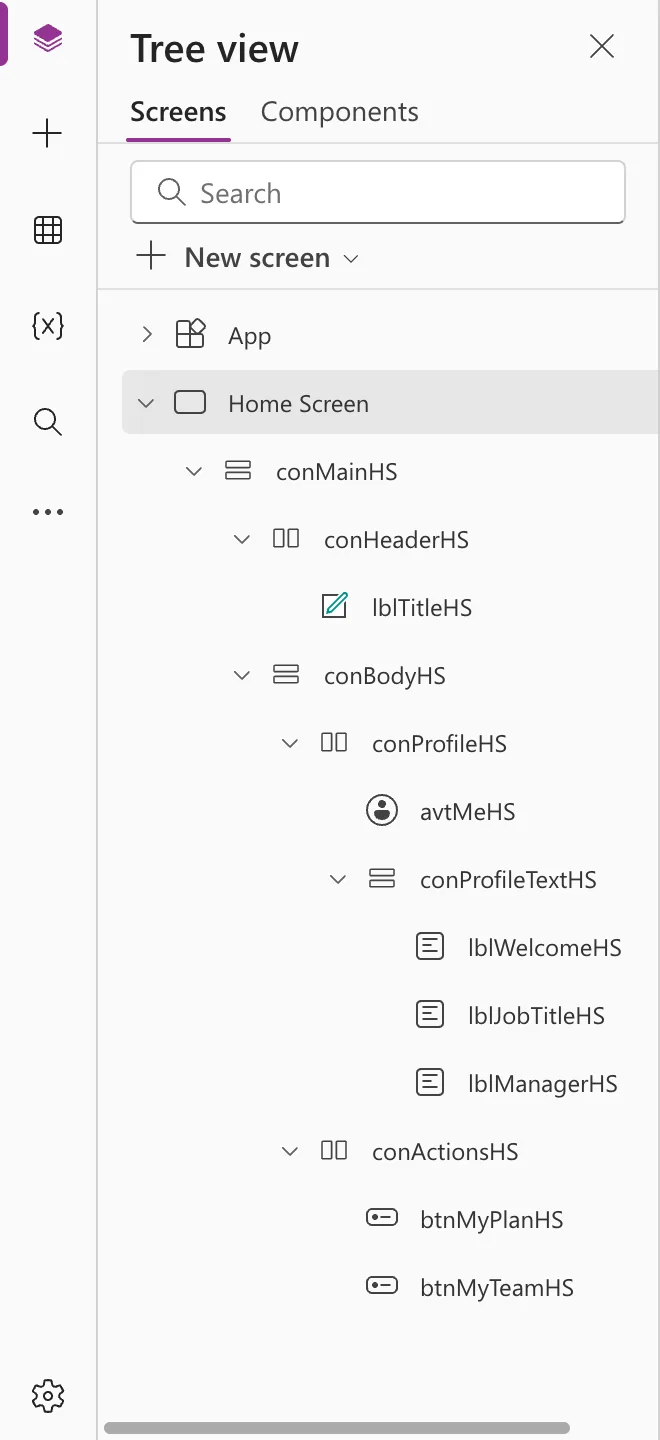
Every name says what it is (con, lbl, btn), what it's for (Header, JobTitle, MyPlan) and where it lives (HS).
Data Sources: PascalCase
Data sources use PascalCase. Connectors name themselves, such as Office365Users. For your own lists and tables, choose PascalCase names without spaces, such as RoleCompetencies, so formulas don't need quotes.
Variables and Collections: A Scope Prefix
| What | Prefix | Example |
|---|---|---|
| Context variable (one screen) | loc | locIsSaving |
| Global variable | gbl | gblFocusedBorderColor |
| Collection | col | colMyResponses |
| Scope variable (inside With and similar) | scp | scpRadius |
The prefix tells you where the value lives and stops a context variable and a global one from sharing a name.
Named Formulas: No Prefix
Named formulas in App.Formulas can't change, so Microsoft notes that prefixes like var no longer fit. Use clear PascalCase names: AppTitle, MyJobTitle, IsManager. See How to Use Named Formulas in Power Apps.
Common Mistakes
| Mistake | What happens | Do this instead |
|---|---|---|
Short, cryptic names (dSub, cFV) | Nobody can read the formulas | Write the purpose out: btnSubmit |
Prefixing named formulas with gbl | Readers think they can be Set | Use PascalCase without a prefix |
| Mixing schemes across screens | Hard to search and maintain | Pick prefixes and suffixes once and keep them |
FAQ
Do names affect performance?
No. They only affect how easy the app is to read and maintain.
Should I rename controls in an existing app?
It's worth it for screens and controls you'll keep working on. See How to Rename a Screen or Control in Power Apps.
Is there a tool to check names?
Microsoft's coding guidelines mention the Power CAT Toolkit, which flags patterns that don't follow them.
Conclusion
Screens get plain names ending in "Screen", controls get a type prefix plus purpose (plus a screen suffix where needed), data sources and named formulas get PascalCase, and variables and collections get a scope prefix. Rename as you build, and your formulas stay readable.
Additional Resources
- Code readability: Microsoft's full naming conventions and the complete prefix table.
- Power Apps coding guidelines: the rest of the guidance.
