Build an Overtime Timesheet App in Power Apps — Part 9: Show Approvers What's Waiting

Approvers get each overtime request in Teams and Outlook. This part gives them a screen in the app with everything waiting for their decision. Approvers can't open other people's entries in SharePoint, so a flow reads the pending entries and returns only those from the departments the approver looks after.
This is Part 9 of a 20-part series.
- Part 1: Plan the App and Set Up the Demo Organization
- Part 2: Create the SharePoint Site and Lists
- Part 3: Keep Overtime Private with SharePoint Permissions
- Part 4: Create the Solution, Environment Variables and Canvas App
- Part 5: Build the Home Screen
- Part 6: Build the Log Overtime Screen
- Part 7: Build the My Overtime Screen
- Part 8: Build the Approval Flow for Teams and Outlook
- Part 9: Show Approvers What's Waiting (you are here)
- Part 10: Build the Departments Screen (coming soon)
- Part 11: Build the Reports Screen (coming soon)
- Part 12: Import the Old Excel Timesheet (coming soon)
- Part 13: Create the Monthly Payroll Workbook with Office Scripts (coming soon)
- Part 14: Build the Power BI Overtime Report (coming soon)
- Part 15: Share the App and Add It to Microsoft Teams (coming soon)
- Part 16: Test Every Role and Department (coming soon)
- Part 17: Build a Setup Flow That Creates the Lists (coming soon)
- Part 18: Run the Solution Checker and Export the Solutions (coming soon)
- Part 19: Install the App in a New Environment (coming soon)
- Part 20: Recap, Production Checklist and Next Steps (coming soon)
Since Part 5, the Home screen has shown approvers a Waiting for approval button that did nothing. This part builds what it opens: Get Waiting Approvals, a flow the app runs, and the Waiting for Approval screen. Then it shares both with two approvers and tests the screen as each of them. Each generic task has its own guide; this part gives the values for this app, and why.
What You'll Build
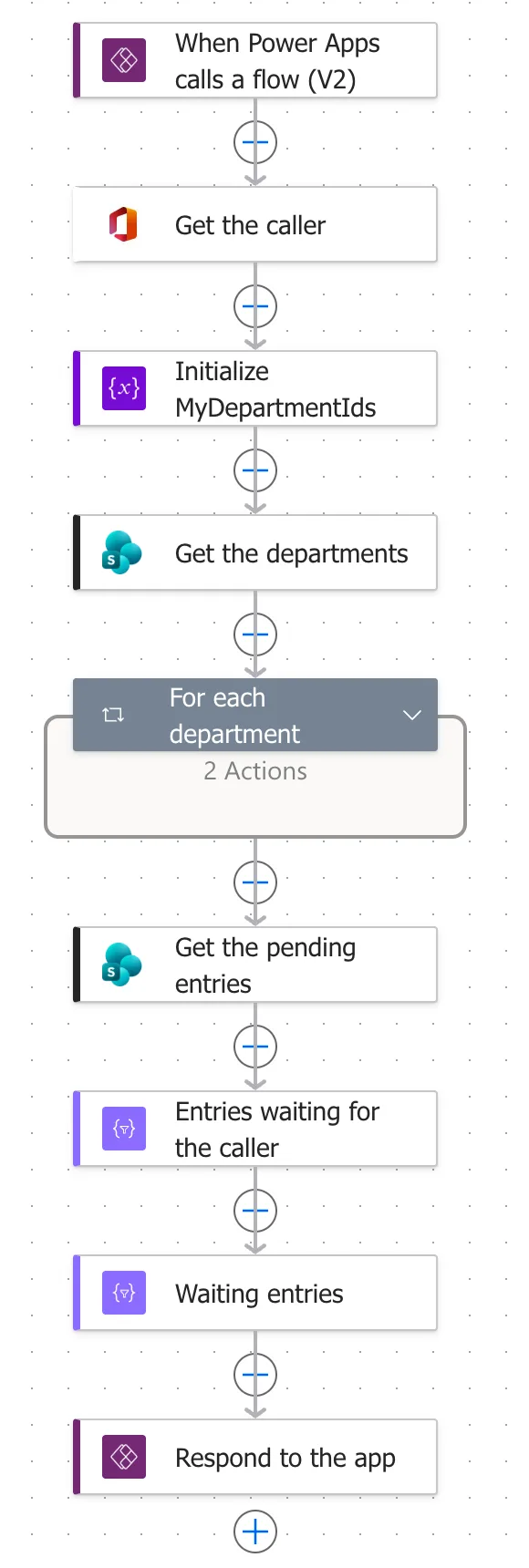
The finished flow, action by action:
When Power Apps calls a flow (V2)
├─ Get the caller                        Get my profile (V2): who is running the flow
├─ Initialize MyDepartmentIds            Initialize variable: an empty list
├─ Get the departments                   Get items: every department
├─ For each department
│  ├─ Approver emails                    Select: its approvers' emails, lower case
│  └─ Check the caller approves it       Condition: is the caller one of them?
│     └─ True: Add the department        Append to array variable: its ID
├─ Get the pending entries               Get items: Status Pending, oldest shift first
├─ Entries waiting for the caller        Filter array: their departments, not their own
├─ Waiting entries                       Select: seven fields of each entry
└─ Respond to the app                    Respond to a Power App or flow: entries, as JSON text
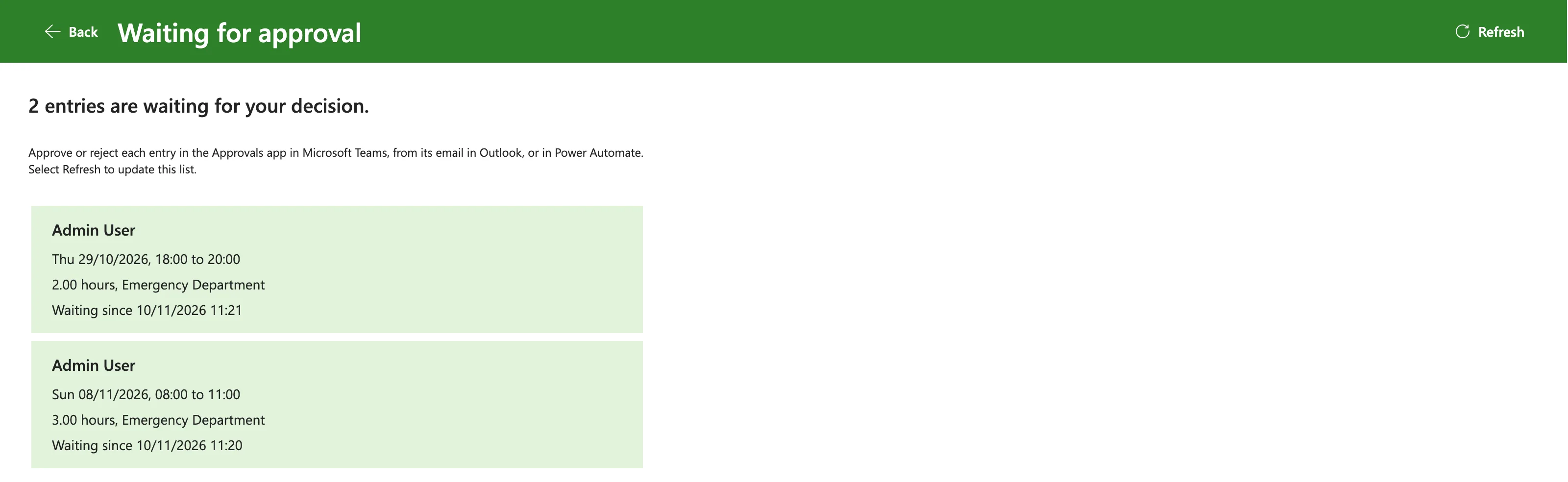
What an approver sees, here Olivia Bennett, who approves the Emergency Department:
How It Works
The decisions behind the screen:
- A flow, because approvers can't read the entries. Part 3 set OvertimeEntries so that people can read only their own items. An approver's own SharePoint connection would return only their own entries. The flow reads the list with its owner's SharePoint connection instead, and decides itself what each approver gets.
- The flow finds out who's asking. Its Office 365 Users connection belongs to the person running it, so Get my profile (V2) returns that person. The app sends the flow nothing, so nobody can ask for someone else's entries by changing what the app sends.
- The departments come from the Departments list. An approver is anyone in a department's Approvers column, as in Part 8's flow. SharePoint can't filter on a column that holds several people, so the flow checks each department itself. Inactive departments are included: their pending entries still need a decision.
- Only what the screen shows. The flow returns seven fields of each entry, without the reason or anything else on the list.
- Approvers' own entries are left out. Part 8 sends those to the approver's manager, so they don't belong on the approver's own list.
- The screen lists; it doesn't decide. Each entry's approval request is already waiting in the Approvals service from Part 8. The screen says where to answer it: the Approvals app in Teams, the Outlook email, or Power Automate.
Prerequisites
- Part 8 completed, with the Overtime Timesheet solution, its connection references and environment variables, and some pending entries to look at.
- The site's owner as the flow's maker. The flow reads OvertimeEntries with its maker's SharePoint connection, so that account needs to read every entry, as the owner does after Part 3.
- The demo organization from Part 1, with Olivia Bennett as the Emergency Department's approver and Daniel Brooks as Radiology's.
- The guides this part relies on. Each step says which one to follow:
- The flow: How to Create a Flow That Power Apps Can Run in Power Automate, How to Change an Action's Connection Reference in Power Automate, How to Check a Flow for Errors with Flow Checker in Power Automate, How to Save a Draft and Publish a Flow in Power Automate and How to Test a Cloud Flow Manually in Power Automate
- Who's asking: How to Get the Profile of the Person Running a Flow in Power Automate, How to Add Items to an Array Variable in Power Automate, How to Loop Through an Array with Apply to Each in Power Automate, How to Use the items() Function in Power Automate and How to Check If a Person Is in a Multi-Person Column in Power Automate
- The entries: How to Filter SharePoint Items with a Filter Query in Power Automate, How to Sort SharePoint Items and Get More Than 100 in Power Automate, How to Filter an Array by Two Conditions in Power Automate, How to Keep Several Fields from Each Item with Select in Power Automate, How to Send Values Back to Power Apps from a Flow in Power Automate and How to Return a Table from a Flow to Power Apps as JSON in Power Automate
- The app: How to Add a Flow to a Canvas App in Power Apps, How to Run a Flow and Use Its Result in Power Apps, How to Turn JSON Text into a Table with ParseJSON in Power Apps, How to Handle a Failed Flow Call in Power Apps, How to Refresh a Flow in a Canvas App in Power Apps and How to See What a Canvas App Uses with Show Dependencies in Power Apps
- The screen: How to Add a New Screen in Power Apps, How to Add a Vertical Container in Power Apps, How to Copy and Paste Controls Between Screens in Power Apps, How to Add a Vertical Gallery in Power Apps and Connect It to a SharePoint List, How to Use ThisItem in a Power Apps Gallery, How to Add a Loading Spinner in Power Apps and How to Reorder Controls in a Container in Power Apps
- Sharing: How to Choose the Connections Run-Only Users Use in Power Automate, How to Share a Flow with Run-Only Users in Power Automate, How to Share a Canvas App with Specific People in Power Apps and How to Find Apps Shared with You in Power Apps
Step 1: Create the Flow in the Solution
In the Overtime Timesheet solution, select New > Automation > Cloud flow > Instant. Name the flow Get Waiting Approvals, choose When Power Apps calls a flow (V2), and select Create (How to Create a Flow That Power Apps Can Run in Power Automate). The trigger needs no inputs: the flow works out everything from who calls it.
It opened in the classic designer, where Save stays unavailable until a flow has an action. I added the first action, Get my profile (V2) from Step 2, saved, then opened the flow from My flows and selected Edit to build the rest in the new designer.
Step 2: Find Out Who's Asking
The first action is Office 365 Users' Get my profile (V2), renamed Get the caller (How to Get the Profile of the Person Running a Flow in Power Automate). Its pane said it was connected to Office 365 Users, the solution's own connection reference from Part 8, so nothing needed changing.
Later expressions read the caller's email, in lower case:
toLower(outputs('Get_the_caller')?['body/mail'])
Step 3: Find the Departments the Caller Approves
These actions build MyDepartmentIds, the list of the IDs of the departments the caller approves.
| Action | Name | Settings |
|---|---|---|
| Initialize variable (guide) | Initialize MyDepartmentIds | Name MyDepartmentIds; Type Array; Value [] |
| Get items (SharePoint) | Get the departments | Site Address: the Overtime Timesheet Site variable; List Name: the Departments variable; Top Count 5000 |
| Apply to each (guide) | For each department | The body/value of Get the departments |
| Select, inside the loop | Approver emails | From and Map below |
| Condition, after it | Check the caller approves it | Below |
| Append to array variable, in True | Add the department | Name MyDepartmentIds; Value below |
Two things went wrong while I added them:
- My first attempt at Initialize MyDepartmentIds typed into the wrong box. The name went into the flow's own name at the top of the designer, renaming the flow. I typed the flow's name back, removed the half-made action with Undo, and added it again.
- The SharePoint action connected to another solution's reference. Like the trigger in Part 8, Get the departments picked up a SharePoint connection reference from another solution in the environment. Change connection reference at the bottom of its pane switched it to Overtime Timesheet SharePoint (How to Change an Action's Connection Reference in Power Automate). The second SharePoint action, in Step 4, needed the same change.
Approver emails reads the current department's Approvers with items() (How to Check If a Person Is in a Multi-Person Column in Power Automate):
items('For_each_department')?['Approvers']
toLower(item()?['Email'])
My first try picked Approvers from the dynamic content list instead, and the designer wrapped Approver emails in a second For each over all the departments. Undo and the expression above fixed it (Fixed: Power Automate Adds a Second For Each Loop When You Pick a Token).
Check the caller approves it compares with is equal to, true on the right:
contains(body('Approver_emails'), toLower(outputs('Get_the_caller')?['body/mail']))
items('For_each_department')?['ID']
Each expression went in through Insert expression, and each needed Add selected twice: the first time showed This expression has a problem (Fixed: "This expression has a problem" in Power Automate). The loop with its two actions:
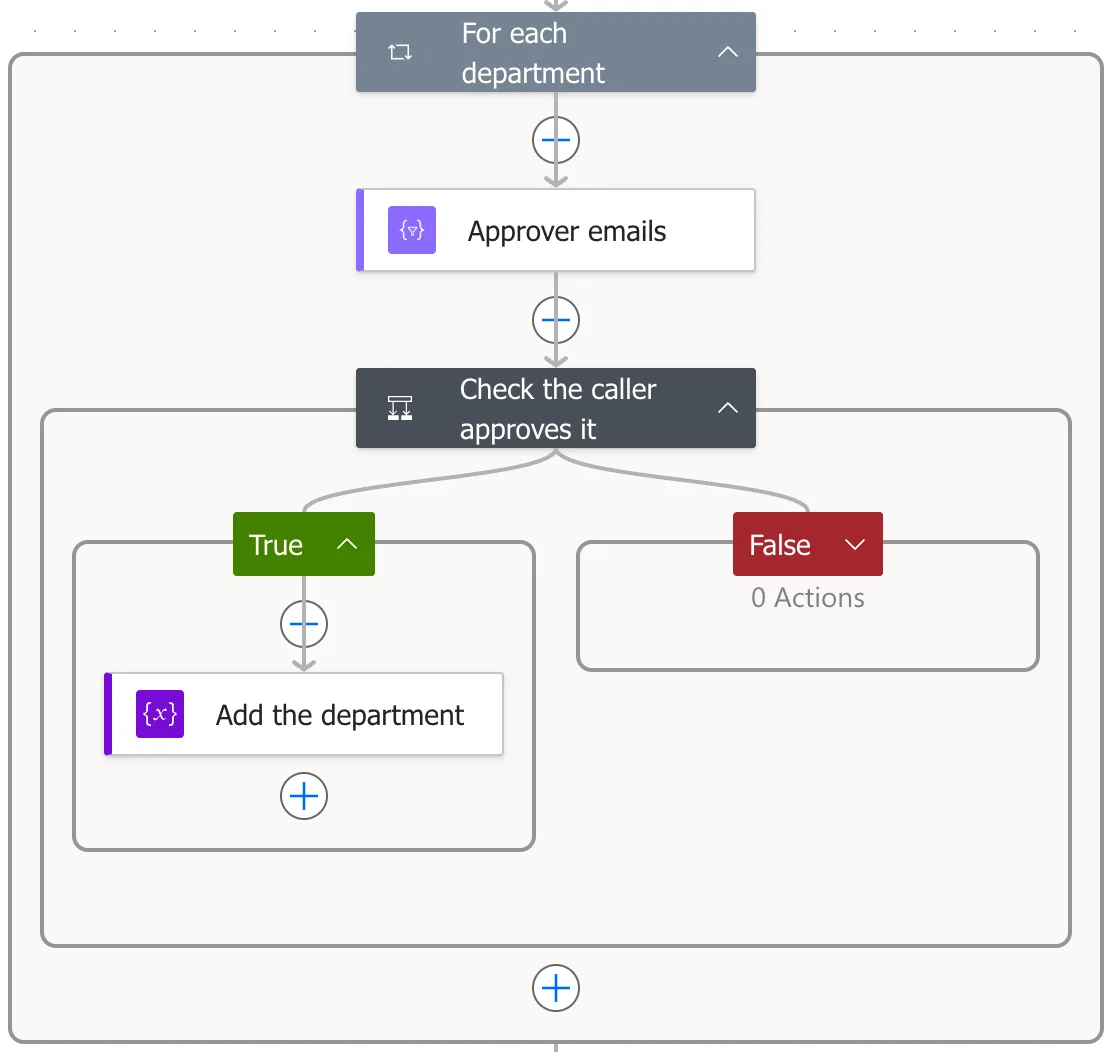
After the loop, MyDepartmentIds holds the IDs of the departments the caller approves. For anyone who approves none, it stays empty.
Step 4: Get the Pending Entries
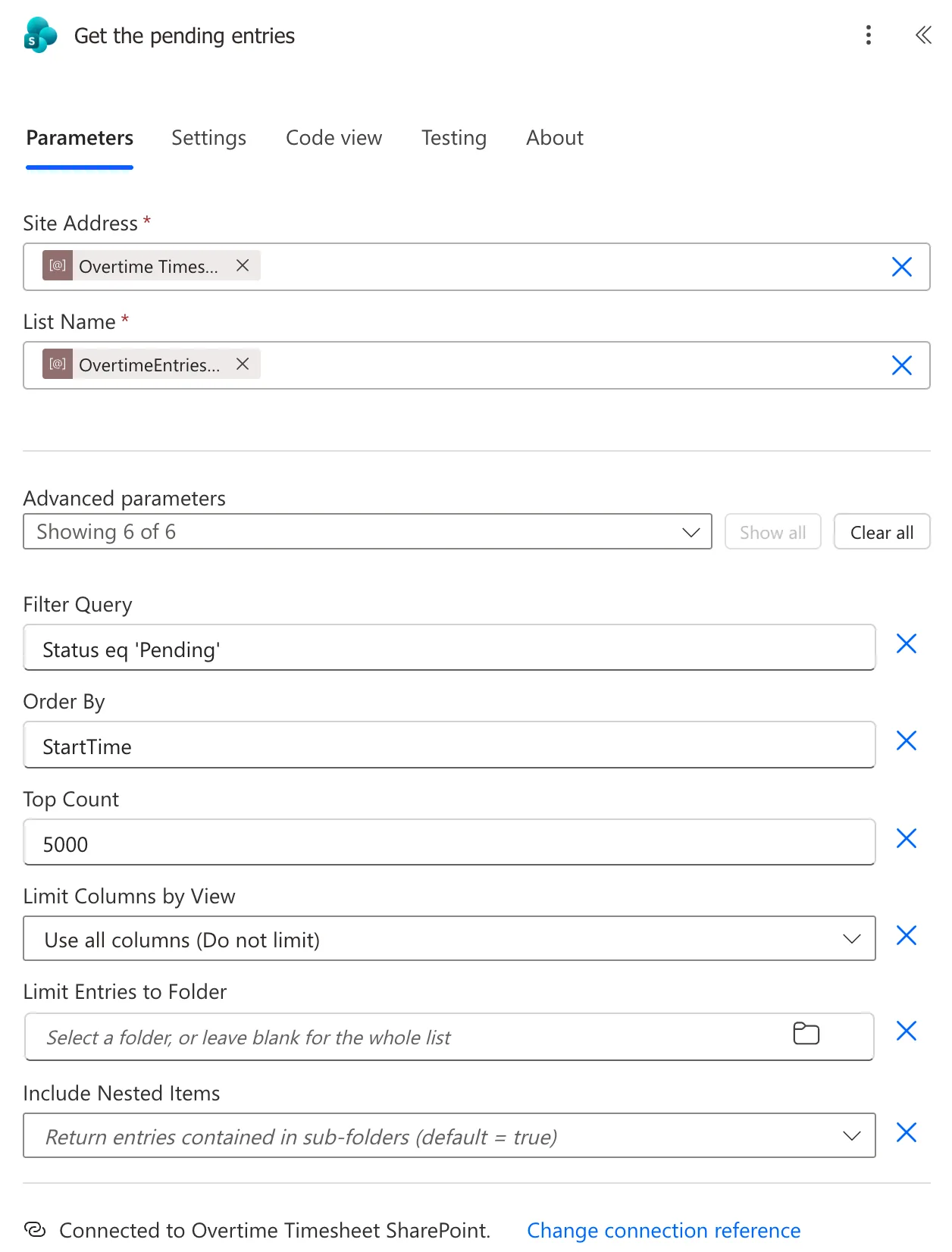
A second Get items, named Get the pending entries, reads OvertimeEntries through its environment variables, with three advanced parameters (How to Filter SharePoint Items with a Filter Query in Power Automate and How to Sort SharePoint Items and Get More Than 100 in Power Automate):
| Parameter | Value | Why |
|---|---|---|
| Filter Query | Status eq 'Pending' | Only entries waiting for a decision leave SharePoint |
| Order By | StartTime | Oldest shift first |
| Top Count | 5000 | Microsoft documents a default of 100 items |
Step 5: Keep the Caller's Entries
Filter array, named Entries waiting for the caller, takes the body/value of Get the pending entries. In advanced mode, one expression keeps an entry when its department is in MyDepartmentIds and the caller didn't write it (How to Filter an Array by Two Conditions in Power Automate):
@and(contains(variables('MyDepartmentIds'), int(string(item()?['DepartmentId']))), not(equals(toLower(item()?['Author']?['Email']), toLower(outputs('Get_the_caller')?['body/mail']))))
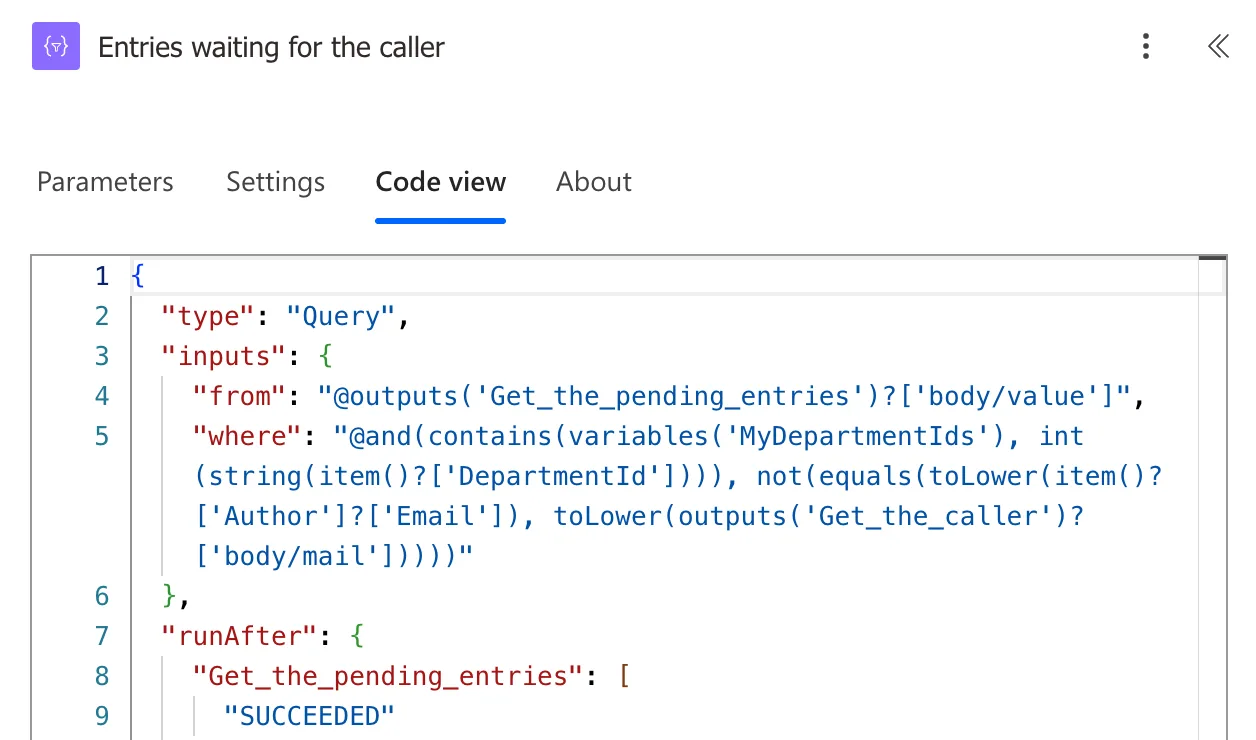
The first version didn't have int(string(...)), and it kept nothing: the run showed MyDepartmentIds as [2] and two entries with DepartmentId 2, and contains() still said false. A temporary Select that showed each part of the condition found that equals() matched the same number. Converting the SharePoint number to a whole number fixed it (Fixed: contains() Returns False for a SharePoint Number in Power Automate).
Step 6: Return Seven Fields as JSON
Select, named Waiting entries, takes the Body of Entries waiting for the caller and keeps seven fields, each an expression on item() (How to Keep Several Fields from Each Item with Select in Power Automate):
| Key | Value |
|---|---|
id | item()?['ID'] |
employee | item()?['Author']?['DisplayName'] |
department | item()?['Department'] |
startTime | item()?['StartTime'] |
endTime | item()?['EndTime'] |
breakMinutes | item()?['BreakMinutes'] |
savedOn | item()?['Modified'] |
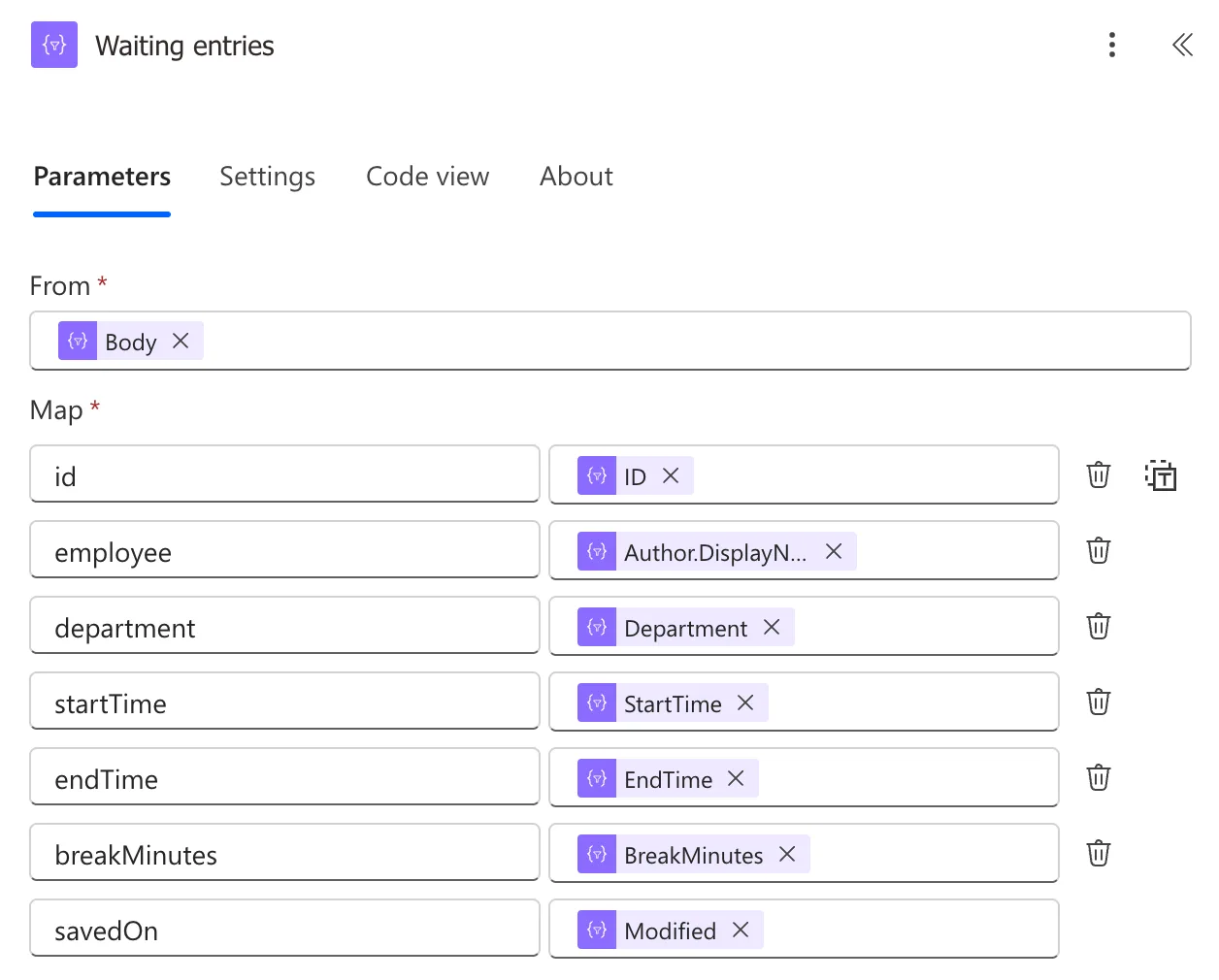
The first version also returned reason. When the screen turned out not to show it (Step 10), I removed the row and published the flow again, so the reason stays in SharePoint.
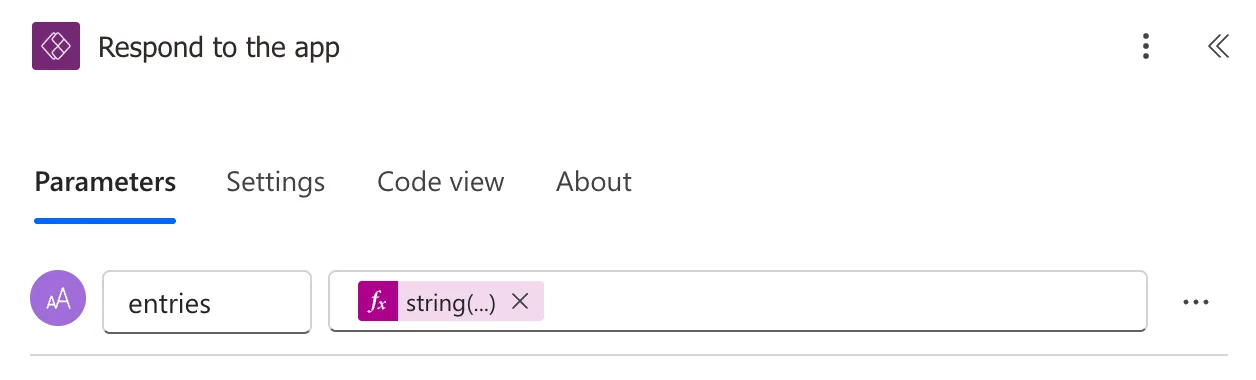
The last action, Respond to a Power App or flow, named Respond to the app, has one Text output, entries (How to Return a Table from a Flow to Power Apps as JSON in Power Automate):
string(body('Waiting_entries'))
Step 7: Check, Publish and Test the Flow
Flow checker found no errors and no warnings, and Publish said Your flow is ready to go. The whole flow:
I tested it manually (How to Test a Cloud Flow Manually in Power Automate). The Run flow panel listed the two connections it would use, and the run succeeded. Respond to the app returned entries as [], an empty list: the flow's maker approves no department.
Step 8: Choose the Flow's Connections for Approvers
On the flow's details page, select Edit on the Run only users card. Under Connections Used, set (How to Choose the Connections Run-Only Users Use in Power Automate):
| Connector | Setting | Why |
|---|---|---|
| Office 365 Users | Provided by run-only user | Get the caller must return the approver |
| SharePoint | Use this connection (the owner's) | Approvers can't read other people's entries |
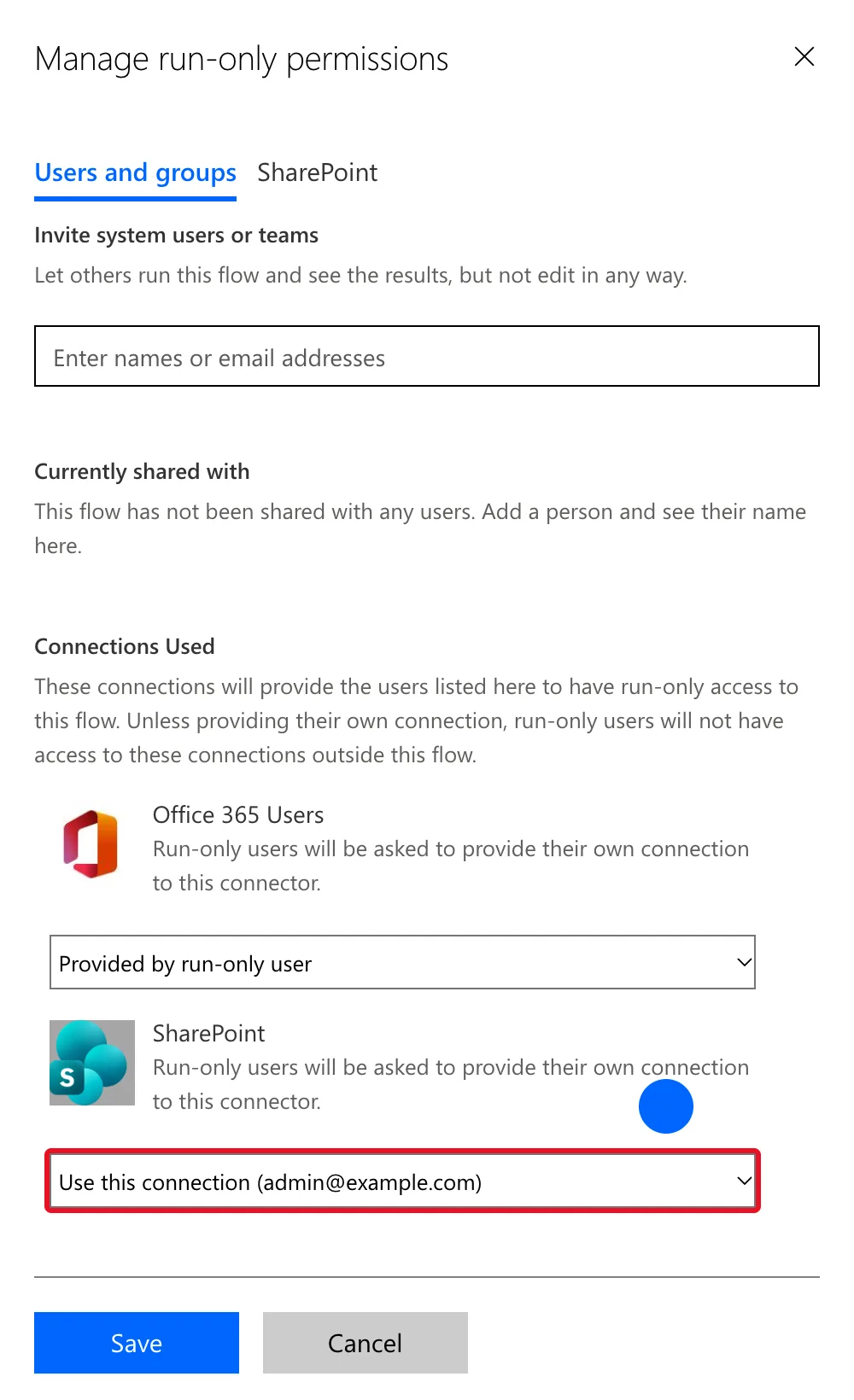
Confirm with OK and Save. The approvers themselves are added in Step 13.
With the owner's SharePoint connection, the flow can read every entry for anyone who runs it. That's why Steps 2 to 6 decide everything from the caller's own identity and return nothing else.
Step 9: Add the Flow to the App
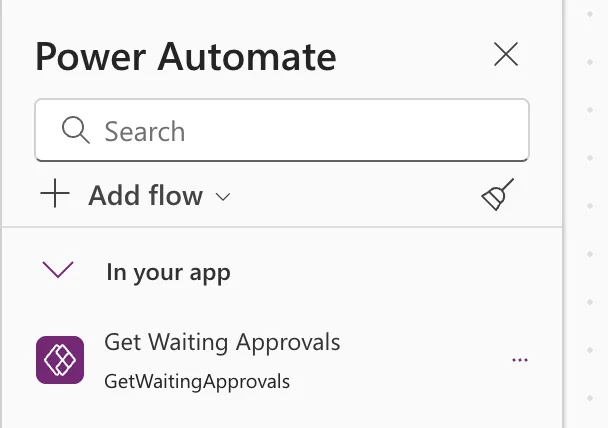
Open the app in Power Apps Studio. Select More (…) on the left bar, then Power Automate, Add flow, and Get Waiting Approvals (How to Add a Flow to a Canvas App in Power Apps). Formulas call it as GetWaitingApprovals:
Step 10: Build the Waiting for Approval Screen
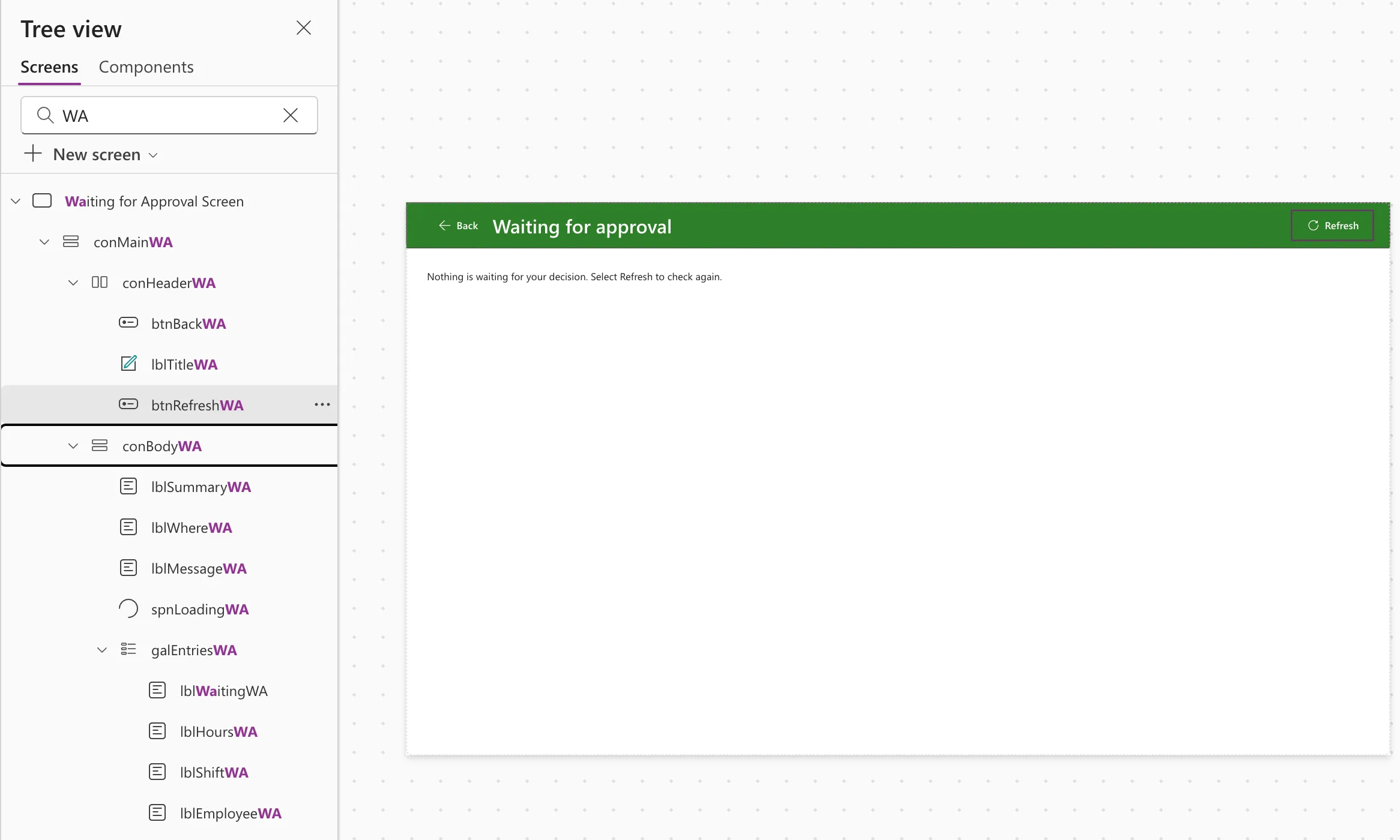
The screen follows the same pattern as My Overtime in Part 7:
Waiting for Approval Screen
└─ conMainWA                  vertical: fills the screen
   ├─ conHeaderWA             horizontal: copied from the My Overtime screen
   │  ├─ btnBackWA
   │  ├─ lblTitleWA           "Waiting for approval"
   │  └─ btnRefreshWA         loads the entries
   └─ conBodyWA               vertical: scrolling
      ├─ lblSummaryWA         how many entries are waiting
      ├─ lblWhereWA           where to approve or reject them
      ├─ lblMessageWA         nothing waiting, or the load failed
      ├─ spnLoadingWA         while the flow runs
      └─ galEntriesWA         one card per entry
The screen. Add a blank screen named Waiting for Approval Screen (How to Add a New Screen in Power Apps).
The main container. Insert a vertical container, conMainWA, with the same settings as My Overtime's: X, Y 0; Width Parent.Width; Height Parent.Height; Align (horizontal) Stretch; Padding 0; Drop shadow None; Border radius 0 (How to Add a Vertical Container in Power Apps).
The header. Copy conHeaderMO on the My Overtime screen and paste it into conMainWA (How to Copy and Paste Controls Between Screens in Power Apps). Rename the copies conHeaderWA, btnBackWA, lblTitleWA and btnRefreshWA, and set the title's Text to "Waiting for approval". The buttons keep their layout formulas, so Refresh shows only its icon on phones.
The body. Insert a vertical container after the header, conBodyWA: Flexible height On; Align (horizontal) Start; Gap 16; Padding 24; Vertical overflow Scroll; Drop shadow None; Border radius 0.
The text above the list. Three Text controls in conBodyWA, each with Width Min(640, Parent.Width - 48), Auto height on, Align in container Start and AccessibleLabel Self.Text:
| Control | Size | Text |
|---|---|---|
lblSummaryWA | 20, Semibold | If(CountRows(locEntriesWA) = 1, "1 entry is waiting for your decision.", $"{CountRows(locEntriesWA)} entries are waiting for your decision.") |
lblWhereWA | 12 | "Approve or reject each entry in the Approvals app in Microsoft Teams, from its email in Outlook, or in Power Automate. Select Refresh to update this list." |
lblMessageWA | 14 | Step 11 |
The spinner. A Spinner, spnLoadingWA, with Label "Loading what's waiting for you...", Visible locIsLoadingWA and Align in container Start (How to Add a Loading Spinner in Power Apps).
The list. Insert a Vertical gallery, set Layout to Blank, and name it galEntriesWA (How to Add a Vertical Gallery in Power Apps and Connect It to a SharePoint List). Studio put it in the middle of the body, so move it to the end with Reorder > Move to end (How to Reorder Controls in a Container in Power Apps). Its properties:
| Property | Value |
|---|---|
| Items | locEntriesWA |
| Width | Min(640, Parent.Width - 48) |
| Align in container | Start |
| Template size | 130 |
| Template padding | 8 |
| Template fill | App.Theme.Colors.Lighter80 |
| Flexible height | On, with Minimum height 240 |
| Selectable | false |
| AccessibleLabel | "Overtime entries waiting for your decision" |
The card. Four Text controls in the gallery's template, each with X 16, Width Parent.TemplateWidth - 32, Height 24, Size 14 unless shown, top and bottom padding 0, and AccessibleLabel Self.Text (How to Use ThisItem in a Power Apps Gallery):
| Control | Y | Text |
|---|---|---|
lblEmployeeWA (size 16, Semibold) | 12 | ThisItem.Employee |
lblShiftWA | 42 | Below |
lblHoursWA | 68 | Below |
lblWaitingWA | 94 | $"Waiting since {Text(ThisItem.SavedOn, "dd/mm/yyyy hh:mm")}" |
$"{Text(ThisItem.StartTime, "ddd dd/mm/yyyy")}, {Text(ThisItem.StartTime, "hh:mm")} to {Text(ThisItem.EndTime, "hh:mm")}{If(Day(ThisItem.EndTime) <> Day(ThisItem.StartTime), " next day", "")}"
$"{Text((DateDiff(ThisItem.StartTime, ThisItem.EndTime, TimeUnit.Minutes) - ThisItem.BreakMinutes) / 60, "0.00")} hours, {ThisItem.Department}"
The hours come from the times and the break, as in Part 8's approval request, not from the Hours column, which can be edited in SharePoint (How to Calculate the Minutes Between Two Times in Power Apps with DateDiff and How to Show That a Shift Ends the Next Day in Power Apps).
I inserted the four Text controls with the gallery selected, and they went into conBodyWA beside the gallery, not into its template. I cut them from the tree view, selected the gallery's template with its pencil icon, and pasted them there; they kept their names, and I set their X and Y again (Fixed: New Control Lands Outside the Gallery Instead of Inside It in Power Apps).
The entry's Reason isn't on the card: the Log Overtime screen allows up to 500 characters (Part 6), and the card has a fixed height for four lines. Approvers see the reason in the approval request itself.
Step 11: Load the Entries
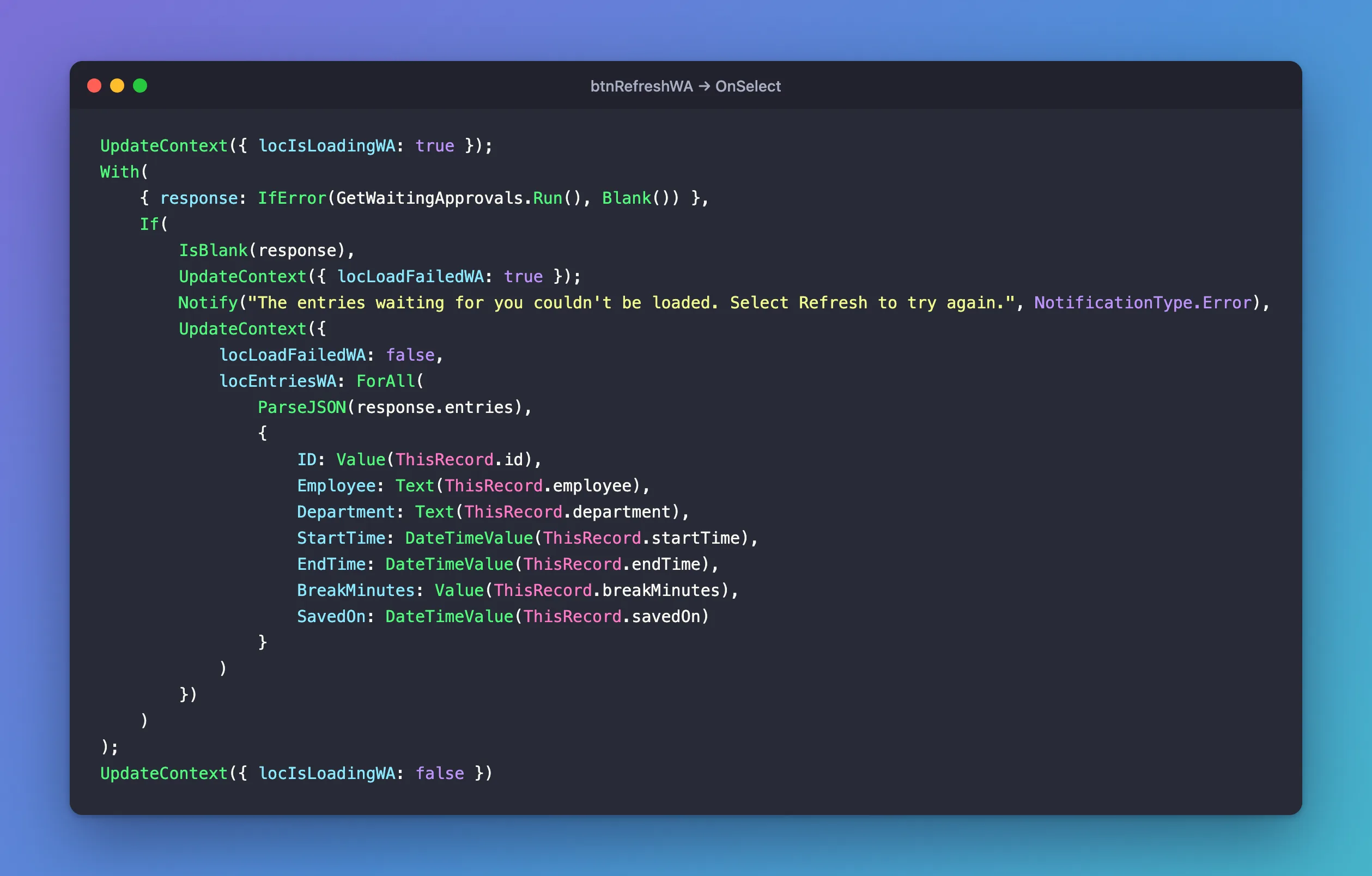
Refresh runs the flow and turns its JSON into a table (How to Run a Flow and Use Its Result in Power Apps, How to Turn JSON Text into a Table with ParseJSON in Power Apps and How to Handle a Failed Flow Call in Power Apps):
UpdateContext({ locIsLoadingWA: true });
With(
    { response: IfError(GetWaitingApprovals.Run(), Blank()) },
    If(
        IsBlank(response),
        UpdateContext({ locLoadFailedWA: true });
        Notify("The entries waiting for you couldn't be loaded. Select Refresh to try again.", NotificationType.Error),
        UpdateContext({
            locLoadFailedWA: false,
            locEntriesWA: ForAll(
                ParseJSON(response.entries),
                {
                    ID: Value(ThisRecord.id),
                    Employee: Text(ThisRecord.employee),
                    Department: Text(ThisRecord.department),
                    StartTime: DateTimeValue(ThisRecord.startTime),
                    EndTime: DateTimeValue(ThisRecord.endTime),
                    BreakMinutes: Value(ThisRecord.breakMinutes),
                    SavedOn: DateTimeValue(ThisRecord.savedOn)
                }
            )
        })
    )
);
UpdateContext({ locIsLoadingWA: false })
locIsLoadingWAshows the spinner while the flow runs.IfError(GetWaitingApprovals.Run(), Blank())turns a failed call into a blank.locLoadFailedWAremembers that the last load failed, so the screen can say so.ForAll(ParseJSON(...))turns the JSON text into a table, with each field converted to its type.
The screen loads the entries when it opens:
Select(btnRefreshWA)
The labels show or hide from those variables. lblMessageWA shows one of two sentences:
If(
    locLoadFailedWA,
    "The entries waiting for you couldn't be loaded. Select Refresh to try again.",
    "Nothing is waiting for your decision. Select Refresh to check again."
)
!locIsLoadingWA && (locLoadFailedWA || IsEmpty(locEntriesWA))
!locIsLoadingWA && !locLoadFailedWA && !IsEmpty(locEntriesWA)
This isn't the formula I wrote first. My first version put IfError around the UpdateContext, and the first time the flow call failed, Power Apps showed its raw Run failed banner and the screen went blank. UpdateContext stores an error in the variable instead of failing, so IfError never saw it (Fixed: IfError Doesn't Catch a Flow's Run Failed Error in Power Apps).
In Studio, selecting the screen in the tree view ran its OnVisible, so the flow ran as the maker: the screen said Nothing is waiting for your decision.
Step 12: Open the Screen from the Home Screen
On the Home screen, the Waiting for approval button, btnApprovalsHS, shows only for approvers since Part 5. Its OnSelect was false; now it opens the screen (How to Go to Another Screen in Power Apps with Navigate):
Navigate('Waiting for Approval Screen')
Step 13: Check, Publish and Share
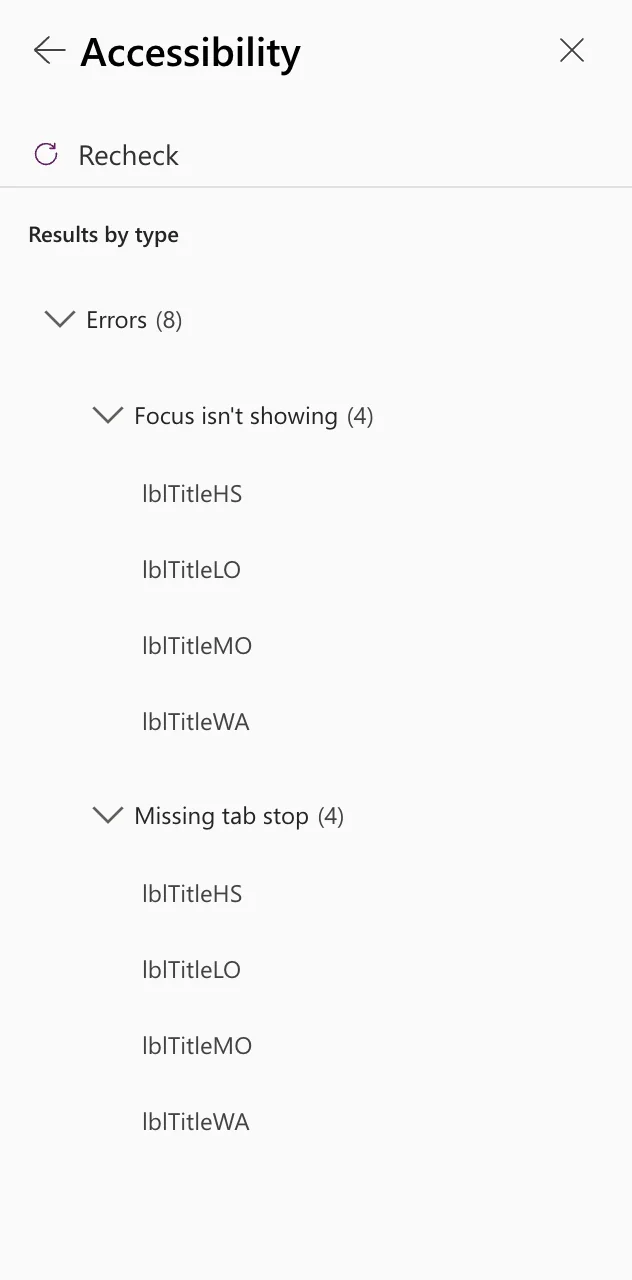
Run the App checker. Its Accessibility section listed 13 errors: the two that each screen title has had since Part 5, now for four titles, and five on the new gallery and its card labels:
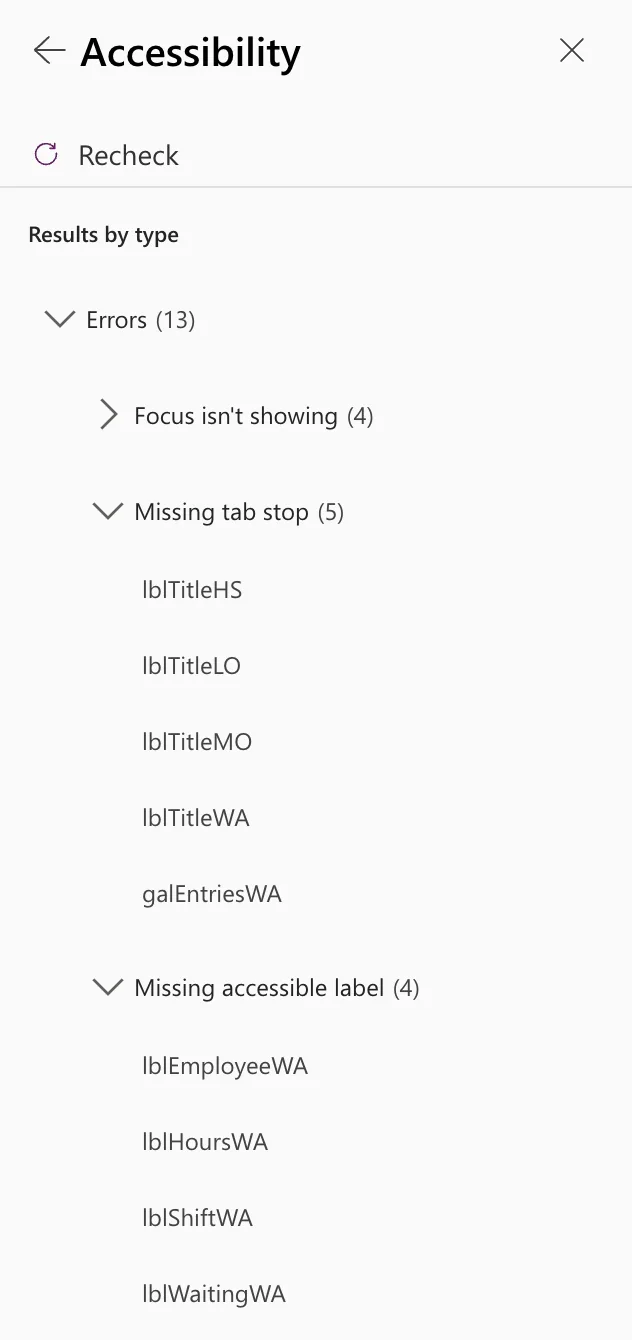
The four card labels needed AccessibleLabel Self.Text (Fixed: "Missing Accessible Label" in the Power Apps App Checker), and the gallery needed TabIndex 0 (Fixed: "Missing Tab Stop" in the Power Apps App Checker). The eight left are the title errors, as in Parts 5 to 7:
Refresh the flow in the app. I had removed reason from the flow (Step 6) after adding it to the app. Microsoft's Power Automate pane article says a flow changed outside Studio must be refreshed in the app, or it may fail to run, so I selected More > Refresh on it (How to Refresh a Flow in a Canvas App in Power Apps).
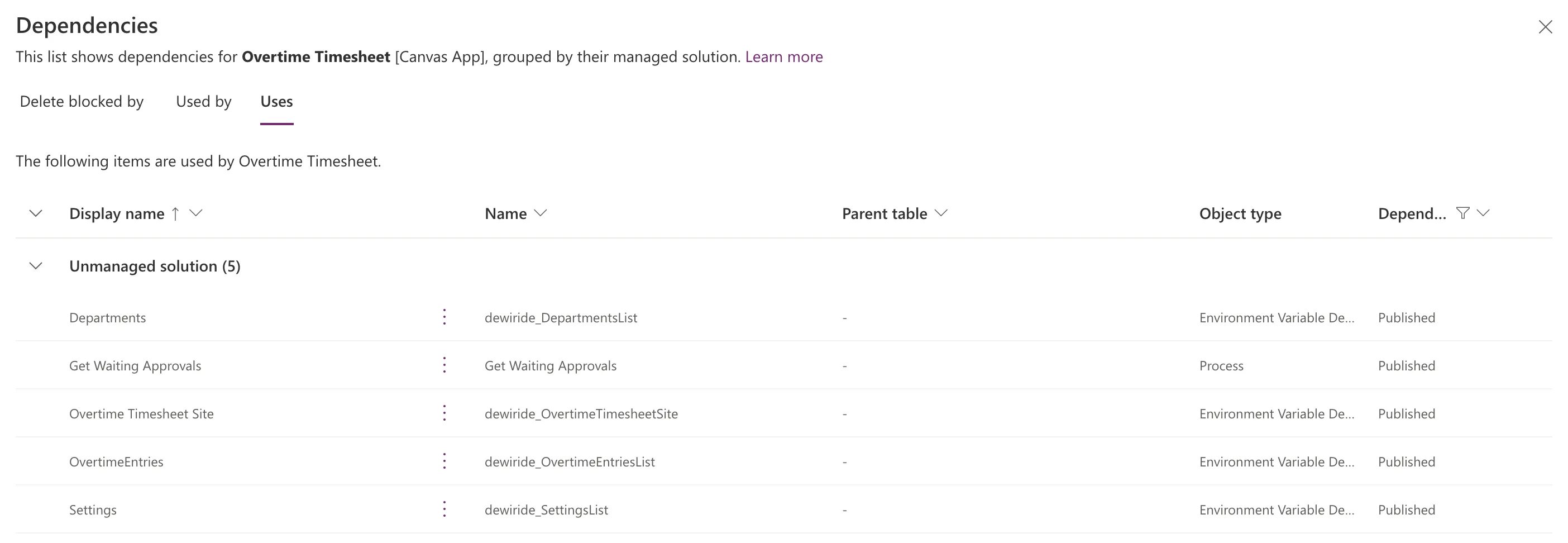
Save and publish the app. Then, in the solution, the app's Show dependencies > Uses listed the flow as a Process, beside the environment variables. Before the publish, it hadn't: the list follows the published version (How to See What a Canvas App Uses with Show Dependencies in Power Apps).
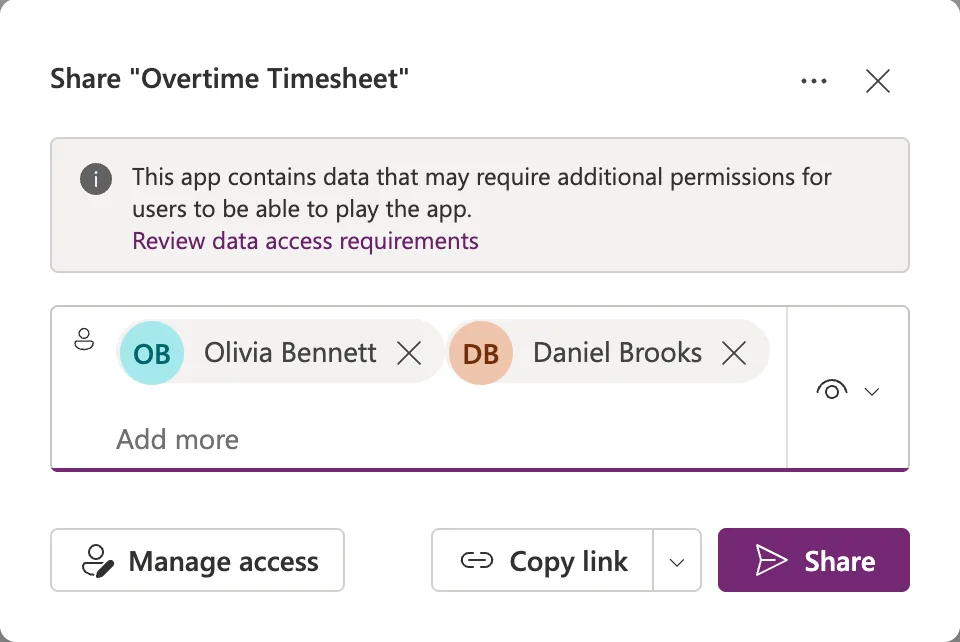
Share the app and the flow with the approvers. This share is for testing with the two approvers. Part 15 shares the app with the Overtime Timesheet Users group and adds it to Microsoft Teams.
-
Share the app with Olivia and Daniel as User (How to Share a Canvas App with Specific People in Power Apps). The share's Additional data access listed the flow, as Logic flows:
-
Add them as run-only users of Get Waiting Approvals (How to Share a Flow with Run-Only Users in Power Automate):
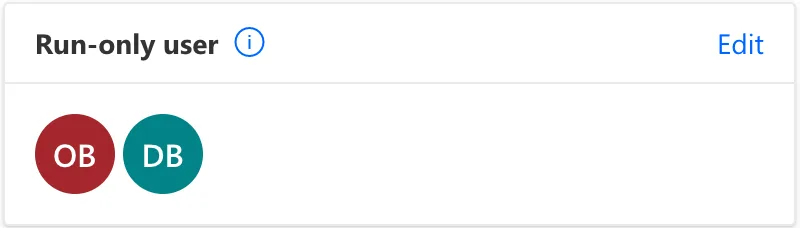
I did the first and not the second at first. When Daniel opened the screen, the flow call failed before the flow even started, and no run appeared in its history:

The flow is a record in Dataverse, and sharing the app doesn't share it (Fixed: "Does Not Have ReadAccess Right(s) … of Entity Process" When Power Apps Runs a Flow). Once the two approvers were run-only users, the flow ran for them.
Step 14: Test as the Approvers
Four entries were pending: two of mine in the Emergency Department, one of mine in Radiology, and one of Daniel's in Radiology. I signed in as each approver in their own browser profile.
Daniel opens the app. In Apps > Shared with me, selecting the app's name showed There was a problem opening this app: the name opens it for editing, which a User can't do (Fixed: "There Was a Problem Opening This App" in Power Apps). More commands > Play opened it (How to Find Apps Shared with You in Power Apps). The first time, it asked him to allow its connections, including the Office 365 Users connection the flow uses as him:
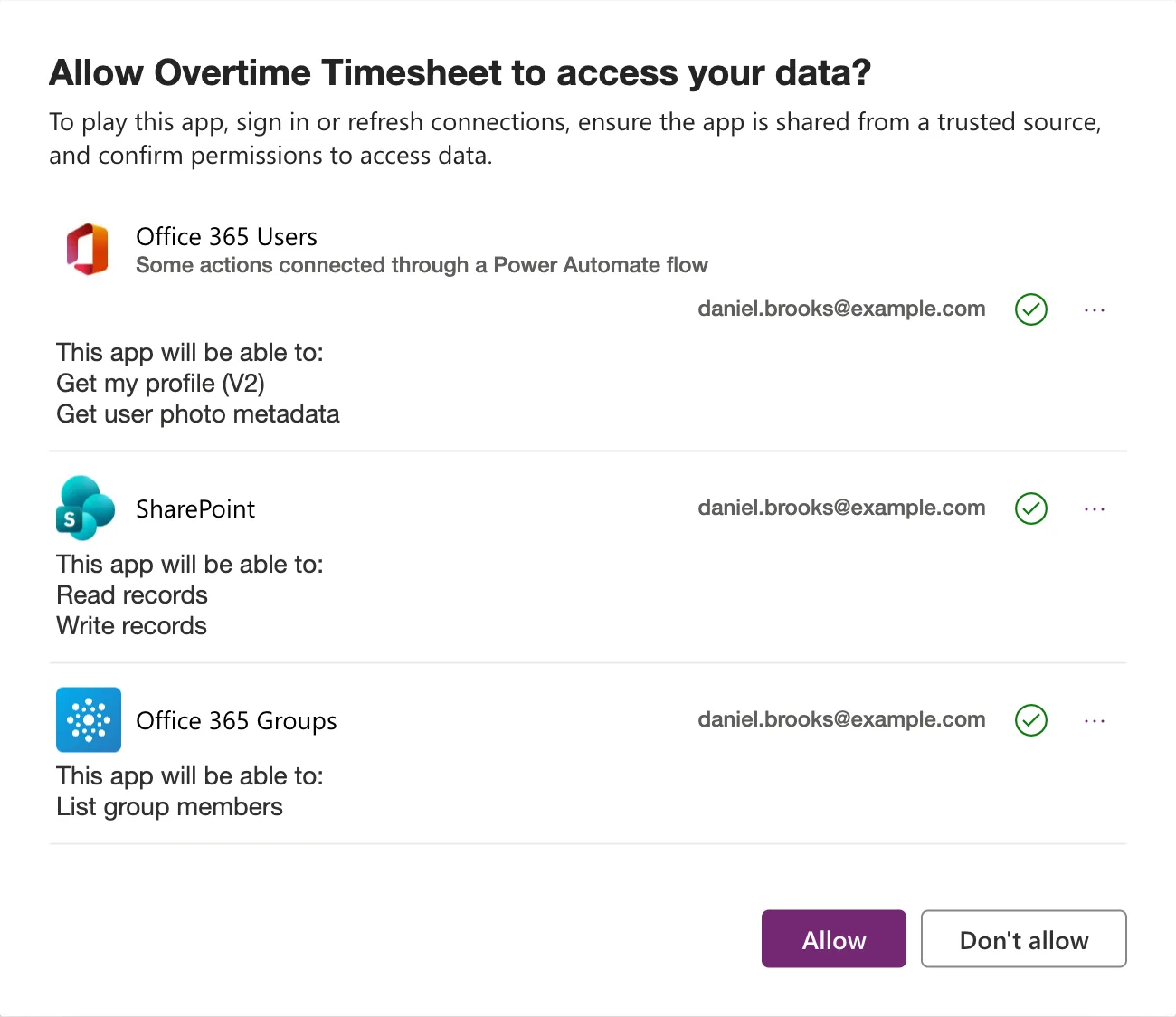
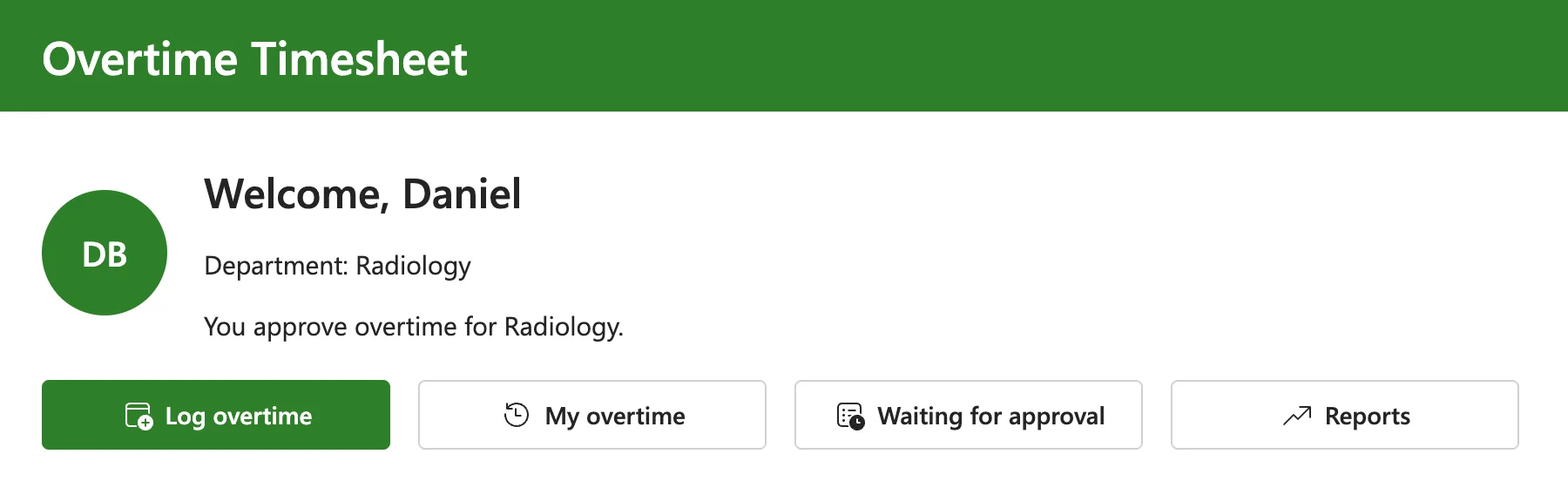
The flow's SharePoint connection isn't in the list: it's the owner's. After Allow, his Home screen showed the Waiting for approval button:
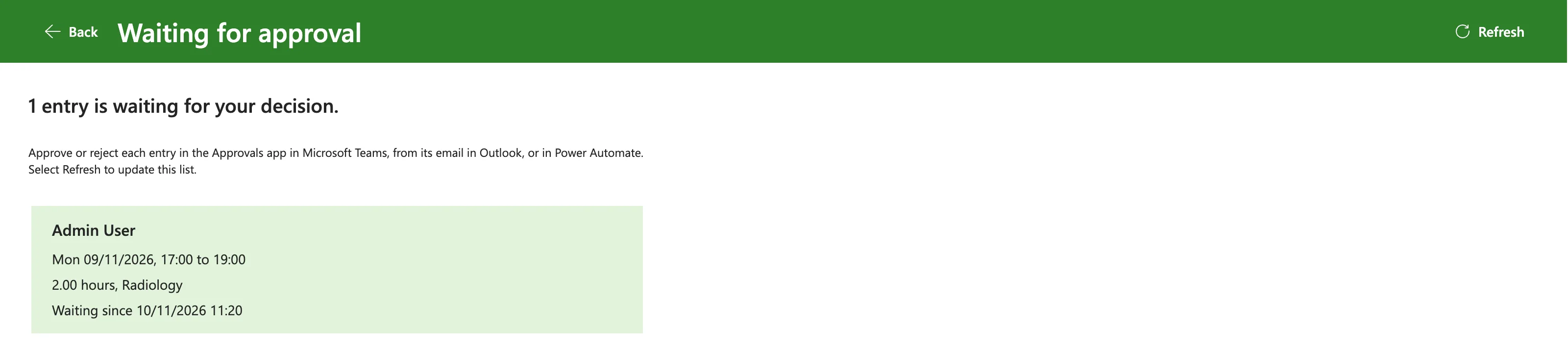
Daniel's list. One entry: my Radiology shift. His own Radiology entry isn't there, as the filter intends:
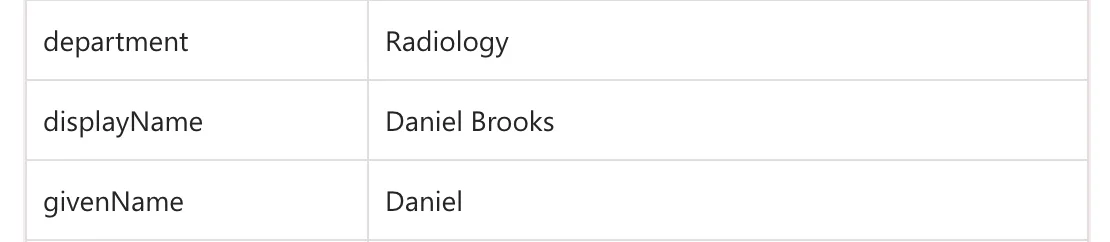
The flow's run history showed his runs. In one of them, Get the caller returned his profile, so the flow ran as him:
Olivia's list. My two Emergency Department entries, oldest shift first, as in the picture at the top of this part. She approved the 29 October entry in Power Automate's Approvals (How to Respond to Approvals in Power Automate), and about a minute later, Refresh showed one entry left:
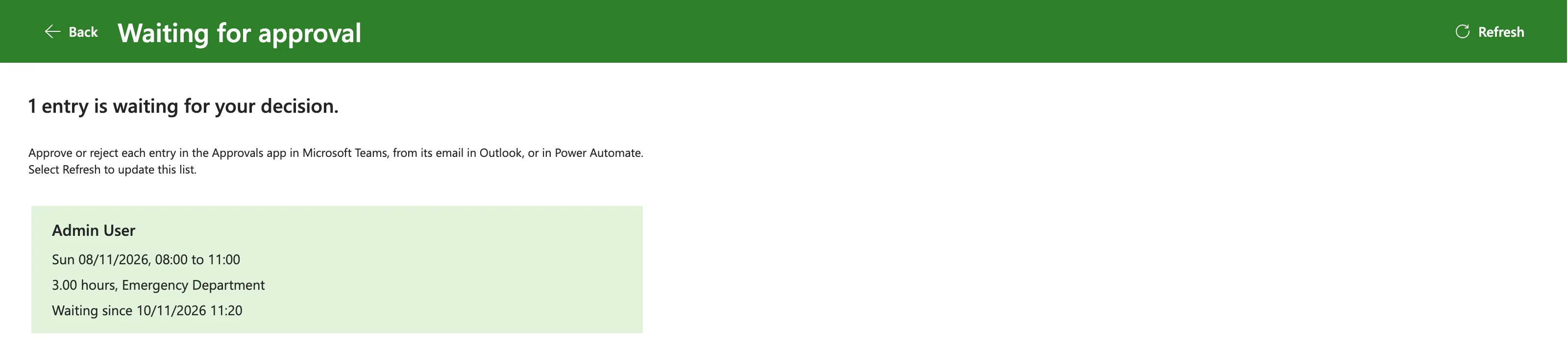
She approved that one too, and Refresh showed the empty message:

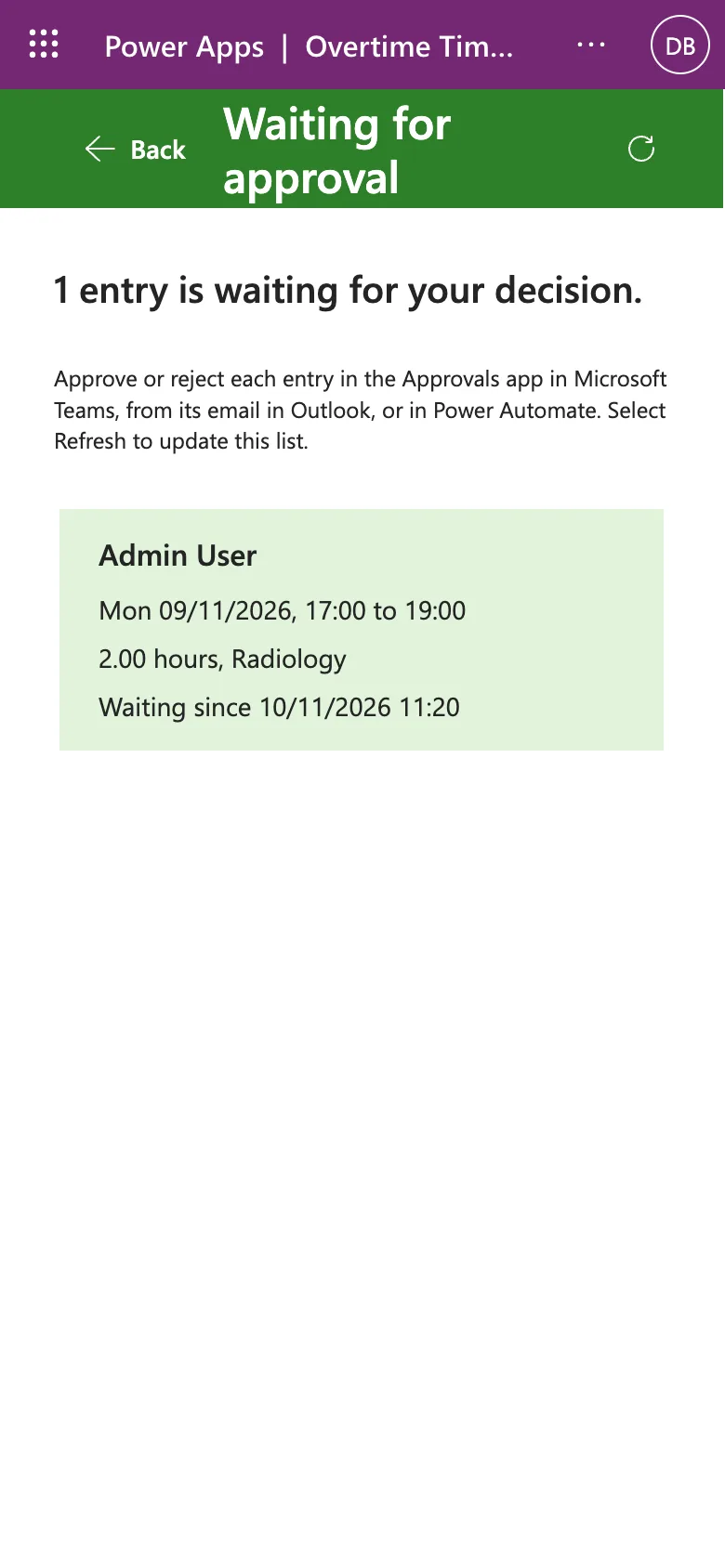
On a phone. In a browser window 390 wide, the title wrapped onto two lines and the second was cut off: the label was 40 high with padding, inside a header 64 high. Setting the title's Height to Parent.Height and its top and bottom padding to 0 let both lines show (Fixed: Text Is Cut Off Inside a Container on Small Screens in Power Apps):
After each publish. For several minutes after I published a fix, the approvers' browsers still loaded the old version, even in a new tab, with the notices A new version of this app is coming and You're using an old version of this app. Opening the app again a few minutes later loaded the new one (Fixed: Users Still See the Old Version After You Publish a Canvas App in Power Apps).
What the Screen Doesn't Show
The screen lists the entries in the departments a person approves. In Part 8, an approver's own overtime goes to their manager instead. Daniel's own Radiology entry goes to me, as his manager, and I approve no department, so it isn't on any Waiting for Approval screen: managers answer those requests in Teams, Outlook or Power Automate, where Part 8 sends them. The screen is a convenience; the approval requests stay the record of what's waiting.
Common Mistakes
| Mistake | What happens | Do this instead |
|---|---|---|
| Reading the entries in the app with the approver's own connection | They see only their own entries | A flow with the owner's SharePoint connection |
| Sending the approver's email from the app to the flow | Anyone could ask for another person's entries | Get my profile (V2) with the runner's connection |
| Picking Approvers from dynamic content inside the loop | A second loop over all the departments | items('For_each_department')?['Approvers'] |
contains() on the SharePoint number | Nothing matches | int(string(item()?['DepartmentId'])) |
IfError around UpdateContext | The raw banner shows, and the screen goes blank | IfError around Run() |
| Sharing the app but not the flow | ReadAccess right(s) … of entity Process | Run-only users on the flow |
| Changing the flow without refreshing it in the app | The app may fail to run it | Refresh it in the Power Automate pane |
| Returning every field of each entry | Data the screen doesn't need reaches the device | Select seven fields |
Troubleshooting
| Symptom | Likely cause | Fix |
|---|---|---|
| The screen says nothing is waiting, but entries are pending | The filter matches nothing, or the person approves no department | Check MyDepartmentIds and the filter's output in the run |
| GetWaitingApprovals.Run failed with entity Process | The flow isn't shared with the person | Add them as run-only users |
| No run in the flow's history | The call failed before the flow started | Check the flow's sharing |
| There was a problem opening this app | The app was opened for editing | More commands > Play |
| A fix doesn't show for an approver | Their browser has the old version | Open the app again a few minutes later |
| An approver's own entry isn't listed | Expected: it goes to their manager | Their manager answers it in Teams or Outlook |
| The title is cut off on a phone | The label is shorter than the header | Height Parent.Height, padding 0 |
FAQ
Why not let approvers read the list in SharePoint?
Part 3 keeps each person's overtime private, even in SharePoint. The flow reads with the owner's connection and returns only what each approver needs, so the list stays private.
Can approvers approve from the screen?
Not in this part. The request each entry needs is already waiting in the Approvals service, and the flow from Part 8 is waiting for its answer, so the screen says where to give it.
Does this need premium licenses?
No. SharePoint and Office 365 Users are standard connectors. The flow's details page says it runs on The user who runs the flow, and Microsoft's licensing FAQ says instant flows, including those Power Apps runs, use the invoking user's license.
Why does it take a moment to load?
The app waits for the flow, which reads two lists and goes through every department. The spinner shows while it runs, and a flow has 120 seconds to respond.
What happens when someone stops being an approver?
The flow reads the Departments list on every run, so the next Refresh shows the change. The Waiting for approval button follows the same list, as Part 5 set it up.
Conclusion
Approvers now have a screen with everything waiting for them:
- Get Waiting Approvals, a flow in the app's solution with the Power Apps (V2) trigger;
- the caller identified with their own Office 365 Users connection, and the entries read with the owner's SharePoint connection;
- the approver's departments from the Departments list, their pending entries, and none of their own;
- seven fields of each entry returned as JSON text, turned into a table in the app;
- a screen with a spinner, a count, a card per entry and plain messages when nothing is waiting or the load fails;
- the app and the flow shared with the approvers, and tested as each of them, on a phone too.
Part 10 builds the Departments screen, where admins add departments and choose their approvers.
Additional Resources
- Use Power Automate pane: adding, running and refreshing flows in canvas apps.
- Share a cloud flow with run-only permissions: run-only users and their connections.
- ParseJSON function: turning JSON text into typed values.
- Error handling in Power Fx:
IfErrorand how errors are reported. - In-depth analysis into Get items and Get files: filter queries, sorting and item limits.
- Reference guide to functions in expressions: every function in this flow.
← Previous: Part 8: Build the Approval Flow for Teams and Outlook Next → Part 10: Build the Departments Screen (coming soon)
