Build an Overtime Timesheet App in Power Apps — Part 3: Keep Overtime Private with SharePoint Permissions

Overtime is pay, and pay is private. This part makes SharePoint itself enforce that, not just the app: each person can open only their own overtime entries, nobody but the site's owners can delete them, editing an approved entry sends it back for approval, and payroll's library is for payroll alone. Then four people sign in and try it.
This is Part 3 of a 20-part series.
- Part 1: Plan the App and Set Up the Demo Organization
- Part 2: Create the SharePoint Site and Lists
- Part 3: Keep Overtime Private with SharePoint Permissions (you are here)
- Part 4: Create the Solution, Environment Variables and Canvas App
- Part 5: Build the Home Screen
- Part 6: Build the Log Overtime Screen
- Part 7: Build the My Overtime Screen
- Part 8: Build the Approval Flow for Teams and Outlook
- Part 9: Show Approvers What's Waiting (coming soon)
- Part 10: Build the Departments Screen (coming soon)
- Part 11: Build the Reports Screen (coming soon)
- Part 12: Import the Old Excel Timesheet (coming soon)
- Part 13: Create the Monthly Payroll Workbook with Office Scripts (coming soon)
- Part 14: Build the Power BI Overtime Report (coming soon)
- Part 15: Share the App and Add It to Microsoft Teams (coming soon)
- Part 16: Test Every Role and Department (coming soon)
- Part 17: Build a Setup Flow That Creates the Lists (coming soon)
- Part 18: Run the Solution Checker and Export the Solutions (coming soon)
- Part 19: Install the App in a New Environment (coming soon)
- Part 20: Recap, Production Checklist and Next Steps (coming soon)
What You'll Set Up
After Part 2, only the site's owner can open anything. This part gives each of Part 1's three groups exactly what it needs:
| Who | Site | Departments | OvertimeEntries | Payroll Exports |
|---|---|---|---|---|
| Overtime Timesheet Users: all six people, including approvers and payroll | Read | Read | Add and edit their own entries; no delete | No access |
| Overtime Admins | (as staff) | Add and edit departments; no delete | (as staff) | No access |
| Overtime Payroll | (as staff) | (as staff) | (as staff) | Read |
| The site's owners | Full Control | Full Control | Full Control | Full Control |
Approvers get nothing extra in SharePoint. Olivia, who approves the Emergency Department, can't open Aisha's entries in the list either: the app shows approvers what's waiting through a flow, in Part 9.
Prerequisites
- Part 2 completed: the site, its two lists and the library.
- Part 1's groups in Microsoft Entra: Overtime Timesheet Users, Overtime Payroll and Overtime Admins.
- The SharePoint guides this part relies on. Each step says which one to follow and the values to use:
- How to Create a Custom Permission Level in SharePoint
- How to Give a Group Read-Only Access to a SharePoint Site
- How to Stop Inheriting Permissions on a SharePoint List
- How to Remove a Group's Permissions from a SharePoint List
- How to Give a Group Access to One SharePoint List
- How to Let Users See Only Their Own Items in a SharePoint List
- How to Stop Users Deleting Items in a SharePoint List
- How to Turn On Content Approval for a SharePoint List
- How to Choose Who Can See Draft Items in a SharePoint List
- How to Restrict a SharePoint Document Library to One Group
- How to See Which Lists Have Unique Permissions in SharePoint
- How to Check a User's Permissions in SharePoint
- How to Approve or Reject an Item in a SharePoint List
- How to See the Version History of a SharePoint List Item
Step 1: Create a Permission Level Without Delete
Follow How to Create a Custom Permission Level in SharePoint: copy Contribute, and clear Delete Items and Delete Versions.
| Box | Value |
|---|---|
| Name | Contribute Without Delete |
| Description | Can view, add, and update list items and documents, but not delete them. |
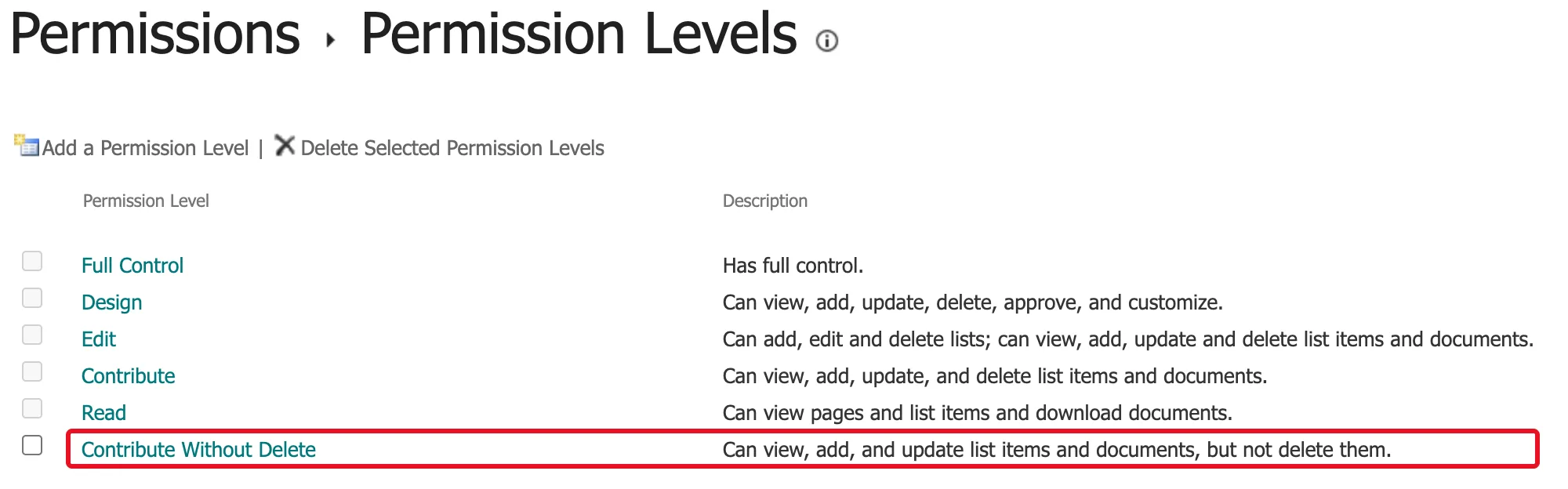
Why not plain Contribute:
- Entries are pay records. A wrong entry is corrected or rejected; it never just disappears. Staff and admins both get this level.
- History stays complete. Without Delete Versions, nobody but the owners can remove an entry's earlier versions.
Step 2: Give the Team Read Access to the Site
Follow How to Give a Group Read-Only Access to a SharePoint Site: Share site, add Overtime Timesheet Users, keep Read, clear Send email.
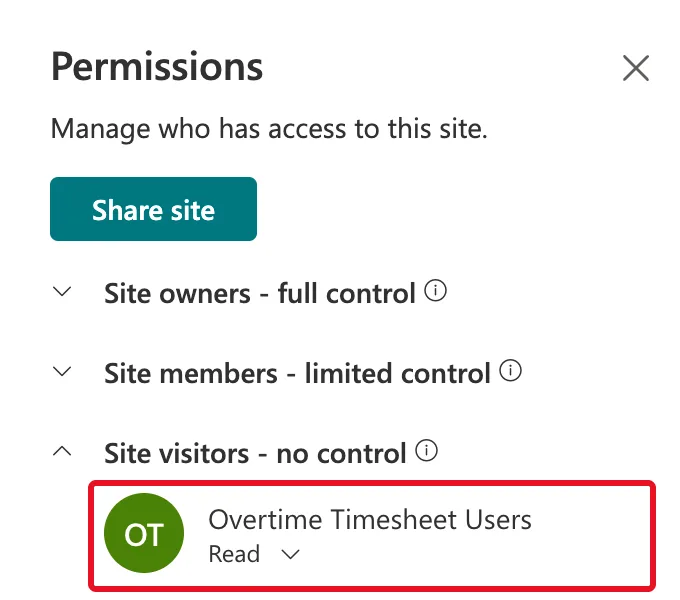
Why:
- Everyone reads Departments. The app's department picker lists them, so all staff need to read that list.
- The site's own group. Share site puts the security group in the site's Visitors group, the way Microsoft recommends for communication sites. Joiners and leavers are handled in Microsoft Entra.
Step 3: Give OvertimeEntries Its Own Permissions
On OvertimeEntries:
- Stop inheriting permissions.
- Remove the copied Overtime Timesheet Members and Overtime Timesheet Visitors.
- Grant Overtime Timesheet Users the level Contribute Without Delete, with Send an email invitation cleared.

Why remove the copies:
- Visitors holds the same people, at Read; the list is clearer with one entry per group.
- Members is empty today, but has Edit, which includes Manage Lists: changing the list's settings. Anyone added to it later would get that on this list.
Step 4: Let Staff See Only Their Own Entries
In the list's Advanced settings, set Item-level Permissions as in How to Let Users See Only Their Own Items in a SharePoint List:
| Setting | Value |
|---|---|
| Read access | Read items that were created by the user |
| Create and Edit access | Create items and edit items that were created by the user |
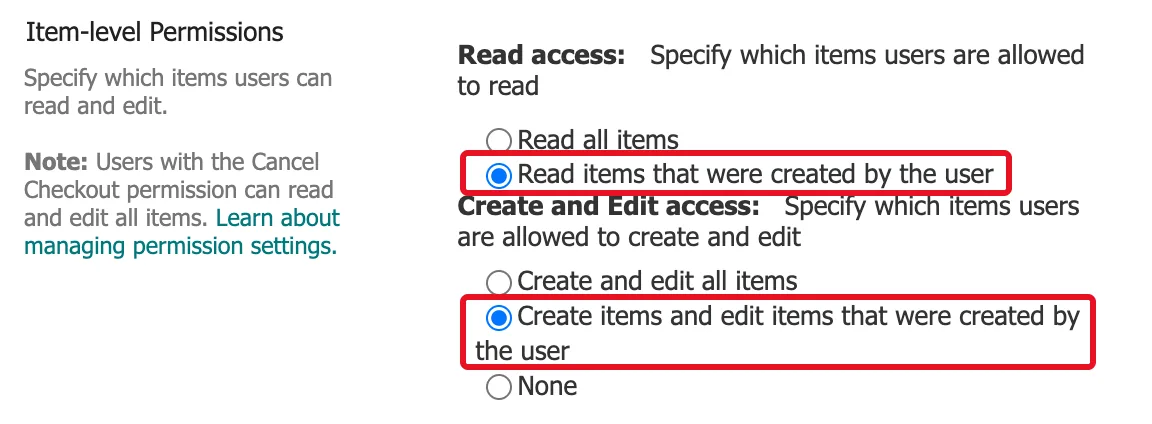
This is the rule Part 1 promised: privacy enforced by SharePoint, so it holds even if someone opens the list directly. Only levels with Override List Behaviors, Design and Full Control on this site, see everything; staff have neither.
Step 5: Send Every New or Changed Entry for Approval
In the list's Versioning settings, as in How to Turn On Content Approval for a SharePoint List:
| Setting | Value |
|---|---|
| Require content approval for submitted items? | Yes |
| Create a version each time you edit an item in this list? | Yes, keeping 50 versions, as it already was |
| Who should see draft items in this list? | Only users who can approve items (and the author of the item) |
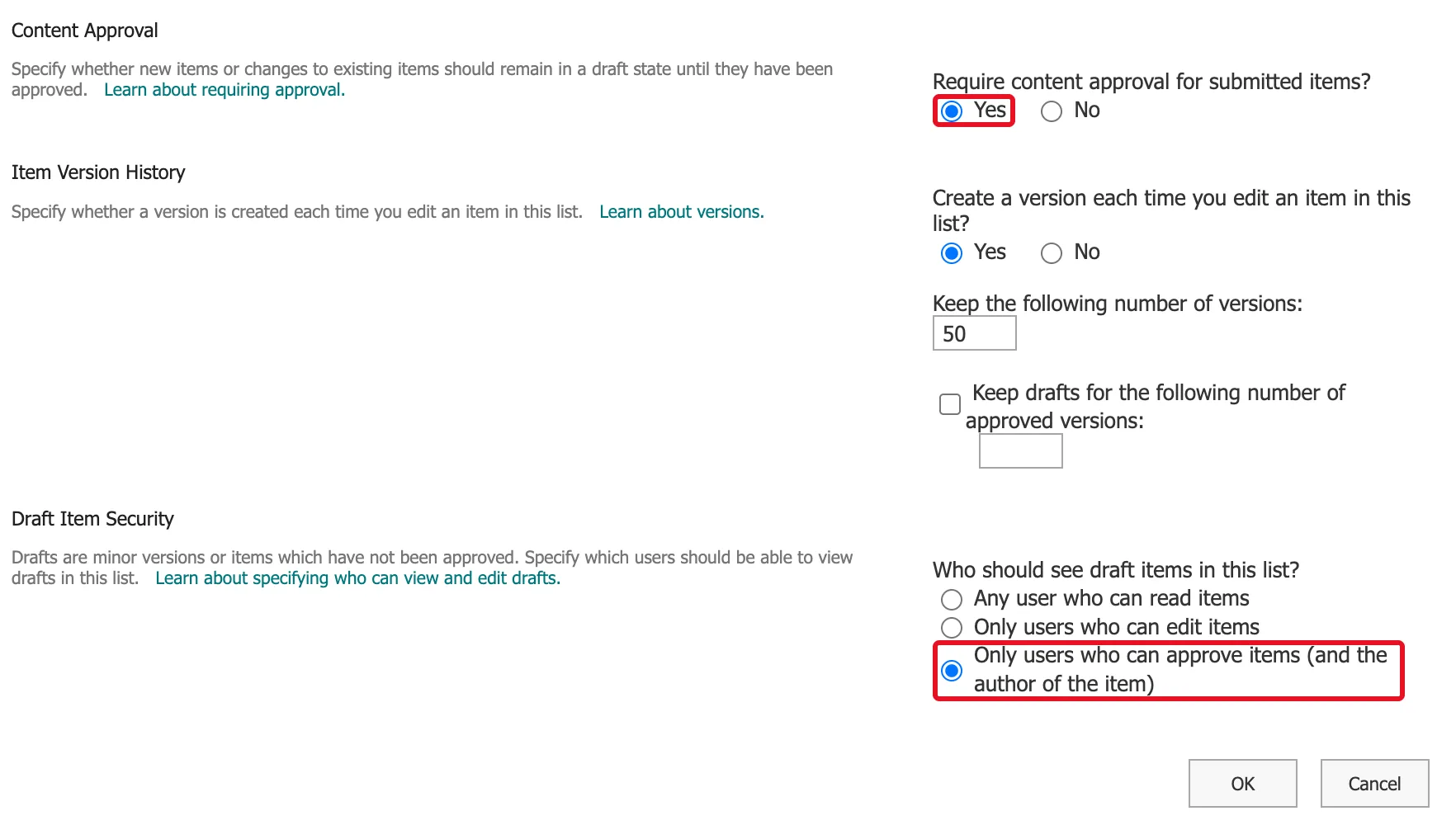
Selecting Yes picked that draft setting by itself; How to Choose Who Can See Draft Items in a SharePoint List explains the three choices.
This is the second promise from Part 1, that approval can't be faked:
- The Approval Status column only changes for someone with Approve Items, which on this site is Design and Full Control. Staff can't approve their own entries.
- The Status column from Part 2 is an ordinary column, and anyone who can edit an entry can change it. The approval flow in Part 8 copies each decision into it; nothing should trust it on its own.
- An edited entry goes back to Pending, so an approval always covers exactly what was approved.
Step 6: Let Only Admins Change Departments
On Departments: stop inheriting, remove only Overtime Timesheet Members, and grant Overtime Admins the level Contribute Without Delete. Visitors stays, so all staff keep reading it.
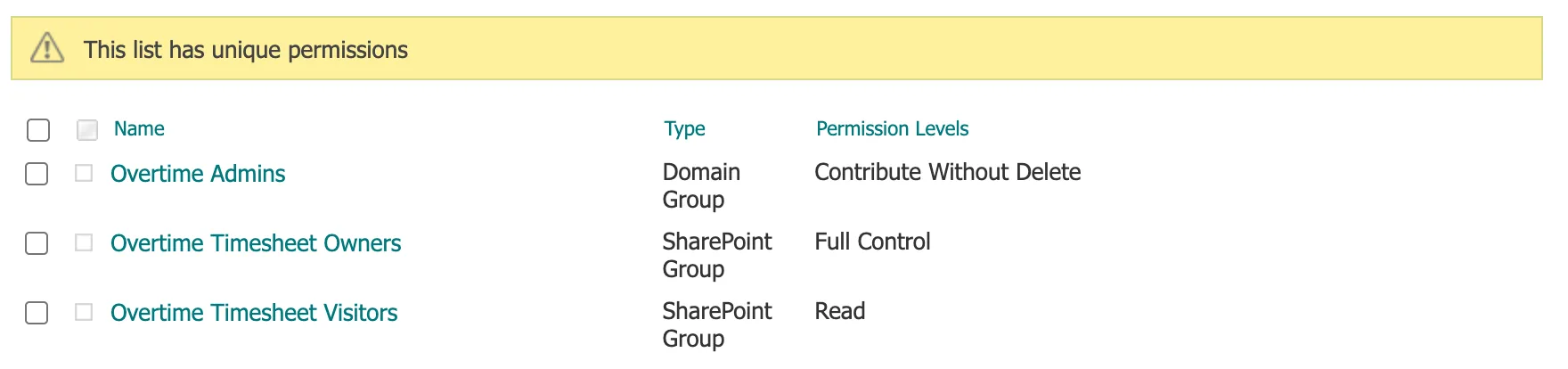
Admins can't delete departments either: a department that closes is switched to IsActive No, as Part 2 designed, so its past overtime still points to it.
Step 7: Keep Payroll Exports for Payroll
On Payroll Exports, follow How to Restrict a SharePoint Document Library to One Group: stop inheriting, remove Members and Visitors, and grant Overtime Payroll the level Read.

Read is enough: the monthly workbook is written by a flow in Part 13, and payroll only opens it.
Step 8: Check the Permissions
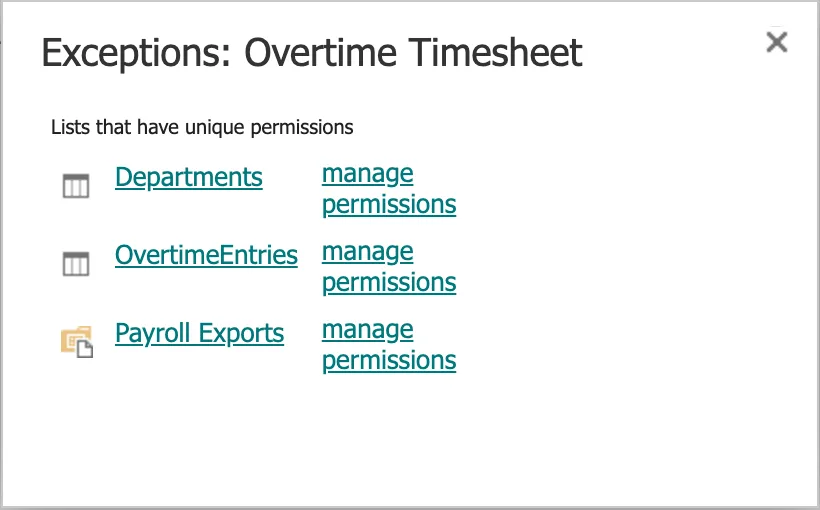
Two checks before anyone signs in. First, the site's Permissions page should list exactly three exceptions, as in How to See Which Lists Have Unique Permissions in SharePoint:
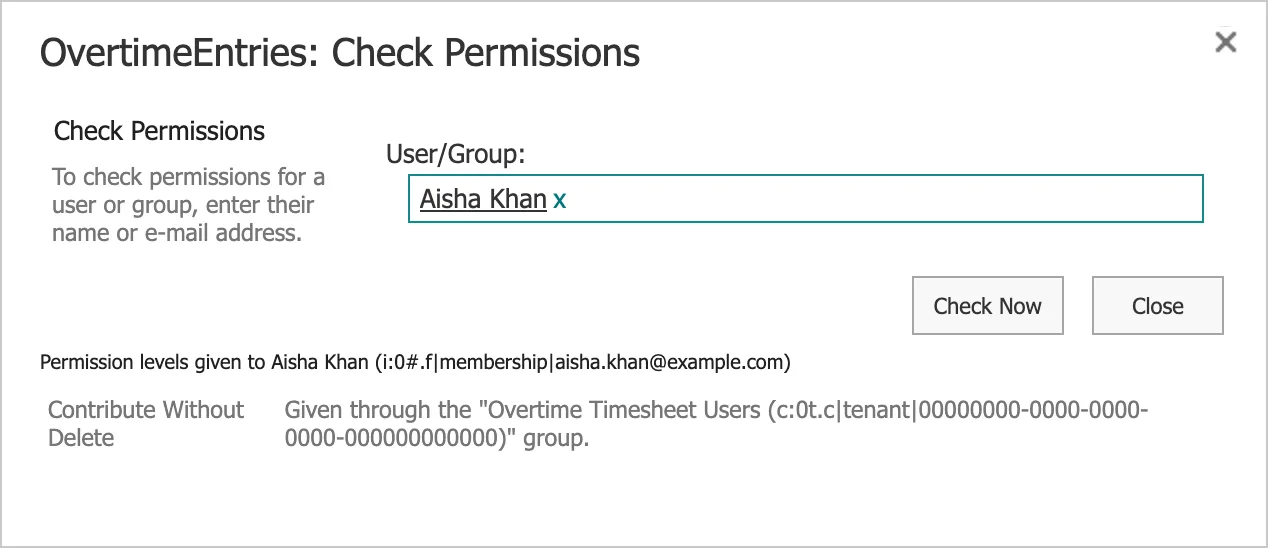
Second, Check Permissions for one member of staff on each list, as in How to Check a User's Permissions in SharePoint. Aisha Khan, a staff nurse, has Contribute Without Delete on OvertimeEntries through Overtime Timesheet Users:
On Payroll Exports, the same check says None for Aisha and Read for Leo Martin, the payroll officer.
Step 9: Sign In as Each Person
The proof is what people see. Four members of the demo team signed in to SharePoint as themselves.
Aisha, a member of staff
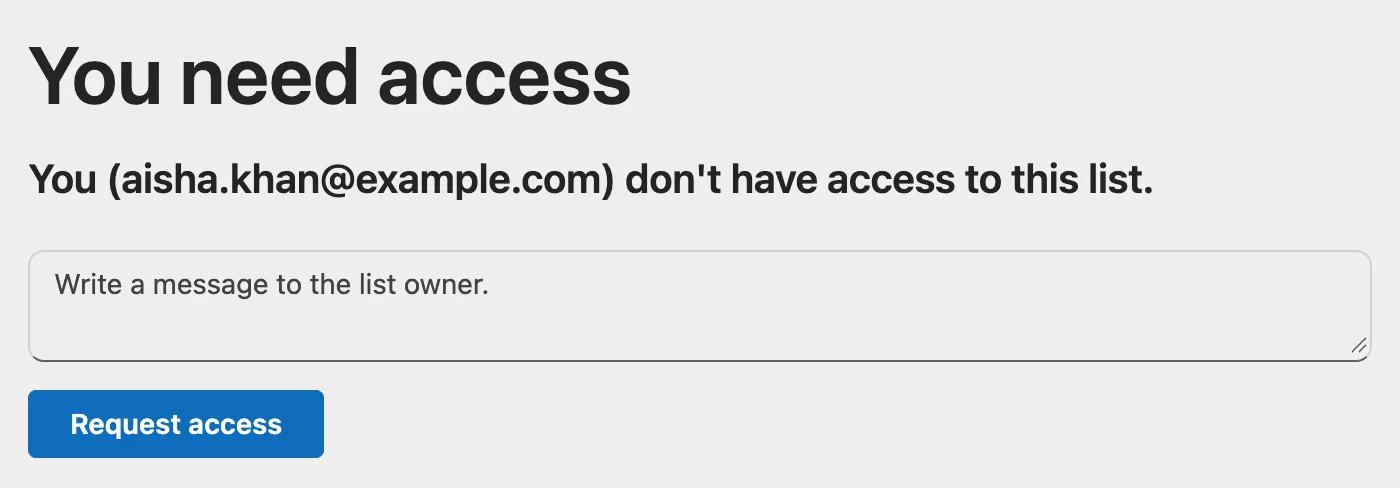
Her Site contents lists Departments and OvertimeEntries, but no Payroll Exports:
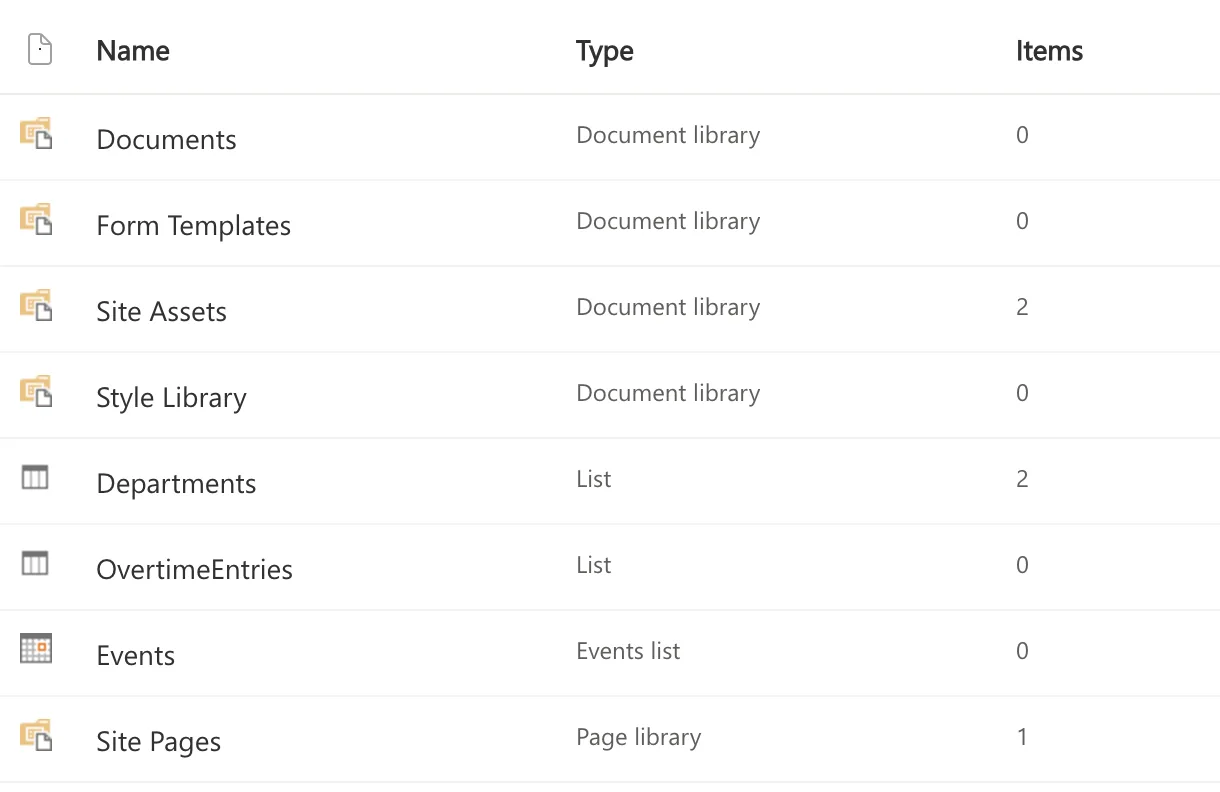
Its address refuses her:
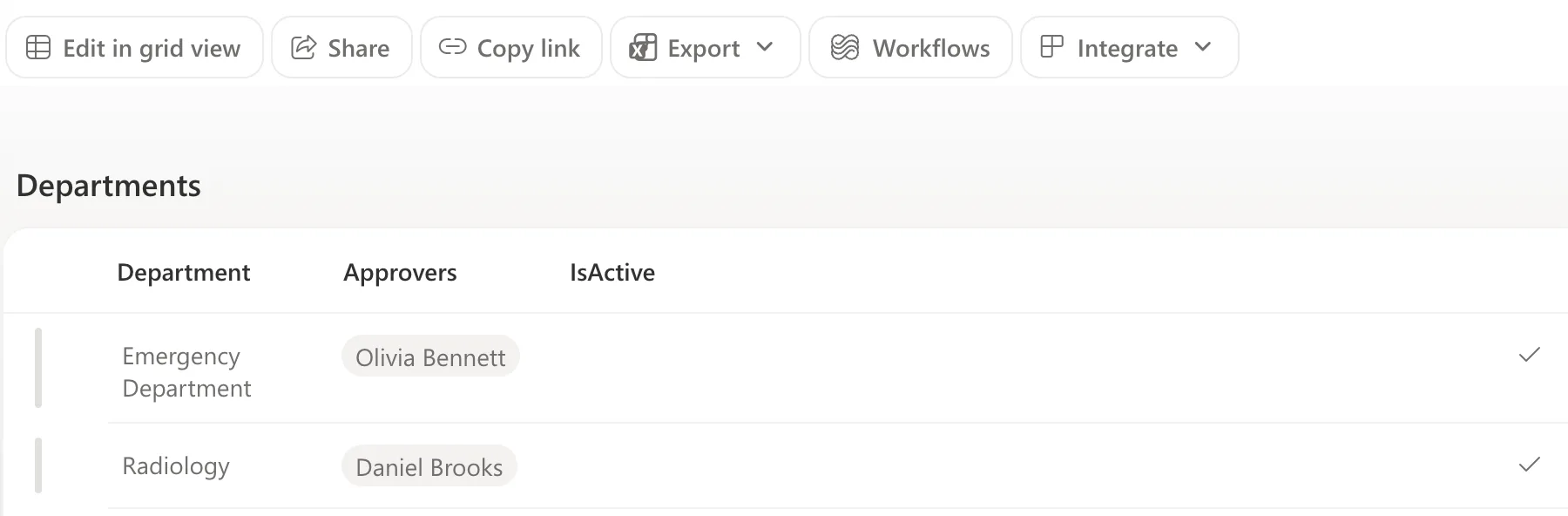
Departments opens, with both departments, but without a + New button:
In OvertimeEntries she added her Saturday shift, 07:00 to 11:00 in the Emergency Department, and it's the only entry she sees:

With it selected, she can edit it but not delete it:

Maya, in another department
Maya Patel added her own Saturday shift in Radiology. Aisha's entry doesn't exist for her:

Her first attempt saved the start and end on 11 July: she typed the date, and the form read it month first. Fixed: SharePoint Saves a Typed Date in the Wrong Month covers what I checked and how the entry was corrected.
Olivia, an approver
Olivia Bennett approves the Emergency Department's overtime, Aisha's included. In SharePoint she sees no entries at all:
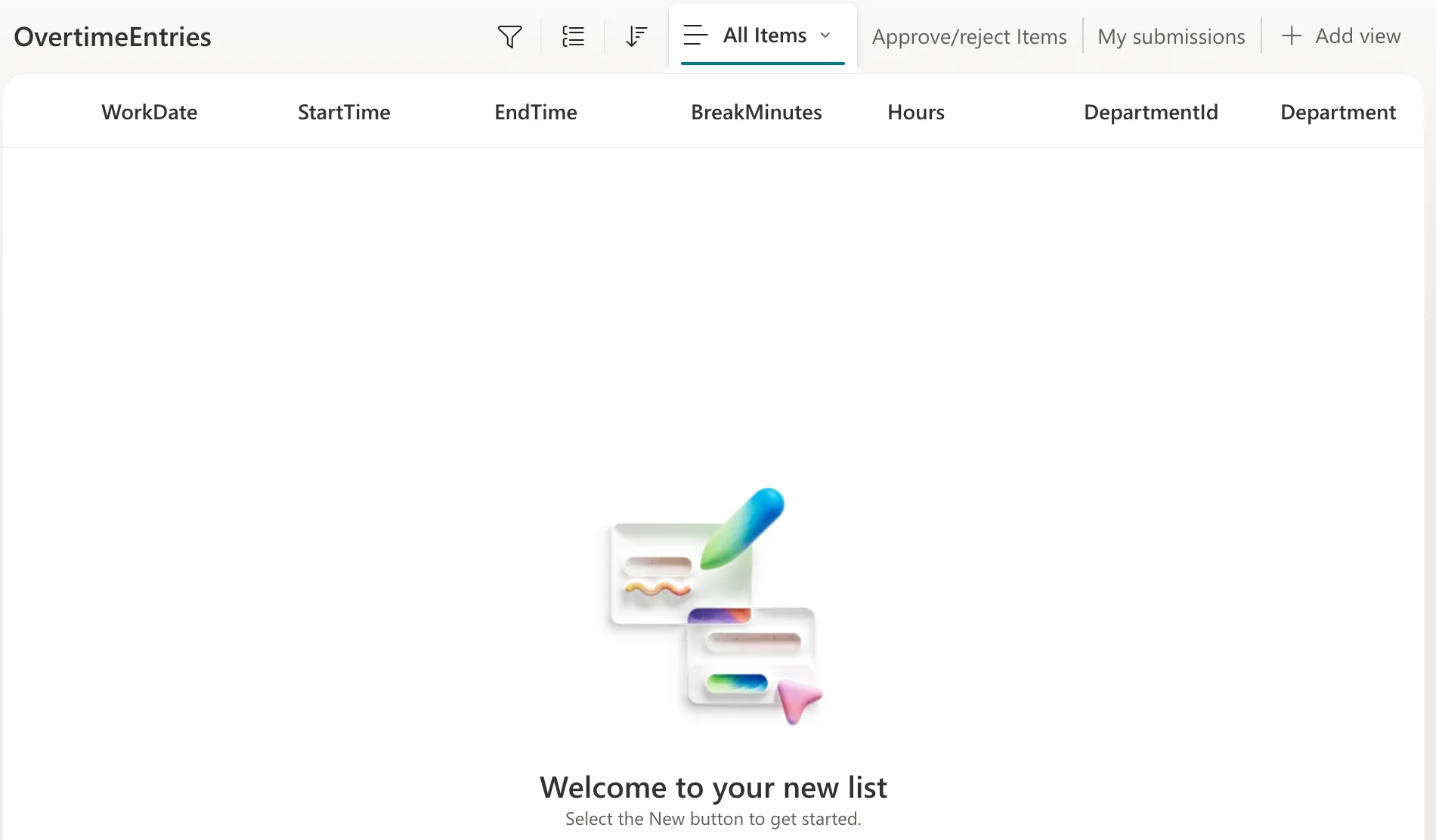
That's intended. Approvers see what's waiting for them through the app, which asks a flow for their departments' entries in Part 9, and approve in Teams or Outlook in Part 8.
The site's owner
With Full Control, the owner sees both entries:

Trying to approve your own entry
Aisha edited her entry and changed Status to Approved:

SharePoint saved it, and the Approval Status stayed Pending:

She set Status back to Pending. Then the owner approved the entry with Approve/Reject, and its Approval Status became Approved while Maya's stayed Pending:

Editing an approved entry
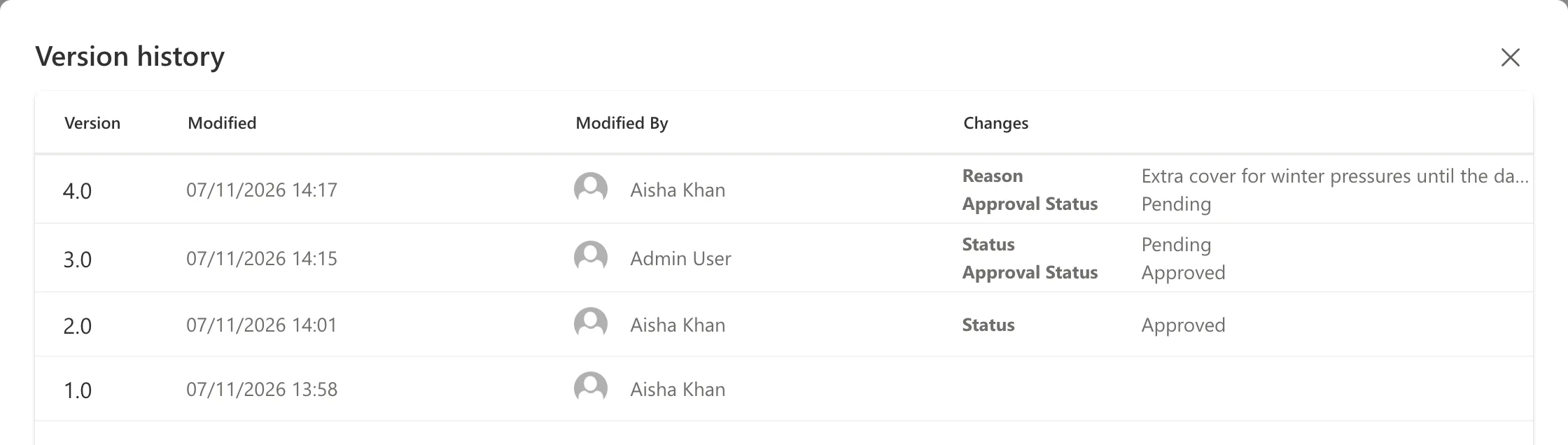
Aisha then corrected the reason on her approved entry. It went straight back to Pending:

The entry's version history, opened by the owner, records all of it: who changed what, and the approval in between:
Leo, the payroll officer
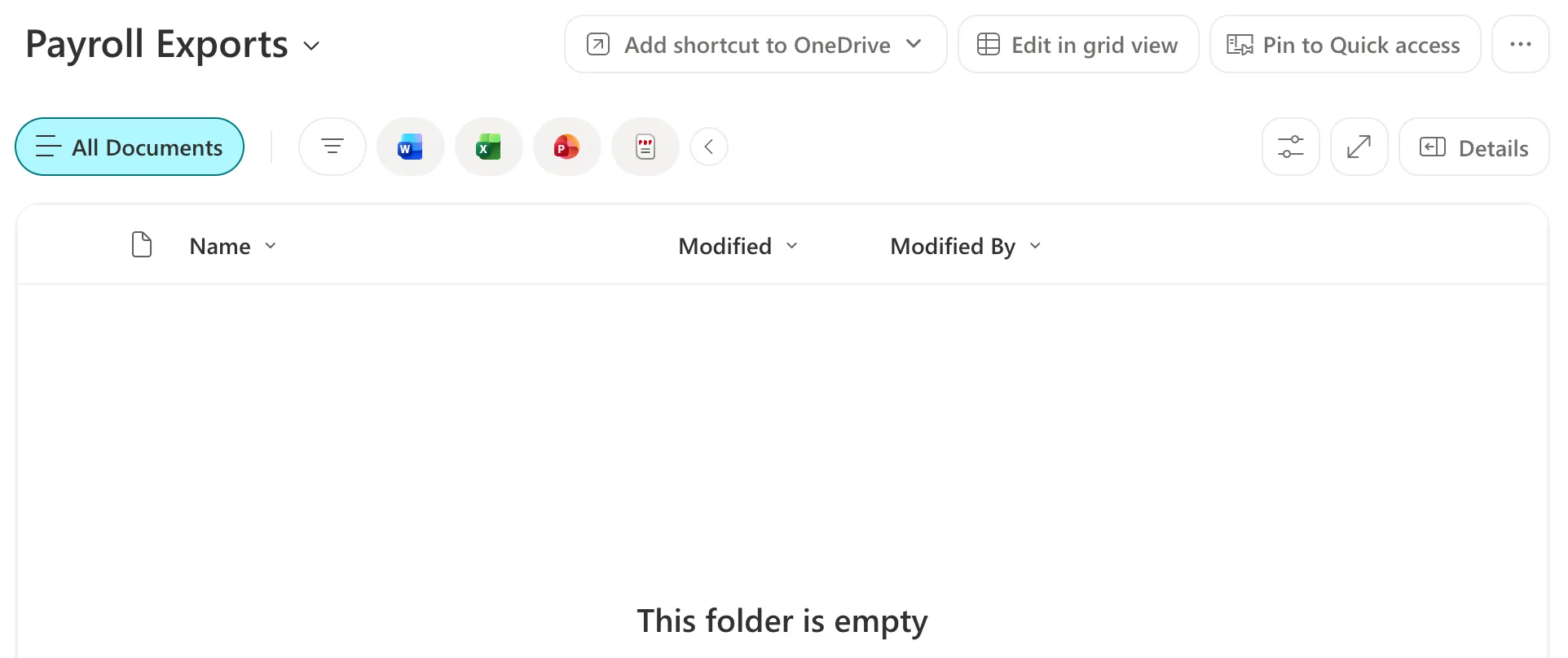
Leo Martin opens Payroll Exports, still empty until Part 13, with no command to add files:
Aisha's and Maya's entries stay in the list as their first overtime in the new system, both now waiting for approval.
What Site Owners and Admins Can Still See
Part 1 promised to spell this out:
- The site's owners have Full Control: they see every entry, can approve, edit and delete, and can read every version. Keep the Owners group small.
- Microsoft 365 administrators. Microsoft's About the SharePoint Administrator role in Microsoft 365: Global Administrators and SharePoint Administrators "don't have automatic access to all sites and each user's OneDrive, but they can give themselves access to any site or OneDrive."
- The flows of later parts run with the owner's connection, so they read everything and return only what each person should see. In production, run them under an account kept for the purpose, not someone's everyday account.
- Search. Part 2 took OvertimeEntries out of search, so entries don't turn up in search results at all.
Common Mistakes
| Mistake | What happens | Do this instead |
|---|---|---|
| Giving staff Edit or Contribute on OvertimeEntries | They can delete entries, and with Edit change the list's settings | Use Contribute Without Delete |
| Leaving the copied Visitors on Payroll Exports | Every member of staff can read payroll's files | Remove it |
| Trusting the Status column | Anyone who can edit an entry can change it | Use Approval Status; the flow keeps Status in step |
| Adding approvers to Owners "so they can see entries" | They see everyone's overtime, in every department | Show approvers their departments through the app |
| Typing dates into SharePoint's form | One test user's typed date was saved in the wrong month | Pick dates from the calendar |
Troubleshooting
| Symptom | Likely cause | Fix |
|---|---|---|
| A member of staff sees others' entries | Their level includes Override List Behaviors | Check Permissions on the list |
| A member of staff can't add entries | The group's grant is missing on the list | Grant Contribute Without Delete again |
| Someone can open Payroll Exports who shouldn't | They're an owner, or in a group still listed | Check Permissions on the library |
| An approved entry is Pending again | It was edited | Set its Status to Pending to send it for approval again (Part 8) |
| A typed date is saved in the wrong month | The form read it month first | Fixed: SharePoint Saves a Typed Date in the Wrong Month |
FAQ
Why not hide everything in the app instead?
An app can only hide what it shows. Anyone with access to the list could still open it in SharePoint, export it or connect another tool to it. Item-level permissions and content approval apply wherever the list is opened.
Can approvers see their team's entries in SharePoint?
No, and they don't need to. SharePoint's item-level setting is own items or all items, with nothing in between. The app shows approvers their departments' entries through a flow.
What happens when someone joins or leaves?
Add them to or remove them from the groups in Microsoft Entra. Nothing in SharePoint changes.
Why can staff still read the Departments list?
The app's department picker reads it. It holds department names and their approvers, nothing private.
Conclusion
SharePoint now enforces the Overtime Timesheet's privacy on its own. Staff add and edit only their own entries, can't delete them, and can't approve them; editing an approved entry sends it back for approval; admins manage departments; payroll alone reads its library. Signing in as Aisha, Maya, Olivia and Leo showed each rule holding, and the version history records every change and approval.
Part 4 starts the app itself: a solution with environment variables for the site, lists and library, and an empty canvas app connected to them.
Additional Resources
- Permission levels in SharePoint
- Customize permissions for a SharePoint list or library
- Require approval of items in a list or library
- About the SharePoint Administrator role in Microsoft 365
← Previous: Part 2: Create the SharePoint Site and Lists Next → Part 4: Create the Solution, Environment Variables and Canvas App
