Build an Overtime Timesheet App in Power Apps — Part 20: Run the Solution Checker and Export the Solutions

The Overtime Timesheet app, its seven flows and the setup flow all work. This part turns them into four files another organization can install: both solutions checked, at version 1.0.0.0, as managed and unmanaged zips, with clearly named connections and without this tenant's SharePoint site and lists inside.
This is Part 20 of a 22-part series.
- Part 1: Plan the App and Set Up the Demo Organization
- Part 2: Create the SharePoint Site and Lists
- Part 3: Keep Overtime Private with SharePoint Permissions
- Part 4: Create the Solution, Environment Variables and Canvas App
- Part 5: Build the Home Screen
- Part 6: Build the Log Overtime Screen
- Part 7: Build the My Overtime Screen
- Part 8: Build the Approval Flow for Teams and Outlook
- Part 9: Show Approvers What's Waiting
- Part 10: Build the Departments Screen
- Part 11: Build the Reports Screen
- Part 12: Import the Old Excel Timesheet
- Part 13: Create the Monthly Payroll Workbook with Office Scripts
- Part 14: Create the Payroll Workbook from the App
- Part 15: Build the Power BI Overtime Report
- Part 16: Share the App and Add It to Microsoft Teams
- Part 17: Manage Joiners, Movers and Leavers
- Part 18: Build a Setup Flow That Creates the Lists
- Part 19: Set SharePoint Permissions from the Setup Flow
- Part 20: Run the Solution Checker and Export the Solutions (you are here)
- Part 21: Install the App in a New Environment (coming soon)
- Part 22: Recap, Production Checklist and Next Steps (coming soon)
Everything the app needs lives in two solutions. Overtime Timesheet holds the canvas app, its seven flows, their connection references and the five environment variables from Part 4. Overtime Timesheet Setup holds the flow from Parts 18 and 19 that creates the lists and sets their permissions on a new site. Another organization installs the app by importing these two solutions, so this part checks them, gives them their first release number and exports them.
Three things need attention before the files can go anywhere. The solution checker flags 18 issues in the app. Five connection references have names the designer made up. And the exported app zips carry this tenant's SharePoint site and list IDs, which the switch meant to keep them out doesn't do.
What You'll Have
| File | What's in it | Who it's for |
|---|---|---|
OvertimeTimesheetSetup_1_0_0_0_managed.zip | The setup flow and its SharePoint connection reference | Anyone installing the app, first |
OvertimeTimesheet_1_0_0_0_managed.zip | The canvas app, its seven flows, six connection references and five environment variables, without values | Anyone installing the app, second |
OvertimeTimesheetSetup_1_0_0_0.zip | The Setup solution, unmanaged | You, as the source |
OvertimeTimesheet_1_0_0_0.zip | The app's solution, unmanaged | You, as the source |
Nothing here costs money. The solution checker is part of Power Apps, and the Power Platform CLI is a free download from Microsoft.
Prerequisites
- Part 19 completed.
- The Power Platform CLI, installed (Microsoft's install instructions), for Step 7. That step works on files on your computer, so it doesn't need you to sign in to the CLI.
Step 1: Make the App's Solution Preferred Again
Parts 18 and 19 made Overtime Timesheet Setup the preferred solution, so that the setup flow landed there. Anything new you create would land there too. In Power Apps, select Solutions, then Set preferred solution, and choose Overtime Timesheet (dewiride) (How to Create a Solution and Publisher in Power Apps):
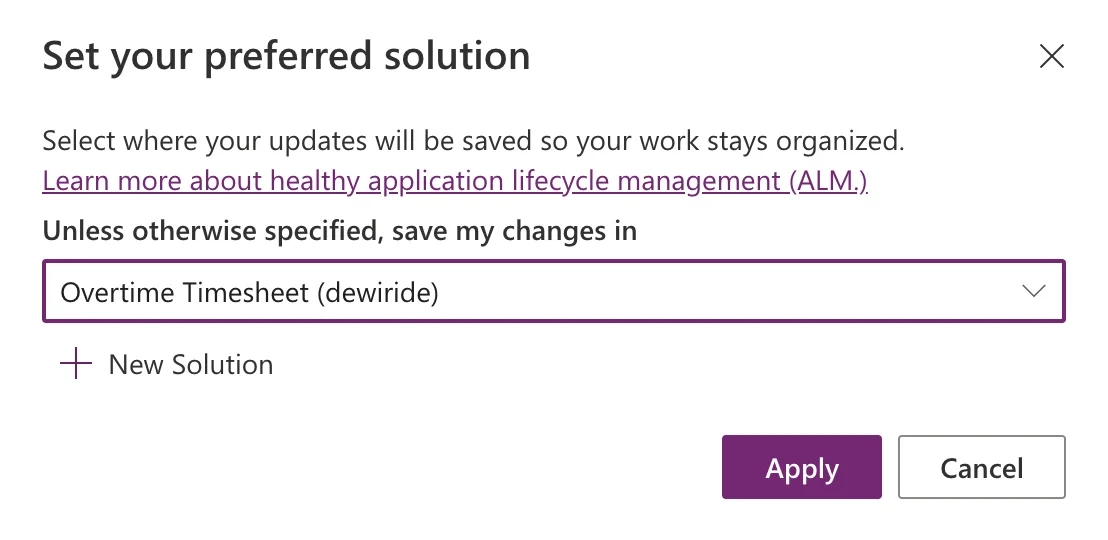
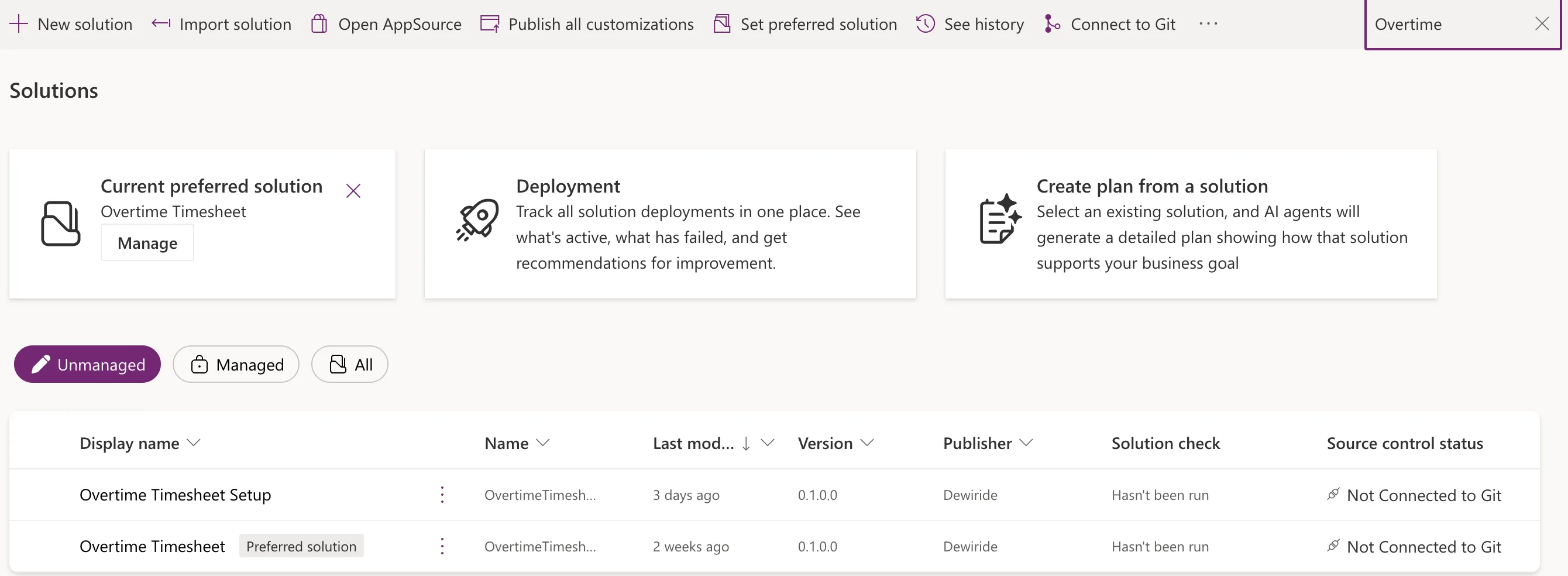
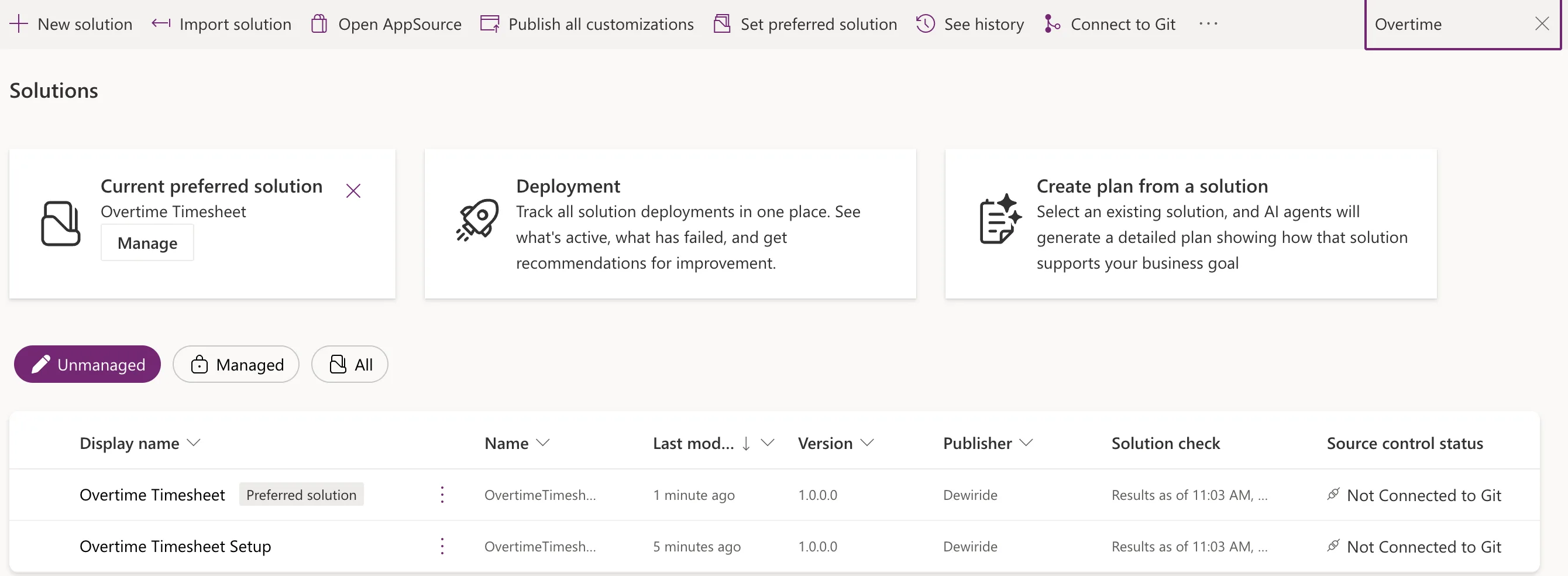
Select Apply. With Overtime typed in the list's Search box, the page shows the two solutions this part works on, both at the version Part 4 and Part 18 gave them, and never checked:
Step 2: Check What Each Solution Holds
A solution takes everything in it to the new environment, and nothing that isn't. Open Overtime Timesheet. A solution now opens on an Overview page; See all under Recent Items goes to Objects:
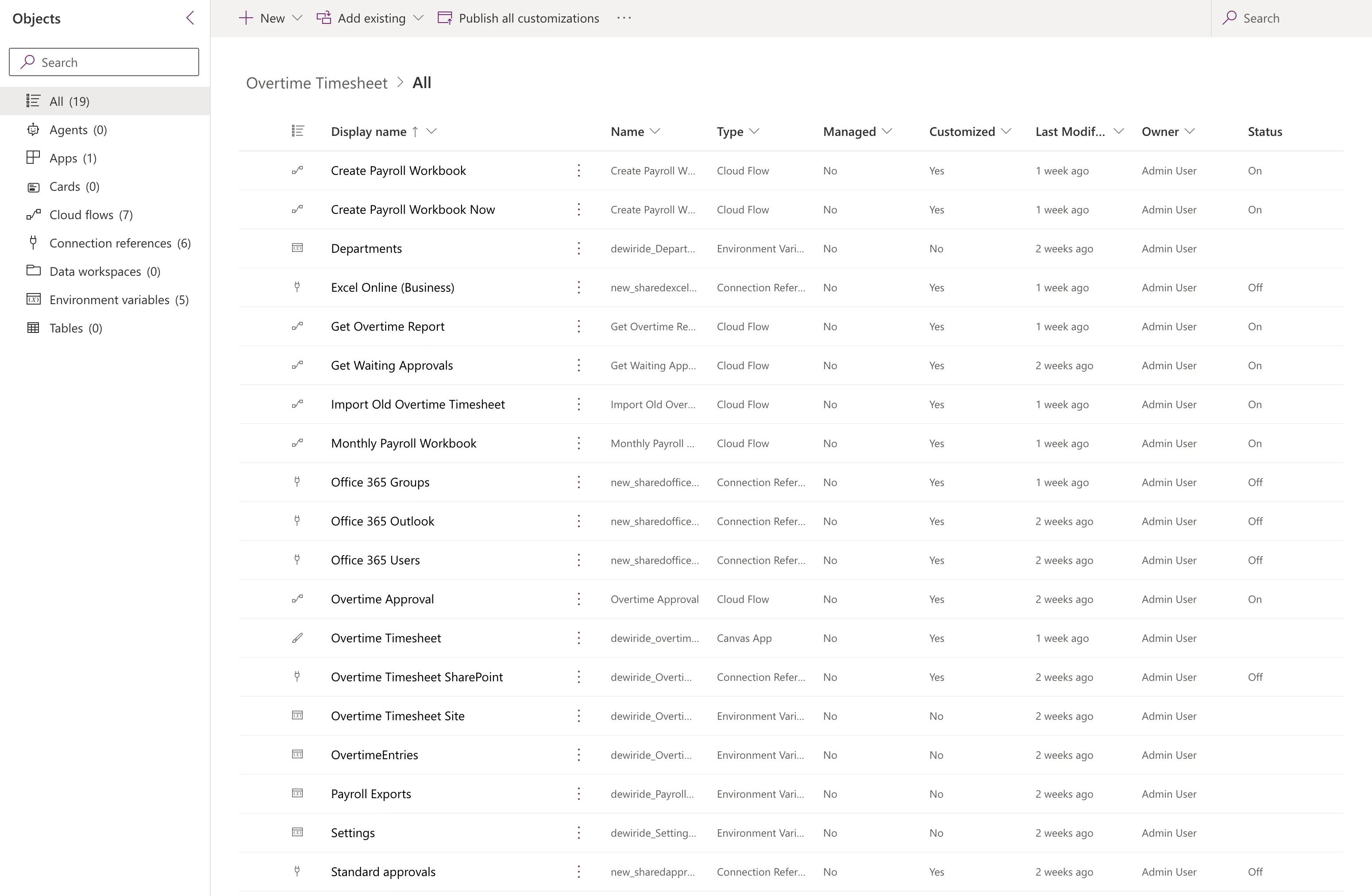
| Type | Count | Objects |
|---|---|---|
| Canvas app | 1 | Overtime Timesheet |
| Cloud flows | 7 | Overtime Approval (Part 8), Get Waiting Approvals (Part 9), Get Overtime Report (Part 11), Import Old Overtime Timesheet (Part 12), Create Payroll Workbook and Monthly Payroll Workbook (Part 13), Create Payroll Workbook Now (Part 14) |
| Connection references | 6 | One for each connector the flows use |
| Environment variables | 5 | The site, Departments, OvertimeEntries, Payroll Exports and Settings |
Overtime Timesheet Setup holds the setup flow and its own SharePoint connection reference:
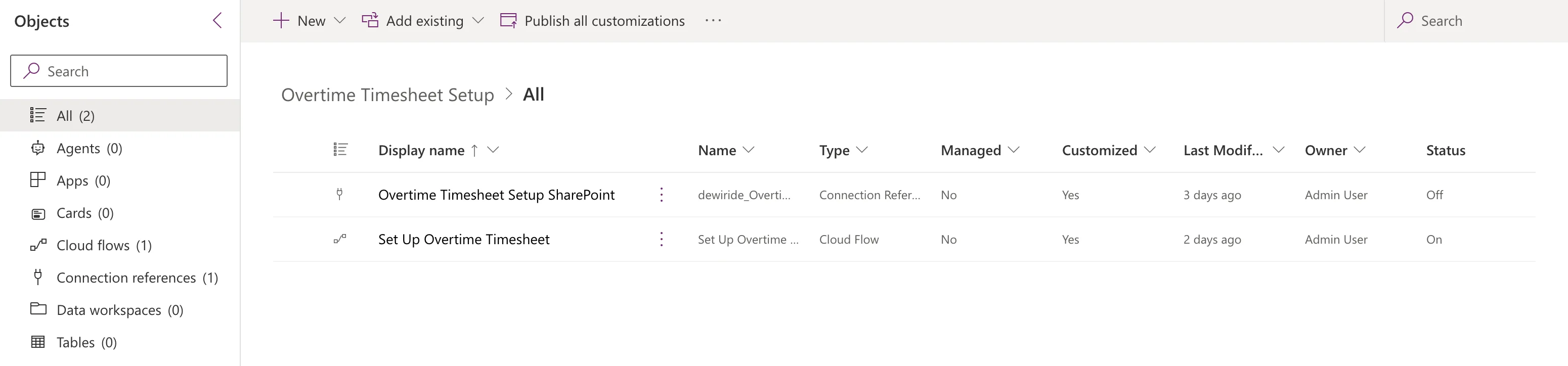
Nothing is missing, and nothing extra is in either solution.
Step 3: Run the Solution Checker on Both
Run the checker on each solution as How to Run the Solution Checker in Power Apps shows: ... next to the solution, Solution checker, Run. I started both a few seconds apart, and the list showed them running side by side:

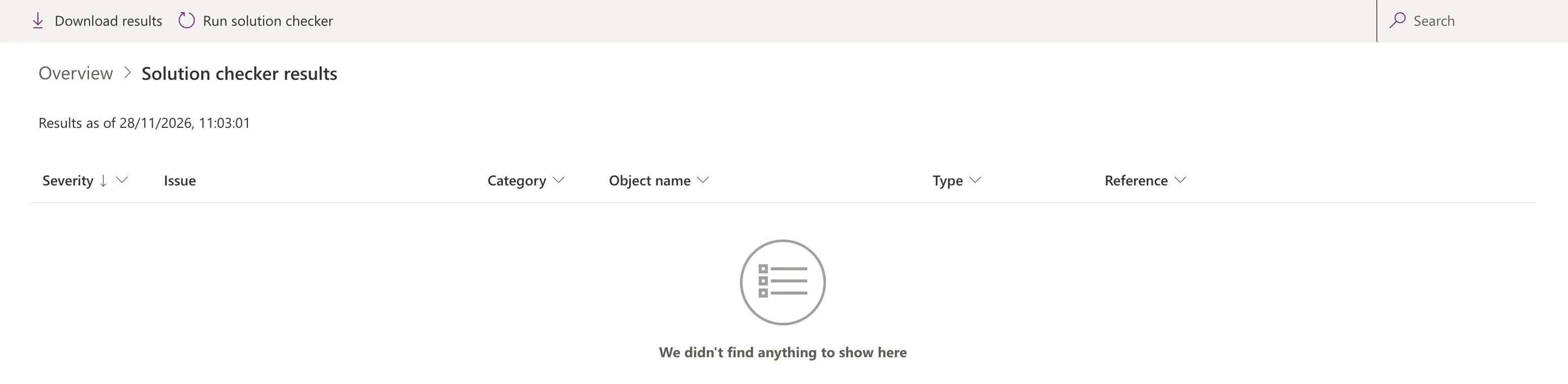
About a minute later both said Results as of 11:03 AM. Overtime Timesheet Setup had nothing to report:
Overtime Timesheet had 18 Medium issues from two rules, Change the FocusedBorderThickness property to be more than 0 and Set TabIndex to 0 or greater to ensure that interactive elements have a tab stop:
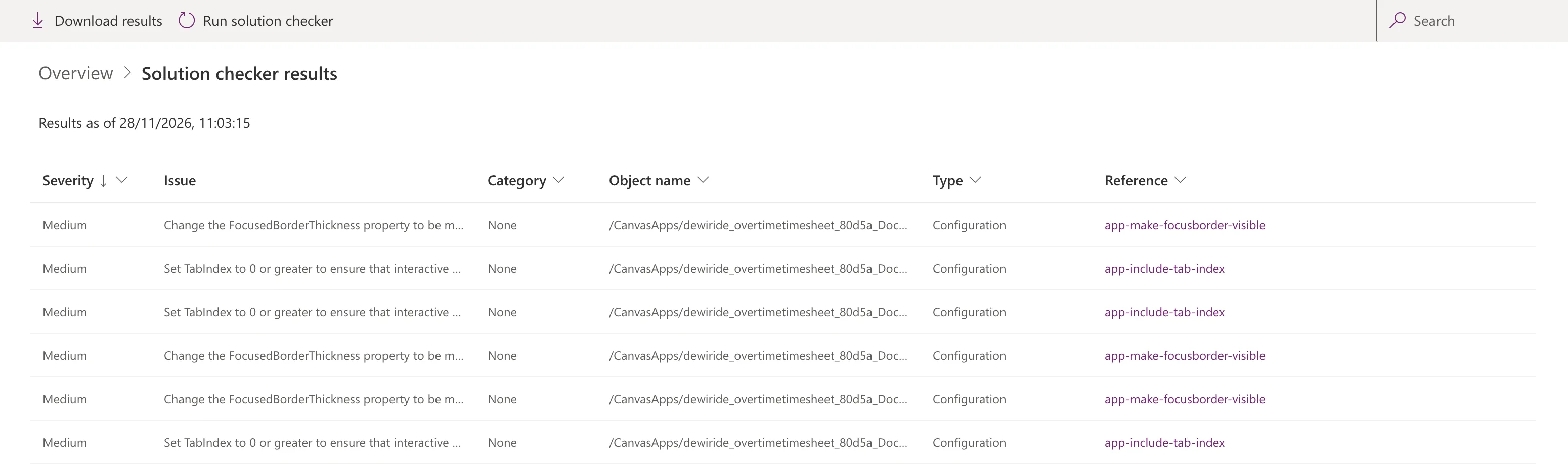
The seven flows added none. Microsoft's article says the checker analyses Power Automate flows via flow checker and Power Fx expressions via app checker: the same checkers the flow designer and Studio show while you build.
Step 4: Find the Controls Behind the 18 Issues
The results page names only the app's file. Download results names the screen and control behind each issue (How to Download Solution Checker Results in Power Apps). The report's Module, Type and Member columns showed nine controls, each flagged once for TabIndex and once for FocusedBorderThickness:
| Screen | Control | What it is |
|---|---|---|
| Home Screen | lblTitleHS | The screen's heading (Part 5) |
| Log Overtime Screen | lblTitleLO | The screen's heading (Part 6) |
| My Overtime Screen | lblTitleMO | The screen's heading (Part 7) |
| Waiting for Approval Screen | lblTitleWA | The screen's heading (Part 9) |
| Departments Screen | lblTitleDS | The screen's heading (Part 10) |
| Edit Department Screen | lblTitleED | The screen's heading (Part 10) |
| Edit Department Screen | lblProblemED | The message that says what's wrong before saving (Part 10) |
| Reports Screen | lblTitleRS | The screen's heading (Part 11) |
| Reports Screen | lblChartTitleRS | The chart's title (Part 11) |
All nine are text that does nothing when selected, with TabIndex -1. Studio's App checker flagged the headings the same way while they were built, and Part 5 kept them as they are on purpose: a label with TabIndex 0 or more is read out as a button by screen readers, and Microsoft's guidance gives labels that aren't interactive TabIndex -1 (Fixed: "Missing Tab Stop", Fixed: "Focus Isn't Showing"). A focus border only shows on a control the keyboard can reach, and these never take the keyboard's focus.
So the app ships with these 18 findings, and with this table to explain them. One thing I can't explain: lblProblemED is a copy of the Log Overtime screen's lblProblemLO (Part 10), and the checker didn't list lblProblemLO.
Step 5: Give the Connection References Clear Names
Five of the six references were created by the flow designer when the flows first used a connector (Parts 8, 11 and 12). Their Name starts with new_, not the publisher's dewiride_, and their display names are just the connector's. A Name can't be changed, so I kept them, and gave each a display name that says which app it belongs to (How to Rename a Connection Reference in Power Apps):
| Display name before | Display name now | Name, unchanged | Used by |
|---|---|---|---|
| Excel Online (Business) | Overtime Timesheet Excel Online (Business) | new_sharedexcelonlinebusiness_efd18 | Create Payroll Workbook, Import Old Overtime Timesheet |
| Office 365 Groups | Overtime Timesheet Office 365 Groups | new_sharedoffice365groups_a6b6a | Get Overtime Report, Monthly Payroll Workbook |
| Office 365 Outlook | Overtime Timesheet Office 365 Outlook | new_sharedoffice365_e2405 | Overtime Approval, Monthly Payroll Workbook |
| Office 365 Users | Overtime Timesheet Office 365 Users | new_sharedoffice365users_8936f | Overtime Approval, Get Waiting Approvals, Get Overtime Report, Import Old Overtime Timesheet |
| Standard approvals | Overtime Timesheet Approvals | new_sharedapprovals_df852 | Overtime Approval |
| Overtime Timesheet SharePoint | Unchanged | dewiride_OvertimeTimesheetSharePoint | Every flow but Create Payroll Workbook Now, which calls its child flow |
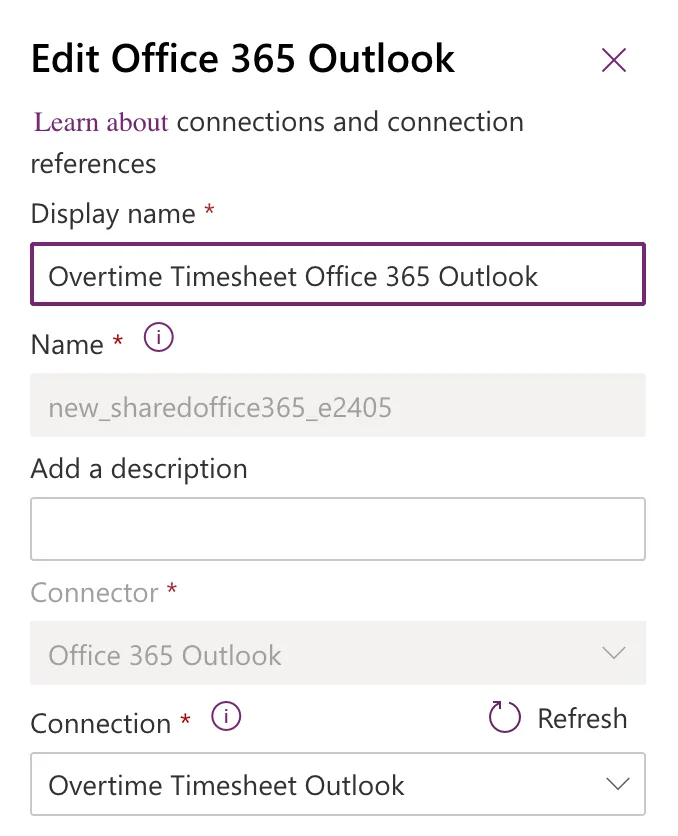
Office 365 Users became Overtime Timesheet Office 365 Users, not Overtime Timesheet Users, which is the name of the users group in Microsoft Entra. These names are what an installer sees when the import asks for a connection for each reference. All six now read alike:
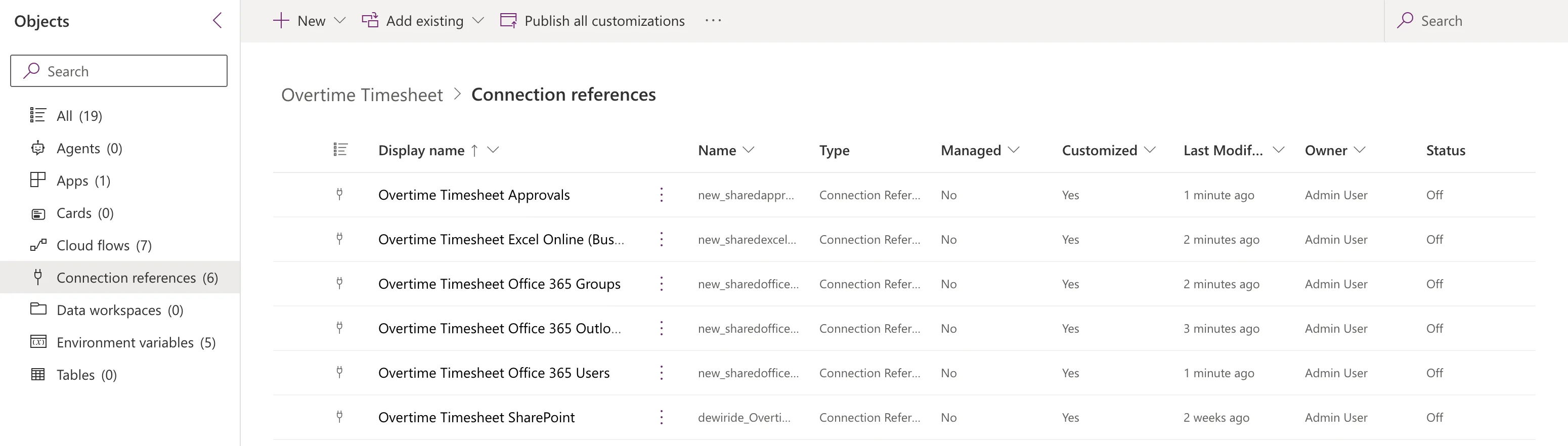
Each save showed the confirmation Save changes to this connection reference?, and after the five, the Solutions page showed one banner for each:

Microsoft's article says connection references are saved asynchronously, and that this banner links to the update details. See cloud flow updates opened an empty list, and stayed empty after Refresh:

So I checked the flows instead: all seven were still On, with the same Last Modified as before. A flow stores the reference's Name, which didn't change.
Step 6: Export Both Solutions as 1.0.0.0
Export each solution twice, managed and unmanaged, with the same version, as How to Export a Solution in Power Apps shows:
| Setting | Value |
|---|---|
| Publish all changes | Publish, on the first export (about 30 seconds) |
| Version number | 1.0.0.0 for all four exports, whatever Power Apps proposes |
| Export as | Managed once, Unmanaged once, for each solution |
| Run solution checker on export | Off: Step 3 has just run it |
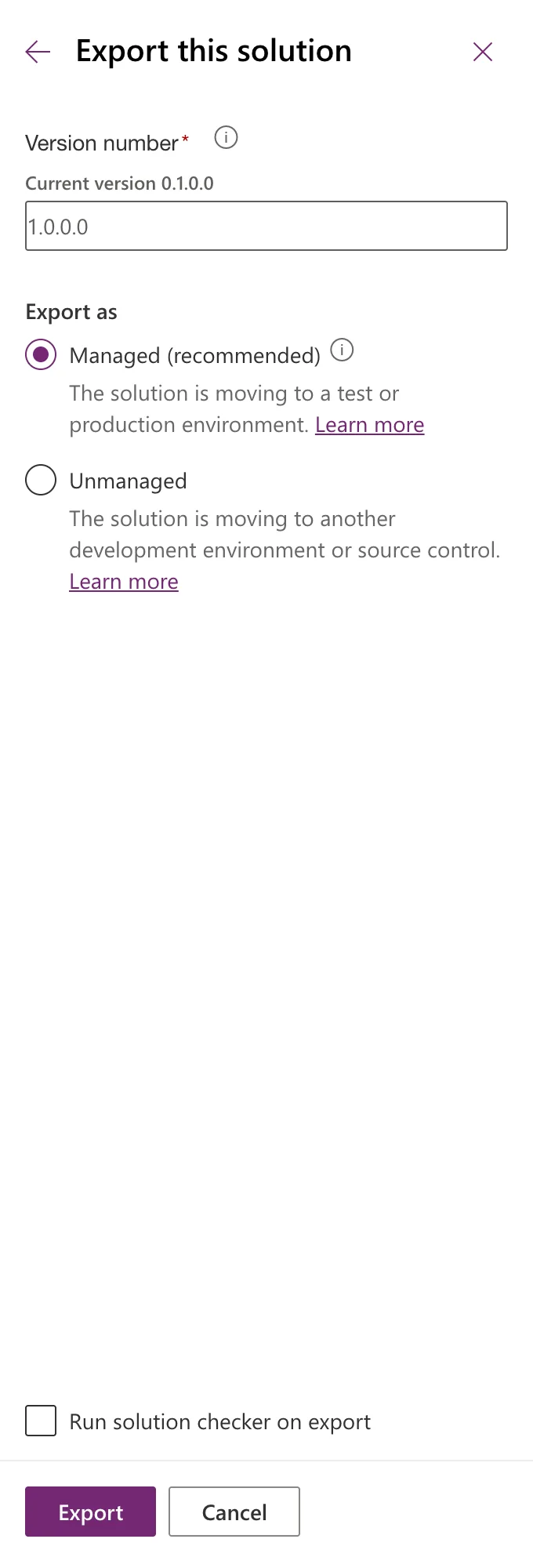
Version 1.0.0.0 is the first release: Parts 4 and 18 used 0.1.0.0 while the app was being built. After the first export of a solution, Power Apps proposed 1.0.0.1 for the second, so I typed 1.0.0.0 again. The exports I timed took between 16 and 48 seconds, and each ended with a message such as Solution "Overtime Timesheet 1.0.0.0" exported successfully. and a Download button:
OvertimeTimesheetSetup_1_0_0_0_managed.zip      8,534 bytes
OvertimeTimesheetSetup_1_0_0_0.zip              8,534 bytes
OvertimeTimesheet_1_0_0_0_managed.zip         201,071 bytes
OvertimeTimesheet_1_0_0_0.zip                 201,064 bytes
After a reload, both solutions show 1.0.0.0:
Step 7: Take This Tenant's Values Out of the App's Zips
The five environment variables' current values point at this tenant: the site's address and four list and library IDs. With no value in the solution, the import asks the installer for their own site and lists (How to Set Environment Variable Values When Importing a Solution).
Part 4 set each variable's Advanced → Export value to No. Before exporting, the site variable said Yes:
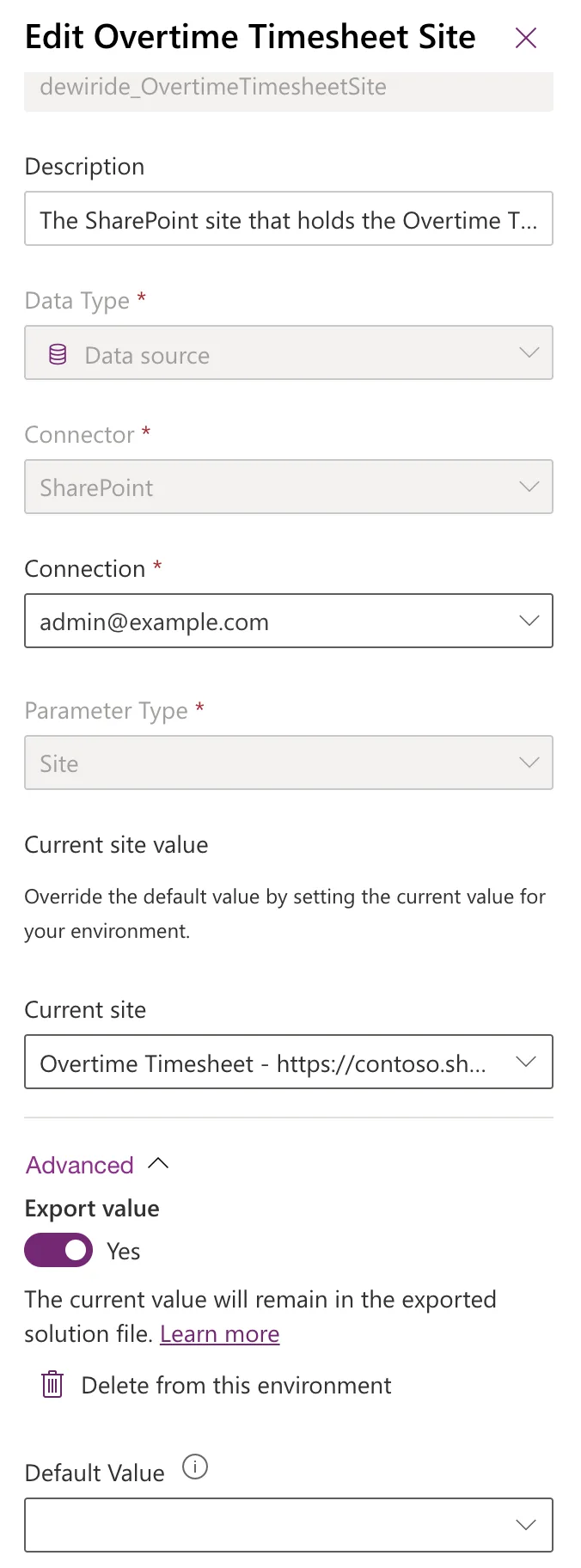
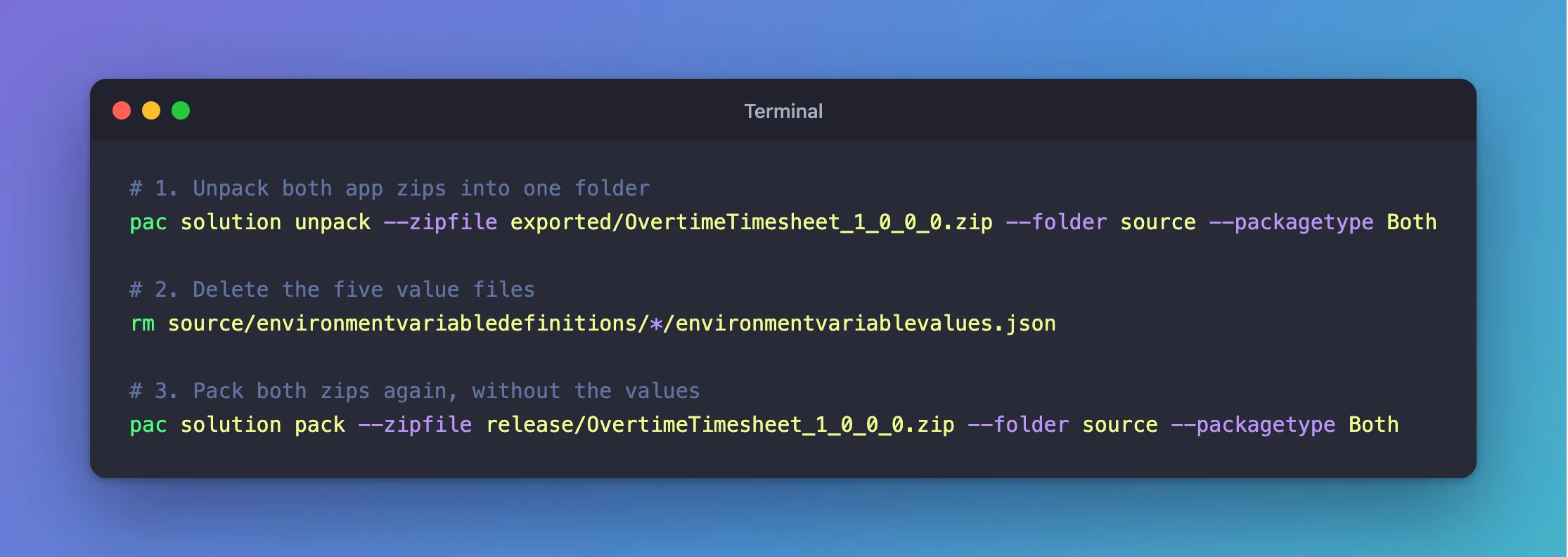
I set it to No and saved, and opened it again: Yes. That's the problem in Fixed: Environment Variable Export Value Switches Back to Yes in Power Apps, and the exported zips had all five values inside. The fix works on the exported files with the Power Platform CLI (How to Keep Environment Variable Values Out of an Exported Solution). In a folder OvertimeTimesheet that holds the four zips in exported:
pac solution unpack --zipfile exported/OvertimeTimesheet_1_0_0_0.zip --folder source --packagetype Both
Unpacking Solution...

Extracting ~/OvertimeTimesheet/exported/OvertimeTimesheet_1_0_0_0.zip and ~/OvertimeTimesheet/exported/OvertimeTimesheet_1_0_0_0_managed.zip to ~/OvertimeTimesheet/source

Skipping localization
Processing Component: Workflows
 - Create Payroll Workbook
 - Create Payroll Workbook Now
 - Get Overtime Report
 - Get Waiting Approvals
 - Import Old Overtime Timesheet
 - Monthly Payroll Workbook
 - Overtime Approval
Processing Component: CanvasApps
 - dewiride_overtimetimesheet_80d5a

Unmanaged Extract complete.

Skipping localization

Managed Extract complete.


Unpacked Solution.
Each variable has its own folder with two files. The environmentvariablevalues.json file is this tenant's value:
dewiride_DepartmentsList/environmentvariabledefinition.xml
dewiride_DepartmentsList/environmentvariablevalues.json
dewiride_OvertimeEntriesList/environmentvariabledefinition.xml
dewiride_OvertimeEntriesList/environmentvariablevalues.json
dewiride_OvertimeTimesheetSite/environmentvariabledefinition.xml
dewiride_OvertimeTimesheetSite/environmentvariablevalues.json
dewiride_PayrollExportsLibrary/environmentvariabledefinition.xml
dewiride_PayrollExportsLibrary/environmentvariablevalues.json
dewiride_SettingsList/environmentvariabledefinition.xml
dewiride_SettingsList/environmentvariablevalues.json
Delete the five value files:
- macOS / Linux
- Windows (PowerShell)
rm source/environmentvariabledefinitions/*/environmentvariablevalues.json
Remove-Item source/environmentvariabledefinitions/*/environmentvariablevalues.json
The * stands for each variable's folder, so the command deletes the five value files and leaves the five definitions. Then pack both zips again into release:
pac solution pack --zipfile release/OvertimeTimesheet_1_0_0_0.zip --folder source --packagetype Both
The output lists every component type it looks for and ends with Unmanaged Pack complete., Managed Pack complete. and Packed Solution. All three steps together:
The Setup solution has no environment variables, so its two zips go into release as they were exported. Nothing in Power Apps changed: the app keeps its values in this environment and keeps working.
Step 8: Check What Still Points at This Tenant
With the values out, I looked through the seven flows' definitions in source/Workflows for anything else tied to this tenant: a site address, an ID or an email address typed into an action. Every SharePoint action reads the environment variables. Two actions keep IDs that were picked from drop-downs:
| Flow | Action | IDs it keeps |
|---|---|---|
| Create Payroll Workbook (Part 13) | Fill the workbook | The Payroll Exports library, and the library and file of the Fill Payroll Workbook script |
| Import Old Overtime Timesheet (Part 12) | List the old rows | The old workbook in my OneDrive: its library, file and table |
Here is Fill the workbook in CreatePayrollWorkbook-….json, with the IDs shortened:
"source": "@parameters('Overtime Timesheet Site (dewiride_OvertimeTimesheetSite)')",
"drive": "b!…",
"file": "@outputs('Create_the_workbook')?['body/Id']",
"scriptSource": "@parameters('Overtime Timesheet Site (dewiride_OvertimeTimesheetSite)')",
"scriptDrive": "b!…",
"scriptId": "01…",
The site and the new workbook come from the flow, but drive, scriptDrive and scriptId are fixed IDs. Microsoft's connector reference describes those three only as picked from a drop-down, for example the script: "Select an Office Script file (.osts) in a SharePoint library from the drop-down." So they stay as they are, and in Part 13's words, "When the solution is installed somewhere else, in Part 21, they have to be picked again." The import flow is the same: an installer points it at their own old workbook.
Check the Four Release Files
The release folder now holds the four files to share:
| File | Size | Managed | Value files |
|---|---|---|---|
OvertimeTimesheetSetup_1_0_0_0_managed.zip | 8,534 bytes | 1 | None in this solution |
OvertimeTimesheet_1_0_0_0_managed.zip | 198,494 bytes | 1 | 0 |
OvertimeTimesheetSetup_1_0_0_0.zip | 8,534 bytes | 0 | None in this solution |
OvertimeTimesheet_1_0_0_0.zip | 198,493 bytes | 0 | 0 |
The repacked app zips still hold the five variable definitions, version 1.0.0.0, the same canvas app byte for byte and the same seven flows. They have 18 files instead of 23: the five value files are gone (How to See What's Inside a Power Platform Solution Zip File shows how to look).
Which File Goes Where
- Installing the app in another environment takes the two managed zips, Setup first, then the app. They can't come back into this environment: "You can't import a managed solution into the same environment that contains the originating unmanaged solution" (Solution concepts).
- The unmanaged zips are the source: keep them, for example in source control, and give them to anyone who'll change the app in their own development environment.
The Problems I Hit
- The Export value switch went back to Yes. Already a known problem with its own fixes post, linked in Step 7, and fixed the same way.
- The solution's All view listed flows that no longer existed. The first time I opened Objects, the All list included test flows I had deleted a week before, although its counts said 7 cloud flows and the Cloud flows view listed only the real seven. A reload showed the real 19 objects. I hadn't taken a screenshot before the reload, and it didn't come back, so it has no fixes post.
- My own download slip. With two success messages on the page, the script I drive the browser with clicked the older one's Download and saved the managed Setup zip a second time. I checked each zip's
solution.xmlfor its version andManagedvalue before going on, then downloaded the missing one.
Clean Up
Nothing in this part creates anything in your tenant. The renamed references and the preferred solution are meant to stay. On your computer, source and exported are working folders: delete them when you've finished. Keep release.
Common Mistakes
| Mistake | What happens | Do this instead |
|---|---|---|
| Exporting with Setup still preferred | Anything you create next lands in the wrong solution | Make Overtime Timesheet preferred first |
| Trusting Export value: No | Your site and list IDs ship inside the app's zips | Check the zip, and remove the value files |
| Accepting the proposed version on the second export | The managed and unmanaged zips get different versions | Type 1.0.0.0 every time |
Sharing the files from exported | They still hold your values | Share the files from release |
| Renaming Office 365 Users to Overtime Timesheet Users | It reads like the Entra group of that name | Keep the connector's name in it |
Troubleshooting
| Symptom | Likely cause | Fix |
|---|---|---|
| 18 Medium issues on the app | The nine text labels with TabIndex -1 | Expected; see Step 4 |
zsh: no matches found from the rm in Step 7 | The value files are already gone, or you're in another folder | Check you're in the folder that holds source |
| A Cloud flows are being updated banner stays on the page | The references were saved | Close it; the flows keep running |
| The list still shows 0.1.0.0 after exporting | The page hasn't refreshed | Reload Solutions |
FAQ
Why export unmanaged zips at all?
They're the source of the app. Microsoft's solution concepts article says "You can't export a managed solution. But you can export an unmanaged solution as managed." So the unmanaged zips are what you keep developing from, and what each next managed release is exported from.
Why not replace the new_ references with dewiride_ ones?
It's possible: create new references, switch every action in six flows to them, publish and test each flow again. The flows work the same with either, and installers see the display names, so clear display names did the job without touching the flows.
Will an installer see this tenant's site anywhere?
Not as a value: the variables in the release zips have none, so the import asks for theirs. The two actions in Step 8 still hold this tenant's IDs until they're picked again in Part 21.
What changes for the next release?
Raise the version, for example to 1.0.1.0, export both solutions again, and take the value files out again.
Conclusion
Both solutions are ready to ship:
- the app's solution is preferred again, and each solution holds exactly what it should;
- the solution checker found nothing in the Setup solution and nothing in the flows, and 18 explained label findings in the app;
- the six connection references have names an installer can tell apart;
- both solutions are at 1.0.0.0, exported as managed and unmanaged;
- the app's zips carry no environment variable values, thanks to the Power Platform CLI, and the two actions that still hold this tenant's IDs are known.
Additional Resources
- Use solution checker to validate your apps in Power Apps: what the checker analyses, and the report's columns.
- Use a connection reference in a solution: naming, and asynchronous saves.
- Export solutions: versions, managed and unmanaged.
- Environment variables for Power Platform overview: values and imports.
- Excel Online (Business) connector: the Run script from SharePoint library action's parameters.
← Previous: Part 19: Set SharePoint Permissions from the Setup Flow Next → Part 21: Install the App in a New Environment (coming soon)
