Build an Overtime Timesheet App in Power Apps — Part 19: Set SharePoint Permissions from the Setup Flow

Part 3 locked down the Overtime Timesheet app's SharePoint site by hand: a permission level without delete, the staff group in Visitors, and lists with their own permissions, own-entries-only and content approval. This part adds all of it to the setup flow from Part 18, so a new site gets the same protection in one run, and a second run changes nothing.
This is Part 19 of a 22-part series.
- Part 1: Plan the App and Set Up the Demo Organization
- Part 2: Create the SharePoint Site and Lists
- Part 3: Keep Overtime Private with SharePoint Permissions
- Part 4: Create the Solution, Environment Variables and Canvas App
- Part 5: Build the Home Screen
- Part 6: Build the Log Overtime Screen
- Part 7: Build the My Overtime Screen
- Part 8: Build the Approval Flow for Teams and Outlook
- Part 9: Show Approvers What's Waiting
- Part 10: Build the Departments Screen
- Part 11: Build the Reports Screen
- Part 12: Import the Old Excel Timesheet
- Part 13: Create the Monthly Payroll Workbook with Office Scripts
- Part 14: Create the Payroll Workbook from the App
- Part 15: Build the Power BI Overtime Report
- Part 16: Share the App and Add It to Microsoft Teams
- Part 17: Manage Joiners, Movers and Leavers
- Part 18: Build a Setup Flow That Creates the Lists
- Part 19: Set SharePoint Permissions from the Setup Flow (you are here)
- Part 20: Run the Solution Checker and Export the Solutions (coming soon)
- Part 21: Install the App in a New Environment (coming soon)
- Part 22: Recap, Production Checklist and Next Steps (coming soon)
After Part 18, the Set Up Overtime Timesheet flow creates the app's lists and library on any site, but anyone with access to the site could still open every entry. The privacy the app promises comes from SharePoint's permissions, which Part 3 set by hand and Part 5 extended to the Settings list. This part adds those permissions to the same flow, tests it on the test site from Part 18, and compares the result with the app's own site.
What You'll Build
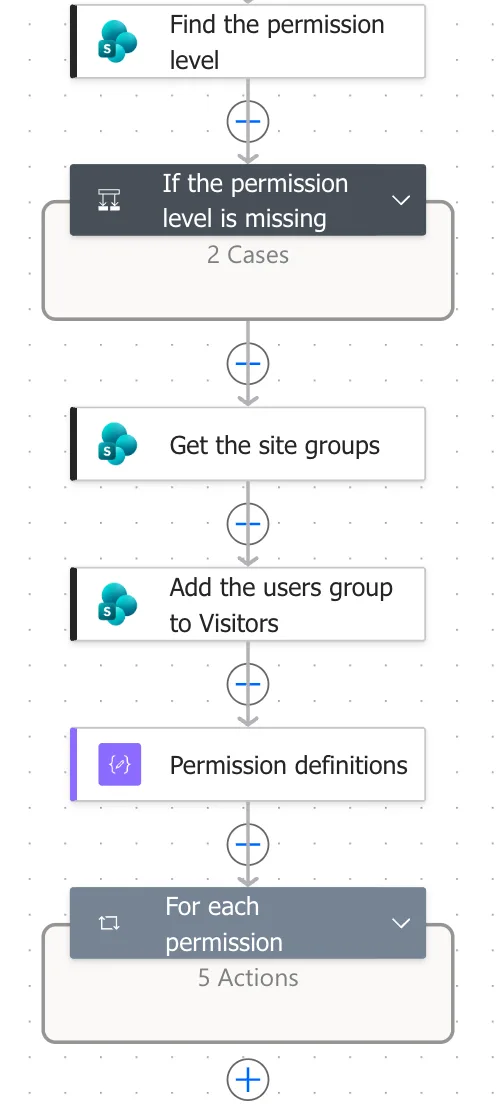
The new steps come after If the Setup folder is missing, the last step from Part 18:
- Find the permission level, then If the permission level is missing, with Create the permission level in its True branch: the Contribute Without Delete level from Part 3.
- Get the site groups: the IDs of the site's Members and Visitors groups.
- Add the users group to Visitors: everyone in Overtime Timesheet Users can read the site.
- Permission definitions (Compose): what each list gets, as JSON.
- For each permission (Apply to each), for each list:
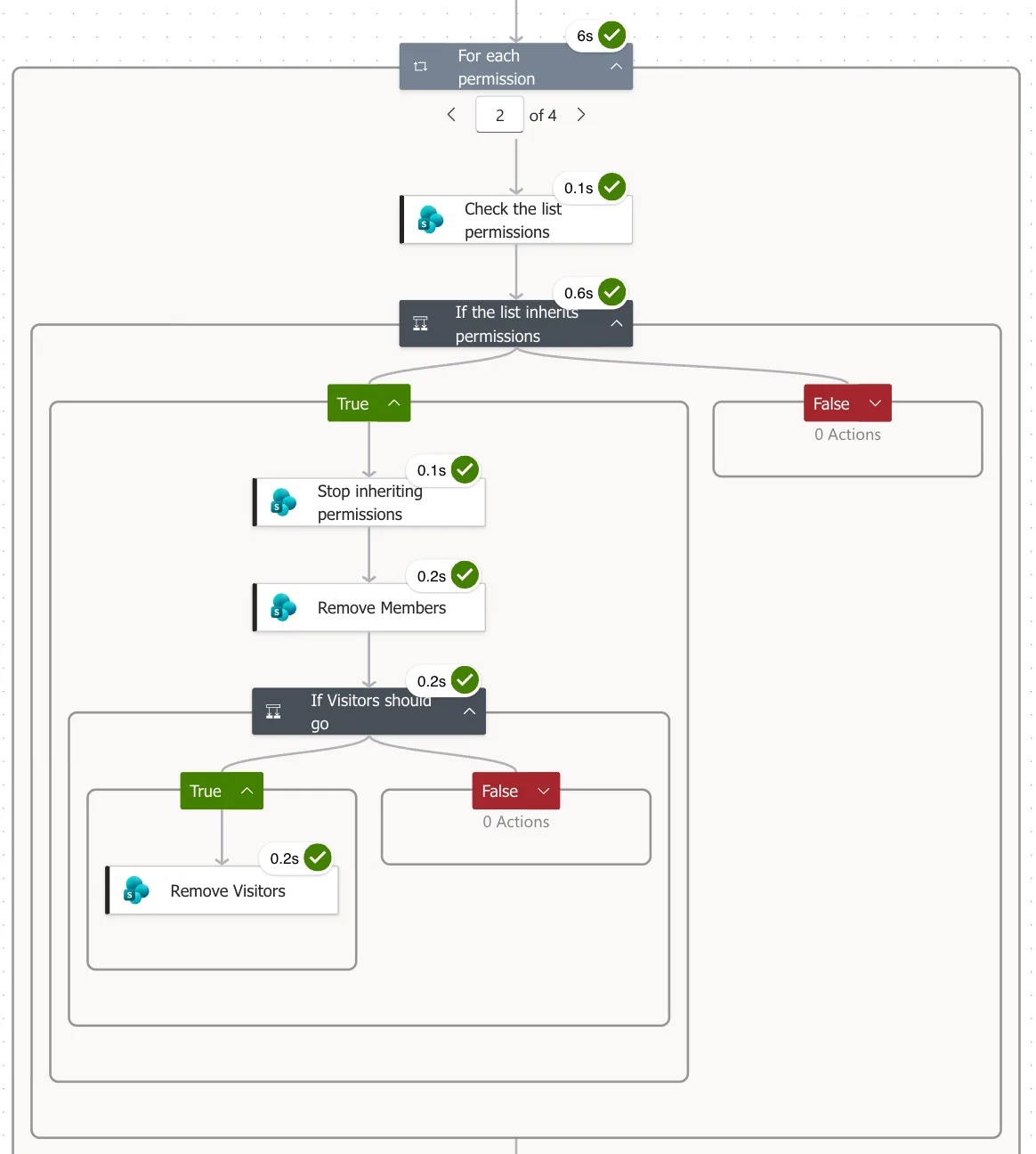
- Check the list permissions, then If the list inherits permissions: stop inheriting, remove the Members group, and remove the Visitors group where it should go.
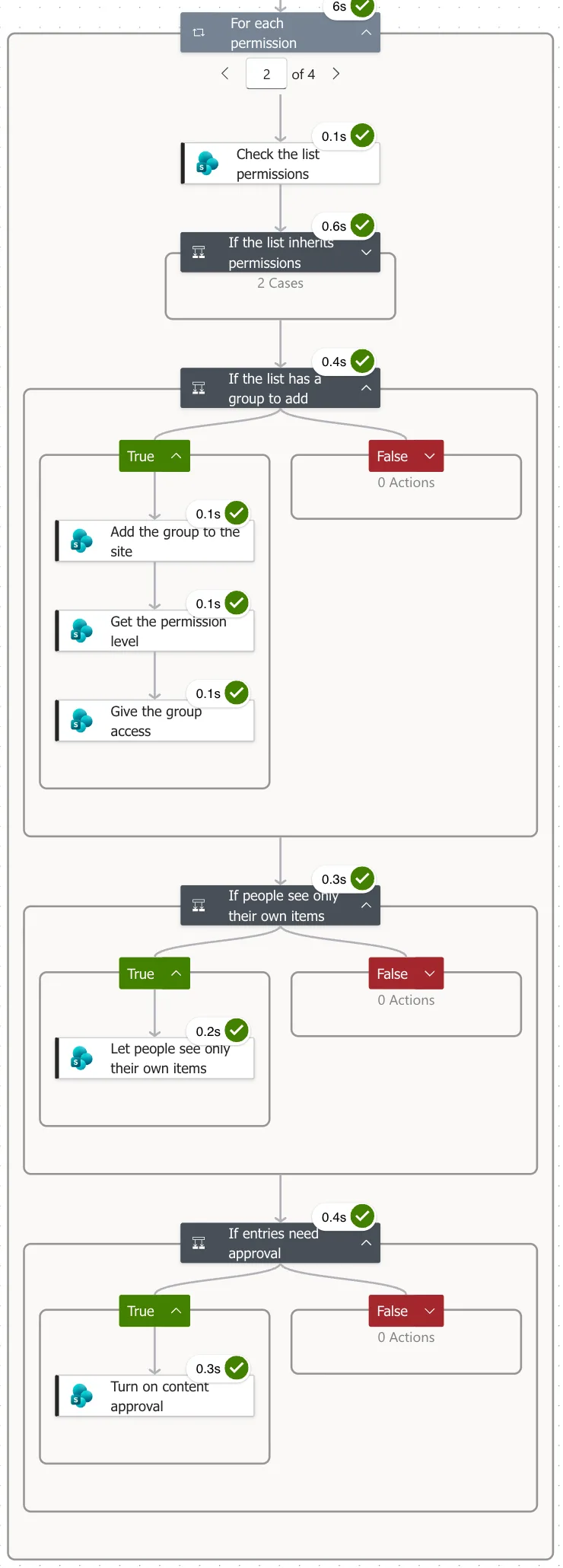
- If the list has a group to add: add the group to the site, read the level's ID, and give the group that level on the list.
- If people see only their own items: turn on item-level permissions.
- If entries need approval: turn on content approval.
The new steps, with the conditions collapsed:
How It Works
- The permissions are data. One JSON array, Permission definitions, says what each list gets: which group, which level, whether Visitors stays, own items only and content approval. The loop reads it, the same way Part 18's flow reads its list definitions.
- Every change looks first. The level is created only when it's missing. A list stops inheriting, and loses the site's groups, only while it still inherits, so a second run never removes anything you've added since.
- Groups come from Microsoft Entra. The trigger already asks for the payroll and admins groups' Object IDs; it gets a fourth input for Overtime Timesheet Users. SharePoint names a security group
c:0t.c|tenant|followed by its Object ID, the form SharePoint itself shows for these groups. - REST requests, standard licences. Every step is Send an HTTP request to SharePoint from the standard SharePoint connector, with the flow's connection reference from Part 18, so it costs nothing extra.
- What stays manual. Nothing in Part 3's design. The flow reproduces all of it, on any site, from four inputs.
Prerequisites
- Part 18 completed.
Step 1: Add the Users Group Input
Open Set Up Overtime Timesheet from Power Automate's Solutions page: the Overtime Timesheet Setup solution, then the flow, then Edit. In the trigger, add a fourth Text input (How to Add a Text Input to a Manually Triggered Flow in Power Automate):
| Input | Description | In expressions |
|---|---|---|
| Users group ID | The Object ID of the group of all your app users in Microsoft Entra, such as Overtime Timesheet Users | triggerBody()?['text_3'] |
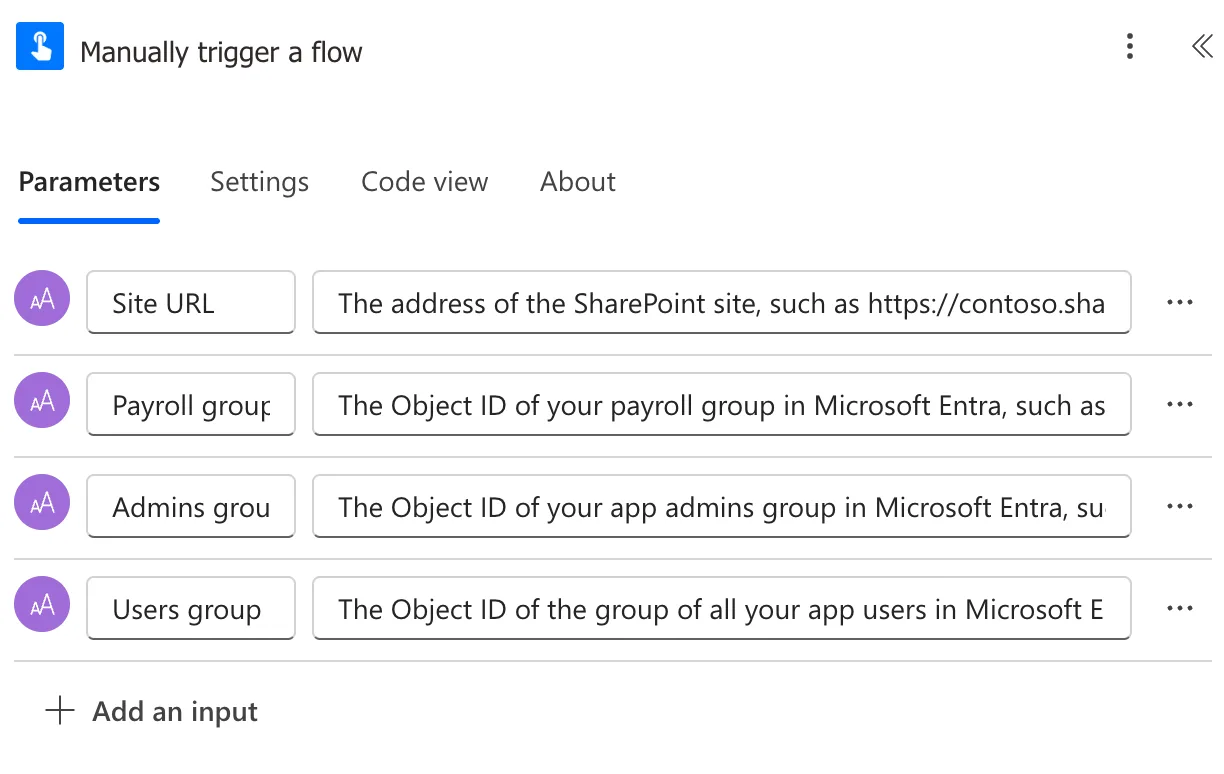
It's the trigger's fourth text input, so its key is text_3.
Step 2: Create the Permission Level Once
Part 3 copied Contribute and cleared Delete Items and Delete Versions. The flow does the same with numbers: a level's permissions travel as two numbers, High and Low, and Contribute is High 432 and Low 1011028719. Delete Items is worth 8 in Low and Delete Versions 128, so Contribute Without Delete is Low 1011028719 − 136 = 1011028583, with High 432. How to Create a SharePoint Permission Level with the REST API in Power Automate explains where those values come from. I read the app's own level from Part 3 with the same REST request as How to See a SharePoint Permission Level's Permissions in the Browser, and it had exactly these two numbers.
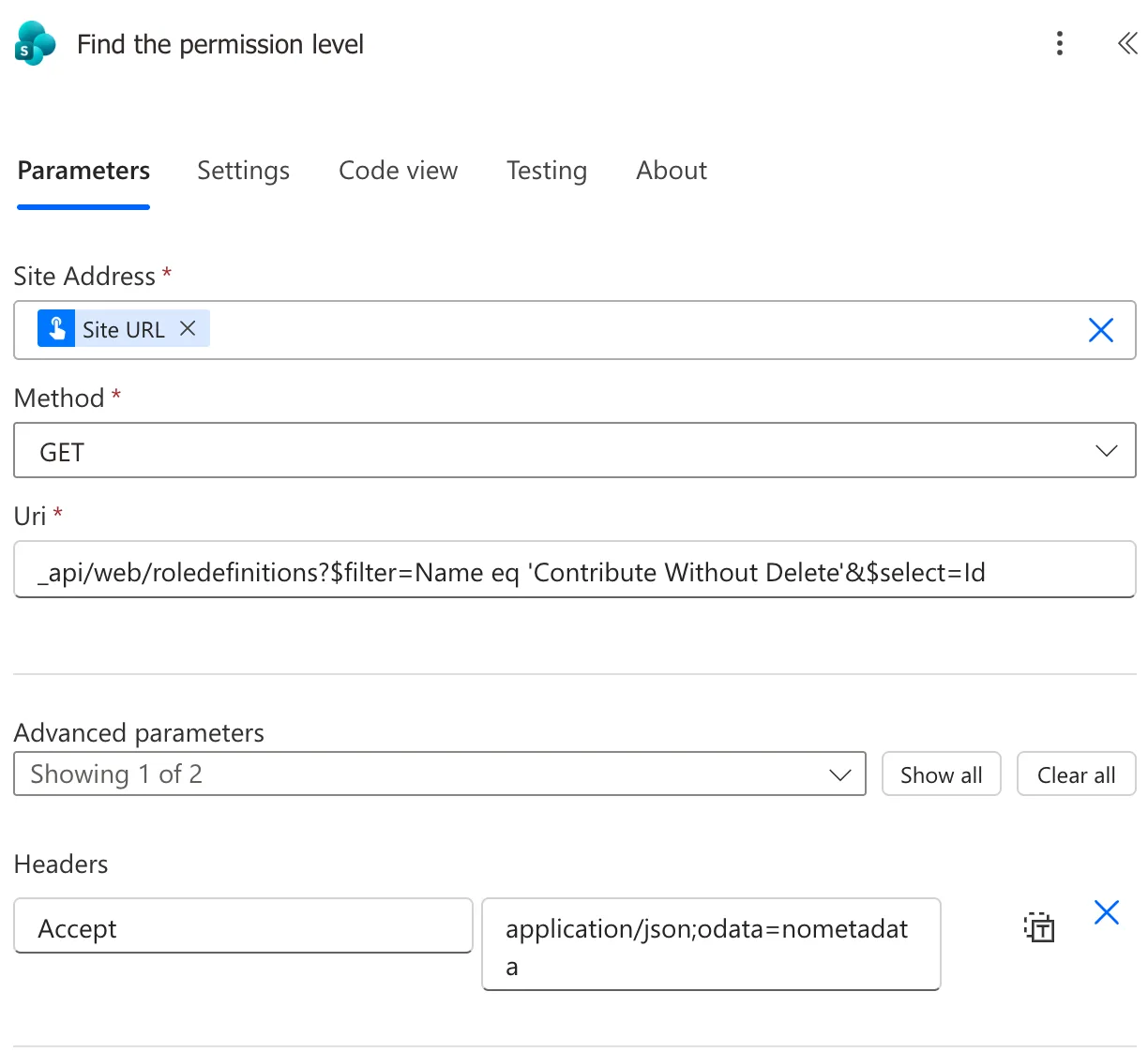
After If the Setup folder is missing, add Send an HTTP request to SharePoint and rename it Find the permission level:
| Field | Value |
|---|---|
| Site Address | Site URL from the trigger |
| Method | GET |
| Uri | _api/web/roledefinitions?$filter=Name eq 'Contribute Without Delete'&$select=Id |
| Headers | Accept: application/json;odata=nometadata |
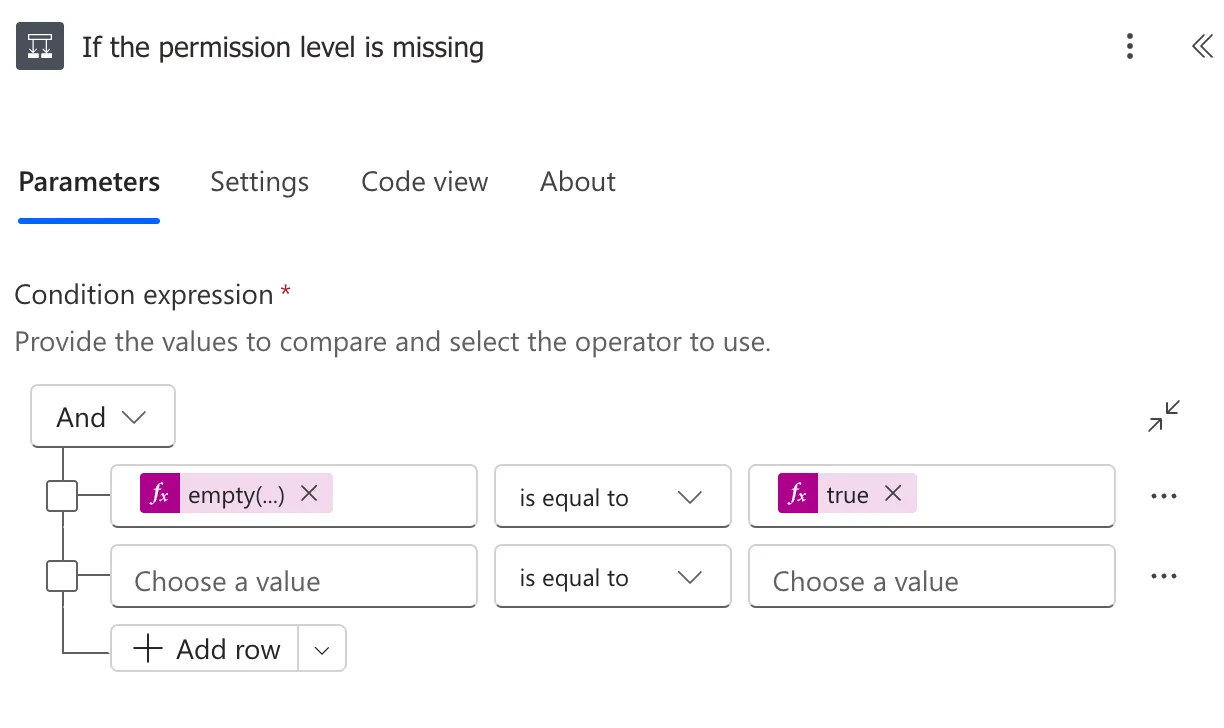
Then a Condition called If the permission level is missing: this expression on the left, is equal to, and the expression true on the right. empty() is true when the answer's list of matching levels has nothing in it:
empty(body('Find_the_permission_level')?['value'])
In its True branch, add Create the permission level:
| Field | Value |
|---|---|
| Site Address | Site URL |
| Method | POST |
| Uri | _api/web/roledefinitions |
| Headers | Accept: application/json;odata=nometadata |
Content-Type: application/json;odata=verbose |
{
  "__metadata": { "type": "SP.RoleDefinition" },
  "Name": "Contribute Without Delete",
  "Description": "Can view, add, and update list items and documents, but not delete them.",
  "BasePermissions": {
    "__metadata": { "type": "SP.BasePermissions" },
    "High": "432",
    "Low": "1011028583"
  }
}
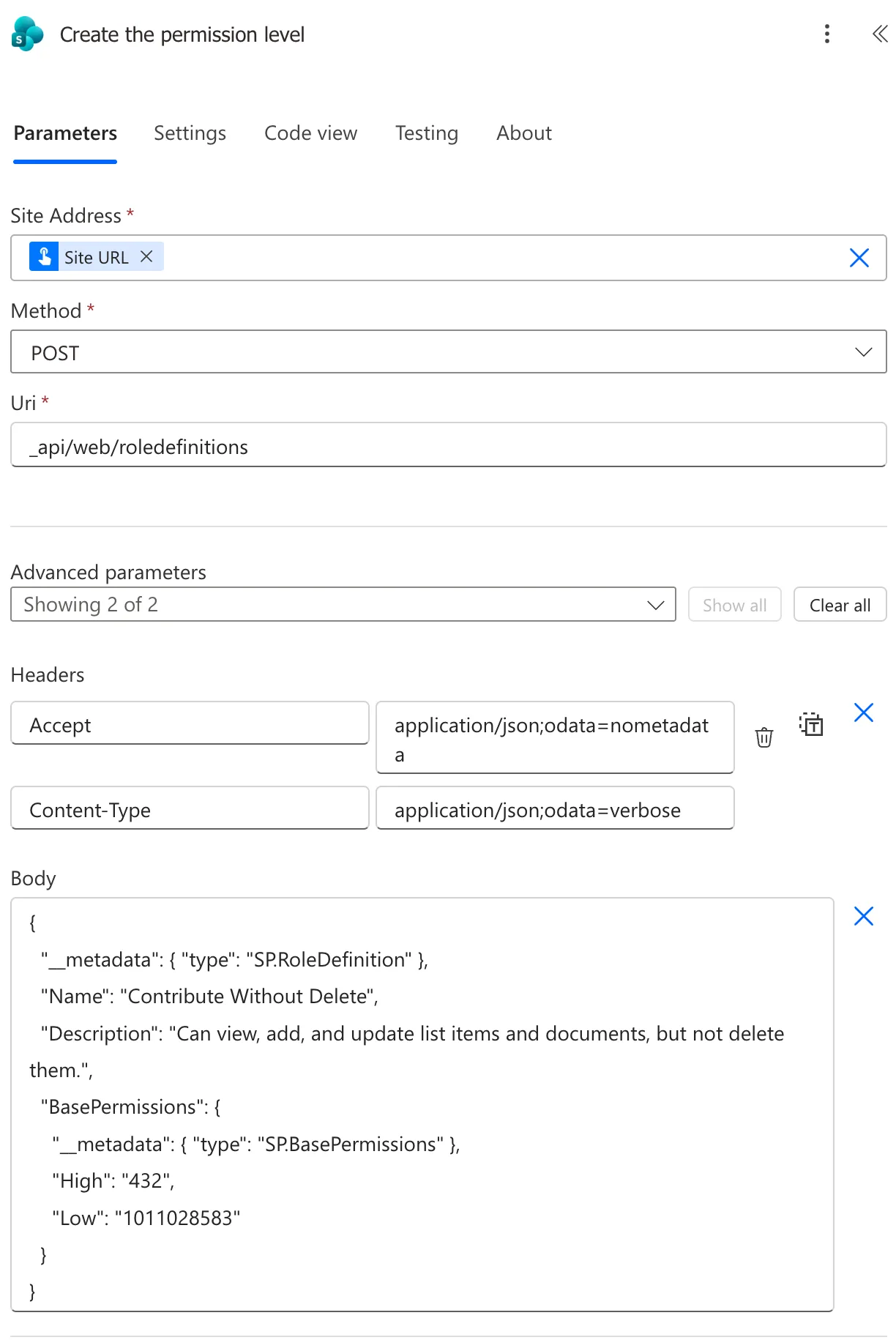
The name and description are Part 3's, word for word, so the level looks the same on every site.
Step 3: Read the Site's Groups
The lists start with a copy of the site's permissions, and two of the site's own groups have to come off some lists. The flow reads their IDs from the site instead of assuming them. After the condition, add Get the site groups:
| Field | Value |
|---|---|
| Site Address | Site URL |
| Method | GET |
| Uri | _api/web?$select=AssociatedMemberGroup/Id,AssociatedVisitorGroup/Id&$expand=AssociatedMemberGroup,AssociatedVisitorGroup |
| Headers | Accept: application/json;odata=nometadata |
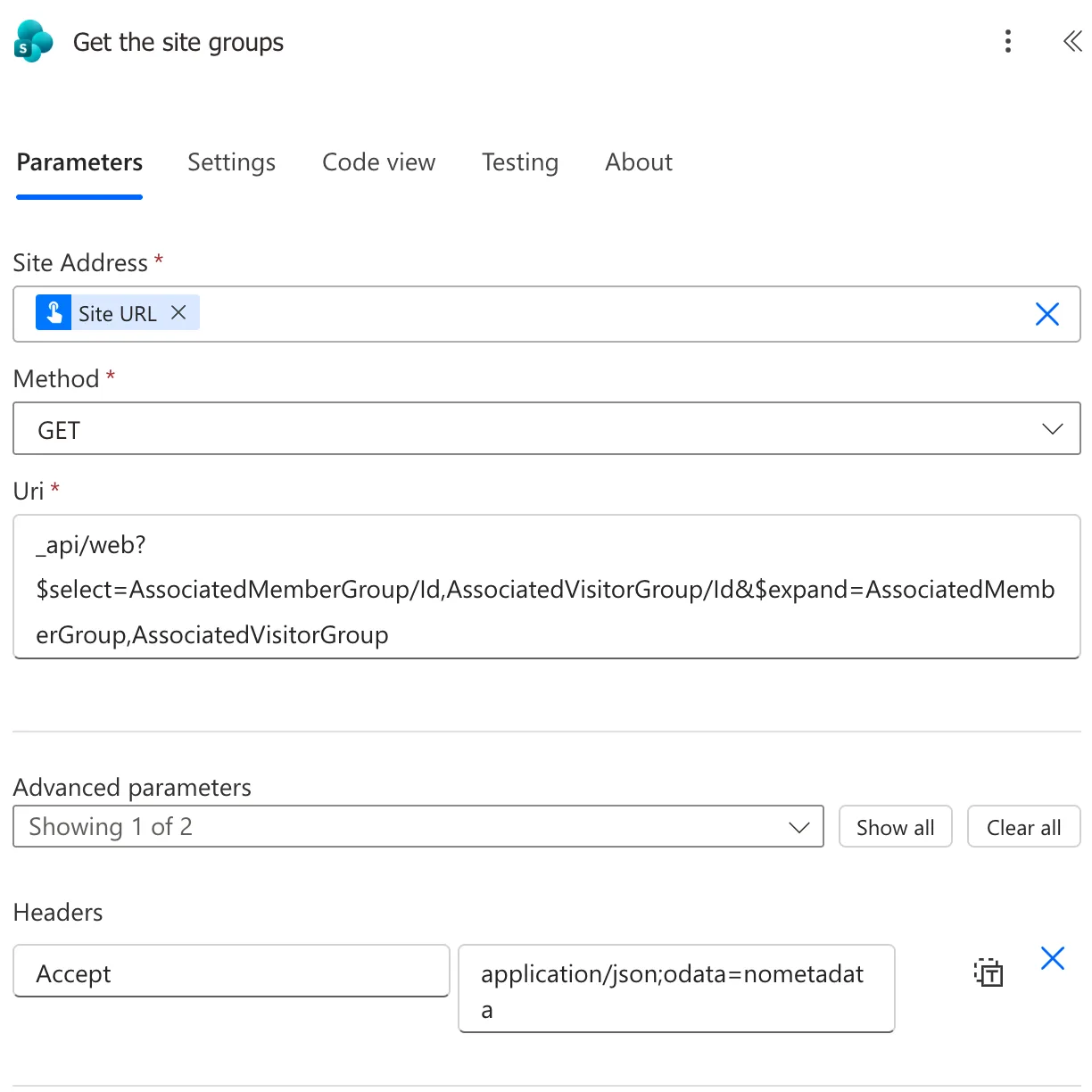
AssociatedMemberGroup and AssociatedVisitorGroup are the site's own Members and Visitors groups. $expand brings each group into the answer, and $select keeps only its Id. On the test site, they were 5 and 4. Later steps read them with these expressions:
body('Get_the_site_groups')?['AssociatedMemberGroup']?['Id']
body('Get_the_site_groups')?['AssociatedVisitorGroup']?['Id']
Step 4: Put the Users Group in Visitors
Part 3 shared the site with Overtime Timesheet Users at Read, which put the security group in the site's Visitors group. The flow adds it there directly (How to Add a Security Group to a SharePoint Group with the REST API in Power Automate). Add Add the users group to Visitors:
| Field | Value |
|---|---|
| Site Address | Site URL |
| Method | POST |
| Uri | _api/web/associatedvisitorgroup/users |
| Headers | Accept: application/json;odata=nometadata |
Content-Type: application/json;odata=verbose |
In Body, type the JSON and put Users group ID from the trigger right after tenant|. The fourth input sits behind See more in the trigger's dynamic content:
{
  "__metadata": { "type": "SP.User" },
  "LoginName": "c:0t.c|tenant|@{triggerBody()?['text_3']}"
}
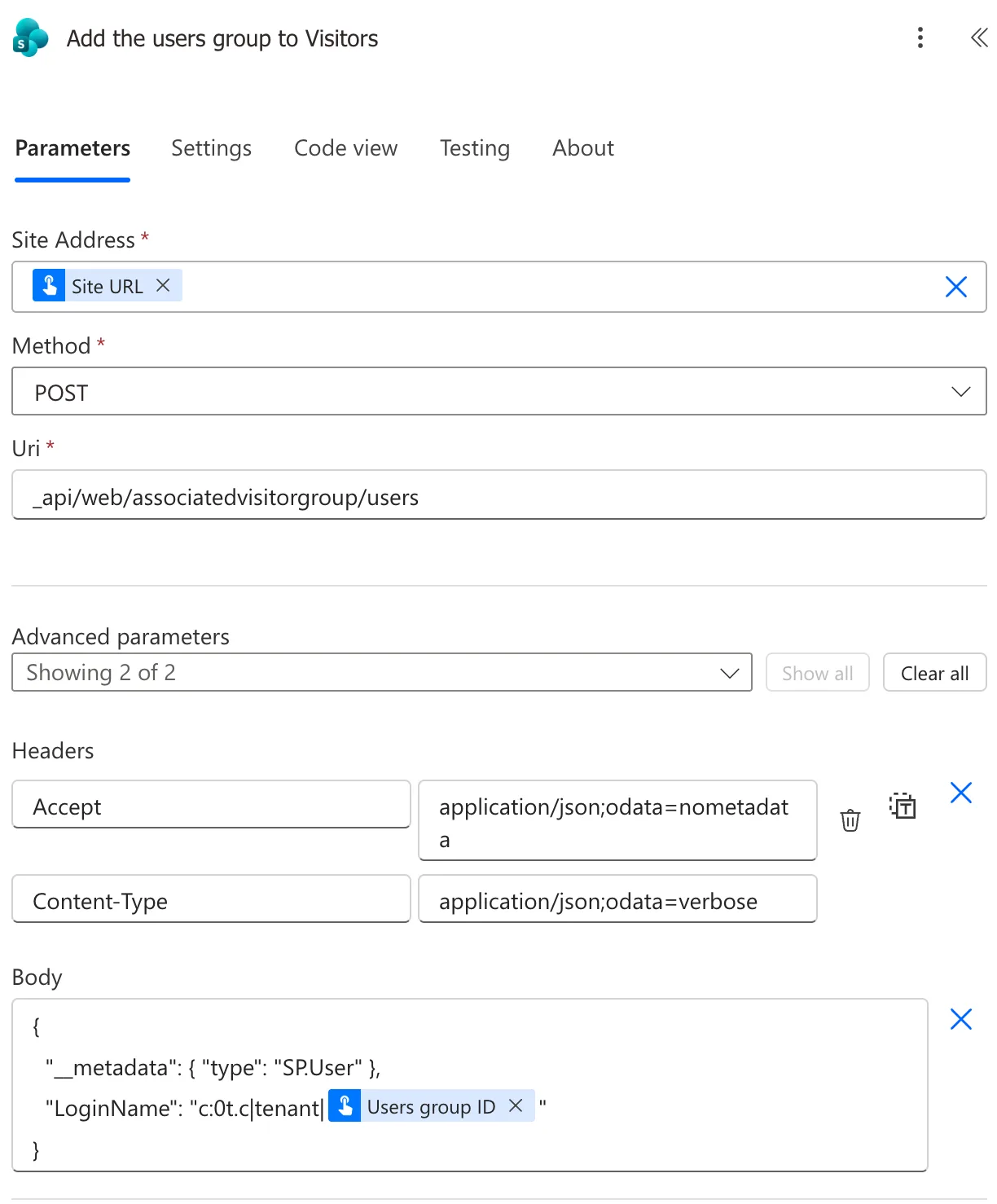
Microsoft documents the login name of a Microsoft 365 group, but I found no page for a security group's. c:0t.c|tenant|<Object ID> is what the app's own site showed for Overtime Timesheet Users in its users, and what SharePoint's Check Permissions shows in Step 12.
Step 5: Describe Each List's Permissions
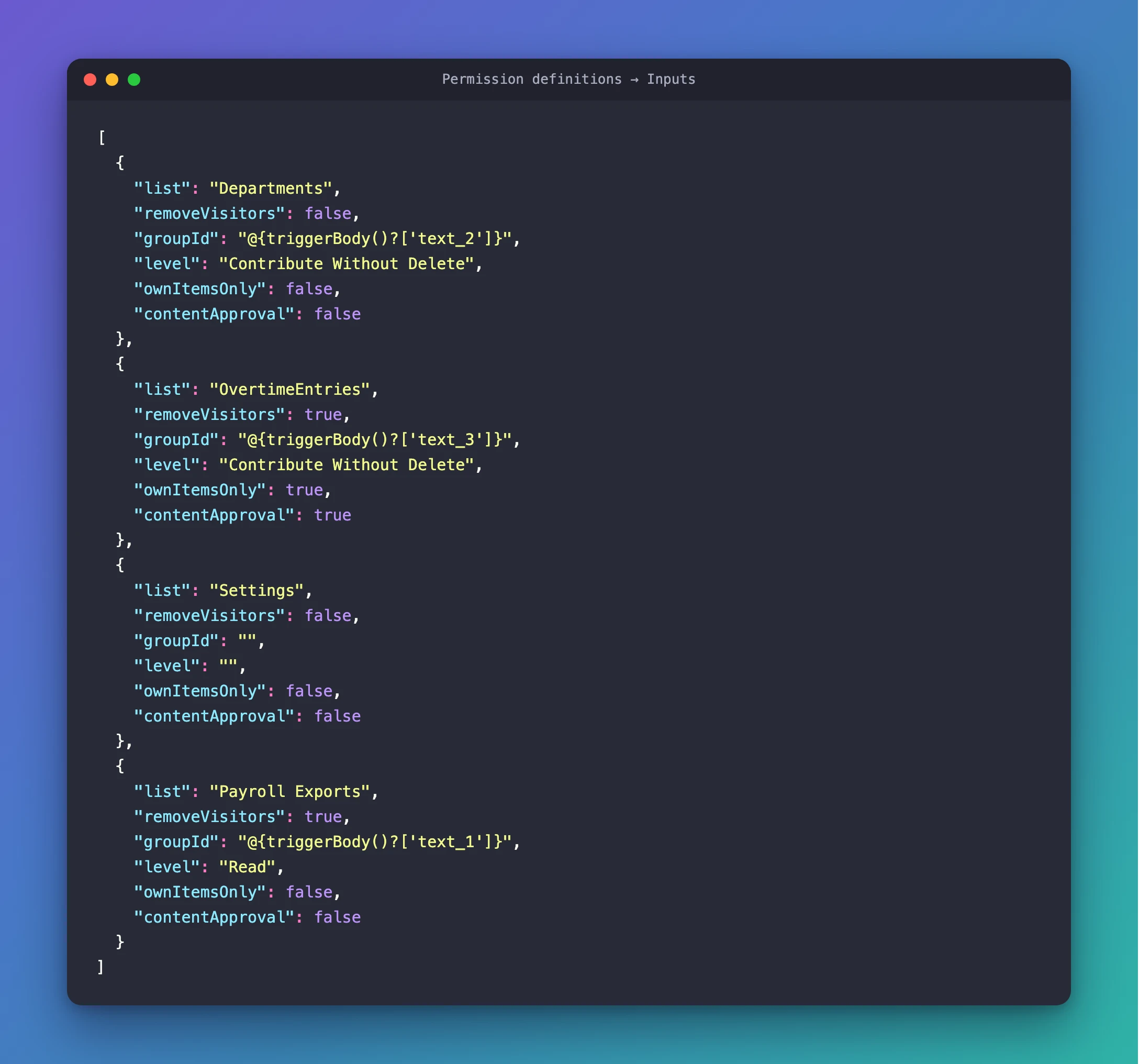
Add a Compose action called Permission definitions (How to Use the Compose Action in Power Automate). Type the JSON, and put each group ID token from the trigger between the quotes after "groupId"::
[
  {
    "list": "Departments",
    "removeVisitors": false,
    "groupId": "@{triggerBody()?['text_2']}",
    "level": "Contribute Without Delete",
    "ownItemsOnly": false,
    "contentApproval": false
  },
  {
    "list": "OvertimeEntries",
    "removeVisitors": true,
    "groupId": "@{triggerBody()?['text_3']}",
    "level": "Contribute Without Delete",
    "ownItemsOnly": true,
    "contentApproval": true
  },
  {
    "list": "Settings",
    "removeVisitors": false,
    "groupId": "",
    "level": "",
    "ownItemsOnly": false,
    "contentApproval": false
  },
  {
    "list": "Payroll Exports",
    "removeVisitors": true,
    "groupId": "@{triggerBody()?['text_1']}",
    "level": "Read",
    "ownItemsOnly": false,
    "contentApproval": false
  }
]
The designer shows the three group IDs as tokens:
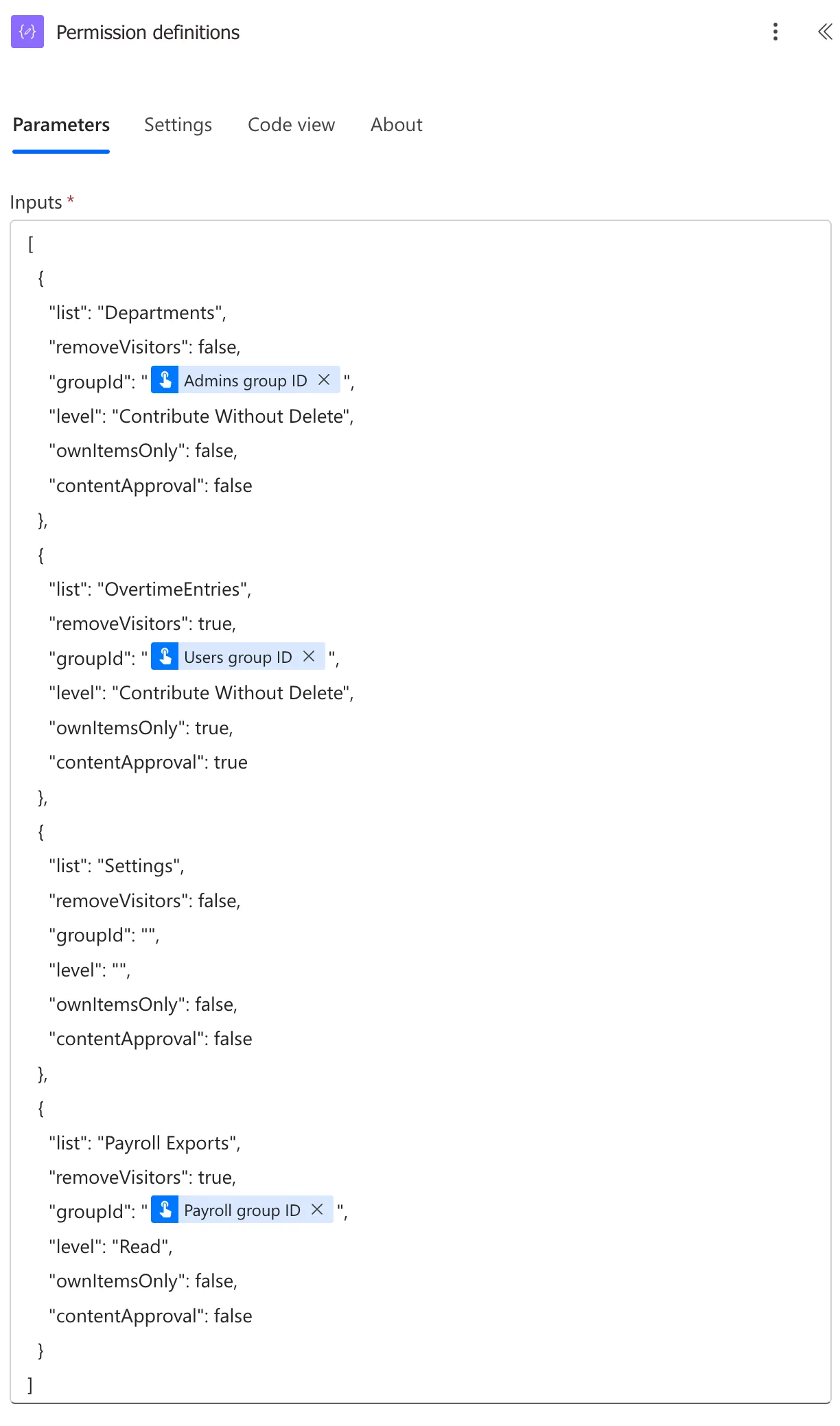
Each entry is one of Part 3's steps, or Part 5's for Settings:
| Key | What it means | Where it comes from |
|---|---|---|
list | The list or library | Part 18's lists |
removeVisitors | Take the site's Visitors group off this list too. Members always comes off. | Part 3 kept Visitors on Departments and Part 5 on Settings, so staff can read them |
groupId | The security group to add, or "" for none | Admins, Users or Payroll group ID |
level | The level that group gets | Contribute Without Delete for admins and staff, Read for payroll |
ownItemsOnly | People see and edit only their own items | OvertimeEntries only |
contentApproval | New and edited items wait for approval | OvertimeEntries only |
Step 6: Loop Over the Lists
Add an Apply to each called For each permission over Outputs of Permission definitions (How to Loop Through an Array with Apply to Each in Power Automate):
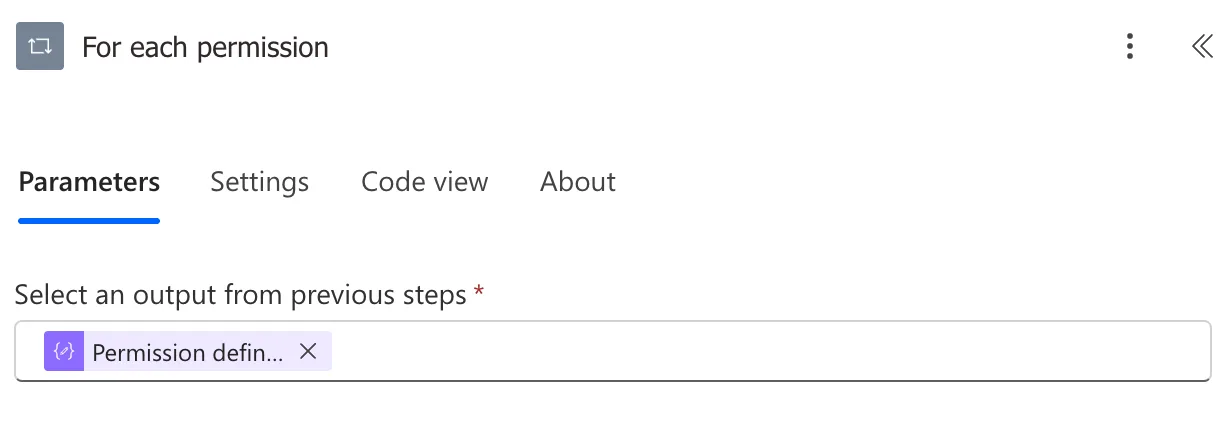
Inside the loop, every step reads the current entry with items('For_each_permission'), such as this for the list's name:
items('For_each_permission')?['list']
The loop holds one request and four conditions:
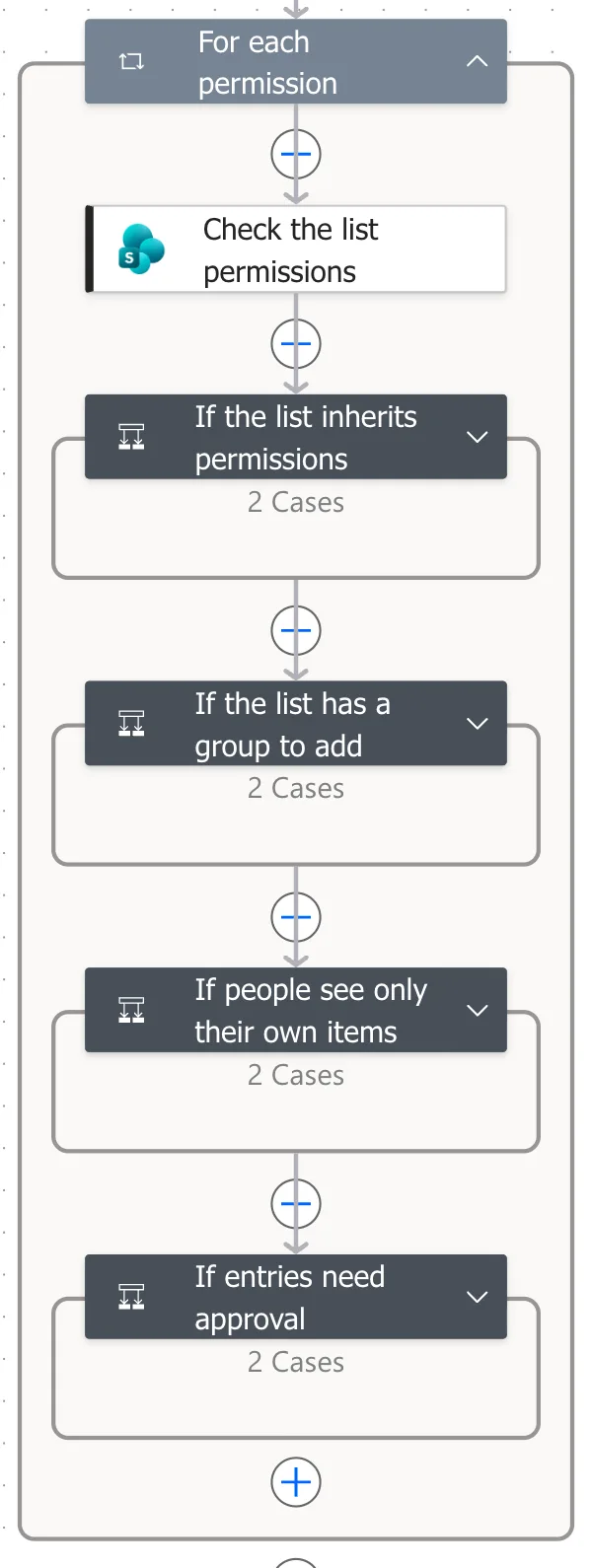
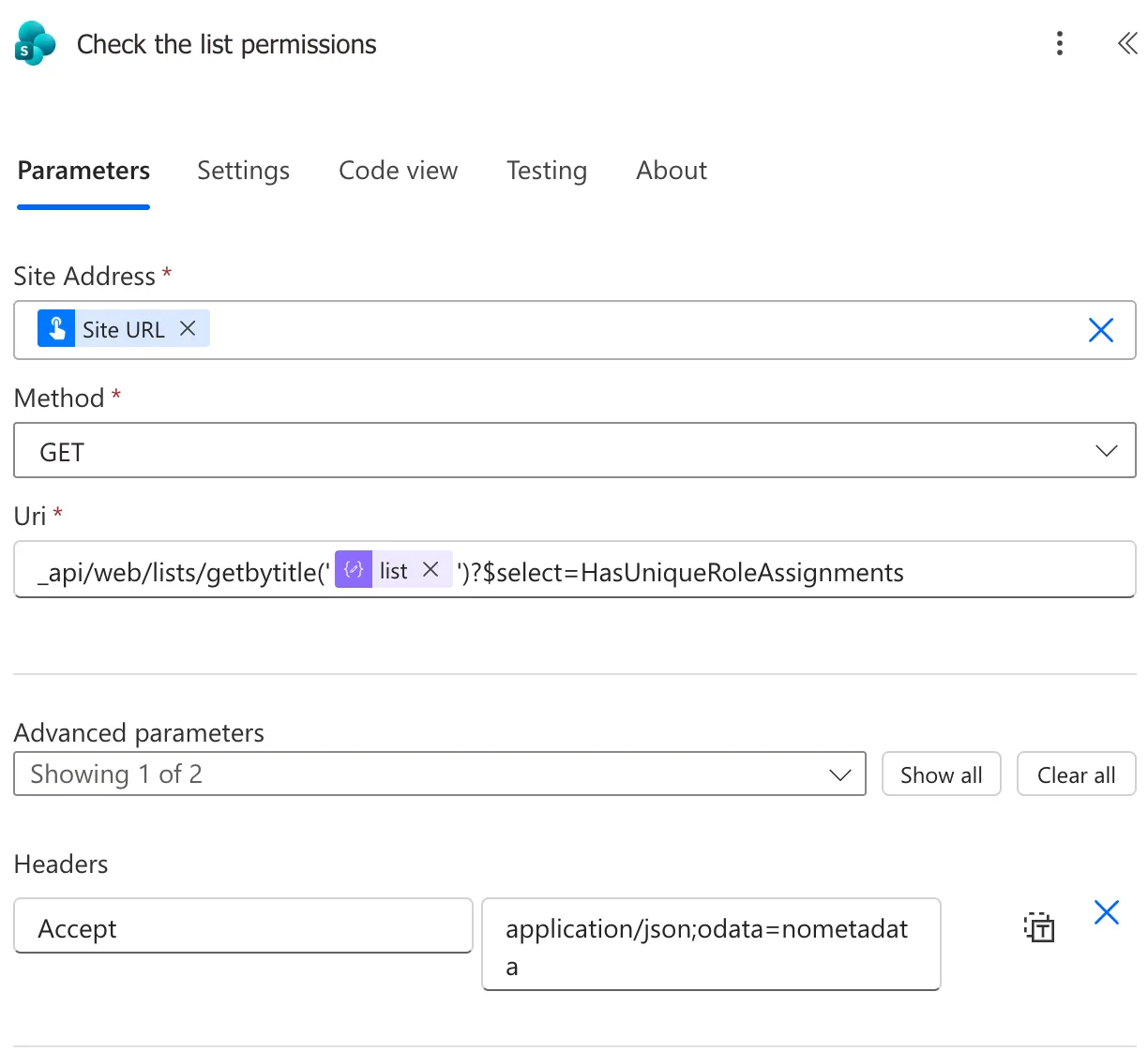
The first is Check the list permissions, which asks whether the list still inherits its site's permissions:
| Field | Value |
|---|---|
| Site Address | Site URL |
| Method | GET |
| Uri | _api/web/lists/getbytitle(' list ')?$select=HasUniqueRoleAssignments |
| Headers | Accept: application/json;odata=nometadata |
Step 7: Stop Inheriting and Remove the Site's Groups
Add a Condition called If the list inherits permissions: this expression on the left, is equal to, and the expression false on the right:
body('Check_the_list_permissions')?['HasUniqueRoleAssignments']
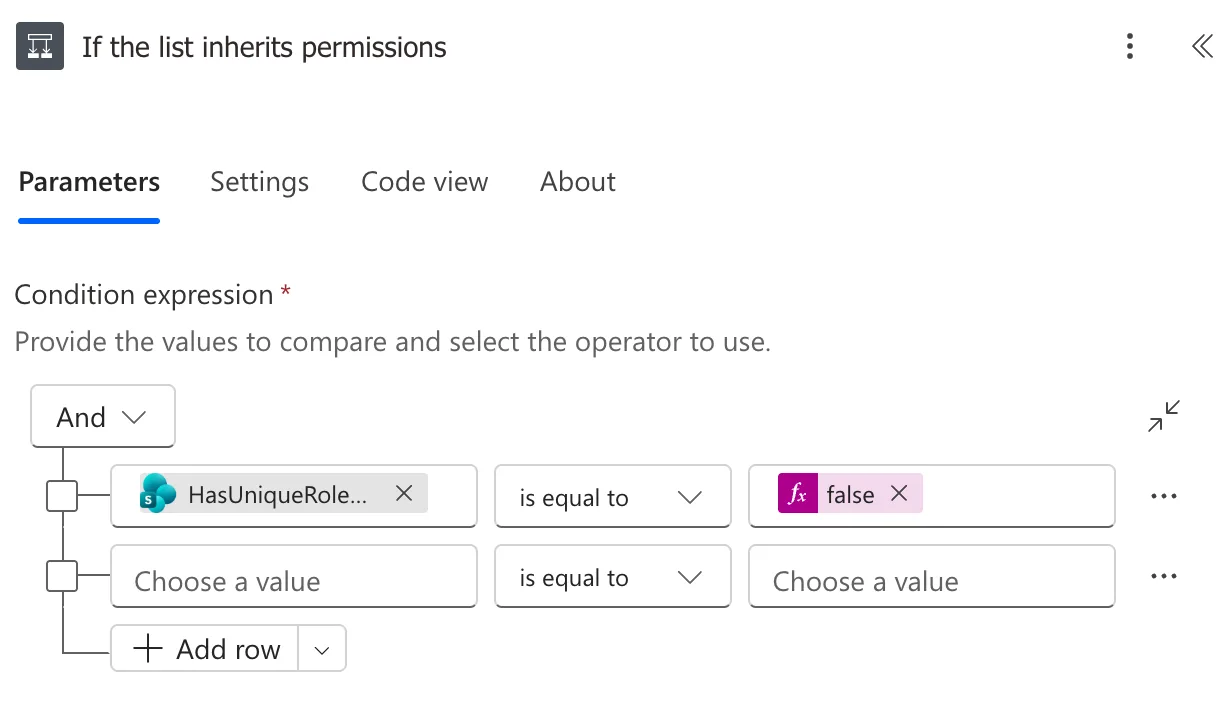
Its True branch does what Part 3 did first on each list:
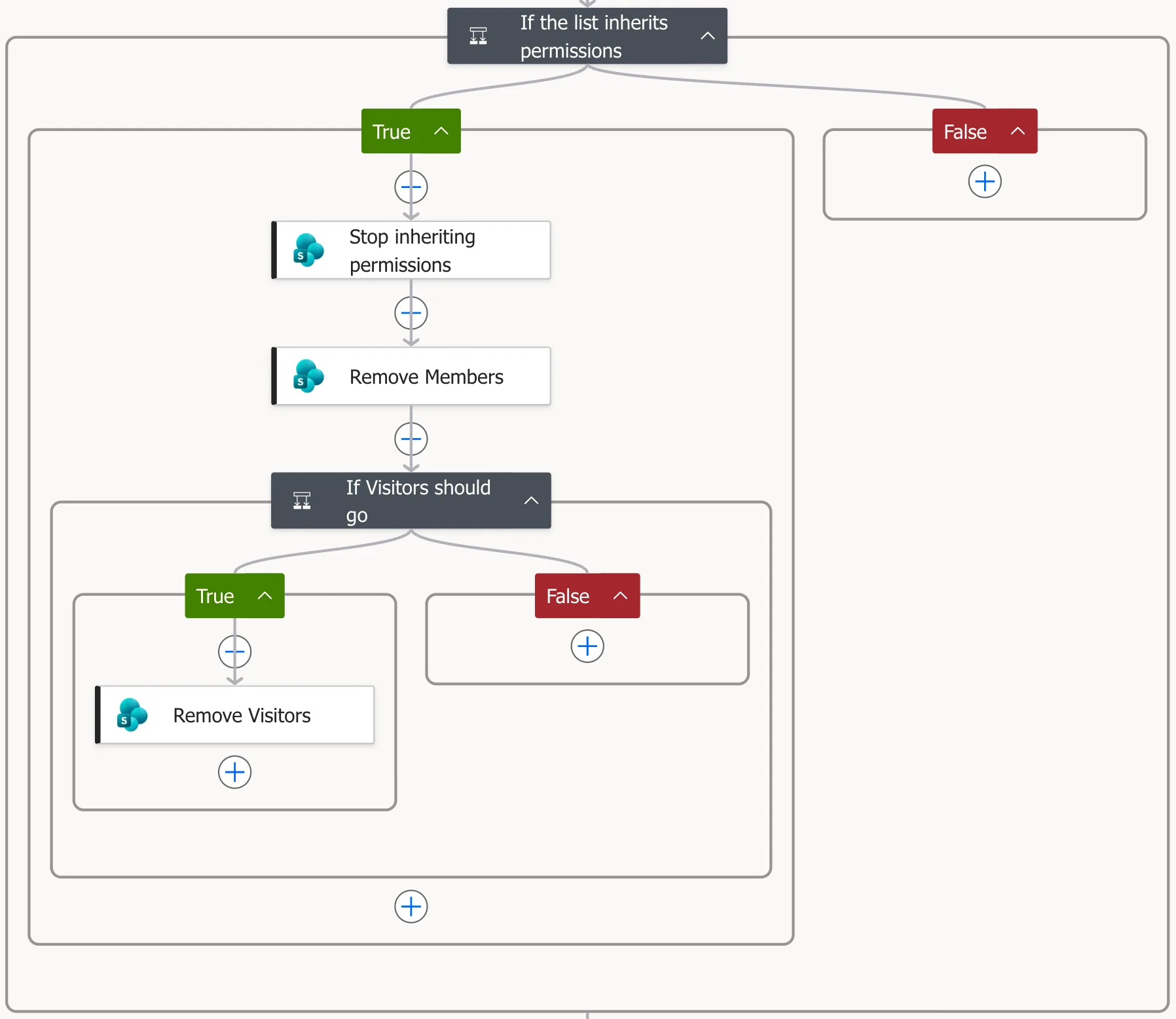
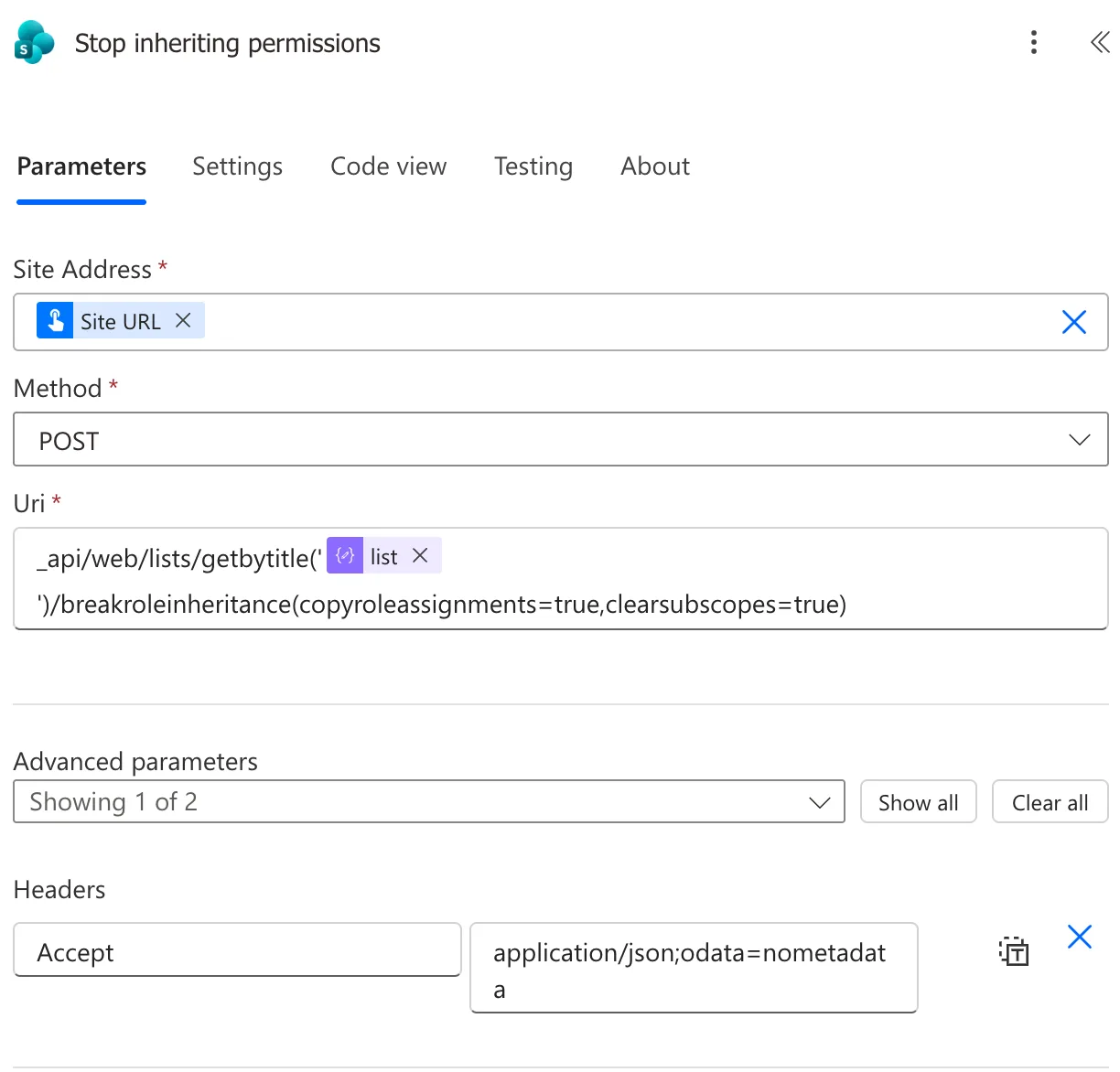
Stop inheriting permissions copies the site's permissions to the list (How to Stop Inheriting Permissions on a SharePoint List with the REST API in Power Automate):
| Field | Value |
|---|---|
| Method | POST |
| Uri | _api/web/lists/getbytitle(' list ')/breakroleinheritance(copyroleassignments=true,clearsubscopes=true) |
| Headers | Accept: application/json;odata=nometadata |
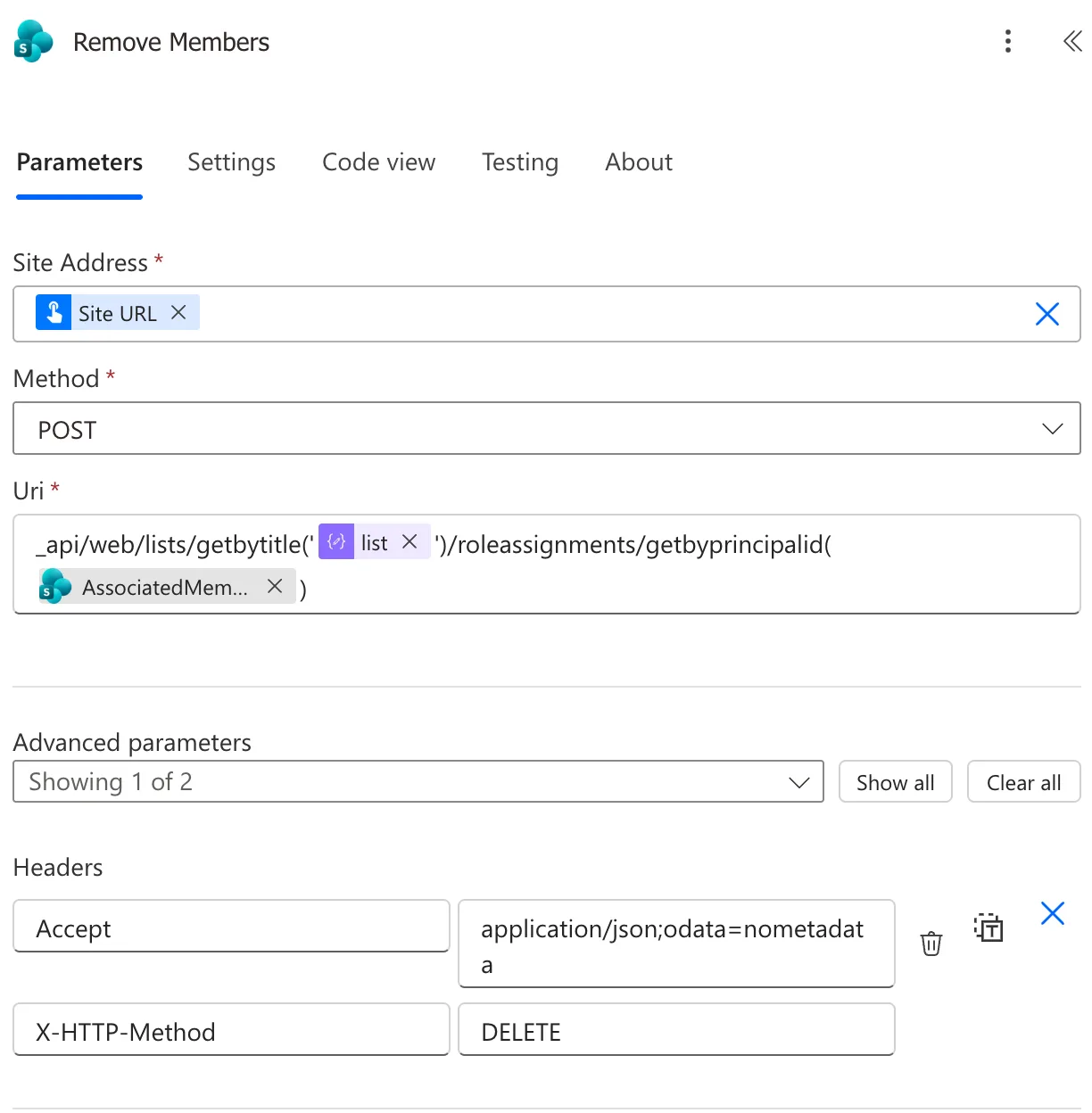
Remove Members deletes the Members group's role assignment on the list, with the Members ID from Step 3 inside getbyprincipalid( ) (How to Remove a Group's Permissions from a SharePoint List with the REST API in Power Automate):
| Field | Value |
|---|---|
| Method | POST |
| Uri | _api/web/lists/getbytitle(' list ')/roleassignments/getbyprincipalid( AssociatedMemberGroup Id ) |
| Headers | Accept: application/json;odata=nometadata |
X-HTTP-Method: DELETE |
Then a Condition called If Visitors should go, with items('For_each_permission')?['removeVisitors'] on the left, is equal to, and the expression true on the right. In its True branch, Remove Visitors is the same request with the Visitors ID:
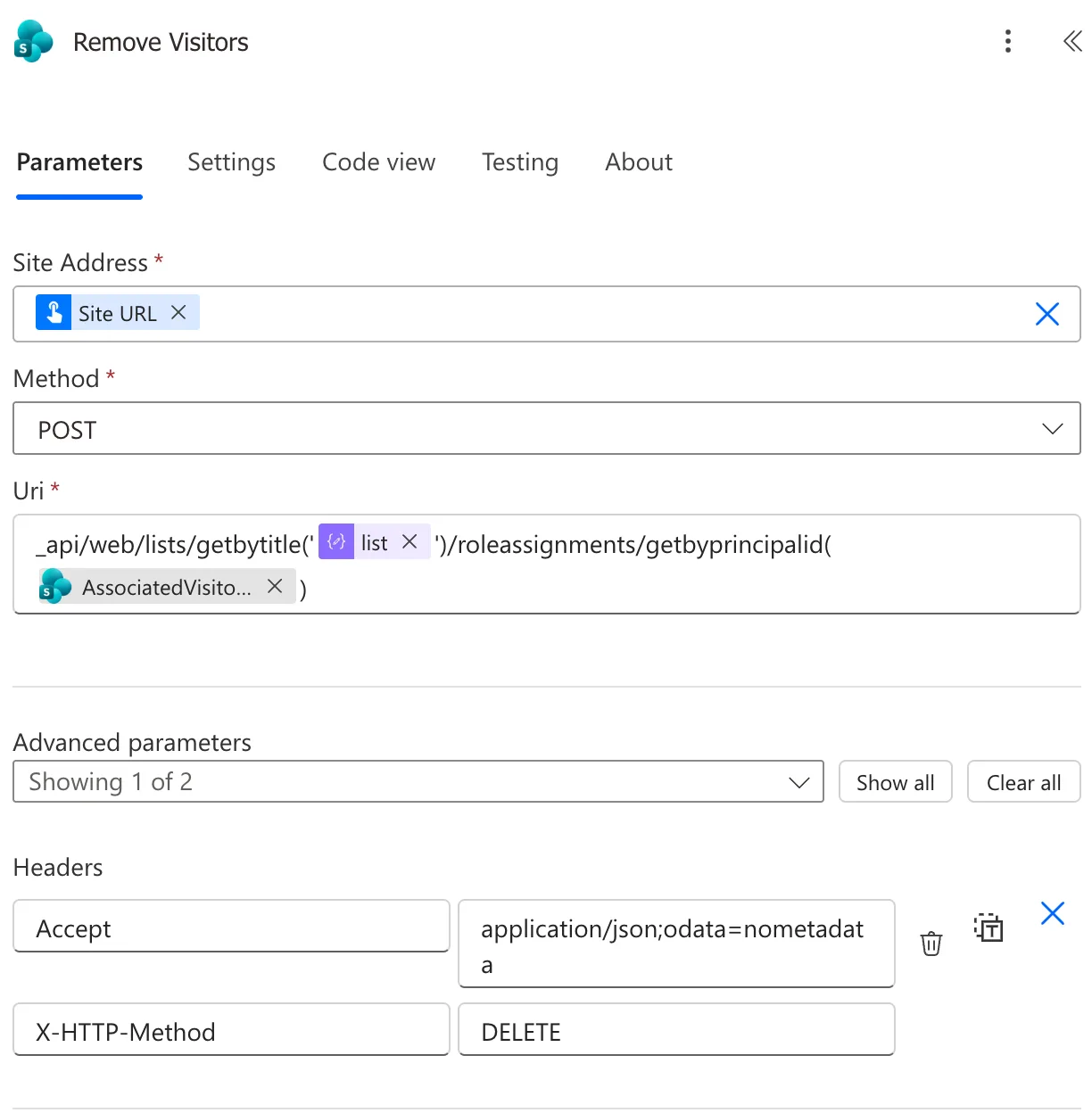
All of this sits inside If the list inherits permissions on purpose. Once a list has its own permissions, the flow leaves the groups on it alone.
Step 8: Give Each List Its Group
After that condition, still in the loop, add a Condition called If the list has a group to add: this expression on the left, is equal to, and the expression false on the right. Settings has no group, so it skips this branch:
empty(items('For_each_permission')?['groupId'])
Its True branch has three requests (How to Give a Group Access to a SharePoint List with the REST API in Power Automate):
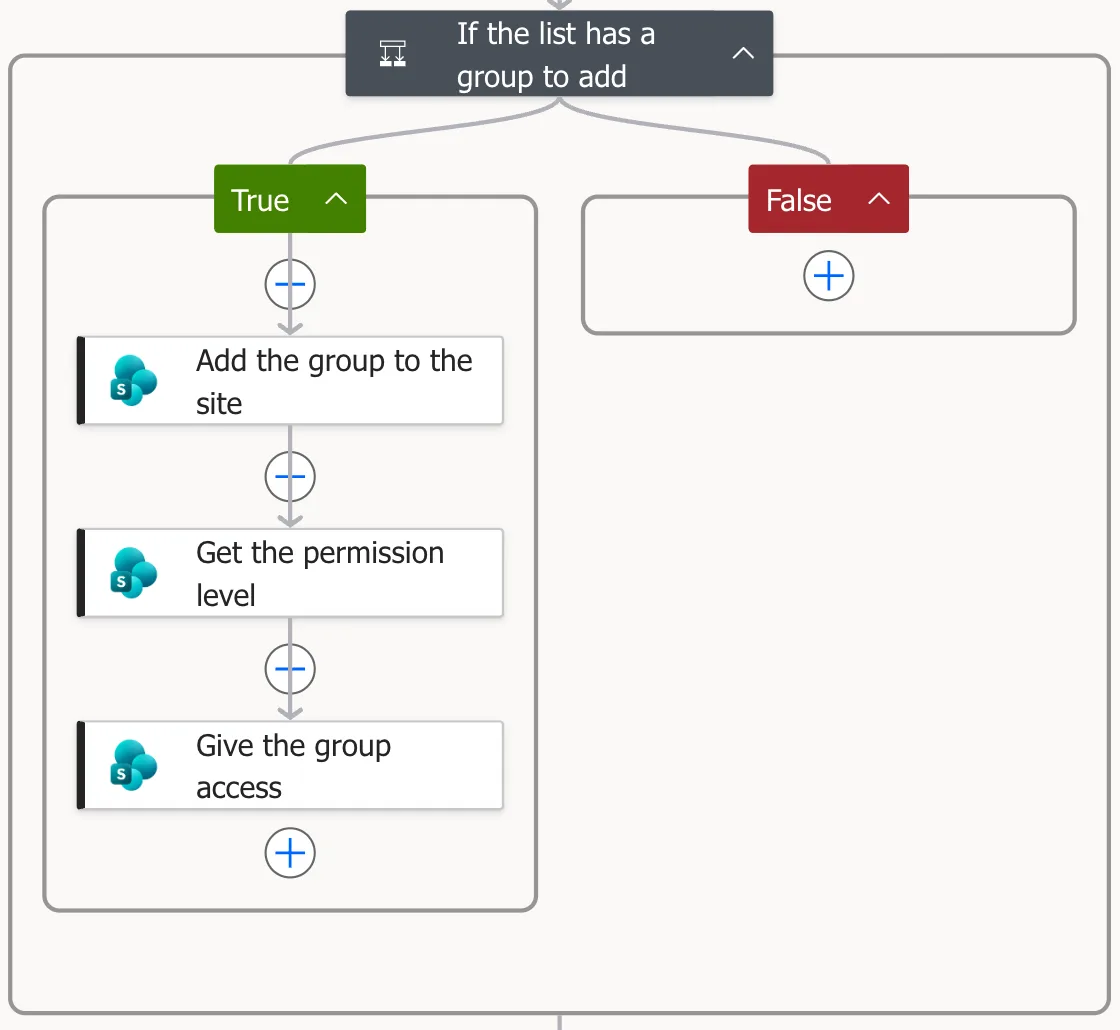
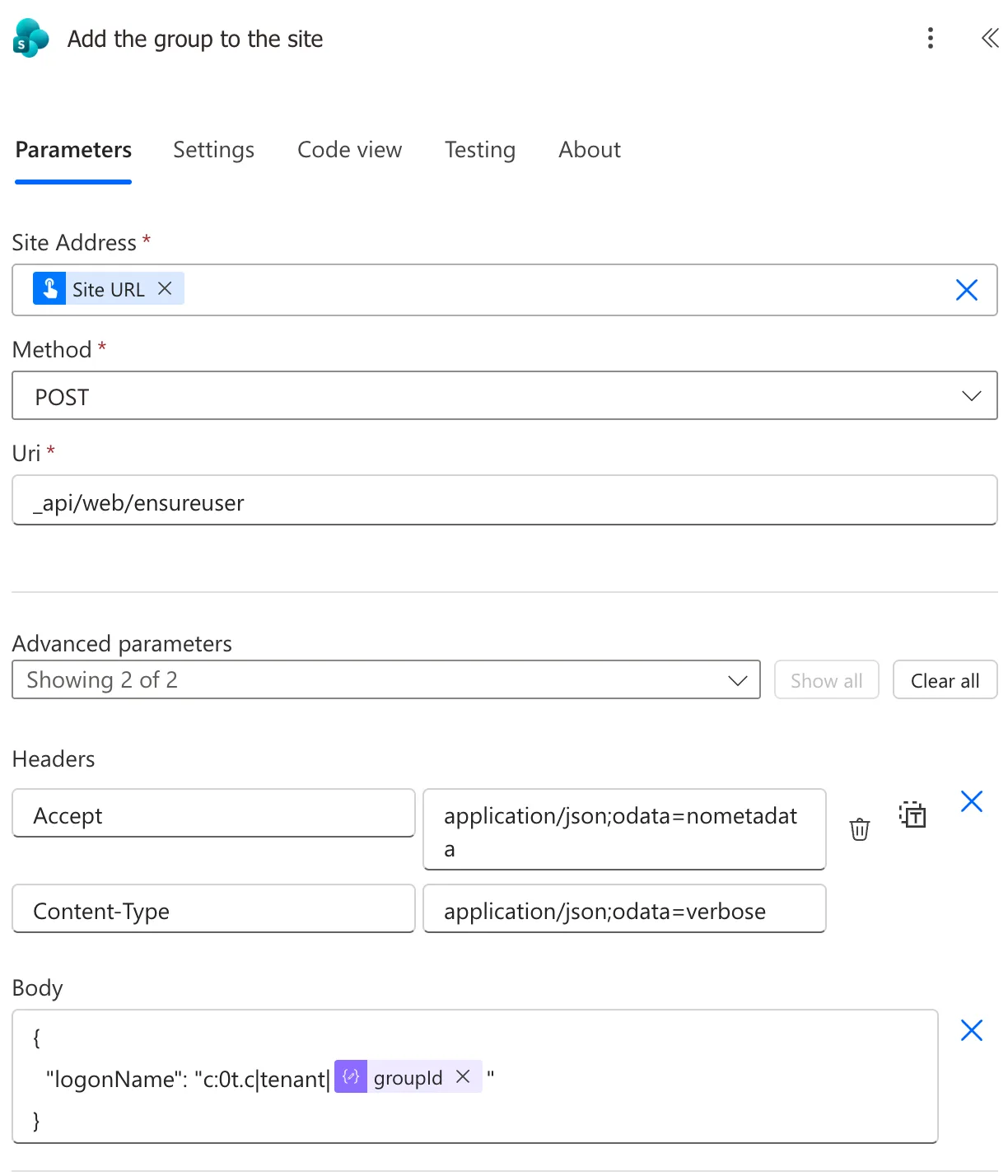
Add the group to the site turns the security group into a SharePoint ID on this site:
| Field | Value |
|---|---|
| Method | POST |
| Uri | _api/web/ensureuser |
| Headers | Accept: application/json;odata=nometadata |
Content-Type: application/json;odata=verbose |
{
  "logonName": "c:0t.c|tenant|@{items('For_each_permission')?['groupId']}"
}
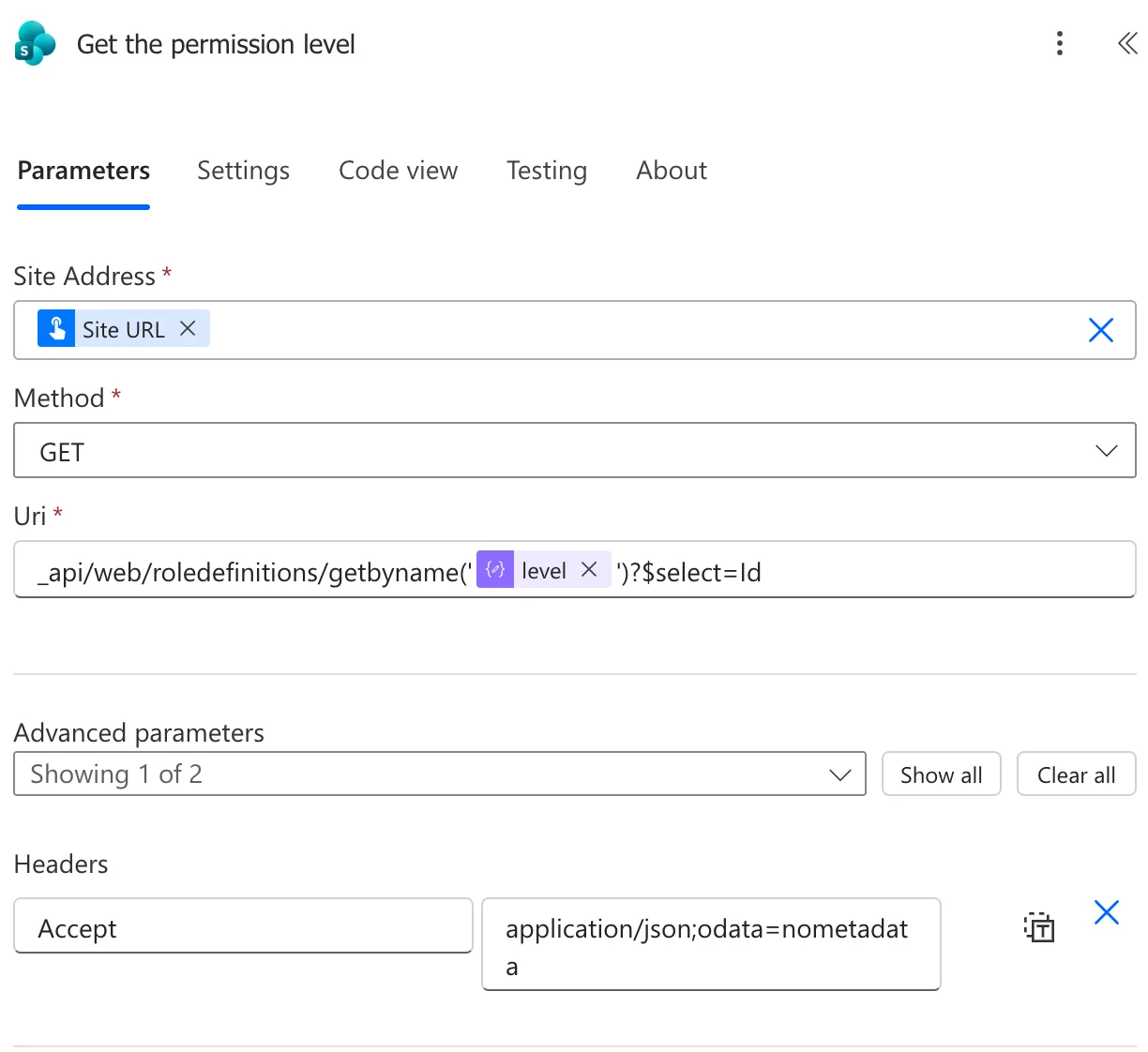
Get the permission level reads the level's ID by its name from the definitions:
| Field | Value |
|---|---|
| Method | GET |
| Uri | _api/web/roledefinitions/getbyname(' level ')?$select=Id |
| Headers | Accept: application/json;odata=nometadata |
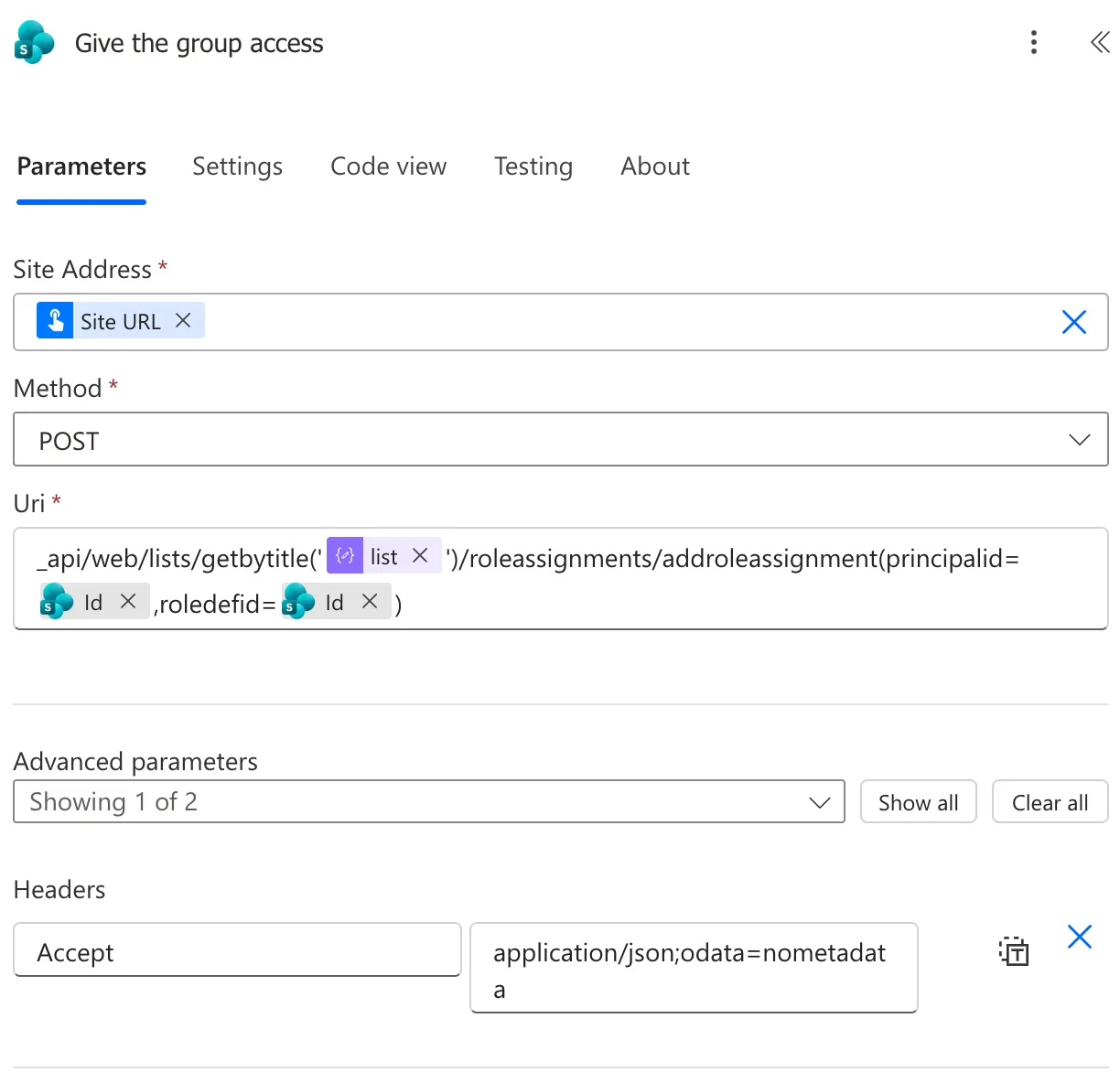
Give the group access assigns that level to the group on the list:
| Field | Value |
|---|---|
| Method | POST |
| Uri | _api/web/lists/getbytitle(' list ')/roleassignments/addroleassignment(principalid= Id ,roledefid= Id ) |
| Headers | Accept: application/json;odata=nometadata |
body('Add_the_group_to_the_site')?['Id']
body('Get_the_permission_level')?['Id']
Step 9: Own Items Only and Content Approval
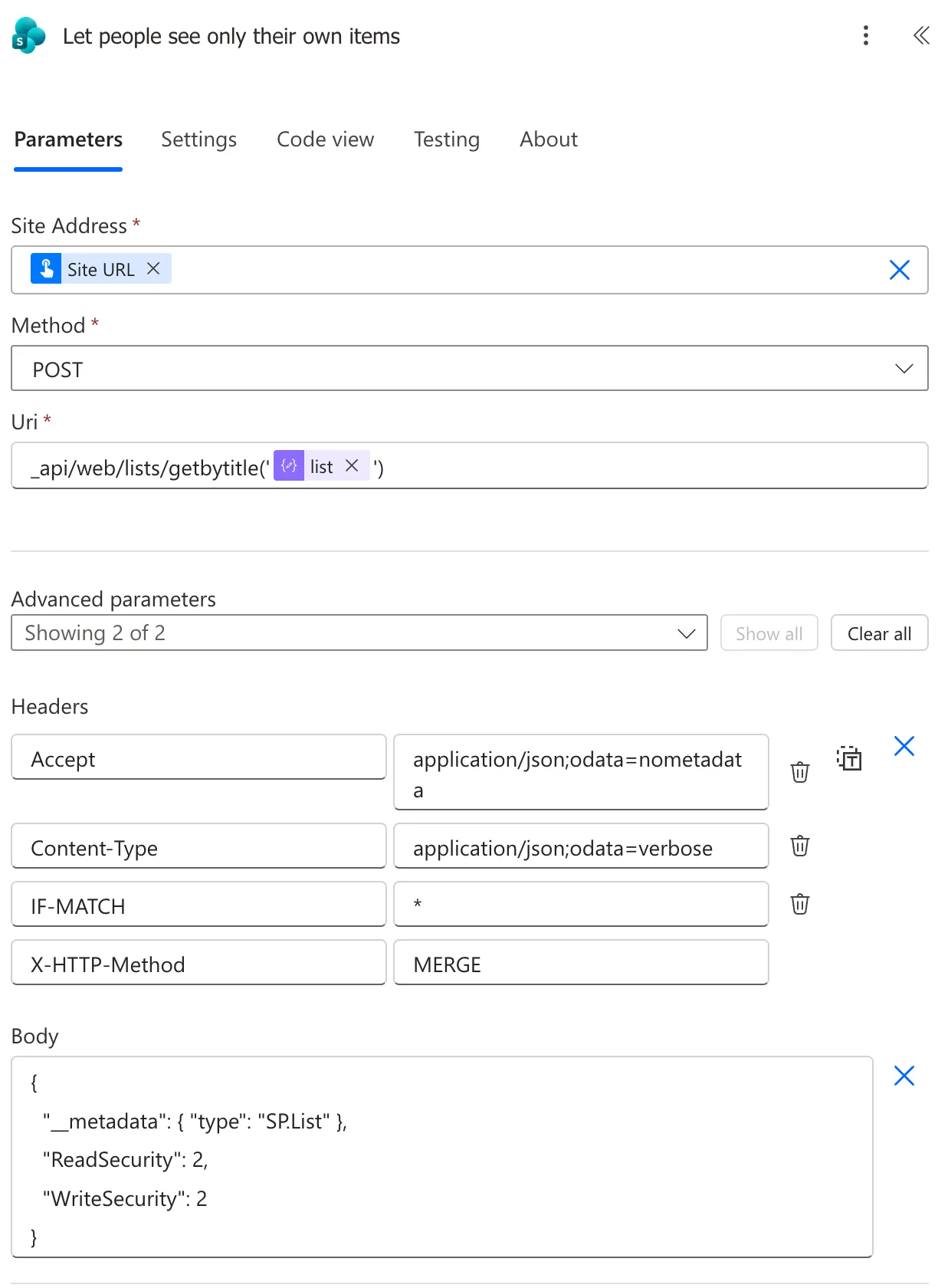
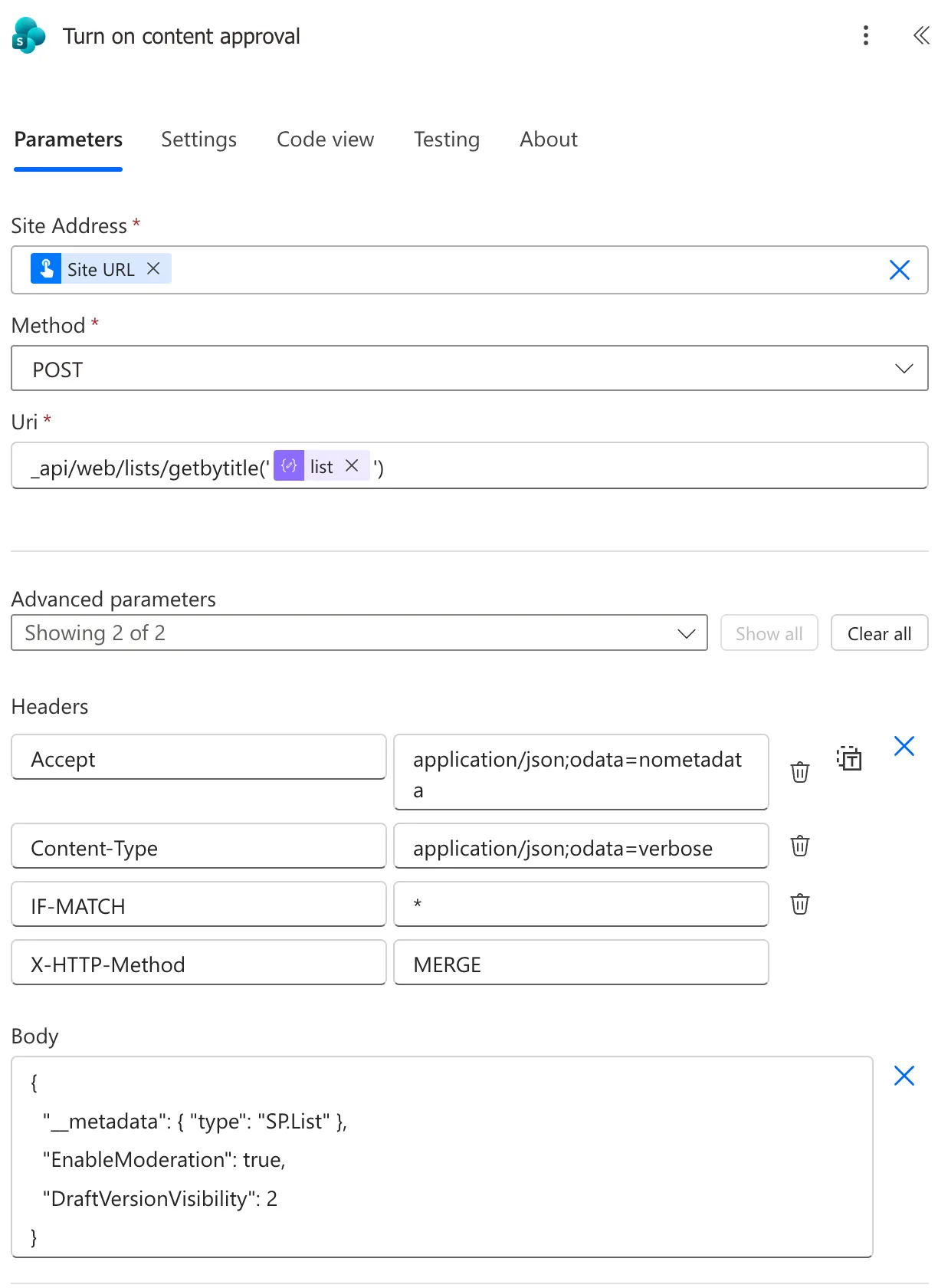
Two more conditions finish the loop, each with one request in its True branch. Both requests are MERGEs on the list, with the headers Accept: application/json;odata=nometadata, Content-Type: application/json;odata=verbose, IF-MATCH: * and X-HTTP-Method: MERGE, and the Uri _api/web/lists/getbytitle(' list ').
If people see only their own items checks items('For_each_permission')?['ownItemsOnly'] against the expression true. Its Let people see only their own items sets Part 3's item-level permissions (How to Let Users See Only Their Own Items in a SharePoint List with the REST API in Power Automate):
{
  "__metadata": { "type": "SP.List" },
  "ReadSecurity": 2,
  "WriteSecurity": 2
}
If entries need approval checks items('For_each_permission')?['contentApproval'] against the expression true. Its Turn on content approval sets Part 3's versioning settings (How to Turn On Content Approval for a SharePoint List with the REST API in Power Automate):
{
  "__metadata": { "type": "SP.List" },
  "EnableModeration": true,
  "DraftVersionVisibility": 2
}
These two run on every pass that asks for them, not only the first: they set a value, so setting it again changes nothing.
Step 10: Run It on the Test Site
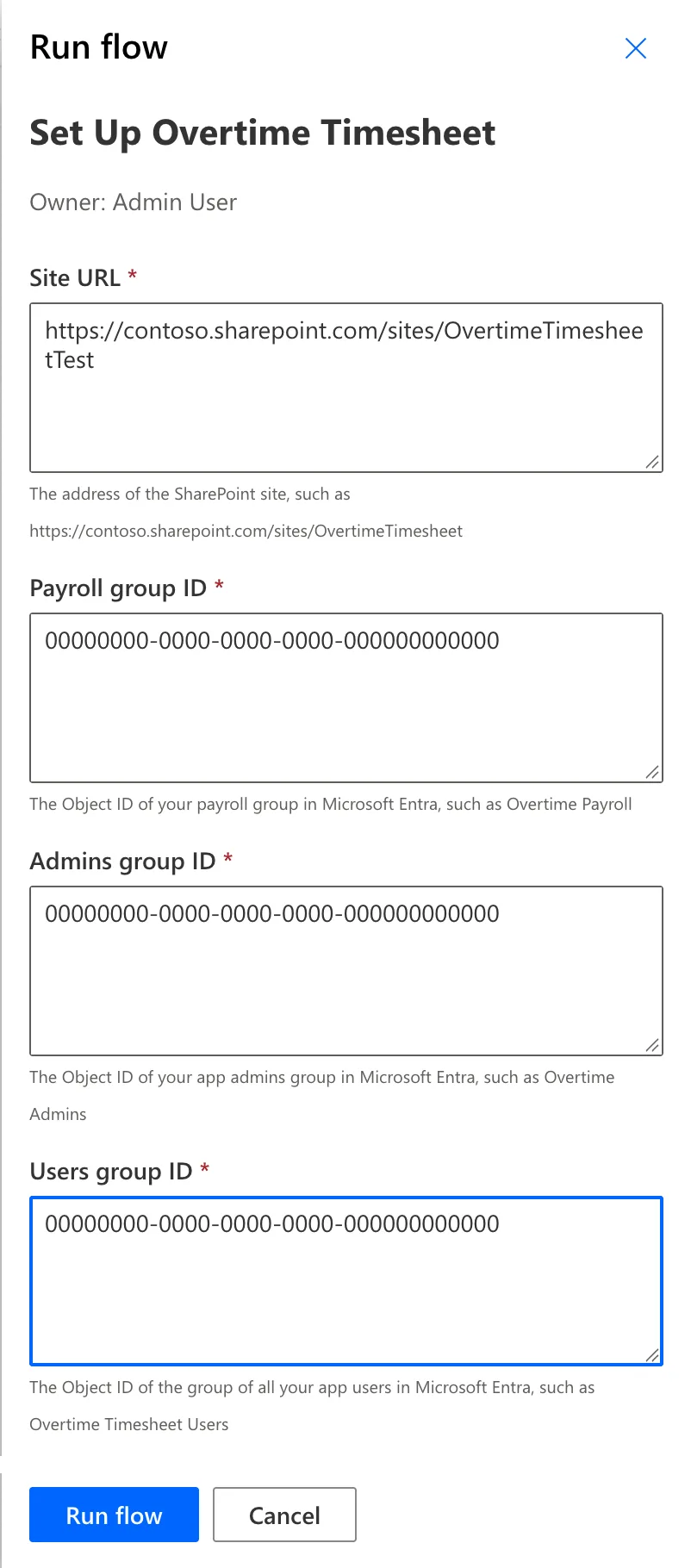
Save the flow, then Test > Manually, which asks to Publish & Test (How to Save a Draft and Publish a Flow in Power Automate). I typed the test site's address and pasted the three group IDs, each copied in Microsoft Entra with Copy object ID to clipboard (How to Find a Group's Object ID in Microsoft Entra). The IDs are hidden in the picture:
The run succeeded in 22 seconds. In the run, the loop's arrows step through its four passes. Pass 2 of 4, OvertimeEntries, stopped inheriting and removed both of the site's groups:
The same pass gave Overtime Timesheet Users its level and turned on both list settings:
Step 11: Run It Again
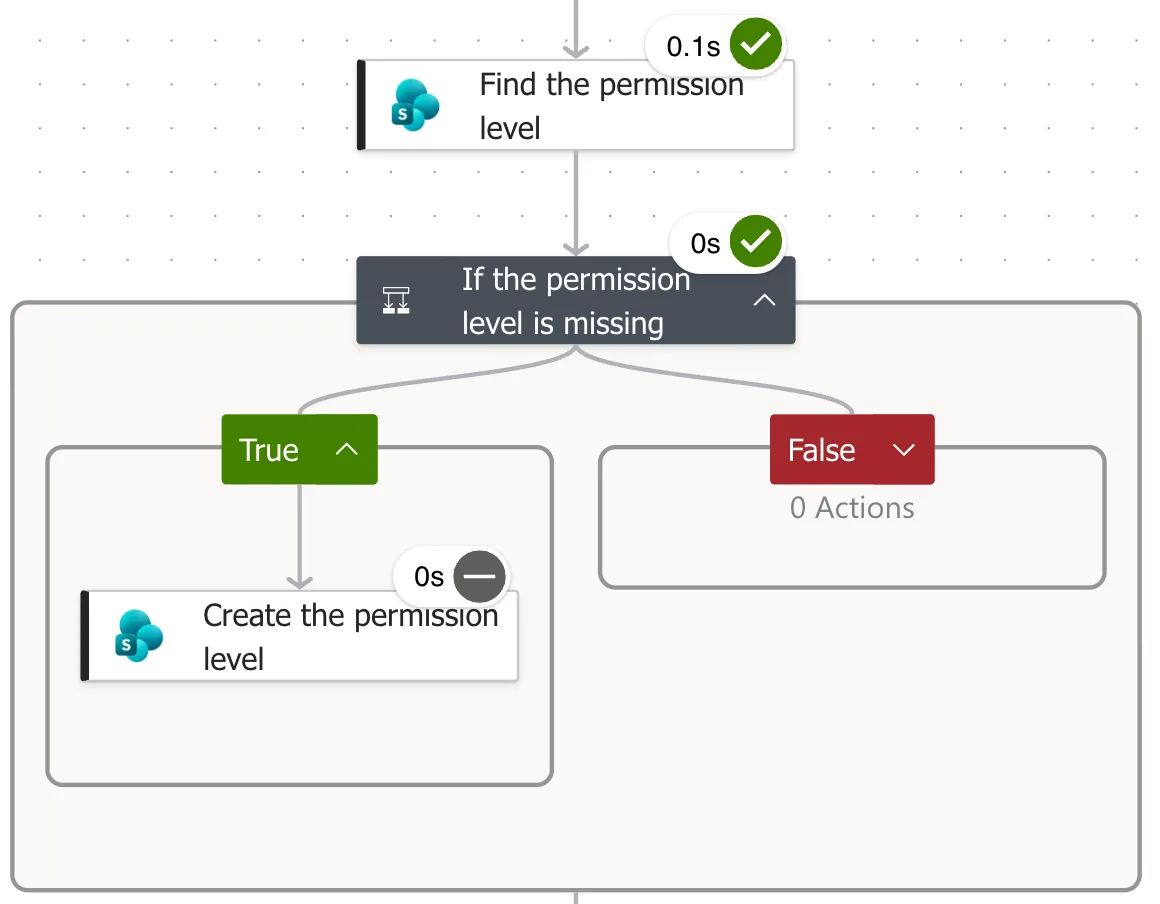
I repeated the run with Test > Automatically > With a recently used trigger (How to Rerun a Cloud Flow with the Same Inputs in Power Automate). As in Part 18, the newest run in that list said Test Running although it had finished; selecting it still reused its inputs. The level was found, so Create the permission level was skipped:
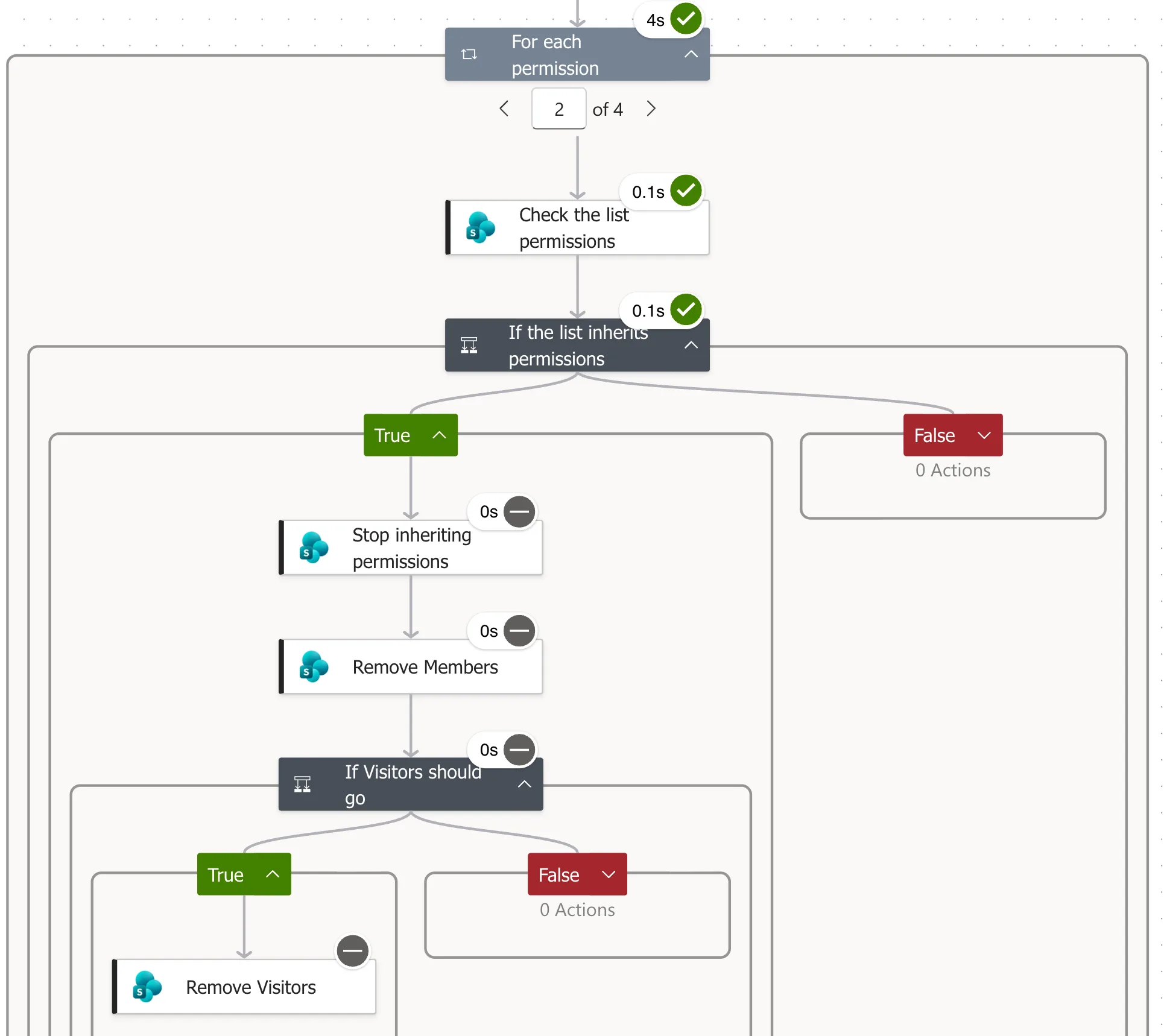
Every list already had its own permissions, so the whole True branch of If the list inherits permissions was skipped too:
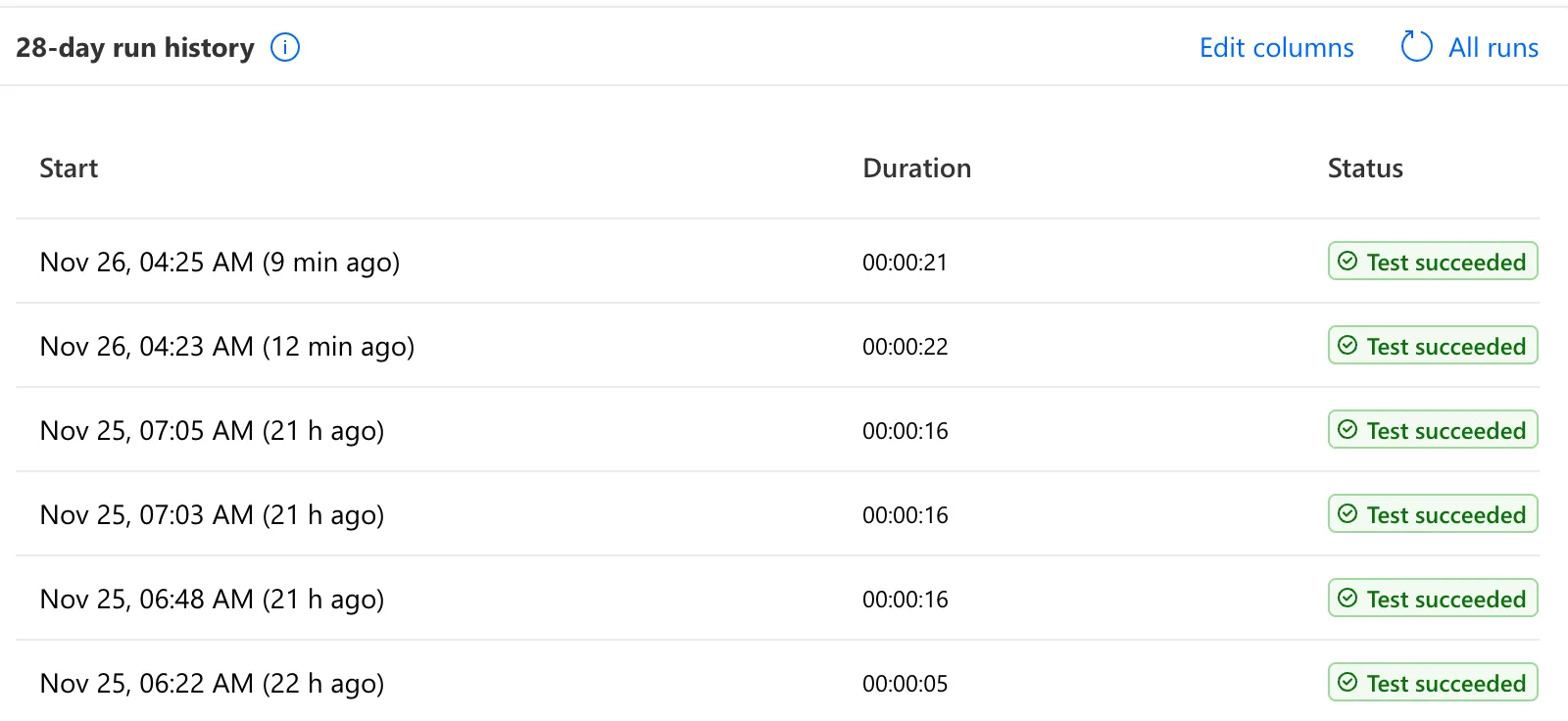
The other requests ran again without an error and without duplicates: posting Overtime Timesheet Users to Visitors again, ensureuser and addroleassignment for a group that already had its level. Afterwards, the site still had seven permission levels, one member in Visitors and the same groups on each list. The run history shows both runs after Part 18's four (How to See a Flow's Run History in Power Automate):
Step 12: Check the Result in SharePoint
On the test site, Site settings > Site permissions shows the site's three groups, and a warning that some content has different permissions:

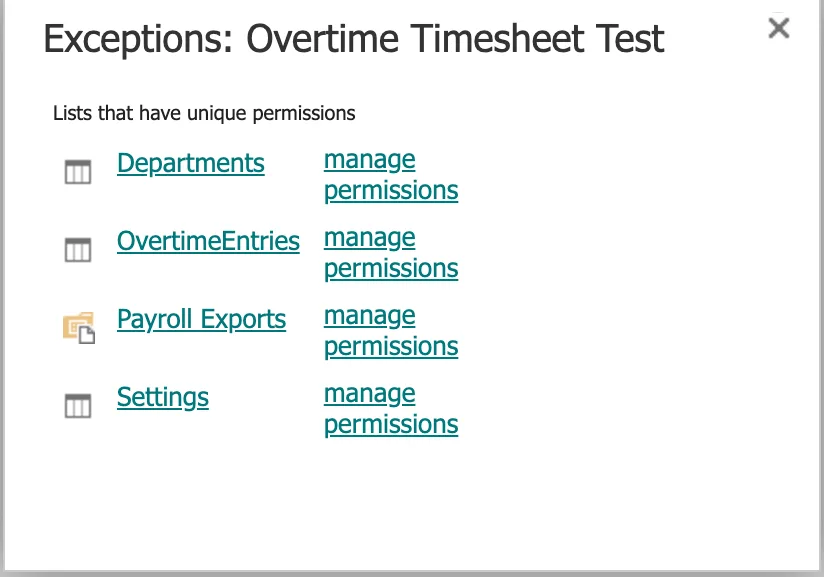
Show these items lists the four lists and libraries that now have their own permissions (How to See Which Lists Have Unique Permissions in SharePoint):
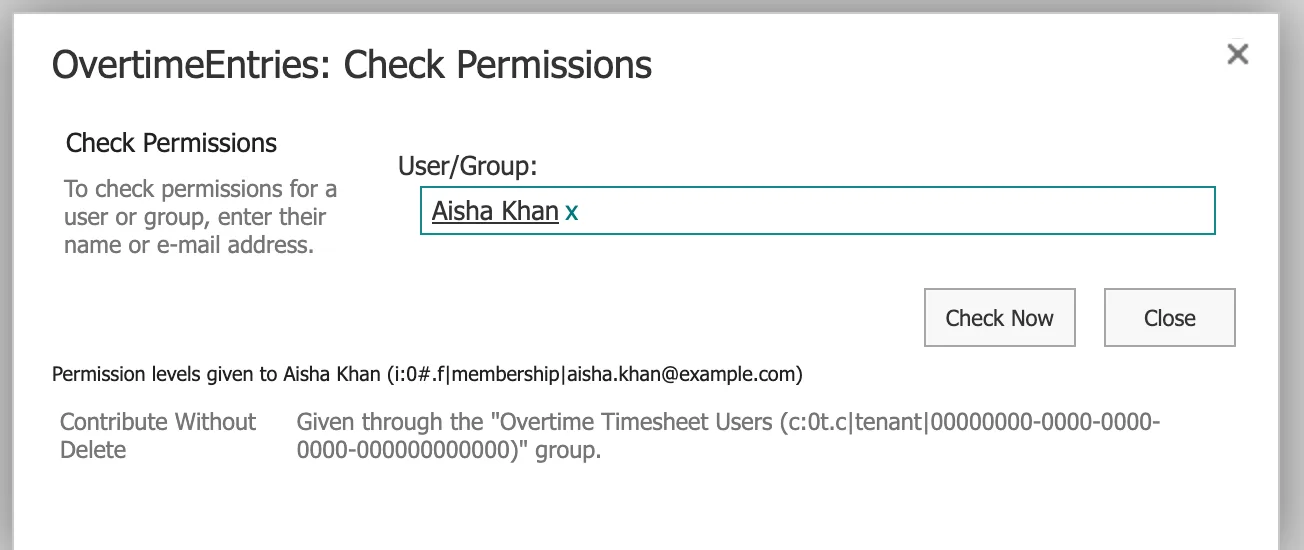
Each list's permissions page, List settings > Permissions for this list, has exactly Part 3's groups. OvertimeEntries: the owners and Overtime Timesheet Users, a Domain Group, with Contribute Without Delete:

Departments: Overtime Admins with Contribute Without Delete, and Visitors kept at Read:

Payroll Exports: Overtime Payroll with Read, and the owners:

Settings: the owners and Visitors, as Part 5 left it:

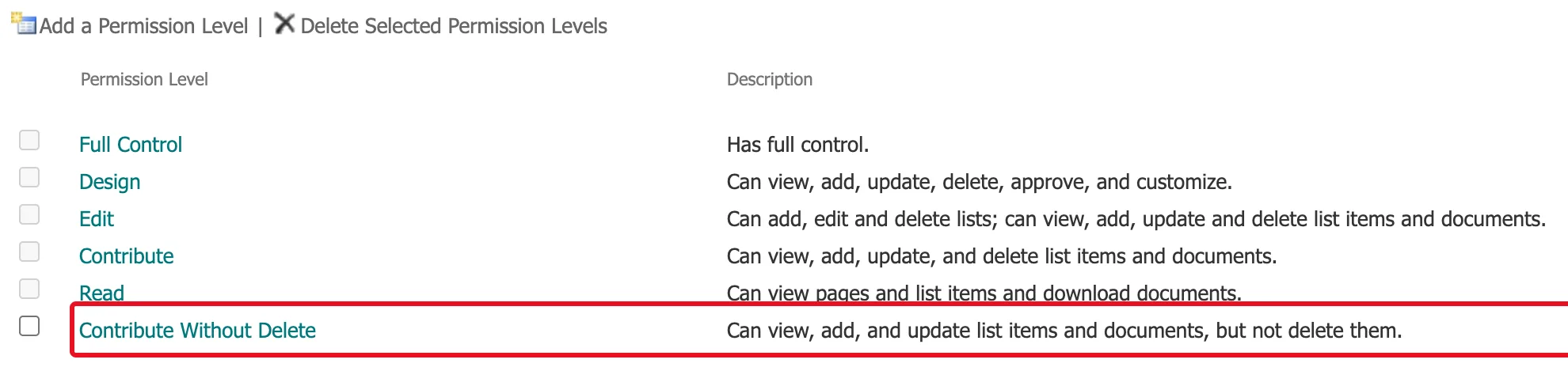
Permission Levels has the new level, with Part 3's description:
People and groups > Overtime Timesheet Test Visitors has Overtime Timesheet Users as its member:

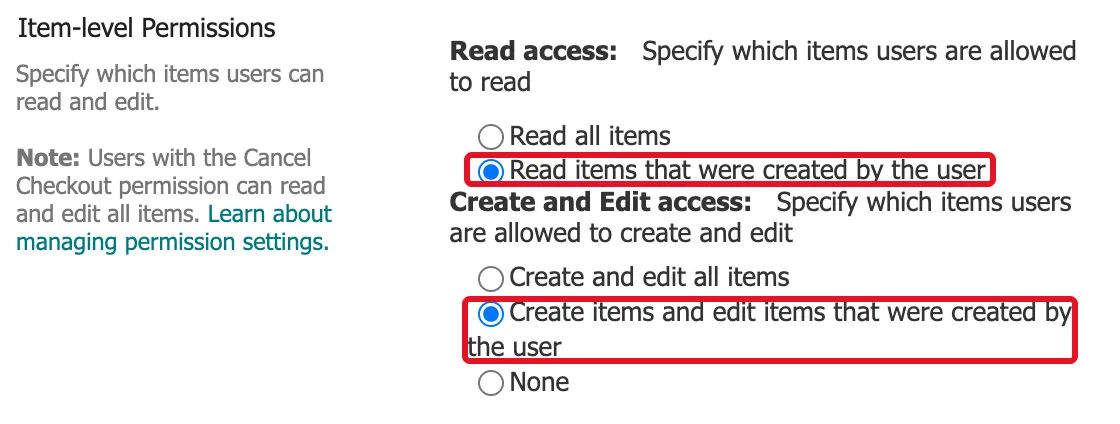
OvertimeEntries > Advanced settings has both item-level settings, and Versioning settings has content approval, with drafts shown only to approvers and authors:
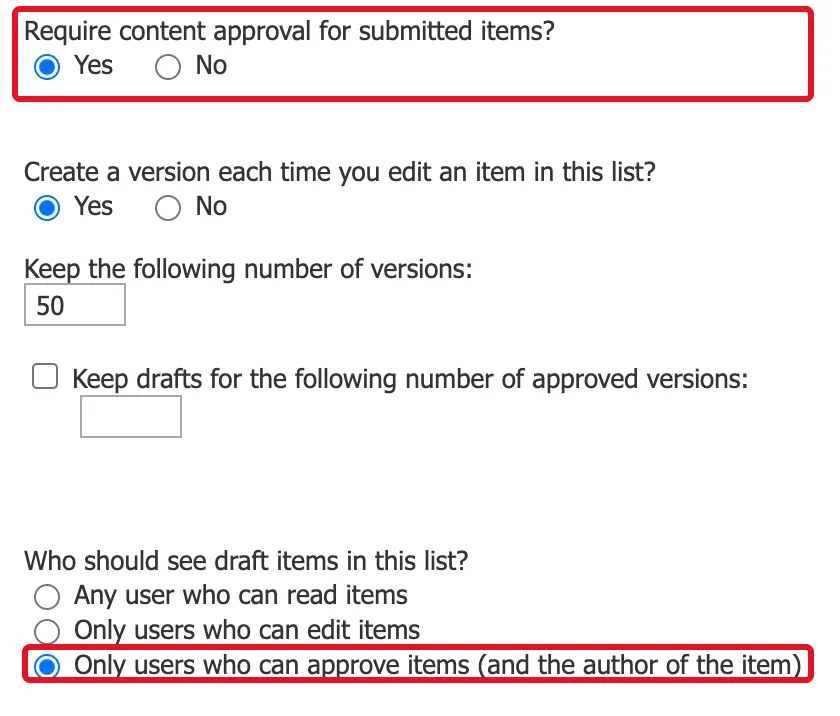
I left each settings page with Cancel, so nothing was saved from them. Last, Check Permissions on OvertimeEntries for Aisha (How to Check a User's Permissions in SharePoint) shows the level she gets through the users group, and SharePoint's own name for that group:
Step 13: Compare with Part 3
I compared the test site with the app's own site through the REST API, reading the app's site only:
| What | Result |
|---|---|
| Contribute Without Delete | The same High and Low, name and description, and the same place at the end of the list |
| Visitors | Overtime Timesheet Users on both, as a security group |
| Departments | Owners Full Control, Visitors Read, Overtime Admins Contribute Without Delete on both |
| OvertimeEntries | Owners Full Control and Overtime Timesheet Users Contribute Without Delete, own items only, content approval with drafts for approvers and authors, 50 versions, on both |
| Settings | Owners Full Control and Visitors Read on both |
| Payroll Exports | Owners Full Control and Overtime Payroll Read on both |
| Views of OvertimeEntries | Turning on content approval by REST added the Approval Status column to the default view and the Approve/reject Items and My submissions views, as Part 3's switch did. The only difference is the By month view, which Part 7 made by hand and the app doesn't use |
With Part 18's lists and this part's permissions, the setup flow now rebuilds everything Parts 2, 3 and 5 did by hand on the SharePoint site.
The Problems I Hit
- A bracket in the wrong place. In my first Remove Members, the closing bracket after the group's ID ended up inside the expression instead of after it. The action's Code view showed it. I retyped the Uri, and from then on checked every Uri with a token in Code view before running.
- The fourth input was hidden in dynamic content. Users group ID appeared only after See more in the trigger's list of values.
- The repeat's run list said Test Running for a finished run, as in Part 18. Selecting it still reused its inputs.
The first was my own mistake, and the other two are how the designer behaves, so none needed a fixes post.
Common Mistakes
| Mistake | What happens | Do this instead |
|---|---|---|
| Running it on the app's real site to test | The flow changes the real site's permissions | Test on the empty site from Part 18 |
| Typing the level's numbers by hand from memory | One wrong bit gives the level a permission you didn't mean | Read Contribute in the browser and take 136 away |
| Pasting the wrong group's Object ID | The wrong people get access to a list | Copy each ID from the right group's Overview |
| Leaving the removals outside If the list inherits permissions | A rerun would remove groups from lists you've changed since | Keep them in its True branch |
A security group's display name in logonName | The login name is built from the Object ID, not the name | Use c:0t.c|tenant| and the Object ID |
| Removing Visitors from Departments | Staff can't read the departments the app's picker lists | Keep removeVisitors false for it |
Troubleshooting
| Symptom | Likely cause | Fix |
|---|---|---|
| Create the permission level fails | The connection's account isn't a site owner | Use an account with Full Control of the site |
| Add the users group to Visitors or Add the group to the site fails | A group ID is wrong or incomplete | Copy it again in Microsoft Entra and rerun |
| Get the permission level fails | The level in the definitions doesn't match a level's name | Use the exact name from Permission Levels |
| A list still shows the site's Members | The list already had its own permissions before the first run | Remove the group on that list by hand, or use a fresh site |
| Staff see each other's entries | The users group has a level with Override List Behaviors | Give it Contribute Without Delete only |
FAQ
Can I run it on the site from Part 3?
I ran it only on the test site. On a site where Part 3 is already done, every list already has its own permissions, so the removals would be skipped, and the other requests set what's already there. That's what the repeat run in Step 11 did on the test site.
What if someone changes a list's permissions later?
A rerun puts back what the definitions ask for and leaves everything else. A list with its own permissions skips the stop-and-remove steps, so groups someone added stay. The definitions' group gets its level again if it lost it, and own items only and content approval are set again on OvertimeEntries.
Why not use SharePoint groups of my own?
The security groups from Part 1 already hold the right people, and Microsoft Entra is where joiners and leavers are handled (Part 17). Adding them to SharePoint directly keeps one place to change membership.
Does the flow need more licences?
No. Every step uses the standard SharePoint connector, which Microsoft 365 licences include.
Conclusion
The Set Up Overtime Timesheet flow now sets Part 3's permissions as well as Part 2's lists:
- the Contribute Without Delete level, created once from Contribute's numbers;
- Overtime Timesheet Users in the site's Visitors group;
- each list's own permissions from one JSON description: the site's Members off every list, Visitors off OvertimeEntries and Payroll Exports, and the right group at the right level;
- own items only and content approval on OvertimeEntries.
A second run skips everything already done. Part 20 runs the solution checker on both solutions and exports them, ready to install somewhere new.
Additional Resources
- Set custom permissions on a list by using the REST interface
- Users, groups, and roles REST API reference
- User permissions and permission levels
- Security element: the item-level permission values.
← Previous: Part 18: Build a Setup Flow That Creates the Lists Next → Part 20: Run the Solution Checker and Export the Solutions (coming soon)
