Build an Overtime Timesheet App in Power Apps — Part 17: Manage Joiners, Movers and Leavers

People join, change departments and leave, and the Overtime Timesheet app has to follow them without anyone opening Power Apps Studio. This part runs all three for real: a new healthcare assistant starts, a nurse moves to Radiology, and the new starter leaves again, with every approved hour still in the payroll report.
This is Part 17 of a 21-part series.
- Part 1: Plan the App and Set Up the Demo Organization
- Part 2: Create the SharePoint Site and Lists
- Part 3: Keep Overtime Private with SharePoint Permissions
- Part 4: Create the Solution, Environment Variables and Canvas App
- Part 5: Build the Home Screen
- Part 6: Build the Log Overtime Screen
- Part 7: Build the My Overtime Screen
- Part 8: Build the Approval Flow for Teams and Outlook
- Part 9: Show Approvers What's Waiting
- Part 10: Build the Departments Screen
- Part 11: Build the Reports Screen
- Part 12: Import the Old Excel Timesheet
- Part 13: Create the Monthly Payroll Workbook with Office Scripts
- Part 14: Create the Payroll Workbook from the App
- Part 15: Build the Power BI Overtime Report
- Part 16: Share the App and Add It to Microsoft Teams
- Part 17: Manage Joiners, Movers and Leavers (you are here)
- Part 18: Build a Setup Flow That Creates the Lists (coming soon)
- Part 19: Run the Solution Checker and Export the Solutions (coming soon)
- Part 20: Install the App in a New Environment (coming soon)
- Part 21: Recap, Production Checklist and Next Steps (coming soon)
Part 16 handed the app to its staff through the Overtime Timesheet Users group. This part checks that design against the three moments every organization goes through, often called joiners, movers and leavers. Noah Ellis joins the Emergency Department as a healthcare assistant. Aisha Khan, a staff nurse, moves to Radiology. Then Noah leaves.
What You'll Do
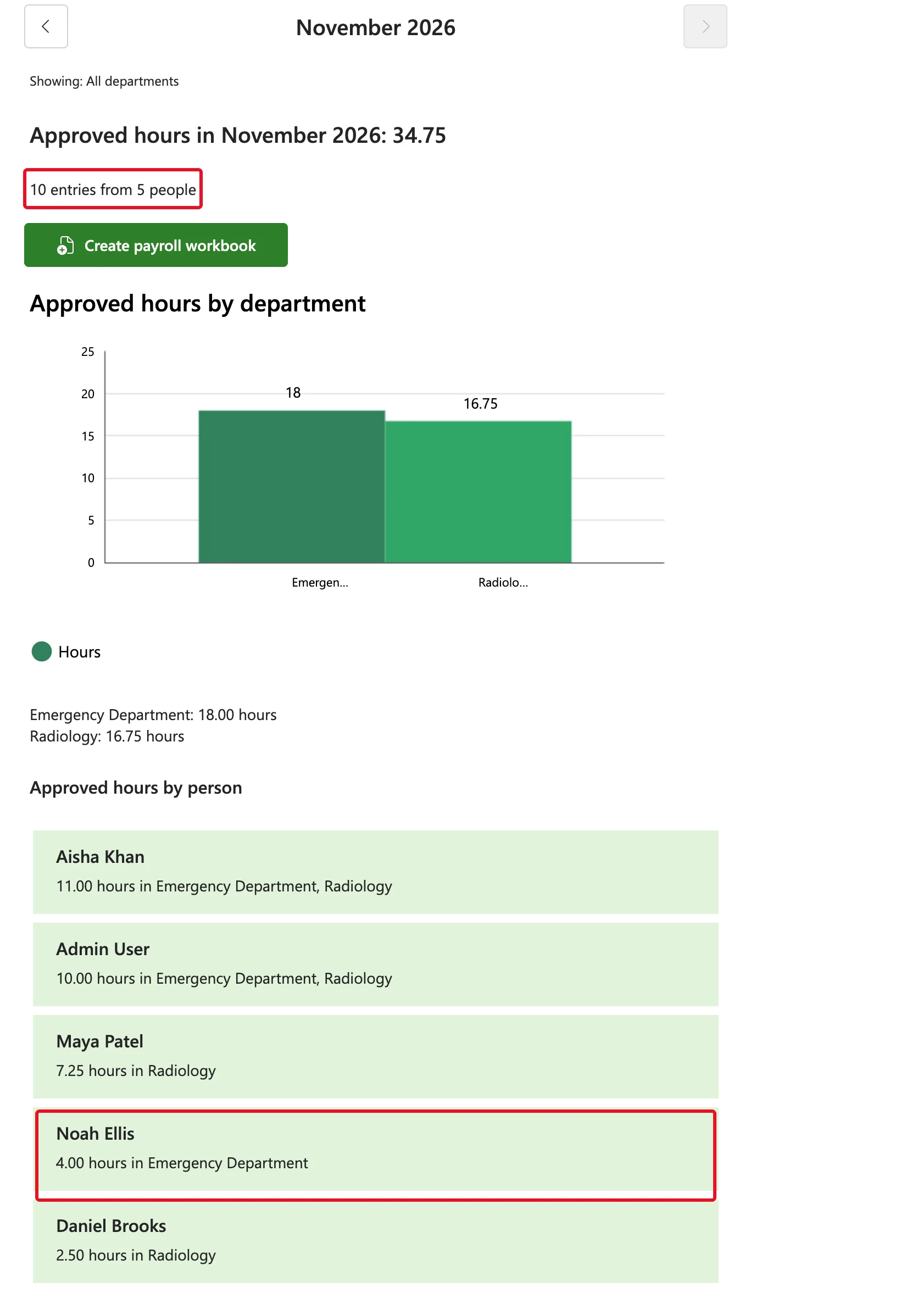
The end of it, after Noah's account was deleted: Leo, the payroll officer, still sees Noah's approved hours in November's report:
How It Works
The decisions behind it, all made in earlier parts:
- Everything happens outside the app. Joiners, movers and leavers are handled in the Microsoft 365 admin center and the Microsoft Entra admin center. Nothing in Power Apps changes.
- One group carries the access. Membership of Overtime Timesheet Users gives the app (Part 16), its flows (Part 16), the lists' permissions (Part 3), the Teams app (Part 16) and the Power BI report (Part 15).
- The department comes from the person's profile. The Log Overtime screen starts on the department in the person's Microsoft 365 profile (Part 6), and each entry's department decides its approver (Part 8). The manager only matters when the person is their own department's approver.
- Entries keep their history. Each entry stores the person's name and department at the time (Part 2), so a move or a deletion doesn't rewrite the past.
- Leavers follow Microsoft's order. Microsoft's former employee steps block sign-in first, deal with the person's data next, remove the license, and delete the account last.
- What it costs. A Microsoft 365 license for each person, as in Part 1. When someone leaves, their license goes back to the pool.
Prerequisites
- Part 16 completed.
- The User Administrator role or higher, for accounts, licenses and groups. Microsoft's articles on deleting a user and managing group members name it.
- An unassigned Microsoft 365 license for the new starter.
Step 1: Create the New Starter's Account
Noah's manager, Olivia Bennett, runs the Emergency Department. In the Microsoft 365 admin center, I added him with Users → Active users → Add a user (How to Add a User and Assign a License in the Microsoft 365 Admin Center):
- Basics: first name Noah, last name Ellis, username noah.ellis. I typed a temporary password myself and kept Require this user to change their password when they first sign in.
- Product licenses: location United Kingdom, where he works, and Microsoft 365 E5 Developer, this demo organization's license.
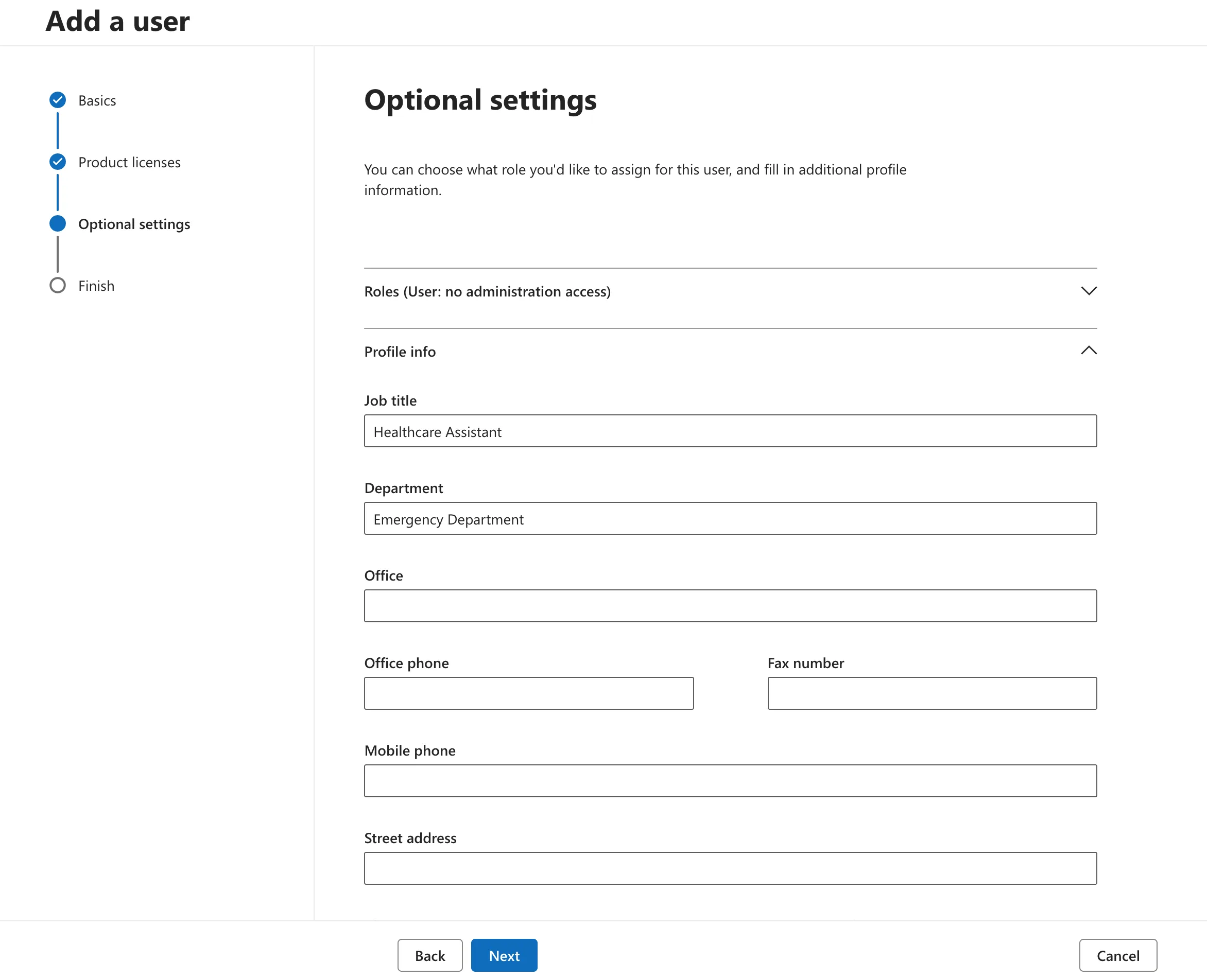
- Optional settings: under Profile info, Job title
Healthcare Assistantand DepartmentEmergency Department.
The department is the one value the app reads. It must match a department in the app's Departments list exactly, or the Log Overtime screen starts with no department chosen:
Review and finish shows everything at once. Select Finish adding:
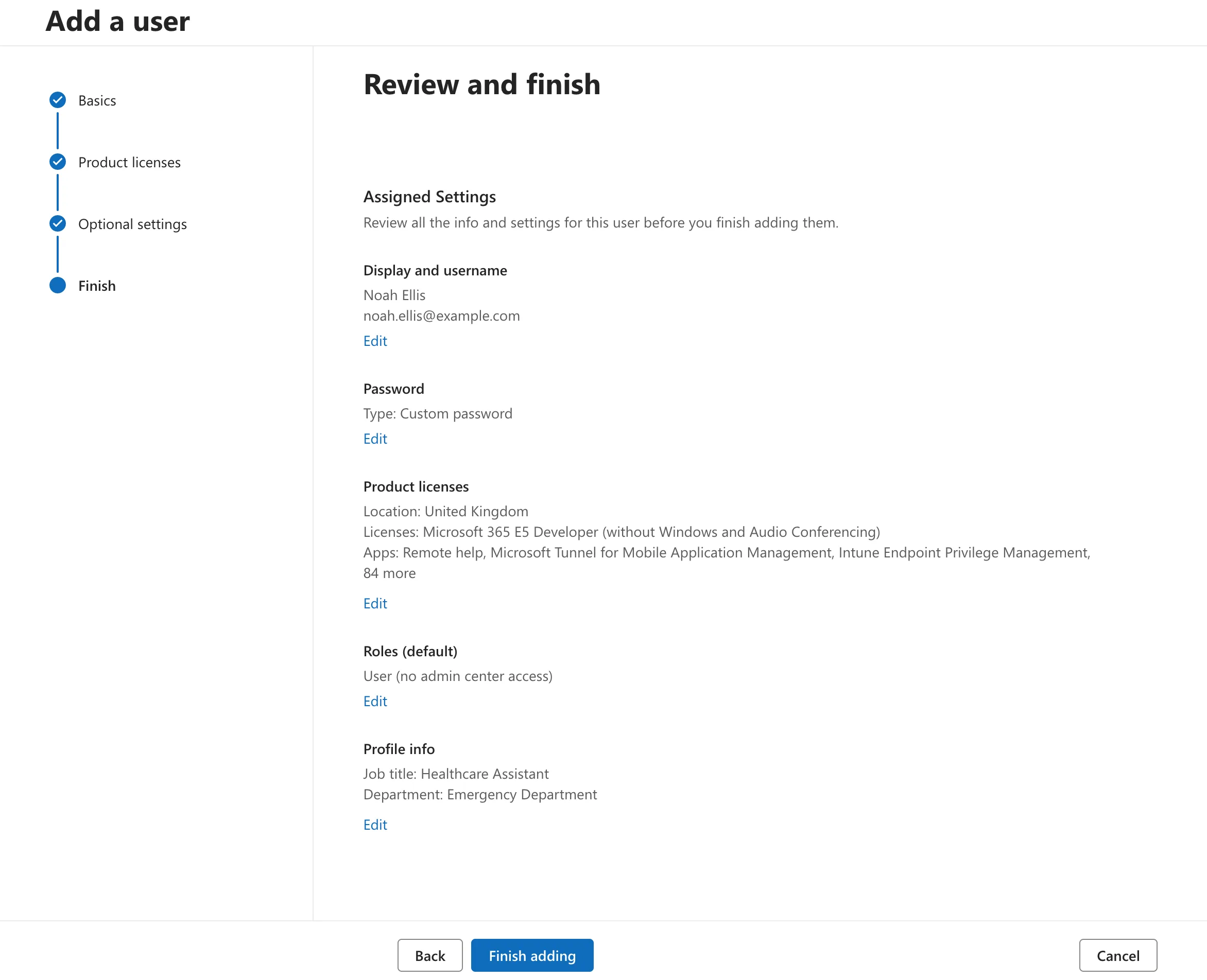
Noah Ellis added to active users. The license count went from 19 to 18 of 25 available.
Step 2: Set the Manager
In the Microsoft Entra admin center, open Noah under Entra ID → Users, select Edit properties, then Job Information. A new account has Add manager in the Manager row: select it, search for Olivia, tick her, Select, then Save (How to Set a User's Manager and Job Title in the Microsoft Entra Admin Center):
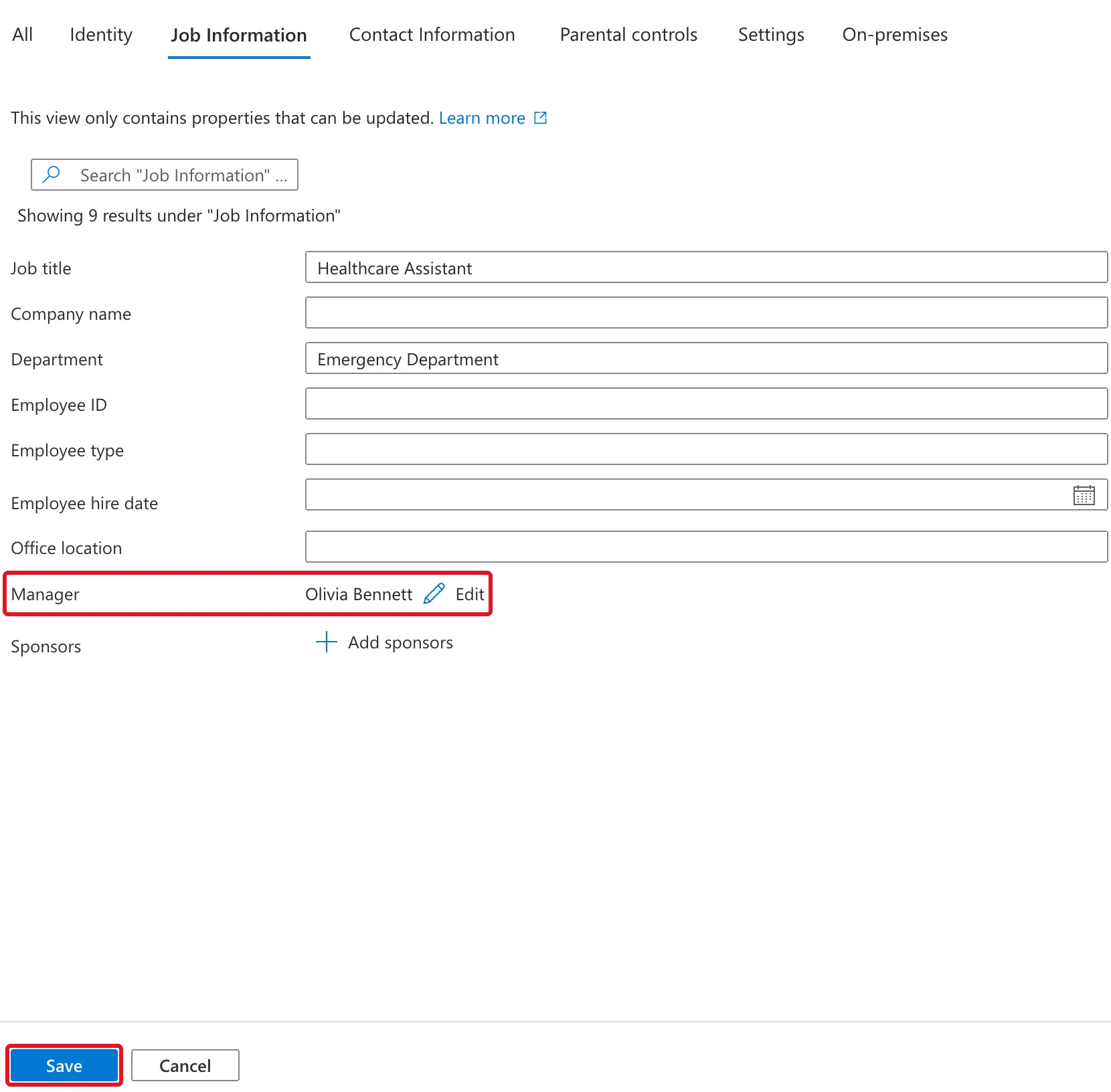
The approval flow from Part 8 asks the department's approvers, Olivia for the Emergency Department. It falls back to the manager only when the person logging overtime is that approver, so the manager matters for approvers more than for staff.
Step 3: Add Them to Overtime Timesheet Users
This is the step that gives Noah the app. In Microsoft Entra, open Groups → All groups → Overtime Timesheet Users → Members → Add members, find Noah on the Users tab, tick him and Select (How to Add Members to a Security Group in the Microsoft Entra Admin Center). After Refresh, the group has seven members:
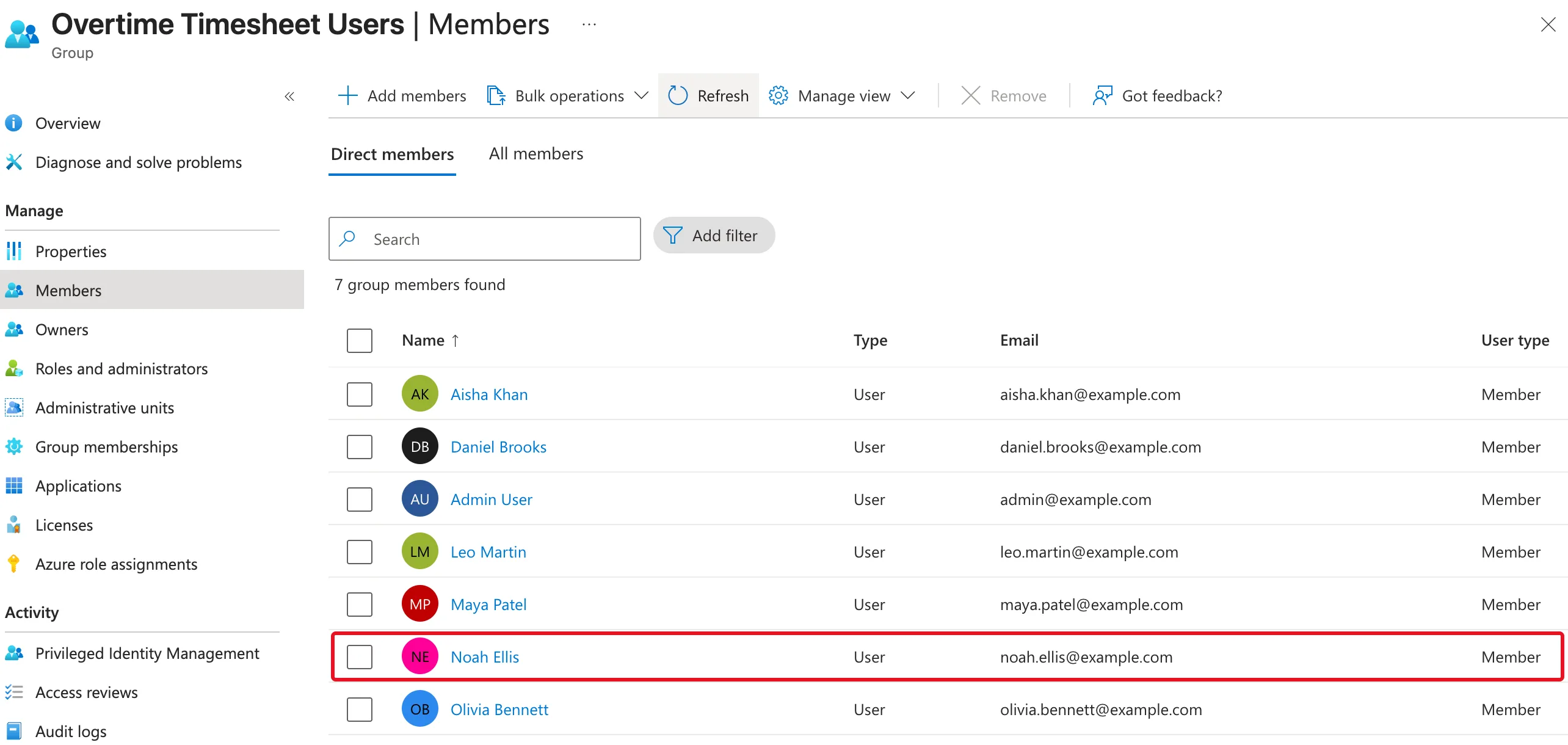
With that one membership, Noah can open the app, the flows answer him, SharePoint lets him add his own entries, and the Teams app and the Power BI report are his too. Nothing was shared with him directly.
Step 4: The First Sign-In
On his first morning, Noah signed in at m365.cloud.microsoft with his username and the temporary password, then chose his own password on Update your password (How to Sign In to Microsoft 365 for the First Time with a Temporary Password). In this organization, security defaults also ask every new person to set up the Microsoft Authenticator app, so tell new starters to have their phone ready.
Step 5: Get the App in Teams
Part 16 installed the app for Overtime Timesheet Users in the Teams admin center, so I expected it in Noah's Teams. An hour after he joined the group, it wasn't in his app bar or under View more apps. Microsoft's app centric management article allows up to 24 hours and, in rare cases, up to six days. Daniel, a member since Part 1, didn't have it yet either, three days after the install.
The app is also available to the group, so Noah could add it himself from the Store (How to Find an App Built for Your Organization in Microsoft Teams). The Store showed a tick on its icon and a Let's go dialog, but Open led to the app's page with Add; selecting Add fixed it (Fixed: Teams Store Says "Let's Go" for an App That Isn't Added Yet).
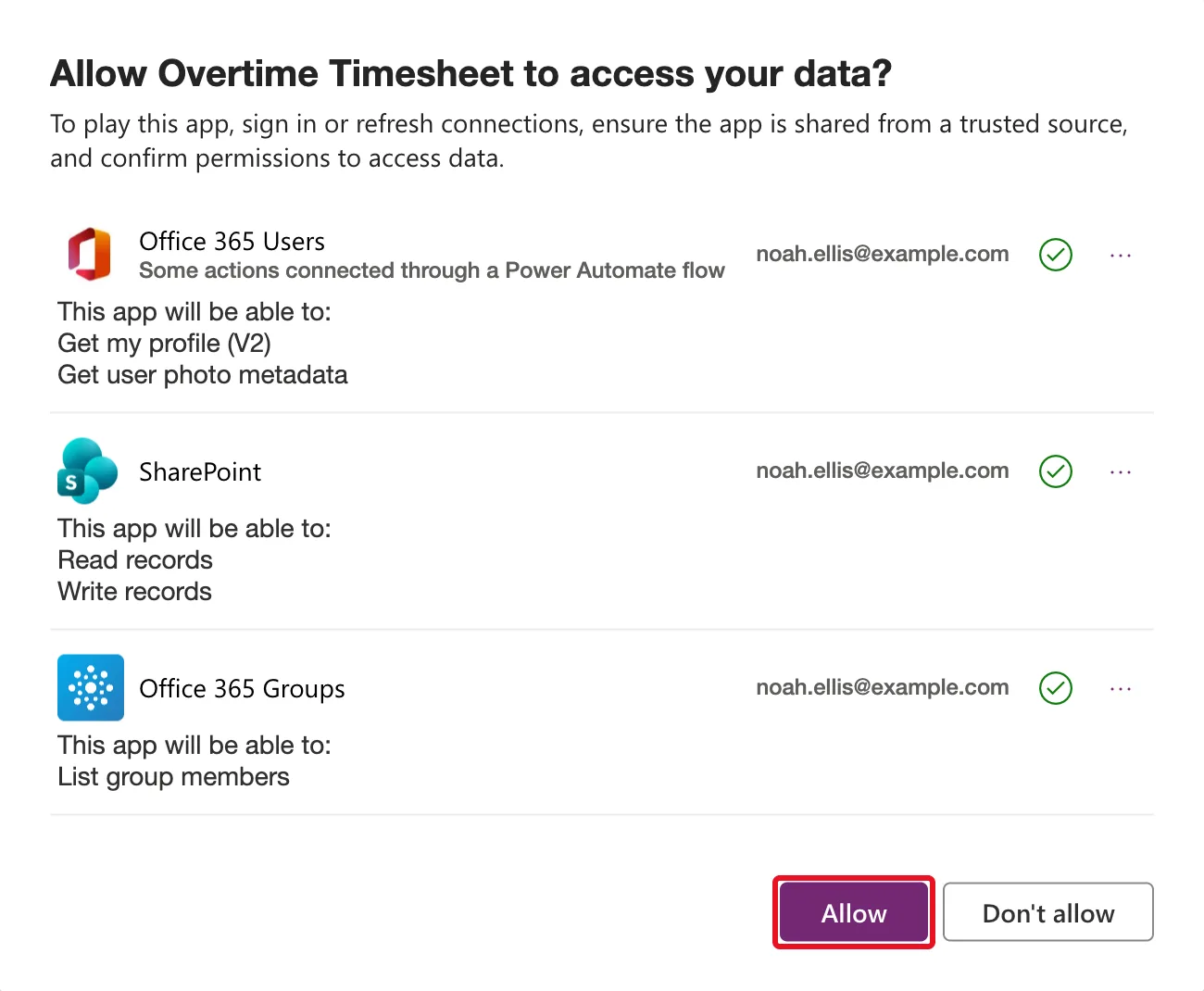
The first time it opened, Power Apps asked Noah to allow the app's connections, listing his own Office 365 Users, SharePoint and Office 365 Groups (How to Open a Shared Canvas App for the First Time in Power Apps). He selected Allow:
The Home screen from Part 5 greeted him with his department, and the two staff tiles:

Step 6: The First Overtime Entry
Noah had covered a Sunday morning shift. On Log overtime, the Department box already said Emergency Department, read from his profile. He chose 22/11/2026, 08:00 to 12:30, a 30-minute unpaid break and a reason, and the screen worked out 4.00 hours:
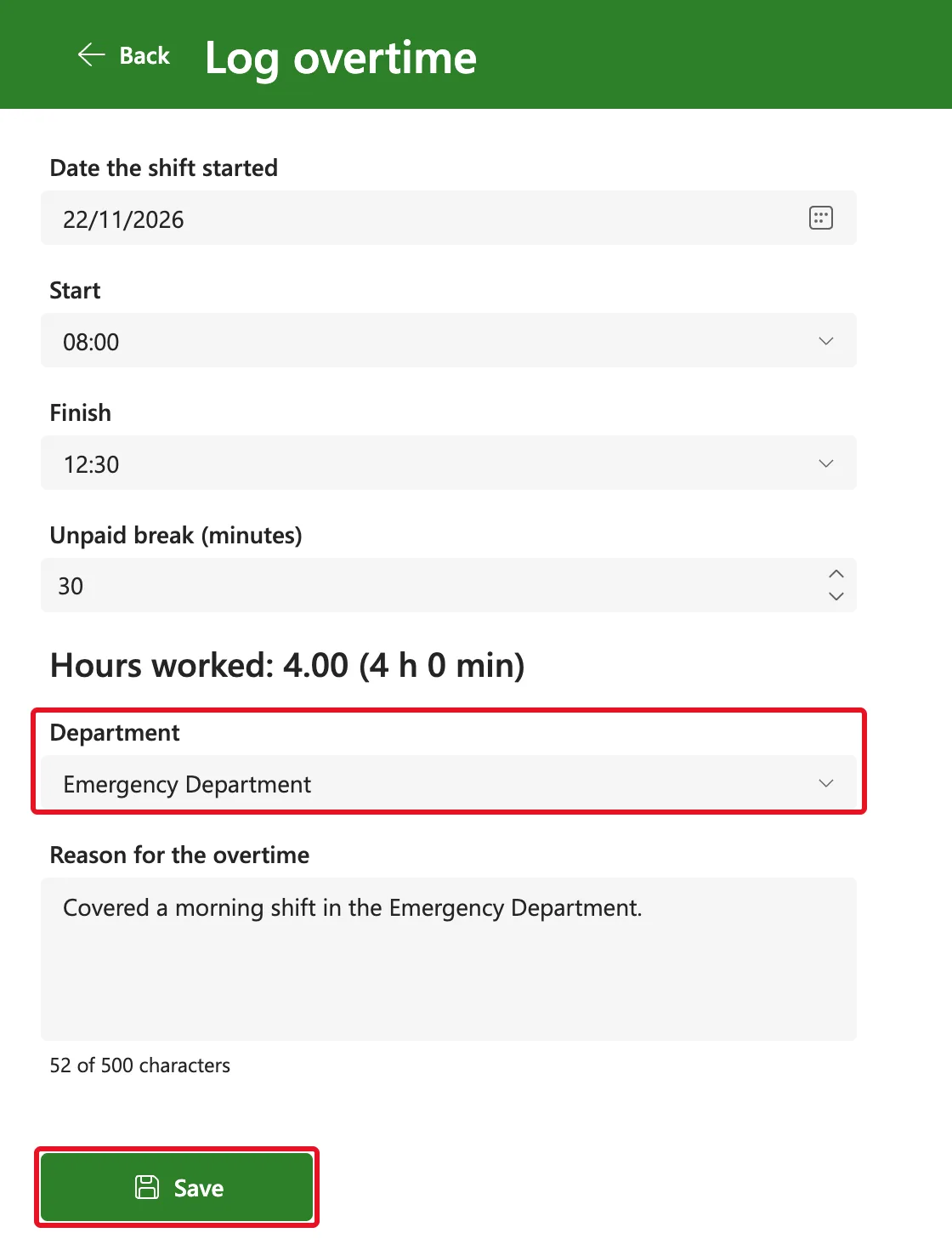
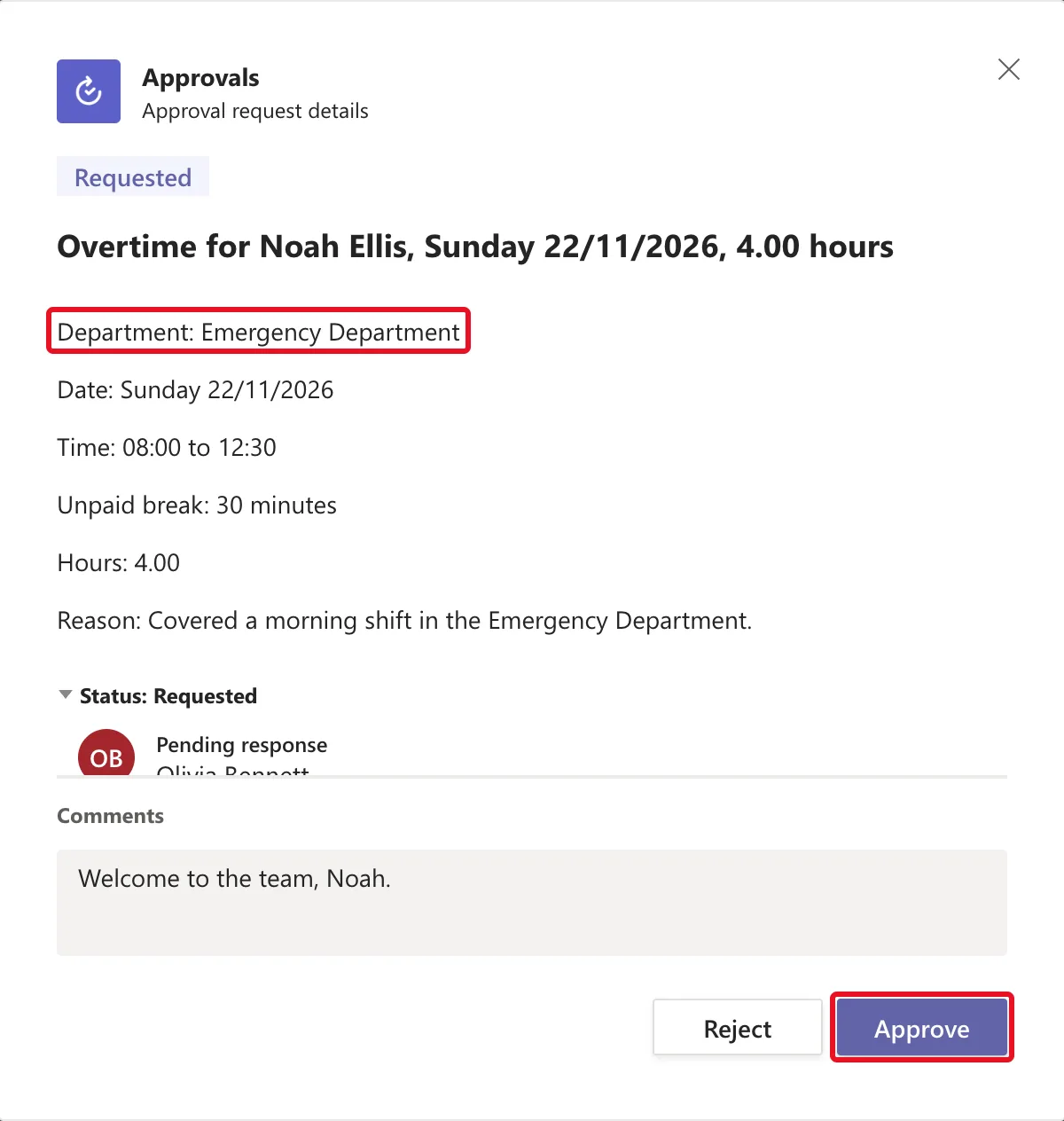
He selected Save. Within a minute, the approval flow from Part 8 sent the request to Olivia, the Emergency Department's approver. She opened it in the Teams Approvals app, added a comment and selected Approve (How to Approve a Request in the Microsoft Teams Approvals App):
On My overtime, Noah's first entry was Approved, and November's total was 4.00 hours:
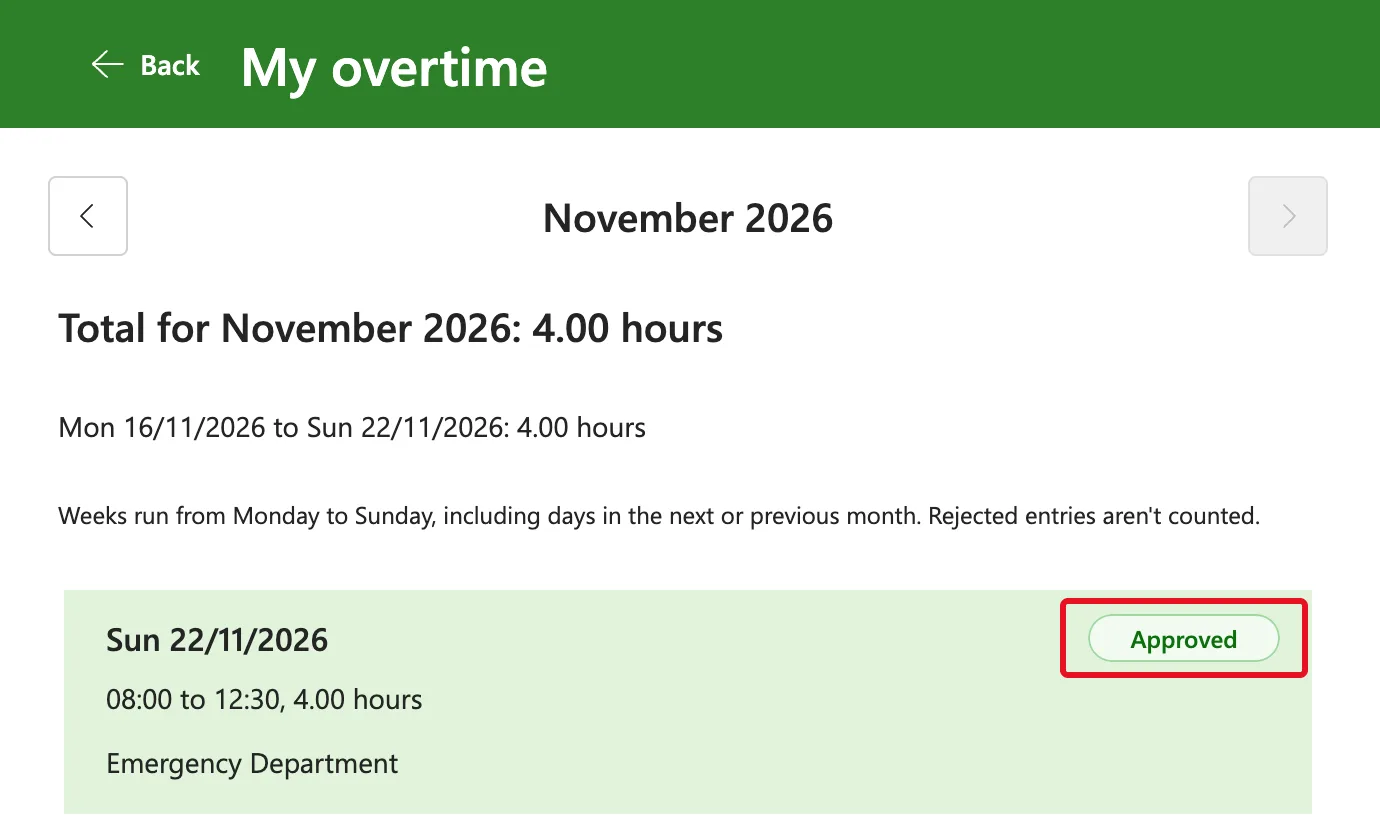
From account to approved overtime took about an hour and a half, and nobody touched the app.
Step 7: Move Someone to Another Department
Aisha Khan moves from the Emergency Department to Radiology as a radiology nurse, reporting to Daniel Brooks. In Microsoft Entra, on her Edit properties → Job Information, I changed Job title to Radiology Nurse and Department to Radiology (How to Change a User's Department in Microsoft Entra). For the manager, Edit opened the panel with Olivia still selected; ticking Daniel gave Only 1 item can be selected., so I removed Olivia with the bin icon before Select (How to Change a User's Manager in Microsoft Entra, Fixed: "Only 1 item can be selected" When Changing a User's Manager). Then Save:
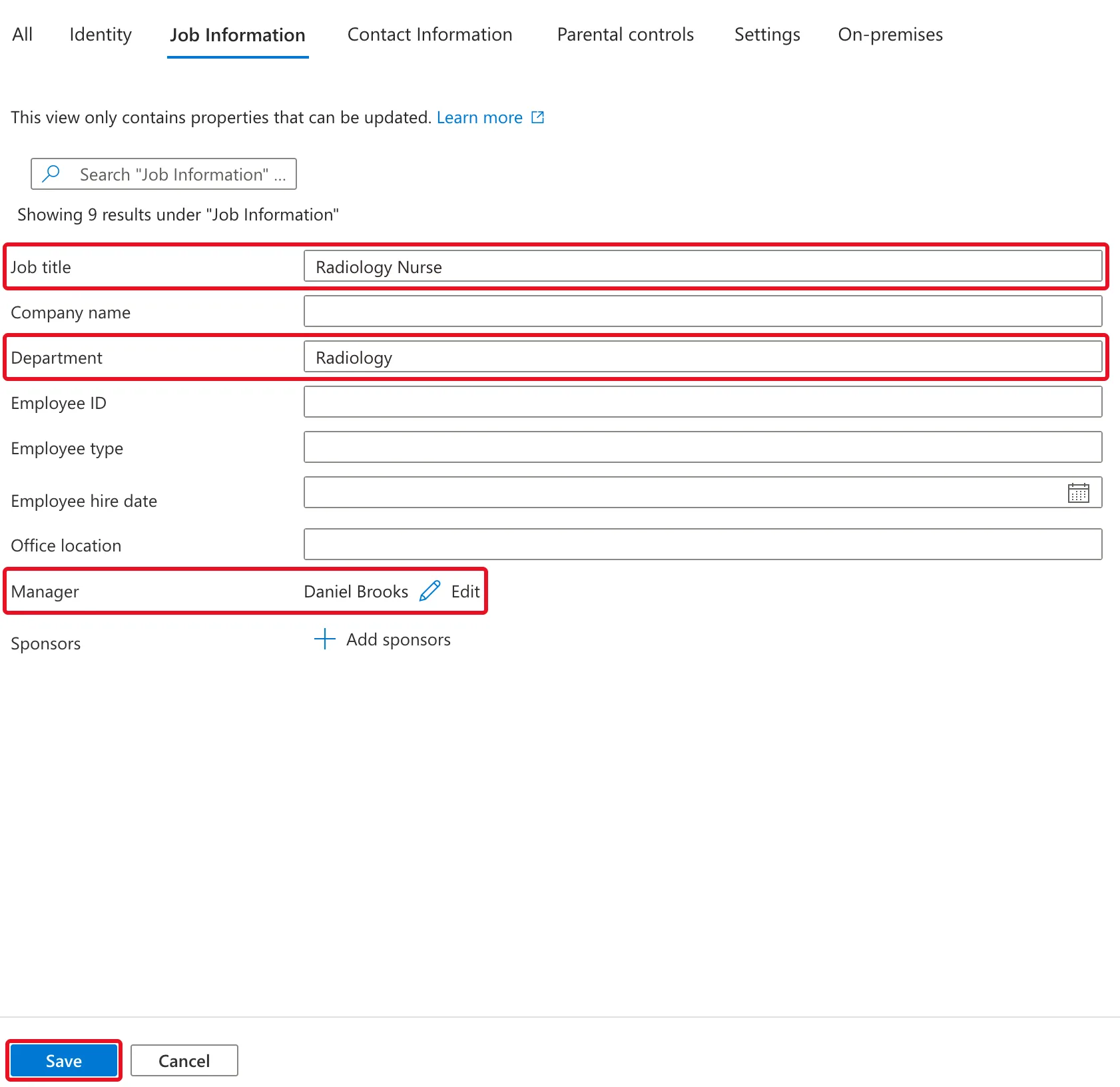
The notification confirmed it: Successfully updated properties for user aisha.khan@example.com. She stays in Overtime Timesheet Users: a move changes her department, not her access.
Step 8: See the Move in the App
About three minutes later, Aisha opened the app in Teams. Her Home screen already said Radiology:

She logged her first Radiology shift, Monday 23/11/2026 from 18:00 to 21:00. Department started on Radiology:
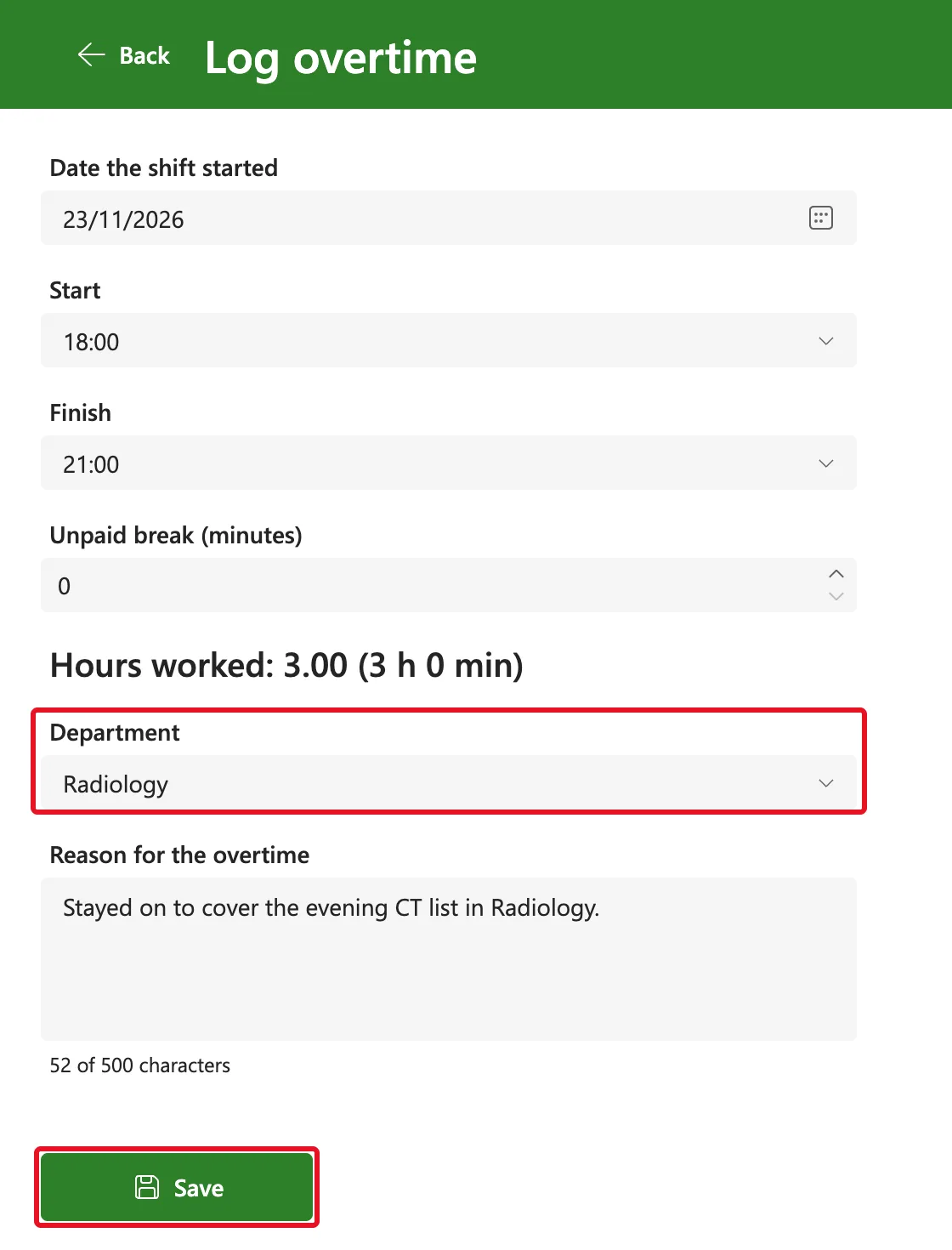
The approval went to Daniel, Radiology's approver, not to Olivia. He found it in his Teams Approvals app and approved it:
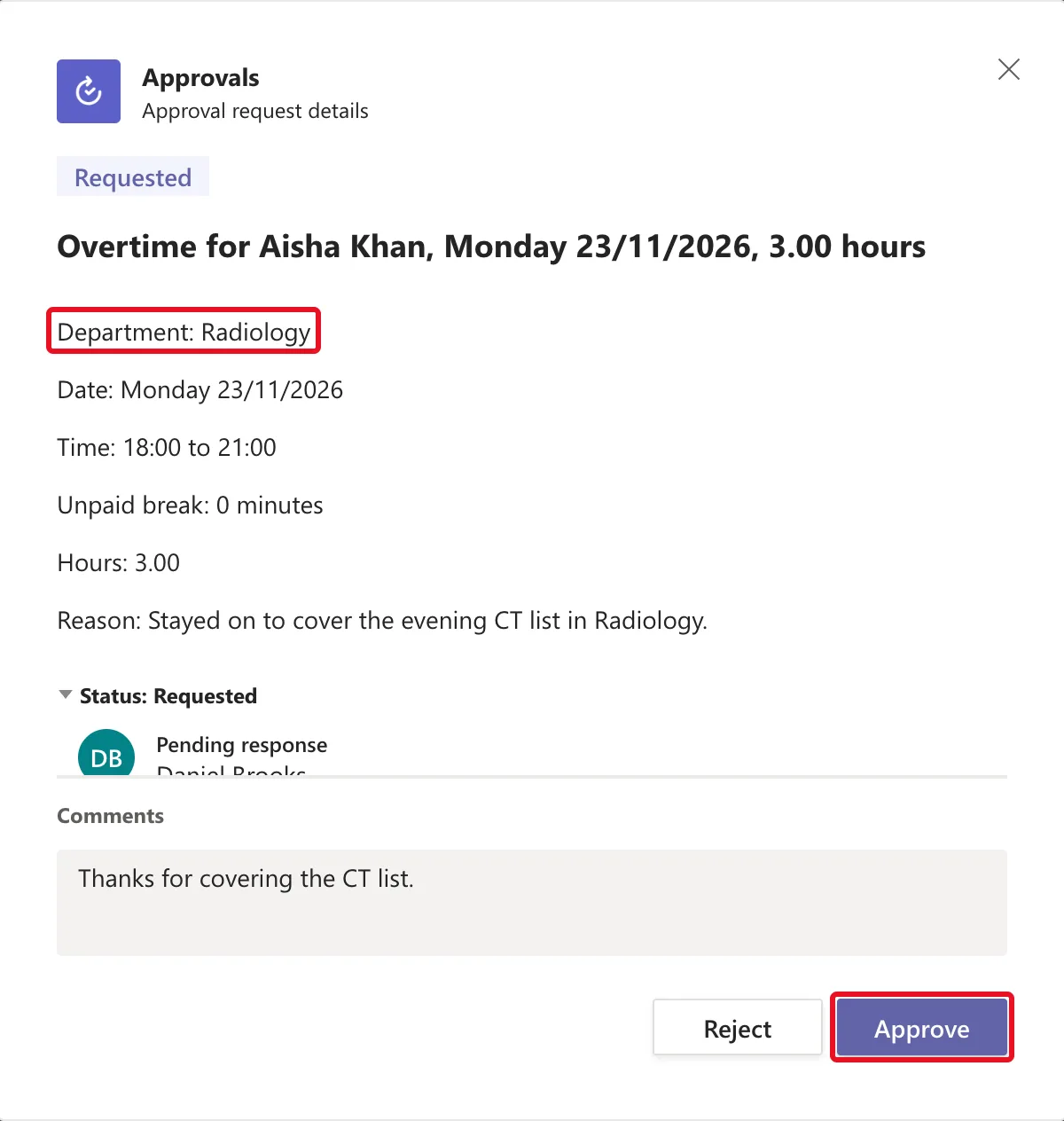
Her My overtime shows both sides of the move. The entry from 7 November keeps Emergency Department, the department it was approved for, and the new one says Radiology:
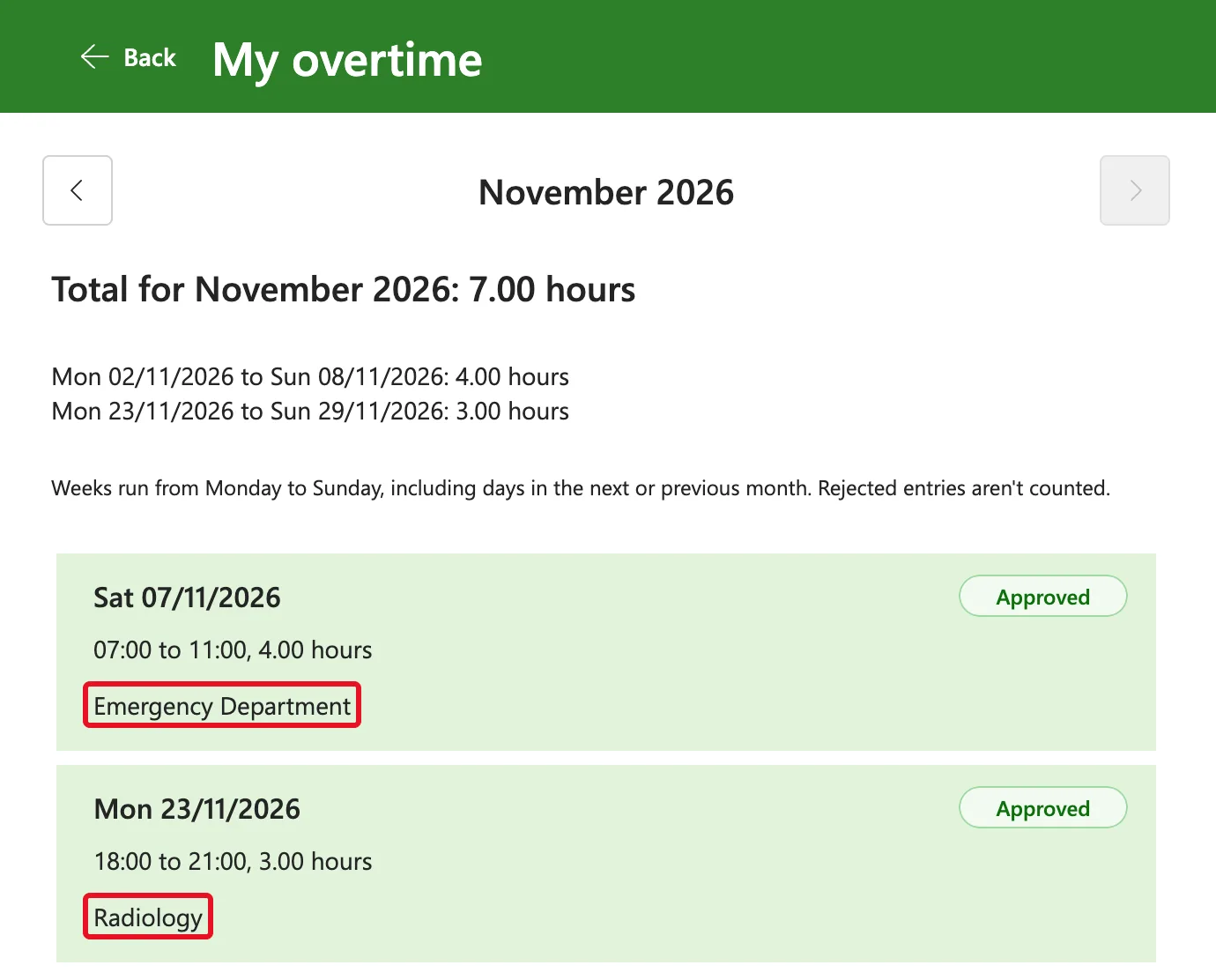
That's why each entry stores its department: Emergency Department's totals for October and early November stay right after Aisha leaves it.
Step 9: Sign Out and Block the Leaver
Noah leaves. Following Microsoft's order, he loses sign-in first. In the admin center, open him on Active users. On the Account tab, select Sign out of all sessions before blocking, because the admin center hides it once the account is blocked. The pane answers We have initiated a sign-out for the user. It also shows his group and manager. Then select Block sign-in:
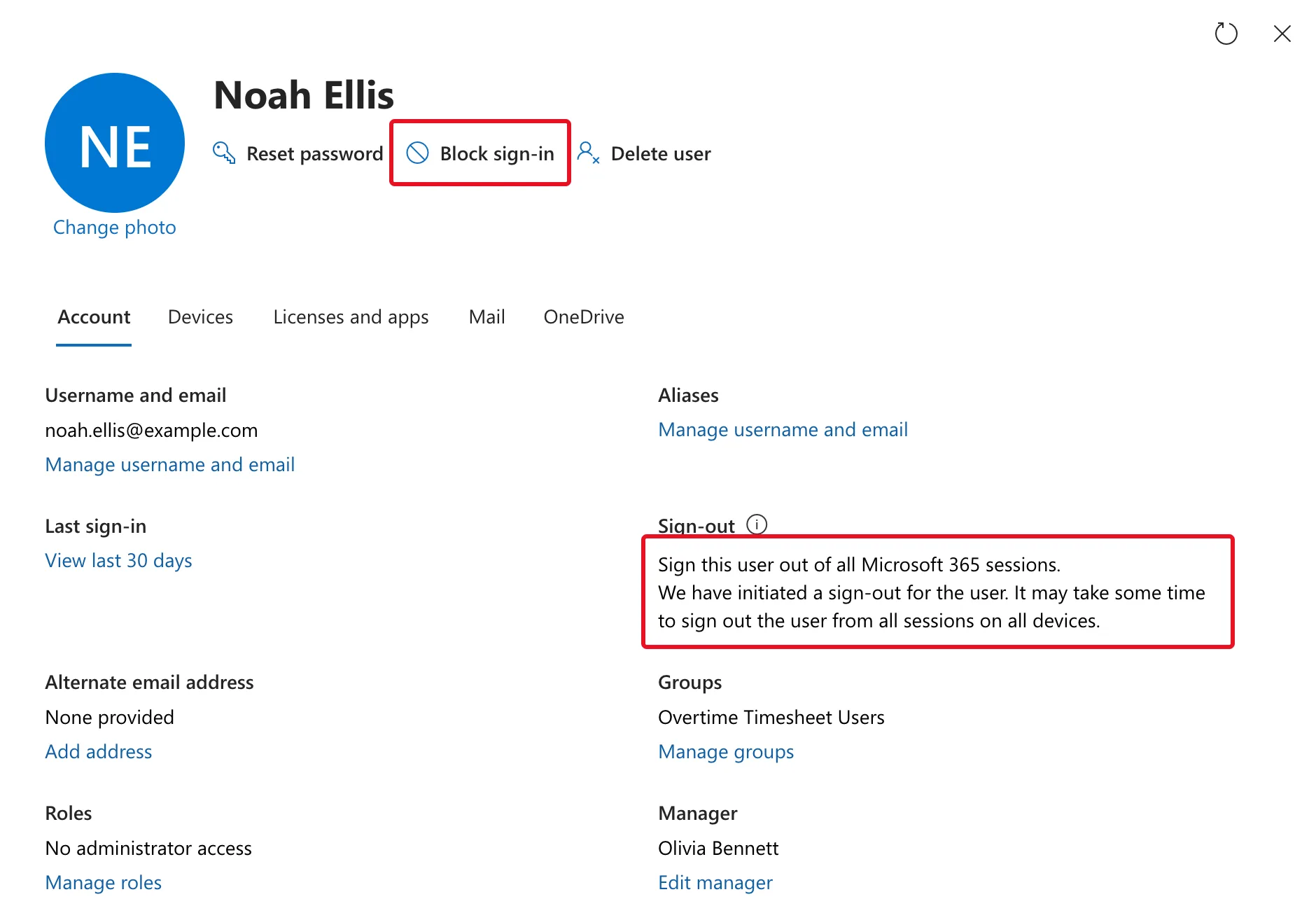
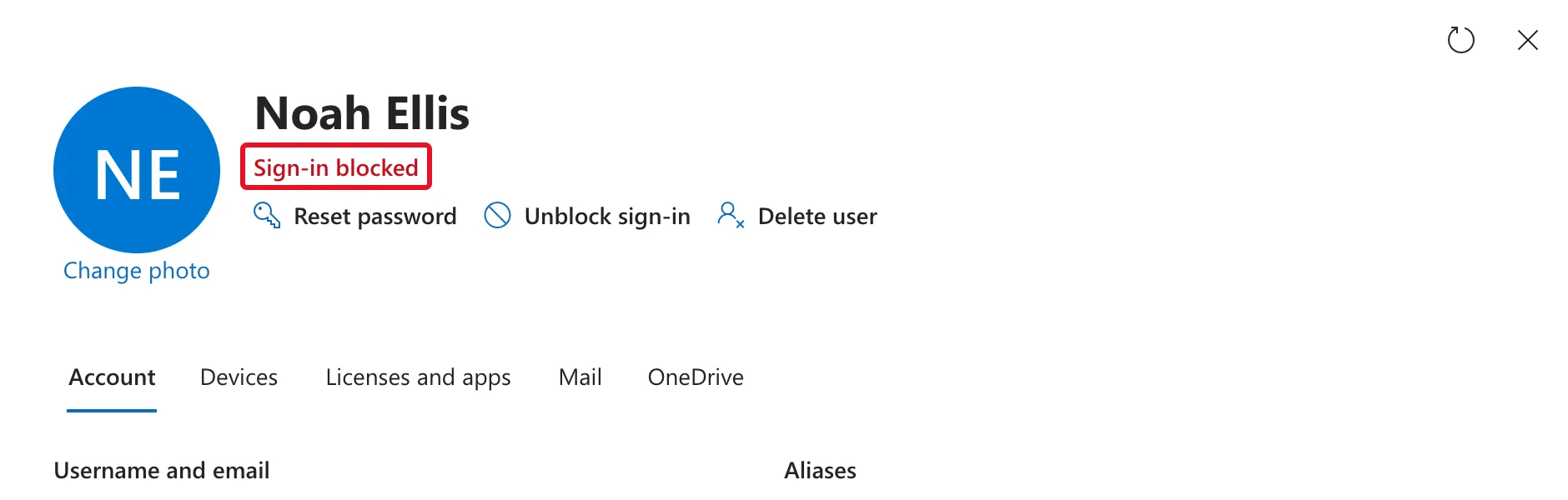
Tick Block this user from signing in and Save changes (How to Block Sign-In for a User in Microsoft 365). Noah Ellis is now blocked from signing in, and his details say so:
Microsoft's steps then save the person's mailbox and OneDrive if someone needs them. Noah had nothing to keep.
Step 10: Remove Them from the Group
In Microsoft Entra, open Overtime Timesheet Users → Members, tick Noah and select Remove (How to Remove a Member from a Security Group in Microsoft Entra):
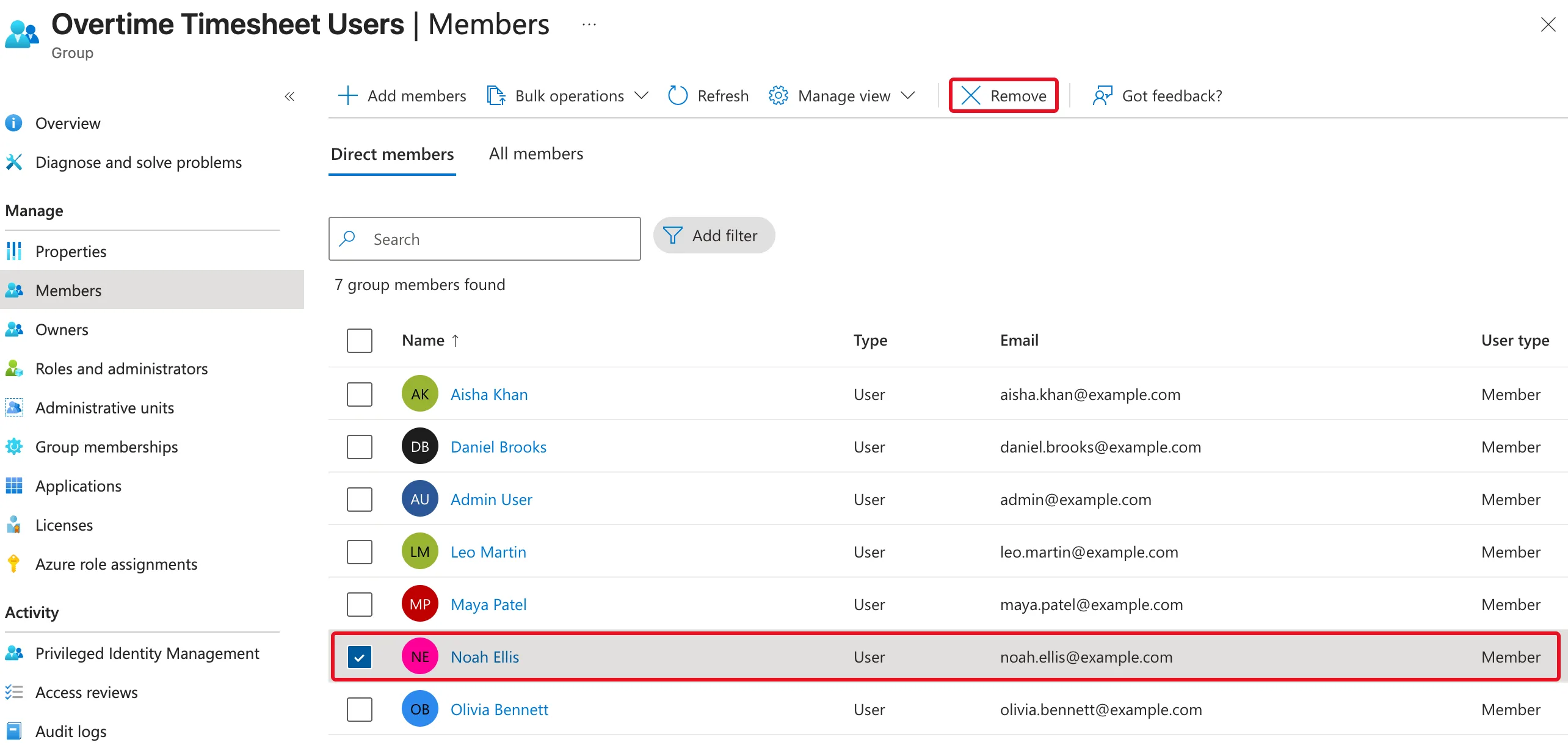
Confirm with Yes, then Refresh: six members again.
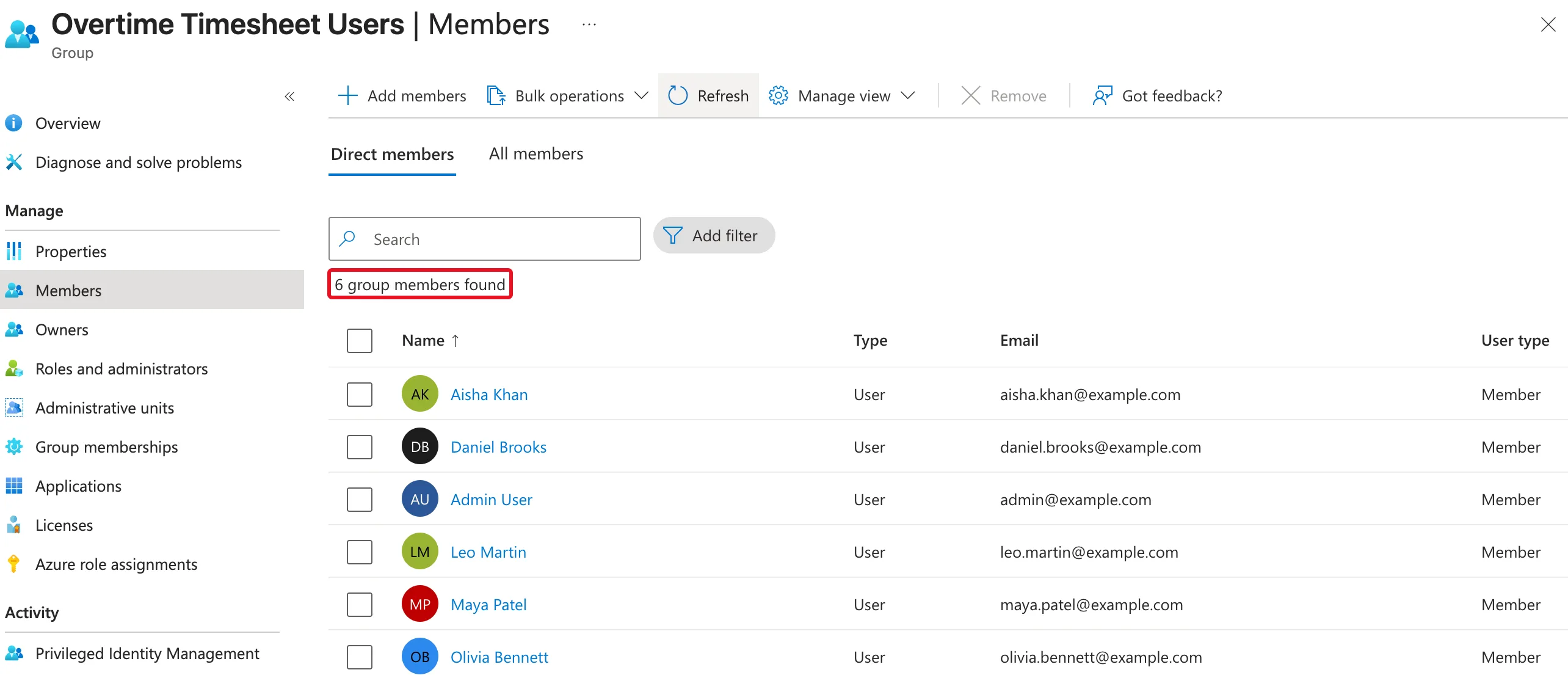
Blocking stops Noah signing in; leaving the group takes away the app, the flows, the list permissions, the Teams app and the report. If his account were ever unblocked, he still wouldn't have them.
Step 11: Remove the License and Delete the Account
Back on Noah's Licenses and apps tab in the admin center, clear Microsoft 365 E5 Developer and Save changes (How to Remove a License from a User in Microsoft 365). The pool is back to 19 of 25:
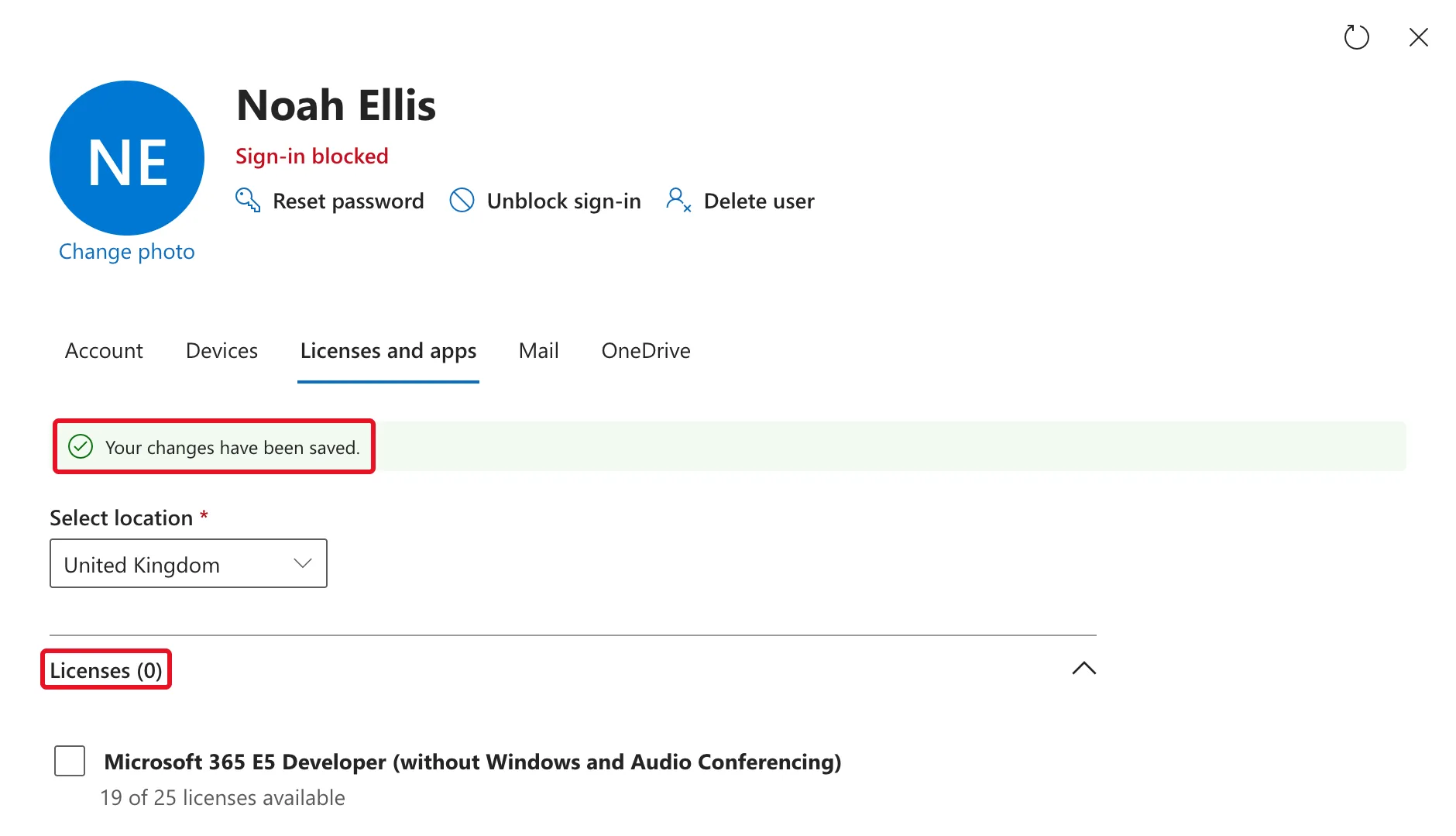
Last, Delete user, and Delete user again in the panel (How to Delete a User in Microsoft 365):

For 30 days the account can still be restored from Deleted users.
Step 12: Check That Their Overtime Stays
Noah's approved entry belongs to the organization's records, not to his account. To check, I opened the app as Leo Martin, the payroll officer, from make.powerapps.com → Apps. My first try selected the app's name, which opens it for editing, and Leo, who can only use it, got There was a problem opening this app (Fixed: "There Was a Problem Opening This App" in Power Apps). The Play button on the app's row opened it. Power Apps asked Leo to allow the same three connections again, and he allowed them.
On Reports for November, the picture at the top of this part: 34.75 approved hours, 10 entries from 5 people, and Noah Ellis, 4.00 hours in Emergency Department. Payroll can pay him for his Sunday, the monthly payroll workbook from Part 13 reads the same approved entries, and the Emergency Department's totals stay right.
Common Mistakes
| Mistake | What happens | Do this instead |
|---|---|---|
| Sharing the app with the new starter directly | They keep it if they move or leave | Add them to Overtime Timesheet Users |
| Typing a department that isn't in the Departments list | Log overtime starts with no department | Use the list's exact name, such as Emergency Department |
| Changing the department but not the manager | Their own overtime falls back to the old manager when they approve for their department | Change job title, department and manager together |
| Deleting a leaver straight away | Their mailbox and files go after 30 days | Block, save what's needed, remove the license, then delete |
| Blocking before Sign out of all sessions | The admin center no longer offers the sign-out | Sign out first, or use Revoke sessions in Microsoft Entra |
| Deleting leavers' entries from the list | Payroll and reports lose approved hours | Keep them; they're the organization's records |
Troubleshooting
| Symptom | Likely cause | Fix |
|---|---|---|
| The app isn't in a new starter's Teams | Installs take up to 24 hours, rarely six days | They add it from the Store |
| The Store shows Let's go, but Open shows Add | The install hasn't reached their Teams | Select Add |
| Log overtime starts with no department | The profile's department isn't in the Departments list | Fix the department in Microsoft Entra |
| There was a problem opening this app for a user | They selected the app's name, which opens Studio | Select Play |
FAQ
Do I need to change anything in Power Apps when someone joins?
No. Add them to Overtime Timesheet Users with the right department in their profile, and everything follows from the group.
What if someone works in two departments?
Their profile holds one department, which the Log Overtime screen starts on. For a shift in the other department, they choose it in the Department box, and that department's approver decides, as Part 6 designed.
Should I delete the leaver's account or just block it?
Microsoft's former employee steps end with deleting it, which frees the license. Blocking alone keeps the account and its license.
Can I restore a deleted leaver?
Yes, for 30 days, from Deleted users in the admin center. Add them back to Overtime Timesheet Users if they return to work.
Conclusion
The Overtime Timesheet app now handles people coming and going without anyone opening Studio:
- a joiner gets an account, a license, their job title, department and manager, and one group membership, and logs overtime the same morning;
- a mover gets a new job title, department and manager; their next entry starts on the new department and goes to its approver, while their past entries keep the old one;
- a leaver is signed out and blocked, leaves the group, loses their license and is deleted, and every approved hour stays in the reports and the payroll workbook.
Part 18 builds a setup flow that creates the app's lists and library on any site.
Additional Resources
- Overview: Remove a former employee and secure data
- Add users and assign licenses at the same time
- Manage Microsoft Entra groups and group membership
- Use app centric management to manage access to apps
- Delete a user from your organization
← Previous: Part 16: Share the App and Add It to Microsoft Teams Next → Part 18: Build a Setup Flow That Creates the Lists (coming soon)
