Build an Overtime Timesheet App in Power Apps — Part 16: Share the App and Add It to Microsoft Teams

Until now, the Overtime Timesheet app and its flows were shared with a few people, one at a time, for testing. This part gives them to everyone they're for, through the app's security groups, and puts the app in Microsoft Teams: in the organization's app catalog, installed for the staff group.
This is Part 16 of a 21-part series.
- Part 1: Plan the App and Set Up the Demo Organization
- Part 2: Create the SharePoint Site and Lists
- Part 3: Keep Overtime Private with SharePoint Permissions
- Part 4: Create the Solution, Environment Variables and Canvas App
- Part 5: Build the Home Screen
- Part 6: Build the Log Overtime Screen
- Part 7: Build the My Overtime Screen
- Part 8: Build the Approval Flow for Teams and Outlook
- Part 9: Show Approvers What's Waiting
- Part 10: Build the Departments Screen
- Part 11: Build the Reports Screen
- Part 12: Import the Old Excel Timesheet
- Part 13: Create the Monthly Payroll Workbook with Office Scripts
- Part 14: Create the Payroll Workbook from the App
- Part 15: Build the Power BI Overtime Report
- Part 16: Share the App and Add It to Microsoft Teams (you are here)
- Part 17: Test Every Role and Department (coming soon)
- Part 18: Build a Setup Flow That Creates the Lists (coming soon)
- Part 19: Run the Solution Checker and Export the Solutions (coming soon)
- Part 20: Install the App in a New Environment (coming soon)
- Part 21: Recap, Production Checklist and Next Steps (coming soon)
Parts 9, 11 and 14 shared the app with three test people, Olivia, Daniel and Leo, and made them run-only users of the flows each screen calls. That proved the screens worked for an approver and for payroll. Now the app goes to the Overtime Timesheet Users group from Part 1, its three flows go to the groups that need them, and the test shares go. Then the app goes into Teams, where staff already work.
What You'll Build
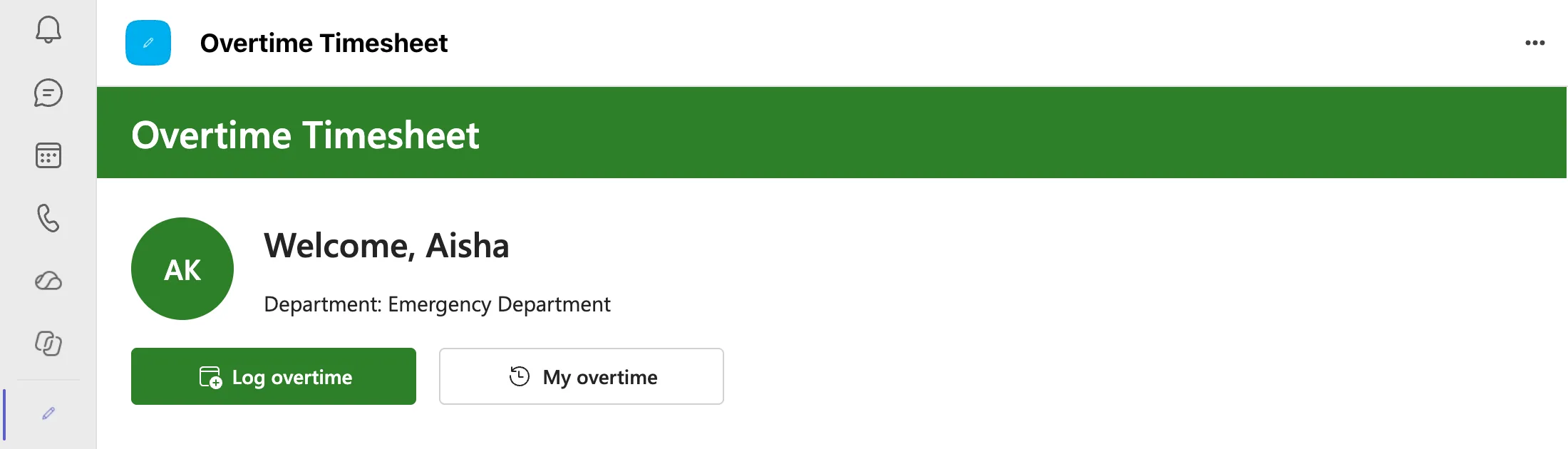
The result, as Aisha, a staff nurse, sees it in Teams:
How It Works
The decisions behind it:
- Groups, not people. The app and its flows are shared with security groups, so joiners and leavers are handled in the groups, as Part 1 planned.
- Each flow goes to the group that runs it. Get Waiting Approvals and Get Overtime Report go to Overtime Timesheet Users, everyone who uses the app; each works out for itself what the person may see, as Parts 9 and 11 built them. Create Payroll Workbook Now goes to Overtime Payroll only.
- One Teams app for everyone. Rather than each person adding the app to Teams from Power Apps, the Teams admin uploads it once to the organization's app catalog, installs it for Overtime Timesheet Users, and makes it available to that group only.
- An approver's own overtime doesn't appear on their Waiting for approval screen. It goes to their manager, in Teams and Outlook, as Part 8 set up, and the screen from Part 9 shows only what the approver decides. That's by design.
- What it costs. Nothing new: sharing, run-only access and Teams apps come with the Microsoft 365 licenses from Part 1.
Prerequisites
- Part 15 completed.
- The Teams Administrator or Global Administrator role, for the Teams admin center steps. Microsoft's custom apps article lists the admin upload as available to Global or Teams administrators.
Step 1: Share the App with the Users Group
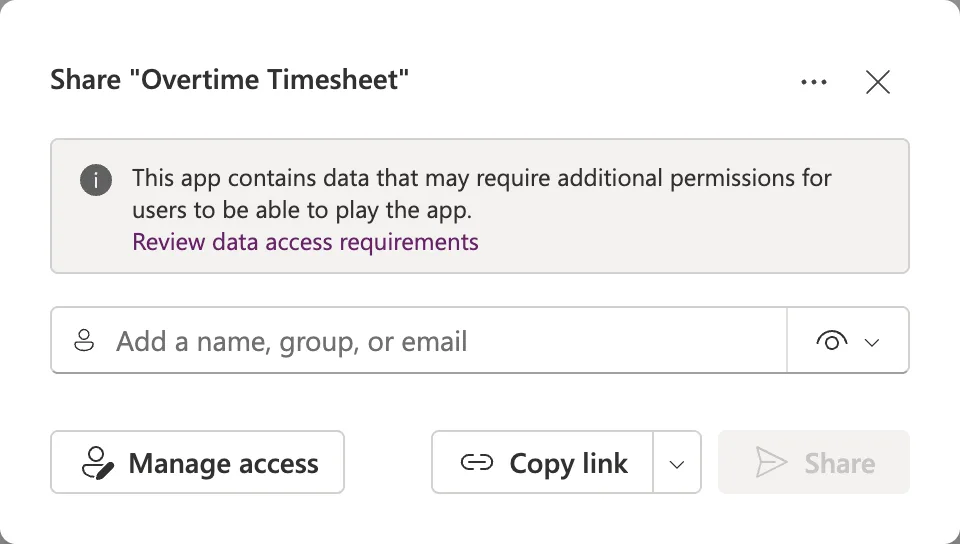
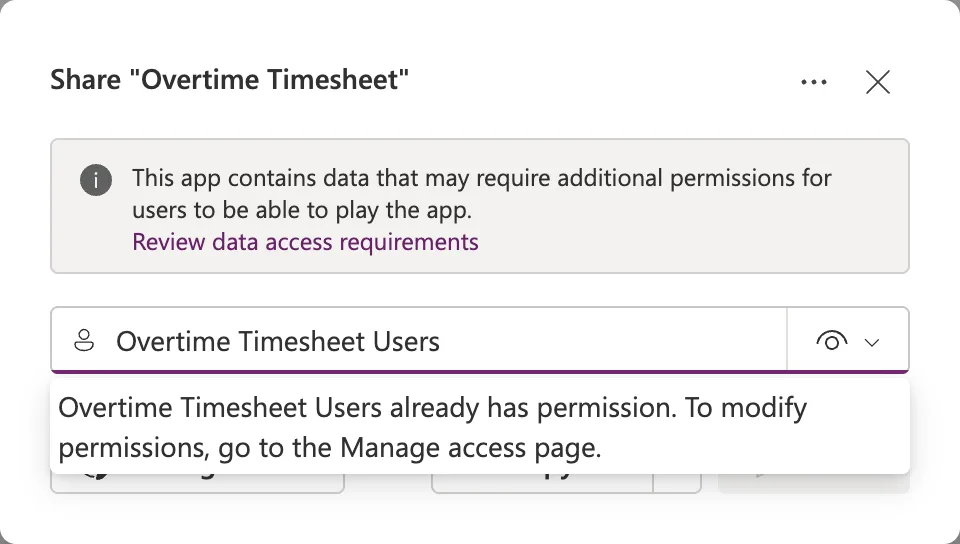
At make.powerapps.com, select Apps, then Overtime Timesheet's More commands (⋮) > Share (How to Share a Canvas App with a Security Group in Power Apps). The dialog warns that this app contains data that may require additional permissions for users to be able to play the app:
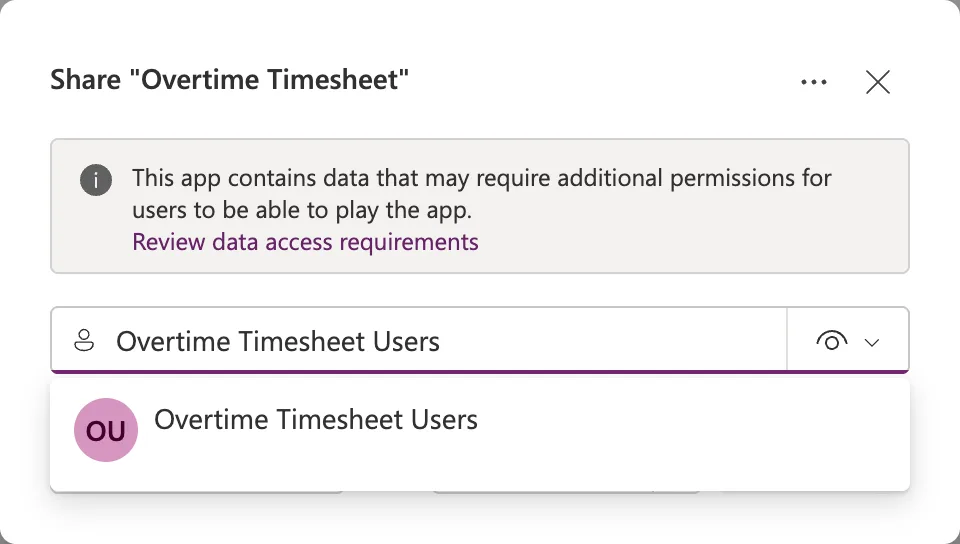
Type Overtime Timesheet Users and select the group:
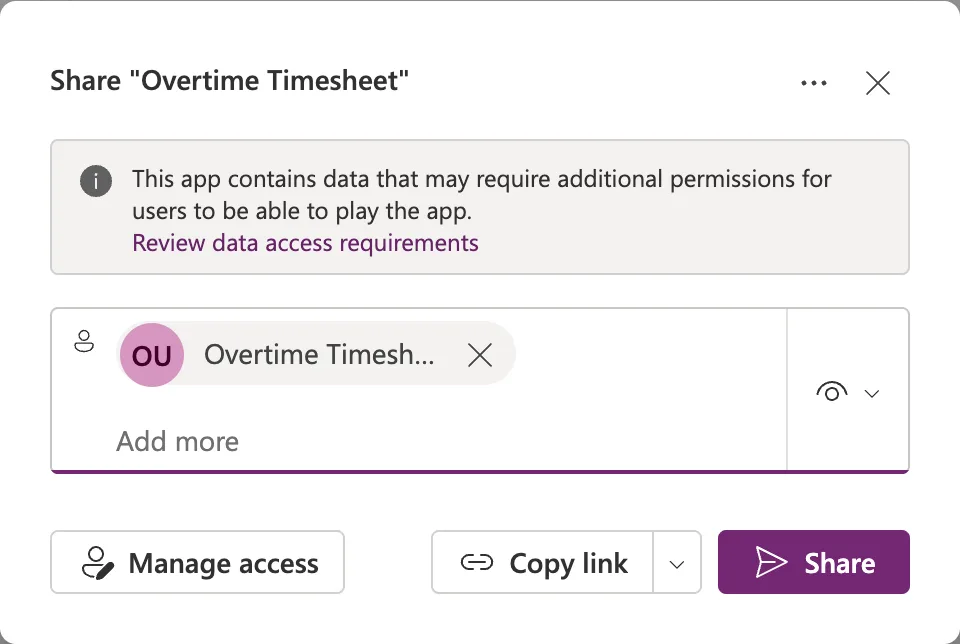
The access option, the eye icon, stays on User, which can use the app only. Co-owner would let the whole group edit it. Select Share:
After about ten seconds, Power Apps confirms it, and reminds you that they won't be notified automatically:
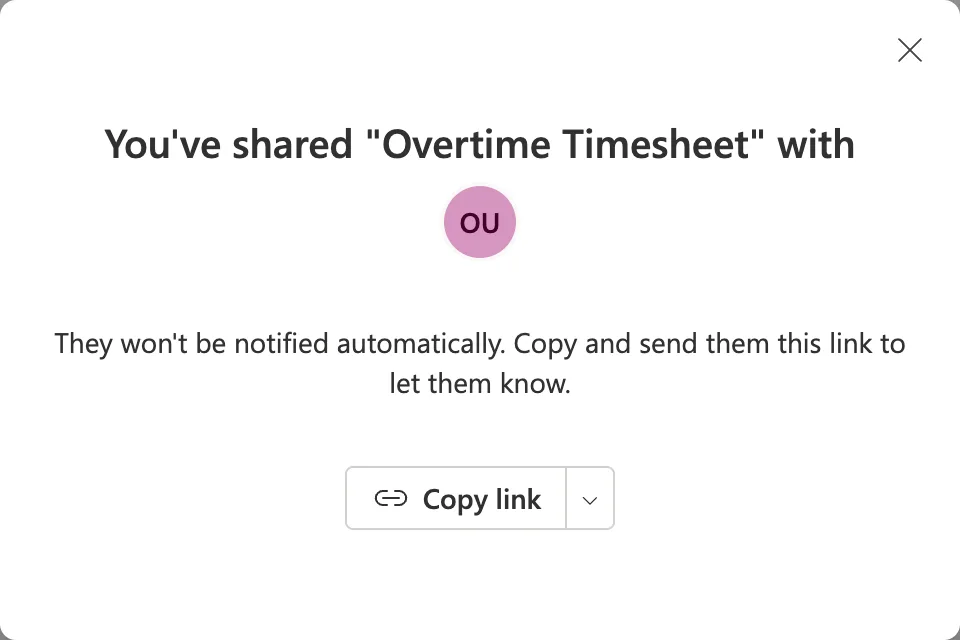
Staff will get the app in Teams, so there's no link to send. Sharing the group twice isn't possible: typing it again gives Overtime Timesheet Users already has permission. To modify permissions, go to the Manage access page.
Step 2: Remove the Test Shares
Select Manage access. People + groups · 5 lists the owner, the three test people and the new group:
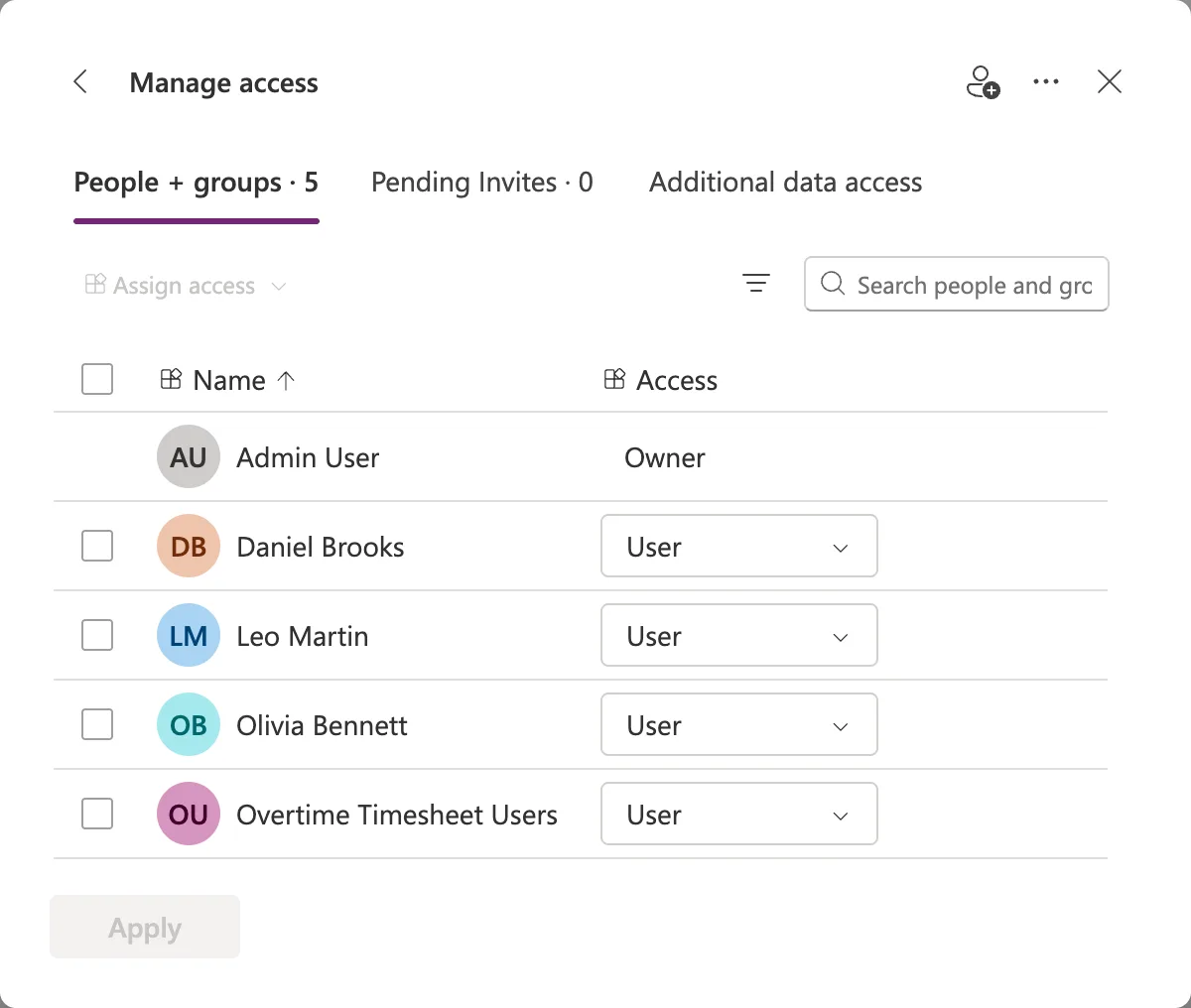
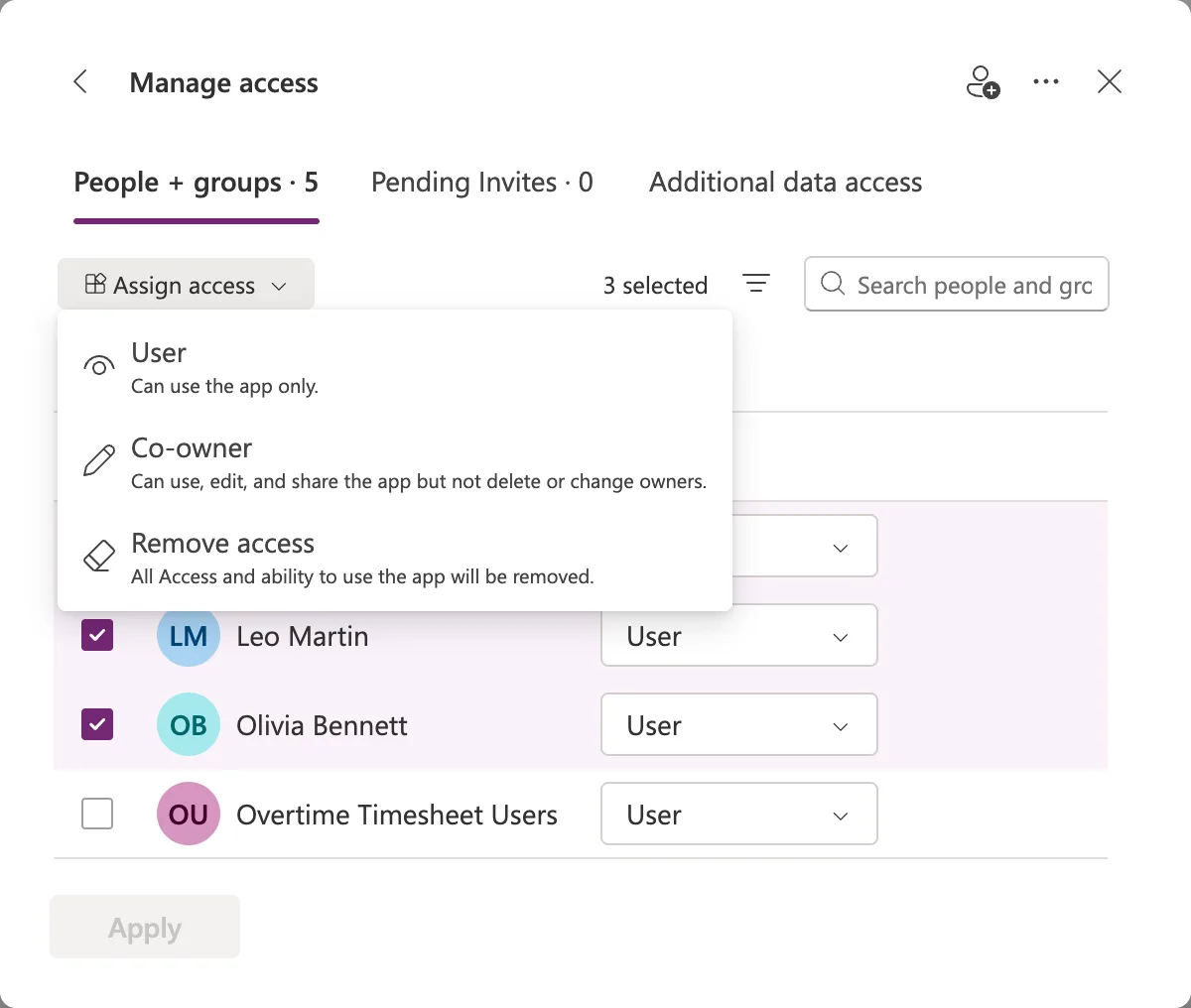
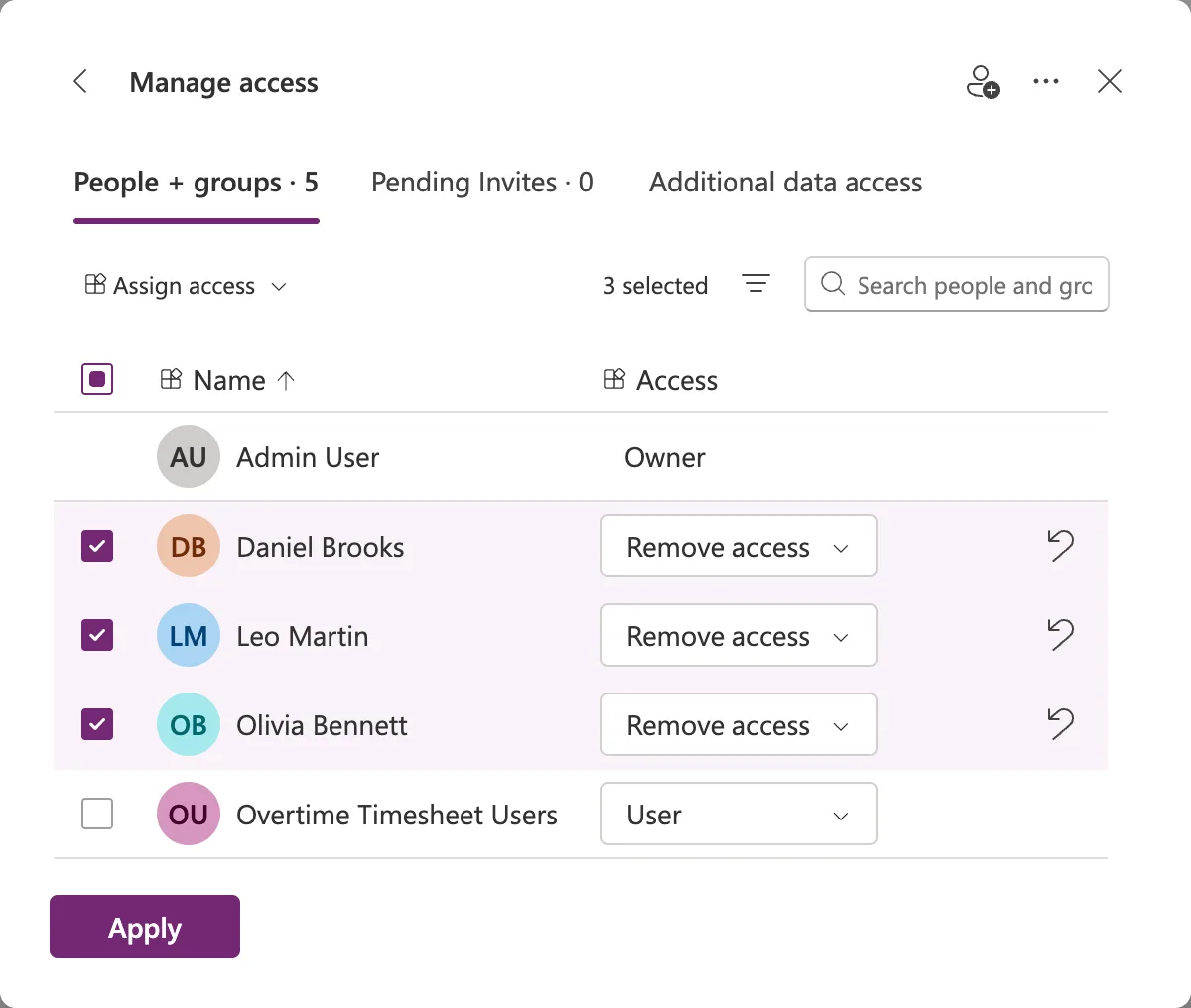
All three are in Overtime Timesheet Users, so their own shares can go. For one person, the drop-down next to them has Remove access (How to Stop Sharing a Canvas App with Someone in Power Apps). For three, tick their rows, open Assign access above the list and select Remove access: All Access and ability to use the app will be removed.
The three rows now say Remove access, each with an undo arrow. Select Apply:
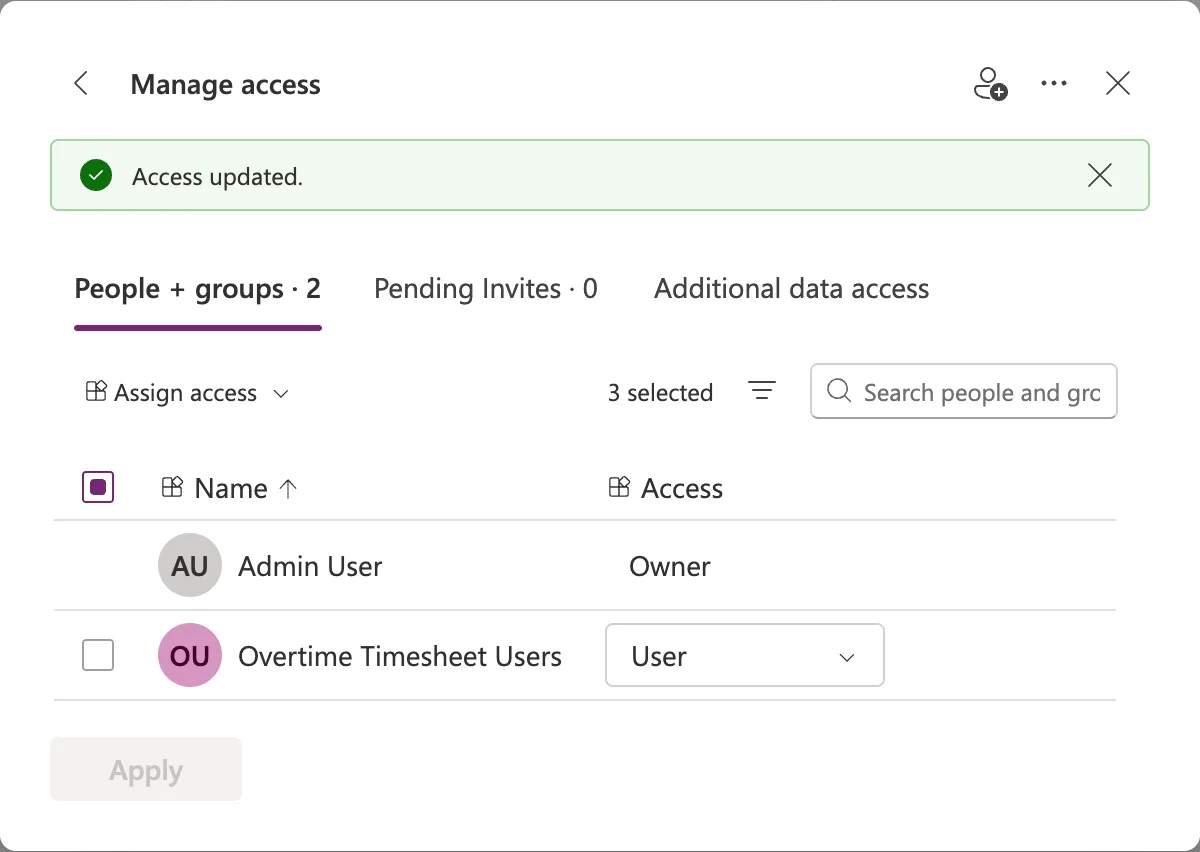
Access updated. The app is shared with the owner and the group, nobody else:
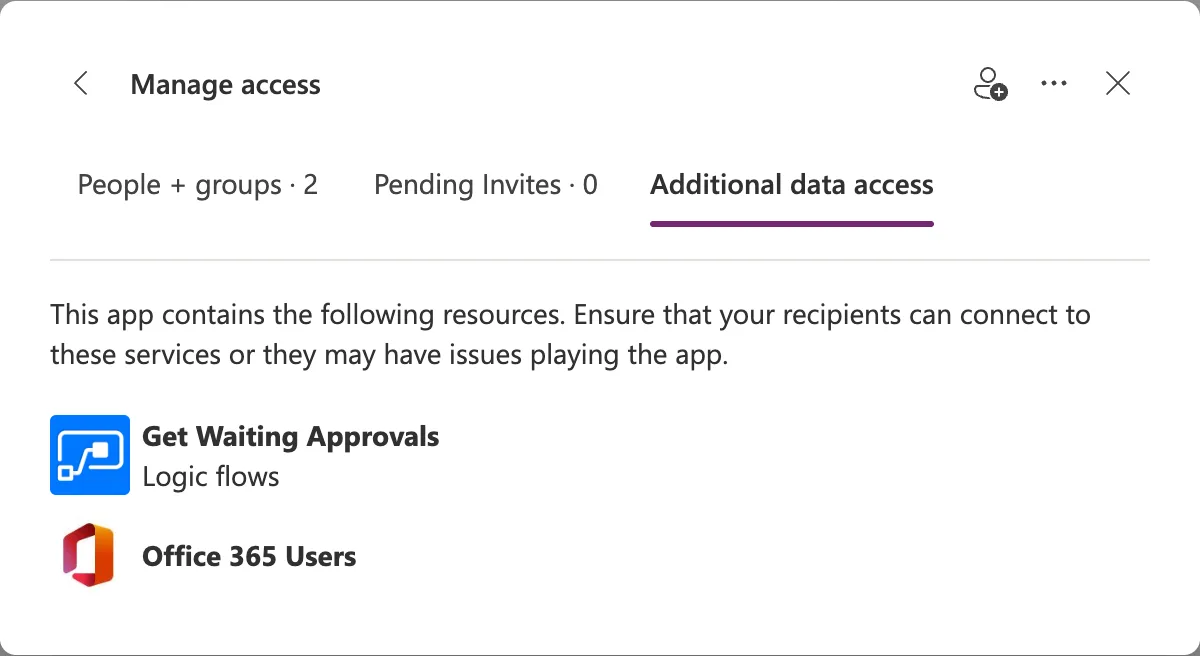
The Additional data access tab lists what the app uses: the flows Get Waiting Approvals, Get Overtime Report and Create Payroll Workbook Now, the connectors Office 365 Users and Office 365 Groups, and the lists Departments, OvertimeEntries and Settings. Part 3 gave the group its access to the lists, and the next step gives it the flows:
Step 3: Make the Groups the Flows' Run-Only Users
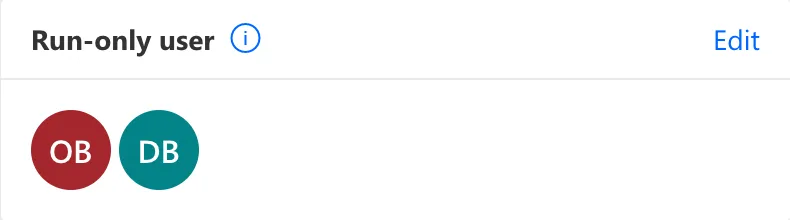
Each flow is in the Overtime Timesheet solution. Open its details page, select Edit on the Run-only user card, add the group, remove the test people, and Save (How to Share a Flow with Run-Only Users in Power Automate, How to Remove a Run-Only User from a Flow in Power Automate).
Get Waiting Approvals had Olivia and Daniel:
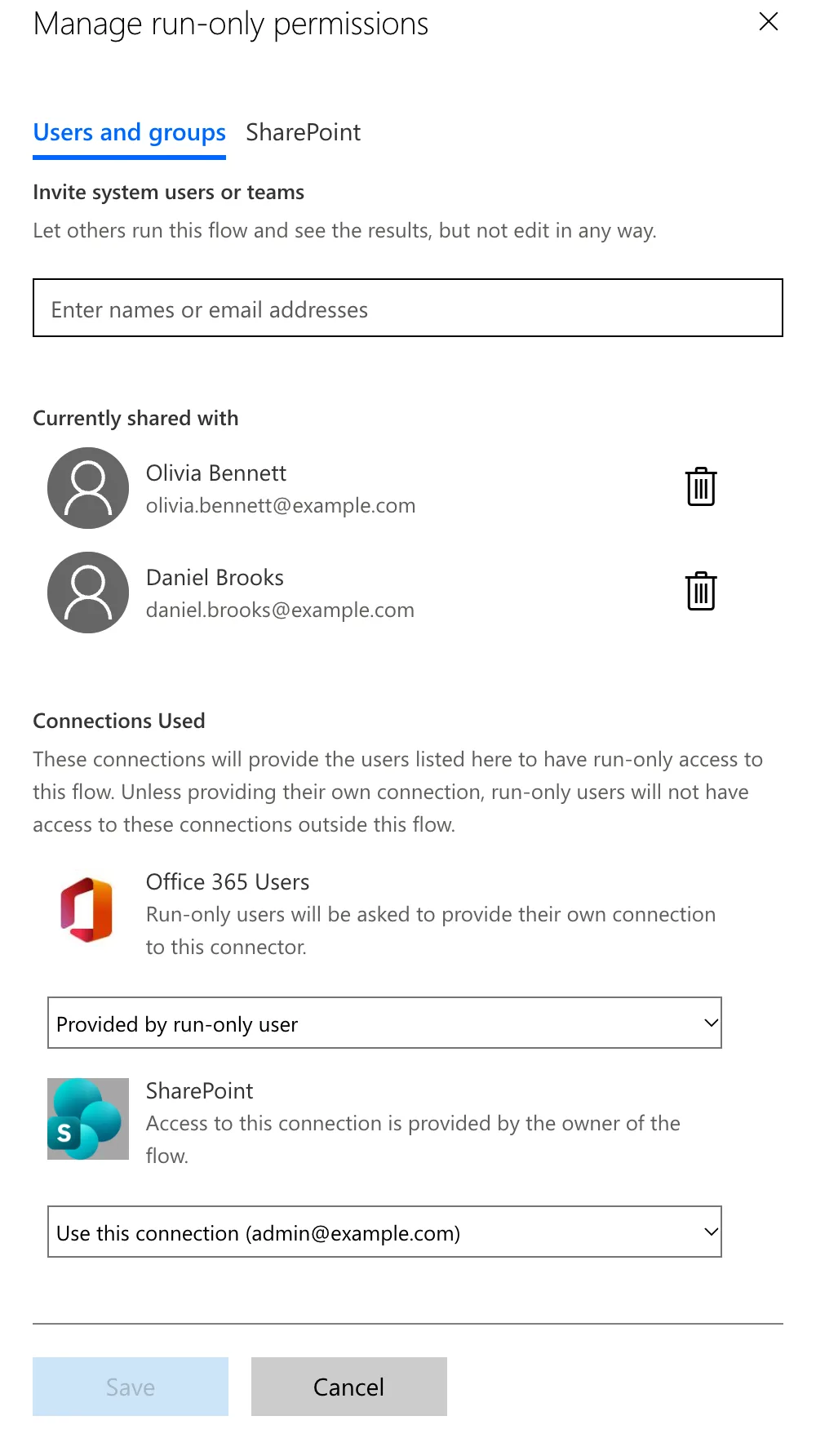
The Manage run-only permissions panel lists them under Currently shared with, and Connections Used shows the choices from Part 9: Office 365 Users Provided by run-only user, so the flow knows who's asking, and SharePoint on the owner's connection:
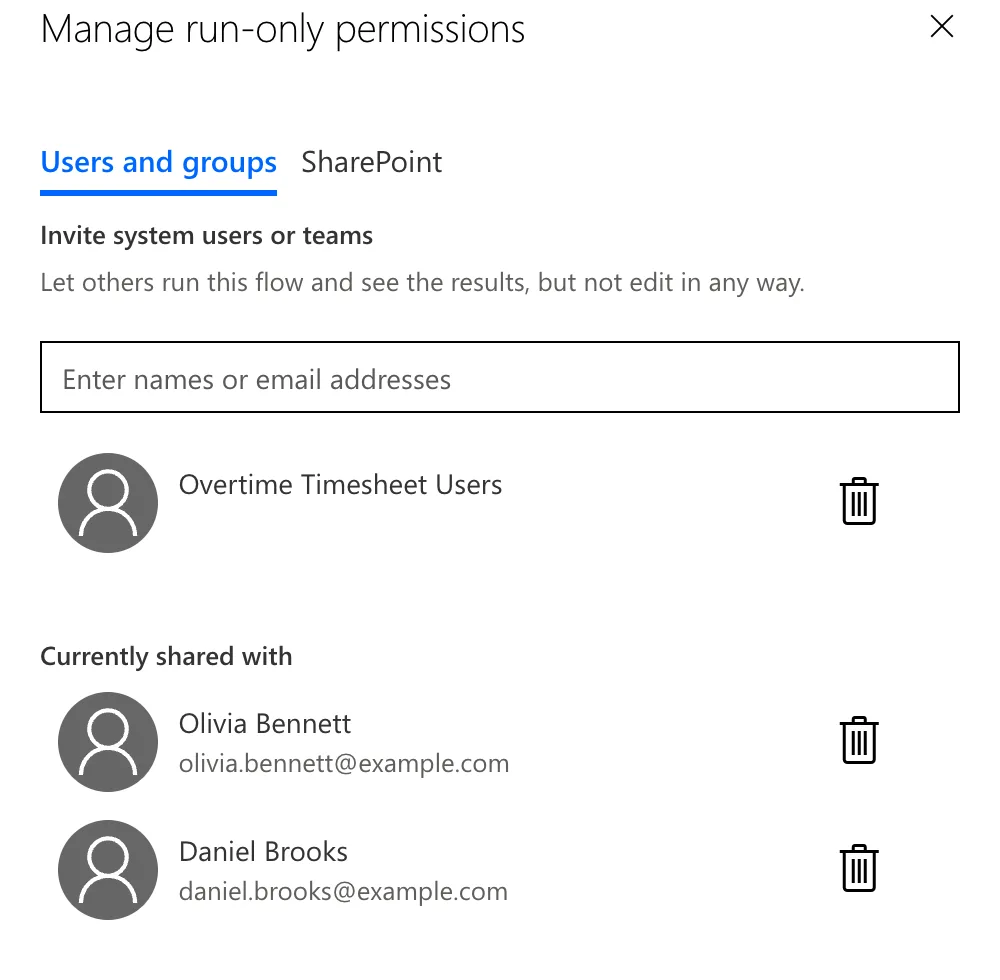
Type Overtime Timesheet Users in Enter names or email addresses and select the group. It's added above Currently shared with:
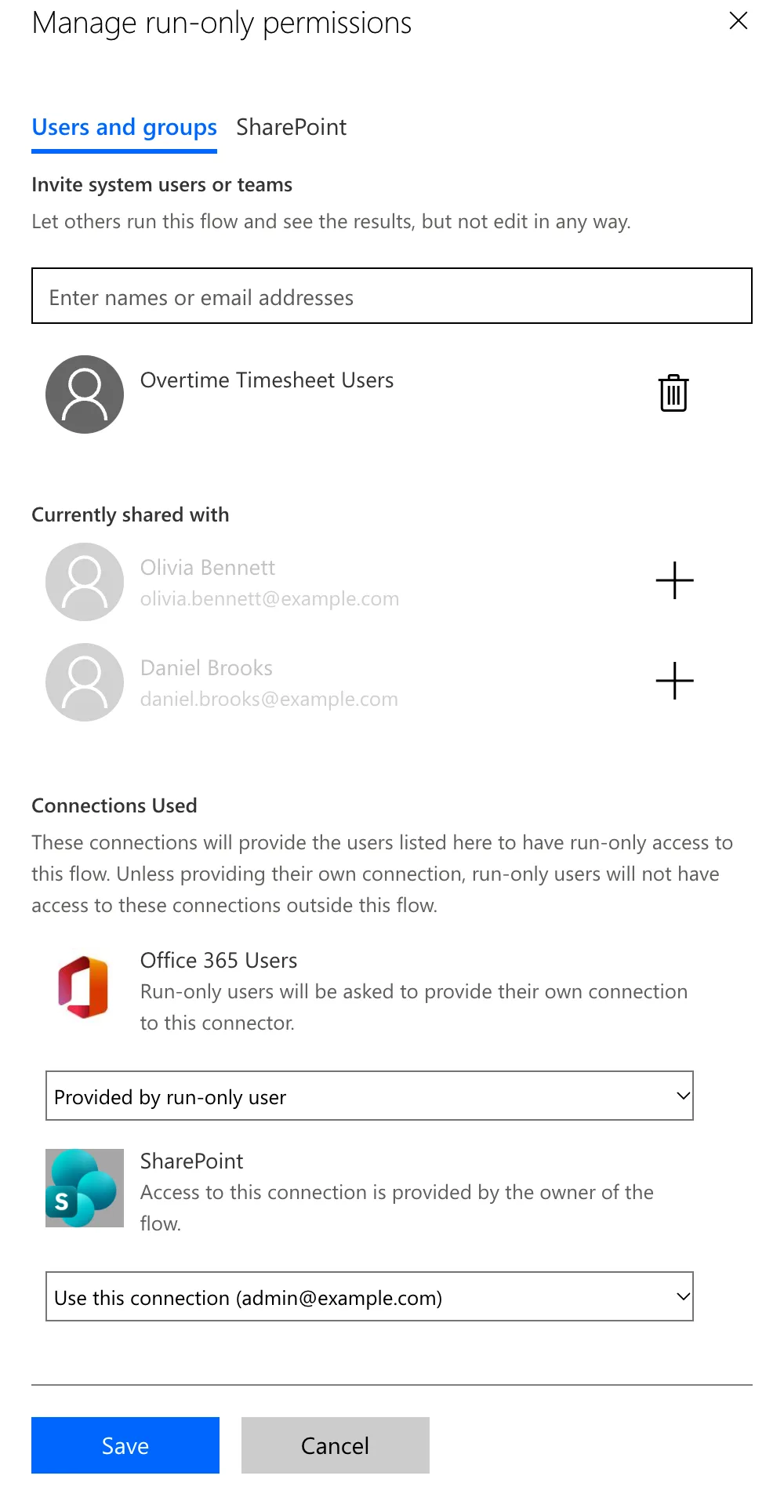
Select the trash can next to Olivia and next to Daniel. Their rows turn grey with a +. Connections Used stays as it was. Select Save:
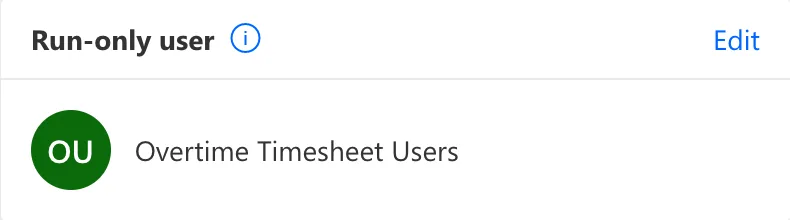
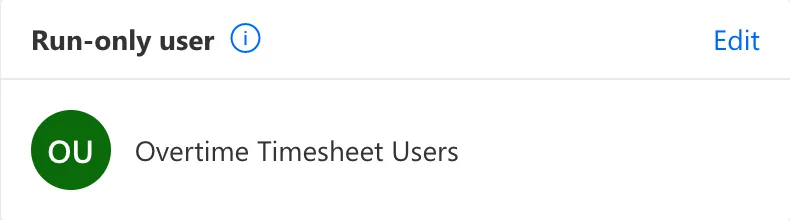
The card now shows the group:
Get Overtime Report had Olivia, Daniel and Leo. It gets the same group, with its Connections Used from Part 11 unchanged: Office 365 Users provided by the run-only user, SharePoint and Office 365 Groups on the owner's connections:
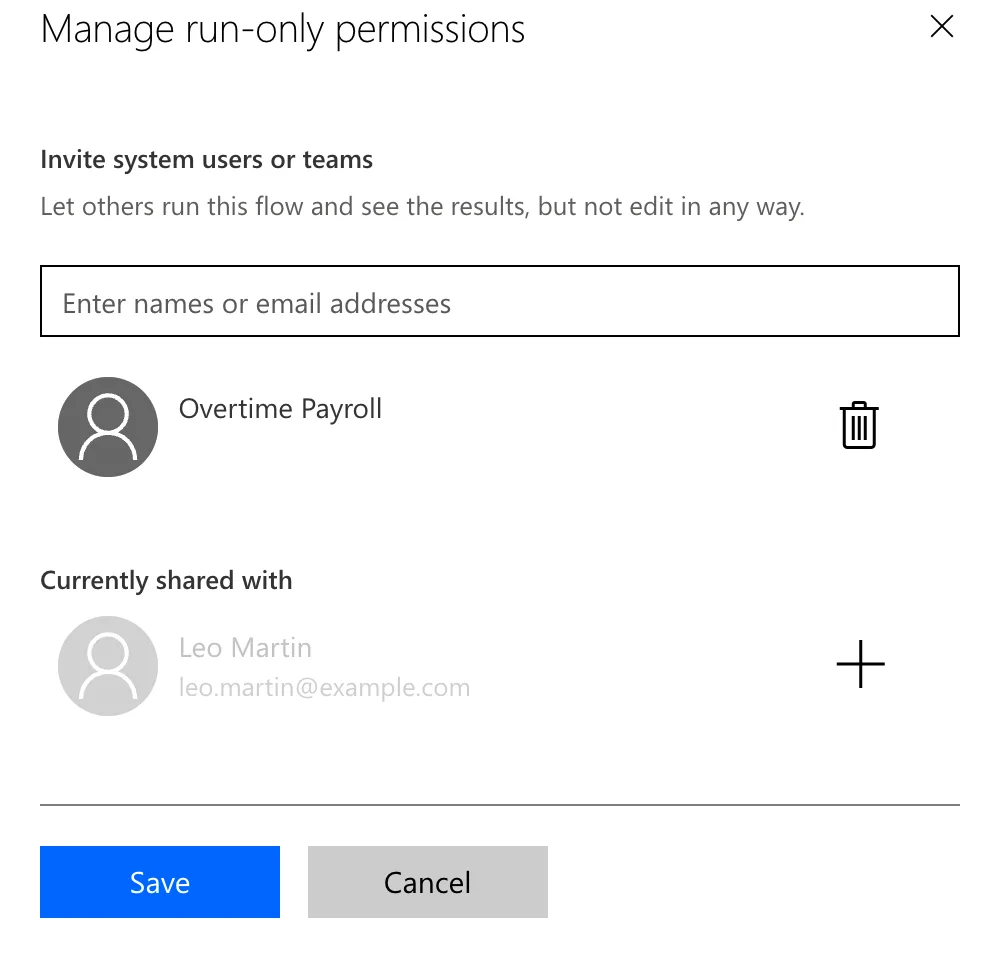
Create Payroll Workbook Now had Leo, and gets Overtime Payroll instead. Its panel has no SharePoint tab and no Connections Used, because the flow itself has no connectors: it calls the child flow from Part 13, which does the work with its own connections:
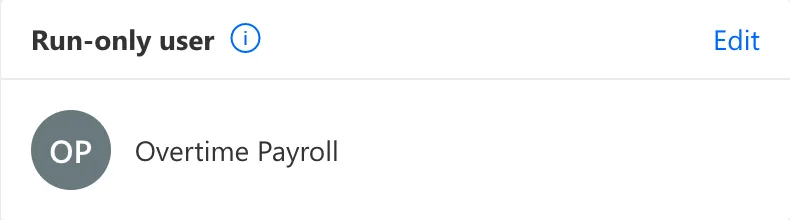
With their own shares gone, the app kept working for the approvers and for payroll, through the groups alone. Part 17 tests every role in turn.
Step 4: Download the App's Teams Package
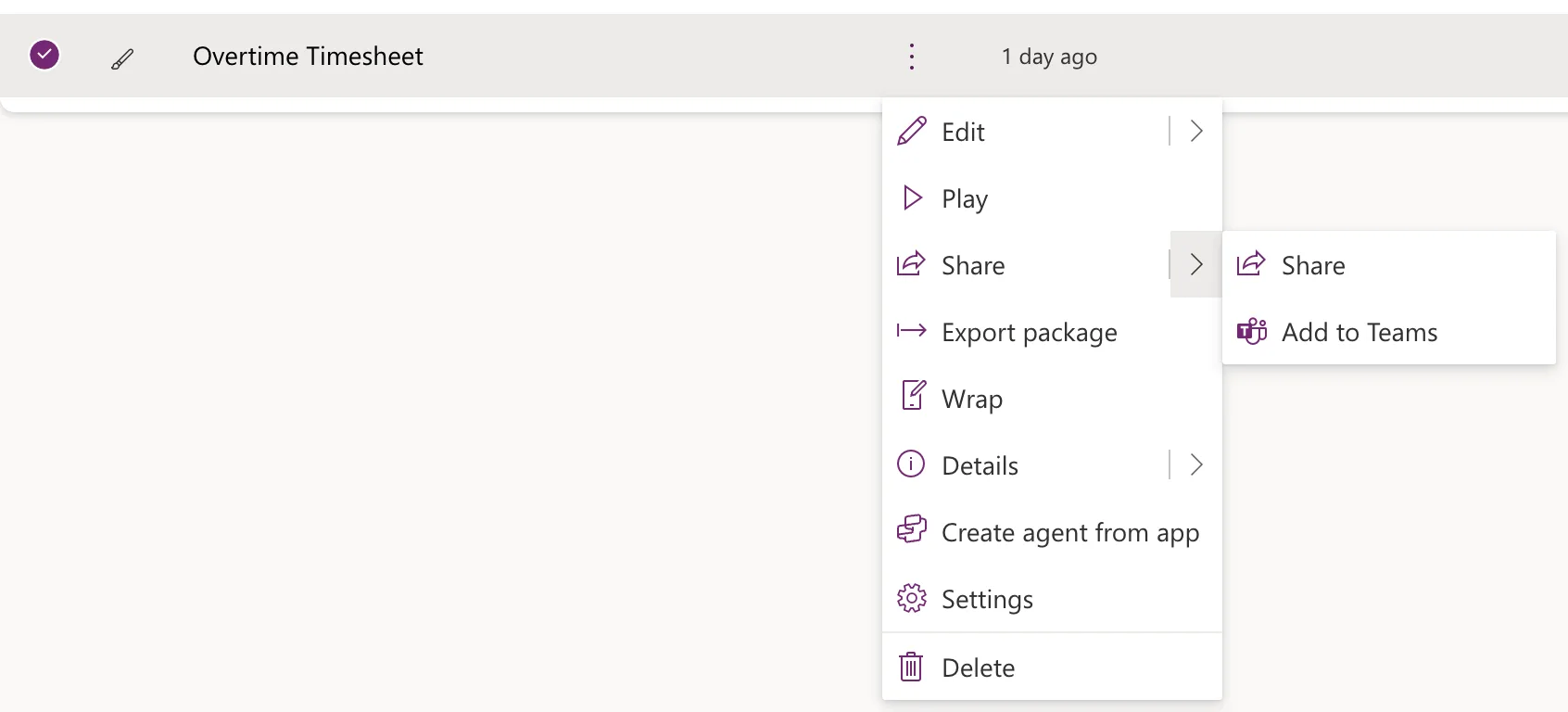
Back in Apps, select Overtime Timesheet's More commands (⋮), point to Share and select Add to Teams:
The Add to Teams panel shows the app's name and its description from Part 4. App details can't be changed in Teams once added:
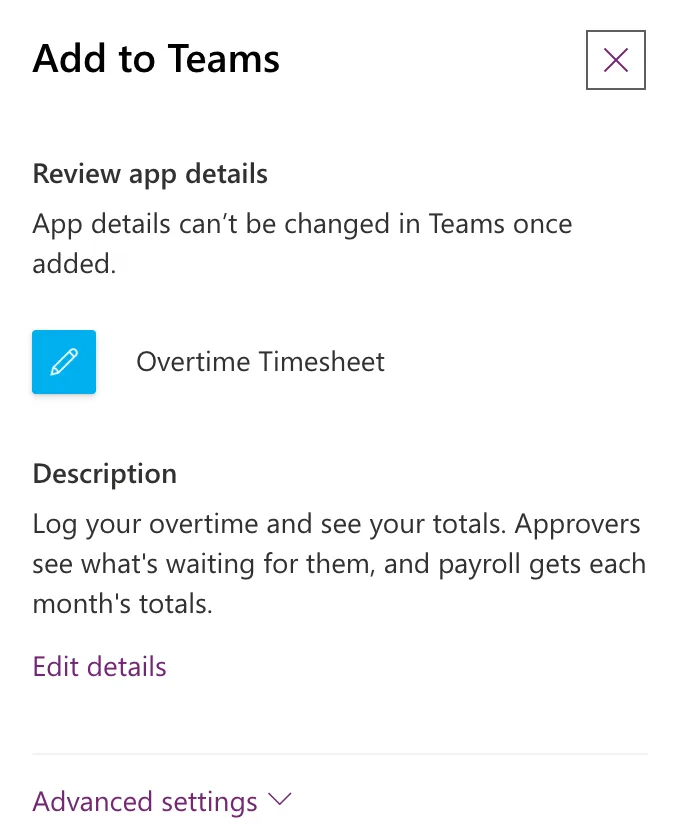
Advanced settings holds the optional developer details. I left them empty, so the package names PowerApps as the developer:
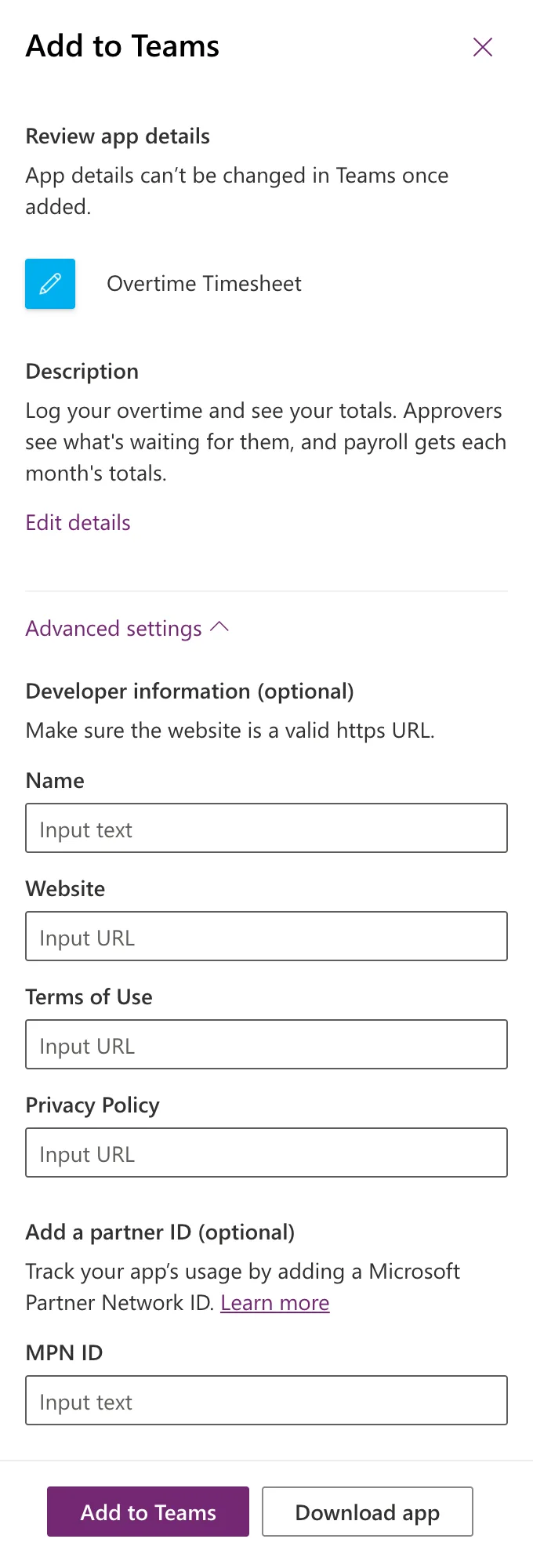
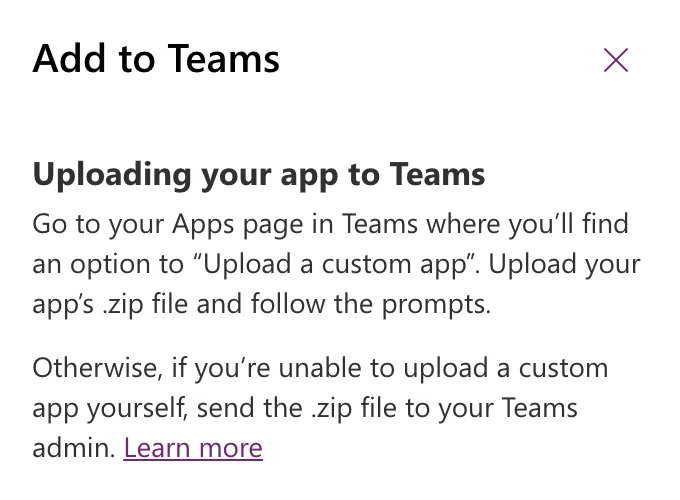
Add to Teams would add the app to my own Teams only (How to Add a Canvas App to Microsoft Teams from Power Apps). For the organization's catalog, select Download app (How to Download a Canvas App as a Teams App Package in Power Apps). The browser saves Overtime Timesheet.zip, and the panel suggests uploading it or sending it to the Teams admin:
Step 5: Update the Package's Manifest
As Power Apps makes it, the package won't upload to the Teams admin center: the upload stops with Update your manifest to include supportsChannelFeatures=tier1 to enable support for your app across all channel types (Fixed: "Update Your Manifest to Include supportsChannelFeatures=tier1" When Uploading a Teams App). The package's manifest.json uses manifest version 1.8, and the property exists only from version 1.25. Moving it to 1.30, the newest version, takes five changes:
| What | In the package | Change it to |
|---|---|---|
$schema | The 1.8 schema address | The 1.30 schema address |
manifestVersion | 1.8 | 1.30 |
packageName | com.microsoft.powerapps. and the app's ID | Removed: 1.30 doesn't allow it |
The tab's scopes | team, groupchat | team, groupChat, as 1.30 spells it |
supportsChannelFeatures | Not there | tier1 |
In the folder with the .zip, unzip it into a folder of its own. On a Mac, jq, which edits JSON, comes with macOS; on Windows, use PowerShell 7:
- bash / zsh
- PowerShell
mkdir "Overtime Timesheet"
cd "Overtime Timesheet"
unzip "../Overtime Timesheet.zip"
Archive:  ../Overtime Timesheet.zip
  inflating: manifest.json
  inflating: color.png
  inflating: outline.png
Expand-Archive -Path ".\Overtime Timesheet.zip" -DestinationPath ".\Overtime Timesheet"
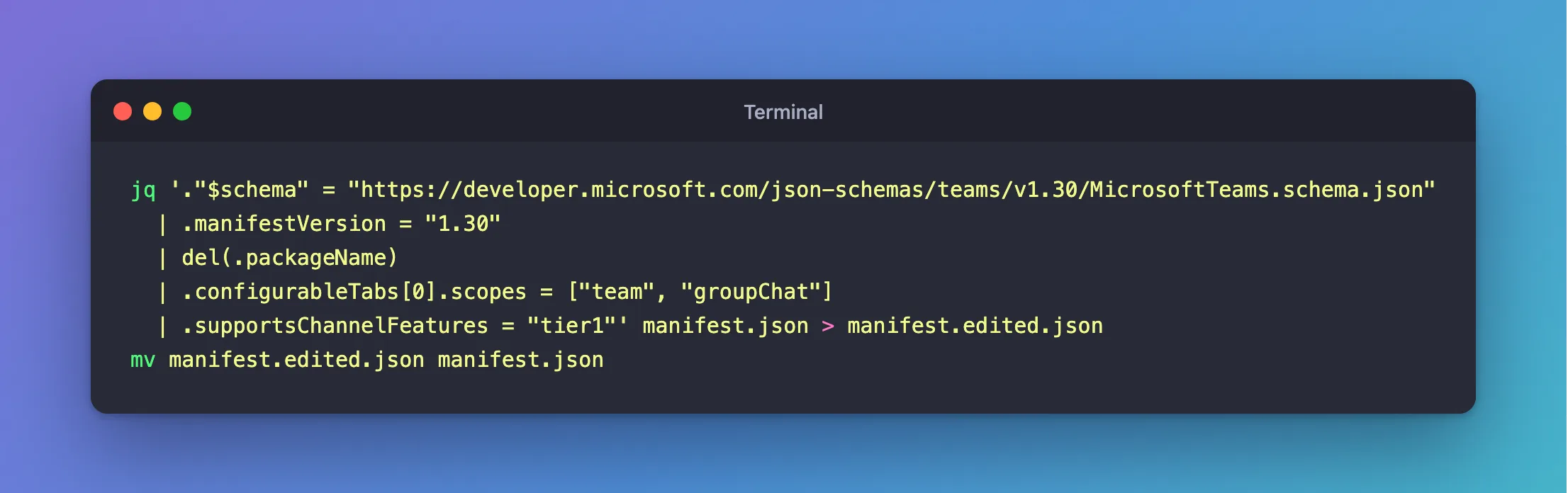
Make the five changes. Each line of the jq filter, or of the PowerShell commands, is one row of the table:
- bash / zsh
- PowerShell
jq '."$schema" = "https://developer.microsoft.com/json-schemas/teams/v1.30/MicrosoftTeams.schema.json"
  | .manifestVersion = "1.30"
  | del(.packageName)
  | .configurableTabs[0].scopes = ["team", "groupChat"]
  | .supportsChannelFeatures = "tier1"' manifest.json > manifest.edited.json
mv manifest.edited.json manifest.json
$manifestPath = ".\Overtime Timesheet\manifest.json"
$manifest = Get-Content -Path $manifestPath -Raw | ConvertFrom-Json
$manifest.'$schema' = "https://developer.microsoft.com/json-schemas/teams/v1.30/MicrosoftTeams.schema.json"
$manifest.manifestVersion = "1.30"
$manifest.PSObject.Properties.Remove("packageName")
$manifest.configurableTabs[0].scopes = @("team", "groupChat")
$manifest | Add-Member -NotePropertyName supportsChannelFeatures -NotePropertyValue "tier1"
$manifest | ConvertTo-Json -Depth 10 | Set-Content -Path $manifestPath
Then zip the three files, so they sit at the top of the new .zip:
- bash / zsh
- PowerShell
zip "../Overtime Timesheet 1.30.zip" manifest.json color.png outline.png
  adding: manifest.json (deflated 61%)
  adding: color.png (deflated 14%)
  adding: outline.png (deflated 13%)
Compress-Archive -Path ".\Overtime Timesheet\*" -DestinationPath ".\Overtime Timesheet 1.30.zip"
How to Edit the Manifest in a Teams App Package explains each of these commands. Microsoft's article on channel features asks you to test the app across channel types after adding tier1; this app is used as a personal app, which is what I tested.
Step 6: Upload It to the Teams Admin Center
At admin.teams.microsoft.com, go to Teams apps > Manage apps > Actions > Upload new app, select Upload and choose Overtime Timesheet 1.30.zip (How to Upload a Custom App in the Teams Admin Center). New app added: select this link to open the app's page. Under Users and groups, it was Installed for: No one and Available to: Everyone:
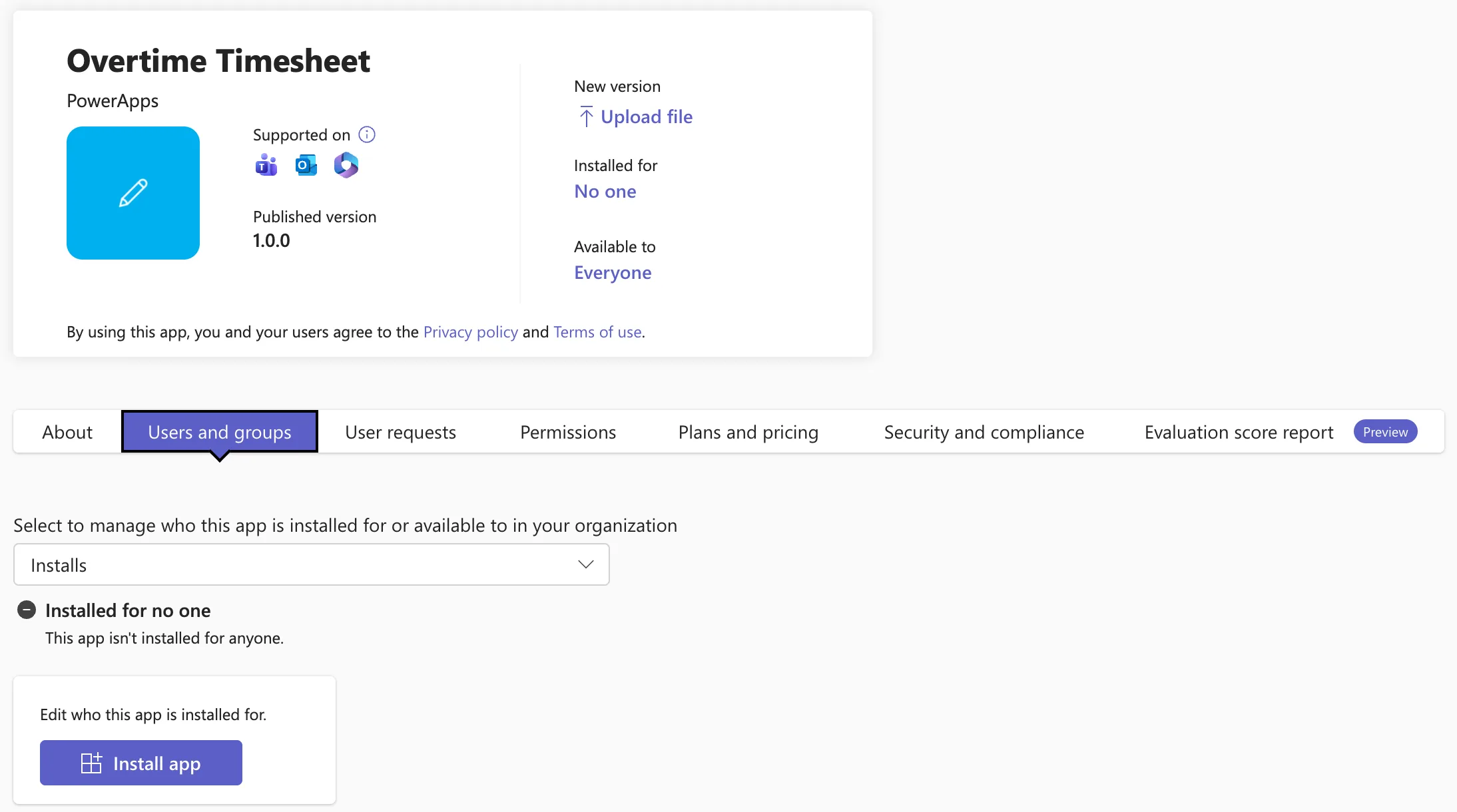
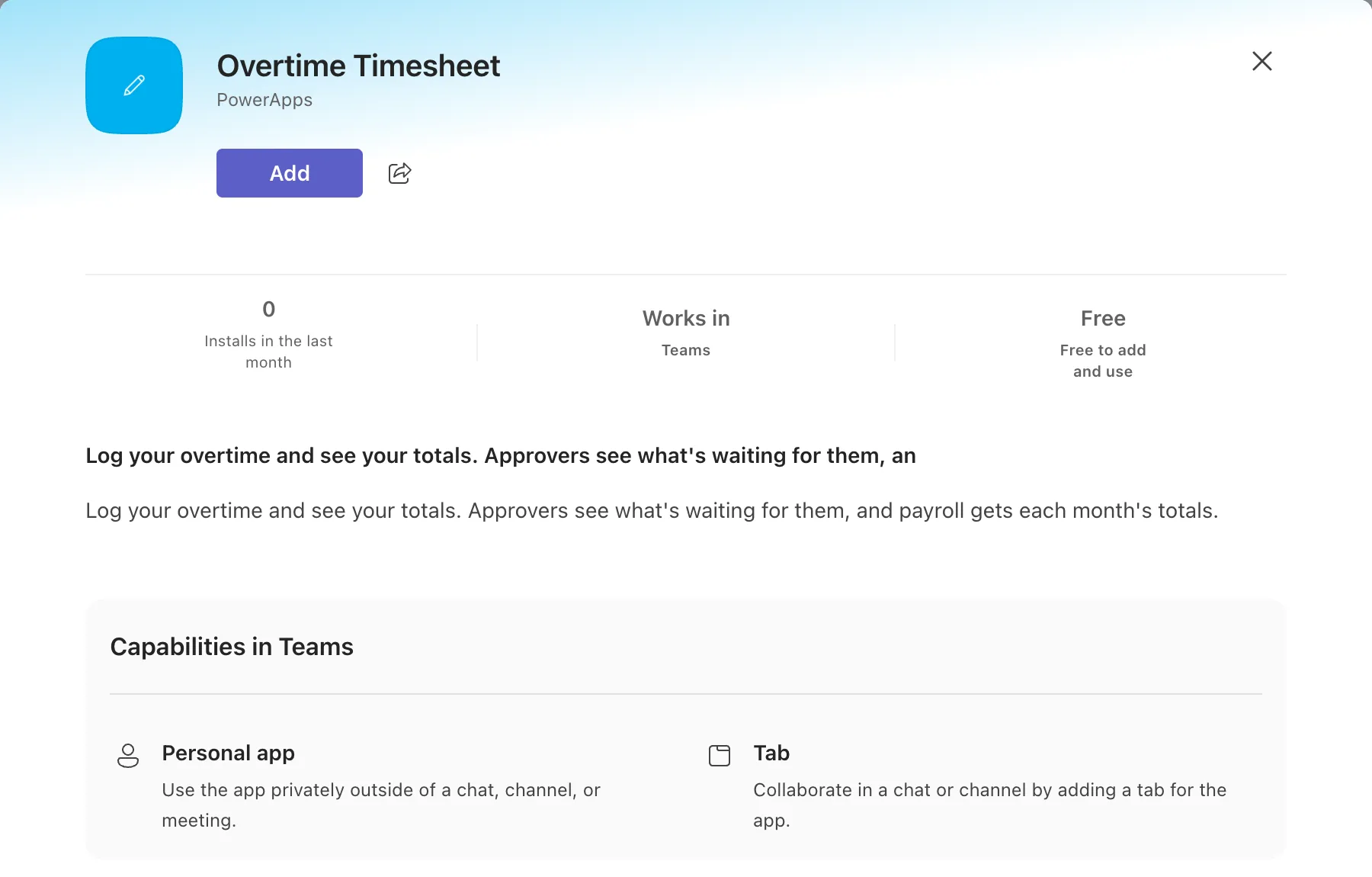
About shows the details Teams took from the manifest. The short description ends …waiting for them, an: Teams' short description holds at most 80 characters, and Power Apps cut the app's 115-character description at 80. The full description is shown in full under it in Teams.
Step 7: Install It for the Group and Limit Who Can Use It
Select Install app. In Edit installs, open Install to (How to Install a Teams App for Specific Users in the Teams Admin Center):
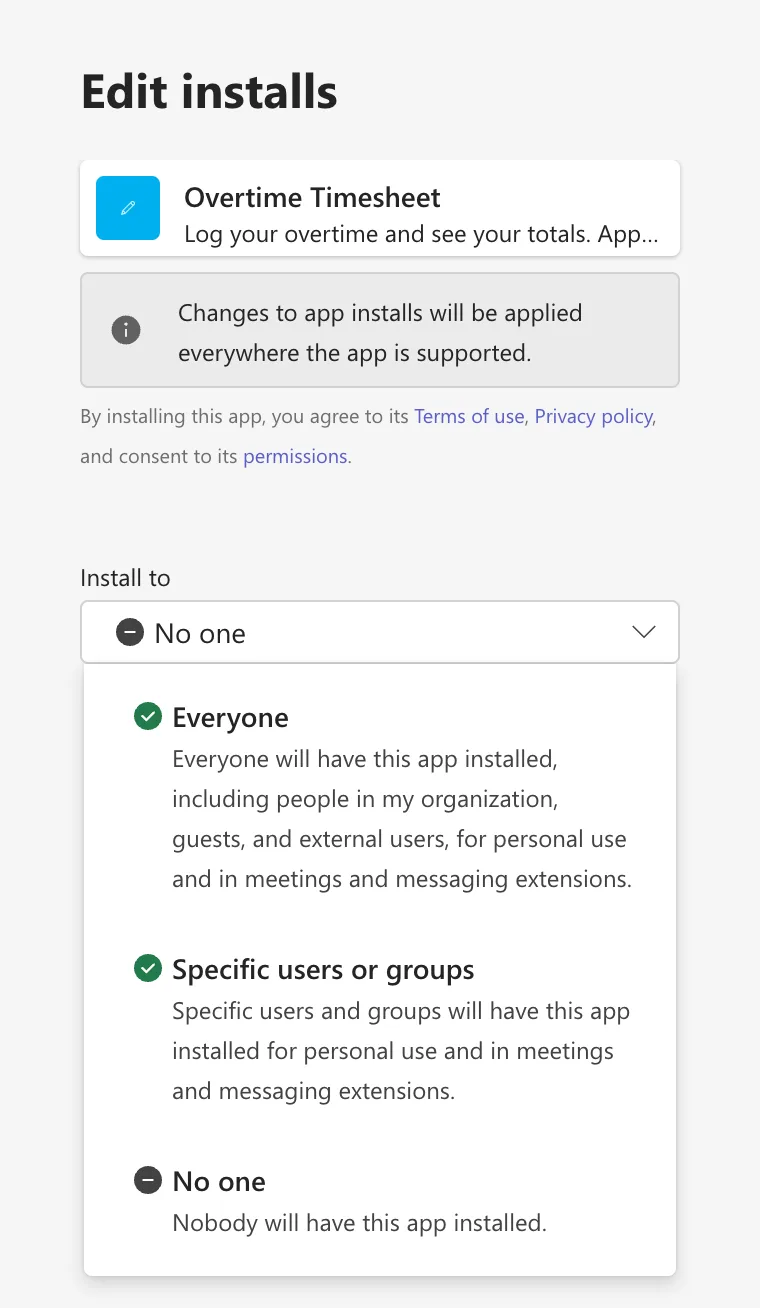
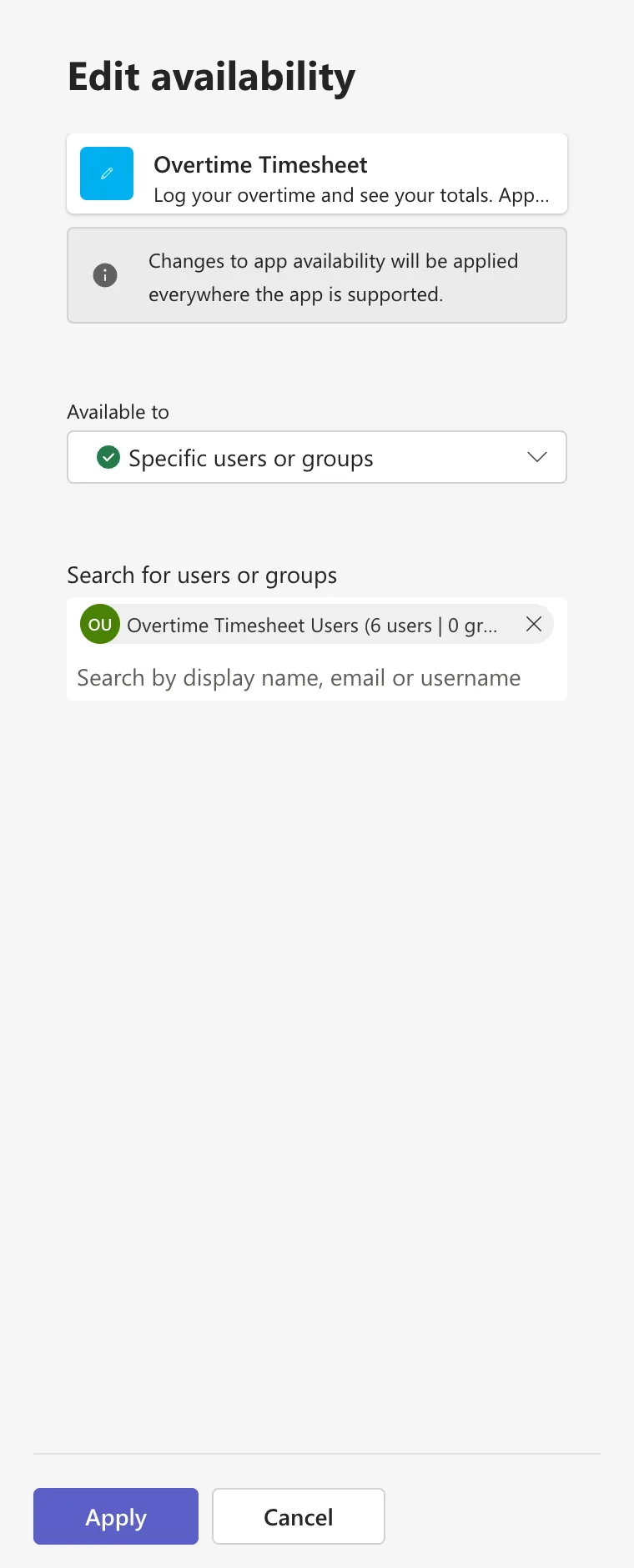
Choose Specific users or groups, search for Overtime Timesheet Users, and select the group, 6 users | 0 groups:
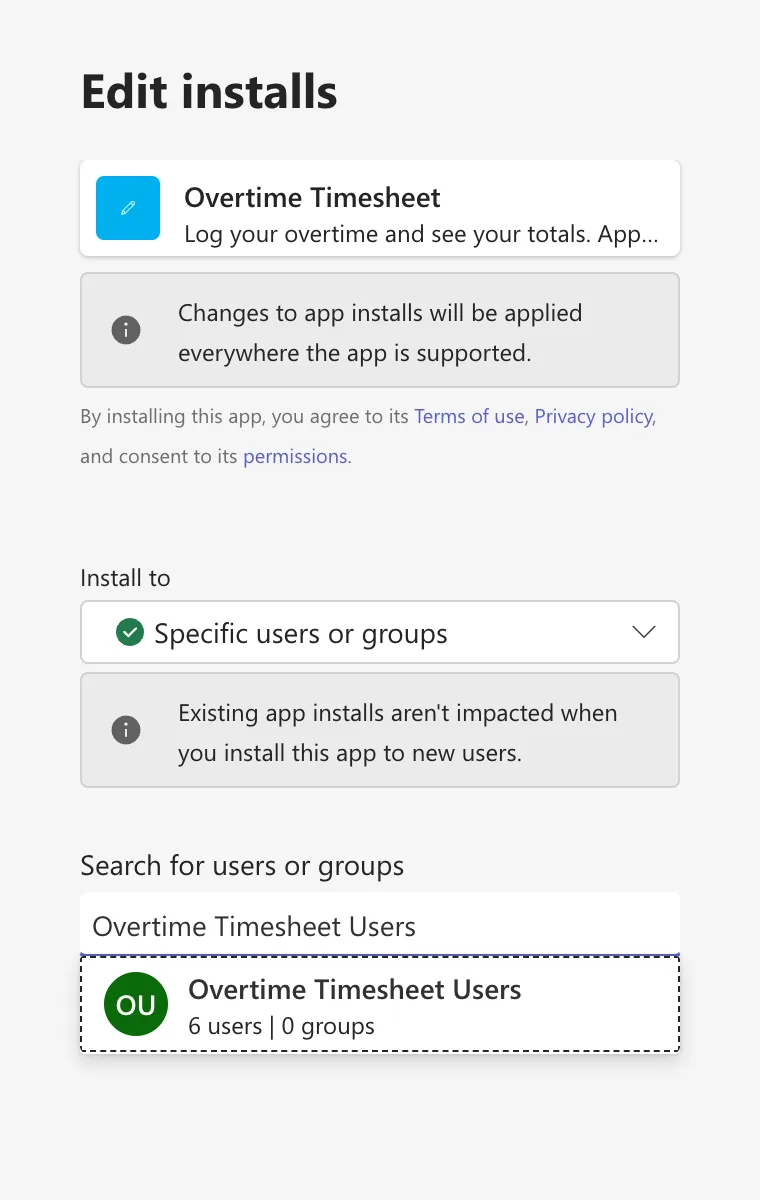
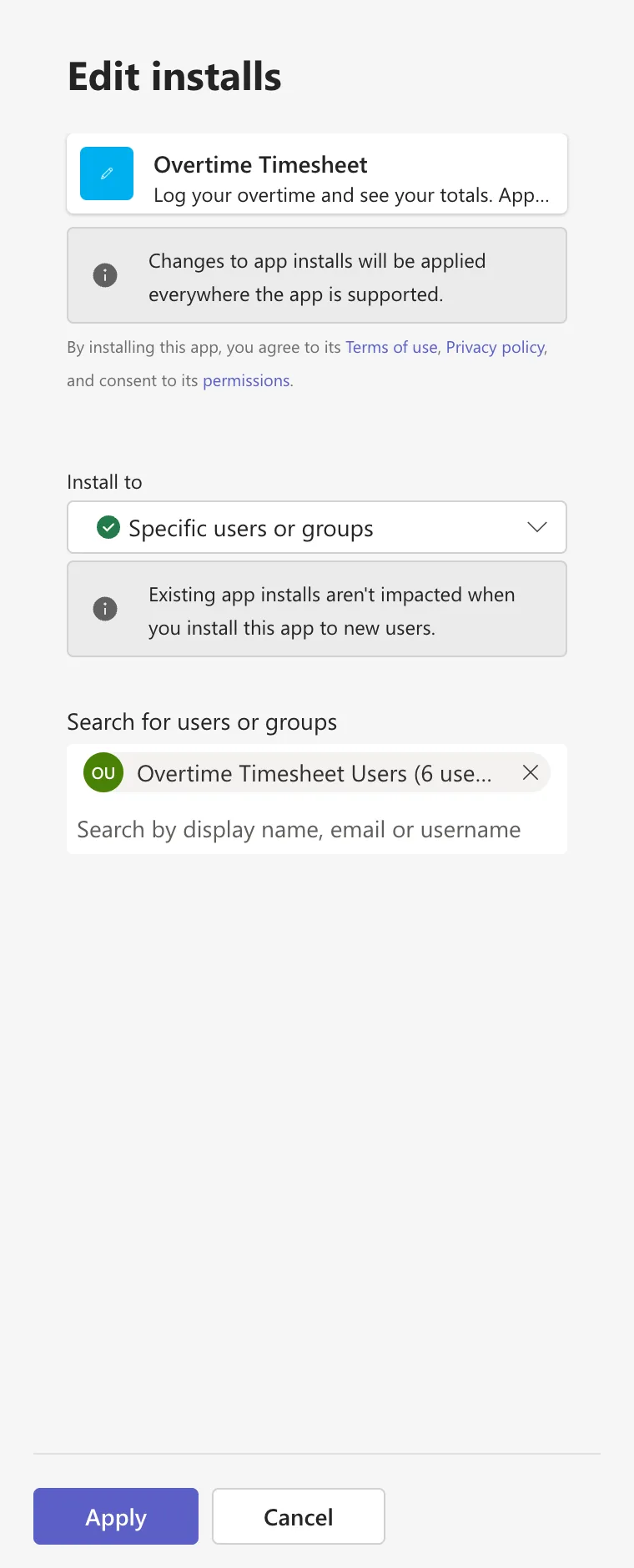
Select Apply. The app is Installed for specific users or groups, here the group:
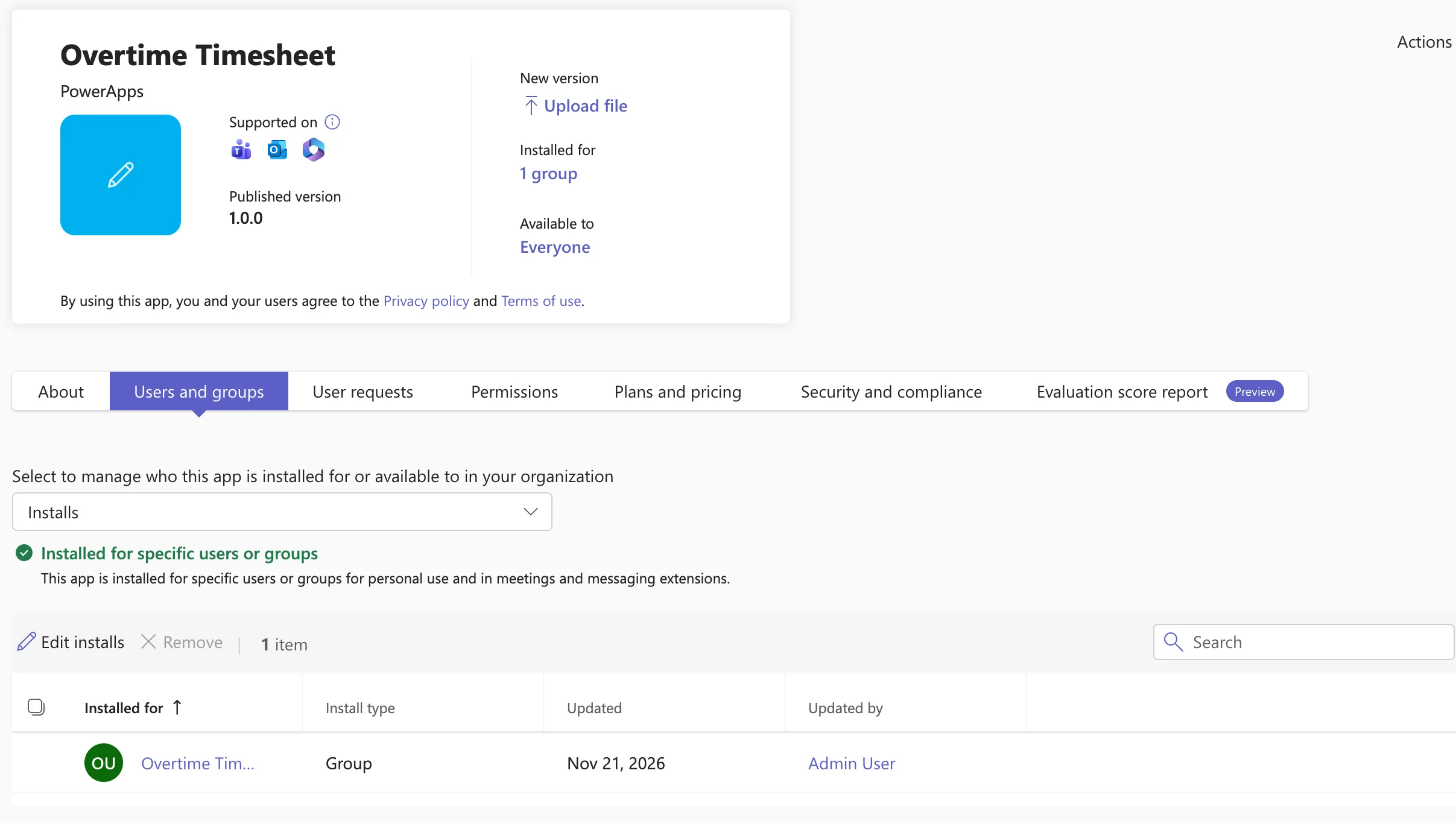
Available to was still Everyone, the default for custom apps here, so anyone in the organization, guests included, could add it from the Teams Store. In the box at the top, choose Availability:
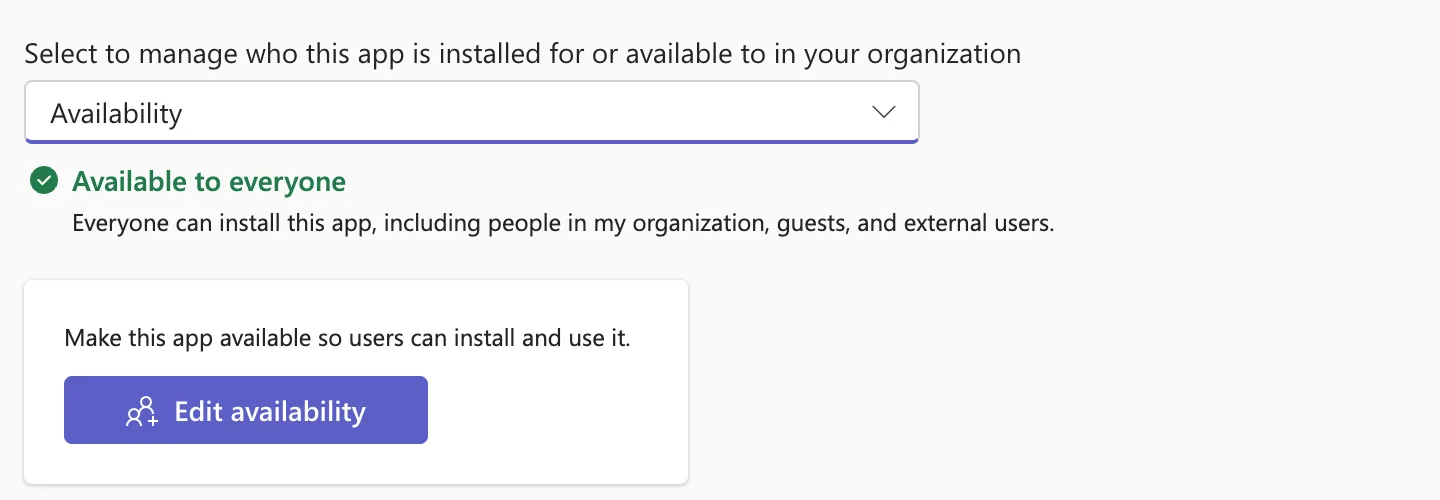
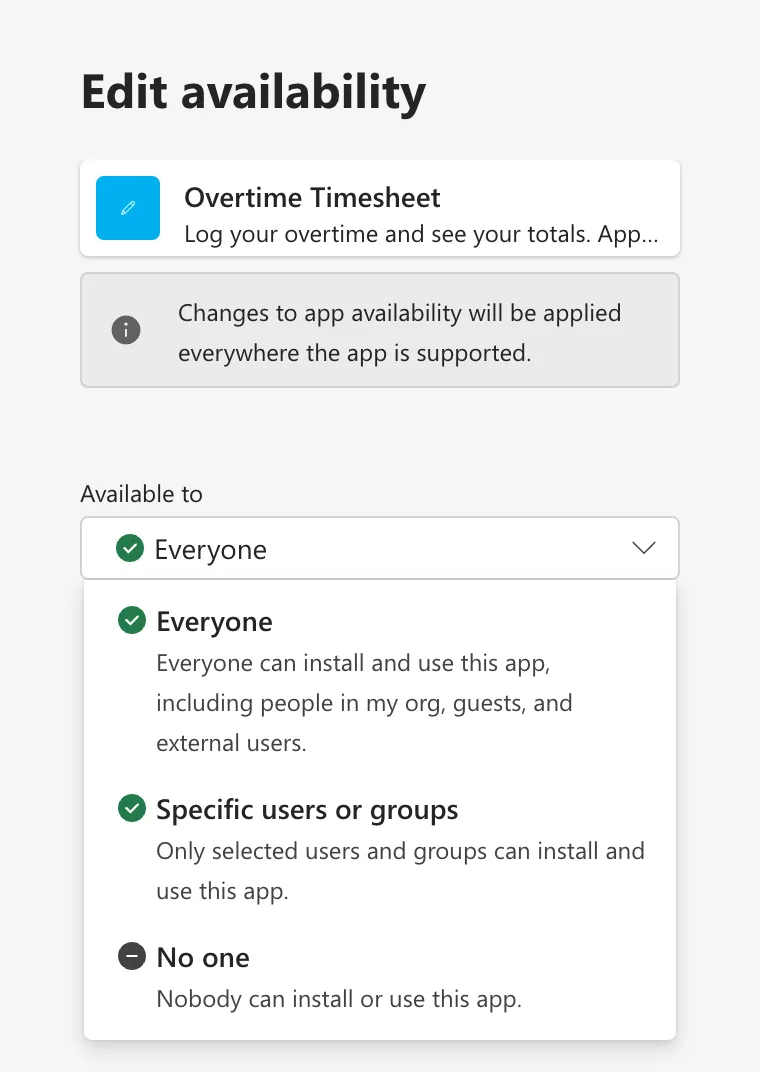
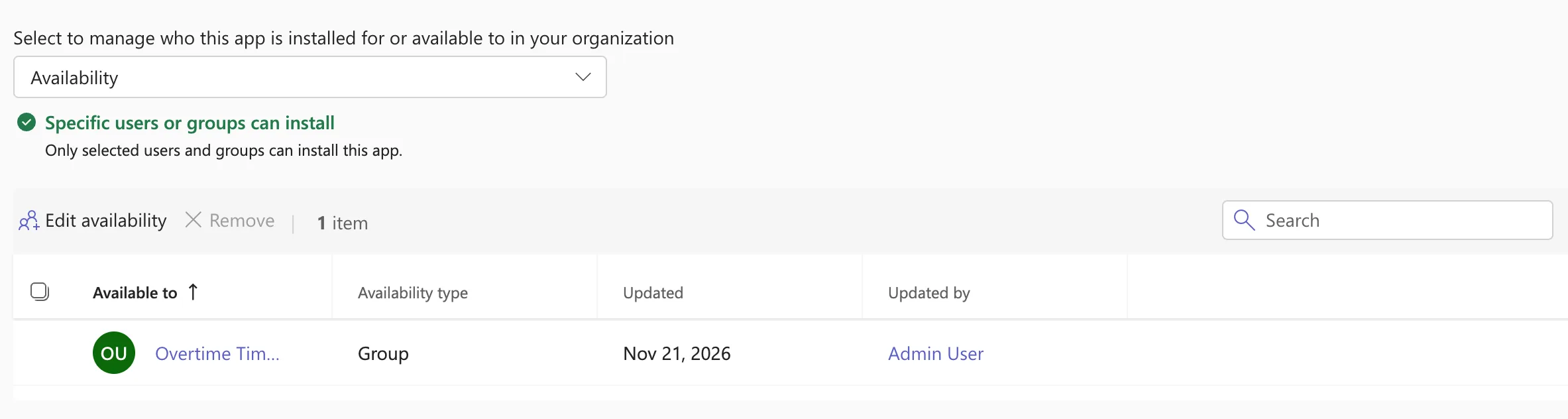
Select Edit availability, open Available to, and choose Specific users or groups: Only selected users and groups can install and use this app (How to Make a Teams App Available to Specific Users in the Teams Admin Center):
Add Overtime Timesheet Users and select Apply:
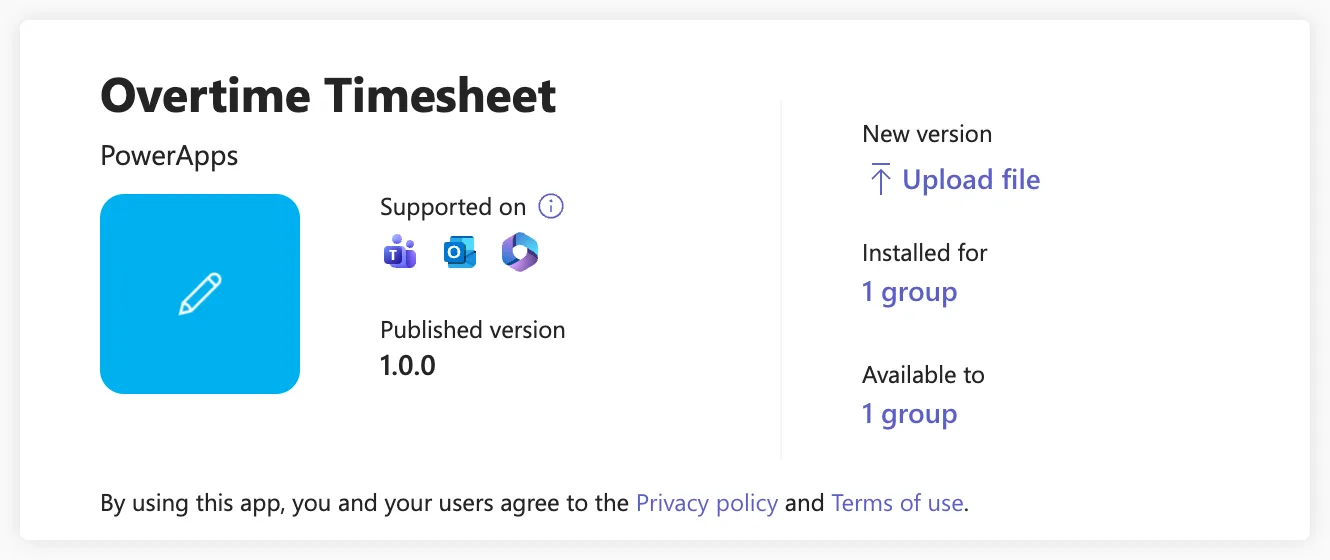
The app's header now reads Installed for: 1 group and Available to: 1 group:
Installs take time to reach Teams. Microsoft's app centric management article says it takes up to 24 hours for the availability changes to take effect, and in rare cases up to six days. I installed the app for the group at 13:08 UTC; at 14:37 UTC, it still wasn't in a member's Teams. Staff don't have to wait: the app was in the Teams Store within minutes.
Step 8: Open It in Teams as a Member of Staff
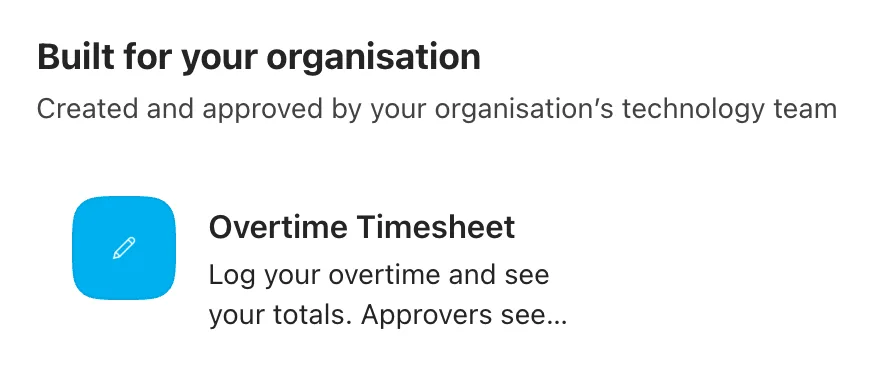
Aisha Khan is a staff nurse in the Emergency Department, and a member of Overtime Timesheet Users. In Teams on the web, her first load ended at Oops, app failed to load!, and Retry loaded it (Fixed: "Oops, App Failed to Load!" in Teams on the Web). In the Store, the Home page lists the app under Built for your organisation (How to Find an App Built for Your Organization in Microsoft Teams):
She selects it, then Add. The bold line is the cut short description, with the full one under it:
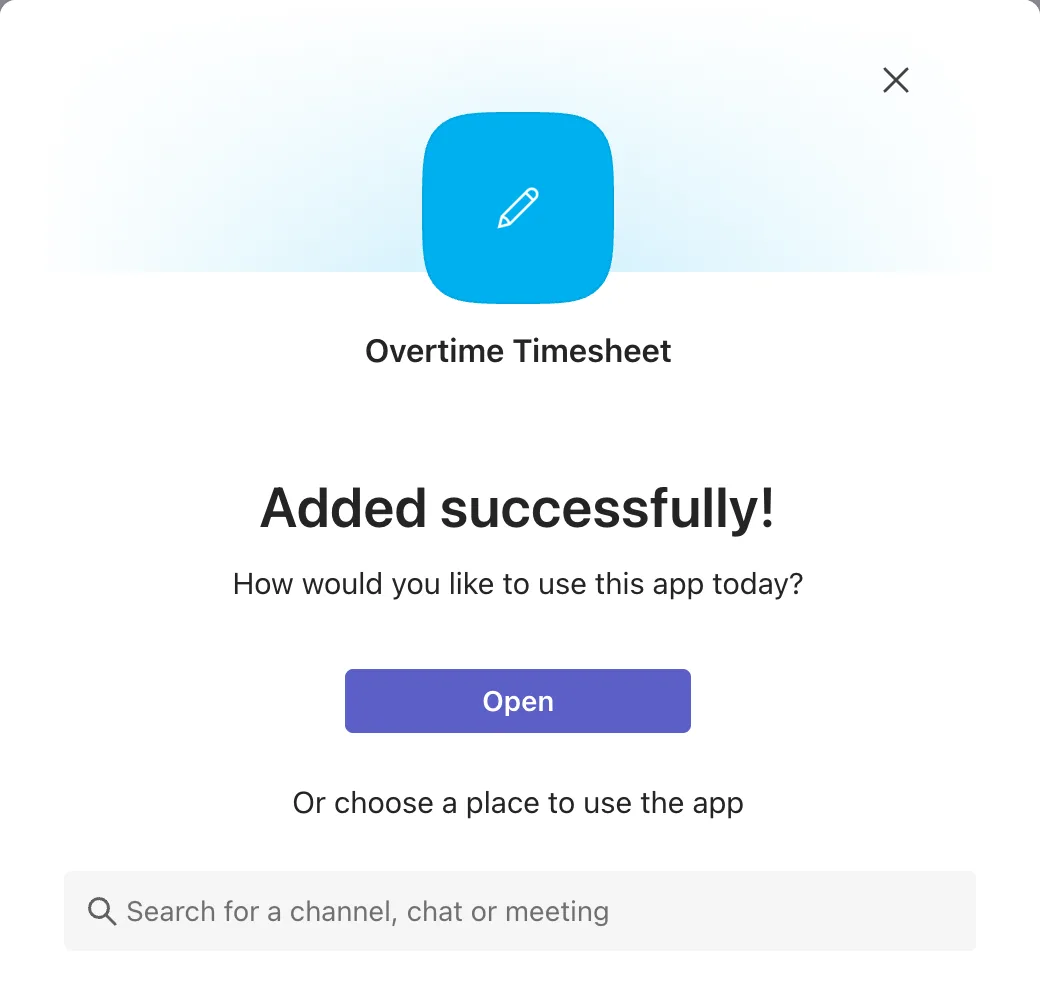
Added successfully! She selects Open:
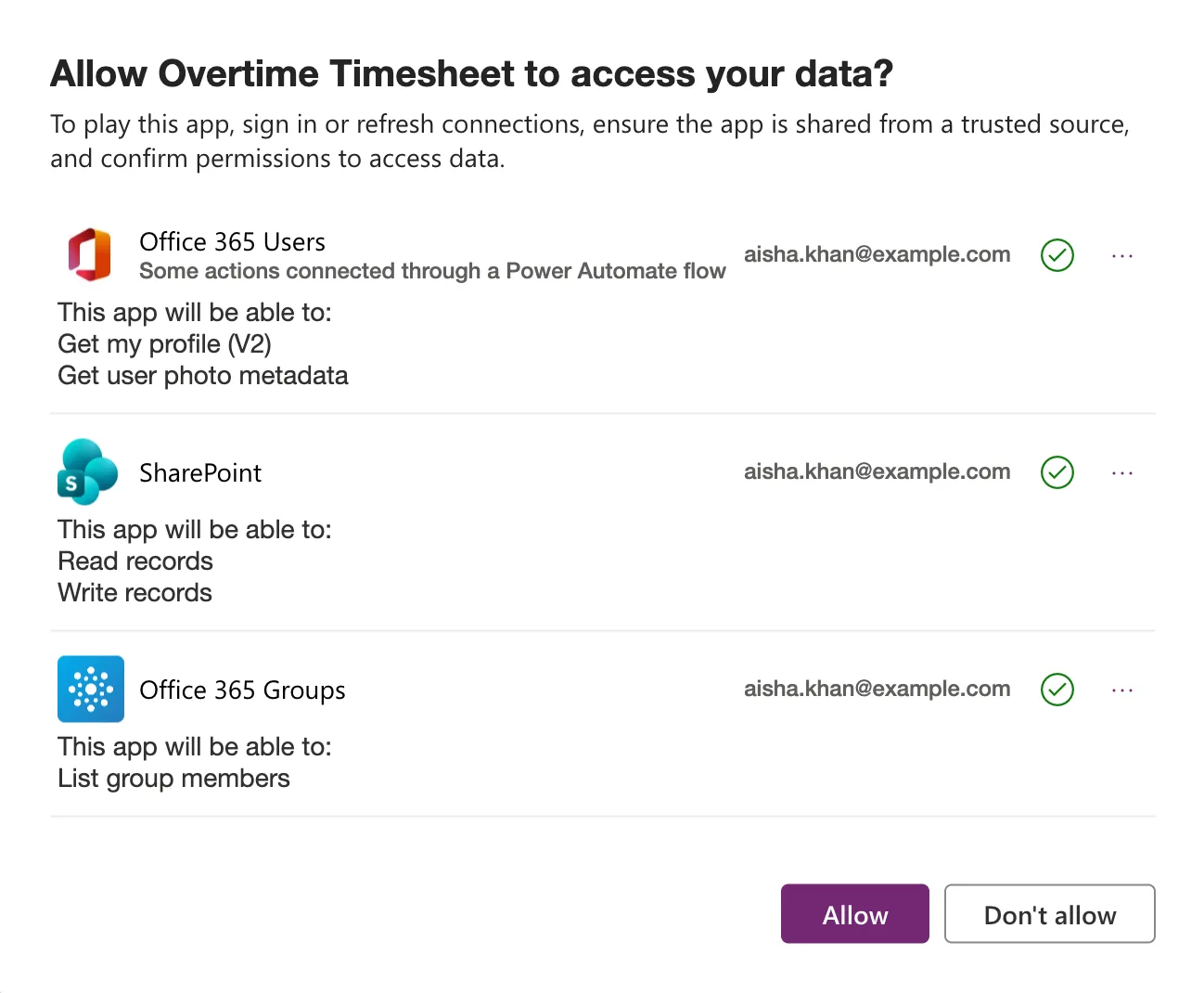
The first time, Power Apps asks her to allow the app's connections, as it does in the browser (How to Open a Shared Canvas App for the First Time in Power Apps). Office 365 Users is marked Some actions connected through a Power Automate flow: the flows set to Provided by run-only user use her own connection to find out who she is. She selects Allow:
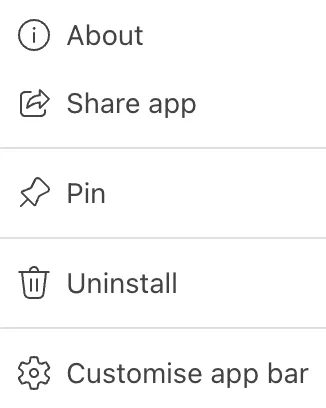
The app opens on the Home screen from Part 5: Welcome, Aisha, Department: Emergency Department, and her two tiles, as in the picture at the top. To keep it one select away, she right-clicks its icon in the app bar and selects Pin (How to Pin an App to the App Bar in Microsoft Teams):
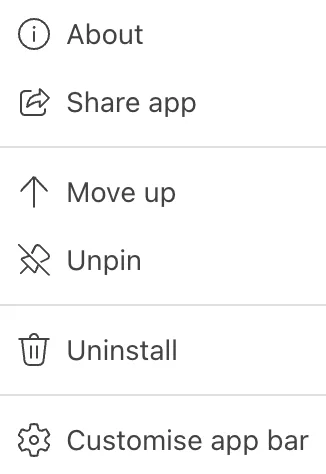
Pinned, the menu offers Move up and Unpin instead:
Staff who also open make.powerapps.com, to find the app under Shared with me, are first asked for their country (How to Complete the Welcome to Power Apps Dialog).
Common Mistakes
| Mistake | What happens | Do this instead |
|---|---|---|
| Sharing the app but not the flows | The screens that call flows fail for staff | Make the groups run-only users of each flow |
| Giving the payroll flow to everyone | Anyone can create a payroll workbook from the app's flow | Overtime Payroll only |
| Keeping the test people's own shares | They keep access if they leave the group | Remove them once the group is shared |
| Uploading Power Apps' package as it is | The admin center refuses it | Update the manifest first |
| Leaving availability on Everyone | Anyone, guests included, can add the app | The users group only |
| An app description over 80 characters | Teams cuts the short description mid-word | Keep the description within 80 characters |
Troubleshooting
| Symptom | Likely cause | Fix |
|---|---|---|
| Update your manifest to include supportsChannelFeatures=tier1 | Power Apps' package uses manifest 1.8 | Step 5 |
| We can't get installs right now on Installs | Not documented; it happened to me right after an upload | Fixed: "We Can't Get Installs Right Now" in the Teams Admin Center |
| The app isn't in staff members' Teams yet | Installs take up to 24 hours | Staff add it from the Store meanwhile |
| A screen fails for an approver after the change | The flow's run-only users don't include the group | Check the flow's Run-only user card |
| Teams shows Oops, app failed to load! | Teams on the web's first load in a browser | Select Retry |
FAQ
Why not let each person add the app to Teams from Power Apps?
They could, but each would have to find the app and add it themselves. With the catalog, the admin installs it for the whole group once, and decides who can use it.
Do staff need a link to the app?
No. They get it in Teams, from the install or from the Store.
What happens when someone joins the organization?
Add them to Overtime Timesheet Users, and the app, the flows and the Teams app reach them through the group.
Does the Teams app change when I publish a new version of the app?
The Teams app opens the published app from Power Apps, so publish your change and open it again in Teams. A new package is only needed to change what the package holds, such as the name or description.
Conclusion
The Overtime Timesheet app is now in its staff's hands:
- shared with Overtime Timesheet Users as User, with the three test shares removed;
- Get Waiting Approvals and Get Overtime Report run by Overtime Timesheet Users, and Create Payroll Workbook Now by Overtime Payroll;
- a Teams package updated to manifest 1.30 with
supportsChannelFeatures, uploaded to the organization's app catalog; - installed for, and available only to, Overtime Timesheet Users, and opened in Teams by a member of staff.
Part 17 tests every role and department, with each persona, from end to end.
Additional Resources
- Share a canvas app with your organization
- Share a cloud flow with run-only permissions
- Embed a canvas app as personal app in Teams
- Manage custom apps in Microsoft Teams admin center
- Use app centric management to manage access to apps
← Previous: Part 15: Build the Power BI Overtime Report Next → Part 17: Test Every Role and Department (coming soon)
