Build an Overtime Timesheet App in Power Apps — Part 12: Import the Old Excel Timesheet

The organization's overtime history is still in the old Excel workbook from Part 1. This part imports it with a flow that an admin runs once: each authorised row becomes an approved entry in the app, with its hours worked out again from the real times, and the flow says which rows it left out and why.
This is Part 12 of a 20-part series.
- Part 1: Plan the App and Set Up the Demo Organization
- Part 2: Create the SharePoint Site and Lists
- Part 3: Keep Overtime Private with SharePoint Permissions
- Part 4: Create the Solution, Environment Variables and Canvas App
- Part 5: Build the Home Screen
- Part 6: Build the Log Overtime Screen
- Part 7: Build the My Overtime Screen
- Part 8: Build the Approval Flow for Teams and Outlook
- Part 9: Show Approvers What's Waiting
- Part 10: Build the Departments Screen
- Part 11: Build the Reports Screen
- Part 12: Import the Old Excel Timesheet (you are here)
- Part 13: Create the Monthly Payroll Workbook with Office Scripts (coming soon)
- Part 14: Build the Power BI Overtime Report (coming soon)
- Part 15: Share the App and Add It to Microsoft Teams (coming soon)
- Part 16: Test Every Role and Department (coming soon)
- Part 17: Build a Setup Flow That Creates the Lists (coming soon)
- Part 18: Run the Solution Checker and Export the Solutions (coming soon)
- Part 19: Install the App in a New Environment (coming soon)
- Part 20: Recap, Production Checklist and Next Steps (coming soon)
Part 1 built the workbook the app replaces: a table of 14 overtime shifts for October and November 2026, with an Authorised by column that's only a typed name, and one night shift whose hours are wrong because the clocks changed. This part builds Import Old Overtime Timesheet, a flow in the app's solution that reads those rows and creates the entries, runs it, and checks the result in SharePoint and on the Reports screen. Each generic task has its own guide; this part gives the values for this app, and why.
What You'll Build
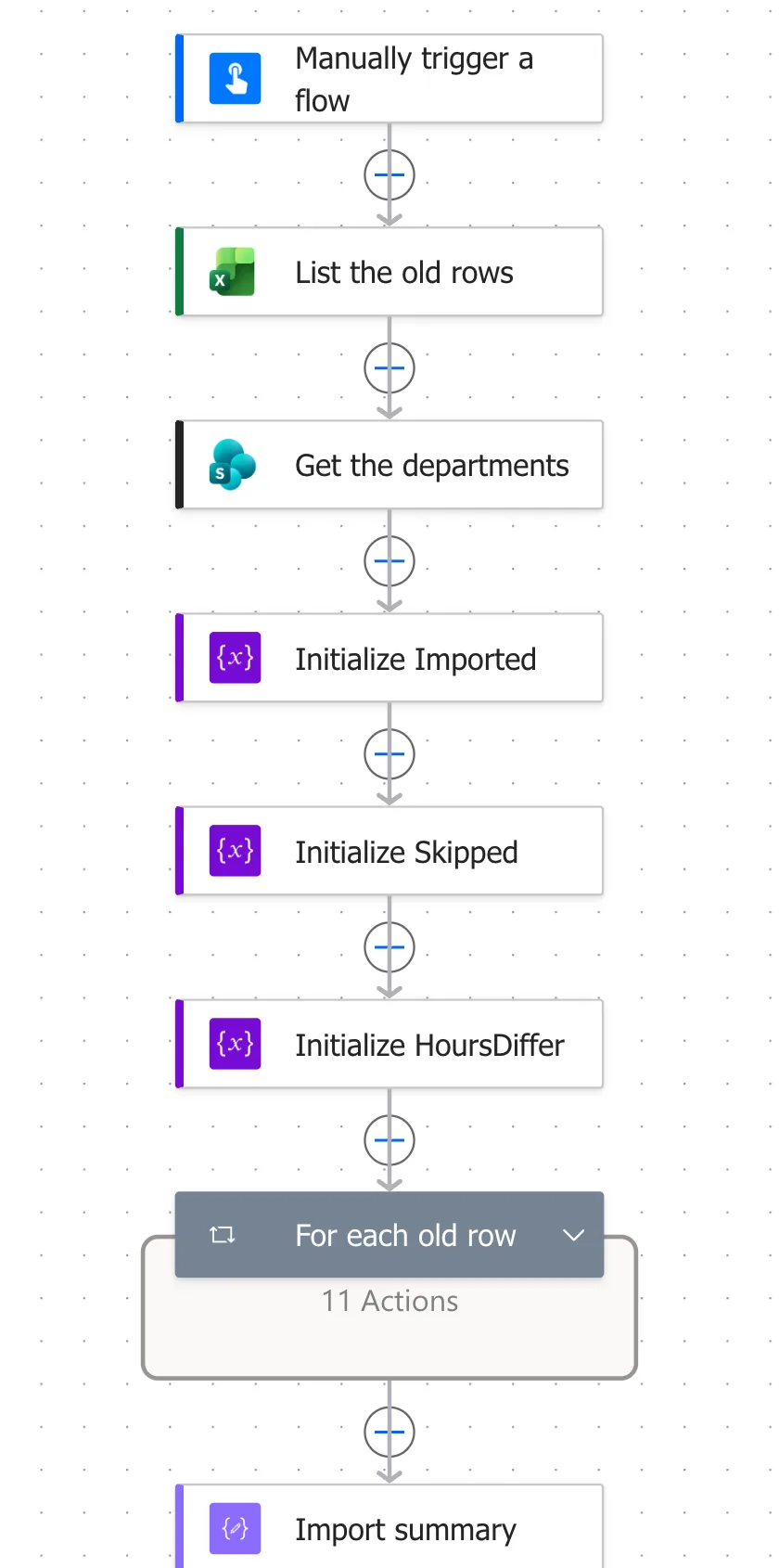
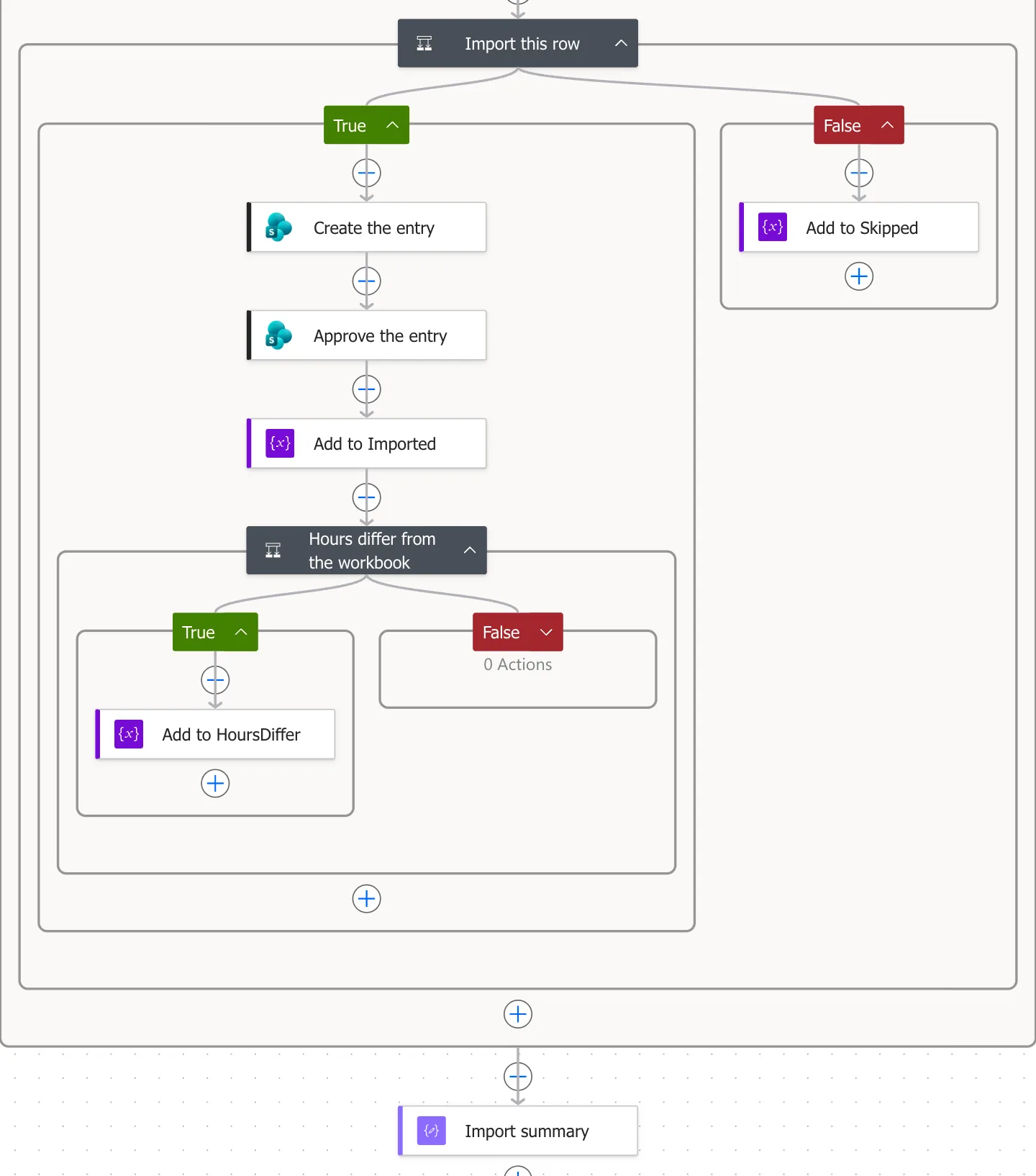
The finished flow, action by action:
Manually trigger a flow
├─ List the old rows                    List rows present in a table: OvertimeLog, ISO dates, pagination on
├─ Get the departments                  Get items: every department
├─ Initialize Imported                  Initialize variable: an empty list
├─ Initialize Skipped                   Initialize variable: an empty list
├─ Initialize HoursDiffer               Initialize variable: an empty list
├─ For each old row
│  ├─ Finish date                       Compose: the next day for a night shift
│  ├─ Shift start                       Compose: UK time to UTC
│  ├─ Shift end                         Compose: UK time to UTC
│  ├─ Hours                             Compose: minutes worked minus the break, in hours
│  ├─ Matching department               Filter array: the department with the row's name
│  ├─ Find the employee                 Search for users (V2): the row's name
│  ├─ Exact name matches                Filter array: people whose name is exactly that
│  ├─ Entries that month                Get items: the month's entries
│  ├─ Same shift                        Filter array: an entry for the same person and start
│  ├─ Reason to skip                    Compose: why the row can't be imported, or nothing
│  └─ Import this row                   Condition: no reason to skip
│     ├─ True: Create the entry         Create item: Status Approved
│     ├─ True: Approve the entry        Set content approval status: Approve
│     ├─ True: Add to Imported          Append to array variable
│     ├─ True: Hours differ from the workbook
│     │  └─ True: Add to HoursDiffer    Append to array variable
│     └─ False: Add to Skipped          Append to array variable
└─ Import summary                       Compose: what was imported, skipped and different
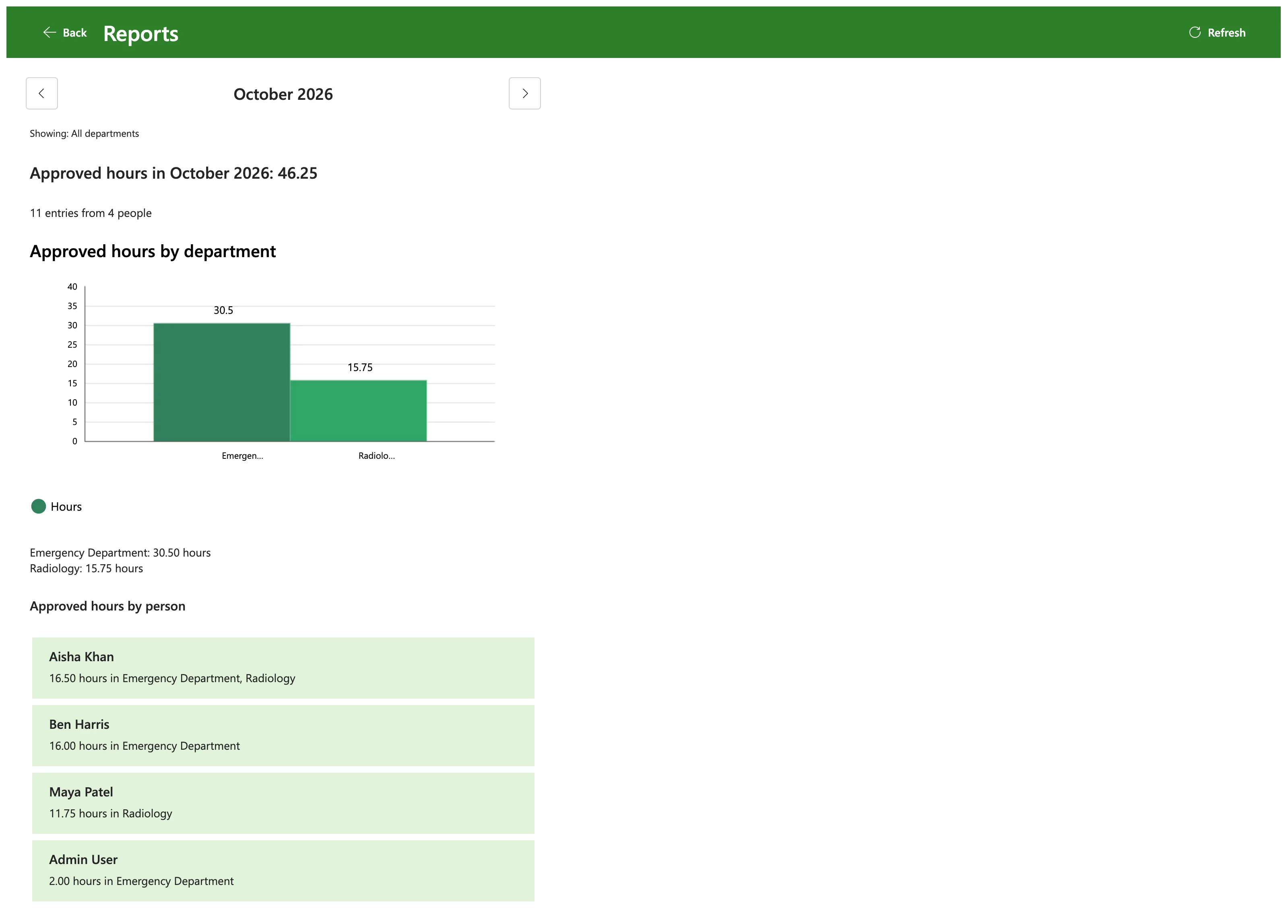
October 2026 on the Reports screen after the import, for the payroll officer:
How the Import Works
The decisions behind it:
- Run once, by an admin. The flow is instant and has no inputs: the site's owner runs it from Power Automate when the app goes live. It reads the workbook and writes SharePoint with the owner's connections.
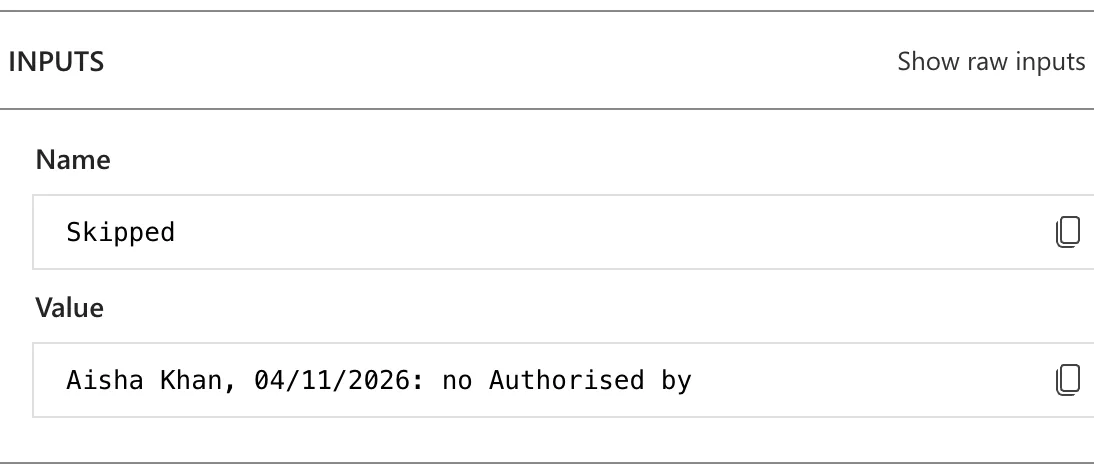
- Only authorised rows. Two November rows have nobody in Authorised by. The flow leaves them out and lists them, so someone can ask the right approver to look at them in the app.
- Imported entries are approved. Each entry is created with Status Approved and DecisionBy set to the name in Authorised by, and the flow approves it in SharePoint with a comment that says where the approval came from. As Part 11 requires, an entry counts in the reports when it's approved twice.
- The hours are worked out again. The flow turns each row's UK times into UTC and counts the real minutes, as Part 8's approval flow does. Ben Harris's shift across the October clock change becomes 8 hours, not the workbook's 7, and the flow lists every row where its hours differ from the workbook's.
- The department and the person are checked. The department must exist in Departments. The person is found by name in Microsoft 365: one exact match gives the entry an email, no match is a leaver and gets no email, and more than one match is left out, so nobody gets someone else's overtime.
- Running it twice imports nothing twice. A row is left out when the same person already has an entry that starts at the same minute.
- The entries are created by the importer. SharePoint's Created By is the account of the flow's connection, the admin. I found no Microsoft documentation of a supported way for a flow to make another person an item's author, so the import doesn't try. The result: staff don't see their imported entries in My Overtime or in SharePoint, because Part 3 lets each person read only the items they created. The Reports screen includes them, because its flow reads the list as its owner.
Prerequisites
- Part 11 completed.
- The site's owner as the flow's maker, so its SharePoint connection can create entries and approve them.
Step 1: Create the Flow in the Solution
In the Overtime Timesheet solution, select New > Automation > Cloud flow > Instant. Name the flow Import Old Overtime Timesheet, choose Manually trigger a flow, and select Create (How to Create an Instant Cloud Flow Inside a Solution in Power Automate):
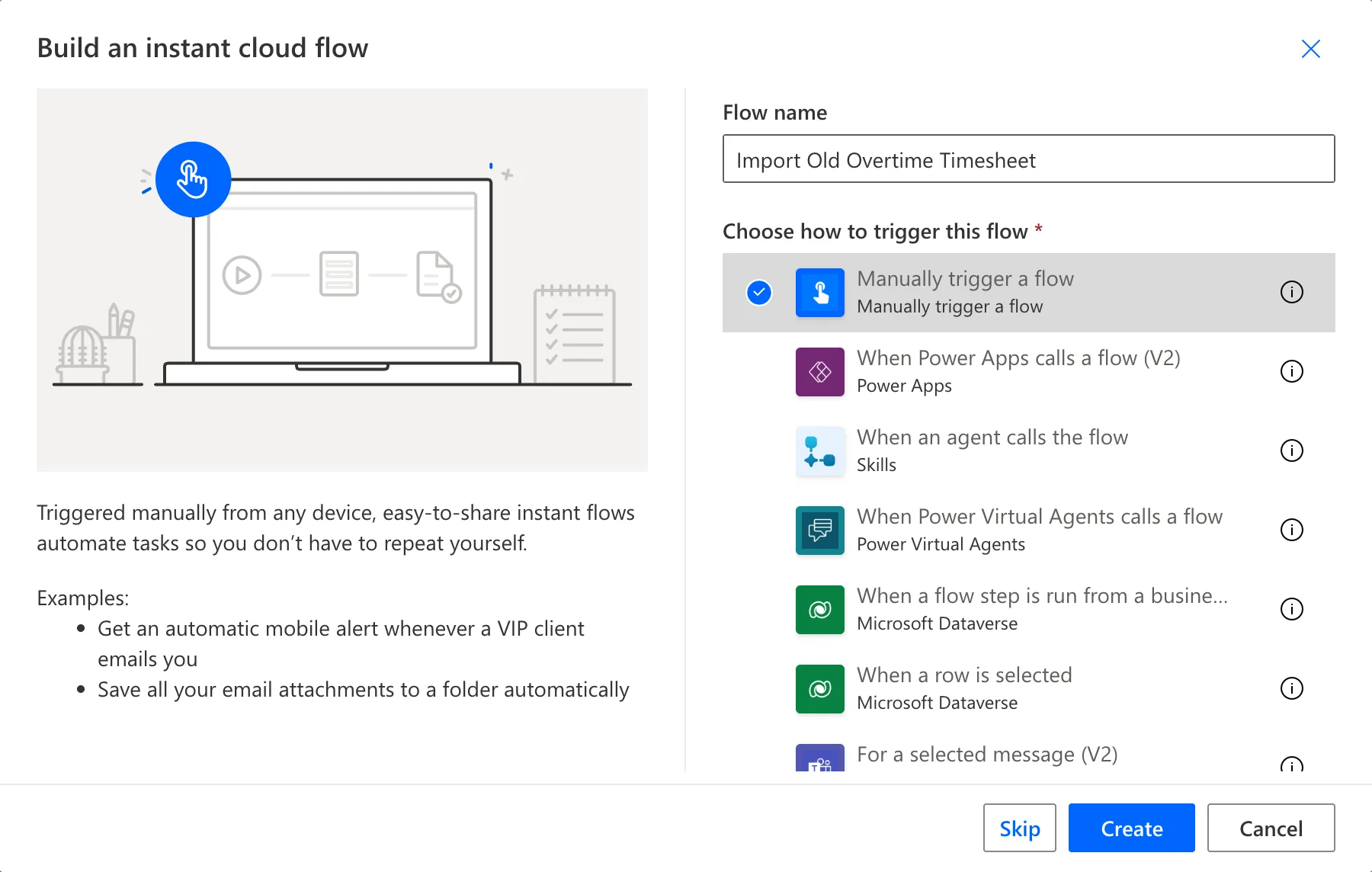
The classic designer opened. I saved the flow and opened it again from My flows to get the new designer, and its dynamic content had no Parameters group: none of the solution's environment variables were there. Opened from the solution instead, with Edit on the flow's own page, it listed them all (Fixed: Environment Variables Don't Show in Dynamic Content in Power Automate). Open this flow from the solution whenever you edit it.
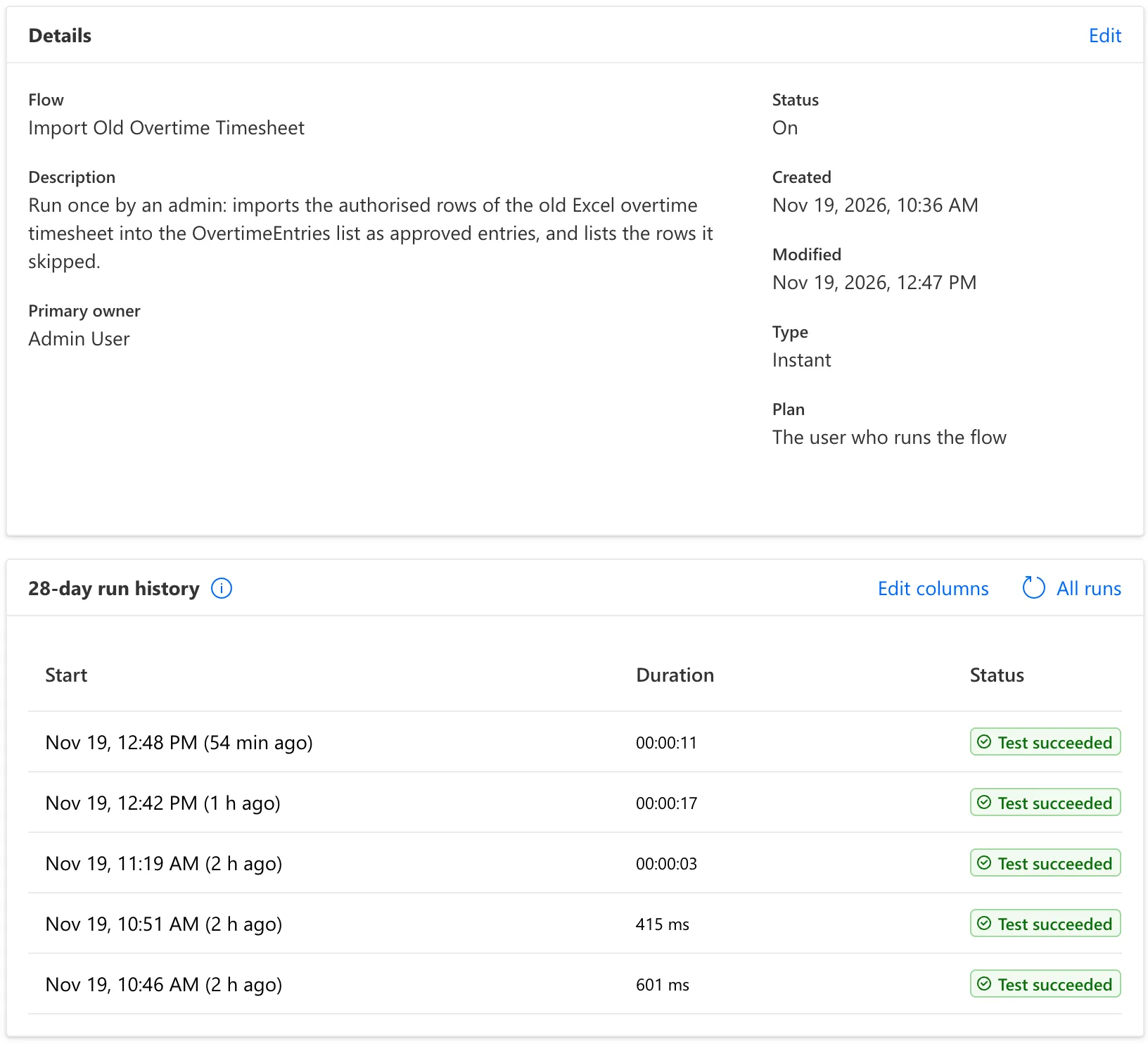
On the flow's page, the Edit link on the Details card opens a panel for its name and description. I gave it this description:
Run once by an admin: imports the authorised rows of the old Excel overtime timesheet into the OvertimeEntries list as approved entries, and lists the rows it skipped.
Step 2: Read the Old Rows
Add List rows present in a table from Excel Online (Business), sign in when it asks for a connection, and rename it List the old rows (How to Read Rows from an Excel Table in Power Automate):
| Parameter | Value |
|---|---|
| Location | OneDrive for Business |
| Document Library | OneDrive |
| File | /Overtime/Overtime Timesheet 2026.xlsx |
| Table | OvertimeLog |
| DateTime Format | ISO 8601, under Advanced parameters |
| Pagination | On, with Threshold 5000, under Settings > Networking |
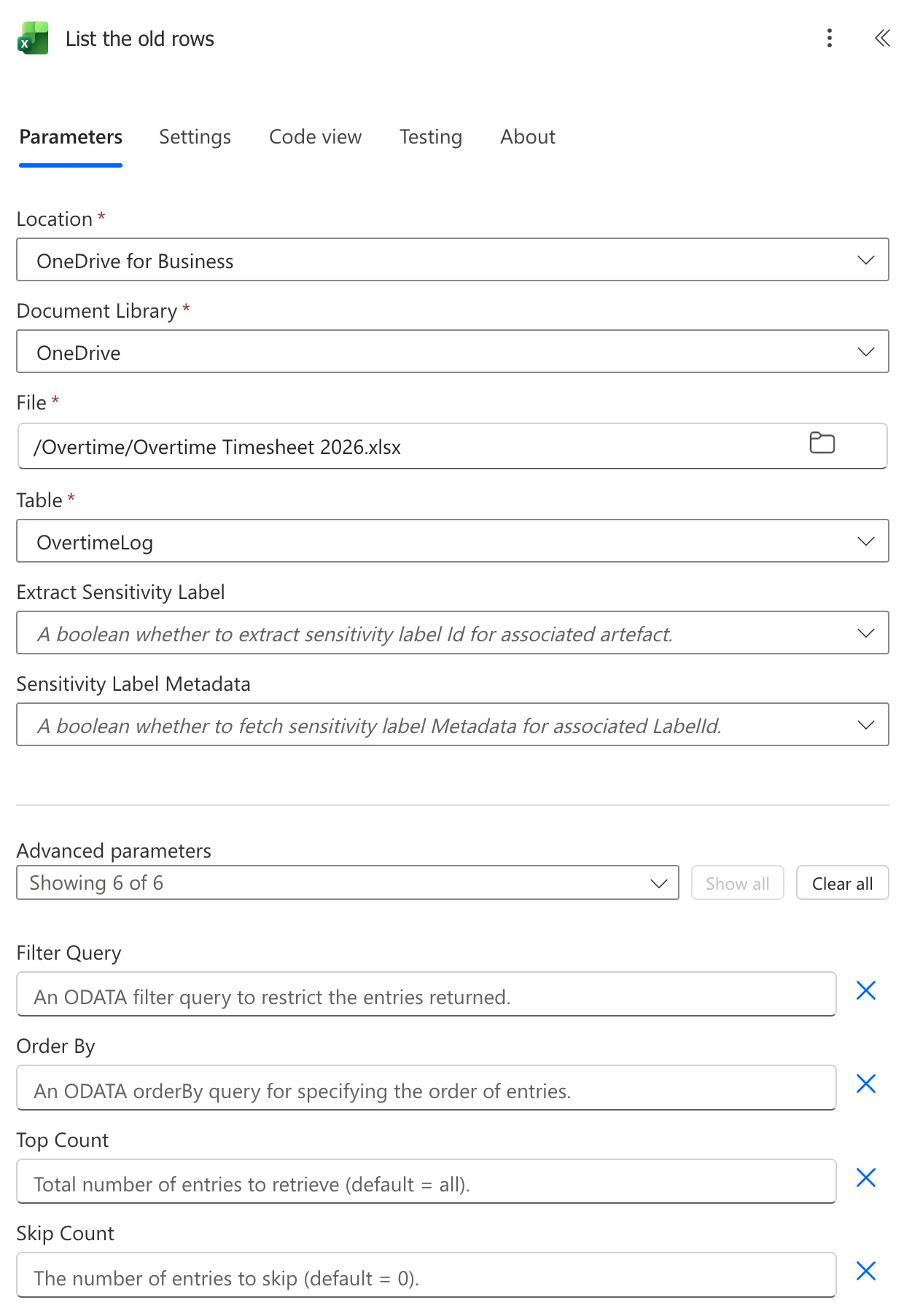
My first test run used the default DateTime Format, and the first row's date came back as 46297 and its start as 0.791666666666667. With ISO 8601, they came back as 2026-10-02T00:00:00.000Z and 1899-12-30T19:00:00.000Z (How to Get Excel Dates as Dates, Not Numbers, in Power Automate). The workbook has 14 rows; pagination lets the flow read more than the 256 Microsoft documents as the default.
Step 3: Get the Departments and Start Three Lists
Add Get items from SharePoint and rename it Get the departments. For Site Address and List Name, choose Enter custom value and pick Overtime Timesheet Site and Departments from the Parameters group (How to Use Environment Variables in a Power Automate Flow). Under Advanced parameters, set Top Count to 5000:
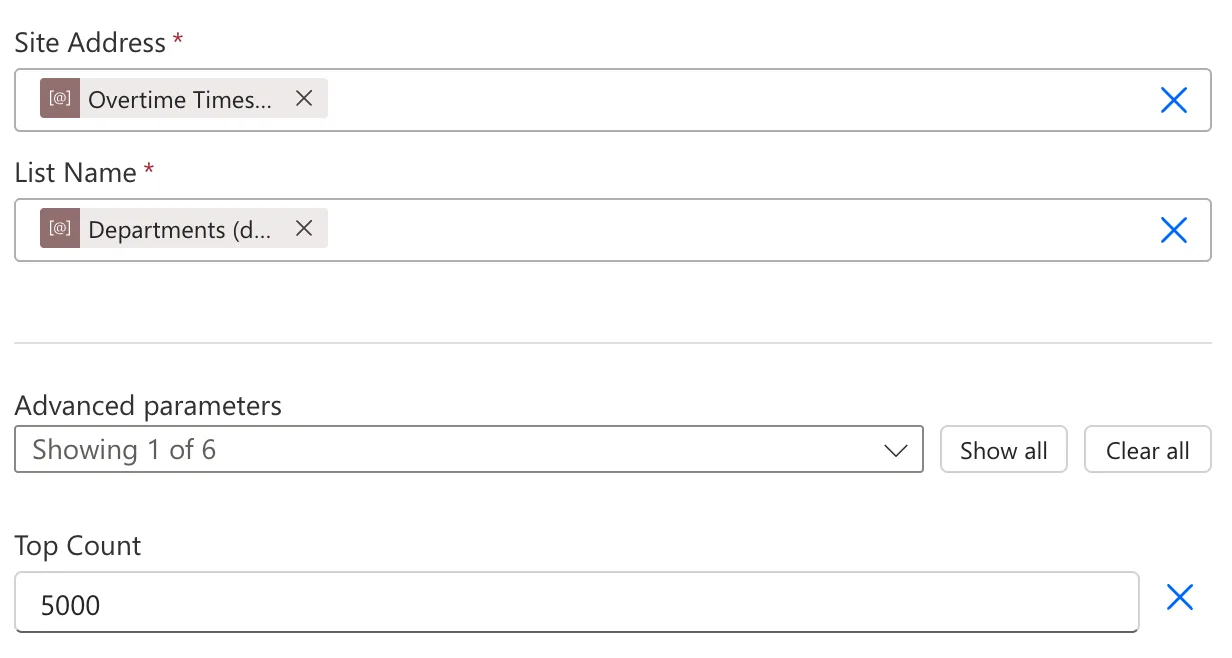
The flow reads the departments once, before the loop, rather than once per row.
Then add three Initialize variable actions, each of Type Array with Value [] (How to Use Variables in Power Automate):
| Action | Name | What it collects |
|---|---|---|
| Initialize Imported | Imported | A line for each row imported |
| Initialize Skipped | Skipped | A line for each row left out, with the reason |
| Initialize HoursDiffer | HoursDiffer | A line for each imported row whose hours differ from the workbook |
Variables must be initialized at the top level, before the loop that adds to them.
Step 4: Work Out Each Shift's Real Times
Add an Apply to each and rename it For each old row. Its input is the rows (How to Loop Through an Array with Apply to Each in Power Automate):
body('List_the_old_rows')?['value']
Inside the loop, four Compose actions turn a row's date, start, finish and break into a UTC start and end and the hours worked (How to Use the Compose Action in Power Automate). Each Inputs is an expression (How to Add an Expression in Power Automate).
Finish date. A night shift finishes the day after it starts. When the finish time is earlier in the day than the start time, the finish date is the next day (How to Use the less() Function in Power Automate, How to Add Days to a Date in Power Automate with addDays):
if(less(formatDateTime(items('For_each_old_row')?['Finish'], 'HH:mm'), formatDateTime(items('For_each_old_row')?['Start'], 'HH:mm')), addDays(items('For_each_old_row')?['Date'], 1, 'yyyy-MM-dd'), formatDateTime(items('For_each_old_row')?['Date'], 'yyyy-MM-dd'))
Shift start. The row's date and start time, as UK time, converted to UTC. GMT Standard Time is Windows' name for UK time, summer time included (How to Convert Local Time to UTC in Power Automate with convertToUtc):
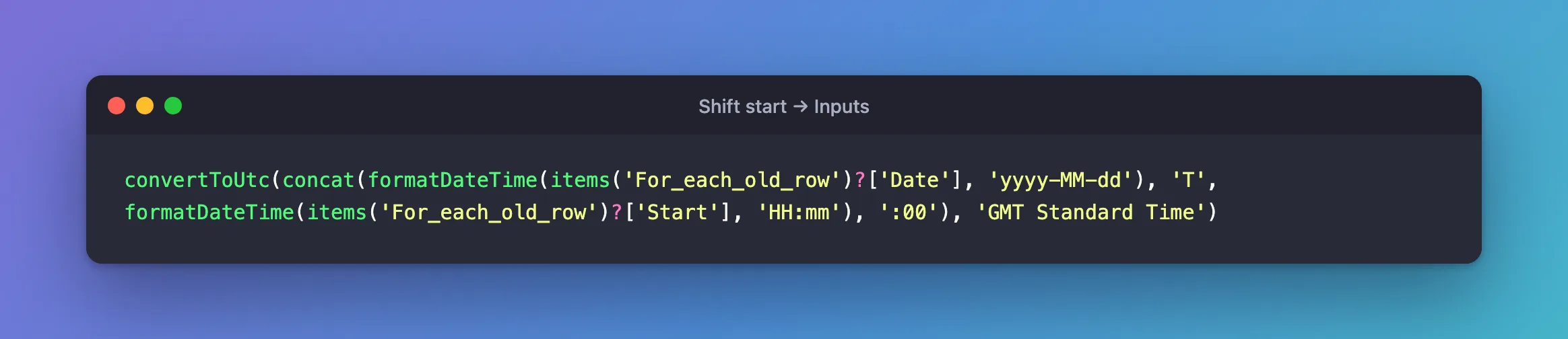
convertToUtc(concat(formatDateTime(items('For_each_old_row')?['Date'], 'yyyy-MM-dd'), 'T', formatDateTime(items('For_each_old_row')?['Start'], 'HH:mm'), ':00'), 'GMT Standard Time')
Shift end. The same, with the finish date and the finish time:
convertToUtc(concat(outputs('Finish_date'), 'T', formatDateTime(items('For_each_old_row')?['Finish'], 'HH:mm'), ':00'), 'GMT Standard Time')
Hours. The minutes between the UTC times, less the break, in hours with two decimals, worked out as in Part 8 (How to Work Out the Hours Between Two Times in Power Automate, How to Format a Number with Two Decimal Places in Power Automate):
formatNumber(div(sub(div(sub(ticks(outputs('Shift_end')), ticks(outputs('Shift_start'))), 600000000), int(items('For_each_old_row')?['Break (mins)'])), 60.0), '0.00')
ticks()turns each time into a count of 100-nanosecond ticks, and 600,000,000 ticks are one minute.int(...['Break (mins)'])is the unpaid break in minutes.div(..., 60.0)turns minutes into hours with decimals, andformatNumber(..., '0.00')gives text such as3.50.
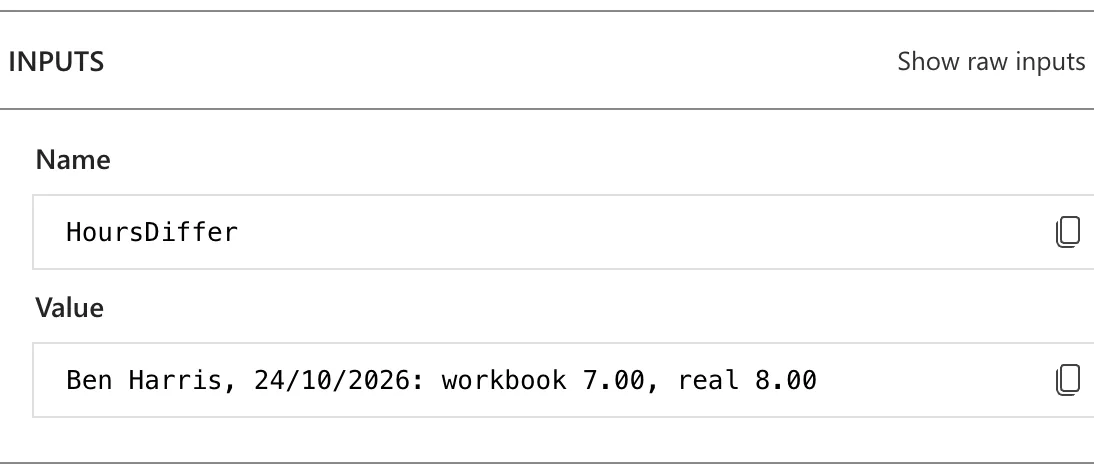
In a test run, the first row, 19:00 to 23:00 on 2 October with a 30-minute break, became 18:00 to 22:00 UTC and 3.50 hours. Aisha Khan's shift of 10 October, 20:00 to 01:30, ended on the 11th at 00:30 UTC. Ben Harris's night of 24 October, 22:00 to 06:00 with a 60-minute break, started at 21:00 UTC in summer time and ended at 06:00 UTC after the clocks went back:

The workbook says 7 for that shift. He worked 8.
Step 5: Match the Department and the Person
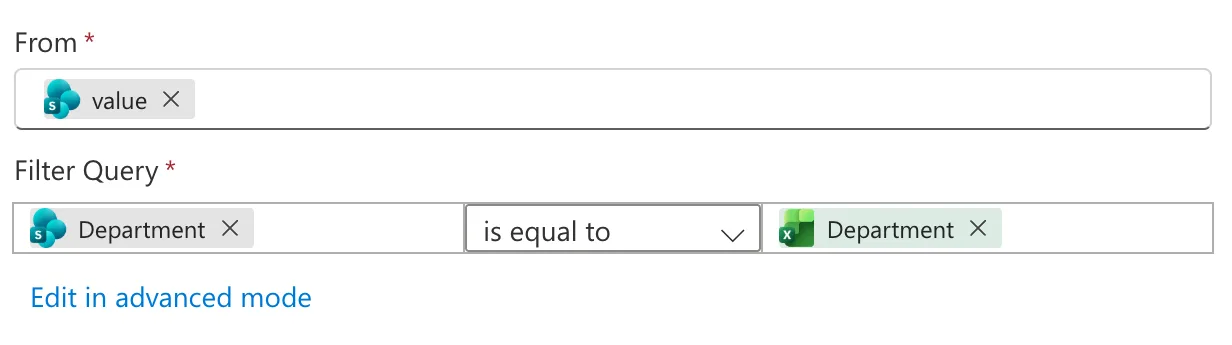
Matching department. A Filter array keeps the department whose name is the row's (How to Filter an Array in Power Automate). From is the value of Get the departments:
Find the employee. Search for users (V2) from Office 365 Users, with the row's Employee as Search term, Top 10, and Is search term required Yes, so an empty name returns nobody rather than everybody (Search for users (V2) Example in Power Automate (Microsoft Flow)):
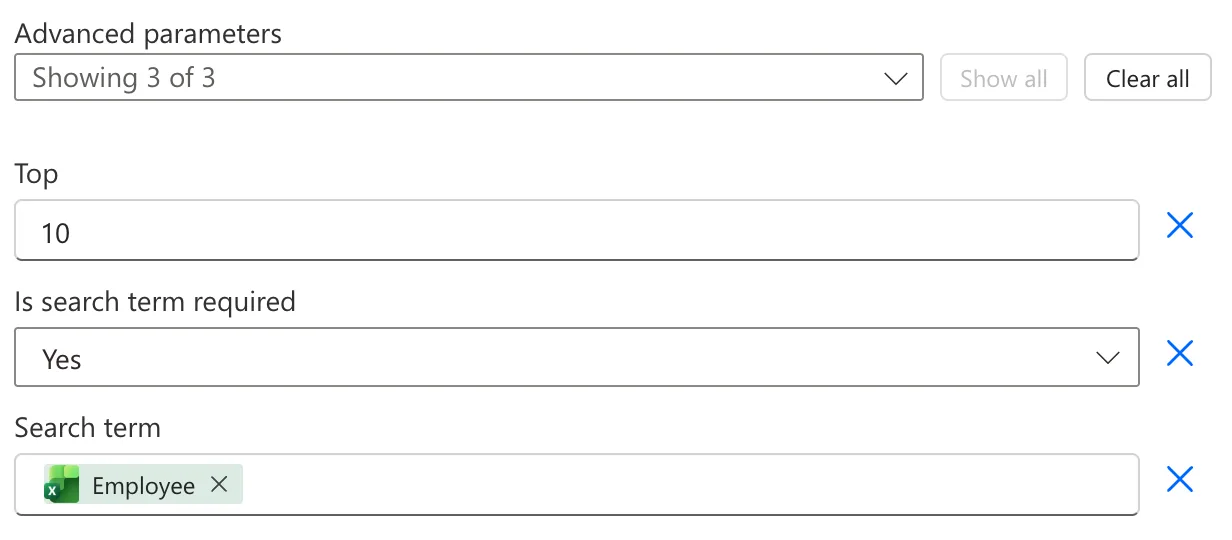
Microsoft's connector reference says the search term applies to the display name, given name, surname, mail, mail nickname and user principal name. The action returns a list, so a search can find more than one person.
Exact name matches. A second Filter array, in advanced mode, keeps the results whose display name is exactly the row's name, in lower case on both sides (How to Use the equals() Function in Power Automate):
equals(toLower(item()?['DisplayName']),toLower(items('For_each_old_row')?['Employee']))
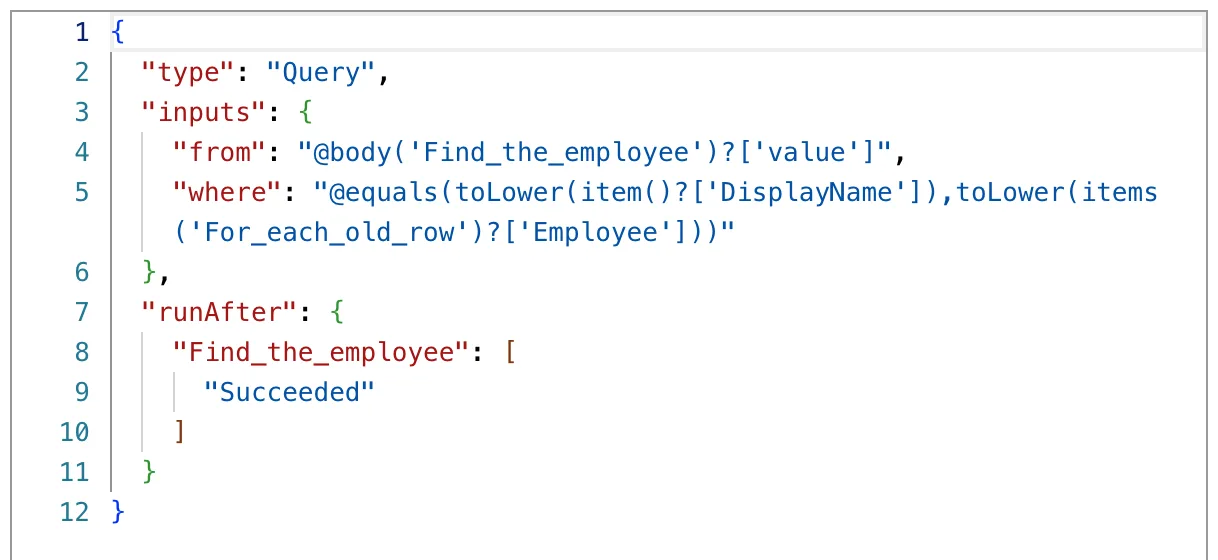
One match gives the entry its email. Ben Harris has left, so he isn't in Microsoft 365: no match, and his entries have no email. Two or more matches stop the row, in Step 7.
Step 6: Skip Shifts That Are Already Imported
Entries that month. Get items on OvertimeEntries, through the same environment variables, with Top Count 5000 and a Filter Query for the row's month in the WorkMonth column (How to Filter SharePoint Items with a Filter Query in Power Automate). The month is an expression inside the quotes:
WorkMonth eq '@{formatDateTime(items('For_each_old_row')?['Date'], 'yyyy-MM')}'
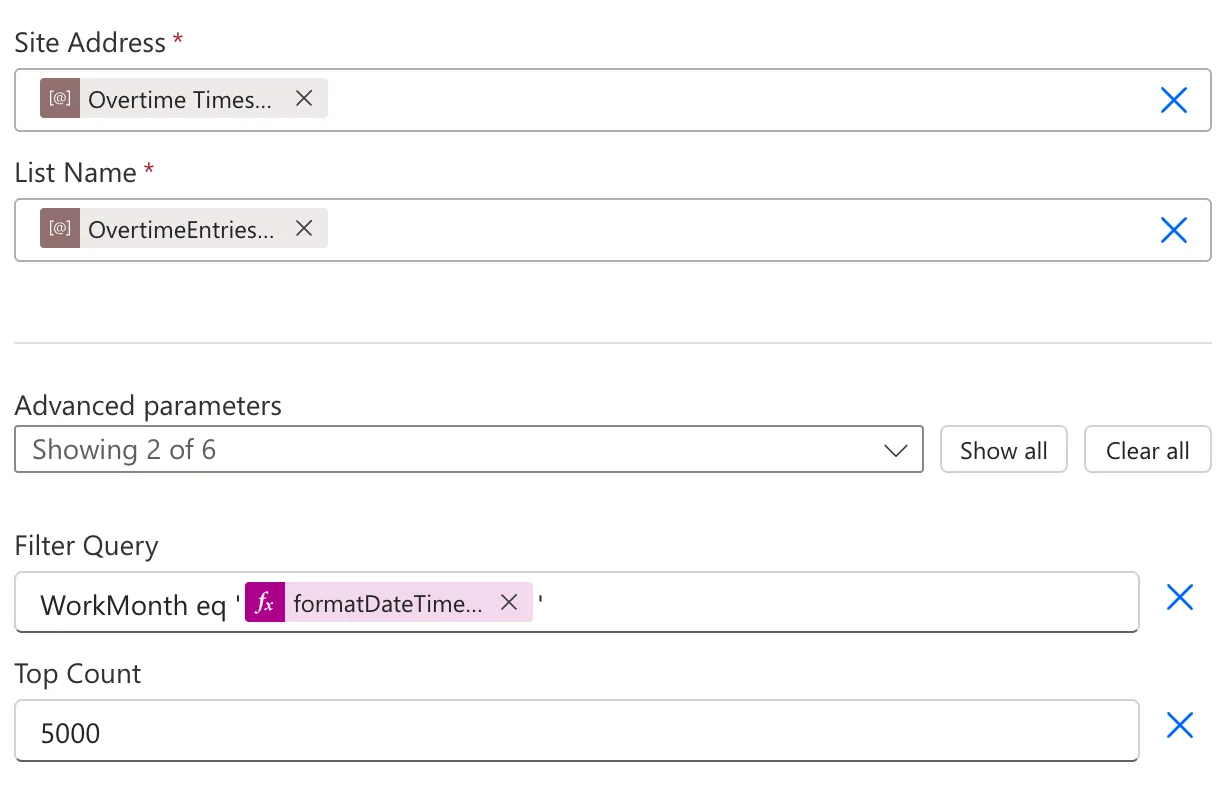
Same shift. A Filter array in advanced mode keeps the month's entries for the same person that start at the same minute. Both times are formatted to the minute, so they're compared in exactly the same form (How to Filter an Array by Two Conditions in Power Automate):
and(equals(item()?['EmployeeName'], items('For_each_old_row')?['Employee']), equals(formatDateTime(item()?['StartTime'], 'yyyy-MM-ddTHH:mm'), formatDateTime(outputs('Shift_start'), 'yyyy-MM-ddTHH:mm')))
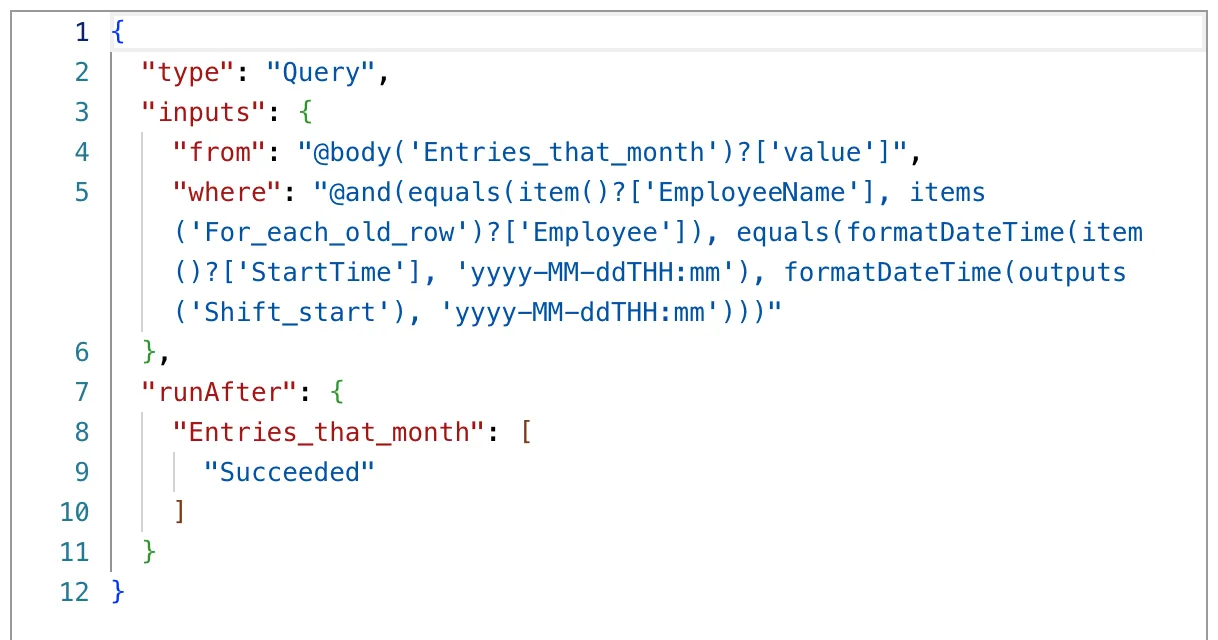
The flow reads only the row's month, not the whole list, because WorkMonth narrows it in SharePoint.
Step 7: Decide Whether to Import the Row
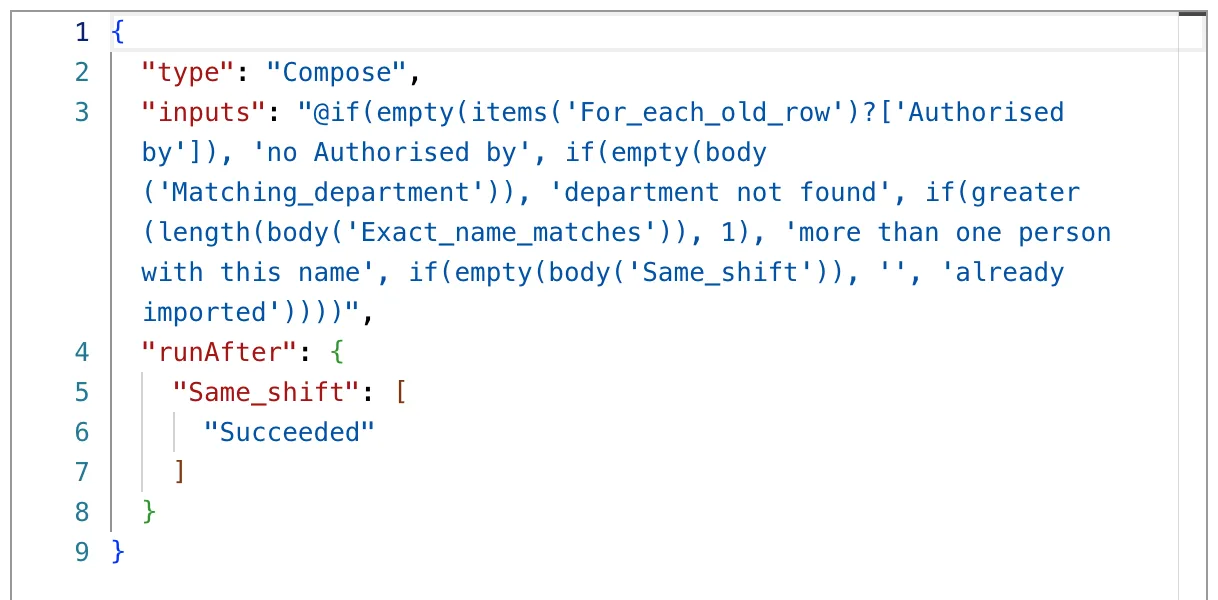
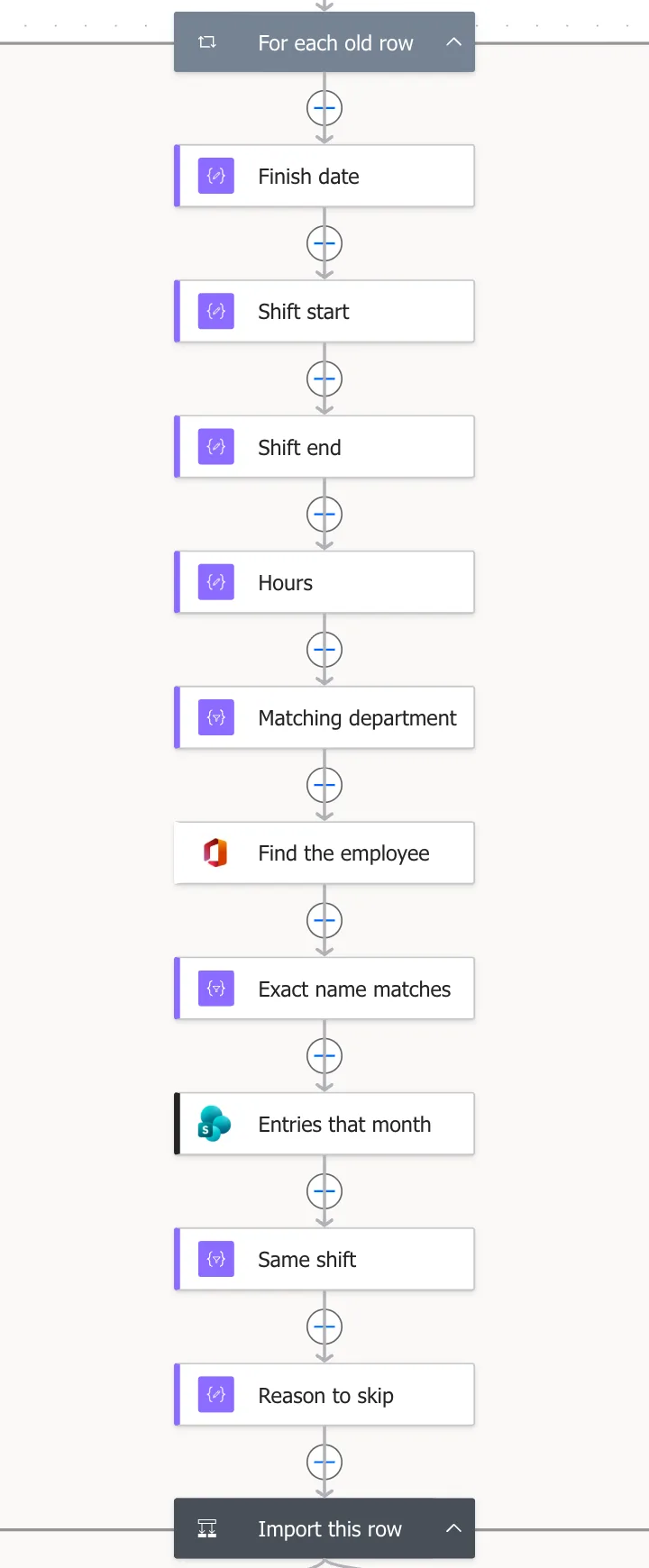
Reason to skip. A Compose with the first reason the row can't be imported, or empty text when it can. The checks, in order (How to Use the if() Function in Power Automate, How to Check Whether an Array Is Empty with empty() in Power Automate, How to Use the greater() Function in Power Automate):
if(empty(items('For_each_old_row')?['Authorised by']), 'no Authorised by', if(empty(body('Matching_department')), 'department not found', if(greater(length(body('Exact_name_matches')), 1), 'more than one person with this name', if(empty(body('Same_shift')), '', 'already imported'))))
| Check | Reason |
|---|---|
| Authorised by is empty | no Authorised by |
| No department has the row's name | department not found |
| More than one person has exactly that name | more than one person with this name |
| The same person has an entry starting at the same minute | already imported |
| None of these | empty: import the row |
Import this row. A Condition with the expression empty(outputs('Reason_to_skip')) in the left box, is equal to, and the expression true in the right box (How to Add a Condition in Power Automate). Its True branch imports the row, and its False branch notes why not. The pane showed a second, empty row under mine, as in Part 8; Code view had only mine.
The loop's actions so far:
Step 8: Create and Approve the Entry
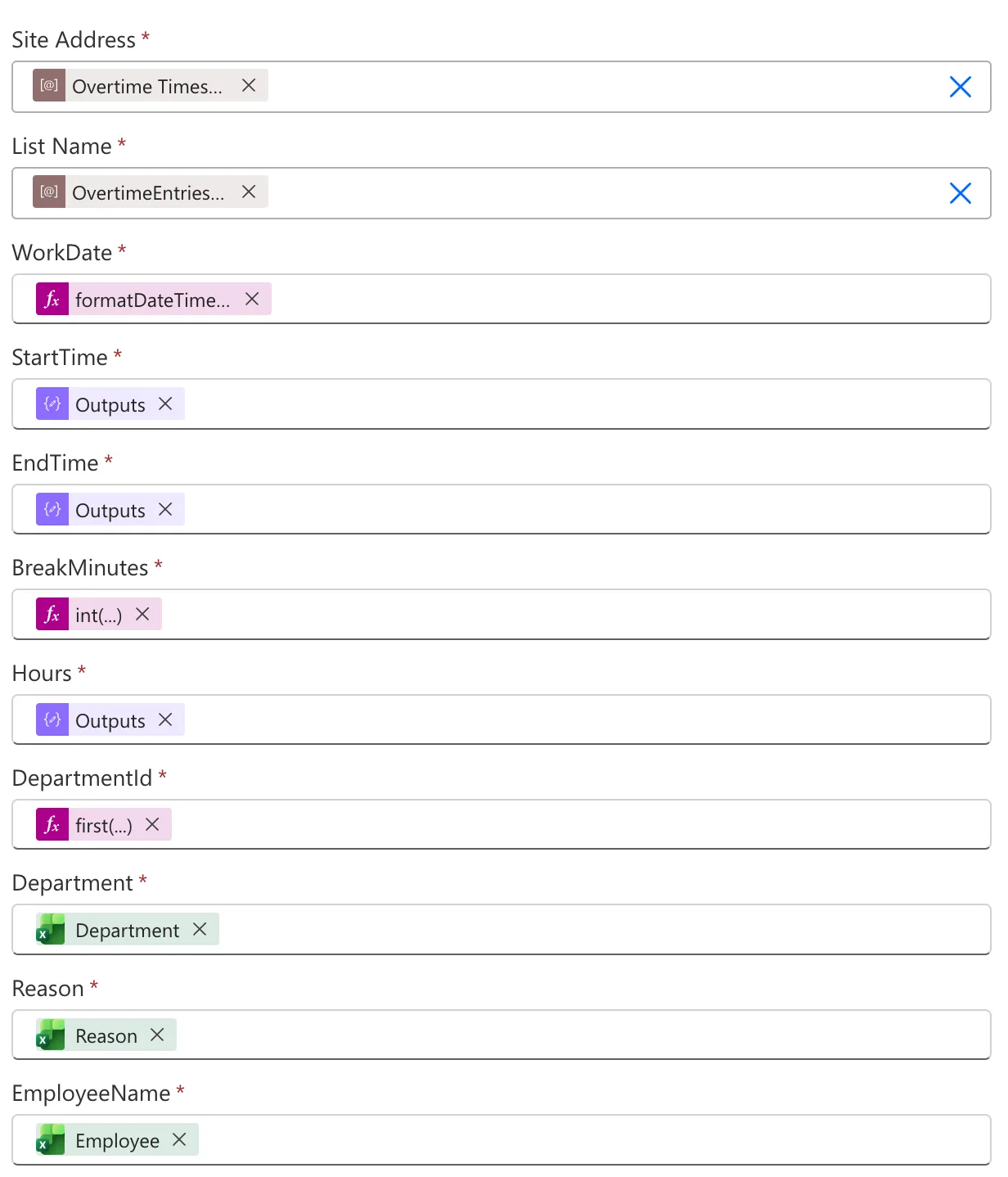
Create the entry. In the True branch, add Create item from SharePoint, with the site and OvertimeEntries from the environment variables (How to Create an Item in a SharePoint List in Power Automate):
| Column | Value |
|---|---|
| WorkDate | formatDateTime(items('For_each_old_row')?['Date'], 'yyyy-MM-dd') |
| StartTime | Outputs of Shift start |
| EndTime | Outputs of Shift end |
| BreakMinutes | int(items('For_each_old_row')?['Break (mins)']) |
| Hours | Outputs of Hours |
| DepartmentId | first(body('Matching_department'))?['ID'] |
| Department | Department from the row |
| Reason | Reason from the row |
| EmployeeName | Employee from the row |
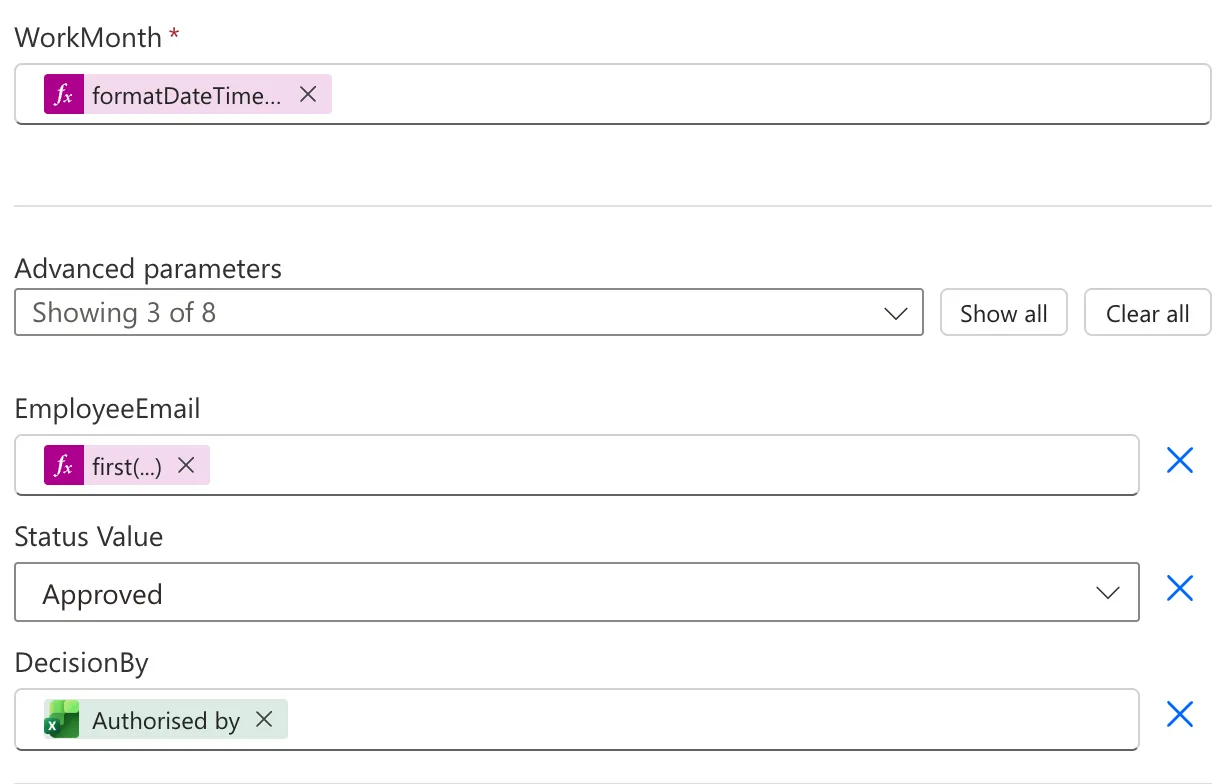
| WorkMonth | formatDateTime(items('For_each_old_row')?['Date'], 'yyyy-MM') |
| EmployeeEmail | first(body('Exact_name_matches'))?['Mail'], under Advanced parameters |
| Status Value | Approved |
| DecisionBy | Authorised by from the row |
first() takes the one department, and the one person, the filters kept (How to Get the First Item of an Array in Power Automate). With no match, first() of an empty list gives nothing, and EmployeeEmail stays empty.
Approve the entry. Add Set content approval status from SharePoint, as Part 8's approval flow does (How to Approve or Reject a SharePoint Item in Power Automate):
| Parameter | Value |
|---|---|
| Site Address, Library Name | The environment variables, OvertimeEntries |
| Id | ID of Create the entry |
| Action | Approve |
| Comments | concat('Authorised by ', items('For_each_old_row')?['Authorised by'], ' in the old overtime timesheet.') |
| ETag | outputs('Create_the_entry')?['body/@odata.etag'] |
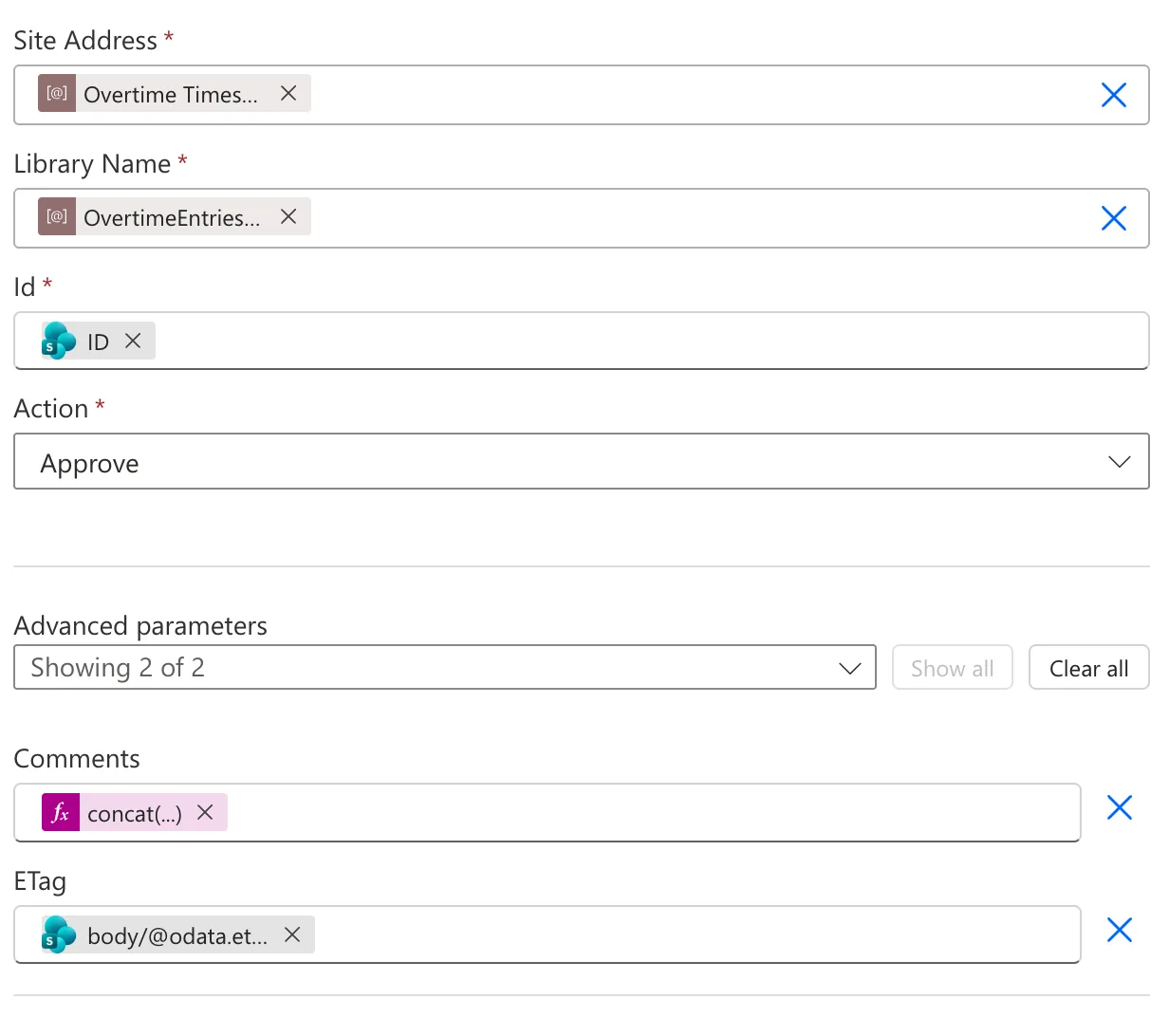
The comment, such as Authorised by Olivia Bennett in the old overtime timesheet., is what SharePoint shows as the approver's comment (How to Combine Text in Power Automate with concat()). The entry is now approved twice: its Status column and SharePoint's Approval Status both say Approved. Part 8's approval flow starts only for entries whose Status is Pending, which is its trigger condition, and these entries are created as Approved.
Step 9: Keep a List of What Happened
Still in the True branch:
-
Add to Imported, an Append to array variable on Imported, with a line for the row (How to Add Items to an Array Variable in Power Automate):
Add to Imported → Valueconcat(items('For_each_old_row')?['Employee'], ', ', formatDateTime(items('For_each_old_row')?['Date'], 'dd/MM/yyyy'), ', ', outputs('Hours'), ' hours') -
Hours differ from the workbook, a Condition that compares the flow's hours with the workbook's, both as text with two decimals, with
not(equals(...))in the left box, is equal to, andtruein the right box:Hours differ from the workbook → left boxnot(equals(outputs('Hours'), formatNumber(float(items('For_each_old_row')?['Hours']), '0.00'))) -
Add to HoursDiffer, in that condition's True branch:
Add to HoursDiffer → Valueconcat(items('For_each_old_row')?['Employee'], ', ', formatDateTime(items('For_each_old_row')?['Date'], 'dd/MM/yyyy'), ': workbook ', formatNumber(float(items('For_each_old_row')?['Hours']), '0.00'), ', real ', outputs('Hours'))
In the False branch of Import this row, Add to Skipped notes the row and its reason:
concat(items('For_each_old_row')?['Employee'], ', ', formatDateTime(items('For_each_old_row')?['Date'], 'dd/MM/yyyy'), ': ', outputs('Reason_to_skip'))
Step 10: Write the Summary After the Loop
After the loop, a Compose named Import summary turns the three lists into one text: how many rows were imported and which, how many were skipped and why, and which hours differ from the workbook (How to Join an Array into Text in Power Automate, How to Count the Items in an Array in Power Automate with length()):
concat('Imported ', string(length(variables('Imported'))), ': ', if(empty(variables('Imported')), 'none', join(variables('Imported'), '; ')), '. Skipped ', string(length(variables('Skipped'))), ': ', if(empty(variables('Skipped')), 'none', join(variables('Skipped'), '; ')), '. Hours that differ from the workbook: ', if(empty(variables('HoursDiffer')), 'none', join(variables('HoursDiffer'), '; ')), '.')
Where I first put it. I added the summary with the + just under the loop's header, which is the first step inside the loop, not the step after it. The run I made to import the rows ran it at the start of every row, and the first time it said:
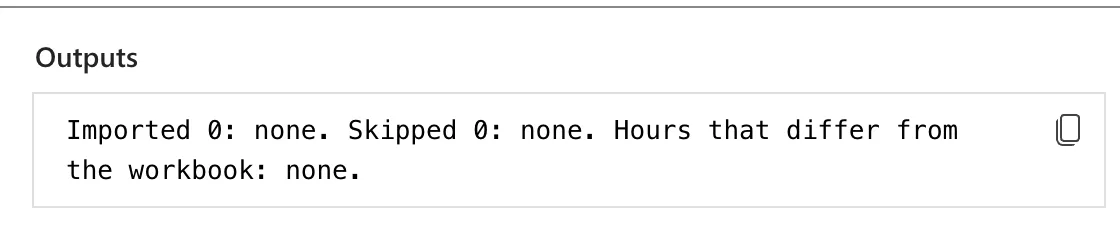
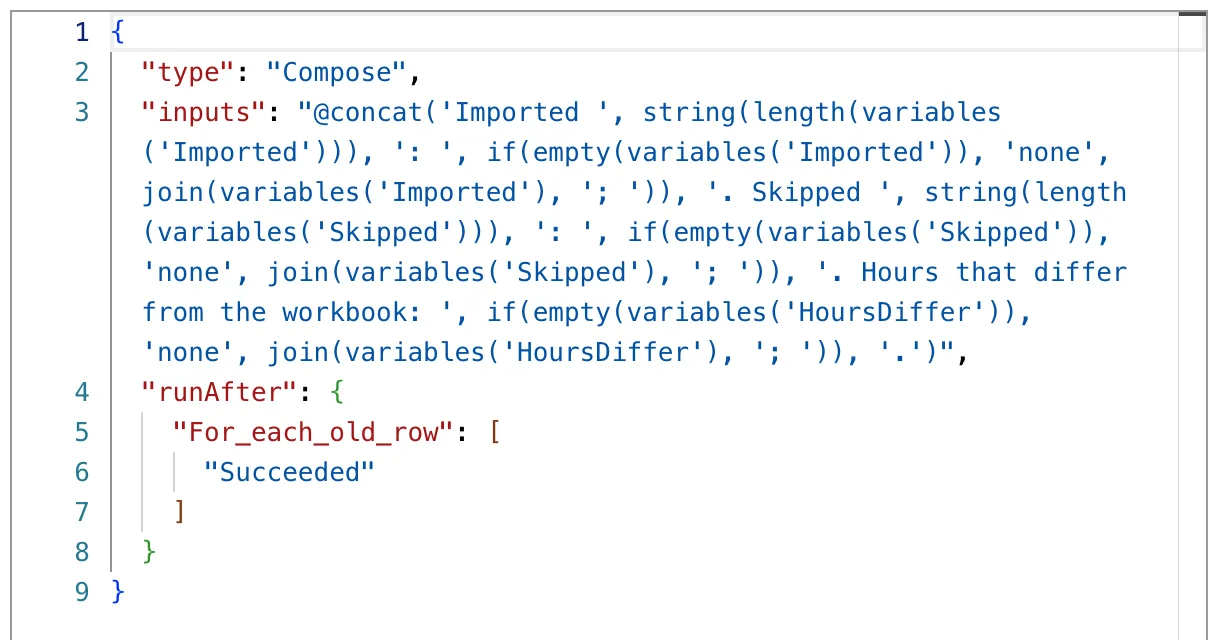
The loop's pages showed the summary as its first step, and its Code view had no runAfter, as the first action of a loop has none. I right-clicked it, selected Delete and OK, and added it again with the + after the loop's box, whose label reads Insert a new action after For each old row. Its Code view then had the loop in runAfter (Fixed: An Action Meant for After the Loop Runs Inside It in Power Automate):
That run had already imported the rows, and its other steps were right; only the summary was in the wrong place.
Step 11: Publish and Run the Import
Run Flow checker, which found no errors and no warnings, and Publish the flow (How to Check a Flow for Errors with Flow Checker in Power Automate, How to Save a Draft and Publish a Flow in Power Automate). Then run it with Test > Manually (How to Test a Cloud Flow Manually in Power Automate).
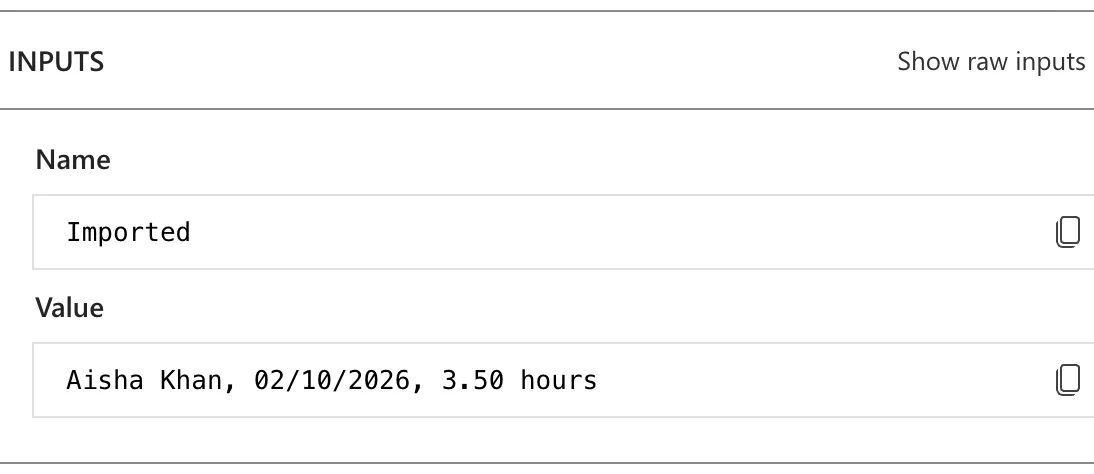
The import run created and approved 12 entries, one for each authorised row: 10 in October and 2 in November. Row by row, the run showed what each list got. The first row, imported:
Ben's night shift, whose hours differ from the workbook:
A row nobody authorised:
Running it again. With the summary in its place, I ran the flow a second time to check that it imports nothing twice. Every authorised row was already imported, the two rows without an authoriser were skipped again, and nothing was created:
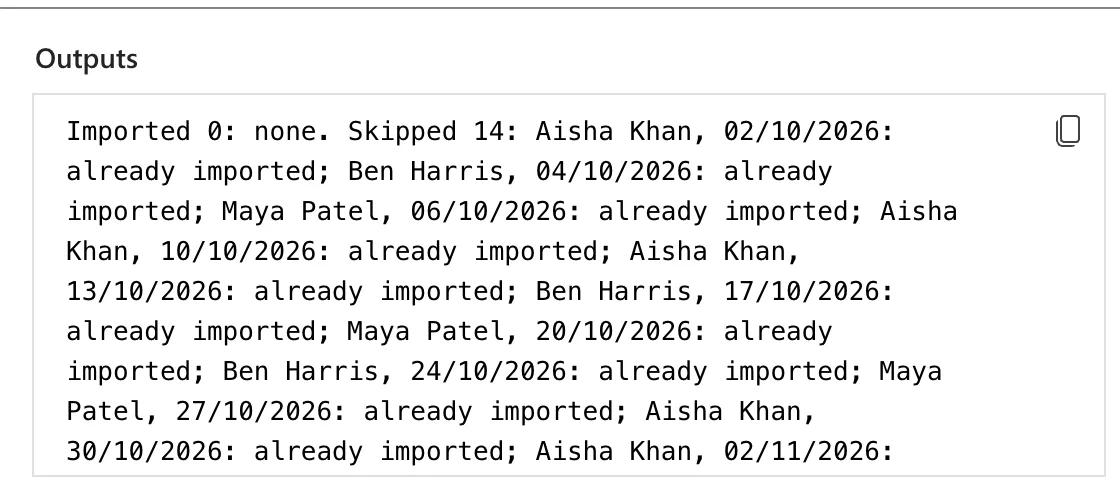
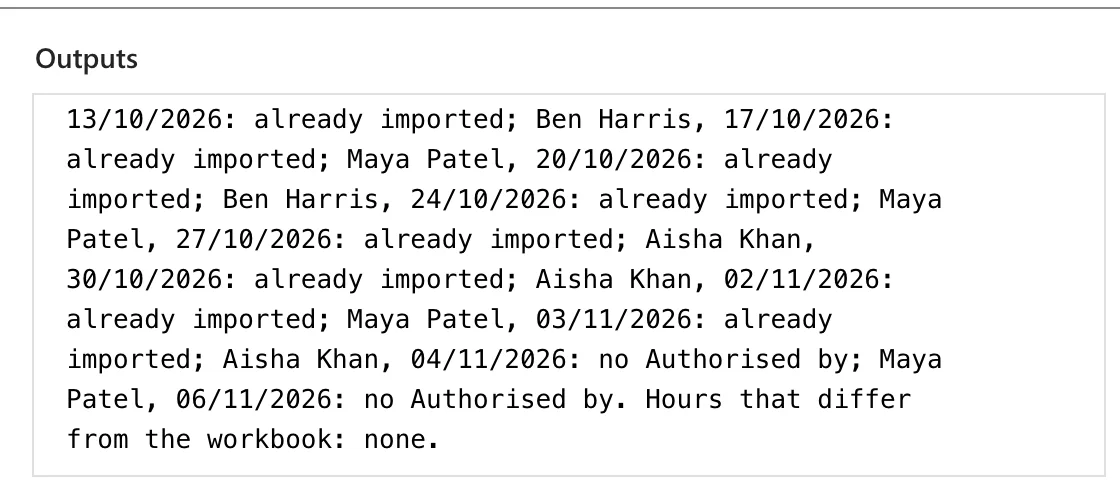
Hours that differ from the workbook: none is right for this run: the hours are only compared for rows that are imported.
The flow's page shows its description and the test runs (How to See a Flow's Run History in Power Automate):
Step 12: Check the Entries
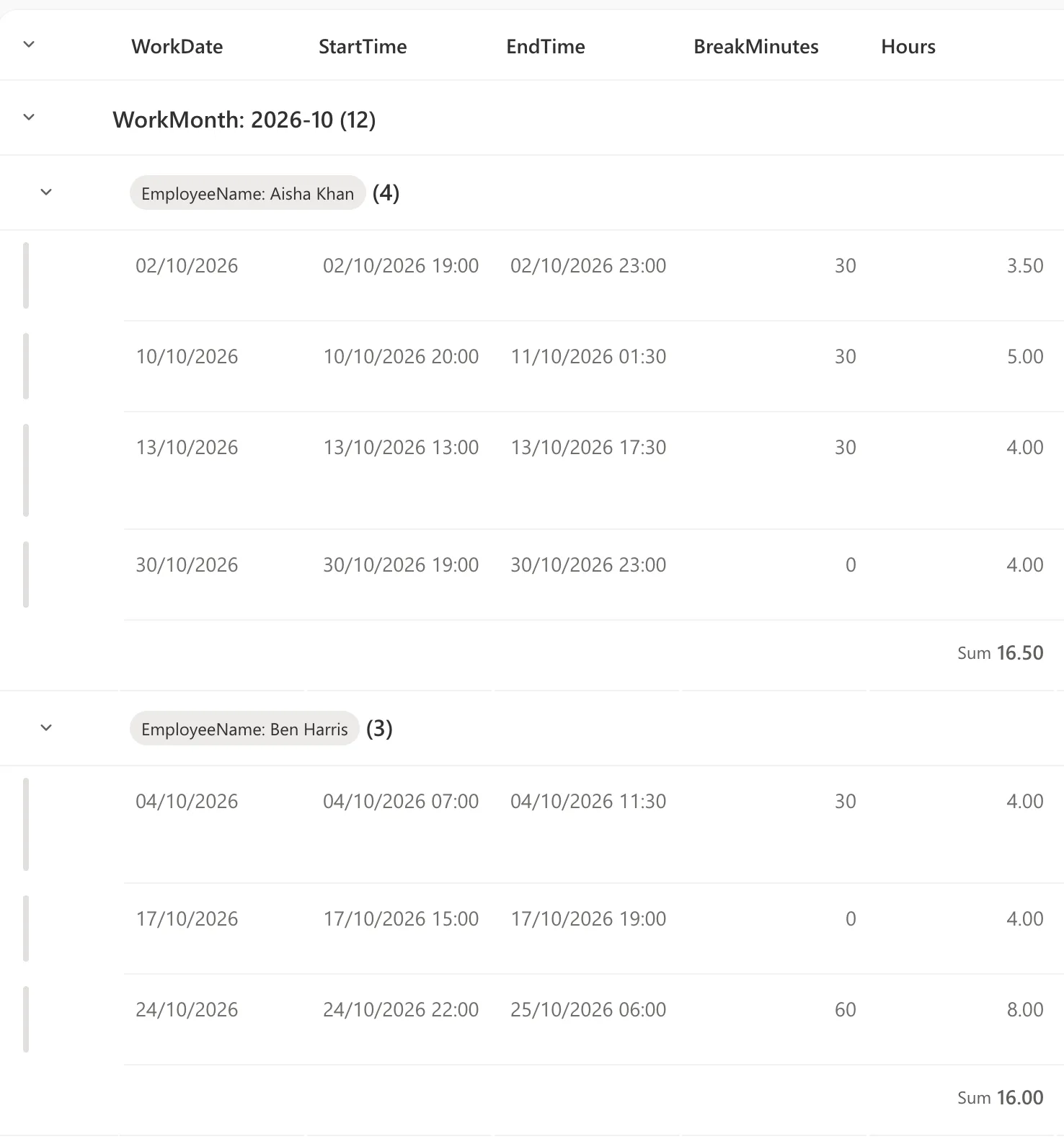
In SharePoint. The By month view of OvertimeEntries, from Part 7, groups the entries by month and person. October's imported shifts have the UK times from the workbook, Aisha's night shift ends on the 11th, and Ben's night across the clock change has 8 hours:
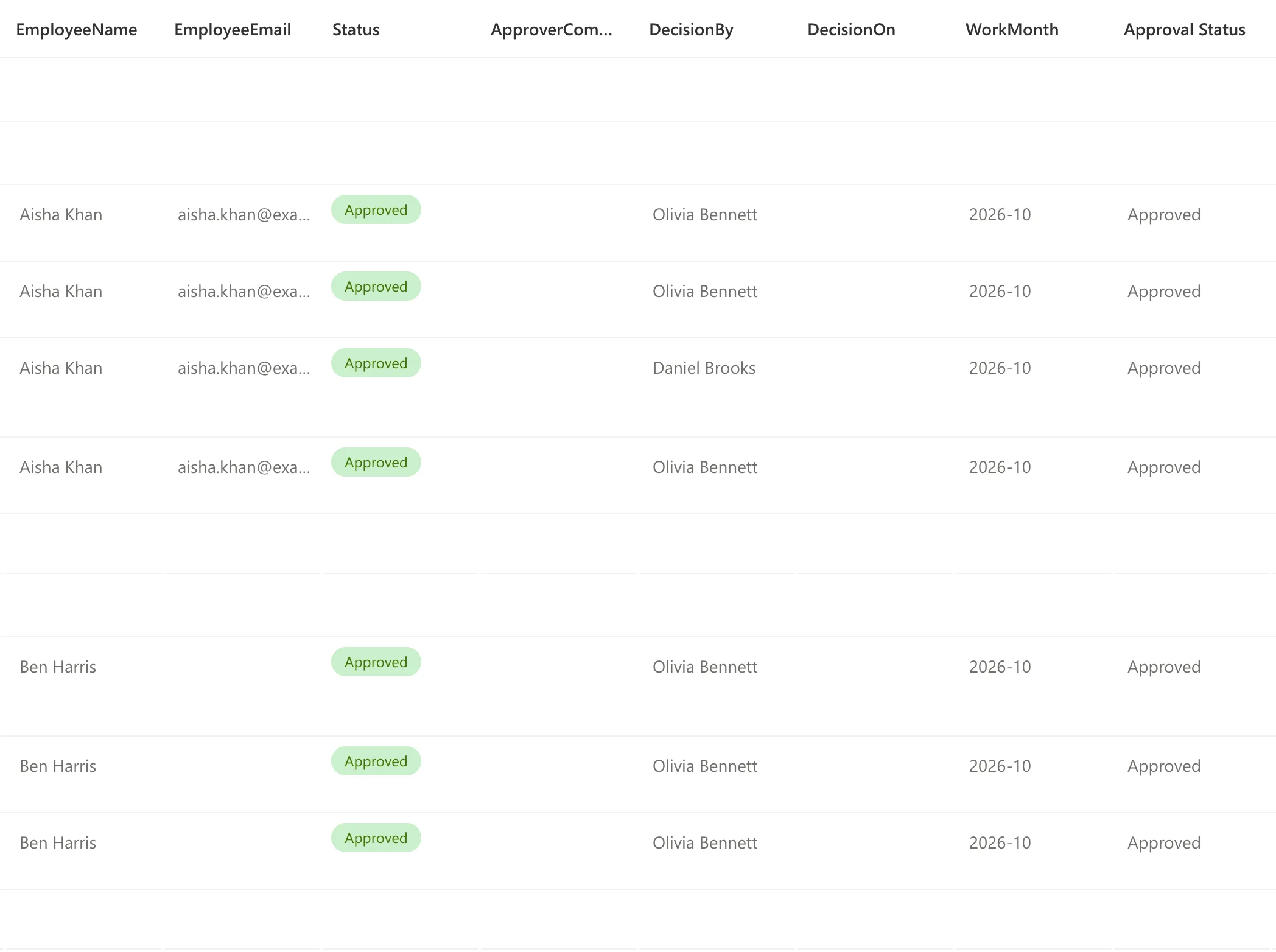
Further right in the same view, each entry is approved twice, with the authoriser in DecisionBy; Ben's have no email:
On the Reports screen. As the payroll officer, Leo Martin, October now shows 46.25 approved hours, 11 entries from 4 people: the 44.25 imported hours and my own 2.00 from 29 October. My 24 October entry, whose Status was changed by hand in Part 7, still isn't approved in SharePoint, so it stays out, as Part 11 intended. November shows 27.75 hours, 8 entries from 4 people.
What the Import Doesn't Do
- Change the workbook. It only reads it. Keep it, read-only, as the record of what was imported.
- Show staff their imported entries. They were created by the importer, so My Overtime and SharePoint don't show them to the staff member; the reports do.
- Import unauthorised rows. Aisha's 4 November and Maya's 6 November rows stay out until an approver decides: either can be logged in the app and approved there.
- Send approval requests or emails. The entries are created already approved.
Common Mistakes
| Mistake | What happens | Do this instead |
|---|---|---|
| Adding the summary with the + under the loop's header | It runs inside the loop, at the start of every row | The + after the loop's box |
| Leaving DateTime Format empty | Dates come back as numbers like 46297 | ISO 8601 |
| Saving the workbook's times as UTC | Summer times are an hour late in SharePoint | convertToUtc() with GMT Standard Time |
| Copying the workbook's Hours | The clock-change night stays 7 hours | Work the hours out from the times |
| Taking the first search result as the person | A search returns a list, which can hold more than one person | Keep exact matches, and skip if there's more than one |
| Running an import twice without a check | Every row is created twice | Skip rows with an entry for the same person and start |
| Opening the flow from My flows | No environment variables in dynamic content | Open it from the solution |
Troubleshooting
| Symptom | Likely cause | Fix |
|---|---|---|
| No Parameters group in dynamic content | The flow was opened outside its solution | Open it from the solution, then Edit |
| A row skipped as department not found | Its Department isn't spelled as in Departments | Correct the workbook or the department, and run again |
| A row skipped as more than one person with this name | Two people share the display name | Log that shift in the app instead |
| A person's entries have no email | Nobody in Microsoft 365 has exactly that name | Expected for leavers; check the spelling for others |
| Every row already imported | The import has run before | Nothing to do: the entries are there |
| An imported entry isn't in the reports | Its Approval Status isn't Approved | Check Approve the entry in the run |
| A summary that says Imported 0 while entries were created | The summary ran inside the loop | Move it after the loop |
FAQ
Why not make each employee the creator of their entries?
SharePoint makes the connection's account the creator, and I found no Microsoft documentation of a supported way for a flow to set someone else as an item's author. The import uses only documented actions, and the reports read every entry anyway.
What if the workbook had thousands of rows?
Pagination reads up to the threshold you set, and Microsoft's limits page allows 5,000 or 100,000 paginated items depending on the flow's performance profile. Apply to each handles the same numbers. Each row also makes several calls, so a large workbook takes longer and uses more of the daily request limits.
Can someone else run it?
The flow belongs to the site's owner and uses their connections. Nobody else needs to run it: it's a one-off.
Does this need premium licenses?
No. Excel Online (Business), SharePoint and Office 365 Users are standard connectors, and an instant flow runs on the license of the person who runs it.
Can I delete the flow afterwards?
Yes, once you've checked the entries. Keeping it costs nothing, and a second run imports nothing twice.
Conclusion
The old workbook's history is now in the app:
- Import Old Overtime Timesheet, an instant flow in the solution, read the workbook's table with ISO dates and pagination;
- each row's UK times became UTC, so the night across the clock change is 8 hours, not 7, and the flow listed that difference;
- departments and people were matched, with leavers kept and ambiguous names left out;
- 12 authorised rows became entries approved twice, with the authoriser's name and an approval comment, and 2 unauthorised rows were listed instead;
- a second run imported nothing twice, and October's report now shows 46.25 hours.
Part 13 creates the monthly payroll workbook with Office Scripts, so payroll gets each month's approved overtime as an Excel file.
Additional Resources
- Excel Online (Business) connector reference: List rows present in a table, pagination and limits.
- Reference guide to functions in expressions:
convertToUtc,addDays,less,equals,concatand the others. - Default Time Zones: Windows' time zone names, such as GMT Standard Time.
- Office 365 Users connector reference: Search for users (V2).
- Use environment variables in Power Automate solution cloud flows.
- Limits of automated, scheduled, and instant flows.
← Previous: Part 11: Build the Reports Screen Next → Part 13: Create the Monthly Payroll Workbook with Office Scripts (coming soon)
