Build an Overtime Timesheet App in Power Apps — Part 1: Plan the App and Set Up the Demo Organization

Many teams still record overtime in a shared Excel workbook: who worked, when, why, and who said yes. This series replaces it with a Power Apps app on SharePoint. Staff log overtime in a few taps, the hours are calculated and totalled for them, each department's approvers approve it in Teams or Outlook, and payroll gets a monthly Excel workbook and a Power BI report. Everything runs on Microsoft 365.
This is Part 1 of a 20-part series.
- Part 1: Plan the App and Set Up the Demo Organization (you are here)
- Part 2: Create the SharePoint Site and Lists
- Part 3: Keep Overtime Private with SharePoint Permissions
- Part 4: Create the Solution, Environment Variables and Canvas App
- Part 5: Build the Home Screen
- Part 6: Build the Log Overtime Screen
- Part 7: Build the My Overtime Screen
- Part 8: Build the Approval Flow for Teams and Outlook
- Part 9: Show Approvers What's Waiting (coming soon)
- Part 10: Build the Departments Screen (coming soon)
- Part 11: Build the Reports Screen (coming soon)
- Part 12: Import the Old Excel Timesheet (coming soon)
- Part 13: Create the Monthly Payroll Workbook with Office Scripts (coming soon)
- Part 14: Build the Power BI Overtime Report (coming soon)
- Part 15: Share the App and Add It to Microsoft Teams (coming soon)
- Part 16: Test Every Role and Department (coming soon)
- Part 17: Build a Setup Flow That Creates the Lists (coming soon)
- Part 18: Run the Solution Checker and Export the Solutions (coming soon)
- Part 19: Install the App in a New Environment (coming soon)
- Part 20: Recap, Production Checklist and Next Steps (coming soon)
This part explains what you're building and why it's designed the way it is, and what it costs. It also sets up the small fictional organization the app runs on, and builds the old Excel timesheet the app replaces, so you can see exactly what goes wrong with it. Building the app starts in Part 2.
What You Will Build
By the end of the series you will have Overtime Timesheet, a Power Apps app that works in the browser, on phones and in Microsoft Teams:
- Staff log overtime with the date, start and finish times, unpaid break, department and reason. The app works out the hours as they type, including shifts past midnight and the nights the clocks change. They see their own entries with weekly and monthly totals, and can edit an entry until it's approved.
- Each department's approvers approve it in Teams or Outlook, from a Power Automate approval. The app also has a screen that shows approvers everything waiting for them.
- Payroll gets the totals: a monthly Excel workbook created automatically, a Reports screen, and a Power BI report.
- Admins manage the departments and who approves for each, in the app, without changing any formulas.
- Privacy is enforced by SharePoint, not just by the app: staff can only open their own entries, even if they go to the SharePoint list directly.
The app, its flows and their settings are packaged as Power Platform solutions, so the whole thing can be installed in another organization, which Part 19 does.
The Brief, Requirement by Requirement
The series starts from a real kind of request: an organization with several departments wants its overtime spreadsheet replaced with something central. Here's each requirement and how the app meets it.
| Requirement | How the app meets it |
|---|---|
| Replace the Excel overtime timesheet with a central digital solution | Overtime is stored in SharePoint lists and entered through the app; the old workbook's rows are imported once |
| Staff can record overtime easily | A Log Overtime screen with sensible defaults, on desktop, phone and Teams |
| Overtime hours are calculated and totalled automatically | The app calculates each entry's hours from its times and break, and totals them by week and month |
| Multiple departments use one system | A Departments list, each with its own approvers; staff choose the department for each entry |
| Reporting and visibility | A Reports screen, a monthly payroll workbook and a Power BI report, each showing only what its viewer may see |
| Works with Microsoft 365 and SharePoint | SharePoint lists, Teams, Outlook, Excel and Power BI, all within Microsoft 365 |
| Secure | SharePoint item-level permissions and content approval, and approvals that can't be bypassed by editing the list |
| Easy to maintain and use | New departments and approvers are added in the app; one solution to install and update |
The Old Timesheet
To see what the app has to do better, I built the workbook it replaces, the way many organizations' overtime workbooks look: one table with a row per shift, a sheet of monthly totals, and formulas for the hours.
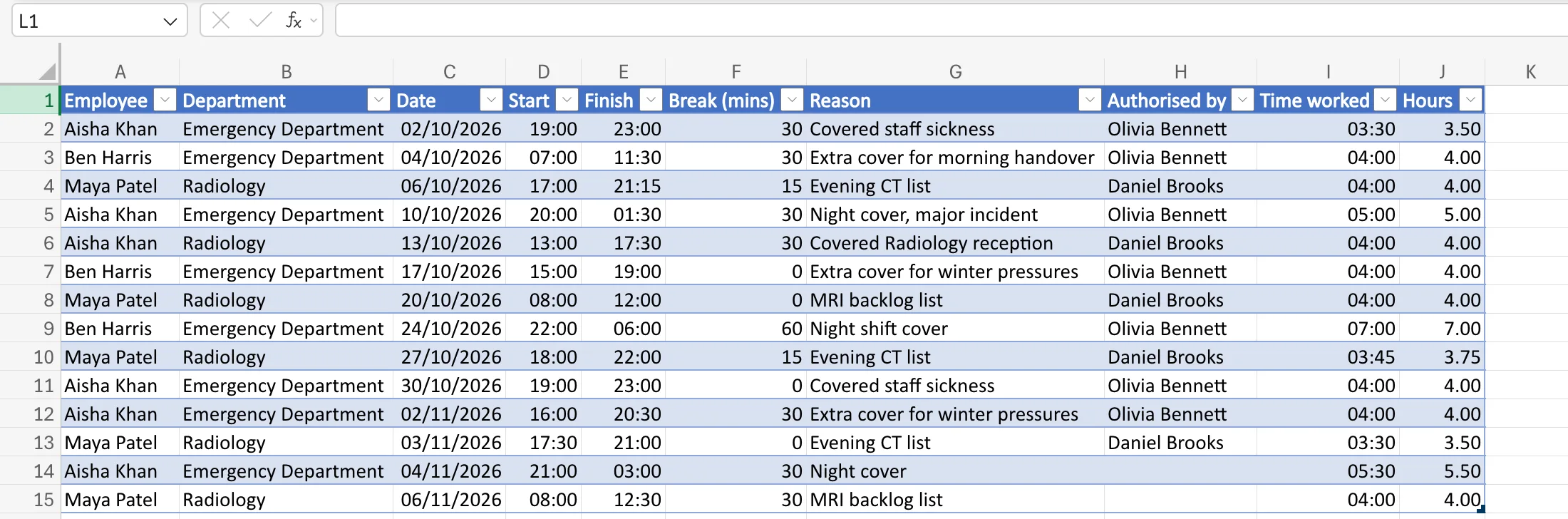
The heart of it is the formula that turns a shift into time worked: finish minus start, past midnight if needed, minus the unpaid break:
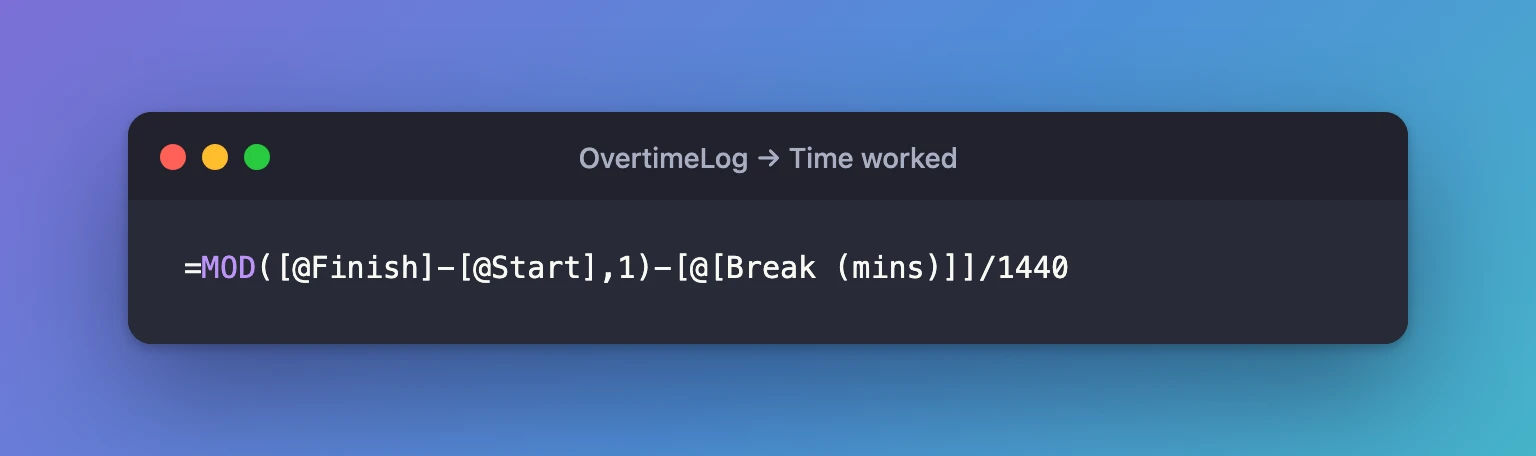
=MOD([@Finish]-[@Start],1)-[@[Break (mins)]]/1440
It works, mostly. Building it showed why organizations want to replace these workbooks:
- Everyone edits the same file. Anyone with the workbook can change anyone's hours, including their own after they've been agreed.
- "Authorised by" is just a typed name. Nothing proves the manager agreed, and two November rows have no one in that column at all.
- Everyone sees everyone's overtime. There's no way to show each person only their own rows.
- The formulas are fragile. Night shifts showed
########until the formula usedMOD; hours showed as12:00until the column was formatted as a number; the monthly total of time worked showed12:15instead of60:15. Each one has its own fix below. - The clock change is wrong. Ben Harris worked 22:00 to 06:00 on 24 October 2026, the night the clocks went back. The workbook says 7 hours after his break; he worked 8.
How the old timesheet was built
Every step and formula has its own guide, so you can rebuild it, or reuse a technique in your own workbooks:
- The workbook: create a folder in OneDrive, create a new workbook, rename it, and set the regional format for UK dates.
- The data: type rows with Tab and Enter, paste the tab-separated rows, AutoFit the columns, format them as a table, rename the table, and add a department drop-down.
- The hours: structured references, calculated columns, hours between two times, overnight shifts with MOD, minutes to a time, the unpaid break, decimal hours and number formats.
- The totals: add a worksheet, rename it, show dates as months, dates as serial numbers, EDATE, SUMIFS by person and month, SUMIFS between two dates, absolute and mixed references, SUM, totals over 24 hours and custom number formats.
- The clock change: the whole correction, with a date and time in one cell, DATE, WEEKDAY, the last Sunday of a month, TIME, AND, entering a formula, the formula bar, copying formulas and the Name Box.
- What went wrong on the way: dates showing ########, overnight shifts showing ########, hours showing as 12:00, a total wrapping at 24 hours and a date hiding its time.
The monthly totals sheet adds up each person's decimal hours per month:
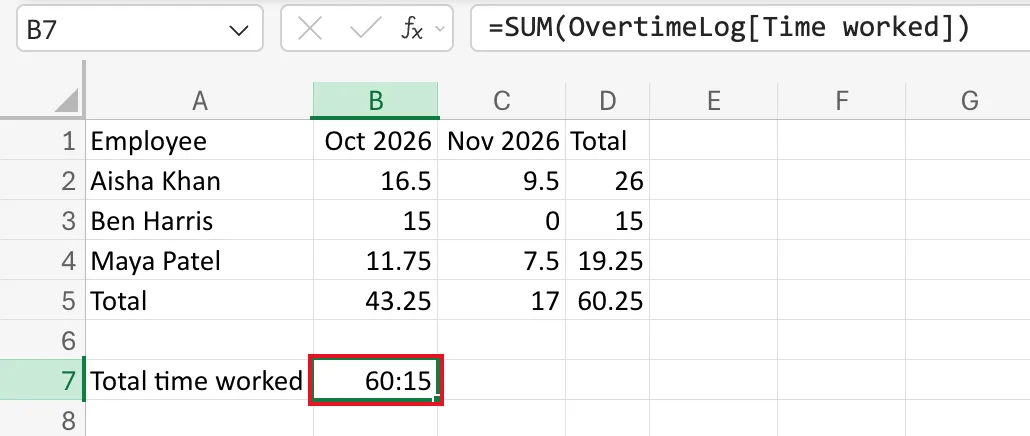
This workbook stays in OneDrive. In Part 12, a flow imports its rows into the app, so the history isn't lost.
How the App Works
- A member of staff logs a shift in the app. It's saved to the OvertimeEntries list as Pending.
- The approval flow looks up the department's approvers in the Departments list and sends them a Power Automate approval, which appears in Teams and Outlook. When the member of staff is their department's only approver, it goes to their manager instead.
- The approver approves or rejects it. The flow records the decision on the entry and lets the member of staff know.
- An approved entry can't be edited in the app. If someone edits one in SharePoint, its approval status goes back to Pending, so it no longer counts as approved; setting its Status back to Pending sends it through approval again.
- Each month, a flow writes the approved hours into an Excel workbook for payroll. Power BI reports on the same list, showing each approver only their own departments.
The screens
| Screen | Who uses it | What it does |
|---|---|---|
| Home | Everyone | Who you are, your department, and the screens your role can use |
| Log Overtime | Staff | Add or edit an entry; shows the hours as you type and checks the times |
| My Overtime | Staff | Your entries by month, with weekly and monthly totals and each entry's status |
| Waiting for Approval | Approvers | Entries waiting in your departments, with where to approve them |
| Reports | Approvers and payroll | Totals by department, person and month; payroll can also create the workbook on demand |
| Departments | Admins | Add, change or retire a department and its approvers |
The data
The final columns are designed in Part 2; in outline:
| List | One row per | Holds |
|---|---|---|
Departments | department | Its name, its approvers and whether it's still in use |
OvertimeEntries | shift | Date, start and finish, break, hours, department, reason, who worked it, and the approval decision |
Payroll Exports (library) | month | The monthly Excel workbooks, readable only by payroll |
Settings | setting | The IDs of the payroll and admins groups, which the app reads to recognize those roles (added in Part 5) |
Meet the Demo Organization
The app runs on a small fictional organization of six people, with two hospital-style departments, a payroll officer and a managing director.
| Person | Job title | Department | Manager | Plays the part of |
|---|---|---|---|---|
| Admin User (the person building the app) | Managing Director | Management | — | App maker, site owner and app admin |
| Olivia Bennett | Emergency Department Manager | Emergency Department | Admin User | Approver for the Emergency Department |
| Daniel Brooks | Radiology Manager | Radiology | Admin User | Approver for Radiology, whose own overtime goes to his manager |
| Aisha Khan | Staff Nurse | Emergency Department | Olivia Bennett | Staff, who also covers a shift in Radiology |
| Maya Patel | Radiographer | Radiology | Daniel Brooks | Staff |
| Leo Martin | Payroll Officer | Finance | Admin User | Payroll |
The old timesheet also has Ben Harris, who has since left and isn't in Microsoft 365 any more. His rows matter in Part 12: the import has to cope with a name that matches nobody.
What It Costs
Nothing extra for the app and flows, if you have Microsoft 365. Power BI viewers need Power BI Pro.
- Standard connectors only. The app and flows use SharePoint, Office 365 Users, Office 365 Outlook, Approvals and Excel Online (Business). Microsoft's Licensing overview for Microsoft Power Platform says some Microsoft 365 licenses include Power Apps and Power Automate use rights for scenarios that use Microsoft 365 data and standard connectors. The Approvals and Excel Online (Business) connector pages both list them as Standard.
- Approving doesn't need a premium license. The Power Automate licensing FAQ says users who respond to approval requests don't need a Premium license.
- Office Scripts, used for the payroll workbook, need a business Microsoft 365 license, according to Run Office Scripts with Power Automate. Its Run script action is limited to 3 calls every 10 seconds and 1,600 a day, which is why the series writes each month's workbook in one call.
- Power BI is the one cost to plan for. Power BI service features by license type says only Power BI Pro users can view other Pro users' content, unless it's in a Premium or Fabric F64 capacity. Microsoft's Power BI pricing page lists Power BI Pro at $14.00 per user per month, paid yearly, and says it's included in Microsoft 365 E5 and Office 365 E5. Prices vary by country and agreement. If your approvers and payroll staff don't have Pro, use the app's Reports screen, which needs no extra license.
This series was built in a Microsoft 365 Developer Program sandbox, whose 25 Microsoft 365 E5 Developer licenses include everything above. Six are in use, one per person:
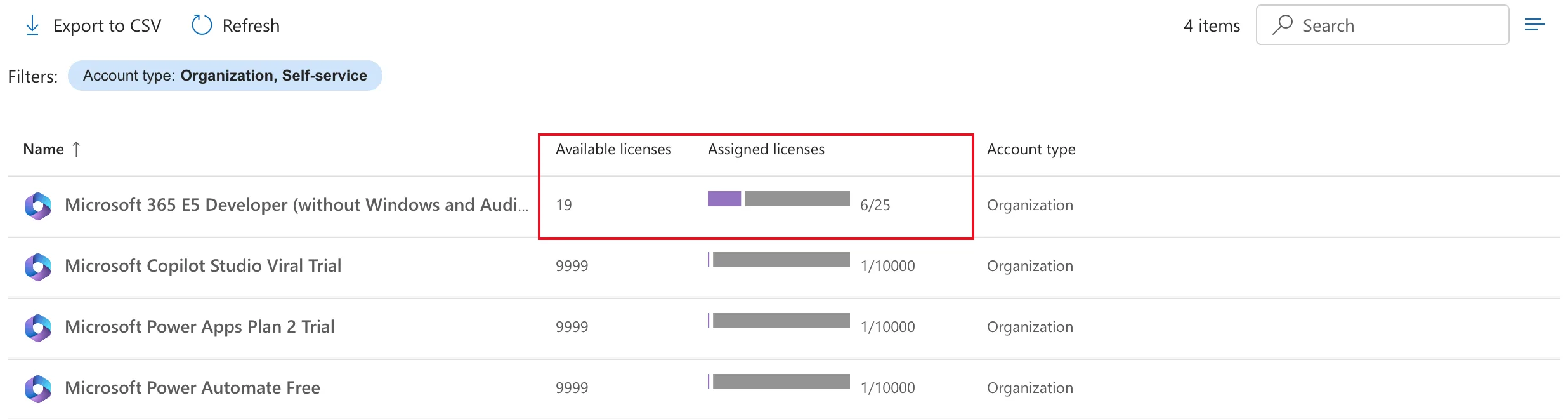
How to See How Many Licenses Are Available in Microsoft 365 shows where to check yours.
Where the App Lives
The app and flows live in your organization's Default Power Platform environment, inside a solution. It's the environment every Microsoft 365 organization has, it comes with its own included Dataverse storage for the solution, and Microsoft is retiring unmanaged developer environments. Dataverse in the Default environment also holds Power Automate approvals. If yours doesn't have Dataverse yet, How to Add a Dataverse Database to the Default Power Platform Environment adds it.
How Secure Is It?
Overtime is pay, so the data is protected in SharePoint itself, not only in the app:
- SharePoint decides who can read each entry. The entries list uses item-level permissions: people can read and edit only the entries they created. On the site, the one permission that overrides this setting, Override List Behaviors, is only in the Design and Full Control levels, as Part 3 shows on the site's Permission Levels page. Staff get neither.
- Approval can't be faked. SharePoint's content approval keeps each entry's approval status, which staff can't change. Approvers decide in Teams or Outlook, and the approval flow, which runs as the app owner, sets the approval status and copies the decision into the app's Status column (Part 8). Editing an approved entry in SharePoint sets its approval status back to Pending.
- Approvers and payroll see more through flows, which run with the app owner's connection and return only what each person is entitled to see, such as one department's waiting entries.
- Power BI filters by department with row-level security, so each approver sees only their own departments.
Part 3 sets up the permissions and tests them by signing in as different people. What remains visible to site owners and administrators is spelled out there too.
Prerequisites
To follow the whole series, you need:
- A Microsoft 365 organization you can administer, ideally a test one. A Microsoft 365 Developer Program sandbox is what this series uses.
- Licenses that include Power Apps, Power Automate, SharePoint and Teams for everyone who will use the app, and Power BI Pro for anyone who will view the report. The Microsoft 365 E5 Developer licenses this series uses include all of them.
- Admin rights for setting up people and groups: the User Administrator role or higher.
- A modern browser. Excel for the web is used in this part; the app works in any browser and in Teams.
You don't need any coding experience. Every formula is explained when it appears.
Step 1: Give the Demo Team Their New Roles
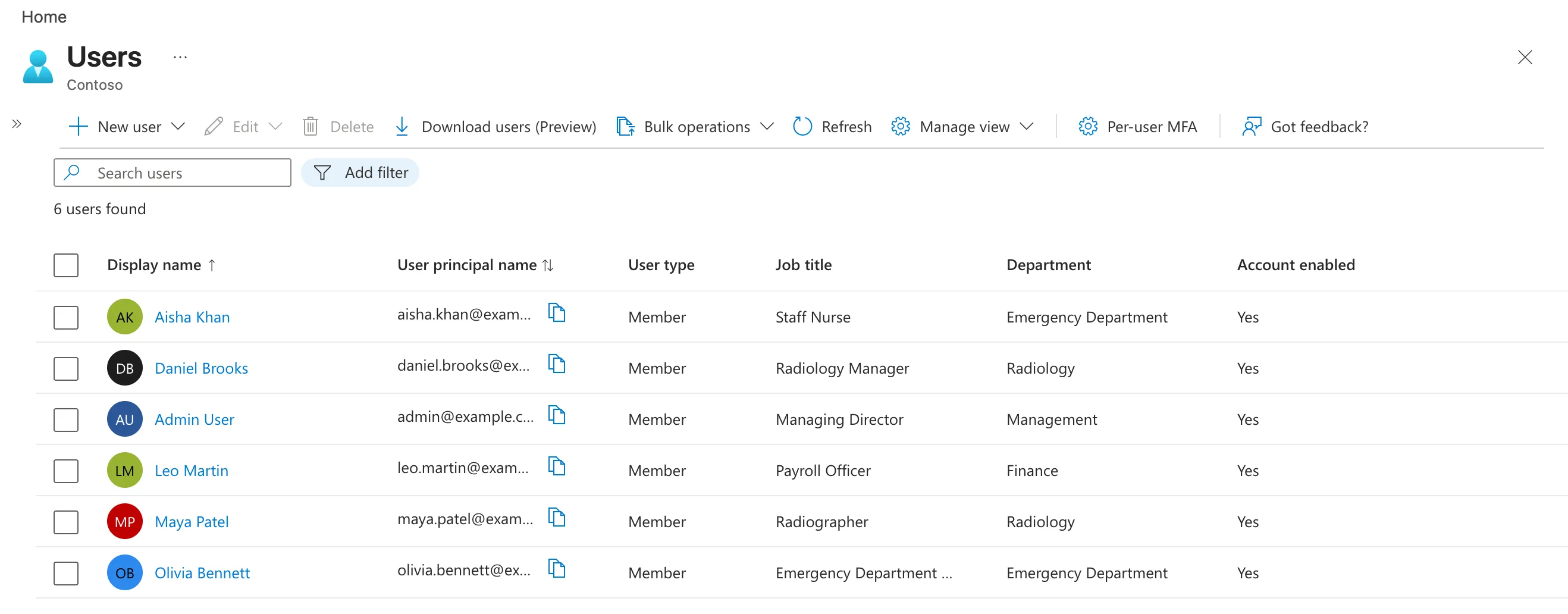
Start with six user accounts. Add any you don't have yet, as in How to Add a User and Assign a License in the Microsoft 365 Admin Center. In the example, the accounts already existed, with other job titles and departments.
Then give each of them the job title, department and manager in the table above:
- Add the Job title, Department and Account enabled columns to the users list in Microsoft Entra, so you can check everyone at once.
- Change each person's department, with their job title.
- Change their manager where it changes. Picking the new manager gives Only 1 item can be selected until the old one is removed: Fixed: "Only 1 item can be selected".
- Unblock Leo Martin, whose sign-in had been blocked. He comes back as the payroll officer.
The users list now shows the new organization, with every account enabled:
Step 2: Create the Groups
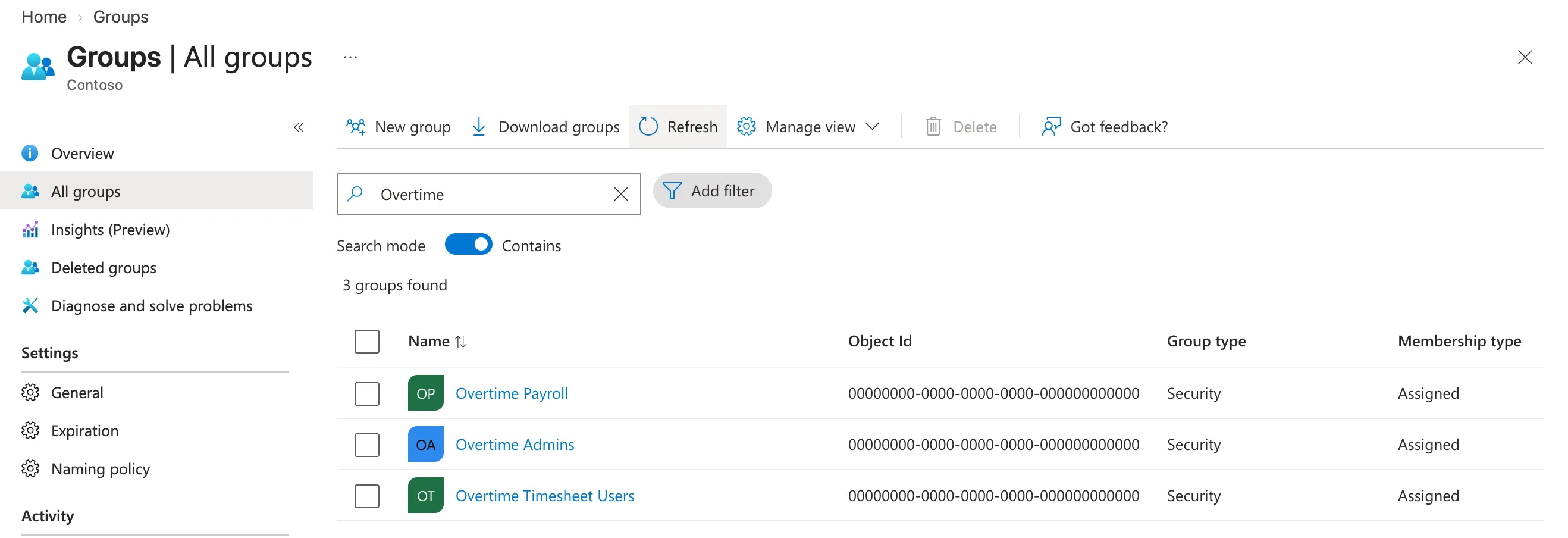
Three security groups decide who can use what:
| Group | Members | Used for |
|---|---|---|
| Overtime Timesheet Users | All six | Using the app and logging overtime |
| Overtime Payroll | Leo Martin | Payroll features and the payroll workbooks |
| Overtime Admins | Admin User | The Departments screen |
Create each one as in How to Create a Security Group in the Microsoft Entra Admin Center, with yourself as owner, and add the members as in How to Add Members to a Security Group. Searching All groups for Overtime finds all three:
Approvers aren't a group: each department names its own approvers in the app, so a new department doesn't need a new group.
Step 3: Build the Old Timesheet
To follow the import in Part 12 with the same data, build the old timesheet in your own OneDrive: a folder called Overtime, a workbook called Overtime Timesheet 2026 with UK dates, the fourteen rows from How to Paste Tab-Separated Data into Excel in a table named OvertimeLog, and the Time worked and Hours columns. The guides under How the old timesheet was built take it step by step.
The Clock change sheet is optional: it shows how far a workbook has to go to get one night's hours right, which the app does for every shift.
Common Mistakes
| Mistake | What happens | Do this instead |
|---|---|---|
| Typing departments differently for different people | The app can't match people to their department | Use exactly the names in the table |
| Leaving Leo blocked | Payroll can't be tested as a real payroll user | Unblock him in Step 1 |
| Making approvers a security group | Every new department needs a new group | Name approvers per department, as the app does |
| Building in a developer environment | Microsoft is retiring unmanaged developer environments | Use the Default environment, as Part 4 does |
Troubleshooting
| Symptom | Likely cause | Fix |
|---|---|---|
| Only 1 item can be selected when changing a manager | The old manager is still selected | Remove them first |
| Entra's Properties tab shows an old value after saving | The tab was open before the change | Reload the browser page |
| Dates in the old timesheet read the wrong way round | The regional format was set after pasting | Set English (United Kingdom) first, then paste again |
FAQ
Do I need a premium Power Apps license?
No. The app and flows use only standard connectors and SharePoint lists, as What It Costs explains. Power BI Pro is the only paid extra, and only for people who view the report.
Why SharePoint lists instead of Dataverse tables?
Dataverse tables would need a premium license for everyone. SharePoint lists, with item-level permissions, keep entries private on the licenses you already have.
Why not just improve the Excel workbook?
Because its biggest problems aren't formulas: everyone can edit everyone's hours, nobody can see only their own, and approval is a typed name. Those need a system with permissions and a workflow.
Can I use my real colleagues instead of the demo team?
Build and test with test accounts first. The app is installed in a real organization in Part 19.
Does it work on phones?
Yes. The app is responsive, and it can be added to Teams for desktop and mobile.
Conclusion
You've seen what the app has to do, how it's designed, what it costs and how secure it is. The demo organization is in place, with new roles, managers and groups, and the old Excel timesheet shows exactly what goes wrong without a proper system. In Part 2, you'll create the SharePoint site and lists that hold the overtime.
Additional Resources
- Licensing overview for Microsoft Power Platform
- Power Automate licensing FAQ
- Power BI service features by license type
- Permission levels in SharePoint
- Run Office Scripts with Power Automate
