How to Write Values to Cells with an Office Script

An Office Script fills cells with two commands: setValue puts one value in a cell, and setValues fills a block of cells in one go, row by row. Both work on a range you get with getRange.
Syntax
sheet.getRange("<address>").setValue(<value>);
sheet.getRange("<first cell>:<last cell>").setValues([
    [<row 1 values>],
    [<row 2 values>]
]);
From Microsoft's ExcelScript.Range reference:
<address>: the cell, in A1 style, such as"A1".<value>: text in quotes, a number, ortrueorfalse. The reference adds that a value starting with+,-or=is taken as a formula.<first cell>:<last cell>: the block to fill, such as"A3:B5".- The rows: an array of rows, each row an array of values, left to right. Give the block the same number of rows and columns as the range: Microsoft's own example resizes the range to fit its data before it calls
setValues.
The Example
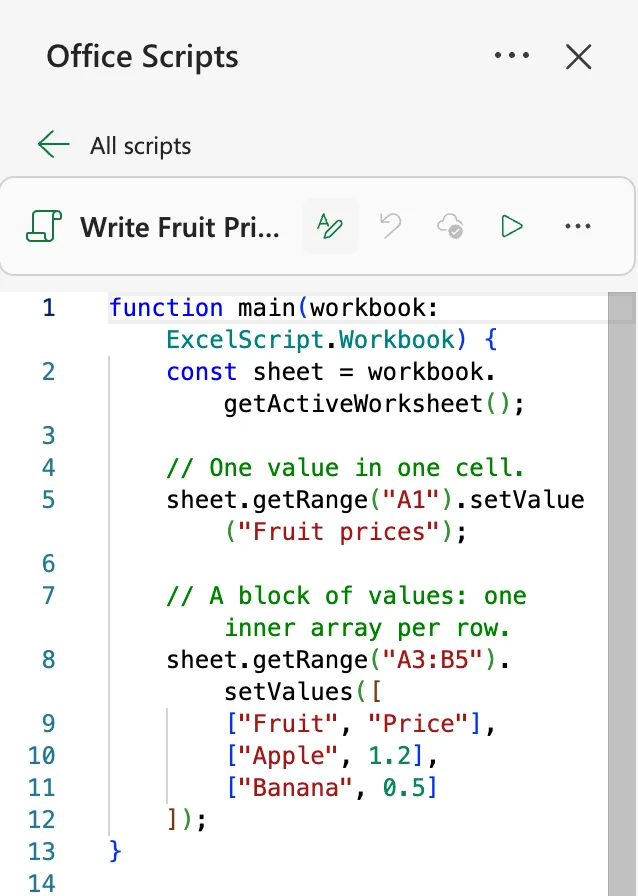
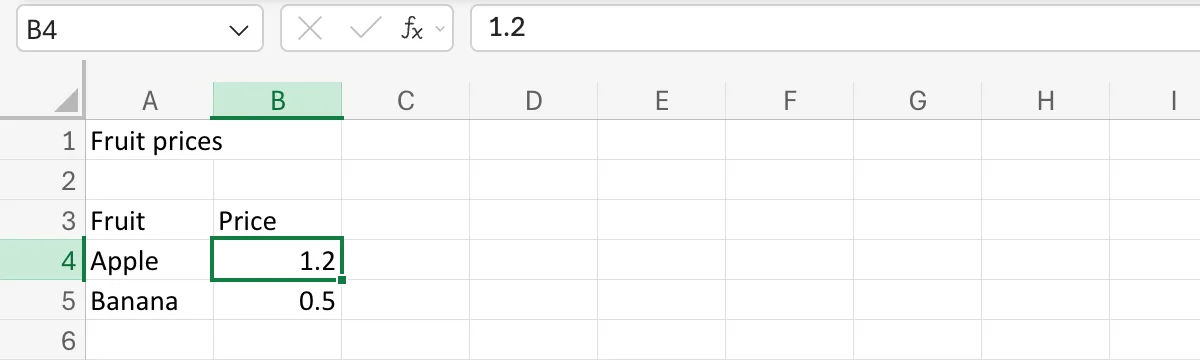
Write Fruit Prices writes a title in A1 and a small price list below it, a header row and two fruits, in a blank sheet. Create the script as in How to Create and Run an Office Script in Excel, and give it this code:
function main(workbook: ExcelScript.Workbook) {
    const sheet = workbook.getActiveWorksheet();

    // One value in one cell.
    sheet.getRange("A1").setValue("Fruit prices");

    // A block of values: one inner array per row.
    sheet.getRange("A3:B5").setValues([
        ["Fruit", "Price"],
        ["Apple", 1.2],
        ["Banana", 0.5]
    ]);
}
getRange("A1").setValue("Fruit prices")writes one piece of text.getRange("A3:B5")is three rows and two columns, so the block has three inner arrays of two values each."Price"is text, in quotes.1.2and0.5have no quotes, so they arrive as numbers that Excel can add up.
This is how it looks in the Code Editor:
The Result
Select Run. The title is in A1 and the list in A3:B5. Cell B4 holds the number 1.2, aligned to the right like any number:
Common Mistakes
| Mistake | What happens | Do this instead |
|---|---|---|
| A block of a different size than the range | The values and the cells don't line up | As many rows and values as the range has rows and columns |
Numbers in quotes, such as "1.2" | They go in as text, and sums leave them out | Leave numbers without quotes |
Text that starts with =, + or - | Excel reads it as a formula | Put the text another way, or format the cell as text first |
A flat list for a block, ["Apple", 1.2, "Banana", 0.5] | setValues takes rows | One inner array per row |
Troubleshooting
| Symptom | Likely cause | Fix |
|---|---|---|
| The values are on the wrong sheet | getActiveWorksheet() used whichever sheet was open | Open the sheet first, or use workbook.getWorksheet("<name>") |
| Old values stay in some cells | The block was smaller than the old data | Clear the old range first, or write a block as big as it |
| Numbers sit on the left of their cells | They were written in quotes, as text | Write them as numbers |
FAQ
How do I write a formula instead of a value?
setFormula("=SUM(B4:B5)") on a range writes a formula, and setFormulas does the same for a block.
Can I read values too?
Yes: getValue() reads one cell and getValues() reads a block, as rows of values.
Does it matter that the sheet is empty?
No, the script writes over whatever is there. Run it on a blank sheet while you try it out.
Conclusion
getRange("A1").setValue(value) writes one cell, and getRange("A3:B5").setValues([[...], [...]]) writes a block, one inner array per row. Text goes in quotes and numbers don't, so they stay numbers.
