How to Write to a SharePoint Choice Column with Patch in Power Apps

A SharePoint Choice column arrives in Power Apps as a record, not as text. To write to it with Patch, send a record too: {Value: "Pending"}.
Why a Record
Microsoft's data type mappings put SharePoint Choice, Lookup and Person columns in the Complex group (Connect to SharePoint from a canvas app). Reading one gives a record whose text is in Value (How to Show a SharePoint Choice Column's Value in Power Apps). Writing works the same way round.
The Patch reference notes that record shapes differ between data sources: its Choice example is for Dataverse, and SharePoint "might require different record shapes" (Patch function).
Prerequisites
- A SharePoint list with a Choice column, such as Status with Pending, Approved and Declined (How to Create a List and Add Columns in SharePoint Online).
The Formula
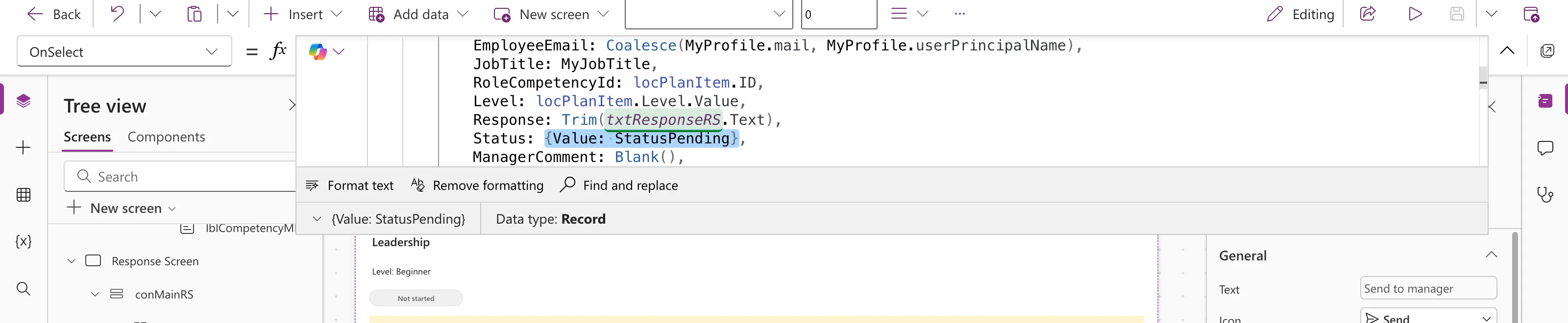
In the Career Development Plan app, every response is saved as Pending. The word is a named formula, StatusPending = "Pending", so the column gets:
Status: {Value: StatusPending}
With that part selected, the preview strip confirms the type, Record:
The Result in SharePoint
After Send to manager, the list item's Status column showed Pending:
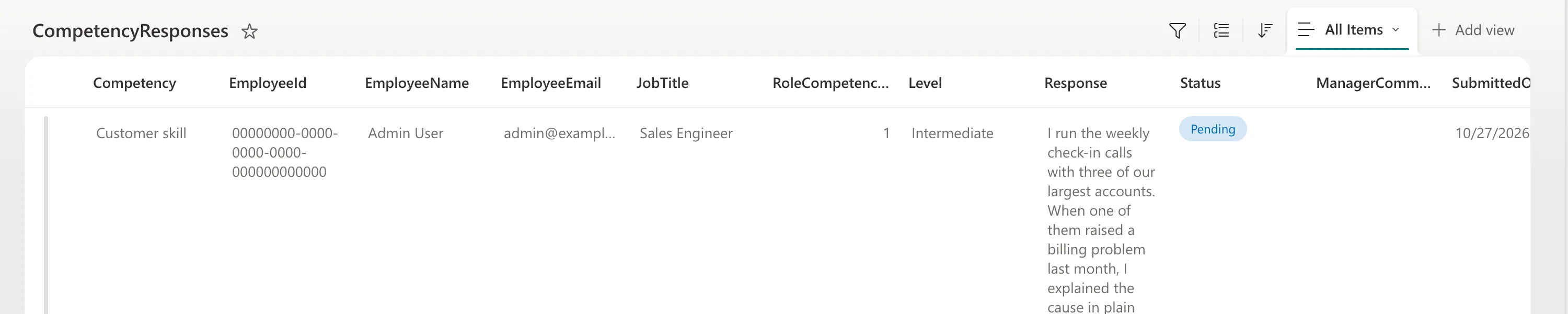
The value must be one of the column's choices, spelled the same way.
Read It Back
locResponse.Status.Value
The example compares it with the named formulas, as in locResponse.Status.Value = StatusApproved.
Common Mistakes
| Mistake | What happens | Do this instead |
|---|---|---|
| A choice spelled differently from the list | The value doesn't match the column's choices | Keep the words in named formulas |
Comparing locResponse.Status with text | It's a record, not text | Compare .Value |
| Using the Dataverse syntax on SharePoint | The record shape differs | {Value: "…"} for SharePoint |
Troubleshooting
| Symptom | Likely cause | Fix |
|---|---|---|
| Expected Text value when showing it | The record is used as text | Add .Value (Fixed: "Expected Text Value") |
FAQ
Can I use the column's own list of choices?
Yes: Choices(ListName.Column) returns them, for example to fill a drop-down. Microsoft's SharePoint overview shows Choices for a column.
Does this work for a multi-select Choice column?
This guide covers a single-choice column, which is what the example uses.
Conclusion
To write a SharePoint Choice column with Patch, pass {Value: "Choice"}. Keep the choice words in named formulas, and read them back with .Value.
Additional Resources
- Connect to SharePoint from a canvas app: data type mappings.
- Patch function
