How to Write a String to a File with File.WriteAllTextAsync in C#

File.WriteAllTextAsync puts a string in a file in one line of code: it creates the file, writes the text and closes the file again. If the file is already there, everything in it is replaced.
Microsoft's reference: WriteAllTextAsync asynchronously creates a new file, writes the specified string to the file, and then closes the file. If the target file already exists, it is truncated and overwritten. File.WriteAllText is the same for code that doesn't use await.
Syntax
await File.WriteAllTextAsync(<path>, <contents>);
await File.WriteAllTextAsync(<path>, <contents>, <cancellationToken>);
File.WriteAllText(<path>, <contents>);
| Part | What it is |
|---|---|
<path> | The file to write: a full path, or a relative one such as notes.txt. The folder it's in must already exist |
<contents> | The string that becomes the whole content of the file |
<cancellationToken> | Optional. Lets other code cancel the write |
await | Waits until the file is written. The method returns a plain Task, so there's no value to keep |
File.WriteAllText | The synchronous version: the line waits until the file is written |
The reference for what comes back: A task that represents the asynchronous write operation.
The Example
A console app called WriteTextFile writes a reminder to reminder.txt, then writes a different reminder to the same file, and prints what the file holds after each write.
Prerequisites
- The .NET 10 SDK.
dotnet --versionprints a version that starts with10.0.
Step 1: Create a Console App
dotnet new console -n WriteTextFile
cd WriteTextFile
The template "Console App" was created successfully.

Processing post-creation actions...
Restoring /Users/you/source/WriteTextFile/WriteTextFile.csproj:
  Determining projects to restore...
  Restored /Users/you/source/WriteTextFile/WriteTextFile.csproj (in 75 ms).
Restore succeeded.
dotnet new console -n WriteTextFile creates a folder named WriteTextFile with a project file and a Program.cs, and cd moves into it. Everything this example uses is part of .NET, so there's no package to add. Open the folder in VS Code, or WriteTextFile.csproj in Visual Studio.
Step 2: Write the Code
Replace everything in Program.cs. First the write:
// Write a string to a file. The file is created if it isn't there yet.
string reminder = "Water the plants\n";
await File.WriteAllTextAsync("reminder.txt", reminder);
Console.WriteLine($"Wrote {reminder.Length} characters to reminder.txt:");
Console.Write(File.ReadAllText("reminder.txt"));
reminder.txt has no folder in its path, so the file goes in the folder the app runs from: the project folder, with dotnet run. await waits until the file is written, and \n ends the line. File.ReadAllText reads the file back, so you can see what's in it.
Then a second write to the same file:
// Writing to the same file again replaces everything that was in it.
await File.WriteAllTextAsync("reminder.txt", "Feed the cat\n");
Console.WriteLine("After the second write, reminder.txt holds:");
Console.Write(File.ReadAllText("reminder.txt"));
It's the same call with other text, followed by another read of the file.
Step 3: Run It
Run it in VS Code's terminal, or press Ctrl+F5 in Visual Studio:
dotnet run
Wrote 17 characters to reminder.txt:
Water the plants
After the second write, reminder.txt holds:
Feed the cat
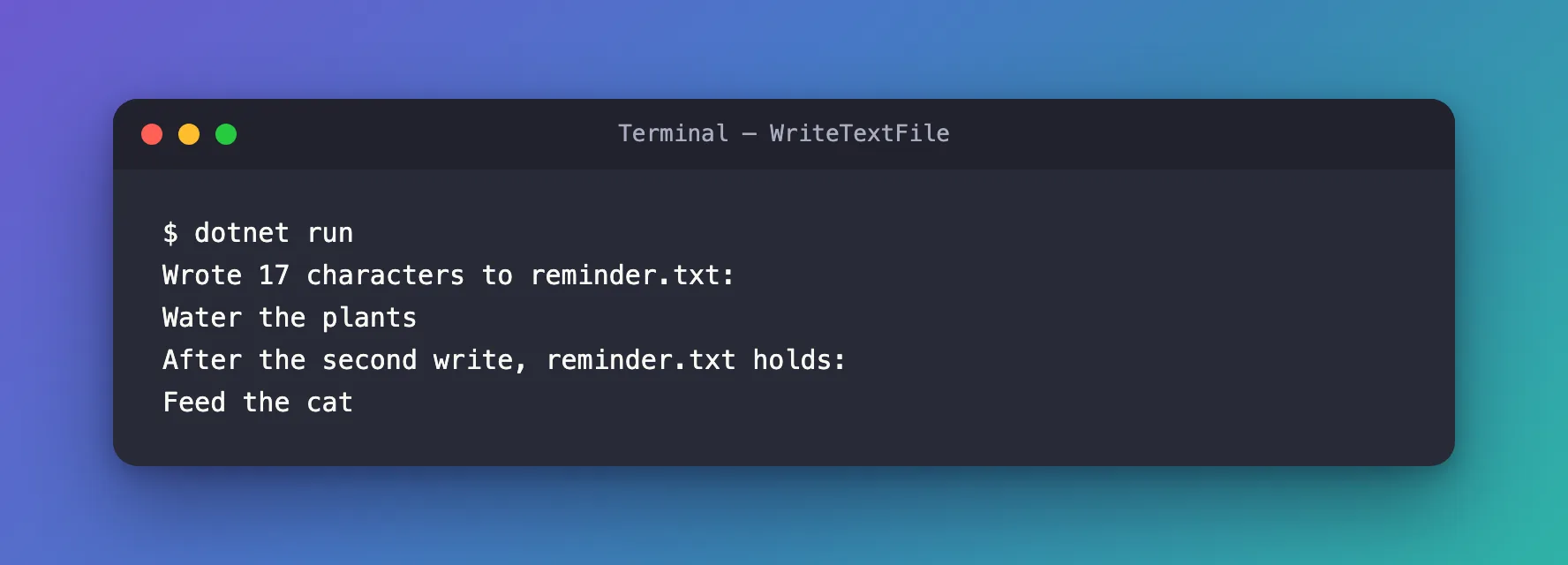
The first write created reminder.txt with the 17 characters of Water the plants and its line break. The second write replaced them: afterwards the file held only Feed the cat, so nothing of the first reminder was left.
The Complete File
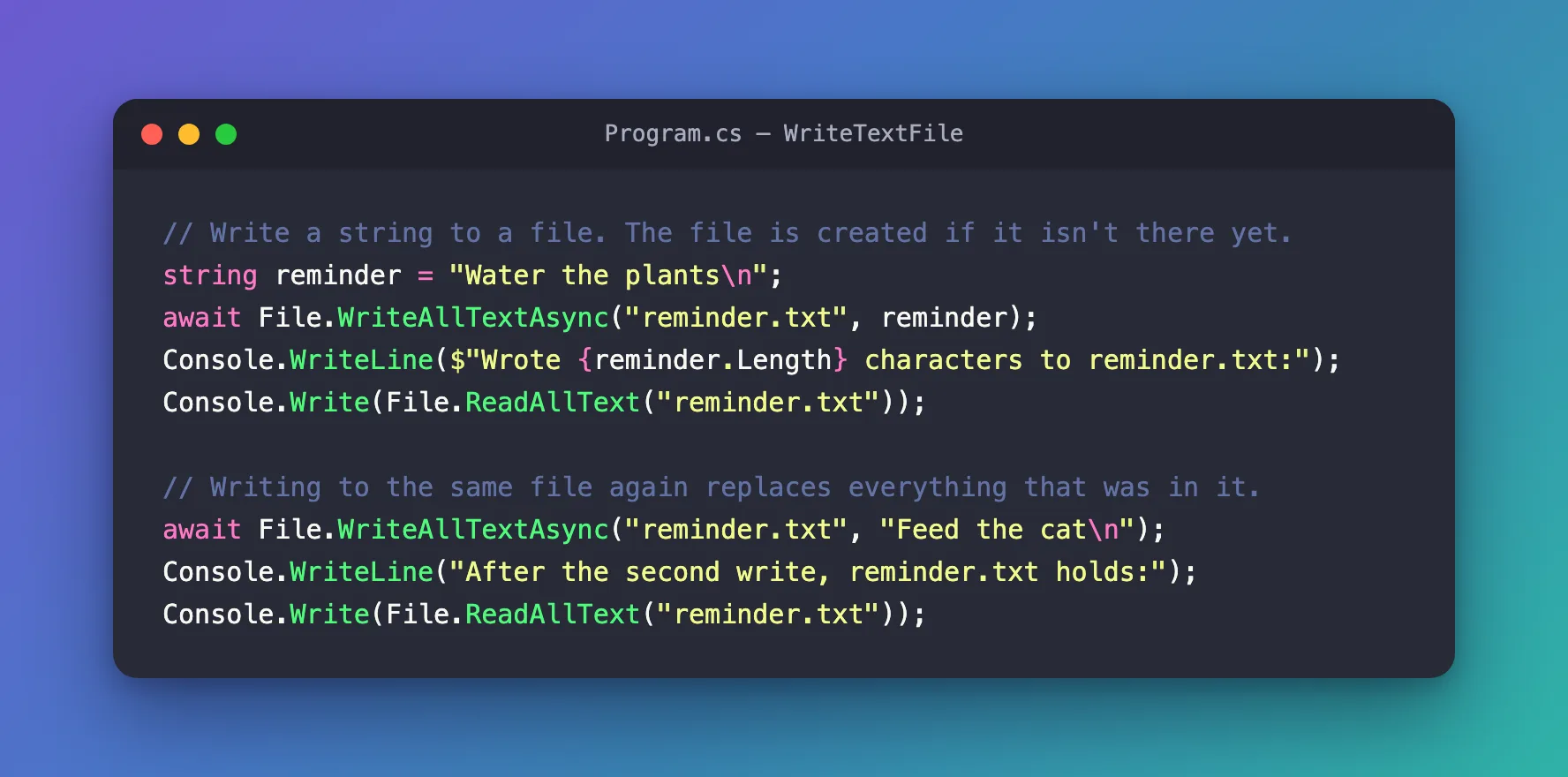
// Write a string to a file. The file is created if it isn't there yet.
string reminder = "Water the plants\n";
await File.WriteAllTextAsync("reminder.txt", reminder);
Console.WriteLine($"Wrote {reminder.Length} characters to reminder.txt:");
Console.Write(File.ReadAllText("reminder.txt"));

// Writing to the same file again replaces everything that was in it.
await File.WriteAllTextAsync("reminder.txt", "Feed the cat\n");
Console.WriteLine("After the second write, reminder.txt holds:");
Console.Write(File.ReadAllText("reminder.txt"));
Common Mistakes
| Mistake | What happens | Do this instead |
|---|---|---|
| Writing into a folder that doesn't exist | File.WriteAllTextAsync("notes/today.txt", ...) stopped the app with Unhandled exception. System.IO.DirectoryNotFoundException: Could not find a part of the path '/Users/you/source/WriteTextFile/notes/today.txt'. The method creates files, not folders | Create the folder first with Directory.CreateDirectory("notes"). Then the same write worked |
| Calling it again to add a line | The second call replaced the file, as the example shows | Use File.AppendAllTextAsync. After a write of Started and an append of Finished, the file held both lines |
Leaving out await | The build only warned: warning CS4014: Because this call is not awaited, execution of the current method continues before the call is completed. Consider applying the 'await' operator to the result of the call. A write into a missing folder then printed no error at all, and the file wasn't there | Always await the call. The reference: If an exception is stored into the returned task, that exception will be thrown when the task is awaited. |
FAQ
How do I add text to the end of a file instead?
Use File.AppendAllTextAsync. The reference: it asynchronously opens a file or creates a file if it does not already exist, appends the specified string to the file, and then closes the file.
await File.WriteAllTextAsync("log.txt", "Started\n");
await File.AppendAllTextAsync("log.txt", "Finished\n");
Console.Write(File.ReadAllText("log.txt"));
The file held both lines:
Started
Finished
Which encoding does it write?
UTF-8, without a byte order mark. await File.WriteAllTextAsync("menu.txt", "café") wrote 5 bytes, 636166C3A9 in hex: one byte each for c, a and f, two for é, and nothing in front. The reference for WriteAllText: This method uses UTF-8 encoding without a Byte-Order Mark (BOM), so using the GetPreamble method will return an empty byte array.
Should I use WriteAllTextAsync or WriteAllText?
Both write the same file. Microsoft's guide on file access explains what the async one buys you: Asynchrony improves the scalability of ASP.NET and other server-based applications by reducing the need for threads. In code that already uses await, use WriteAllTextAsync.
Conclusion
await File.WriteAllTextAsync(path, contents) creates the file or replaces everything in it. Create the folder first, use File.AppendAllTextAsync to add to the end, and always await the call, or its errors go unnoticed.
Additional Resources
- File.WriteAllTextAsync — every overload, with and without an encoding.
- File.WriteAllText — the synchronous version, its encoding and the exceptions it throws.
- File.AppendAllTextAsync — adding text to the end of a file.
