How to View, Edit and Delete Items in Azure Cosmos DB Data Explorer

Data Explorer in the Azure portal shows the JSON items in an Azure Cosmos DB container, and lets you change one in place or delete one, without writing any code. Here's each of the three, and what the extra properties that start with an underscore mean.
In Azure Cosmos DB for NoSQL, a container holds items: JSON documents, each with an id. Data Explorer, in the account's menu in the Azure portal, is the built-in tool for looking at them, and it's the quickest way to check what an app has written.
My example is a small notes app's container, notes in the database notesdb, with two notes in it: note-1, Buy milk, and note-2, Call the plumber. The container's partition key is /id.
Prerequisites
- A Cosmos DB data role for your account, if the account has key-based authentication turned off. Data Explorer then reads and writes the items as you, and an Azure role such as Owner doesn't include Cosmos DB data.
Step 1: View an Item
In Data Explorer, expand the database and the container, and select Items. The list shows the container's items by ID; Apply Filter with the box left empty loads all of them again. Select note-1, and its JSON opens on the right:
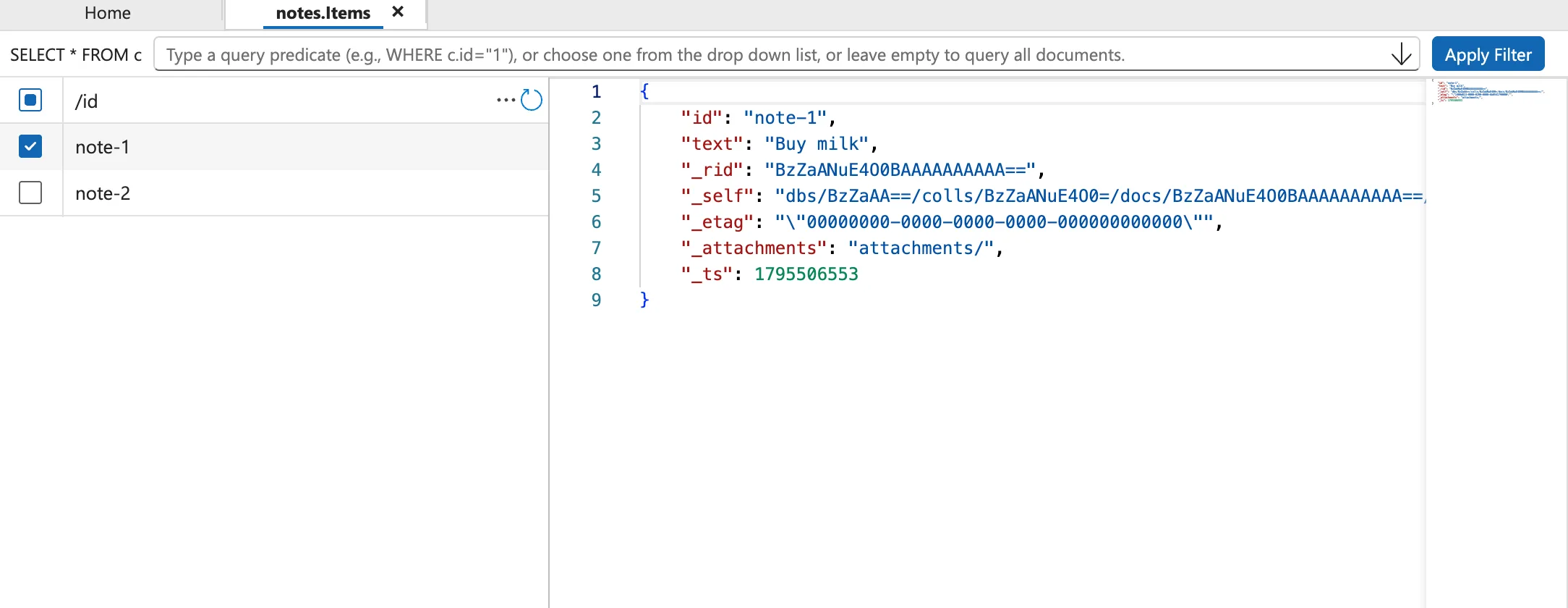
id and text are what the app wrote. Cosmos DB added the rest, its system properties:
| Property | What it is |
|---|---|
_rid | The resource ID, a unique identifier Cosmos DB uses internally for placement and navigation |
_self | The unique addressable URI for the resource, made of the database, container and item resource IDs |
_etag | The version of the item, required for optimistic concurrency control: it changes with every write |
_attachments | The addressable path for the attachments resource, for attachments, a feature Microsoft is deprecating |
_ts | When the item was last written, in seconds since 1 January 1970 (Unix time) |
1795506553 is 07:49:13 UTC on 24 November 2026, the last time the note was written. Cosmos DB sets the system properties itself; your own data goes in your own properties.
Step 2: Edit an Item
Click in the JSON on the right and change it like text. I changed "Buy milk" to "Buy milk and eggs", then selected Update in the toolbar:
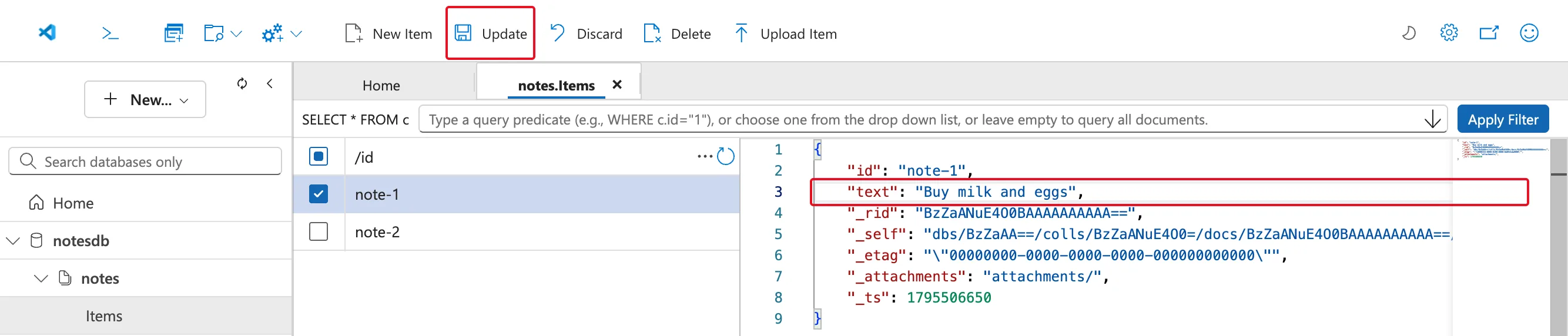
The _ts here is newer than in Step 1: the console app had written the note again in between. Data Explorer saved the change and reported Successfully updated item note-1. Update replaces the whole item with what's in the editor, and Cosmos DB gives it a new _etag and _ts: in another run, the _ts went from 1795506553 to 1795506620 when I selected Update.
Step 3: Delete an Item
Select note-2 in the list, then Delete in the toolbar. Data Explorer asks first:
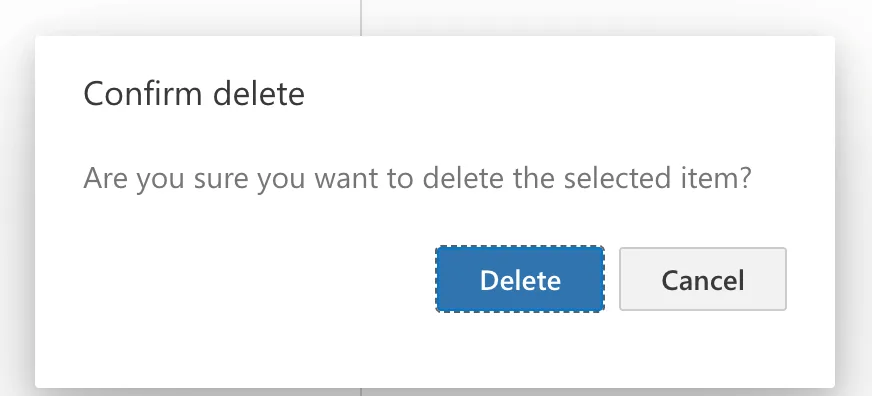
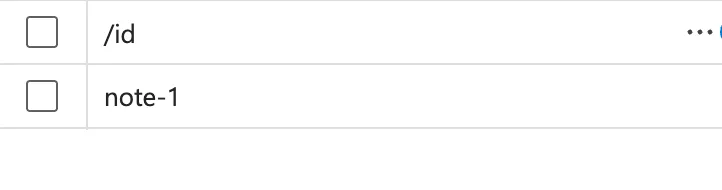
Check that the selected item is the one you mean, and select Delete. Data Explorer reported Successfully deleted 1 document(s), and the list has one note left:
Common Mistakes
| Mistake | What happens | Do this instead |
|---|---|---|
| Editing an item that an app keeps writing | The app's next write replaces your edit: when my console app saved note-1 again, it was Buy milk once more | Change the data through the app, or stop it first |
| Opening Data Explorer with keys off and no data role | Error while reading container, and no items | Give your account a Cosmos DB data role (Fixed) |
| Deleting without checking which item is selected | The selected item is gone | Read the ID in the list before you confirm |
FAQ
Why can't I see an item my app just wrote?
Select Apply Filter to load the list again. If the container has a time to live and the item is older than it, it has expired: an item no longer appears in query responses immediately after the TTL expires.
How do I read _ts as a date?
It's Unix time, the seconds since 1 January 1970 UTC: 1795506553 is 24 November 2026, 07:49:13 UTC. In C#, DateTimeOffset.FromUnixTimeSeconds turns the number into a date.
Conclusion
In Data Explorer, Items lists a container's items and shows the JSON of the one you select, with the system properties _rid, _self, _etag, _attachments and _ts beside your own. Change the JSON and select Update to replace the item, or select Delete and confirm to remove it. With key-based authentication off, all of this needs a Cosmos DB data role for your account.
Additional Resources
- Get a Document (REST API) — the system properties of an item.
- Azure Cosmos DB resource model — accounts, databases, containers and items.
