How to Validate a Form Without an Edit Form in Power Apps

When a screen is built from separate controls and saved with Patch, nothing checks the values for you. Two pieces do the job: a message that shows the first thing wrong, and a Save button that stays disabled until every field is filled in and there's nothing wrong. Put the rules in one place, and both pieces use them.
The example is the Overtime Timesheet app's Log overtime screen. It builds a shift's start, finish and hours from several controls, so it saves with Patch. Microsoft's guidance is to use SubmitForm with an Edit form, which handles validation, field mapping, and error display automatically, and Patch to build a completely custom save experience (Understand data sources for canvas apps). With Patch, the checking is yours.
The Plan
| Kind of check | Example | Where it lives |
|---|---|---|
| A field is filled in | A finish time is chosen; the reason isn't empty | The Save button's DisplayMode |
| A rule across fields | The break is shorter than the shift | A function that returns the first problem, shown in a label |
The SharePoint list has its own validation rule as well, set up in Part 2, for entries edited in the list itself.
Prerequisites
- A function in App.Formulas: How to Create a User-Defined Function in Power Apps.
- A message screen readers announce: How to Make Screen Readers Announce a Message in Power Apps.
- Enabling and disabling a button: How to Make a Control Read-Only in Power Apps with DisplayMode and How to Disable a Button Until a Text Box Has Text in Power Apps.
Step 1: Write the Rules in One Function
The app's ShiftProblem function takes the shift's date, times and break, and returns a sentence for the first rule they break, or empty text when they break none:
ShiftProblem(ShiftDate: Date, StartAt: Time, EndAt: Time, BreakMins: Number): Text =
    With(
        {Starts: ShiftStart(ShiftDate, StartAt), Ends: ShiftEnd(ShiftDate, StartAt, EndAt)},
        With(
            {
                Minutes: DateDiff(Starts, Ends, TimeUnit.Minutes),
                Clash: LookUp(OvertimeEntries, EmployeeEmail = MyEmail && StartTime < Ends && EndTime > Starts)
            },
            If(
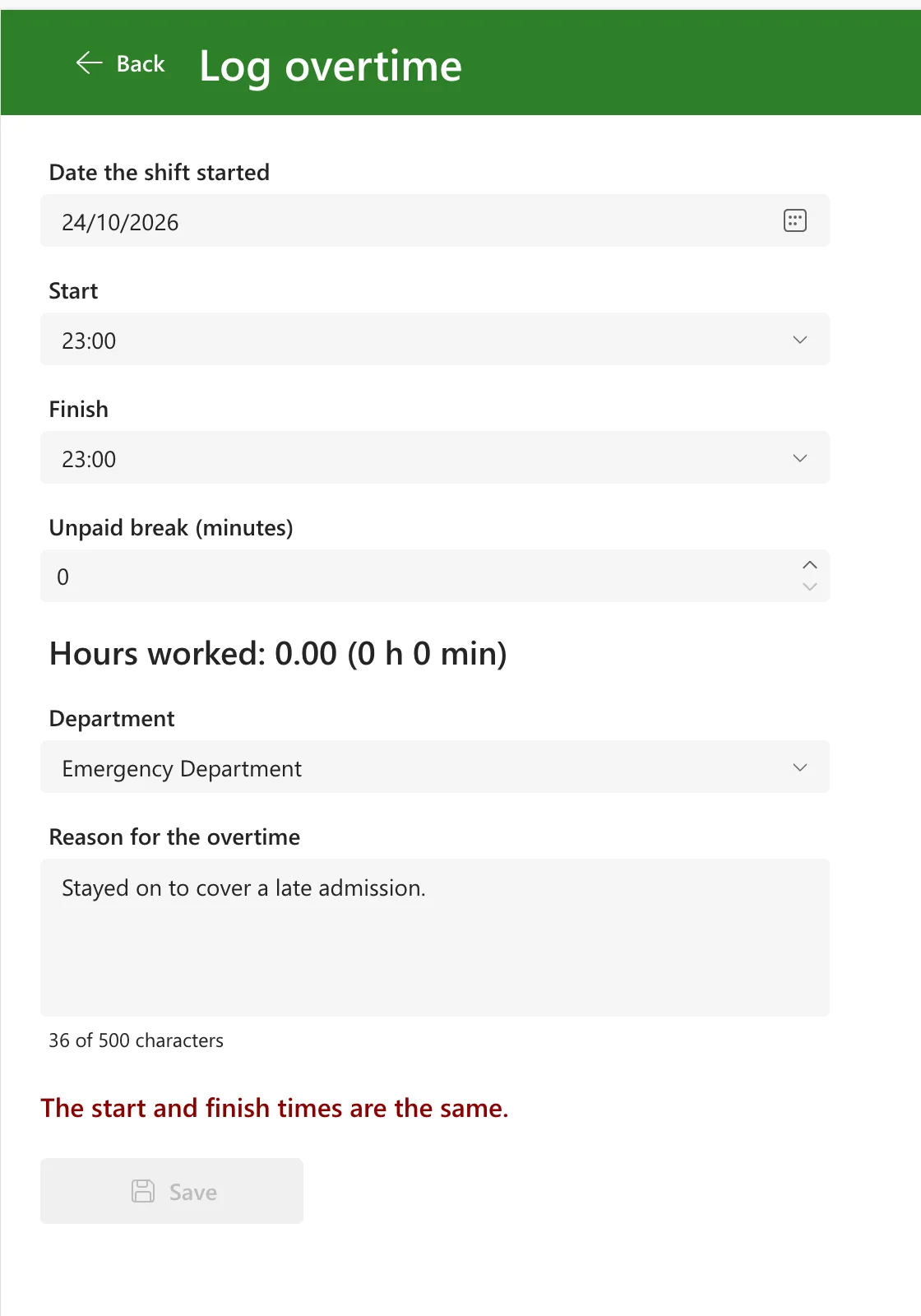
                EndAt = StartAt, "The start and finish times are the same.",
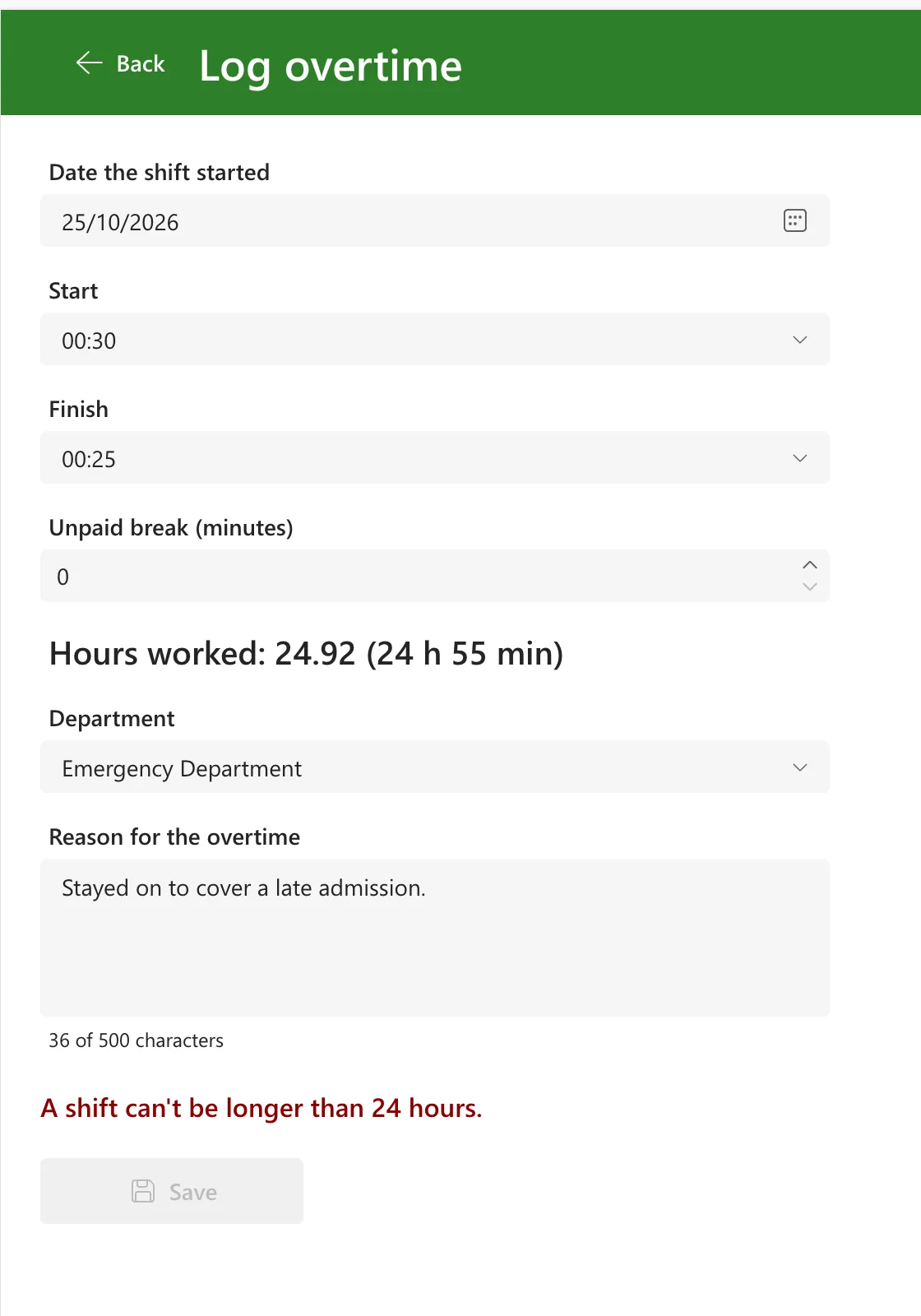
                Minutes > 1440, "A shift can't be longer than 24 hours.",
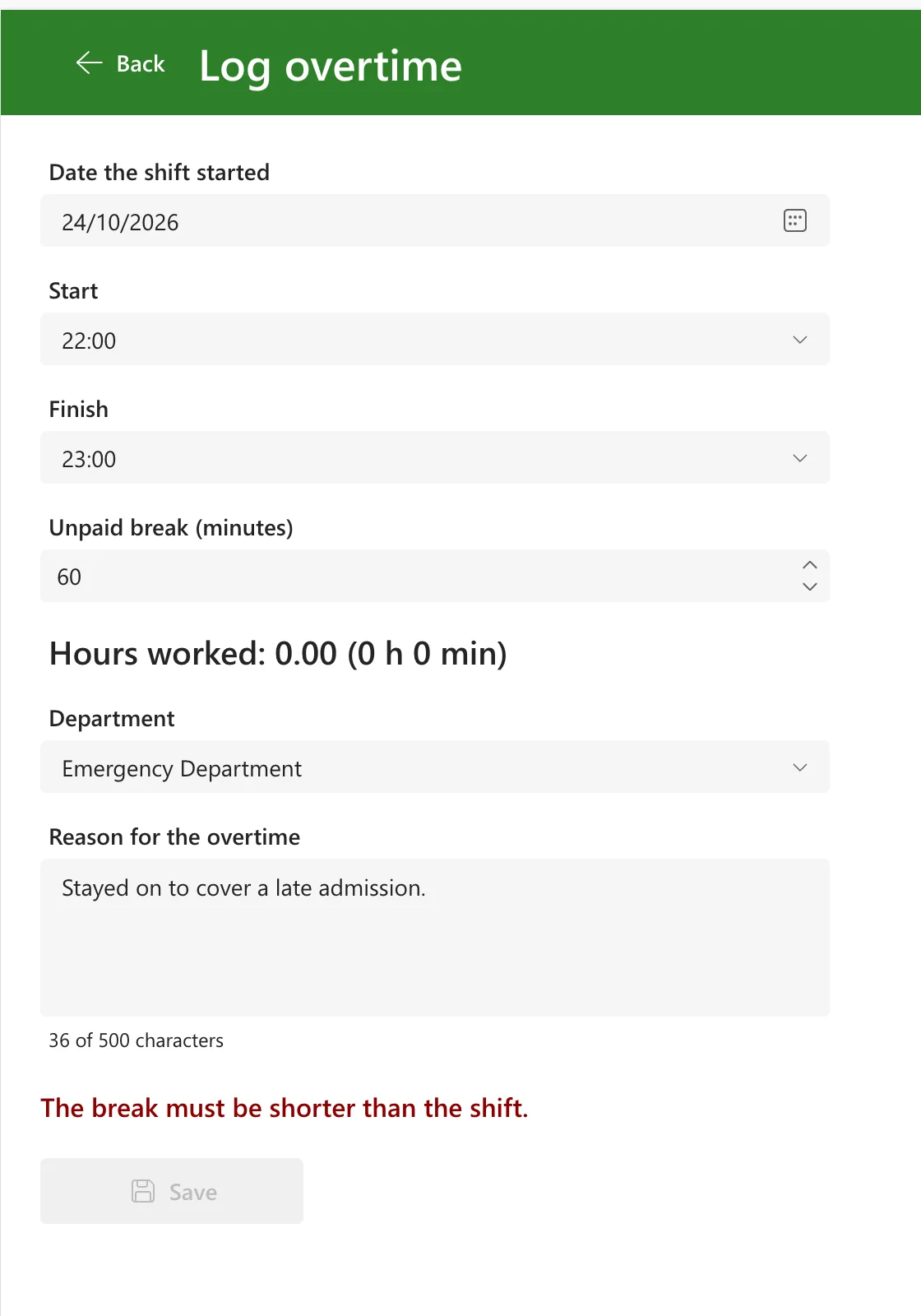
                BreakMins >= Minutes, "The break must be shorter than the shift.",
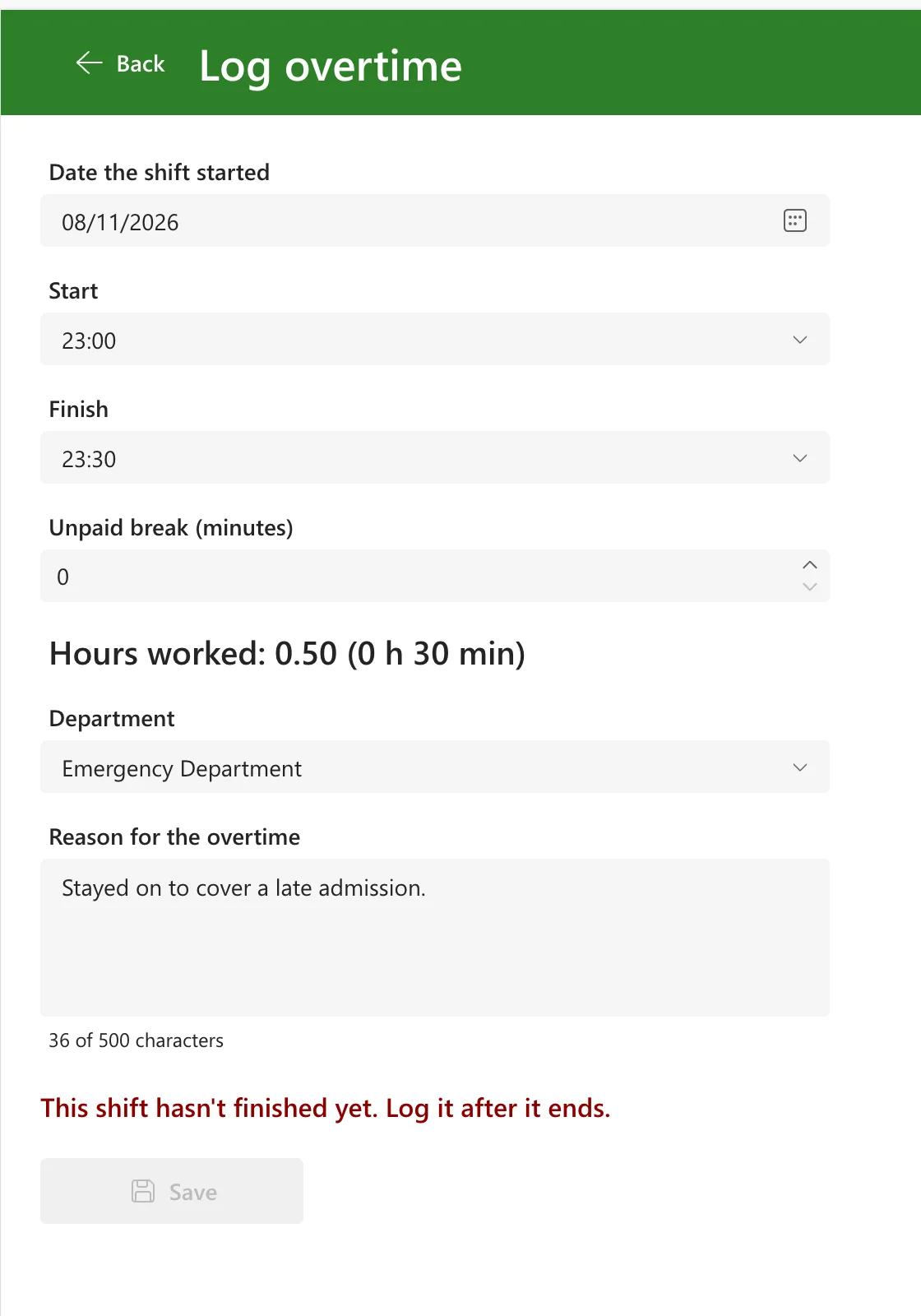
                Ends > Now(), "This shift hasn't finished yet. Log it after it ends.",
                !IsBlank(Clash), $"This overlaps the overtime you logged from {Text(Clash.StartTime, "dd/mm/yyyy hh:mm")} to {Text(Clash.EndTime, "dd/mm/yyyy hh:mm")}.",
                ""
            )
        )
    );
ShiftStartandShiftEndbuild the real start and finish, with a night shift's finish on the next day (How to Calculate Hours for an Overnight Shift in Power Apps).- If with pairs of condition and result returns the result of the first true condition, so the person sees one problem at a time (How to Use the If Function in Power Apps).
- Each message says what's wrong in words the person can act on.
- The overlap check is its own guide: How to Check for Overlapping Times in Power Apps.
Step 2: Show the Problem in a Live-Region Label
The message is a classic Label, lblProblemLO, under the last field and above Save. Its Live property is Live.Polite, which makes it a live region: screen readers announce a change to its text. Its Color is Color.DarkRed, and AutoHeight is on, so it grows to fit a long message.
Its Text asks for the problem only once both times are chosen, so nobody is told off for a form they haven't finished:
If(
    IsBlank(cmbStartLO.Selected) || IsBlank(cmbEndLO.Selected),
    "",
    ShiftProblem(dpWorkDateLO.SelectedDate, cmbStartLO.Selected.Value, cmbEndLO.Selected.Value, numBreakLO.Value)
)

IsBlank(cmbStartLO.Selected) is the check for an empty combo box. IsEmpty(cmbStartLO.SelectedItems) looks right but returns false before anything is chosen: Fixed: IsEmpty Returns False When Nothing Is Selected in a Power Apps Combo Box.
Step 3: Disable Save Until Everything Is Right
Save's DisplayMode is Edit only when every field is filled in and the label has nothing to say:
If(
    !locIsSaving &&
    !IsBlank(dpWorkDateLO.SelectedDate) &&
    !IsBlank(cmbStartLO.Selected) &&
    !IsBlank(cmbEndLO.Selected) &&
    !IsBlank(cmbDepartmentLO.Selected) &&
    !IsBlank(Trim(txtReasonLO.Text)) &&
    IsBlank(lblProblemLO.Text),
    DisplayMode.Edit,
    DisplayMode.Disabled
)
- One
!IsBlank(…)per required field.Trimmakes a reason of only spaces count as empty. IsBlank(lblProblemLO.Text)reuses the label's answer, so the rules are written once.!locIsSavingkeeps the button disabled while an entry is being saved: How to Stop a Button Being Selected Twice While It Saves in Power Apps.

Step 4: Try Each Rule
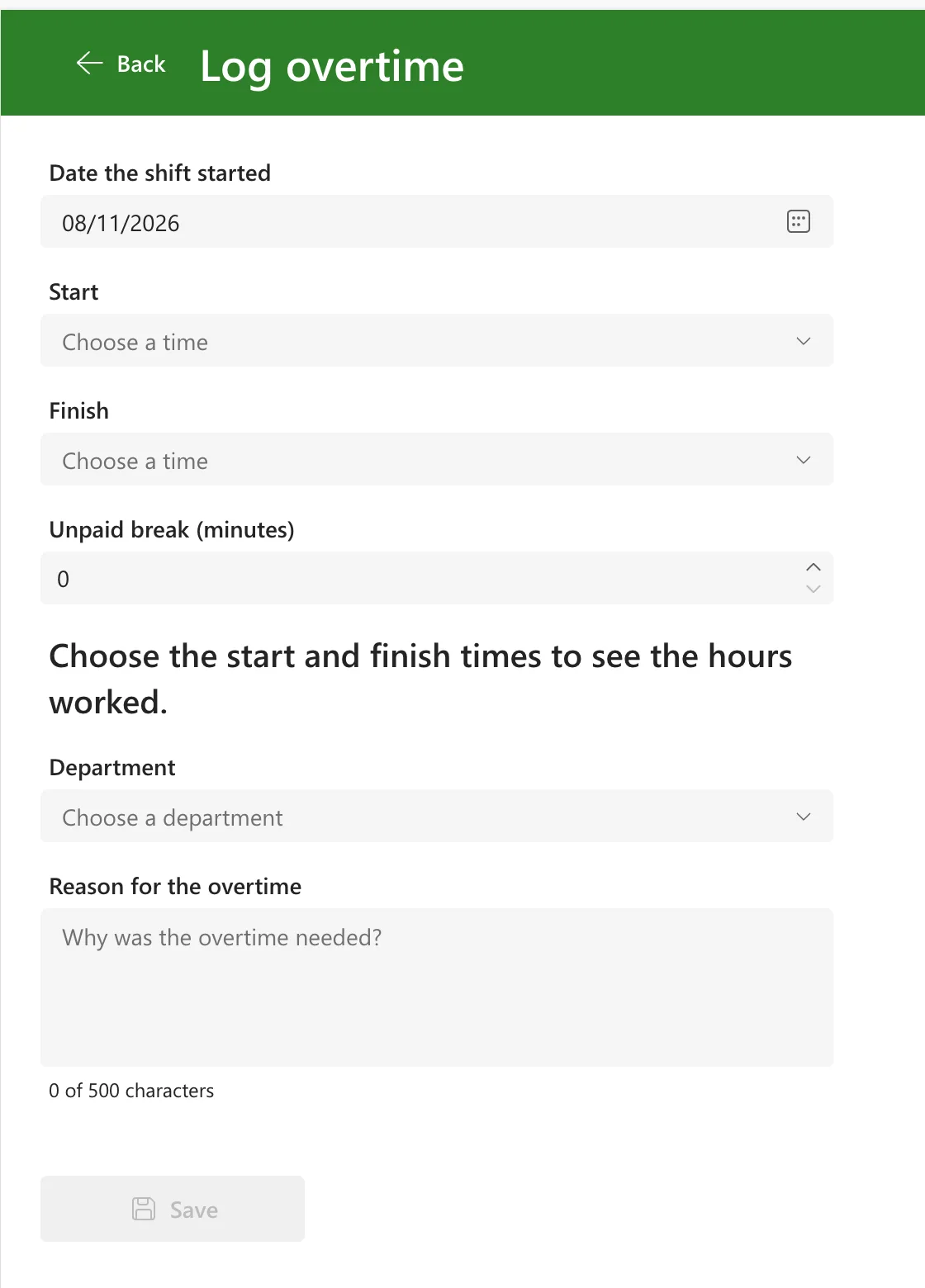
In Preview, with an empty form, Save is disabled and there's no message:
Then each rule, with every other field filled in. The same start and finish, 23:00 and 23:00:
A break as long as the shift, 60 minutes for 22:00 to 23:00:
More than 24 hours: 00:30 on 25 October 2026 to 00:25 the next day. That's normally 23 h 55 min, but the clocks went back that day, so it's 24 h 55 min:
A shift that hasn't finished, today from 23:00 to 23:30, entered earlier in the day:
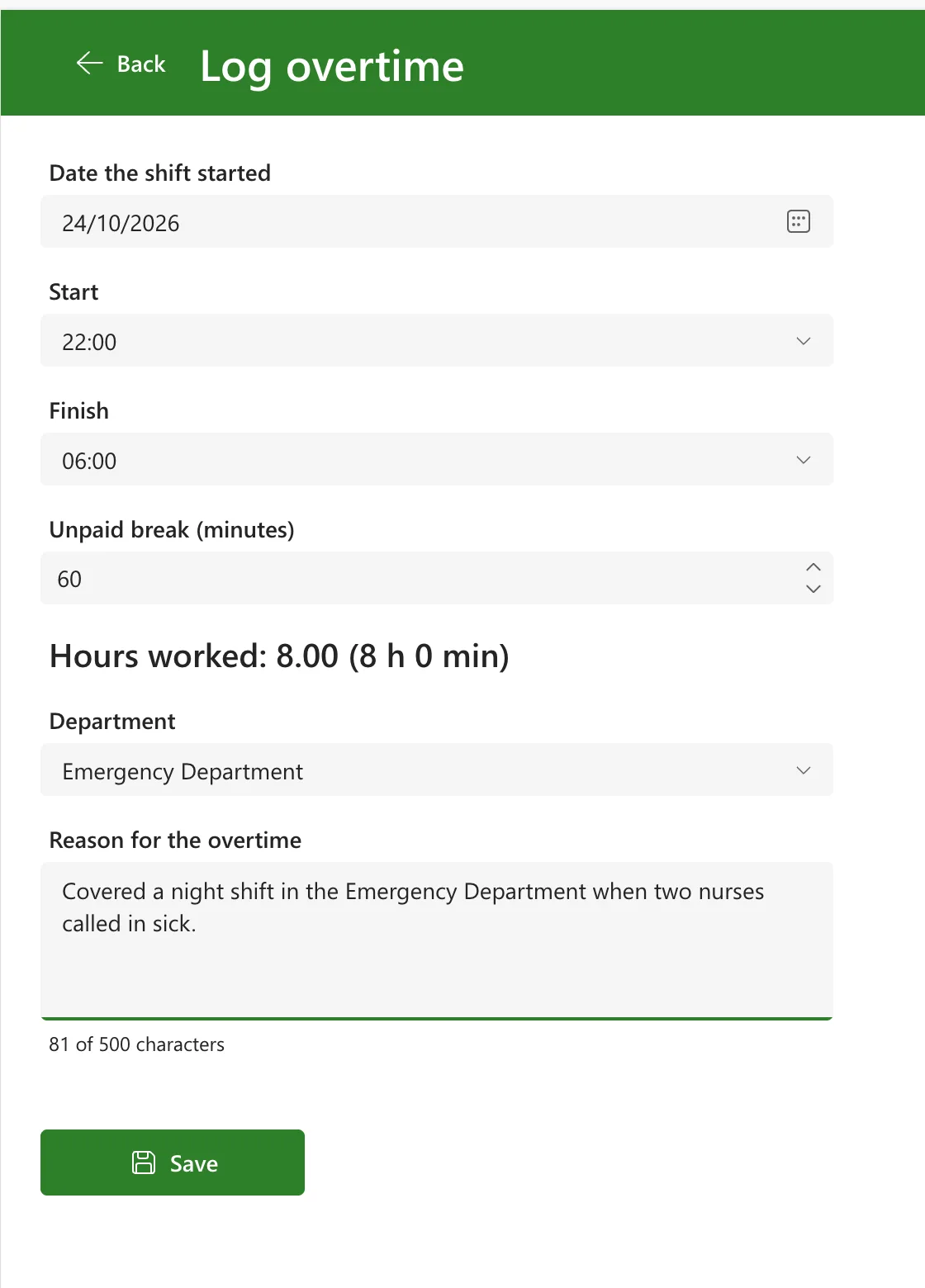
With every field filled in and nothing wrong, the message disappears and Save is enabled:
Common Mistakes
| Mistake | What happens | Do this instead |
|---|---|---|
IsEmpty(combo.SelectedItems) for "nothing chosen" | It's false before anything is chosen, so the check passes | IsBlank(combo.Selected) |
!IsBlank(txt.Text) for a required text | A reason of only spaces counts as filled in | !IsBlank(Trim(txt.Text)) |
| Writing each rule in both the label and the button | The two drift apart when one is changed | Rules in one function; the button checks the label |
| Every problem at once | A wall of red, and nobody knows where to start | Return the first problem only |
| Showing problems before the fields are filled in | People are told off while still typing | Check only once the fields the rules need are chosen |
Troubleshooting
| Symptom | Likely cause | Fix |
|---|---|---|
| Save stays disabled though everything looks right | One condition is still false | Put each condition into a text control for a moment, such as IsBlank(cmbEndLO.Selected), and see which one |
| A screen reader doesn't read the message | The label isn't a live region, or it's a modern Text control | A classic Label with Live set to Polite |
| The message never appears | The label's Text doesn't call the function, or it's hidden | Check its Text and Visible |
FAQ
Why not use an Edit form?
An Edit form saves one card per column. This screen works out several columns from the same controls: the start and finish from a date and two times, and the hours from both. Patch writes what the formula builds (How to Save a Date and Time to a SharePoint List with Patch in Power Apps).
Does the SharePoint list check anything?
Yes. Its validation rule refuses a finish that isn't after the start, a shift over a day, and a break as long as the shift, for anyone who edits an entry in the list itself (How to Add List Validation in SharePoint to Compare Two Columns). The app checks first and tells people in plain words.
Conclusion
Write the rules once, as a function that returns the first problem; show it in a live-region label once the fields it needs are filled in; and enable Save only when every field is filled in and the label is empty.
Additional Resources
- Understand data sources for canvas apps: when to use Patch instead of SubmitForm.
- If and Switch functions: the first true condition wins.
- Live regions for alerts: announcing changes to screen readers.
