How to Use Variables in Power Automate

A variable holds a value that the flow can change as it runs. Create it with Initialize variable at the top level of the flow, change it with Set variable wherever it's decided, such as in each branch of a condition, and read it with variables('Name').
The example is the approval flow of the Overtime Timesheet app. Who approves an entry depends on a condition: the department's other approvers in one branch, the person's manager in the other. The approval itself, after the condition, reads one variable.
Prerequisites
- A flow open in the new designer.
Step 1: Initialize the Variable at the Top Level
Add Initialize variable before the condition, at the flow's top level, not inside the condition. Microsoft's variables article says: You can declare variables only at the global level, not within scopes, conditions, and loops.
| Field | Value here |
|---|---|
| Name | ApproverEmails |
| Type | String |
| Value | empty |
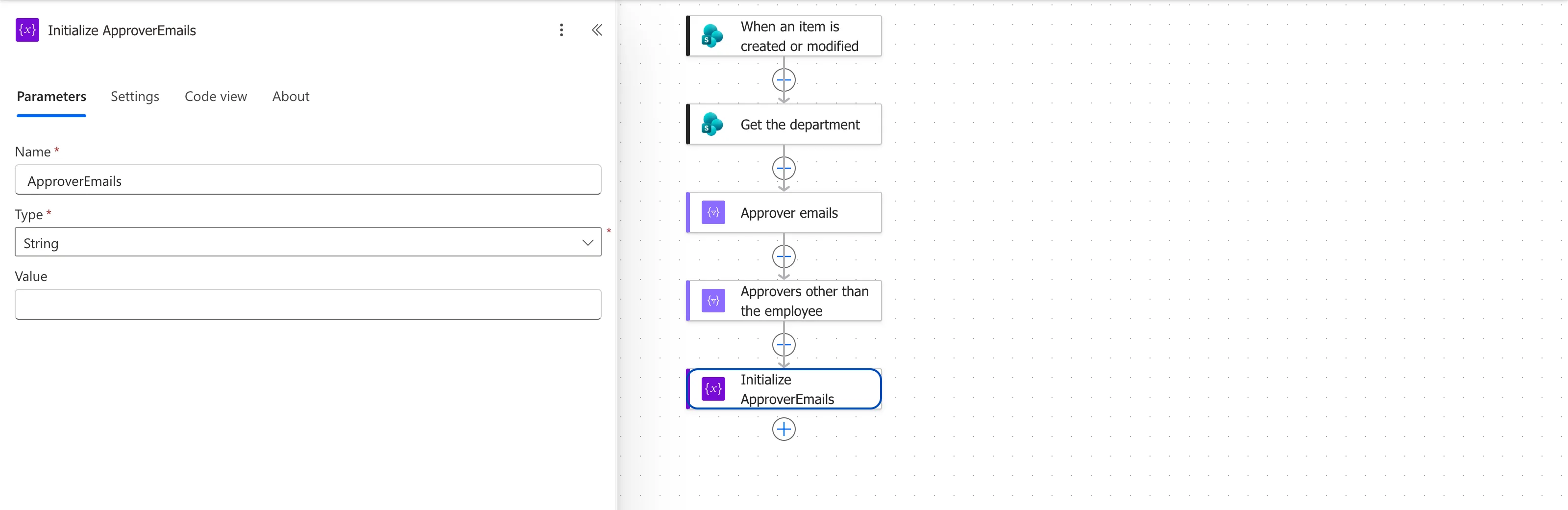
I named the action Initialize ApproverEmails, after the variable.
Step 2: Set It in Each Branch
Inside the condition, add Set variable to each branch, with the same Name and the value that branch decides. Microsoft's article says Both the new value and the variable must have the same data type.
True branch, Ask the other approvers. The department's approvers other than the person, joined into one line (How to Join an Array into Text in Power Automate):
join(body('Approvers_other_than_the_employee'), ';')
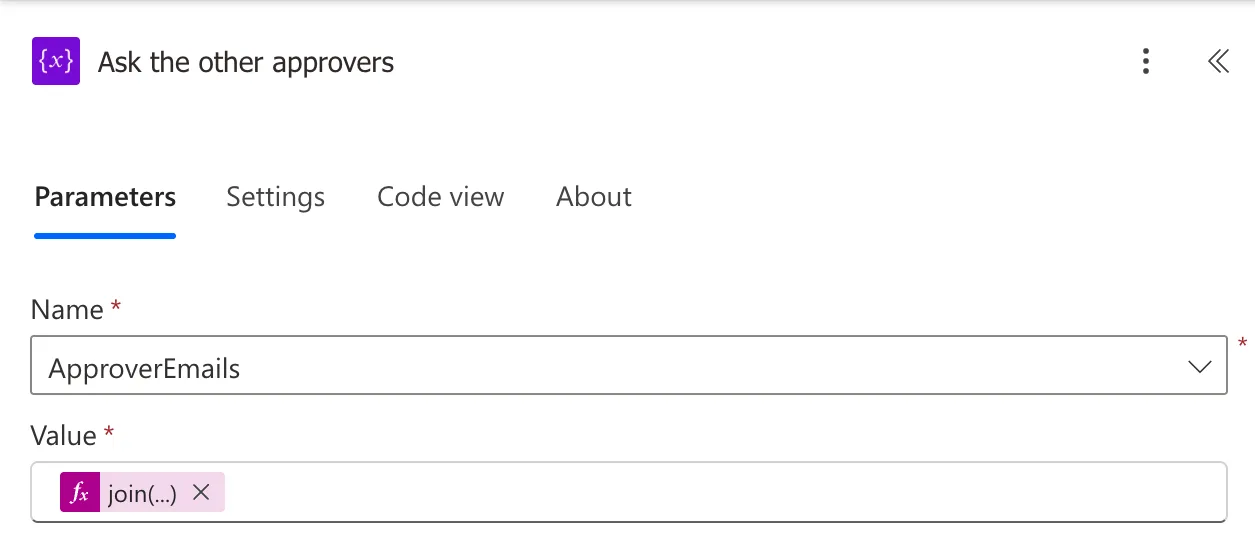
False branch, Ask the manager. The manager's email, from Get the manager (How to Get a User's Manager in Power Automate):
outputs('Get_the_manager')?['body/mail']
Step 3: Read It After the Condition
Anywhere after the condition, the variable is in the dynamic content list under Variables, or in an expression:
variables('ApproverEmails')
Here, it's the approval's Assigned to (How to Send an Approval Request in Power Automate).
The Result
In a run where the True branch ran, the raw inputs of Ask the other approvers showed the name and the value it set:
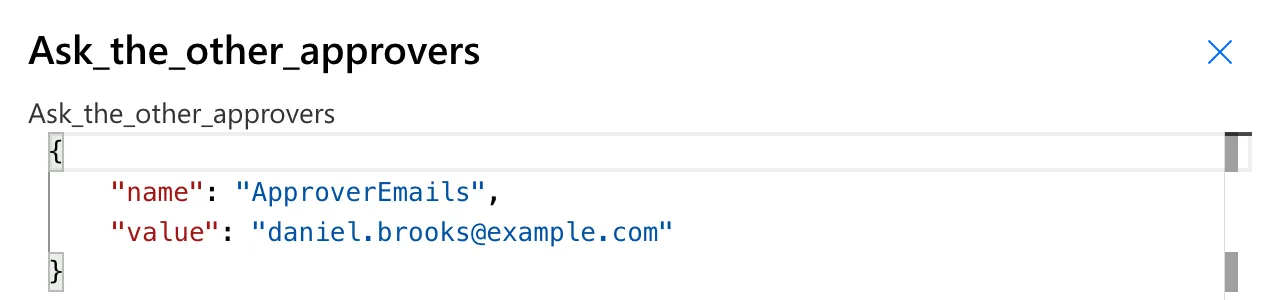
The approval went to that address. In a run where the False branch ran, Ask the manager set it to the manager's email, and the approval went to the manager.
Common Mistakes
| Mistake | What happens | Do this instead |
|---|---|---|
| Initialize variable inside a branch | Variables can only be declared at the top level, Microsoft's article says | Initialize it before the condition |
| A Set variable with a different type | The values must have the same type | Match the type you initialized |
| A Compose in each branch | Two outputs, and later actions must pick one | One variable set in both branches |
| Reading the variable before it's set in every path | An empty value in the path that doesn't set it | Set it in each branch |
Troubleshooting
| Symptom | Likely cause | Fix |
|---|---|---|
| The variable isn't in dynamic content | It's initialized after the action reading it | Move Initialize variable earlier |
| An empty value in a run | The path that ran didn't set it | Check each branch |
| Set variable shows no variables | None is initialized above it | Add Initialize variable first |
FAQ
Where do I see a variable's value in a run?
Open the run, select the Set variable action and choose Show raw inputs: it shows the name and the value set (How to See a Flow's Run History in Power Automate).
Variable or Compose?
A Compose holds one value that never changes. Use a variable when the value is decided in different places, as in two branches.
Conclusion
Initialize variable at the top level, Set variable where the value is decided, variables('Name') where it's used. The approval flow sets ApproverEmails in each branch of a condition and assigns the approval from that one variable.
Additional Resources
- Store and manage values in variables: initializing and setting variables.
