How to Use Theme Colors and Fonts in Power Apps Formulas

Modern controls follow your app's theme on their own. Containers and classic controls don't: their colors and fonts stay whatever you set. The fix is to point those properties at the theme itself with App.Theme, so a header bar or a title label changes along with everything else when you switch themes.
What App.Theme Gives You
App.Theme is the theme the app is using right now. Microsoft's theming documentation lists what's in it:
| Part | What it is | Example |
|---|---|---|
App.Theme.Colors | The theme's 16 colors, by name | App.Theme.Colors.Primary is the main brand color |
App.Theme.Font | The theme's font family | Used by modern controls for their text |
App.Theme.Name | The theme's name |
Prerequisites
- A modern theme applied. See How to Apply a Modern Theme in Power Apps.
- A control to style, such as a container or a classic Text label. The example uses the header of the Career Development Plan app's Home screen from Part 4 of the series: a horizontal container called
conHeaderHSwith a classic label calledlblTitleHSinside.
Step 1: Color a Container with the Theme
Select the container, choose Fill in the property list, and enter:
App.Theme.Colors.Primary
The preview strip under the formula bar shows the color and Data type: Color:
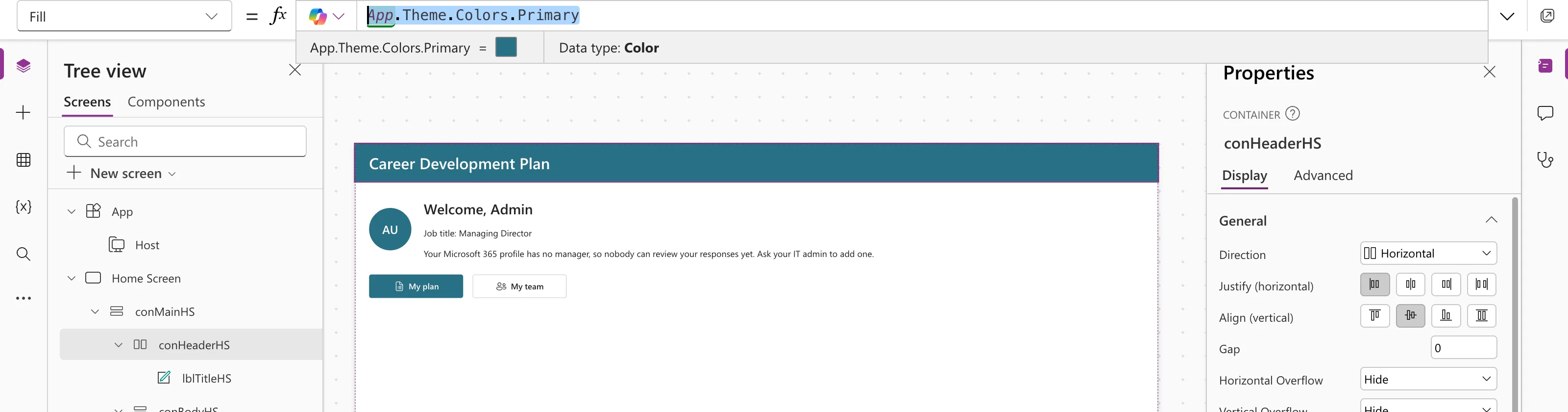
Because the formula reads the current theme, the header changes with it. In the example, it was blue under the Power Apps theme and turned teal when the theme changed to Steel, with no other edit.
Step 2: Give a Classic Label the Theme's Font
A classic Text label uses its own default font ('Open Sans', sans-serif in the example), not the theme's. Point it at the theme:
App.Theme.Font
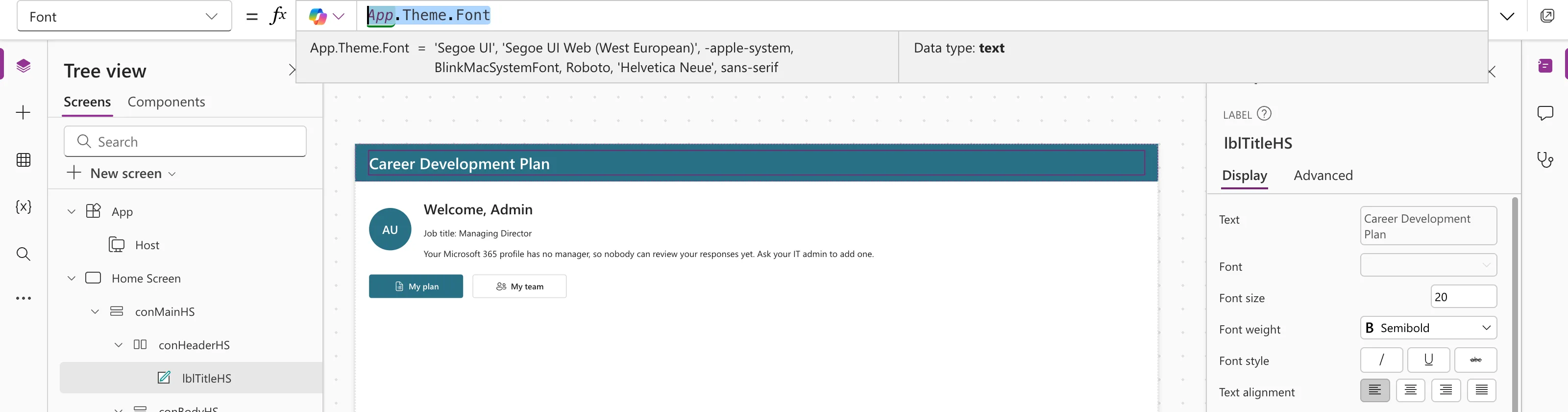
The title now uses the same font as the modern controls around it.
Step 3: Keep Text Readable
On a Primary background, use a light text color, such as Color.White. The example's title label has:
Color.White
Check the contrast whenever you change themes: Microsoft's accessibility guidance asks for a contrast ratio of at least 4.5:1 between text and its background.
Common Mistakes
| Mistake | What happens | Do this instead |
|---|---|---|
Typing a fixed color such as RGBA(15, 108, 189, 1) | The header stays blue when the theme changes | Use App.Theme.Colors.Primary |
Referencing a theme by name, such as SteelTheme.Colors.Primary | It ignores the app's current theme | Use App.Theme |
| Leaving a classic label on its default font | It looks different from the modern controls | Set Font to App.Theme.Font |
Troubleshooting
| Symptom | Likely cause | Fix |
|---|---|---|
App.Theme shows an error | Modern controls and themes are off | Turn them on |
| The color didn't change after switching themes | The property has a fixed color | Replace it with an App.Theme reference |
| Text is hard to read | Low contrast with the new color | Change the text color |
FAQ
Which color should a header use?
Primary is the theme's main brand color. In the example, the header and the modern Primary button came out in the same teal under Steel, so the screen looks consistent.
Do modern controls need this?
No. They follow the theme on their own. Use App.Theme for containers, classic controls and anything else you color yourself.
Does this work with a custom theme?
Yes. App.Theme is whichever theme is applied, built-in or custom.
Conclusion
App.Theme.Colors.Primary and App.Theme.Font let containers and classic controls follow the theme, so one change in the Themes pane restyles the whole app, header included.
Additional Resources
- Use modern themes in canvas apps: including using themes with Power Fx.
- Color accessibility in canvas apps: contrast guidance.
