How to Use the With Function in Power Apps

With gives a value a name for the length of one formula. Calculate it once at the top, then use the name as often as you need below. When the formula ends, the name is gone, so nothing is left behind on the screen.
Syntax
With({Name1: Value1, Name2: Value2}, Formula)
- The first argument is a record. Its fields become names you can use in Formula.
- Formula can calculate a value or perform actions, such as Patch.
Microsoft's With function reference says these names act like local variables confined to the With, and prefers With over context or global variables because it's self-contained.
Example: One Lookup, Used Three Times
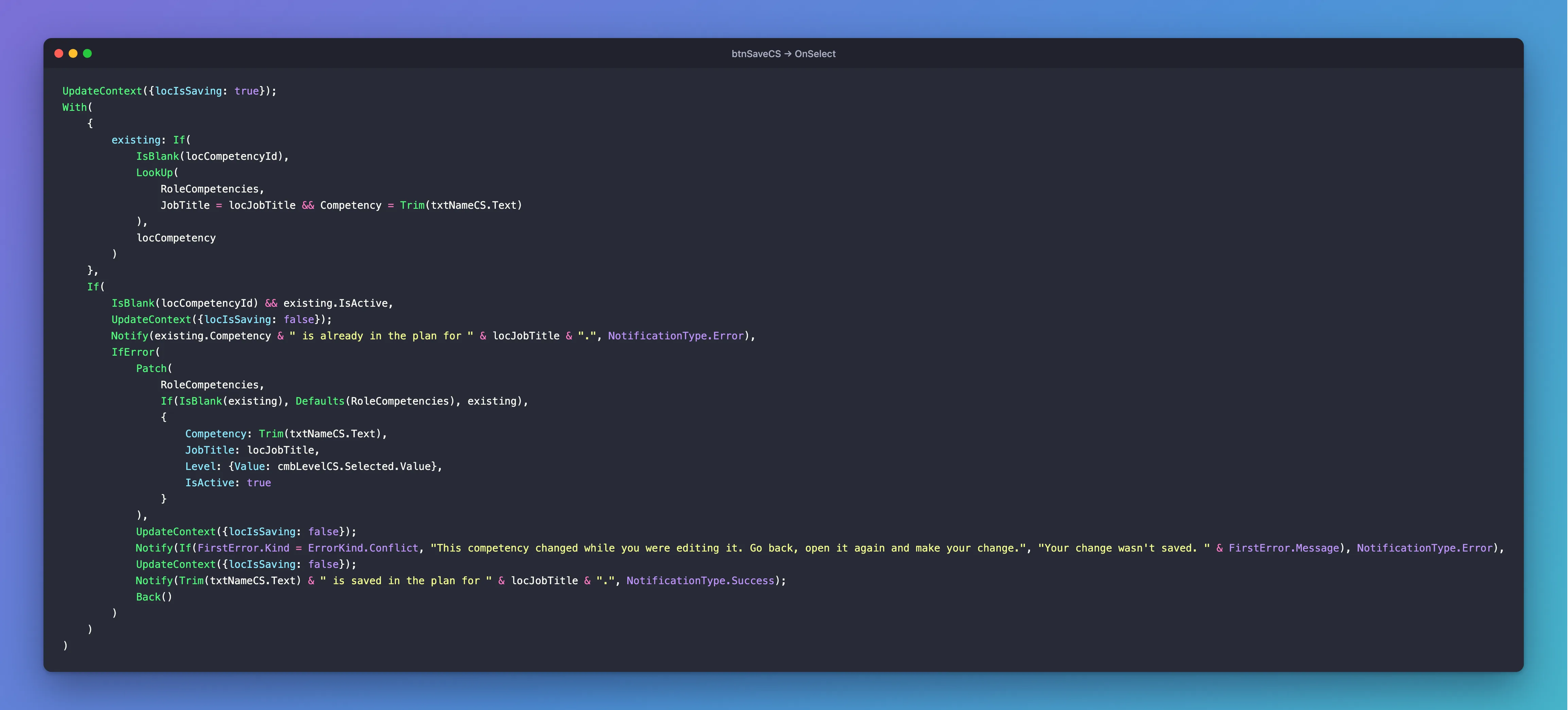
The Competency screen of the Career Development Plan app (Part 9) saves a competency. Before saving a new one, it looks for one with the same name and job title. That lookup is needed three times: to decide whether it's a duplicate, as the item to update, and in the message. With names it existing:
With(
    {
        existing: If(
            IsBlank(locCompetencyId),
            LookUp(
                RoleCompetencies,
                JobTitle = locJobTitle && Competency = Trim(txtNameCS.Text)
            ),
            locCompetency
        )
    },
    If(
        IsBlank(locCompetencyId) && existing.IsActive,
        Notify(existing.Competency & " is already in the plan for " & locJobTitle & ".", NotificationType.Error),
        Patch(
            RoleCompetencies,
            If(IsBlank(existing), Defaults(RoleCompetencies), existing),
            {...}
        )
    )
)
Inside the second argument, existing is the item found, or blank. SharePoint is asked once, even though the formula reads existing three times. The complete formula, with the columns it saves and IfError, is in Part 9:
With or UpdateContext?
| With | UpdateContext | |
|---|---|---|
| Lives | Only inside the formula | On the screen, until changed |
| Works in | Any formula, such as Text or Items | Behavior formulas only, such as OnSelect |
| Use it for | A value needed several times in one formula | A value other controls on the screen read |
existing is only needed while saving, so With fits. locCompetency, the item the screen loaded, is read by several controls, so it's a context variable (How to Use Context Variables with UpdateContext).
One Name from Another
In the example, existing repeats Trim(txtNameCS.Text) rather than using another name from the same record. To build one name from another, nest a second With: Microsoft's reference shows a mortgage calculator where the inner With uses the outer one's names.
Common Mistakes
| Mistake | What happens | Do this instead |
|---|---|---|
| Calling the same LookUp several times in one formula | The data source is asked several times | Name it once with With |
| A context variable for a value used only once | It stays on the screen after the formula | Use With |
| Using a With name outside its formula | Name isn't valid | Use it only inside the second argument |
Troubleshooting
| Symptom | Likely cause | Fix |
|---|---|---|
| A field of the name is blank | The value inside is blank, such as a LookUp that found nothing | Check it with IsBlank first |
| The whole formula returns an error | The first argument is an error, and With doesn't run the formula then | Fix the value being named |
FAQ
Can With perform actions?
Yes. The reference says the formula can calculate a value or perform actions, such as modifying data, like the Patch above.
Can I use With in a property like Text?
Yes. Unlike UpdateContext, With works in any formula.
Conclusion
With names a value for one formula. Use it when a formula needs the same value several times, and keep context variables for values the rest of the screen reads.
