How to Use the triggerBody() Function in Power Automate

The values a flow starts with, such as what someone typed into a manually triggered flow, are in the trigger's body. triggerBody() returns that body, and adding a key picks one value from it. This guide reads a name typed into a flow's input.
Syntax
triggerBody()?['<key>']
triggerBody(): the trigger's body. Microsoft's functions reference describes it as: Return a trigger's body output at runtime. Shorthand for trigger().outputs.body.?['<key>']: one value from the body, by its key. The?returns nothing instead of failing the flow when the key isn't there.<key>: the value's name in the body, in single quotes. A manual trigger names its inputs by type, not by the label you give them: the first text input istext, the secondtext_1, thentext_2, and so on.
The Example
A flow, Use triggerBody, has two parts:
- Manually trigger a flow (How to Create an Instant Cloud Flow Inside a Solution in Power Automate) with one text input, Name.
- A Compose action, Name typed, that reads it with
triggerBody()?['text'](How to Use the Compose Action in Power Automate).
Step 1: Add a Text Input
In the trigger, add a text input called Name, described as Who to greet (How to Add a Text Input to a Manually Triggered Flow in Power Automate):
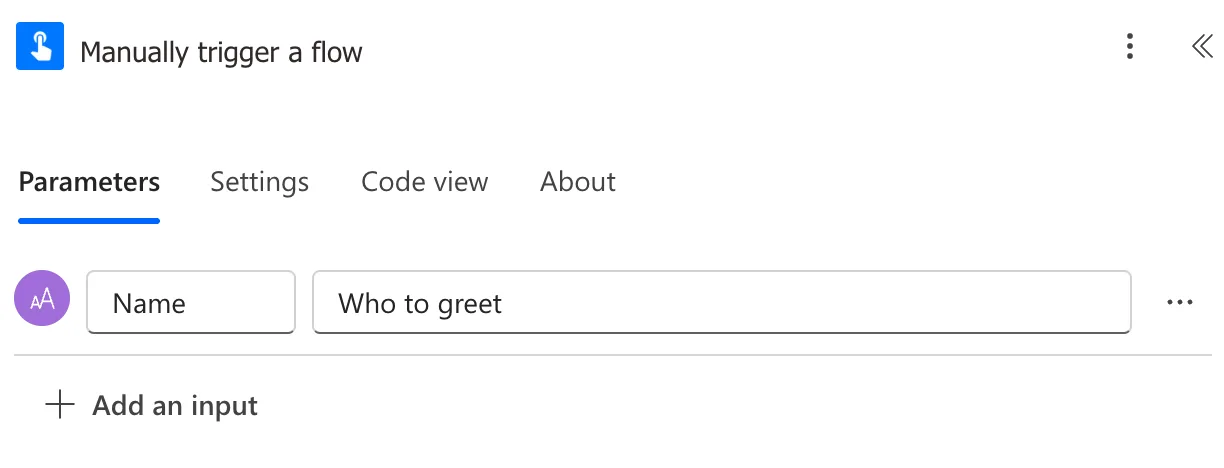
It's the trigger's first text input, so its key is text.
Step 2: Read It with triggerBody()
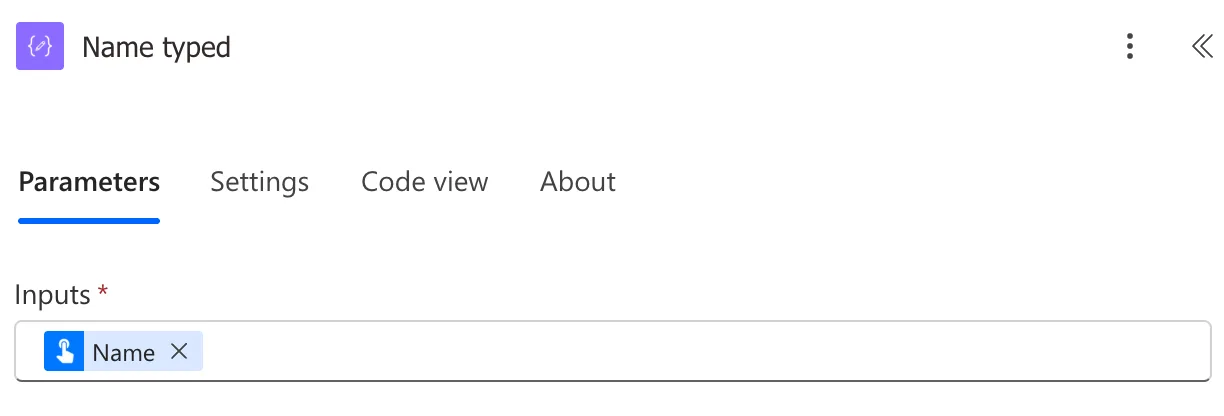
Add a Compose action and rename it Name typed. In Inputs, add this expression (How to Add an Expression in Power Automate):
triggerBody()?['text']
The designer recognises the expression and shows it as the trigger's Name token, the same token dynamic content offers:
Step 3: Run the Flow
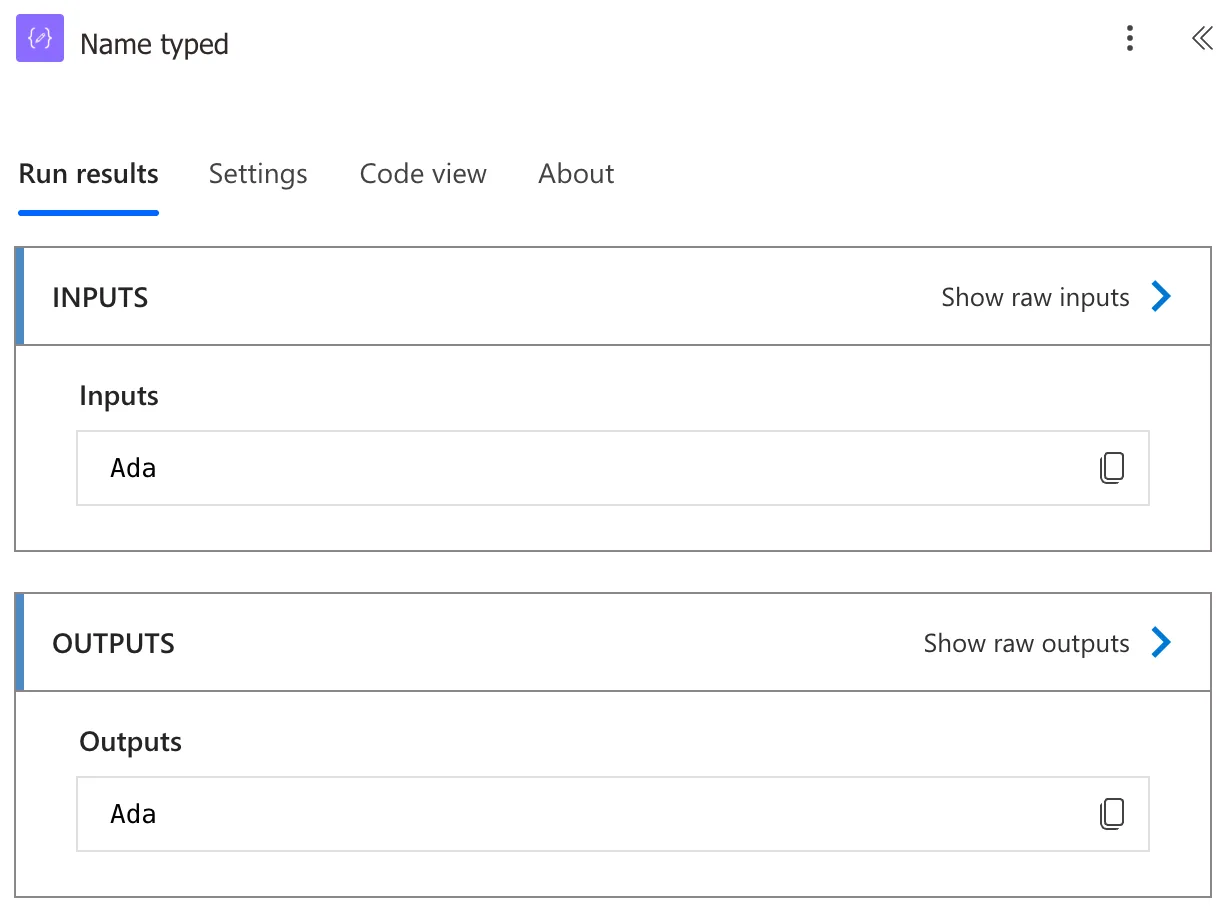
Save the flow and test it manually (How to Test a Cloud Flow Manually in Power Automate). Type Ada in Name and run it. In the run, the trigger's Body has one field, text, with the value Ada:

Name typed read it with triggerBody()?['text'], so its Inputs and Outputs are both Ada:
Common Mistakes
| Mistake | What happens | Do this instead |
|---|---|---|
Using the input's label as the key, ?['Name'] | The body has no Name key, so the result is empty | Use the key, such as text |
| Guessing the key of a second input | It's text_1, not text2 | Look at the trigger's body in a run |
Leaving out the ? | A missing key fails the flow instead of returning nothing | Write ?['<key>'] |
Troubleshooting
| Symptom | Likely cause | Fix |
|---|---|---|
| The result is empty | The key doesn't match the input | Read the key from the trigger's body in a run |
| The value comes from another input | The key belongs to another input | Check which input has which key |
| Only part of the body is wanted | triggerBody() alone returns all of it | Add ?['<key>'] |
FAQ
Is triggerBody() the same as the token in dynamic content?
Yes. Here the expression and the Name token are the same thing: the designer showed the typed expression as that token.
Does triggerBody() work with other triggers?
Yes, with triggers that start a flow with data. A SharePoint item trigger's body holds the item's columns, with the columns' internal names as the keys.
Where do I see all the keys?
In a run, select the trigger and look at its Body: every key is a row in the table.
Conclusion
triggerBody()?['<key>'] reads one of the values a flow started with. For a manual trigger the first text input's key is text, so triggerBody()?['text'] returned Ada, the name typed into the flow.
Additional Resources
- Reference guide to workflow expression functions:
triggerBody()andtrigger(). - Schema reference guide for the Workflow Definition Language: the
?operator.
