How to Use the Switch Function in Power Apps

When one value decides between several results (a status to a label, a level to a color) Switch says it once: here's the value, here are the matches, here's what each one gives. It's tidier than a chain of If tests that repeat the same value.
Syntax
Switch( Formula, Match1, Result1 [, Match2, Result2, ... [, DefaultResult ] ] )
Formula is worked out once. Its result is compared with each Match in order, and the Result of the first exact match is returned. If nothing matches, Switch returns DefaultResult, or blank if there isn't one (If and Switch functions).
Example 1: A Badge Color for Each Level
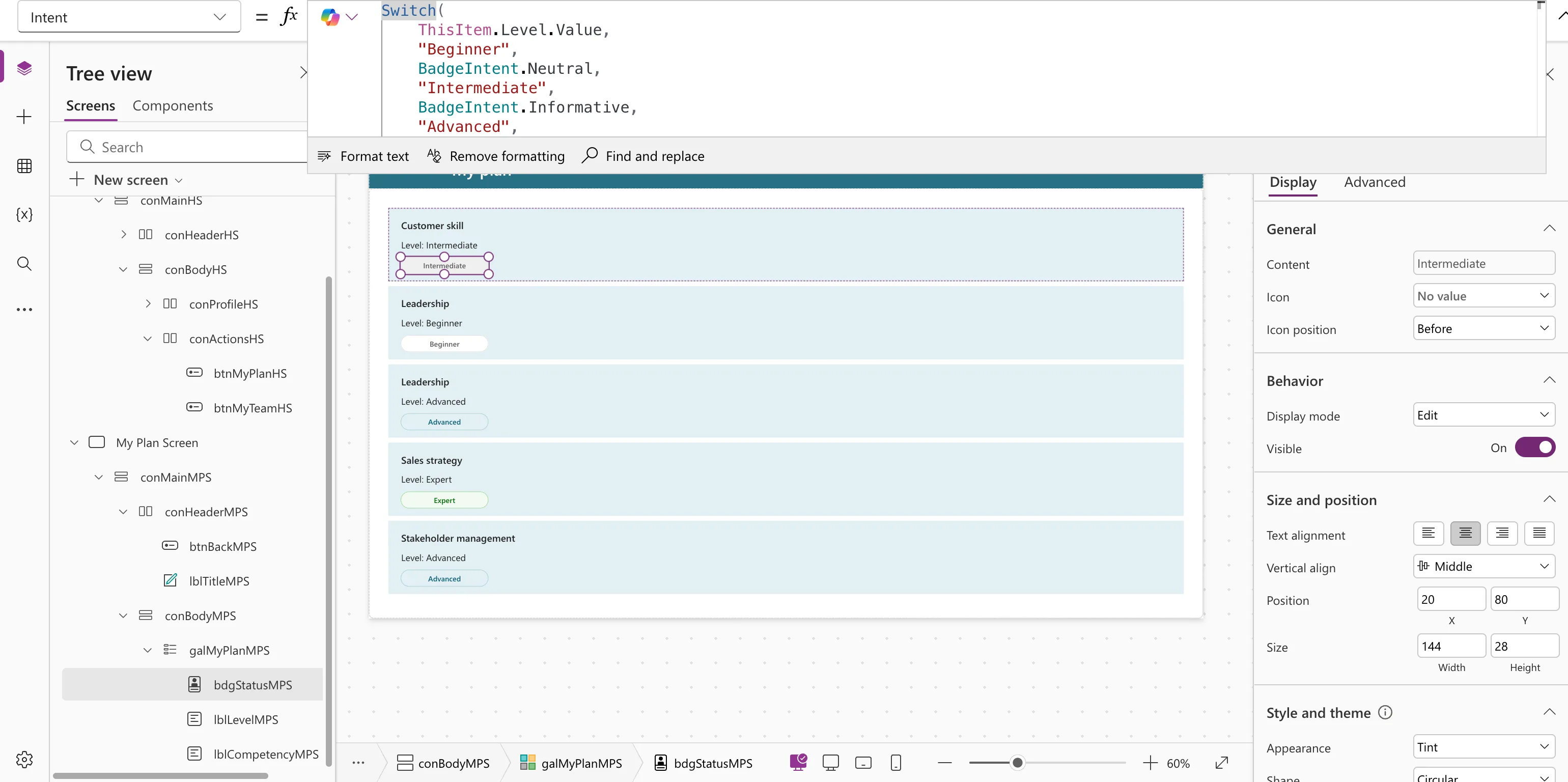
In the Career Development Plan app, a test badge in each gallery row showed the competency's level. Switch gives each level its own Intent, the badge's color (How to Add a Badge Control in Power Apps):
Switch(
    ThisItem.Level.Value,
    "Beginner", BadgeIntent.Neutral,
    "Intermediate", BadgeIntent.Informative,
    "Advanced", BadgeIntent.Highlight,
    BadgeIntent.Positive
)
The last argument has no match before it, so it's the default: here, Expert.
Example 2: Display Text for a Status
The app stores a response's status as Pending, Approved or Declined, and shows people something friendlier. LookUp finds the person's response to a competency, and Switch turns its status into the text to show. The stored values are named formulas (How to Use Named Formulas in Power Apps):
Switch(
    LookUp(
        locMyResponses,
        RoleCompetencyId = planItem.ID && Level = planItem.Level.Value
    ).Status.Value,
    StatusPending, "Waiting for review",
    StatusApproved, "Approved",
    StatusDeclined, "Declined",
    "Not started"
)
When there's no response, LookUp returns blank, nothing matches, and the default, Not started, is returned. The full formula is in Part 5 of the series.
Switch or If?
| Use | When |
|---|---|
| Switch | One value, compared with several possible matches |
| If | Several different conditions, or comparisons other than "equals" (How to Use the If Function in Power Apps) |
Common Mistakes
| Mistake | What happens | Do this instead |
|---|---|---|
| Forgetting the default | Values you didn't list give blank | Add a last argument |
| Matches with different spelling or spacing | They never match: Switch needs an exact match | Use the exact stored values, ideally named formulas |
| Using Switch for ranges such as "over 100" | It only tests equality | Use If |
Troubleshooting
| Symptom | Likely cause | Fix |
|---|---|---|
| Always the default result | The value never matches exactly | Check the value in the formula bar's preview strip |
| Name isn't valid on a match | A named formula used as a match doesn't exist yet | Add it to App.Formulas first |
FAQ
Is the first argument worked out once or for each match?
Once. Microsoft's reference says so, which also makes Switch cheaper than repeating the same value in an If.
Can the results be actions?
Yes, in behavior properties such as OnSelect: only the matching branch runs.
Conclusion
Switch(value, match1, result1, ..., default) returns the result of the first exact match, or the default. Use it whenever one value picks between several outcomes.
Additional Resources
- If and Switch functions: syntax and examples.
