How to Use the If Function in Power Apps

If is how a canvas app makes decisions: show this text or that, use this color or that, run this action or not. It takes a condition, a result for when it's true, and (optionally) a result for when it's false. Here's the syntax and two real examples that change a message depending on what Microsoft 365 knows about the user.
Syntax
If( Condition, ThenResult )
If( Condition, ThenResult, ElseResult )
If( Condition1, Result1, Condition2, Result2, ..., DefaultResult )
If checks each condition in order and returns the result for the first one that's true. If none are true, it returns the default, or blank when there isn't one (If reference).
Prerequisites
- A canvas app with a Text control. The example uses the job title and manager lines of the Career Development Plan app's Home screen, from Part 4 of the series.
Example 1: A Value, or a Message When It's Missing
The app shows the person's job title, or tells them how to get one:
If(
    IsBlank(MyJobTitle),
    "Your Microsoft 365 profile has no job title, so there's no plan to show yet. Ask your IT admin to add one.",
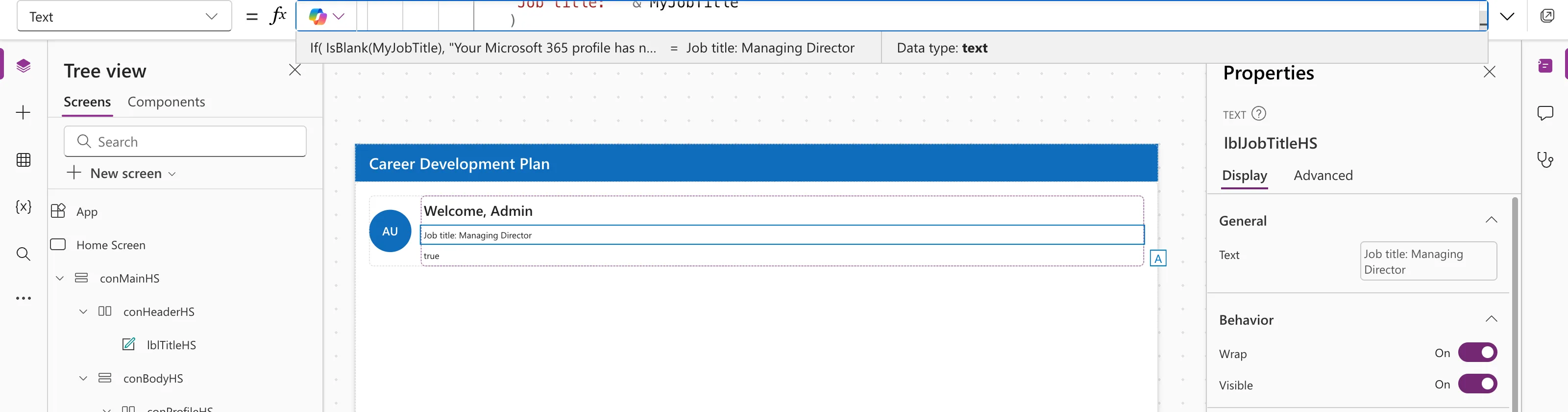
    "Job title: " & MyJobTitle
)
The admin has a job title, so the else result shows:
Example 2: The Other Branch
The same pattern for the manager:
If(
    IsBlank(MyManager),
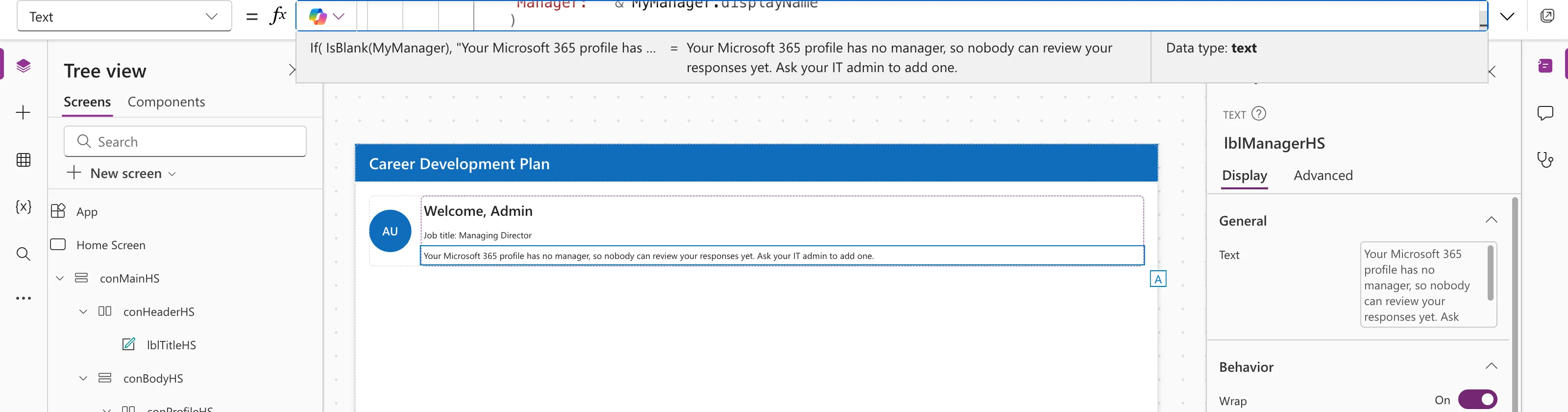
    "Your Microsoft 365 profile has no manager, so nobody can review your responses yet. Ask your IT admin to add one.",
    "Manager: " & MyManager.displayName
)
The admin has no manager, so the then result shows:
Both use IsBlank for the condition; see IsBlank vs IsEmpty in Power Apps.
Several Conditions Without Nesting
Instead of If(a, x, If(b, y, z)), list the pairs:
If(
    Status = "Approved", "✓ Approved",
    Status = "Declined", "Needs changes",
    "Waiting for review"
)
When every condition compares the same value, Switch is tidier: Switch(Status, "Approved", …, "Declined", …, "Waiting for review").
Common Mistakes
| Mistake | What happens | Do this instead |
|---|---|---|
| No else result where a value is required | The control shows nothing when the condition is false | Add an else |
| Results of different types | An error or a surprising conversion | Return the same type from every branch |
| Deeply nested Ifs | Hard to read | List condition-result pairs, or use Switch |
Troubleshooting
| Symptom | Likely cause | Fix |
|---|---|---|
| The wrong branch shows | The condition isn't what you think | Select the condition in the formula bar to see its value |
| Nothing shows | No else, and the condition is false | Add an else |
| A long formula is hard to read | Everything on one line | Expand the formula bar and use Format text |
FAQ
Can If run actions?
Yes, in behavior properties such as OnSelect: If(IsBlank(txtName.Value), Notify("Enter a name"), SubmitForm(frmMain)).
What does If return with no else?
Blank, when the condition is false.
Is there an "else if"?
Yes: keep adding condition-result pairs in the same If.
Conclusion
If(condition, then, else) picks between results; add more condition-result pairs for more cases. Always give a value-returning If an else, and keep every branch the same type.
Additional Resources
- If and Switch functions: syntax and examples.
