How to Use the equals() Function in Power Automate

Are these two hours the same? Is this the person we're looking for? equals() compares two values and returns true when they're the same, and not() turns that into "different".
Syntax
equals('<object1>', '<object2>')
From Microsoft's functions reference:
<object1>,<object2>(required): the values, expressions or objects to compare.- The result is
truewhen both are equivalent, andfalsewhen they're not.
Microsoft's examples: equals(true, 1) is true, and equals('abc', 'abcd') is false.
The opposite, "not the same", is not(equals(...)): not() turns true into false and false into true.
The example is Import Old Overtime Timesheet, a flow of the Overtime Timesheet app that copies an old Excel timesheet into SharePoint. The flow works out each shift's hours again from its times and break, and keeps a list of the shifts where its answer differs from the workbook's Hours column. Ben Harris's night shift on 24 October 2026 crossed the clock change: the flow says 8 hours, the workbook says 7.
Step 1: Make Both Values the Same Kind
The flow's Hours is text with two decimals, such as 8.00, from formatNumber (How to Format a Number with Two Decimal Places in Power Automate). The workbook's Hours is a number, 7. Compared as they are, 8.00 the text and 8 the number aren't the same kind of value. Format the workbook's number the same way:
formatNumber(float(items('For_each_old_row')?['Hours']), '0.00')
float() makes it a number with decimals, and formatNumber(..., '0.00') returns 7.00. Now both sides are text in the same format.
Step 2: Compare Them in a Condition
Add a Condition and name it Hours differ from the workbook (How to Add a Condition in Power Automate). In the left box, add this expression (How to Add an Expression in Power Automate); choose is equal to; in the right box, add the expression true:
not(equals(outputs('Hours'), formatNumber(float(items('For_each_old_row')?['Hours']), '0.00')))
Code view shows how the designer saves a condition row: an equals of the two boxes, inside an and that holds the condition's rows:
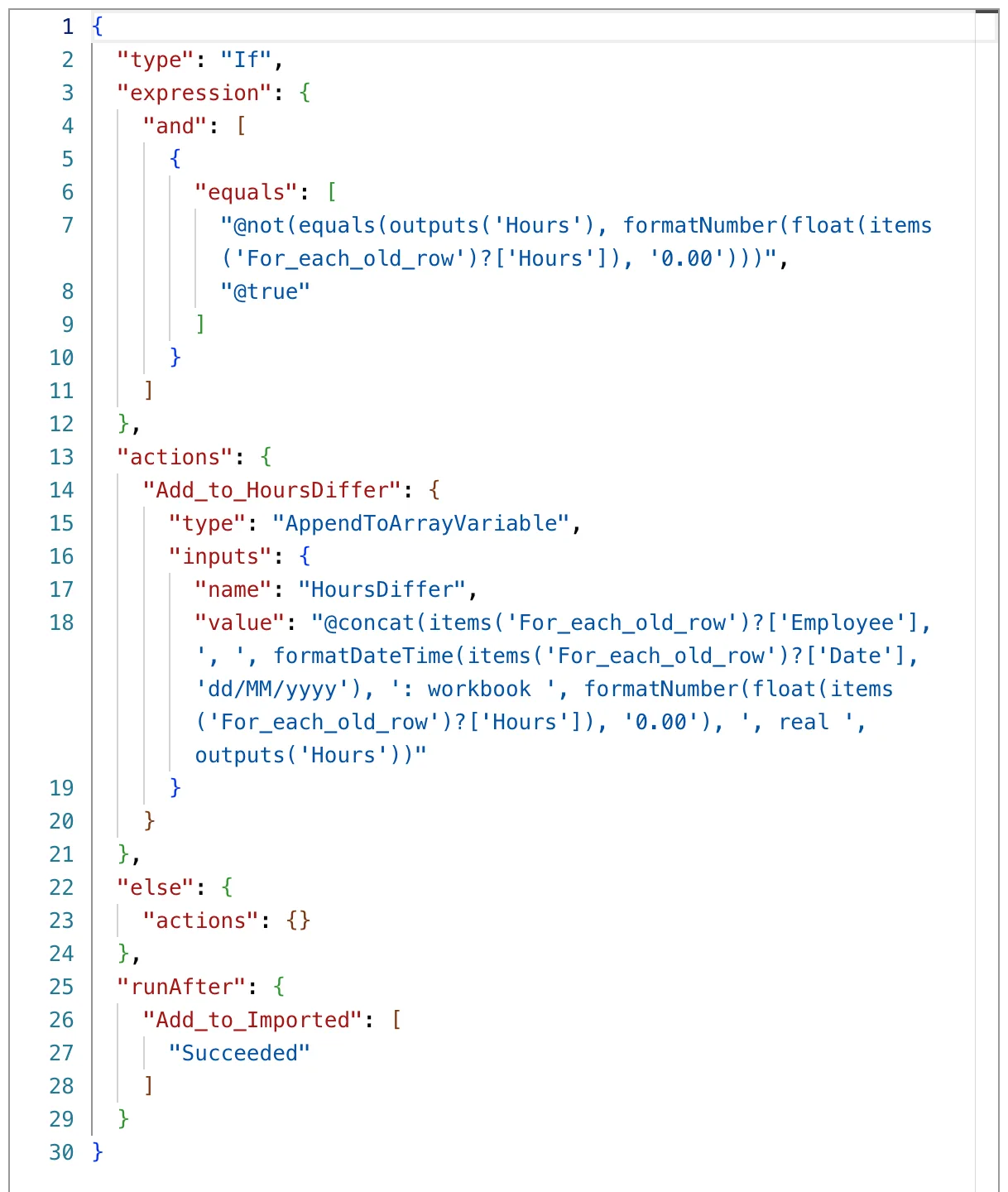
In the True branch, Add to HoursDiffer adds a line to an array variable (How to Add Items to an Array Variable in Power Automate). The False branch is empty.
The Result
For Ben's shift, equals('8.00', '7.00') was false, so the condition was true, and Add to HoursDiffer ran:
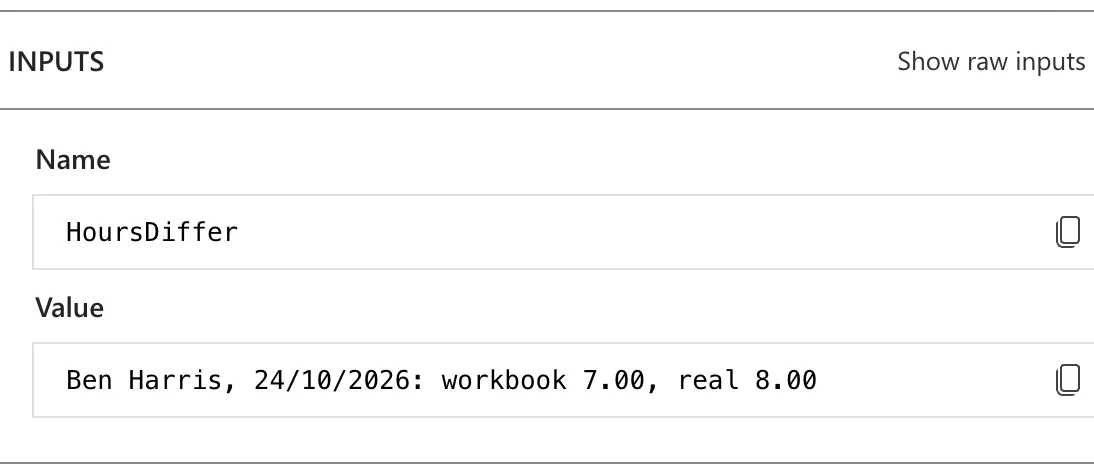
For Aisha Khan's shift on 2 October, both were 3.50, so the condition was false. Add to HoursDiffer was skipped, with this message:

The condition's own pane in the run looked the same for both shifts, so it doesn't tell you which way the condition went. Whether its actions ran or were skipped does.
Step 3: Compare Text Whatever the Case
The same flow finds each person by name in Microsoft 365, then keeps the results whose name is exactly the name in the workbook. The reference doesn't say whether equals() ignores upper and lower case, so the Filter array named Exact name matches lowers both sides first with toLower():
equals(toLower(item()?['DisplayName']),toLower(items('For_each_old_row')?['Employee']))
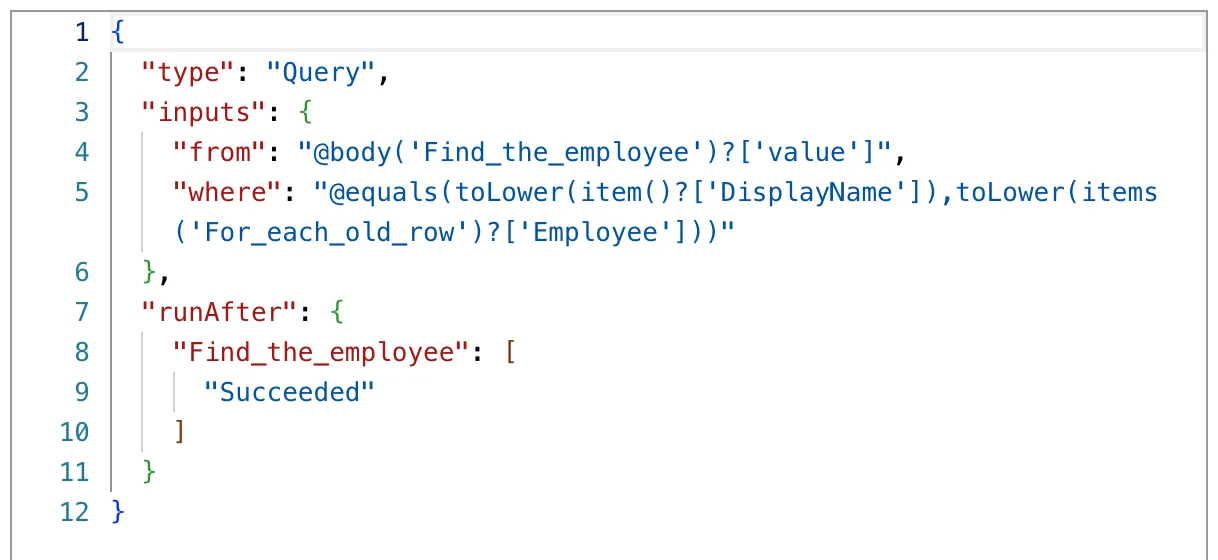
Aisha Khan and aisha khan both become aisha khan, so they're equal whatever the case in either place (How to Filter an Array in Power Automate).
Common Mistakes
| Mistake | What happens | Do this instead |
|---|---|---|
Comparing 8.00 the text with a number | Two kinds of value, so the result isn't what you meant | Format both sides the same way |
formatNumber() with '0.0' on one side and '0.00' on the other | 7.0 and 7.00 aren't the same text | Use the same format on both sides |
| Reading the condition's pane in a run | It looked the same whichever way the condition went | Check whether the branch's actions ran |
| Comparing names with different cases | Aisha Khan and aisha khan might not match | toLower() on both sides |
Troubleshooting
| Symptom | Likely cause | Fix |
|---|---|---|
Always false for values that look the same | Different kinds of value, or different formats | Show both in a Compose and compare |
| The True branch never runs | The condition compares the result with false, or not() is missing | Check the row in Code view |
| ActionBranchingConditionNotSatisfied | The condition went the other way | Expected for the branch that didn't run |
| This expression has a problem when you add it | The designer showed it for correct expressions too | Select Add again (Fixed: "This expression has a problem" in Power Automate) |
FAQ
Is there a notEquals() function?
Not in the reference. Use not(equals(...)), or in a Condition, the operator is not equal to.
Why put not(equals()) in the left box and true in the right?
The whole test is one expression, which reads the same in Code view, a Filter array or an if(). The Condition's is not equal to with the two values in the boxes works too.
What about strongEquals()?
The reference lists strongEquals() too, to check whether values of the same type are equivalent. The example avoids the question by giving both sides the same type and format.
Conclusion
equals(a, b) is true when two values are the same, and not(equals(a, b)) when they differ. Give both sides the same kind and format first, numbers formatted as text with the same decimals, names in lower case, and the comparison says what you mean.
Additional Resources
- Reference guide to functions in expressions: equals
- Logical comparison functions:
not,strongEqualsand the others
