How to Use the Compose Action in Power Automate

Compose holds a value for the rest of the flow: a number, some text, or a whole JSON document. Later actions use it as Outputs. It's the simplest way to keep a flow's settings in one place, and this guide uses it for exactly that.
Prerequisites
- A flow open in the designer. See How to Create an Instant Cloud Flow Inside a Solution.
The example is List definitions from the setup flow in Part 11 of the Career Development Plan series: a JSON array that describes the two SharePoint lists the flow creates.
Step 1: Add Compose
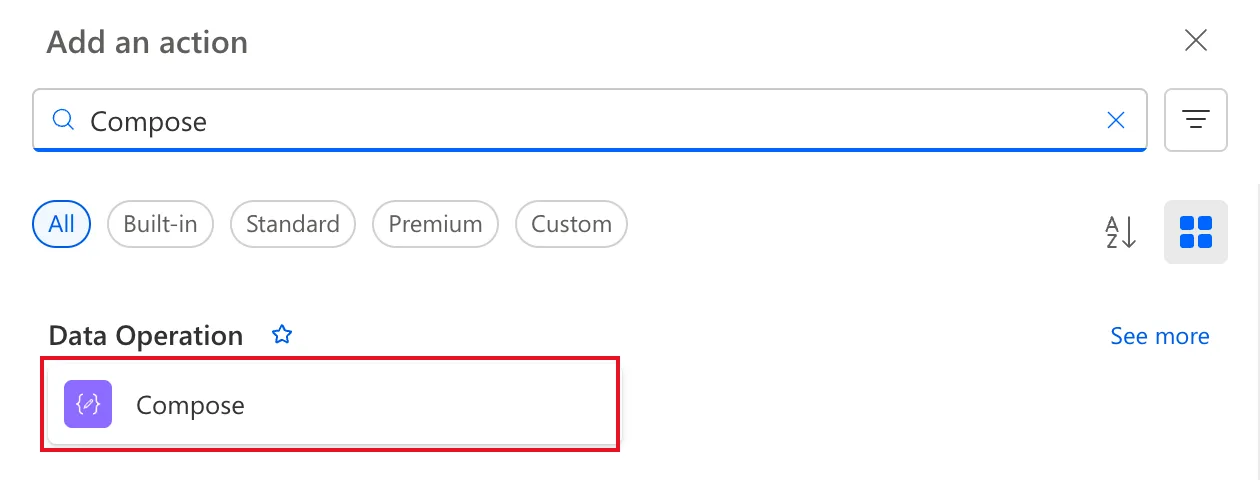
Select the + where the action should go, then Add an action. Search for Compose and select it under Data Operation:
Step 2: Rename It
Select the name at the top of the action's pane, Compose, and type a name that says what it holds, here List definitions.
Rename it before other steps use it. Expressions refer to an action by its name, with underscores for spaces, so the output of List definitions is:
outputs('List_definitions')
Step 3: Enter the Value
Type or paste the value into Inputs. For JSON, paste the whole document. Here's the start of the setup flow's, with one list and its first column:
[
  {
    "title": "RoleCompetencies",
    "description": "Competencies and expected levels for each job title. Used by the Career Development Plan app.",
    "noCrawl": false,
    "columns": [
      {
        "name": "Competency",
        "schemaXml": "<Field Type='Text' Name='Competency' StaticName='Competency' DisplayName='Competency' Description='The name of the competency, such as Customer skill or Leadership.' Required='TRUE' MaxLength='255' />"
      }
    ]
  }
]
Part 11 has the complete array, with both lists and all 16 columns. In the designer, the pane shows it as you pasted it:
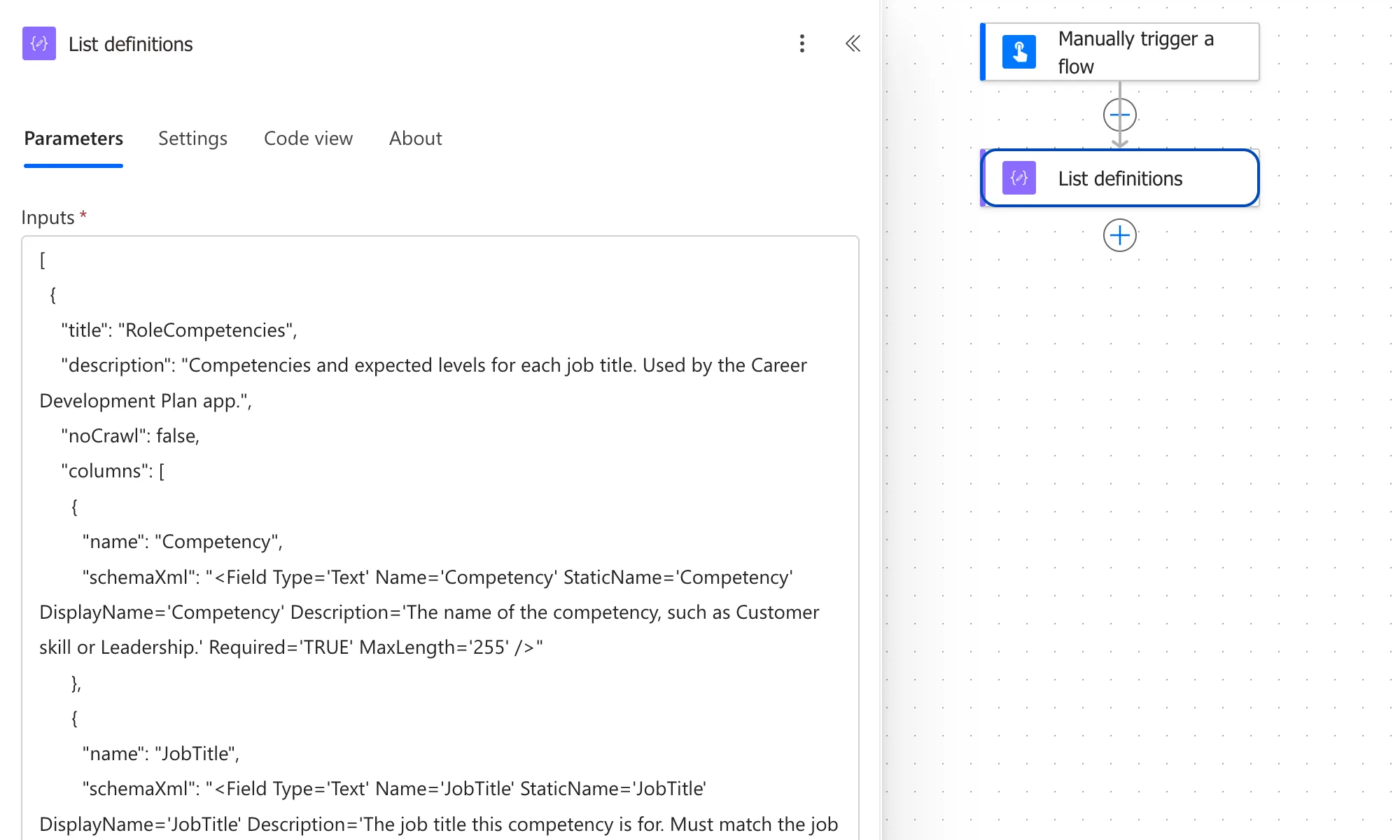
Keep the JSON valid: double quotes around names and text, and commas between items. In the example, the XML inside each schemaXml uses single quotes, so it doesn't clash with the JSON's double quotes.
Step 4: Use the Output
Later actions find the value as Outputs under List definitions in dynamic content. Apply to each uses it to loop over the lists (How to Loop Through an Array with Apply to Each):
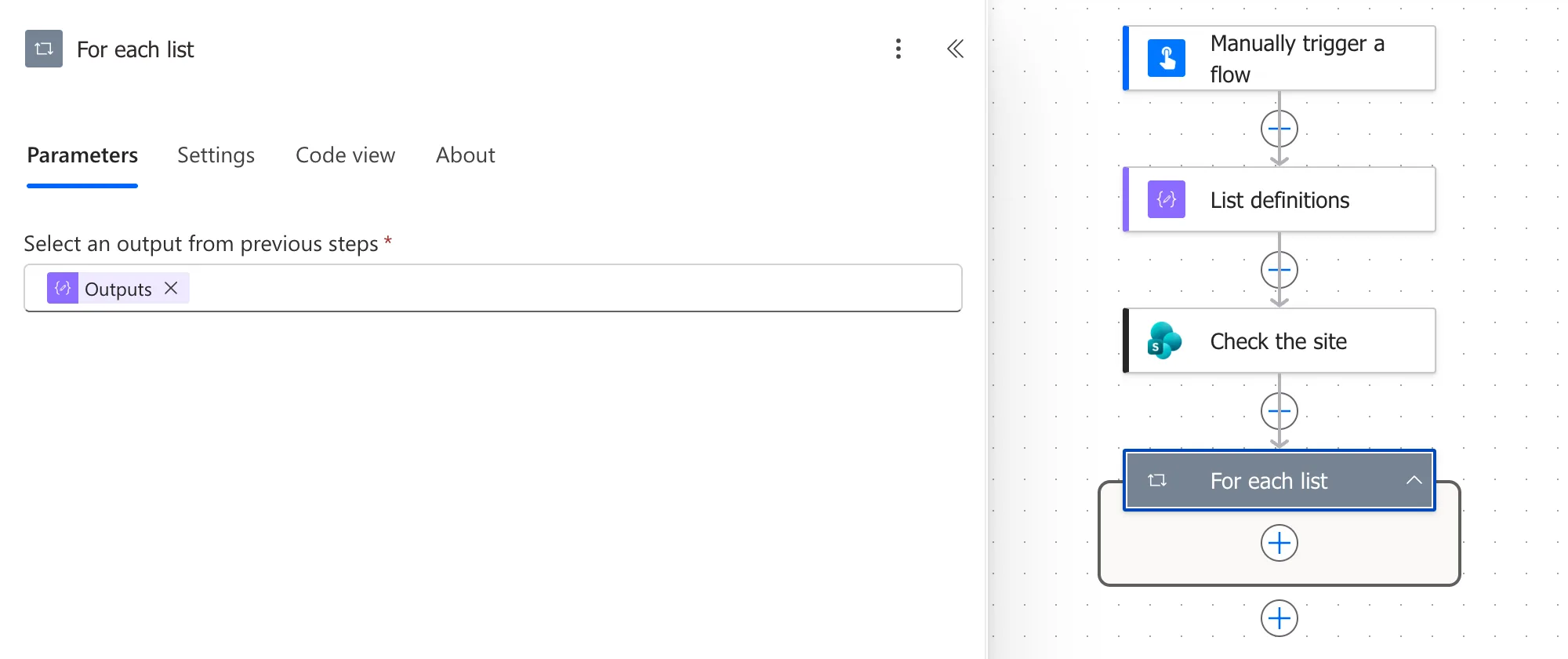
Because the text was valid JSON, the loop received an array of two items, one per list. In the test run, the loop's inputs listed 0.title as RoleCompetencies.
Common Mistakes
| Mistake | What happens | Do this instead |
|---|---|---|
| Renaming after other steps use it | Their expressions point to the old name | Rename it first |
| Invalid JSON | Later steps can't read it as an array | Check quotes and commas |
| Double quotes inside a JSON string | The JSON breaks | Use single quotes inside, as the XML does here |
Troubleshooting
| Symptom | Likely cause | Fix |
|---|---|---|
| A loop over Outputs fails | The value isn't an array | Check the JSON starts with [ and is valid |
| Outputs isn't in dynamic content | You're in a step above the Compose | Use it only in steps after it |
FAQ
Why Compose and not a variable?
A variable is for a value that changes during the run. This list never does, and Compose needs no Initialize variable step.
How big can the value be?
The setup flow's array is about 5 KB, which was no problem. For very large data, keep it somewhere else, such as a file or a list.
Conclusion
Add Compose, rename it before anything uses it, paste the value into Inputs, and use Outputs in later steps or outputs('Your_name') in expressions. Valid JSON arrives as JSON, ready to loop over.
Additional Resources
- Use data operations in Power Automate: Compose and the other data operations.
- Reference guide to functions in expressions: the
outputs()function.
