How to Use Structured References in an Excel Table

Inside an Excel table, formulas can name columns instead of cells. =[@Finish]-[@Start] reads as "this row's Finish minus this row's Start", which is clearer than =E2-D2 and keeps working when rows are added or moved. These are structured references.
The examples are from the OvertimeLog table in the old overtime timesheet, from Part 1 of the Overtime Timesheet series.
Prerequisites
- An Excel table with headings, such as the one made in How to Format Data as a Table in Excel and named in How to Rename a Table in Excel.
The Three Forms You'll Use
| You write | It means | Used in the timesheet for |
|---|---|---|
[@Finish] | This row's value in the Finish column | Hours worked in each row |
[@[Break (mins)]] | This row's value in a column whose name has spaces or brackets | Subtracting the break |
OvertimeLog[Hours] | The whole Hours column of the OvertimeLog table | Totals on another sheet |
The @ means "this row". The extra square brackets in [@[Break (mins)]] are needed because the column name contains a space and brackets.
Step 1: Type a This-Row Formula
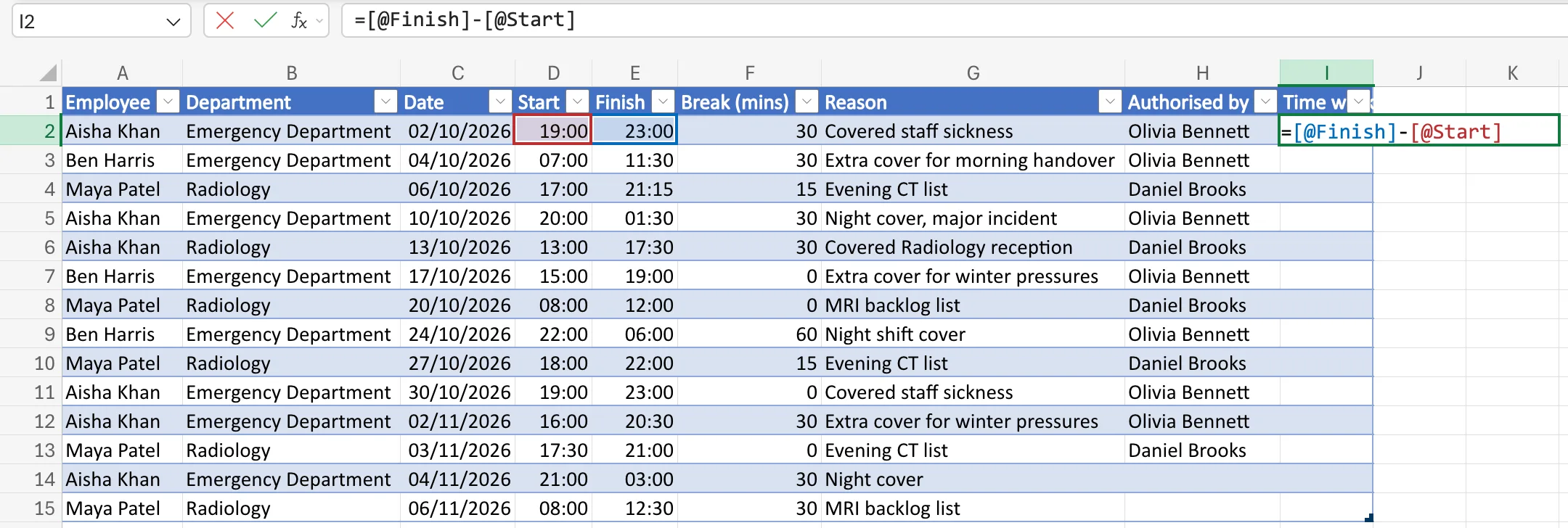
In the first data row of a table column, type a formula that names columns. I added a Time worked column by typing its heading in I1, then typed in I2:
=[@Finish]-[@Start]
As you type, Excel colours each reference and outlines the cell it uses in this row, D2 and E2:
Step 2: Press Enter
Press Enter. Each row's formula is the same text, =[@Finish]-[@Start], and each one uses its own row's values:
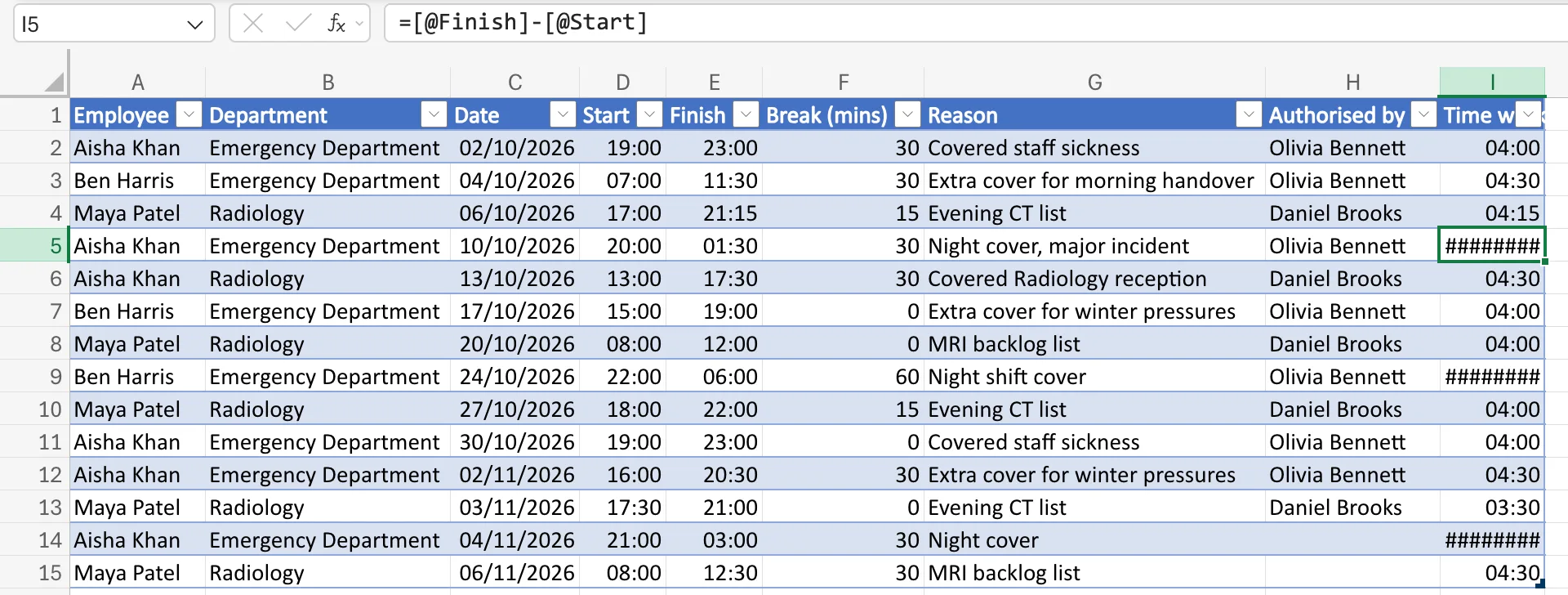
The overnight rows show ######## because their finish time is earlier than their start; Fixed: Excel Shows ######## for Overnight Shift Hours fixes that.
Step 3: Refer to a Whole Column from Another Sheet
From outside the table, use the table's name and the column's name. The Monthly totals sheet adds up hours with:
=SUM(OvertimeLog[Time worked])
OvertimeLog[Time worked] grows with the table, so new rows are included without changing the formula.
Common Mistakes
| Mistake | What happens | Do this instead |
|---|---|---|
Writing [@Break (mins)] | Excel can't read a name with spaces in single brackets | Use [@[Break (mins)]] |
| Typing the column name differently from its heading | Excel can't find the column | Match the heading exactly, or select the cell while typing the formula and let Excel write it |
Using OvertimeLog[Hours] inside the table when you mean this row | You get the whole column, not one value | Use [@Hours] |
Troubleshooting
| Symptom | Likely cause | Fix |
|---|---|---|
| Excel says the formula has a problem | A bracket is missing or a name is misspelt | Check each [ has its ] |
| A formula refers to the wrong table | Two tables have similar names | Rename tables clearly |
FAQ
Do structured references work outside tables?
TableName[Column] works anywhere in the workbook. [@Column] only makes sense inside the table, where there's a "this row".
Are structured references slower than cell references?
They're the same calculation written with names, and they're what Excel writes for you when you select cells inside a table while typing a formula.
Conclusion
In a table, name columns instead of cells: [@Column] for this row, [@[Column with spaces]] when the name has spaces, and Table[Column] for the whole column.
