How to Use Send an HTTP Request to SharePoint in Power Automate

The SharePoint connector has ready-made actions for items and files, but not for everything, such as creating a list with its columns. Send an HTTP request to SharePoint fills the gap: it calls SharePoint's REST API with your connection. It's part of the standard SharePoint connector, so it needs no premium license. This guide builds a first request that reads a site's title.
Prerequisites
- A flow open in the designer, ideally in a solution with a SharePoint connection reference. See How to Create a Connection Reference in a Solution.
- A SharePoint site you can open. The example reads the test site created for Part 11 of the Career Development Plan series.
Microsoft's article Working with the SharePoint Send HTTP Request flow action calls it a developer-focused action, and the connector reference warns that it can run any SharePoint REST API you have access to. Every request runs with the connection's permissions, so test against a test site.
Step 1: Add the Action
Select the + where the action should go, then Add an action. Search for Send an HTTP request to SharePoint and select it under SharePoint:
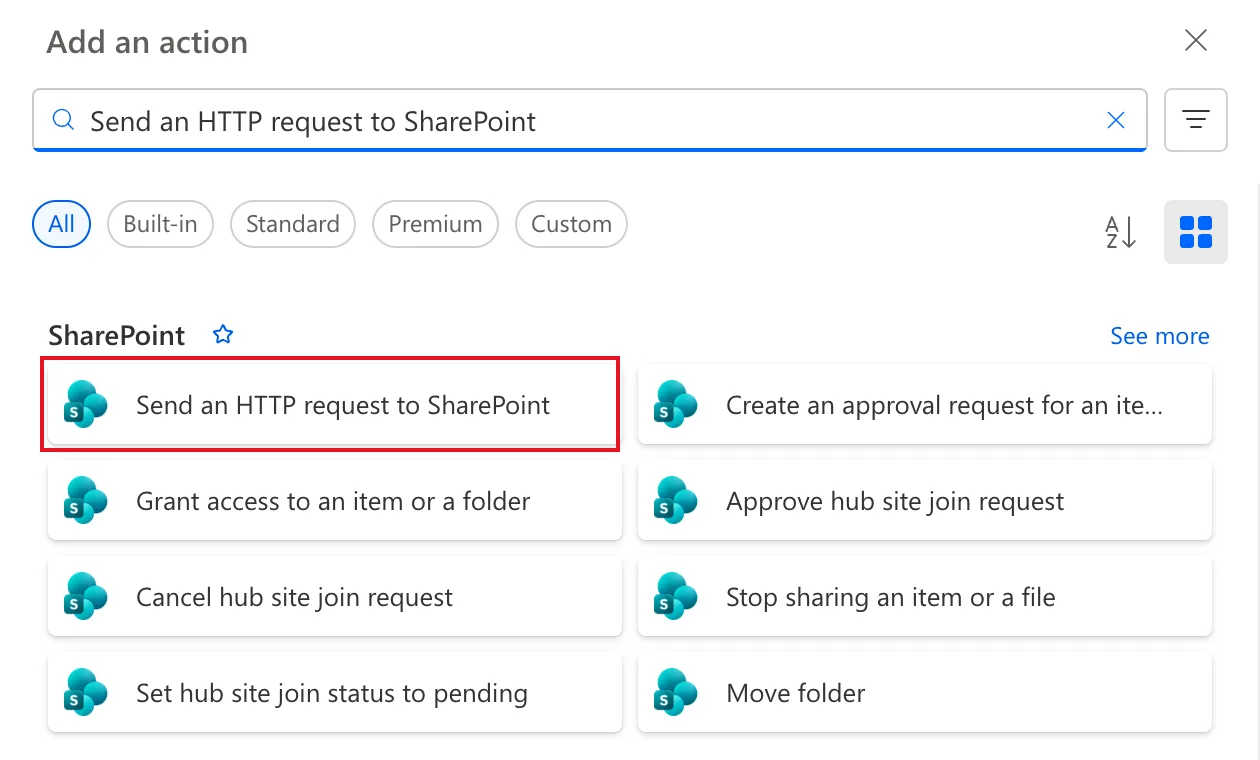
Give it a name that says what it does: select the name at the top of its pane and type Check the site.
Step 2: Know the Fields
The action has three required fields, plus Headers and Body under Advanced parameters:
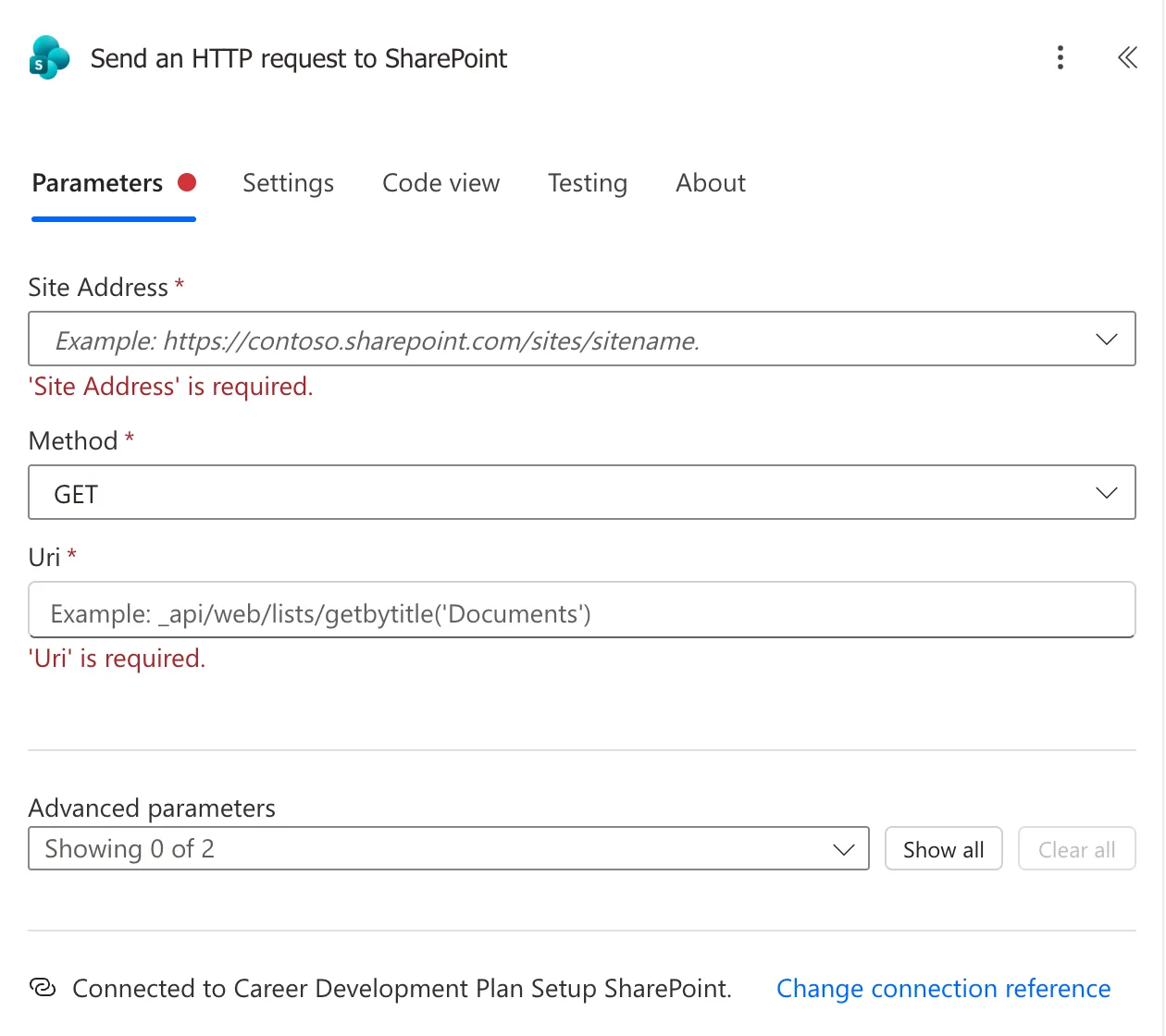
| Field | What it takes |
|---|---|
| Site Address | The site to send the request to |
| Method | GET to read, POST to create or change |
| Uri | The REST address after the site, starting with _api/ |
| Headers | Extra request headers, such as Accept |
| Body | The JSON to send with a POST |
The red is required messages stay until you fill the field in and leave it: they turn back to normal when you select somewhere else.
Step 3: Set the Site Address
To use a site the person types when the flow starts, open the Site Address list and choose Enter custom value at the bottom. The list also offers the tenant's sites, which is fine for a flow that always works on one site.
Then insert the trigger's input: type /, choose Insert dynamic content, and pick Site URL under Manually trigger a flow:
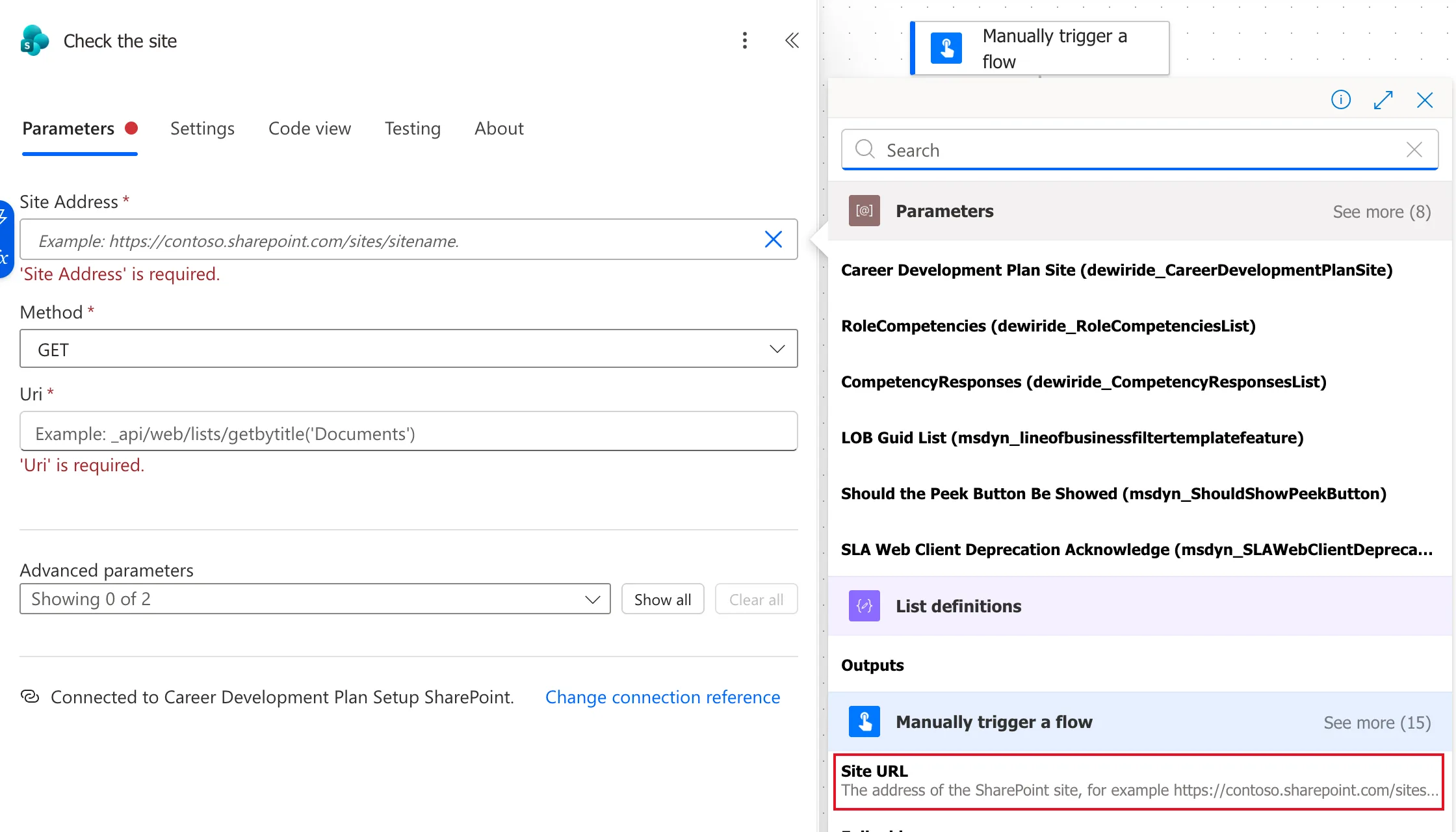
How to Add a Text Input to a Manually Triggered Flow creates that input.
Step 4: Set the Method, Uri and Header
Fill in the rest:
| Field | Value |
|---|---|
| Method | GET |
| Uri | _api/web?$select=Title |
| Headers | Accept: application/json;odata=nometadata |
_api/web is the site itself, and $select=Title asks for only its title. To add the header, select Show all under Advanced parameters, then type the key and value in the first header row. A new empty row appears below it for the next header:
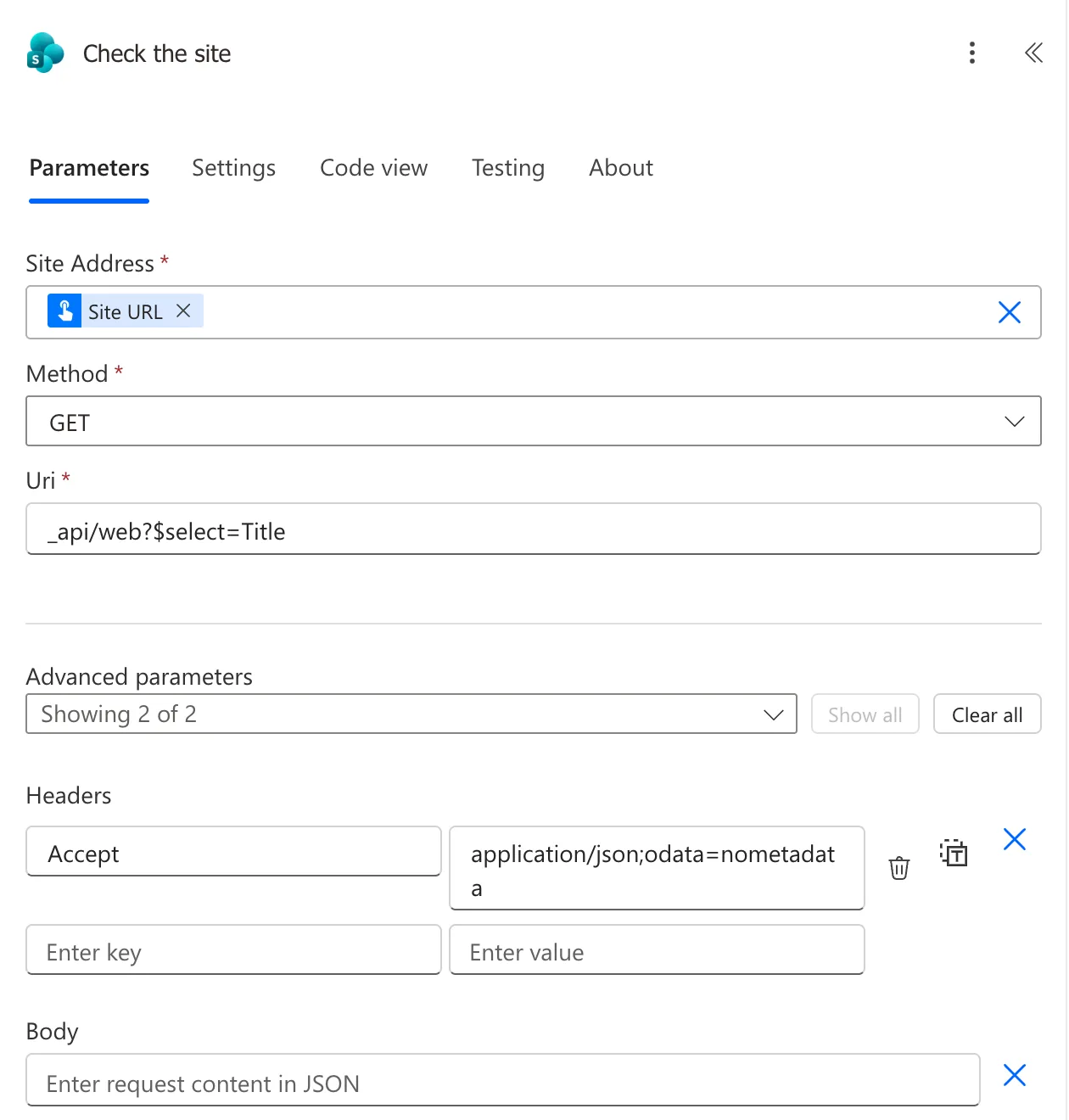
Microsoft's article recommends this Accept header: nometadata leaves SharePoint's metadata out of the response, which makes it much easier to read in later steps.
Step 5: Test It
Save the flow and test it (How to Test a Cloud Flow Manually). In the run, select Check the site. Its outputs show statusCode 200 and a body with the site's title:
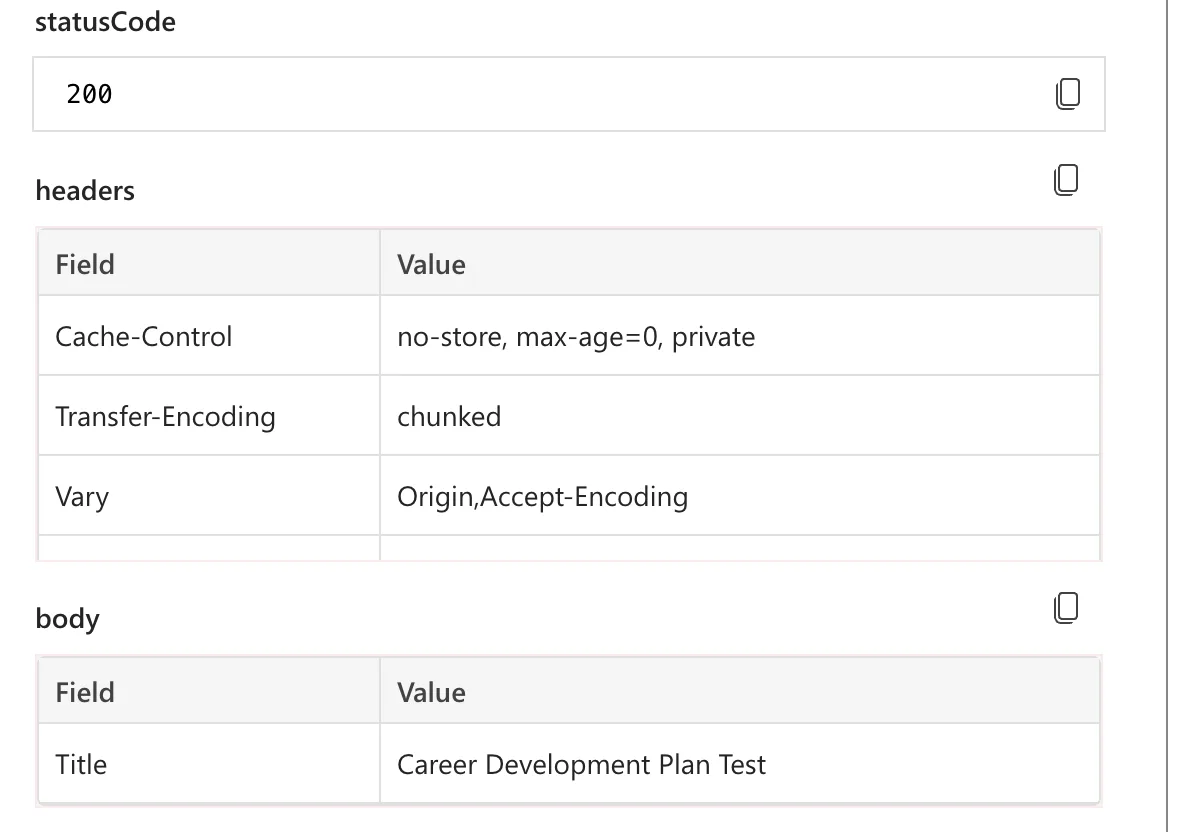
That's why the setup flow starts with this request: if it fails, the steps after it don't run, because by default each step runs only after the one before it has succeeded.
Step 6: Use the Response
Later steps read the response with body() (How to Use the body() Function):
body('Check_the_site')?['Title']
Headers for Other Requests
A GET needs only Accept. Requests that create or change things need more:
| Request | Headers | Example |
|---|---|---|
| Read | Accept: application/json;odata=nometadata | Check whether a list exists |
| Create | Also Content-Type: application/json;odata=verbose | Create a list |
| Change | Also IF-MATCH: * and X-HTTP-Method: MERGE | Change list settings |
The verbose content type lets the body say what kind of object it is with __metadata, as Microsoft's REST examples do. The request digest that SharePoint's REST articles add to POST requests isn't needed here: the connector signs in for you, and none of the setup flow's requests sent one.
Common Mistakes
| Mistake | What happens | Do this instead |
|---|---|---|
| A full URL in Uri | The request goes to the wrong address | Start Uri at _api/ |
| No Accept header | The response is full of metadata | Add application/json;odata=nometadata |
| Picking a site from the list | The flow only ever works on that site | Use Enter custom value and an input |
Troubleshooting
| Symptom | Likely cause | Fix |
|---|---|---|
| 'Site Address' is required. won't go away | It clears when you leave the field | Select somewhere else in the pane |
| The step fails with 404 | The site or the address is wrong | Check Site URL and the Uri |
| The step fails with 403 | The connection's account can't use the site | Give that account access, or use another connection |
FAQ
Does this need a premium license?
No. It's an action of the standard SharePoint connector.
Can it call Microsoft Graph or another service?
No. Microsoft's article says it supports SharePoint's REST APIs only.
Conclusion
Add Send an HTTP request to SharePoint, set Site Address with Enter custom value and your input, choose the method, start the Uri at _api/, and add the Accept header. Test it, then read the response with body().
Additional Resources
- Working with the SharePoint Send HTTP Request flow action: Microsoft's tips for this action.
- Get to know the SharePoint REST service: methods and addresses.
- Complete basic operations using SharePoint REST endpoints: reading and writing with REST.
