How to Use Named Formulas in Power Apps (App.Formulas)

A named formula gives a name to a formula so you can use the name anywhere in your canvas app. It replaces the old habit of setting global variables in App.OnStart. The value is always up to date, nothing can overwrite it by accident, and Power Apps only works it out when something needs it.
Named Formula or Variable?
Microsoft's App object reference lists why named formulas beat variables set in OnStart:
| Named formula | Global variable set in OnStart |
|---|---|
| Always available; no timing to worry about | Blank until OnStart has run |
| Updates by itself when what it depends on changes | Only changes when a formula calls Set again |
| Can't be changed anywhere else in the app | Any Set anywhere can change it |
| Calculated only when needed | Calculated at start, needed or not |
Microsoft reports Studio load times dropping by as much as 80% in one app after moving OnStart logic into named formulas (Build large and complex canvas apps).
Use a variable only for a value the app changes, such as which record a user picked.
Prerequisites
- A canvas app open in Power Apps Studio. The example is the Career Development Plan app from the Career Development Plan series.
Step 1: Open App.Formulas
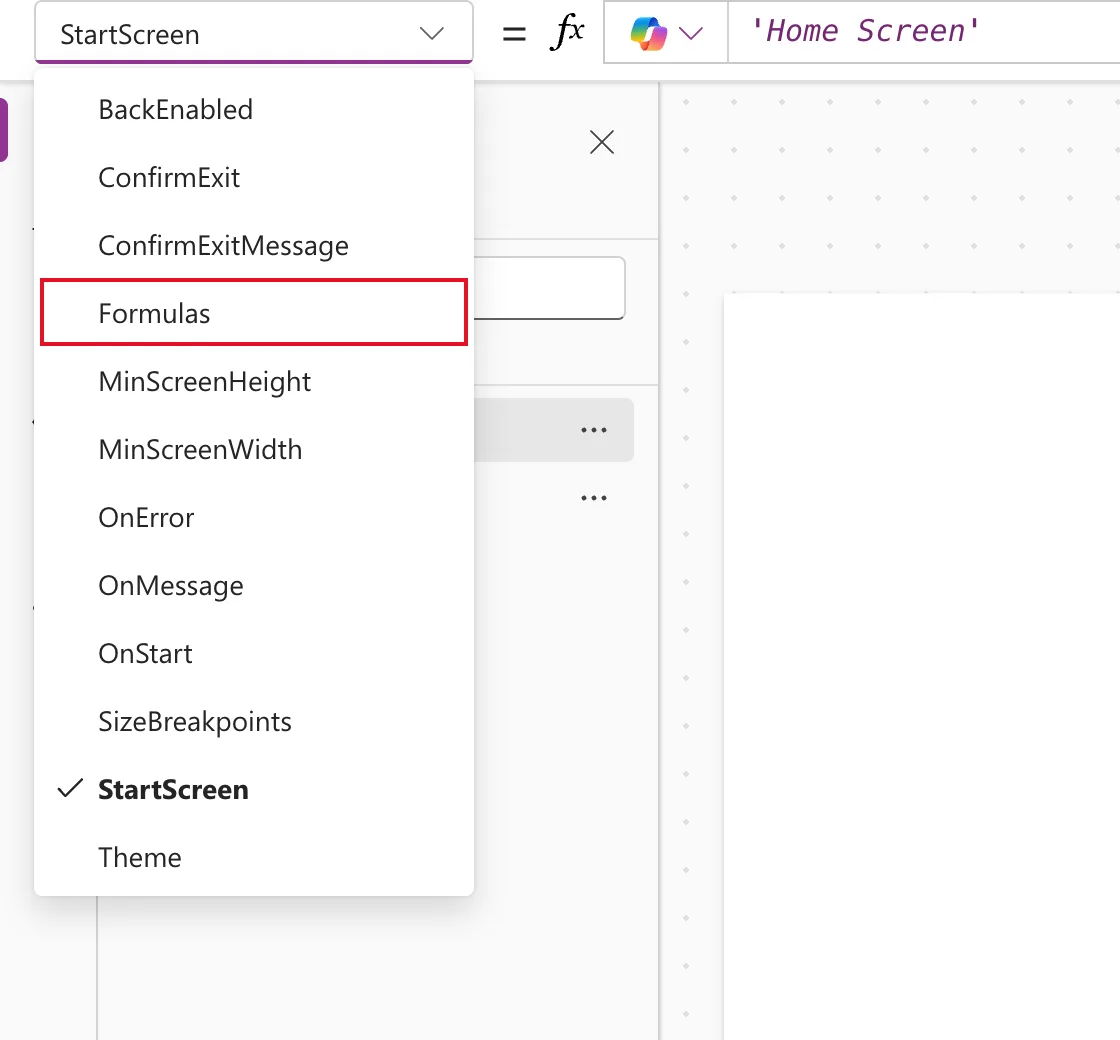
In the tree view, select App. In the property list to the left of the formula bar, choose Formulas:
Step 2: Write a Named Formula
The syntax is a name, =, a formula, and a semicolon:
AppTitle = "Career Development Plan";
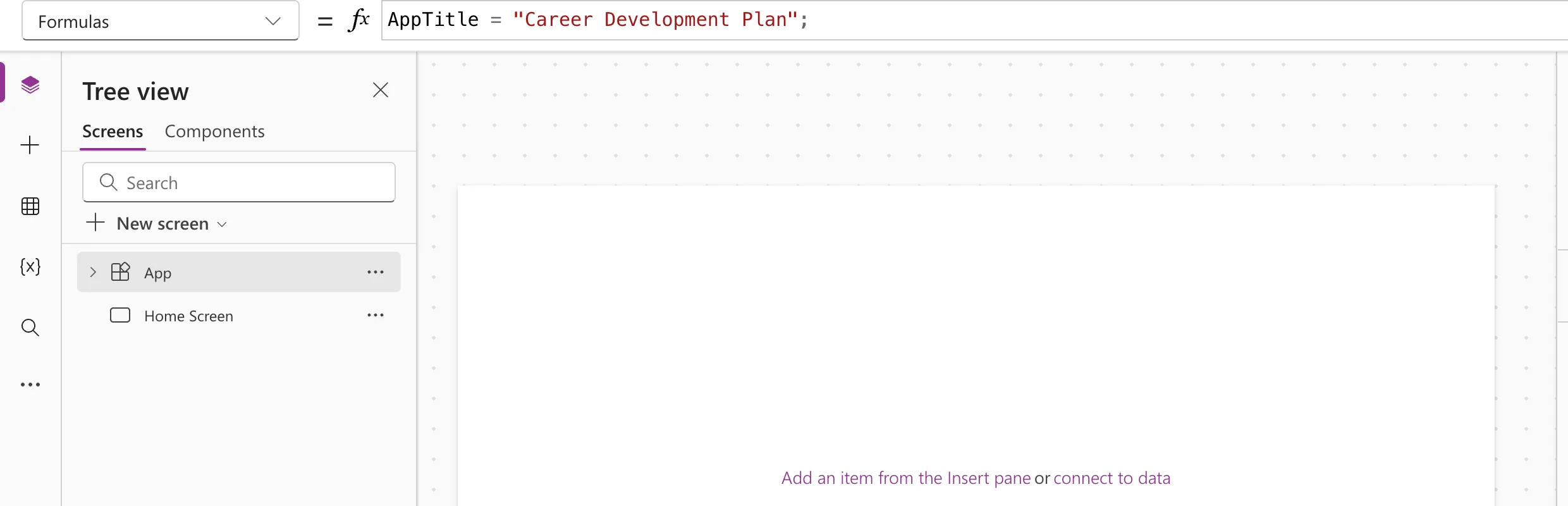
Add more, one after another, each ending with a semicolon. They can use each other, in any order, as long as they don't go round in a circle:
AppTitle = "Career Development Plan";
MyProfile = Office365Users.MyProfileV2({'$select': "id,displayName,givenName,mail,userPrincipalName,jobTitle"});
MyJobTitle = Trim(MyProfile.jobTitle);
MyJobTitle uses MyProfile; if the profile changes, the job title follows. For long formulas, select the arrow at the right of the formula bar to expand it, then Format text to lay them out neatly.
Step 3: Use It in a Control
Type the name wherever a formula goes. The example's title label shows it:
AppTitle
The preview strip under the formula bar shows the value and its type:
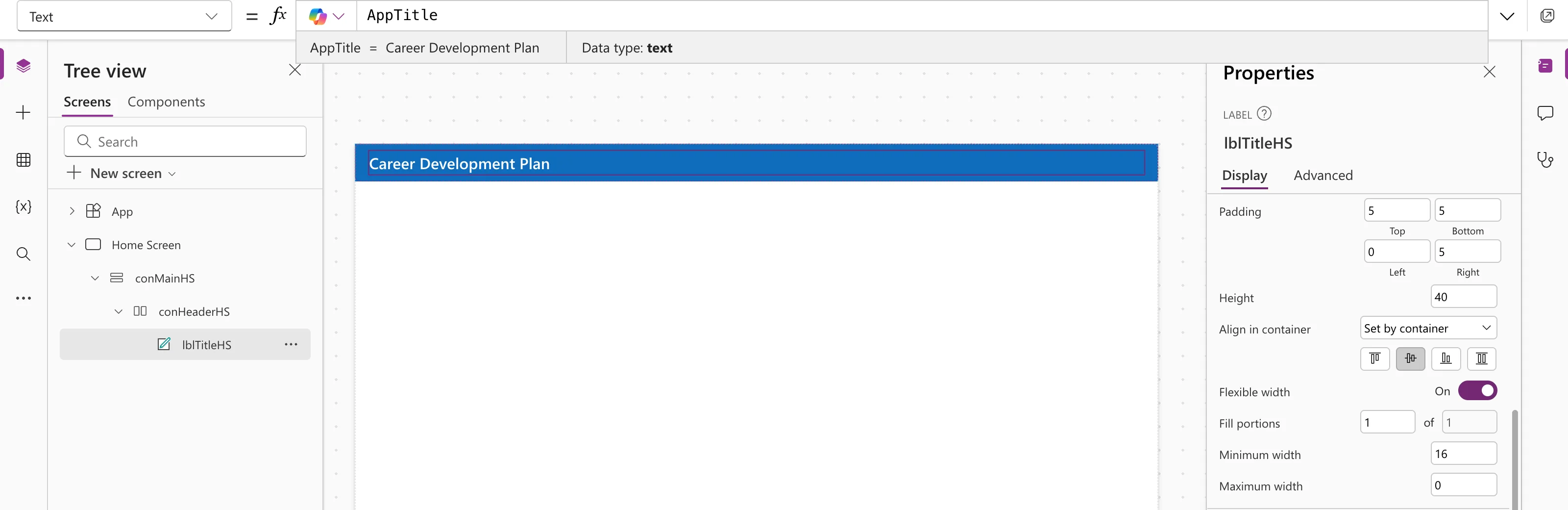
Change the formula in App.Formulas, and every control that uses AppTitle changes with it.
Step 4: See Every Named Formula and Its Value
Open Variables (the {x} icon on the left) and expand Named formulas. Each one is listed with its type and current value:
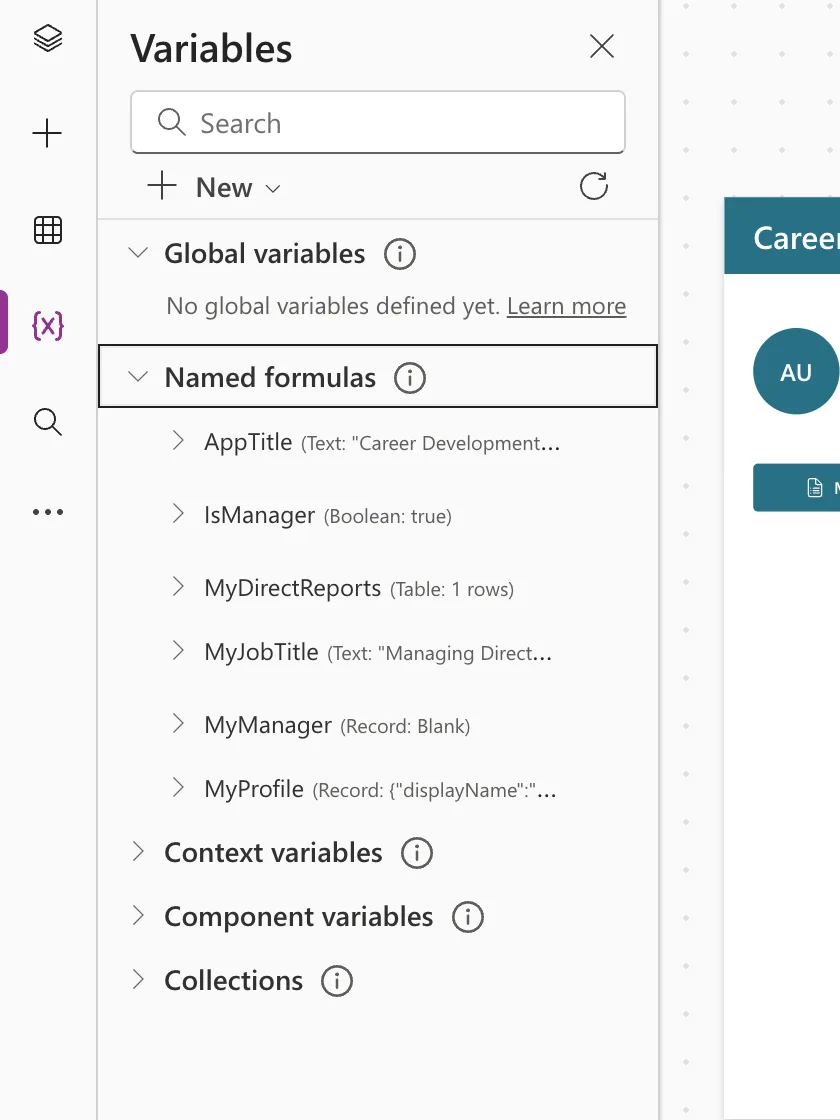
That's the quickest way to check what a formula is returning while you build.
The Rules
- No actions. Named formulas calculate values. Functions that do something, such as Set, Navigate or Patch, aren't allowed. Studio flags them with Behavior function in a non-behavior property; see Fixed: "Behavior Function in a Non-Behavior Property".
- No circles.
A = B;withB = A;isn't allowed. - Names, not prefixes. A named formula can't change, so Microsoft notes that variable prefixes like
varorgblno longer fit. Use clear PascalCase names, such asMyJobTitle.
Common Mistakes
| Mistake | What happens | Do this instead |
|---|---|---|
| Forgetting a semicolon between formulas | A syntax error | End each named formula with ; |
Putting Set(...) in App.Formulas | Behavior function in a non-behavior property | Make it a named formula: Name = value; |
Naming formulas like variables (gblTitle) | Readers think it can change | Use PascalCase names without prefixes |
Troubleshooting
| Symptom | Likely cause | Fix |
|---|---|---|
| A control shows nothing | The formula's value is blank | Check it under Variables → Named formulas |
| An error appears on the formula | A typo, missing ;, or a behavior function | Hover the red underline to read the message |
| The value doesn't change when expected | It depends on something that didn't change | Check what the formula refers to |
FAQ
Do named formulas slow down the app?
No. Microsoft notes that a named formula that isn't used costs nothing, because it's only calculated when something needs it.
Can a named formula call a connector?
Yes. The example's MyProfile calls Office 365 Users; see How to Get the Current User's Profile and Job Title in Power Apps.
What about user-defined functions?
App.Formulas can also hold user-defined functions and types, which take parameters. They're a separate topic; this guide covers named formulas only.
Conclusion
Put the values your app needs in App.Formulas as Name = formula;, use the names in controls, and check their values under Variables → Named formulas. Keep actions out of them; actions belong in properties such as OnSelect.
Additional Resources
- App object: Formulas property: named formulas, user-defined functions and types.
- Build large and complex canvas apps: moving OnStart logic into App.Formulas.
- Understand behavior formulas: which functions count as actions.
