How to Use Live Monitor in Power Apps

Live monitor records what a canvas app does while it runs: which button was selected, which data it fetched, how long that took, and warnings such as delegation. When a formula gives an unexpected result, it shows what really happened.
Prerequisites
- A canvas app open for editing in Power Apps Studio. The example is the Career Development Plan app.
Step 1: Open Live Monitor
In Studio, select ... (More) in the left bar, then Advanced tools. Under Live monitor, select Open live monitor:
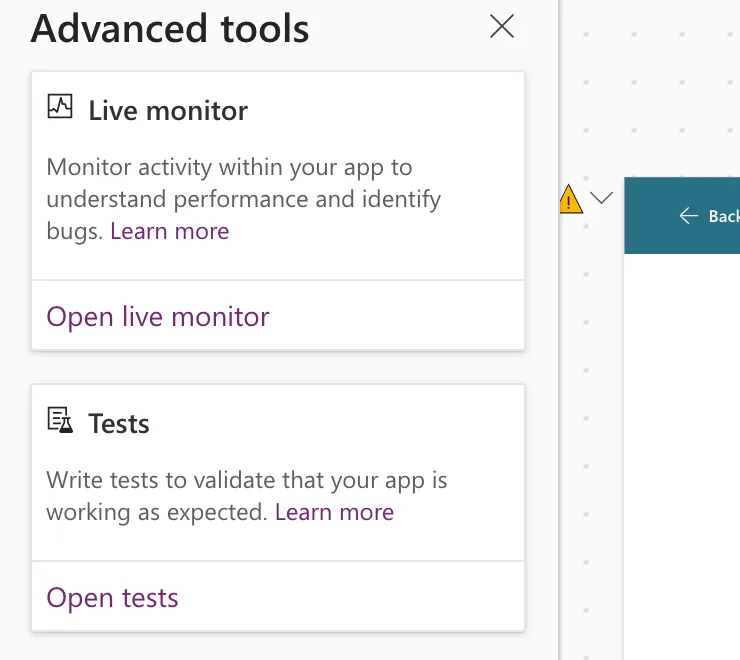
Live monitor opens in a new browser tab, connected to your Studio session. Its title bar reads Live monitor and the app's name, and the bottom shows Connected.
Step 2: Use the App
Go back to Studio and use the app in preview (How to Preview a Canvas App in Power Apps Studio). Each action adds rows to Live monitor:
| Column | What it shows |
|---|---|
| Category | The kind of event, such as UserAction, Network or Delegation |
| Operation | What happened, such as Select or getRows |
| Result, Result info | Success, Warning or Error, and a short explanation |
| Duration (ms) | How long a data call took |
| Data source, Control, Property | Where it came from |
In the example, selecting My team gave these four events:

getRowsCount:          Requested 500 rows. Received 1 rows.
Delegation CountRows:  Formula not delegated. 1 rows scanned.
Step 3: Read an Event's Details
Select a row to open its details on the right. Details shows the event as JSON, and Formula shows the formula that caused it:
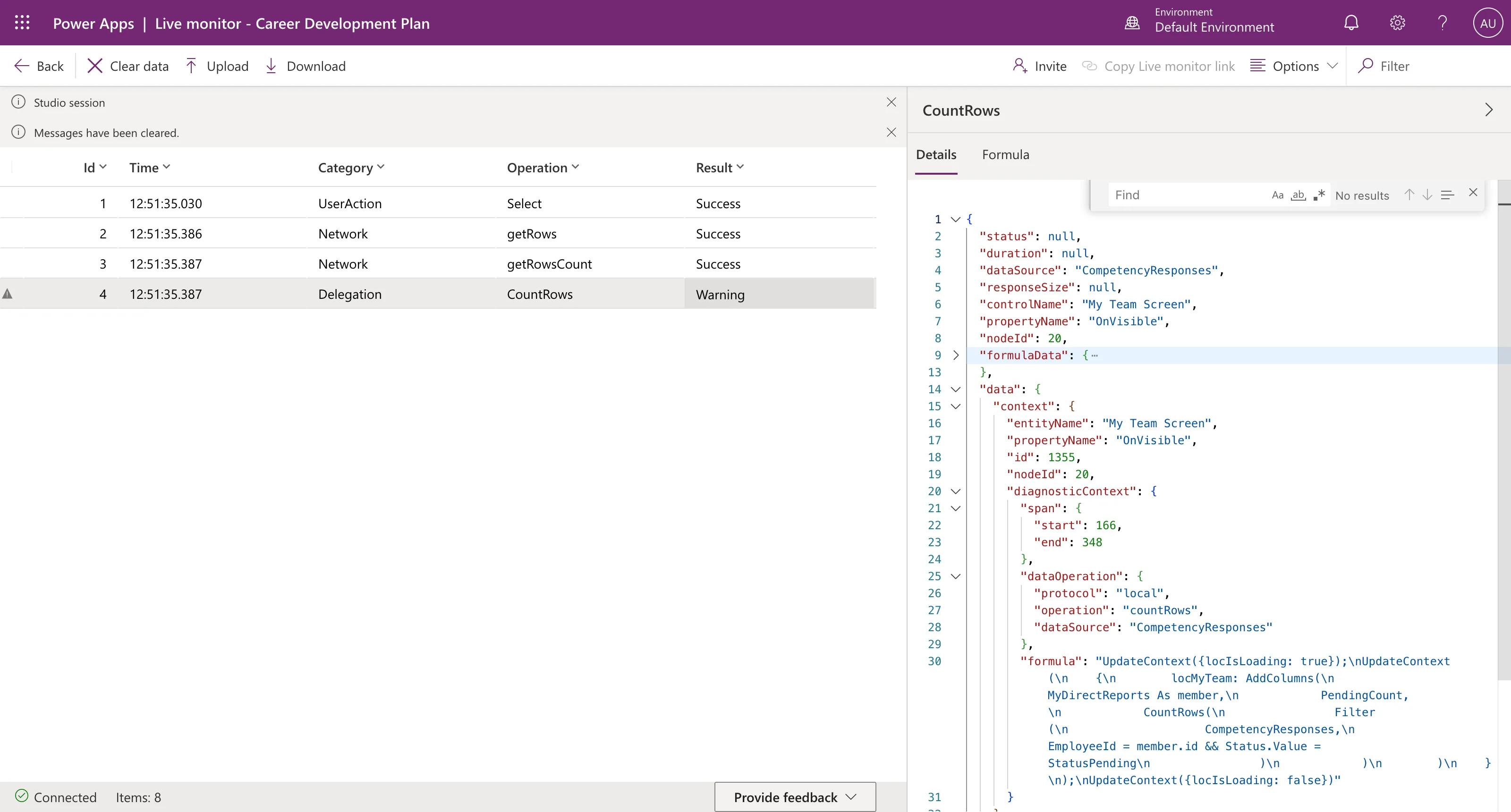
Here the data operation was countRows, done locally in the app rather than by SharePoint, which is what the delegation warning means. The event's explanation added that the data row limit for non-delegable queries is 500. The full story, and the fix, is in Fixed: Delegation Warning. The "CountRows" Operation Is Not Supported by This Connector.
Tips
- Clear data on the command bar empties the list before a test, so you see only the events you cause.
- If a data call doesn't appear, Power Apps may have reused a recent result. In the example, refreshing the data source in Studio's Data pane (... → Refresh) made the next run fetch it again, and the getRows event appeared.
Common Mistakes
| Mistake | What happens | Do this instead |
|---|---|---|
| Opening the published app from its link | That tab isn't part of the Studio session | Use Studio's preview, or the published-app option below |
| Reading old events after a change | Results from before the change mix in | Clear data, then test again |
Troubleshooting
| Symptom | Likely cause | Fix |
|---|---|---|
| The bottom doesn't say Connected | The tab lost its Studio session | Open it again from Advanced tools |
| An expected getRows is missing | A recent result was reused | Refresh the data source and run it again |
FAQ
Does Live monitor change the app?
No. Microsoft's article says it has no impact on the app, so you can use it in test and production.
Can I monitor a published app?
Yes. Microsoft's article describes it: in Apps, select the app, open the menu next to Details, choose Live monitor, and then Play published app. To see formulas for those events, the app needs the Debug published app setting, which Microsoft warns slows the app for everyone while it's on. This guide uses Live monitor from Studio.
Conclusion
... → Advanced tools → Open live monitor, then use the app in preview. Each action shows up as an event, and selecting one shows its details, including delegation warnings with the reason.
