How to Use Environment Variables in a Power Automate Flow

A flow in a solution shouldn't have a fixed SharePoint site and list: in the next environment, they're different. Put environment variables in the fields instead. In the new designer, choose Enter custom value, open the dynamic content list, and pick the variable; it's listed under Parameters.
Microsoft's environment variables in Power Automate article says: Environment variables can be used in solution cloud flows since they're available in the dynamic content selector. All types of environment variables can be used in triggers and actions.
The example is the approval flow of the Overtime Timesheet app, which reads the site, the OvertimeEntries list and the Departments list from variables.
Prerequisites
- Environment variables for the site and the lists, in the same solution as the flow (How to Create Environment Variables for a SharePoint Site and List in Power Apps).
- A flow created in that solution (How to Create an Automated Cloud Flow in a Solution in Power Automate), open in the new designer.
Step 1: Switch the Field to a Custom Value
Site Address and List Name are drop-downs of real sites and lists. Open the drop-down and choose Enter custom value; the field becomes a text box that accepts dynamic content.
In the classic designer, where the example flow was created, the trigger's fields didn't offer dynamic content, so I picked the site and list from the drop-downs first and replaced them in the new designer.
Step 2: Pick the Site Variable
Select the field, then the lightning button that appears beside it, Insert dynamic content. Type part of the variable's name in the search box. The variables are listed in a group called Parameters, each with its schema name in brackets:
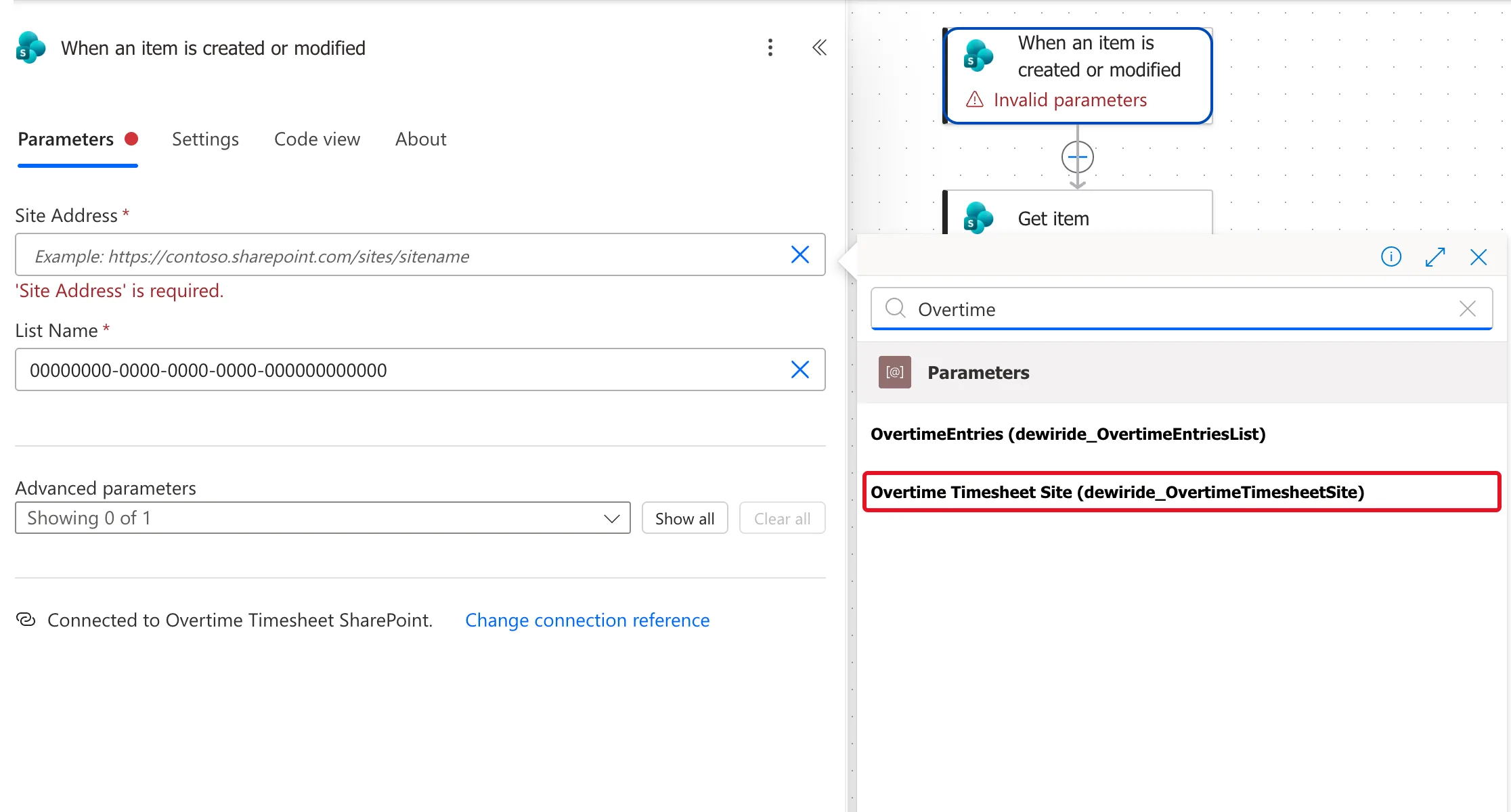
Select the site variable. It goes into the field as a token.
Step 3: Pick the List Variable
Do the same for List Name, with the list's variable:
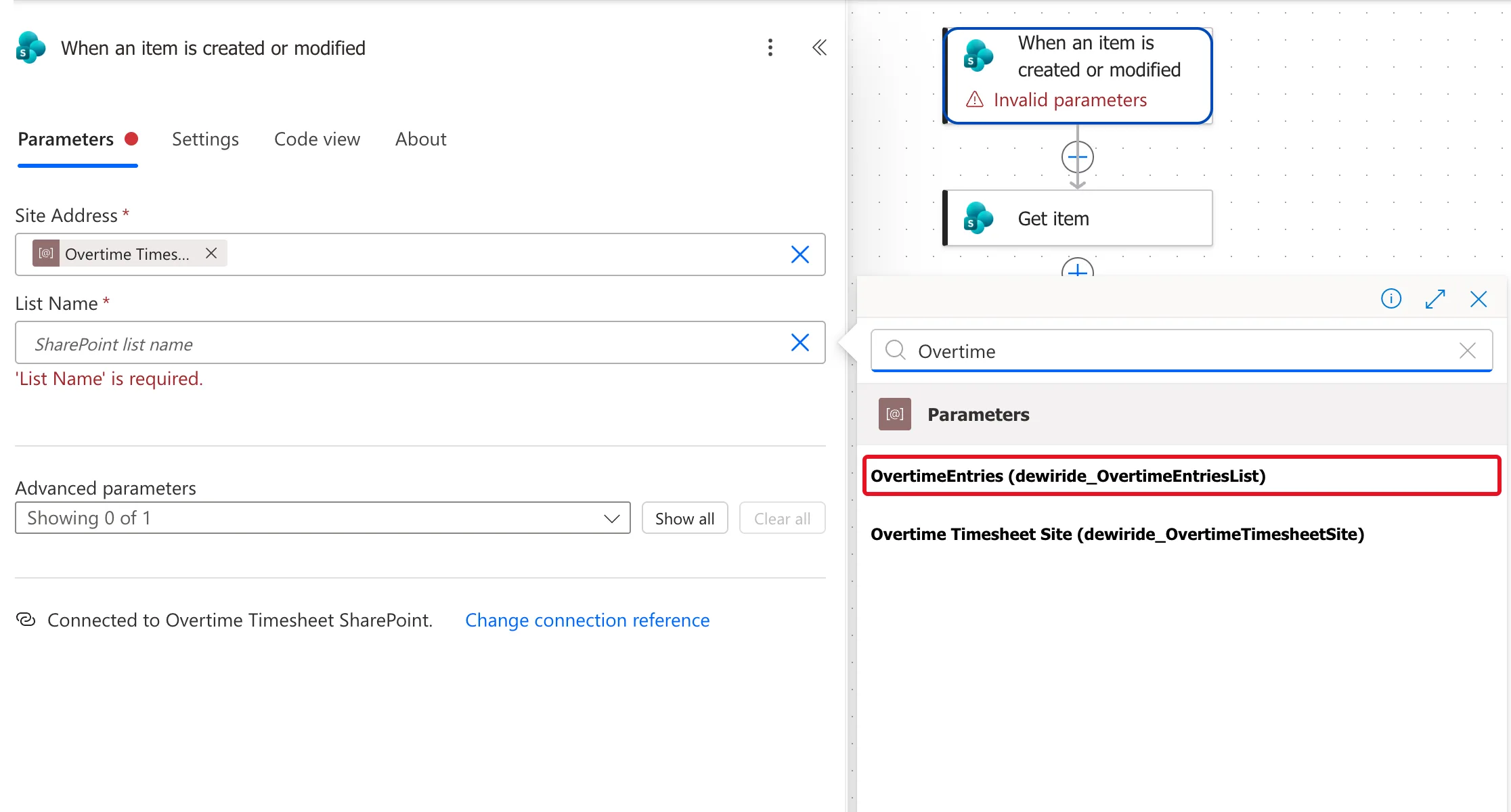
Both fields now hold variables:
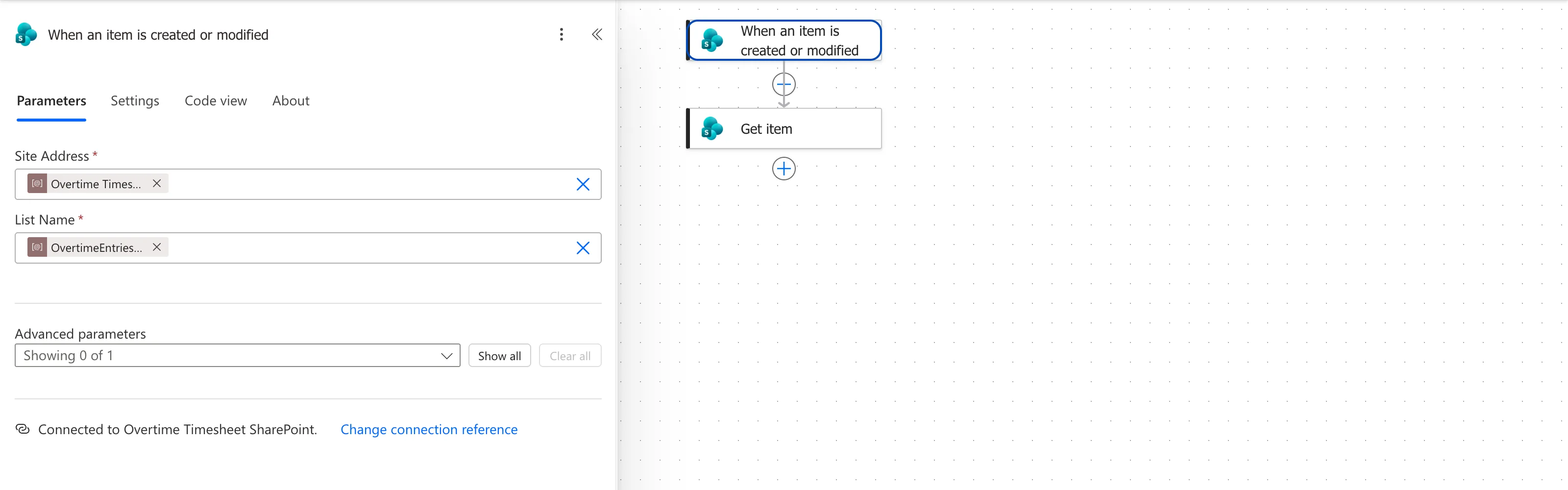
Step 4: Use the Variables in Every SharePoint Action
Every SharePoint action needs them too. The example's Get the department reads the Departments list with the site variable and the Departments variable:
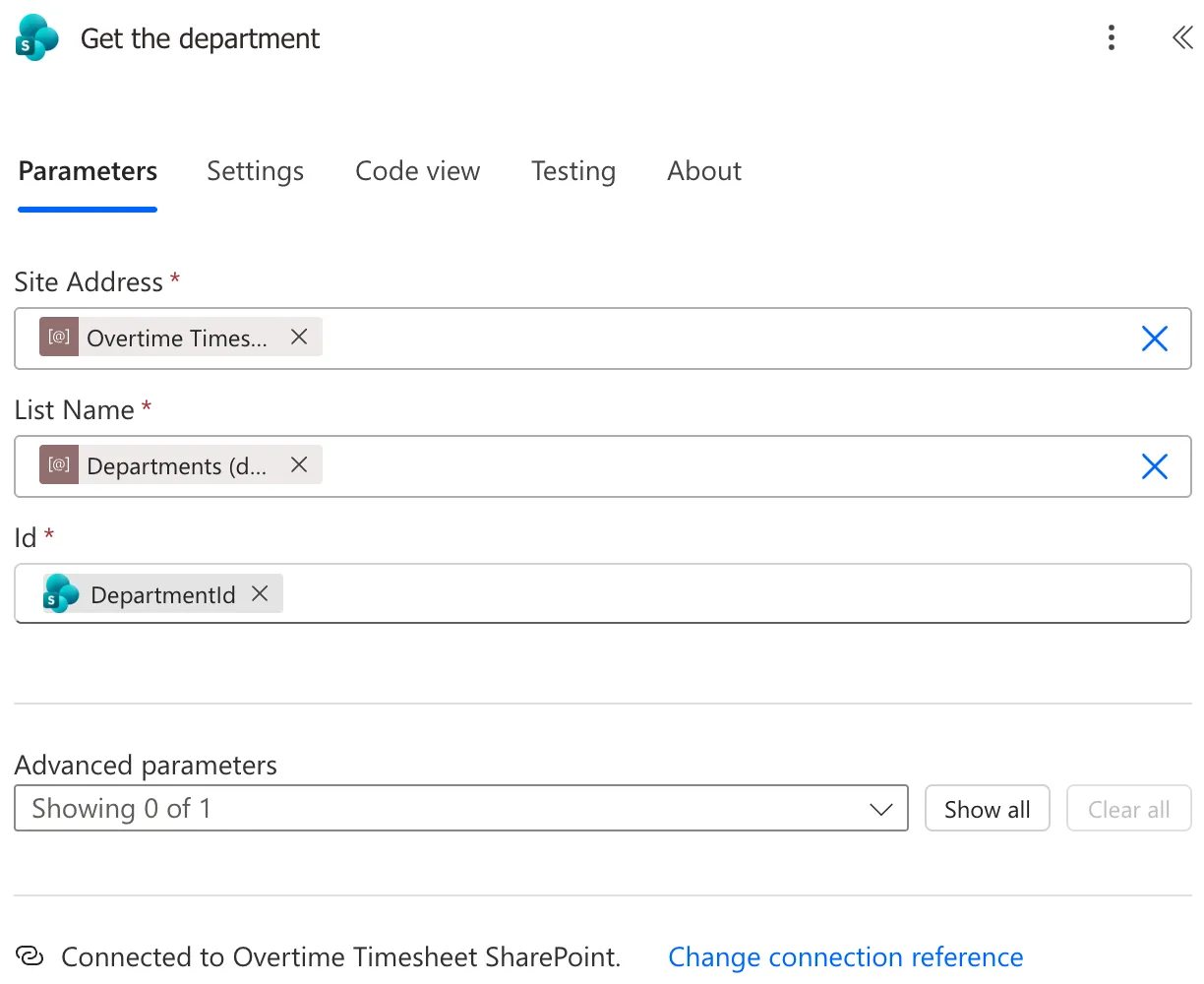
In Code view, a variable token is a parameters() expression with the variable's display name and schema name:
@parameters('Overtime Timesheet Site (dewiride_OvertimeTimesheetSite)')
When a Variable's Value Changes
Microsoft's article lists a limitation: When environment variable values are changed directly within an environment instead of through an ALM operation like solution import, flows will continue using the previous value until the flow is either saved or turned off and turned on again. After changing a value by hand, save the flow or turn it off and on.
Common Mistakes
| Mistake | What happens | Do this instead |
|---|---|---|
| Picking the site from the drop-down and leaving it | The flow points at this environment's site everywhere | Use the variable |
| Using variables in the trigger but not the actions | Actions still read this environment's lists | Use them in every SharePoint action |
| Changing a variable's value and expecting the flow to follow | It keeps the old value | Save the flow, or turn it off and on |
Troubleshooting
| Symptom | Likely cause | Fix |
|---|---|---|
| No variables in dynamic content | The field is still a drop-down | Enter custom value first |
| The variables don't appear at all | They're in a different solution | Add them to the flow's solution |
| The flow still uses the old site | The value was changed by hand | Save the flow, or turn it off and on |
FAQ
Do I need one variable per list?
Yes, one per list, plus one for the site. A SharePoint list variable is linked to its site variable.
Do the variables work in the classic designer?
The example flow's trigger, in the classic designer, didn't offer them; the new designer did. Open the flow from My flows to use the new designer.
Conclusion
In a solution flow, put environment variables in SharePoint's Site Address and List Name: Enter custom value, then pick the variables from dynamic content, under Parameters. Do it in the trigger and in every SharePoint action.
Additional Resources
- Use environment variables in Power Automate solution cloud flows: usage and limitations.
- Environment variables overview: types and values.
