How to Use Context Variables in Power Apps with UpdateContext

A context variable holds a value for one screen: whether something is loading, which item is selected, a table of rows. UpdateContext creates it or changes it. Other formulas on the screen then use it by name, and recalculate when it changes.
Syntax
UpdateContext( { Variable1: Value1 [, Variable2: Value2, ... ] } )
Pass one record: each field name is a variable, each value its new value. The variable is created the first time, with no declaration. UpdateContext works only in behavior properties (UpdateContext function).
Microsoft lists what a context variable can hold: a single value, a record, a table, an object reference, or any result from a formula. It's scoped to its screen, and keeps its value until the app closes, even when you leave the screen and come back.
Name context variables with the loc prefix (Power Apps Naming Conventions).
Example 1: A Loading Flag
The Career Development Plan app's My Plan screen loads data when it opens. A true-or-false variable says whether it's still loading:
UpdateContext({locIsLoading: true});
// ...load the data...
UpdateContext({locIsLoading: false})
A spinner shows while it's true (Visible: locIsLoading), and the list shows when it's false (How to Add a Loading Spinner in Power Apps).
Example 2: A Table of Rows
The same screen keeps the person's competencies and responses in two more variables:
UpdateContext({
    locMyPlan: Sort(
        Filter(RoleCompetencies, JobTitle = MyJobTitle && IsActive),
        Competency
    )
})
The gallery then uses locMyPlan as its rows. The full formula is in Part 5 of the series.
See the Variables
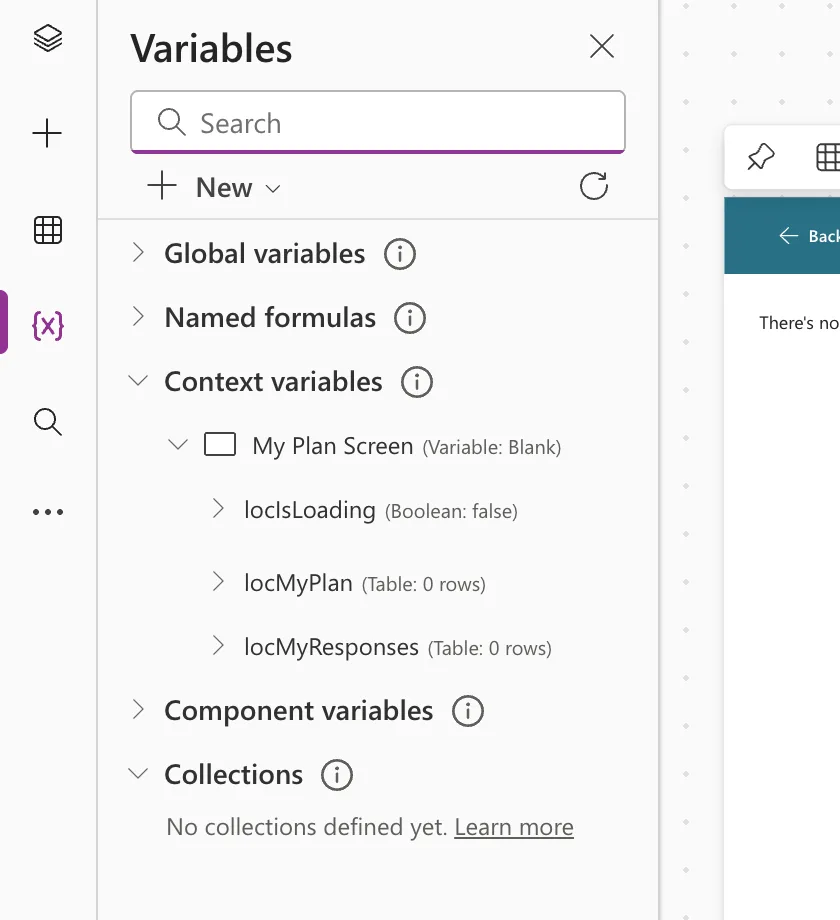
Open Variables (the {x} icon on the left) and expand Context variables: they're grouped by screen. After the screen had run in preview, locIsLoading was false and the two tables were there (empty for the admin, whose job title has no competencies):
UpdateContext, Set or a Collection?
| Use | When |
|---|---|
| UpdateContext | The value belongs to one screen |
| Set | Several screens need it (a global variable) |
| A collection | You'll add, change or remove rows in the app (ClearCollect) |
| A named formula | The value can be worked out from other values, and never set (Named formulas) |
Common Mistakes
| Mistake | What happens | Do this instead |
|---|---|---|
| Using a context variable on another screen | It isn't available there | Pass it with Navigate's third argument, or use Set |
| Expecting a table in a variable to be delegable | It's an in-memory table | Filter in the query that fills it |
| A variable for a value that never changes | Extra steps to keep it set | Use a named formula |
Troubleshooting
| Symptom | Likely cause | Fix |
|---|---|---|
| The variable is blank in Studio | The formula that sets it hasn't run | Preview the screen, or Alt+click the button |
| Behavior function in a non-behavior property | UpdateContext in a property such as Text | Use it in OnSelect or OnVisible (fix) |
FAQ
Can I set several variables at once?
Yes: UpdateContext({ locA: 1, locB: "x" }).
How do I clear one?
Microsoft's advice is to set it to Blank().
Conclusion
UpdateContext({ name: value }) creates or updates a variable for the current screen. It can hold a flag, a record or a table, and the Variables pane shows its current value.
