How to Use Absolute and Mixed Cell References in Excel

When you copy a formula, Excel moves its references with it: A2 copied one row down becomes A3. A $ stops that. $C$7 never moves, $A2 keeps its column but moves its row, and B$1 keeps its row but moves its column. Mixed references let one formula fill a whole grid.
The examples are from the old overtime timesheet in Part 1 of the Overtime Timesheet series: a grid of monthly totals and a sheet of clock-change times.
Prerequisites
- A formula you'll copy, as in How to Copy a Formula to Other Cells in Excel.
The Four Kinds
| Reference | Column when copied | Row when copied | Example |
|---|---|---|---|
A2 | moves | moves | Ordinary, relative |
$A$2 | fixed | fixed | Absolute |
$A2 | fixed | moves | Mixed: always column A |
A$2 | moves | fixed | Mixed: always row 2 |
Microsoft's Switch between relative, absolute, and mixed references shows the same thing: A$1 copied two columns right becomes C$1, and $A1 copied two rows down becomes $A3.
Example 1: One Formula for a Whole Grid
Monthly totals has a name in each row, column A, and a month in each column, row 1. The total for one person in one month is in B2:
=SUMIFS(OvertimeLog[Hours],OvertimeLog[Employee],$A2,OvertimeLog[Date],">="&B$1,OvertimeLog[Date],"<"&EDATE(B$1,1))
$A2: the name is always in column A, but the row changes with each person.B$1: the month is always in row 1, but the column changes with each month.
I copied B2 into B2:C4. In C3, Ben Harris in November, the formula reads $A3 and C$1, exactly the right name and month:

Example 2: A Cell Every Row Uses
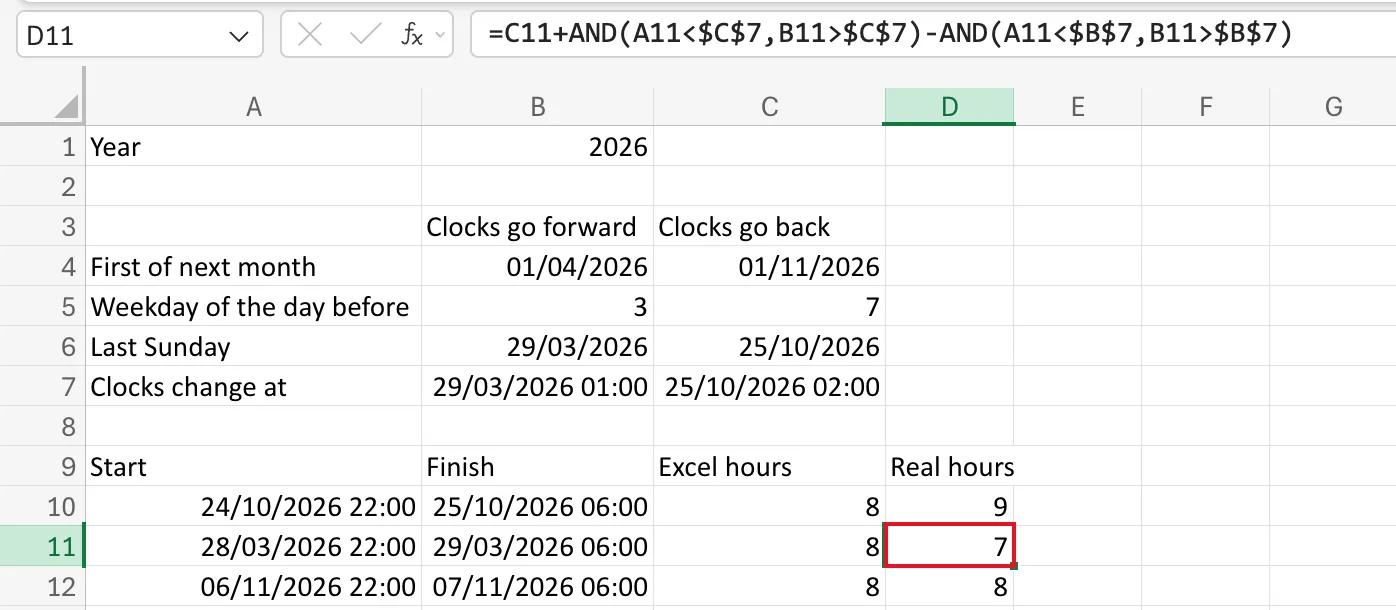
On the Clock change sheet, every shift is compared with the same two cells, B7 and C7, the times the clocks change. They're absolute, $B$7 and $C$7, so copying the formula from row 10 to row 11 changed A10 to A11 and left them alone:
How to Type the $
Type $ before the column letter, the row number, or both. Microsoft's page notes that in the desktop app, F4 switches a selected reference between the four kinds.
Common Mistakes
| Mistake | What happens | Do this instead |
|---|---|---|
A2 where you need $A2 | Copied right, the formula reads names from column B | Fix the column with $ |
$B$1 where you need B$1 | Every month's column uses October | Fix only the row |
Adding $ everywhere to be safe | Copies don't adjust at all | Fix only what must stay put |
Troubleshooting
| Symptom | Likely cause | Fix |
|---|---|---|
| Copied totals repeat the first column's numbers | The month reference is fully absolute | Use B$1 |
| Copied rows read empty cells | A reference to a shared cell moved | Make it absolute, like $C$7 |
FAQ
Do references inside a table need $?
No. Microsoft's Using structured references with Excel tables says structured references such as OvertimeLog[Hours] stay the same when you copy a formula, which is why OvertimeLog[Hours] is unchanged in C3 above. Filling a formula sideways by dragging is different: column names can then shift like a series.
Does moving a formula change its references?
No. Microsoft's Move or copy a formula in Excel explains that moving keeps references as they are; only copying adjusts relative ones.
Conclusion
$ before the column keeps the column, $ before the row keeps the row, both keep the cell. Mix them, like $A2 and B$1, and one formula fills a whole grid.
