How to Use a Custom Number Format in Excel for the Web

When none of the Number Format options fit, write the format yourself as a format code: mmm yyyy for Oct 2026, [h]:mm for 60:15, dd/mm/yyyy hh:mm for a date and time. In Excel for the web, codes go in the All formatting options pane: Number Format → More Number Formats → Custom.
The examples are the three custom formats used in the old overtime timesheet from Part 1 of the Overtime Timesheet series and in its clock-change sheet.
Prerequisites
- A workbook open for editing in Excel for the web.
Step 1: Open All Formatting Options
Select the cells, then on the Home tab open the Number Format list and select More Number Formats. The All formatting options pane opens at the right, on its Number tab.
Step 2: Choose the Custom Category
Set Choose Category to Custom. The pane shows a preview of the first selected cell, a Type box, and a list of codes. If the cell already has a custom format, its code is selected in the list; for a total of times, that was hh:mm:
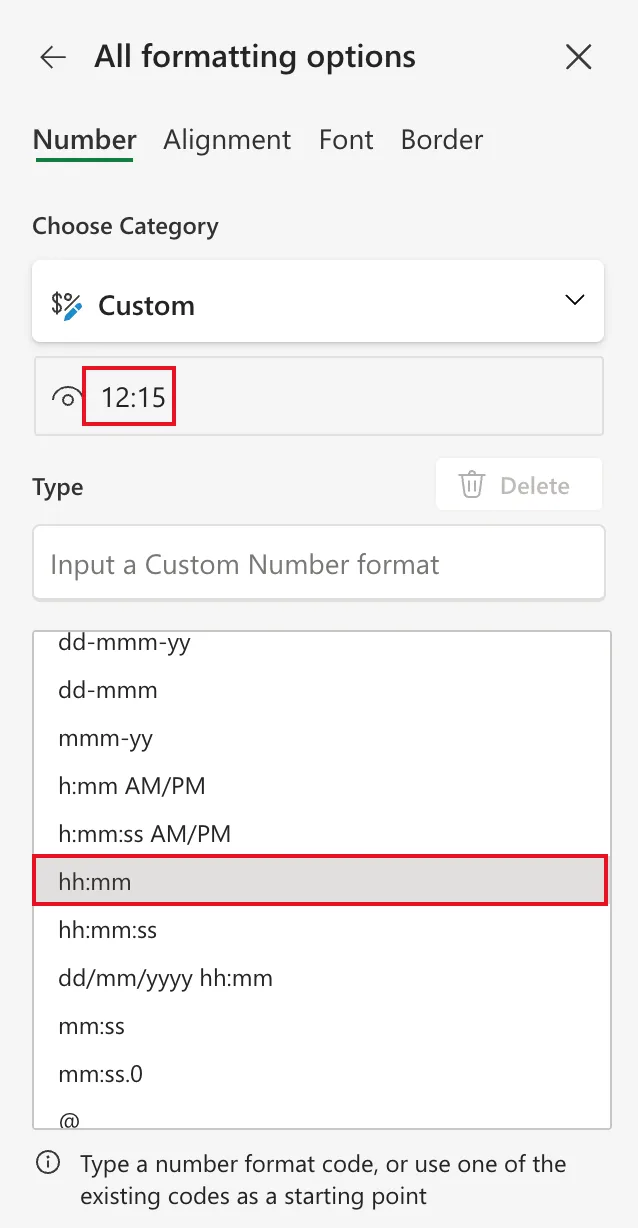
When I switched a cell holding a date to Custom, the list started on General, and the cells showed their serial numbers until I entered a code.
Step 3: Type the Code and Confirm It
Type the code in Type, then select Confirm, the tick at the right of the box. The preview updates only after you confirm:
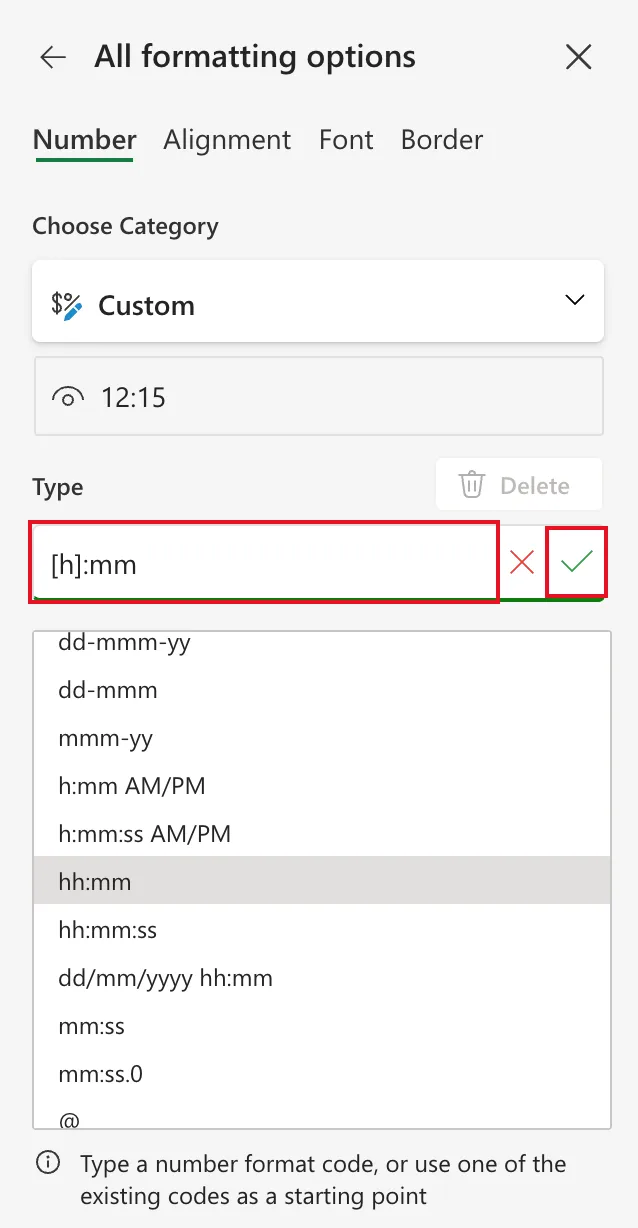
Excel applies the format and adds the code to the bottom of the list for the rest of the workbook.
Or Pick a Code from the List
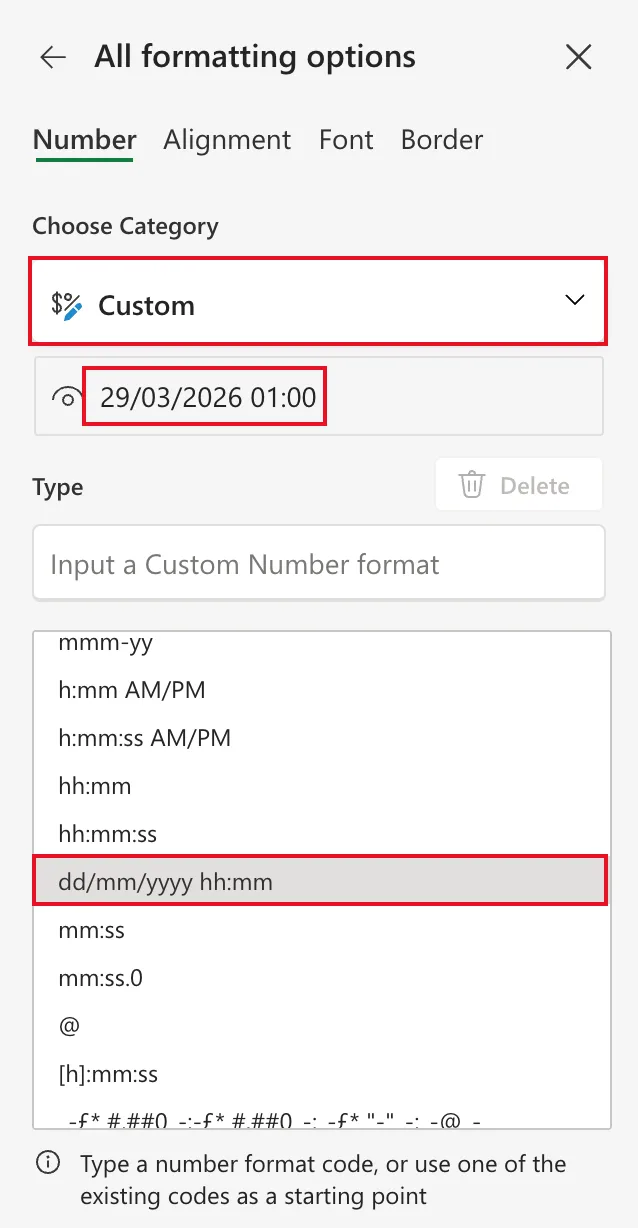
The list already has many codes. Selecting one applies it straight away, with no Confirm. For a date and time, I selected dd/mm/yyyy hh:mm:
The Codes Used in the Series
| Code | Shows | Used for |
|---|---|---|
mmm yyyy | Oct 2026 | Month headings: How to Show a Date as Month and Year in Excel |
[h]:mm | 60:15 | Totals of times: How to Show Total Hours Over 24 in Excel |
dd/mm/yyyy hh:mm | 29/03/2026 01:00 | Date and time together |
In codes, d, m and y are day, month and year, h and mm after it are hours and minutes, and square brackets round h mean elapsed hours. Review guidelines for customizing a number format lists every code.
Create a custom number format says you can't create custom formats in Excel for the web, and Add or subtract time in Excel says you can't apply one there. In my Excel for the web, in November 2026, the All formatting options pane created and applied all three formats above, and the workbook kept them.
Common Mistakes
| Mistake | What happens | Do this instead |
|---|---|---|
| Typing a code and closing the pane without Confirm | The format isn't applied | Select the tick |
mm where you meant minutes after a date | mm straight after dd/ is read as the month | Put mm after hh for minutes |
Using hh:mm for totals | It wraps every 24 hours | Use [h]:mm |
Troubleshooting
| Symptom | Likely cause | Fix |
|---|---|---|
| The preview didn't change after typing | The code isn't confirmed yet | Select Confirm |
| Dates showed as numbers while you were in the pane | Switching to Custom applied General | Enter or pick the code you want |
FAQ
Does a custom format change the value?
No. It only changes what the cell shows.
Are custom formats kept when someone opens the file in the Excel app?
Yes. They're saved in the workbook like any other format.
Conclusion
More Number Formats → Custom → type a code and Confirm, or pick one from the list. Codes such as mmm yyyy, [h]:mm and dd/mm/yyyy hh:mm cover what the ready-made formats can't.
