How to Upload a Custom App in the Teams Admin Center

To add a custom app to your organization's Teams app catalog, go to Teams apps > Manage apps in the Teams admin center, select Actions > Upload new app, select Upload and choose the app's package. The admin center says New app added and gives the app a page of its own.
The example is Hello App, a one-screen canvas app made in Power Apps, whose Teams package is Hello App 1.30.zip. Power Apps' own package needed a change before the admin center would take it (Fixed: "Update Your Manifest to Include supportsChannelFeatures=tier1" When Uploading a Teams App), and this package has it.
Prerequisites
- The Teams Administrator or Global Administrator role. Microsoft's custom apps article lists the admin upload as available to Global or Teams administrators.
Step 1: Choose Upload New App
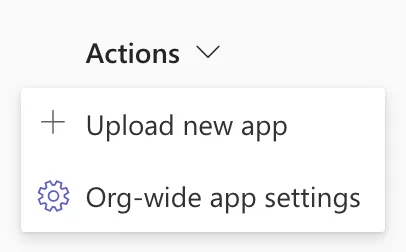
At admin.teams.microsoft.com, go to Teams apps > Manage apps. Select Actions > Upload new app:
Step 2: Upload the Package
The Upload a custom app dialog asks you to make sure the app has been tested completely and follows your organization's security and compliance requirements:
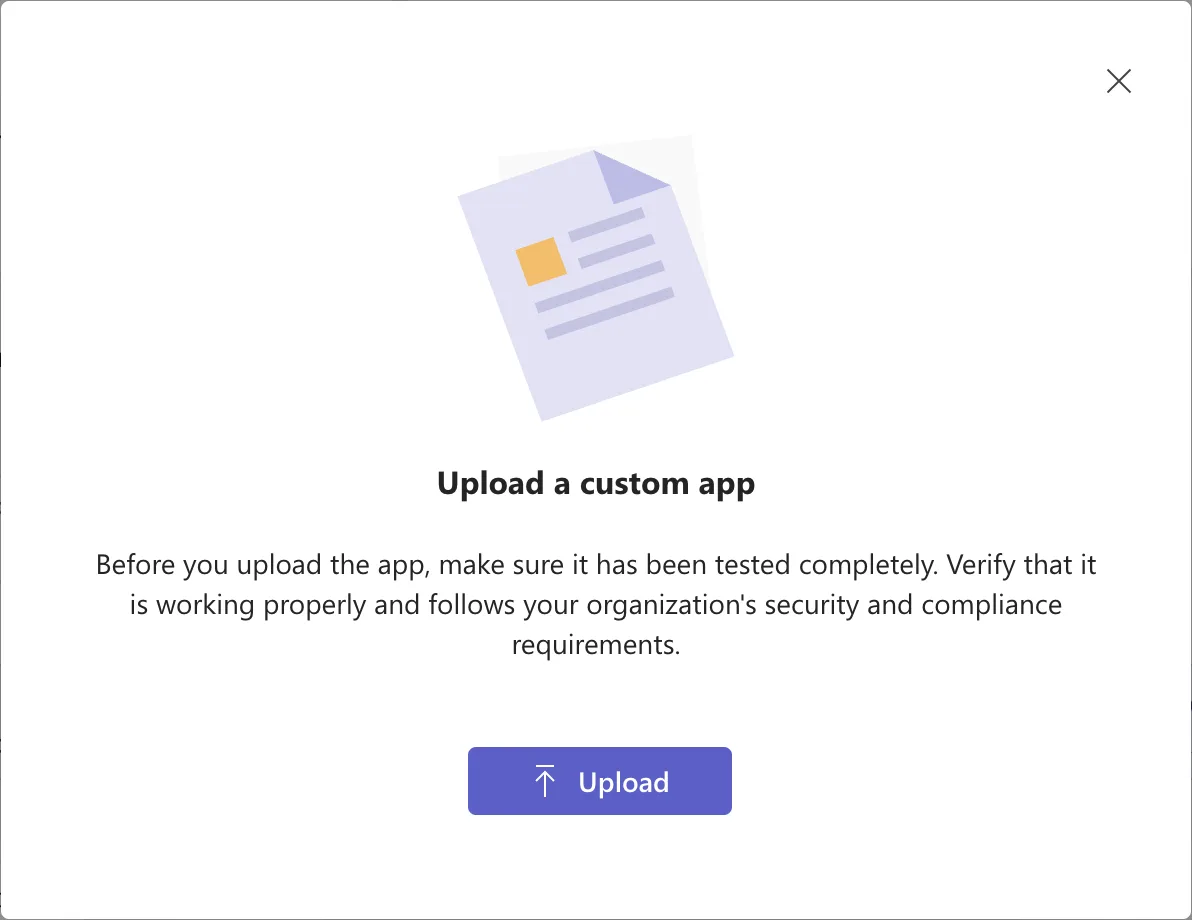
Select Upload and choose the .zip file. If the package has a problem, the dialog lists it in red and the upload stops.
Step 3: Open the App's Page
A few seconds later: New app added. Now that you've added this app to your apps list, select this link to manage it.
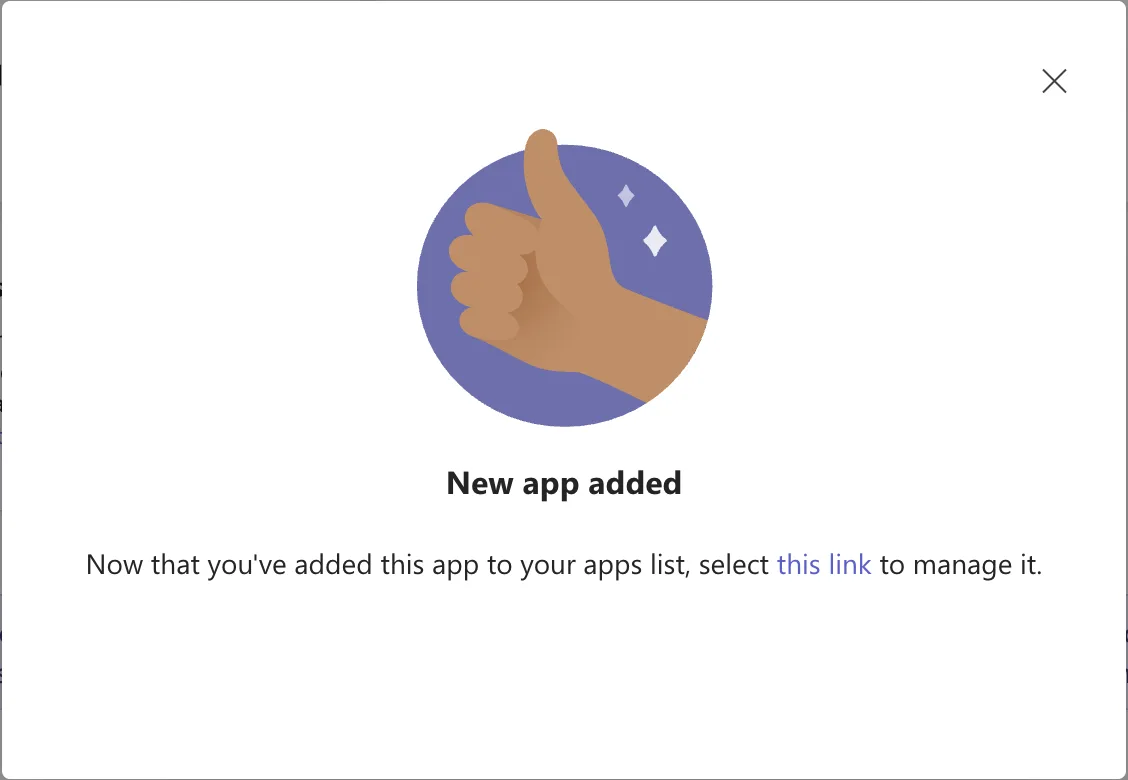
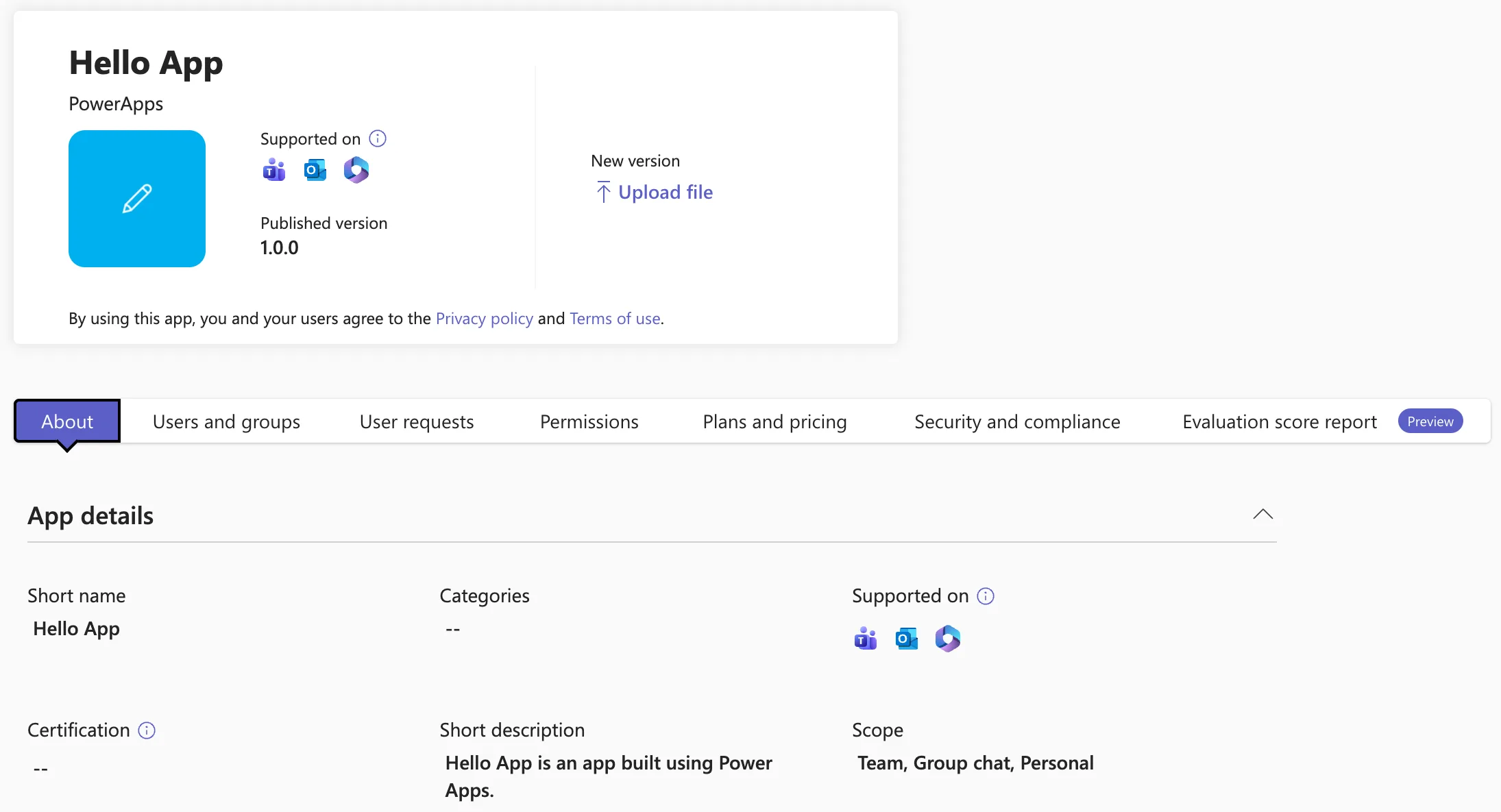
Select this link. The app's page shows its name, the developer from its manifest, here PowerApps, the version, and tabs to manage it. About shows the details from the manifest:
Who Gets the App
Uploading doesn't install the app for anyone. Microsoft's article says the uploaded app is available to the org users after a few hours, and people then find it in Teams under Built for your org (How to Find an App Built for Your Organization in Microsoft Teams).
In my organization, a new custom app was Available to: Everyone and Installed for: No one. Both are on the app's Users and groups tab:
- How to Install a Teams App for Specific Users in the Teams Admin Center
- How to Make a Teams App Available to Specific Users in the Teams Admin Center
Common Mistakes
| Mistake | What happens | Do this instead |
|---|---|---|
| Uploading an app that isn't shared in Power Apps | People see it in Teams but can't open it | Share the app with the same people |
| Leaving availability on Everyone | Everyone in the organization can add it | Limit it to the people who need it |
| Uploading an app nobody has tested | People find its problems instead of you | Test it first, as the dialog asks |
Troubleshooting
| Symptom | Likely cause | Fix |
|---|---|---|
| We couldn't upload your app with a manifest error | The manifest doesn't meet the admin center's checks | Fix the manifest, as the error says |
| The Installs tab says We can't get installs right now | The new app's installs didn't load | Fixed: "We Can't Get Installs Right Now" in the Teams Admin Center |
| People can't find the app in Teams | It hasn't reached them yet | Microsoft says it takes a few hours |
FAQ
How do I upload a newer version?
On the app's page, under New version, select Upload file. Microsoft's article says the policies that applied to the previous version stay in effect.
Can people use the app straight away?
Not always. Microsoft says a few hours; in my organization, people could find the app in Teams within minutes.
Conclusion
In the Teams admin center, Manage apps > Actions > Upload new app, Upload, and choose the package. Then use the app's Users and groups tab to decide who can use it and who gets it installed.
Additional Resources
- Manage custom apps in Microsoft Teams admin center
- Use app centric management to manage access to apps
