How to Upload a Custom App in Microsoft Teams

You've built a Teams app and zipped its package. To try it before anyone else sees it, upload it as a custom app: Teams installs it for you alone, with no admin approval, in a few clicks.
Microsoft lists this as one of several ways a custom app reaches people. Custom app upload by user needs No admin approvals, but Admins control which users can upload. The other routes put an app in your organization's catalog for everyone, after an admin approves it or uploads it.
The Example
The package is EchoBot.zip: a Teams app with one bot, Echo Bot, that people chat with one to one. The steps are the same for any app package.
Prerequisites
- Permission to upload custom apps. Your organization's Teams admin decides who may upload them, in the Teams admin center.
- A Teams app package: a zip with
manifest.jsonand two icons at its root.
Step 1: Open Manage Your Apps
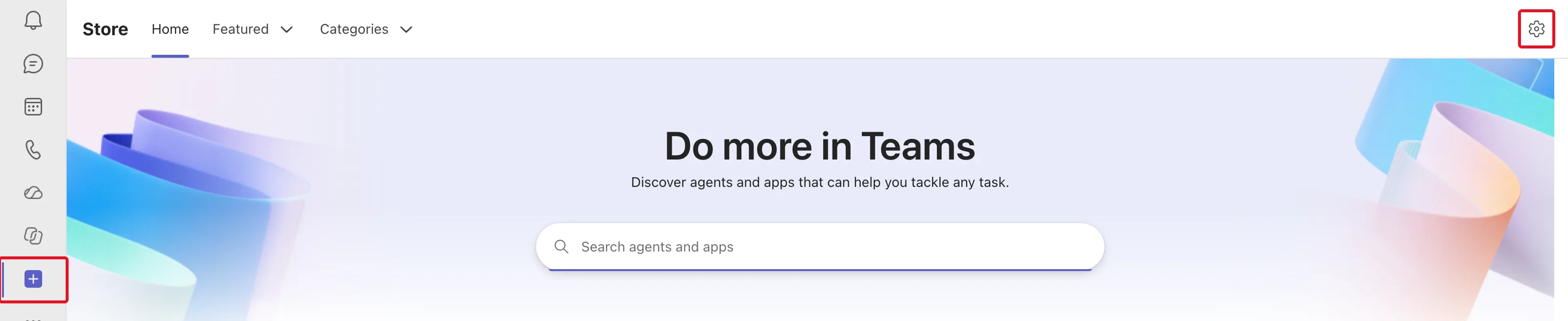
In Teams, select Apps in the left rail. The Store opens. Select the settings icon at its top right to manage your apps:
Step 2: Upload an App
On Manage your apps, select Upload an app:

If Upload an app isn't there, your account isn't allowed to upload custom apps: How to Check If Custom Apps Are Allowed in Microsoft Teams shows where an admin turns it on.
Step 3: Choose Upload a Custom App
Teams offers two options:
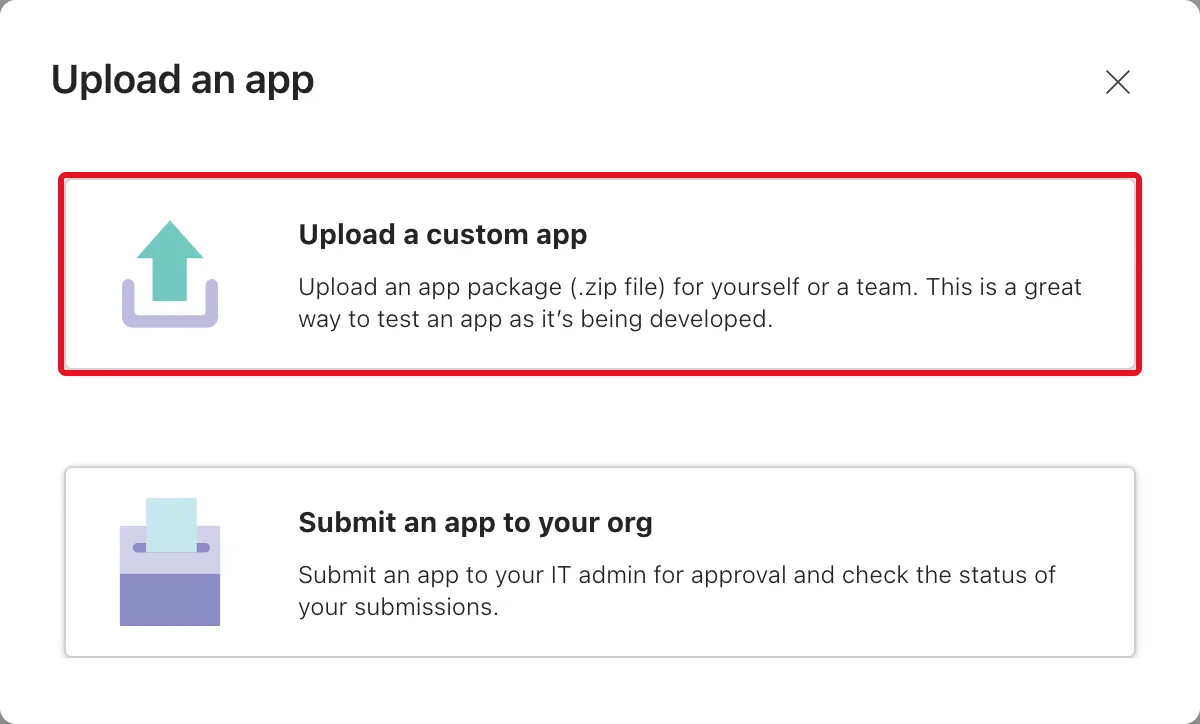
- Upload a custom app: Upload an app package (.zip file) for yourself or a team. This is a great way to test an app as it's being developed.
- Submit an app to your org: sends the package to your IT admin, who can approve it for the whole organization.
Select Upload a custom app, and pick your zip file in the file dialog.
Step 4: Add the App
Teams reads the package and shows the app's details: its name and developer from the manifest, its descriptions, and what it can do. A bot shows up under Capabilities in Teams:
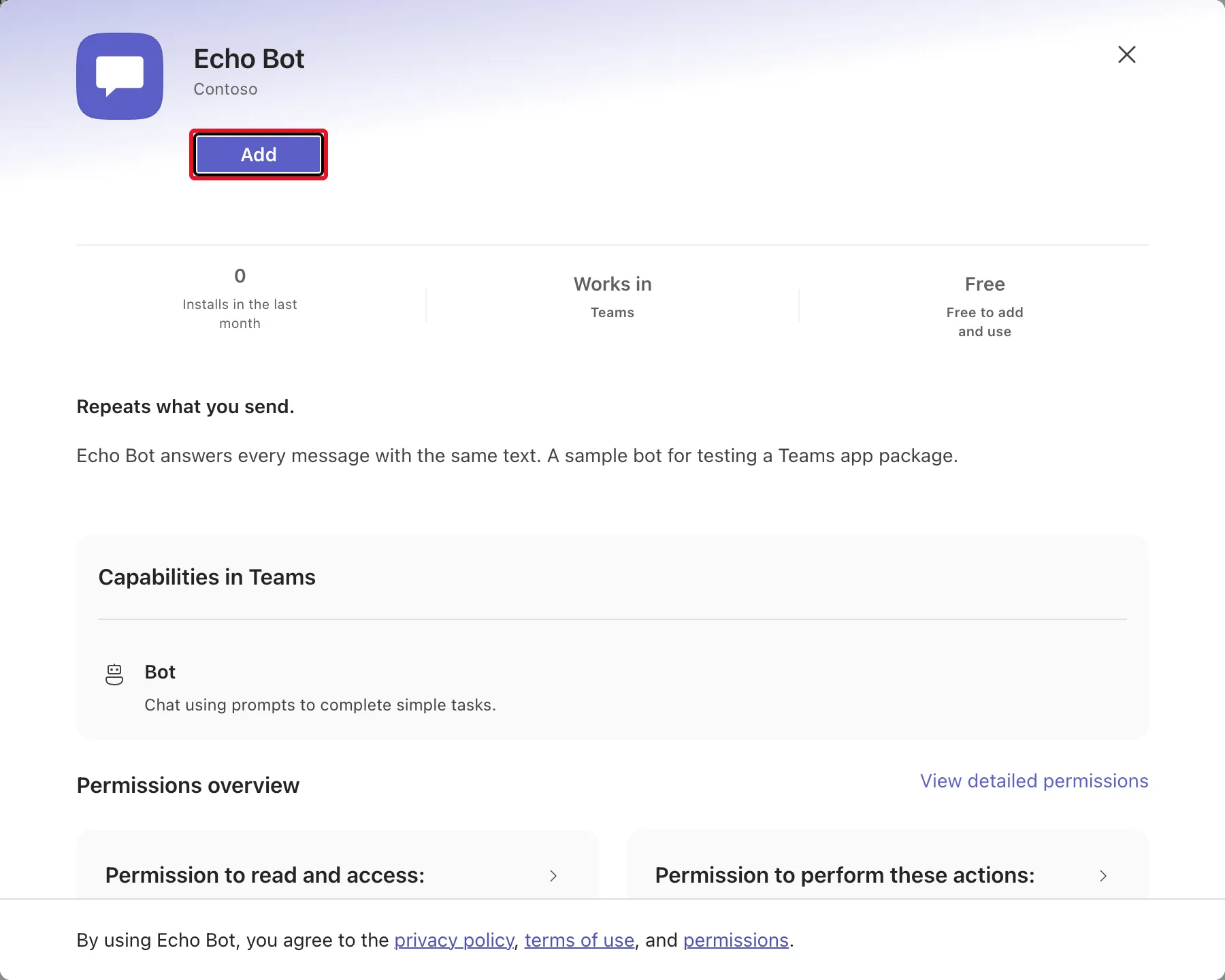
Select Add. Teams confirms:

Step 5: Open the App
Select Open. For a bot in the personal scope, Teams opens a one-to-one chat with it, with the bot's icon in the left rail:
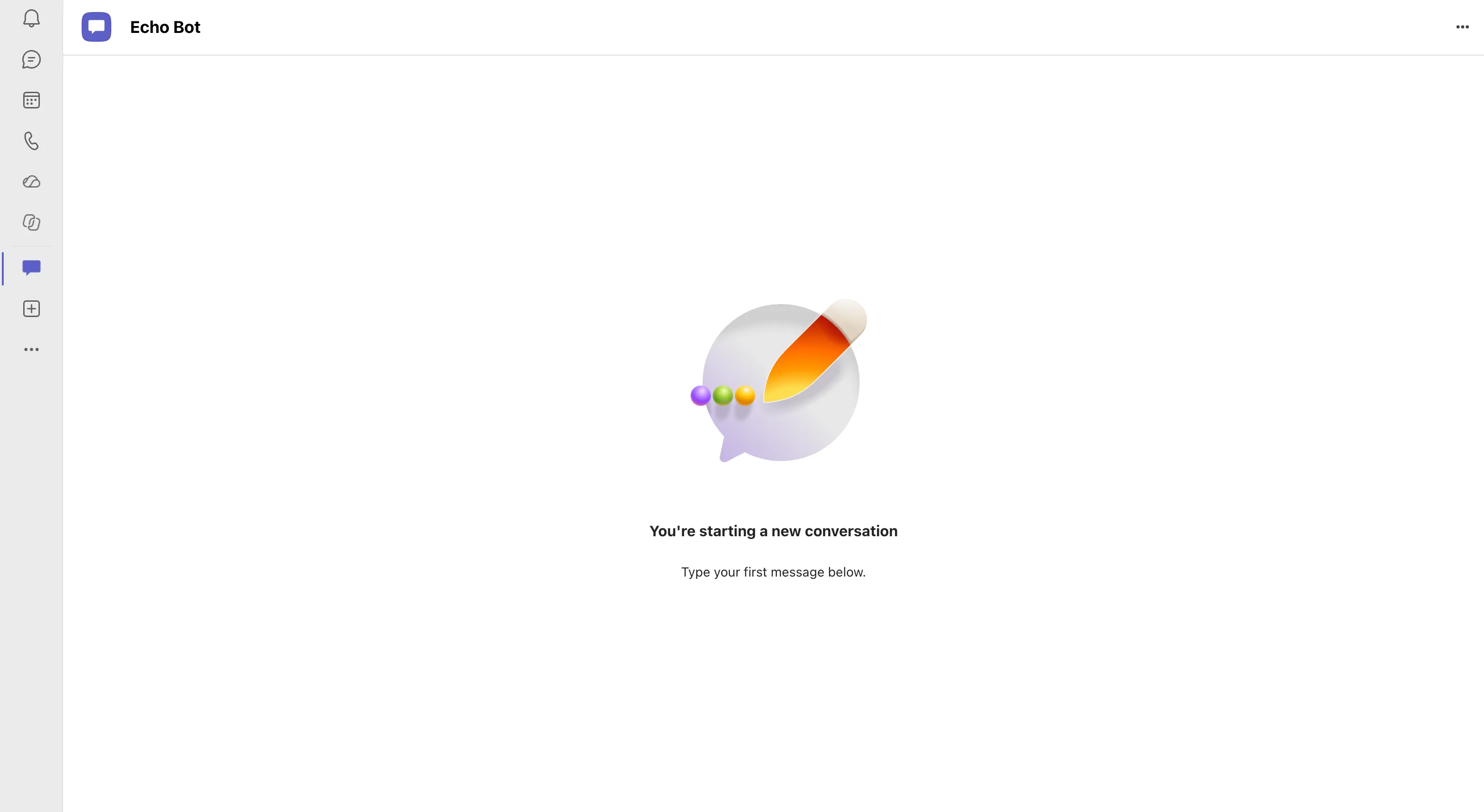
The app is installed for you. Messages you send here go to the bot's endpoint, so the bot's code has to be running and reachable for it to answer.
Common Mistakes
| Mistake | What happens | Do this instead |
|---|---|---|
| Choosing Submit an app to your org to test | The app waits for an admin's approval | Use Upload a custom app |
| Uploading the folder instead of the zip | Teams needs a .zip package | Zip the three files and upload the zip |
Uploading a changed package without raising its version | The installed app may keep the old manifest | Raise version in manifest.json first |
Troubleshooting
| Symptom | Likely cause | Fix |
|---|---|---|
| Upload an app or Upload a custom app is missing | Custom app upload isn't allowed for your account | Check the custom app settings |
| The bot doesn't answer | The bot's code isn't running, or its endpoint isn't reachable | Start the code, and check the endpoint in the bot's registration |
| Teams rejects the package | A manifest or icon problem | Rebuild the package and check it against the manifest schema |
FAQ
Who else can see the app?
Nobody, unless you add it to a team or chat they're in. A custom app uploaded for yourself is installed only for you.
Do I have to upload again after changing my bot's code?
No. Microsoft's documentation: You don't have to upload your custom app again if you make code changes (these are reflected in Teams in real-time). However, you must reinstall if you change any app configurations. Code changes are on your server; manifest changes need a new package.
How do I remove the app?
Uninstall it from Manage your apps: How to Uninstall an App in Microsoft Teams shows the steps.
Conclusion
To try your own Teams app, open Apps, go to Manage your apps, and choose Upload an app > Upload a custom app. Pick the zip, select Add and then Open, and the app is installed for you alone, ready to test.
Additional Resources
- Upload your app in Teams — Microsoft's steps, scopes and updates.
- Manage custom apps in the Teams admin center — the admin settings behind the upload option.
