How to Update npm to the Newest Version

npm comes with Node.js, but it doesn't stay in step with it: Node.js 26.13.0 ships with npm 11.20.0, while the newest npm is 12.2.2. When npm notices, it prints New major version of npm available! This guide checks your version, makes sure your Node.js can run the new one, and updates npm with one command.
Why npm Has Its Own Version
npm is the tool that installs JavaScript packages. Every Node.js release includes a copy of it, so installing Node.js gives you npm too. But npm is its own project with its own releases, and a new npm can arrive long after your Node.js was installed. Updating npm doesn't change Node.js, and npm lives inside each Node.js installation: if you have several versions of Node.js, each has its own npm.
Prerequisites
- Node.js installed. The examples use Node.js 26.13.0 on macOS.
- A terminal: Terminal on macOS or Linux, PowerShell on Windows.
Step 1: Check Your npm Version
npm -v
11.20.0
-v prints the version of the npm you are running: the one that came with Node.js 26.13.0.
Step 2: Find the Newest Version
npm view asks the npm registry about a package. Ask it about npm itself:
npm view npm version
12.2.2
npm notice
npm notice New major version of npm available! 11.20.0 -> 12.2.2
npm notice Changelog: https://github.com/npm/cli/releases/tag/v12.2.2
npm notice To update run: npm install -g npm@12.2.2
npm notice
The first line is the answer: 12.2.2 is the newest release. The npm notice lines are npm's own reminder; you'll see it after other commands too, until you update. Major version means the first number changes, from 11 to 12 — a release that can drop older Node.js versions.
Step 3: Check That Your Node.js Supports It
Every npm release lists the Node.js versions it runs on, under engines:
npm view npm@12.2.2 engines
{ node: '^22.22.2 || ^24.15.0 || >=26.0.0' }
npm 12.2.2 needs Node.js 22.22.2 or later in the 22 line, 24.15.0 or later in the 24 line, or any Node.js 26 or newer. Node.js 26.13.0 qualifies. Check yours with node -v; if it's older, update Node.js first.
Step 4: Update npm
npm install -g npm@latest
removed 8 packages, and changed 77 packages in 2s
| Part | What it means |
|---|---|
npm install | Installs a package |
-g | Globally: as a command for your whole machine, not into a project |
npm@latest | The package called npm, at the version tagged latest — the newest release |
npm replaced itself: 77 of the packages it is built from were updated, and 8 it no longer needs were removed.
Step 5: Check the New Version
npm -v
12.2.2
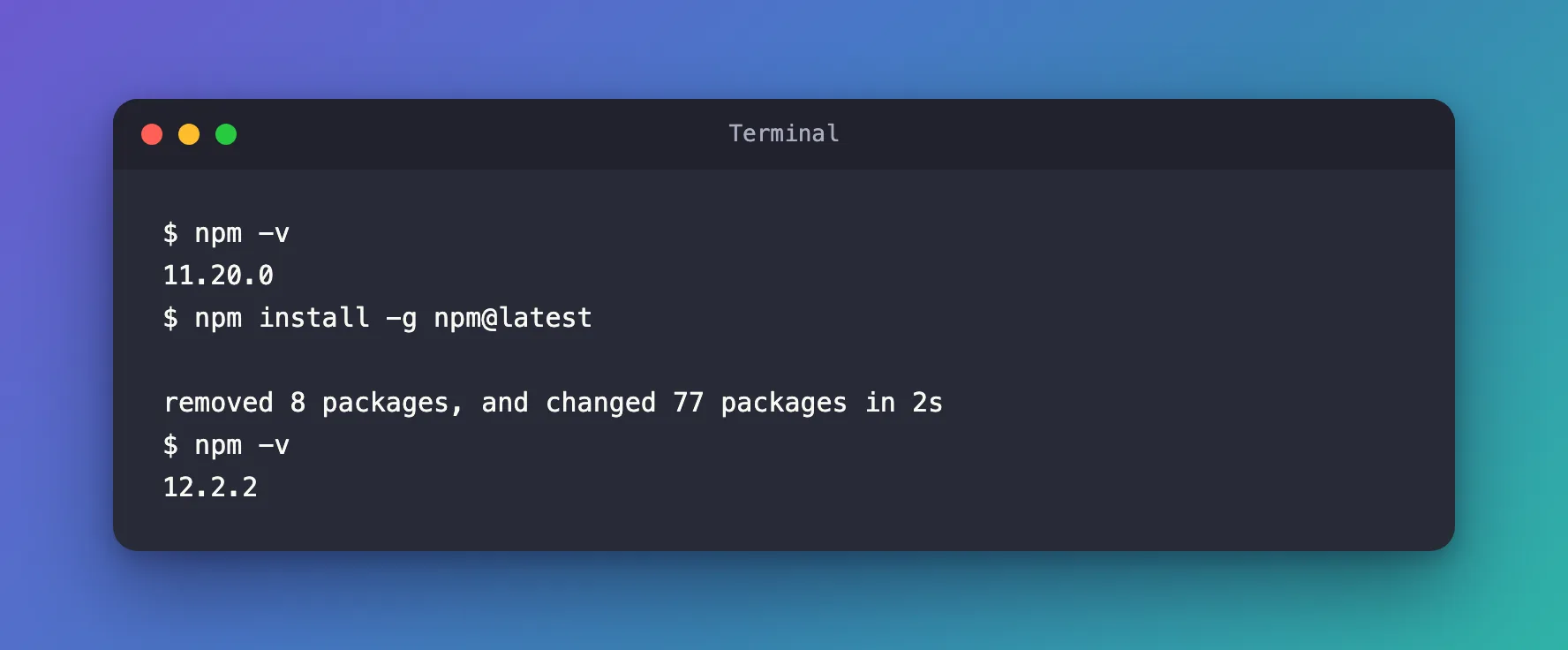
The notice is gone, and new commands run with npm 12.2.2.
If You Get a Permission Error
npm's guide Try the latest stable version of npm says that on macOS and Linux you may need to prefix these commands with sudo, especially on Linux, or macOS if you installed Node using its default installer. Its installation guide recommends avoiding that situation altogether: We strongly recommend using a Node version manager like nvm to install Node.js and npm. A version manager installs Node.js in your home folder, where npm install -g needs no sudo. The Node.js I used for this guide sits in a folder my user owns, so none of the commands needed sudo.
On Windows
The command is the same in PowerShell: npm install -g npm@latest. I ran the steps above on macOS. For Windows, npm's guide adds a note: the Node.js installer puts its own folder, C:\Program Files\nodejs, before your personal npm folder on the PATH, so Windows can keep running the npm that came with Node.js even after you install a newer one. Run npm -v after updating; if it still shows the old version, follow the options in npm's Windows notes.
Common Mistakes
| Mistake | What happens | Do this instead |
|---|---|---|
| Updating npm on a Node.js version it doesn't support | npm prints npm v12.2.2 does not support Node.js … and may not work | Check npm view npm@latest engines first |
Using sudo with a version manager's Node.js | Files in your home folder end up owned by the root user | Run npm install -g without sudo |
| Expecting all Node.js versions to update | Only the active Node.js version's npm changes | Update npm once for each Node.js version you use |
Troubleshooting
| Symptom | Likely cause | Fix |
|---|---|---|
EACCES: permission denied during npm install -g | Node.js was installed into a system folder | Install Node.js with a version manager, or follow npm's permissions guide |
npm -v still shows the old version | Another npm comes first on your PATH | Open a new terminal; on Windows, follow npm's Windows notes |
| The notice says a newer version is available again | npm published a newer release | Run npm install -g npm@latest again |
FAQ
Does updating npm update Node.js?
No. npm and Node.js are separate. Update Node.js by installing a newer Node.js release; its npm comes with it.
Will my projects break?
Your projects' packages don't change. The new npm reads the same package.json and package-lock.json. Read the changelog in the notice for anything that changed in npm's commands.
How often should I update?
Whenever the notice appears, and whenever you install a new Node.js version.
Conclusion
npm -v shows your version, npm view npm version the newest, and npm view npm@latest engines whether your Node.js can run it. Then npm install -g npm@latest updates npm in a couple of seconds — here from 11.20.0 to 12.2.2 on Node.js 26.13.0.
Additional Resources
- npm: Try the latest stable version of npm — updating on macOS, Linux and Windows.
- npm: Downloading and installing Node.js and npm — why a version manager avoids permission errors.
- npm releases on GitHub — what changed in each release.
