How to Update an Adaptive Card the Agent Already Sent in the Microsoft 365 Agents SDK in C#

A status card is more useful when it changes than when the agent sends a new one for every step. In the Microsoft 365 Agents SDK, SendActivityAsync gives you the sent message's ID, and UpdateActivityAsync replaces that message with a new card later, for everyone in the conversation.
Syntax
ResourceResponse sent = await turnContext.SendActivityAsync(cardMessage, cancellationToken);
string messageId = sent.Id;

// Later, in a turn in the same conversation:
IActivity update = MessageFactory.Attachment(newCard);
update.Id = messageId;
await turnContext.UpdateActivityAsync(update, cancellationToken);
SendActivityAsyncreturns aResourceResponse, whoseIdis the ID the channel gave the message.update.Idsays which message to replace.UpdateActivityAsyncsends the update. It fills in the conversation and the rest of the address from the current turn, so call it from a turn in the same conversation.
For a card action, you don't need to keep the ID yourself: in Microsoft Teams, an Action.Execute invoke from a card carries the ID of the message that holds the card in turnContext.Activity.ReplyToId.
The Example
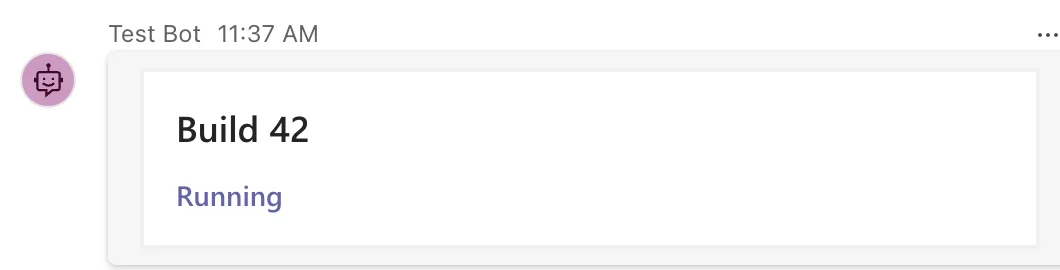
The agent for this post answers start with a status card, Build 42: Running, and keeps the message's ID in conversation state. finish updates that same card to Passed. The agent is one class in an ASP.NET Core project with the Agents SDK, hosted with AddAgent<BuildAgent>() and listening on port 3978, with MemoryStorage for state.
Prerequisites
- The Microsoft 365 Agents Playground, to chat with the agent on your own machine.
agentsplayground --versionshould print0.2.30; if the command isn't found, install it withnpm install -g @microsoft/m365agentsplayground.
Step 1: Keep the ID and Update the Card
using System.Text.Json.Nodes;
using Microsoft.Agents.Builder;
using Microsoft.Agents.Builder.App;
using Microsoft.Agents.Builder.State;
using Microsoft.Agents.Core.Models;

namespace BuildStatus;

public class BuildAgent : AgentApplication
{
    private const string CardIdKey = "buildCardId";

    public BuildAgent(AgentApplicationOptions options) : base(options)
    {
        OnMessage("start", StartBuildAsync);
        OnMessage("finish", FinishBuildAsync);
    }

    private async Task StartBuildAsync(ITurnContext turnContext, ITurnState turnState, CancellationToken cancellationToken)
    {
        ResourceResponse sent = await turnContext.SendActivityAsync(BuildCard("Running", "Accent"), cancellationToken);

        // Keep the ID of the message that holds the card, so a later turn can update it.
        turnState.Conversation.SetValue(CardIdKey, sent.Id);
    }

    private async Task FinishBuildAsync(ITurnContext turnContext, ITurnState turnState, CancellationToken cancellationToken)
    {
        string? cardId = turnState.Conversation.GetValue<string>(CardIdKey);
        if (cardId is null)
        {
            await turnContext.SendActivityAsync("Send start first.", cancellationToken: cancellationToken);
            return;
        }

        IActivity update = BuildCard("Passed", "Good");
        update.Id = cardId;
        await turnContext.UpdateActivityAsync(update, cancellationToken);
    }

    private static IActivity BuildCard(string status, string color)
    {
        JsonObject card = new()
        {
            ["type"] = "AdaptiveCard",
            ["version"] = "1.5",
            ["body"] = new JsonArray
            {
                new JsonObject { ["type"] = "TextBlock", ["text"] = "Build 42", ["size"] = "Large", ["weight"] = "Bolder" },
                new JsonObject { ["type"] = "TextBlock", ["text"] = status, ["color"] = color, ["weight"] = "Bolder" },
            },
        };

        return MessageFactory.Attachment(new Attachment { ContentType = ContentTypes.AdaptiveCard, Content = card });
    }
}
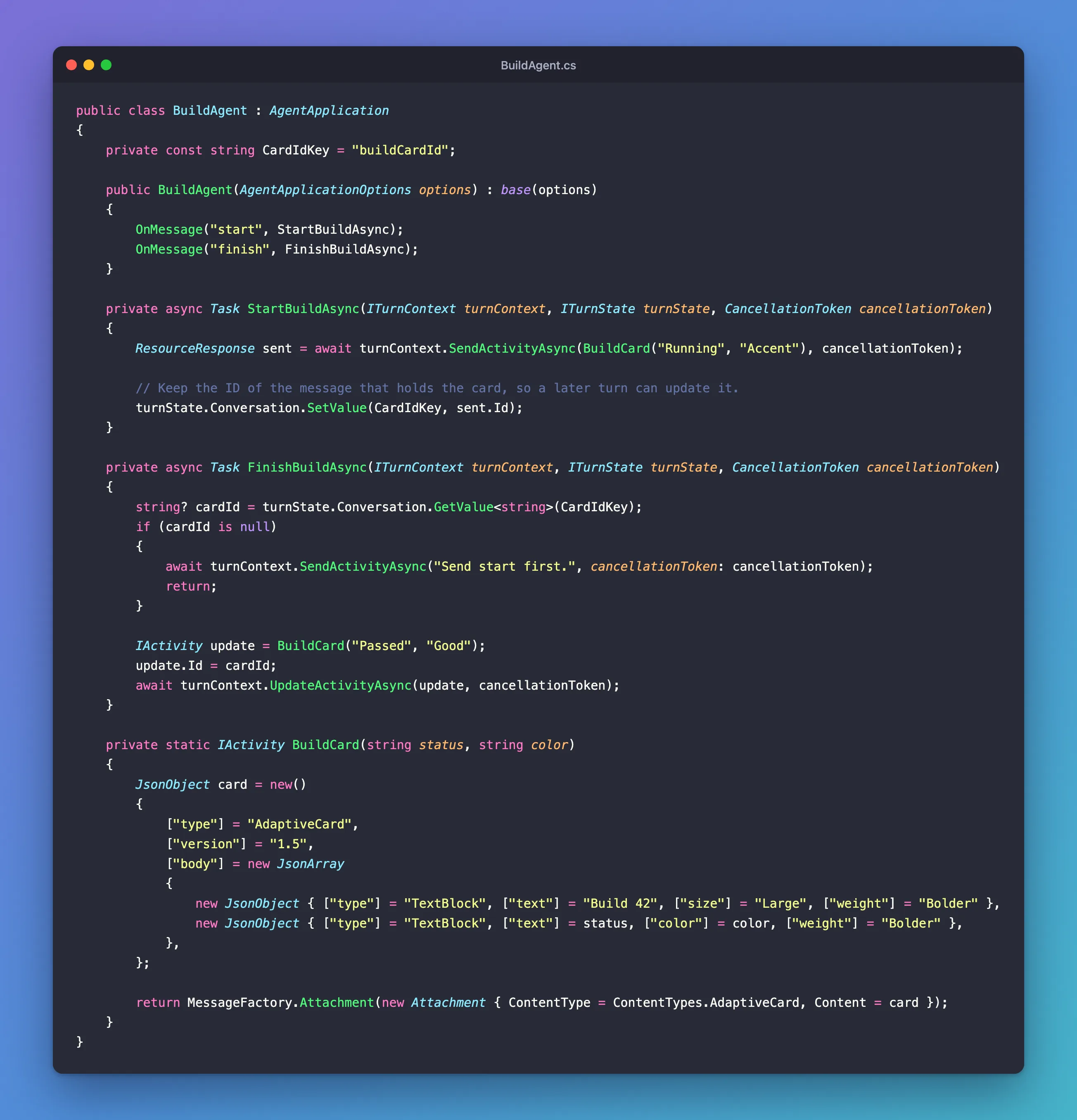
StartBuildAsynckeepssent.Idin conversation state, under the namebuildCardId. Conversation state is per conversation, so each chat remembers its own card.FinishBuildAsyncreads the ID back, builds the new card, gives it that ID, and callsUpdateActivityAsync.BuildCardbuilds both versions withJsonObject.AccentandGoodare Adaptive Card colors, blue and green in this theme.
Step 2: Try It
Run the agent with dotnet run, then start the Agents Playground in a second terminal, on its Teams channel:
agentsplayground -e http://localhost:3978/api/messages -c msteams
In Personal Chat, send start:
Then send finish:
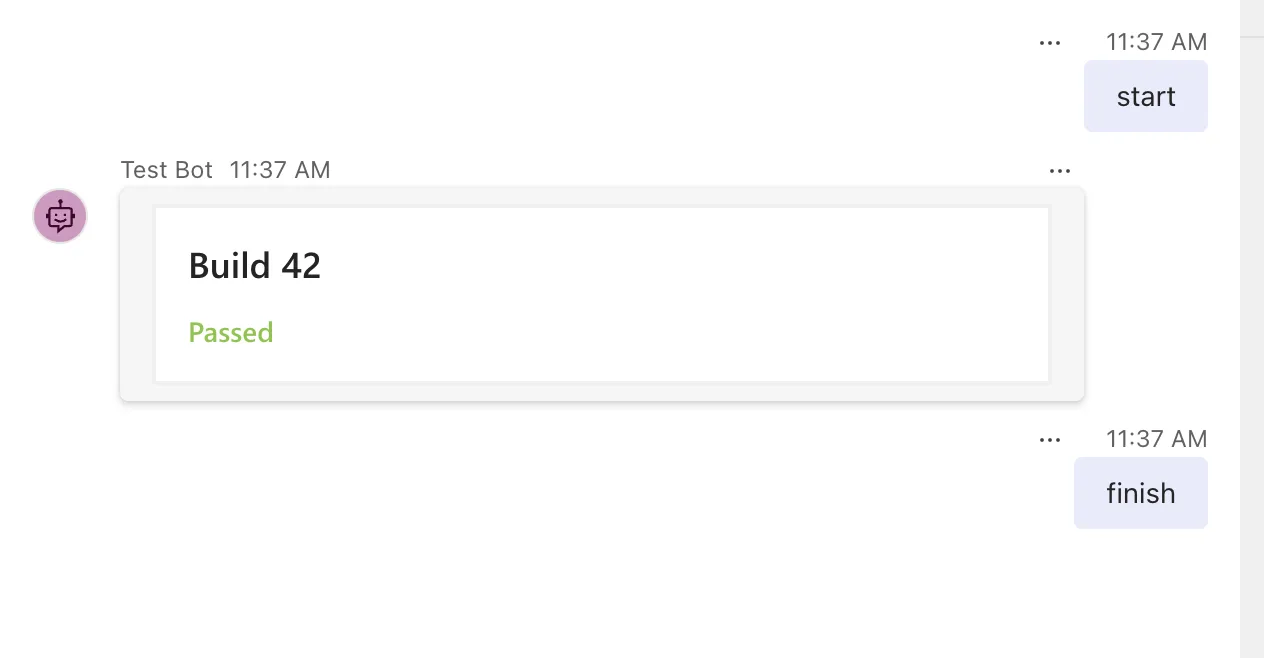
The card above finish changed from Running to Passed, and finish got no new message: the update replaced the earlier one.
Common Mistakes
| Mistake | What happens | Do this instead |
|---|---|---|
Sending the new card with SendActivityAsync | A second card appears, and the first one stays as it was | Call UpdateActivityAsync with the first card's ID |
Keeping state in MemoryStorage in production | A restart forgets the ID, and the card can't be found again | Use lasting storage for state |
Troubleshooting
| Symptom | Likely cause | Fix |
|---|---|---|
Send start first. although you sent start | The agent restarted in between, and MemoryStorage forgot the ID | Send start again; use lasting storage |
| A second card appears instead of an update | The code called SendActivityAsync instead of UpdateActivityAsync | Call UpdateActivityAsync with the ID |
FAQ
Does everyone in the chat see the update?
Yes: the update replaces the message itself. In Microsoft Teams, in this series' tests, people saw the new card in place of the old one, marked Edited next to the time.
How do I update the card from one of its own buttons?
Use the invoke's turnContext.Activity.ReplyToId as the ID. In Microsoft Teams, an Action.Execute invoke from a card carries the ID of the message that holds the card there.
Can I update a card from outside a turn?
UpdateActivityAsync takes the conversation's address from the current turn. Outside a turn, start one in that conversation first, as with any proactive message.
Conclusion
To change a card your agent already sent, keep the Id from the ResourceResponse that SendActivityAsync returned, then send the new card with that ID through UpdateActivityAsync. The message changes in place, for everyone in the conversation.
Additional Resources
- Update and delete messages sent from your bot, on Microsoft Learn: updating messages and cards in Teams.
- ITurnContext.UpdateActivityAsync method, on Microsoft Learn.
