How to Unblock Sign-In for a User in Microsoft 365

A blocked account keeps everything, so letting someone back in is one checkbox in the Microsoft 365 admin center. This guide unblocks Leo Martin, whose sign-in had been blocked, and shows the message that says when he can sign in again.
In the Overtime Timesheet series, Leo comes back as the organization's payroll officer, and the payroll features are tested by signing in as him. How to Block Sign-In for a User in Microsoft 365 is the opposite of this guide.
Prerequisites
- An admin role that can manage users in the Microsoft 365 admin center, such as User Administrator.
- A user whose sign-in is blocked.
Step 1: Open the Blocked User
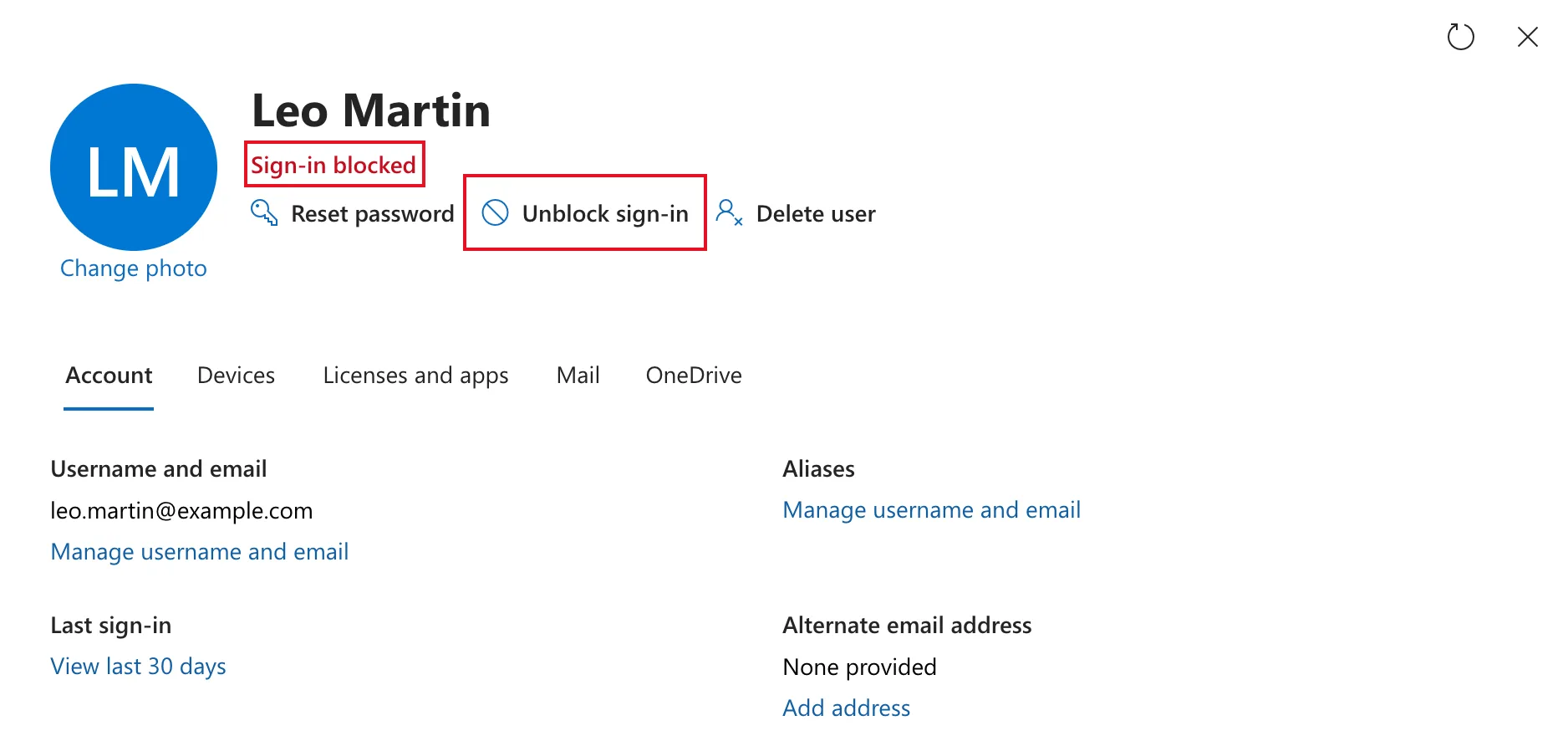
In the Microsoft 365 admin center, go to Users → Active users and select the person, here Leo Martin. Under his name, his details show Sign-in blocked, and the action next to Reset password reads Unblock sign-in. Select it:
Step 2: Clear the Block and Save
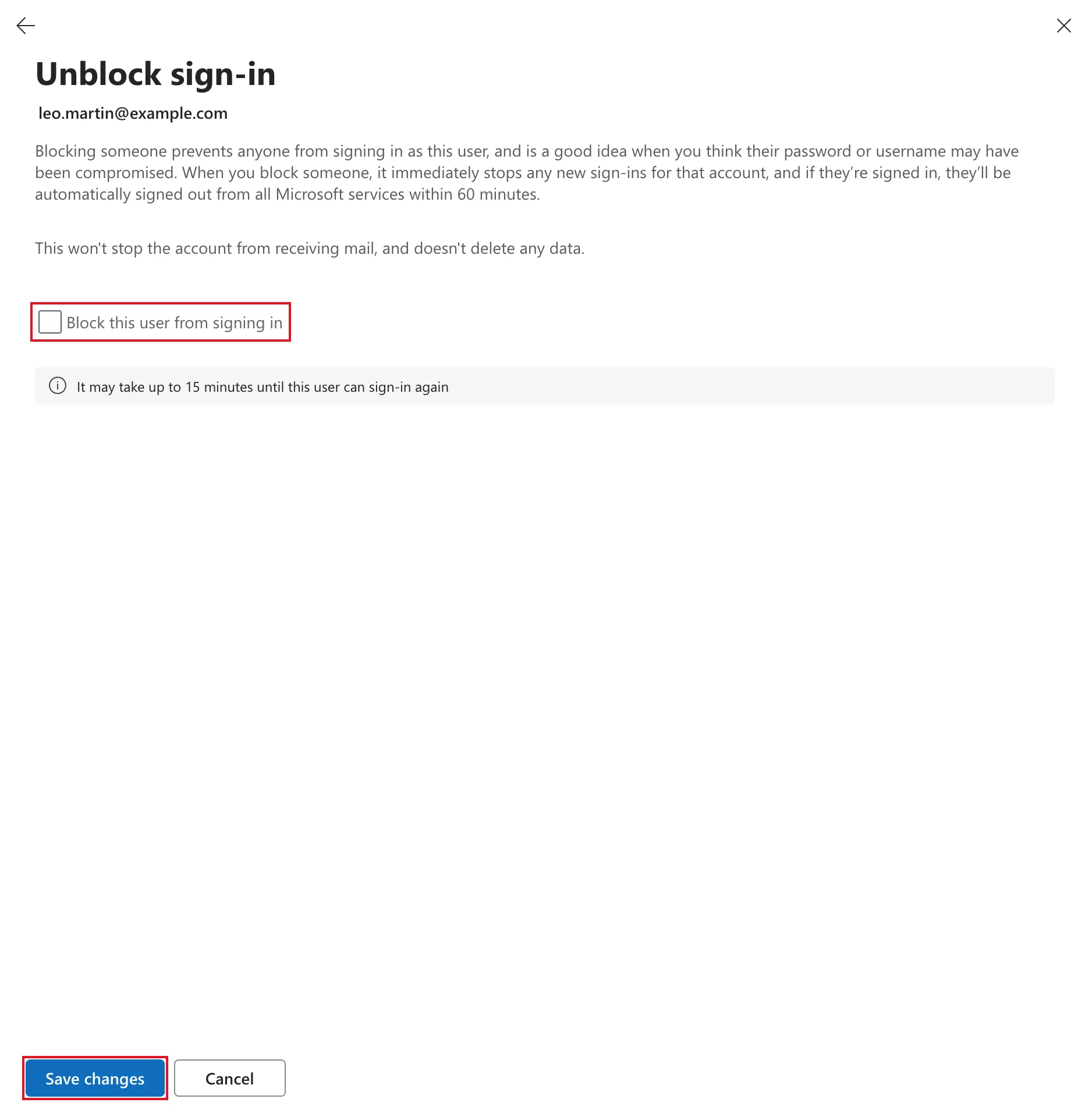
The Unblock sign-in pane has the same checkbox that blocked him, Block this user from signing in. Clear it, then select Save changes:
Step 3: Read the Confirmation
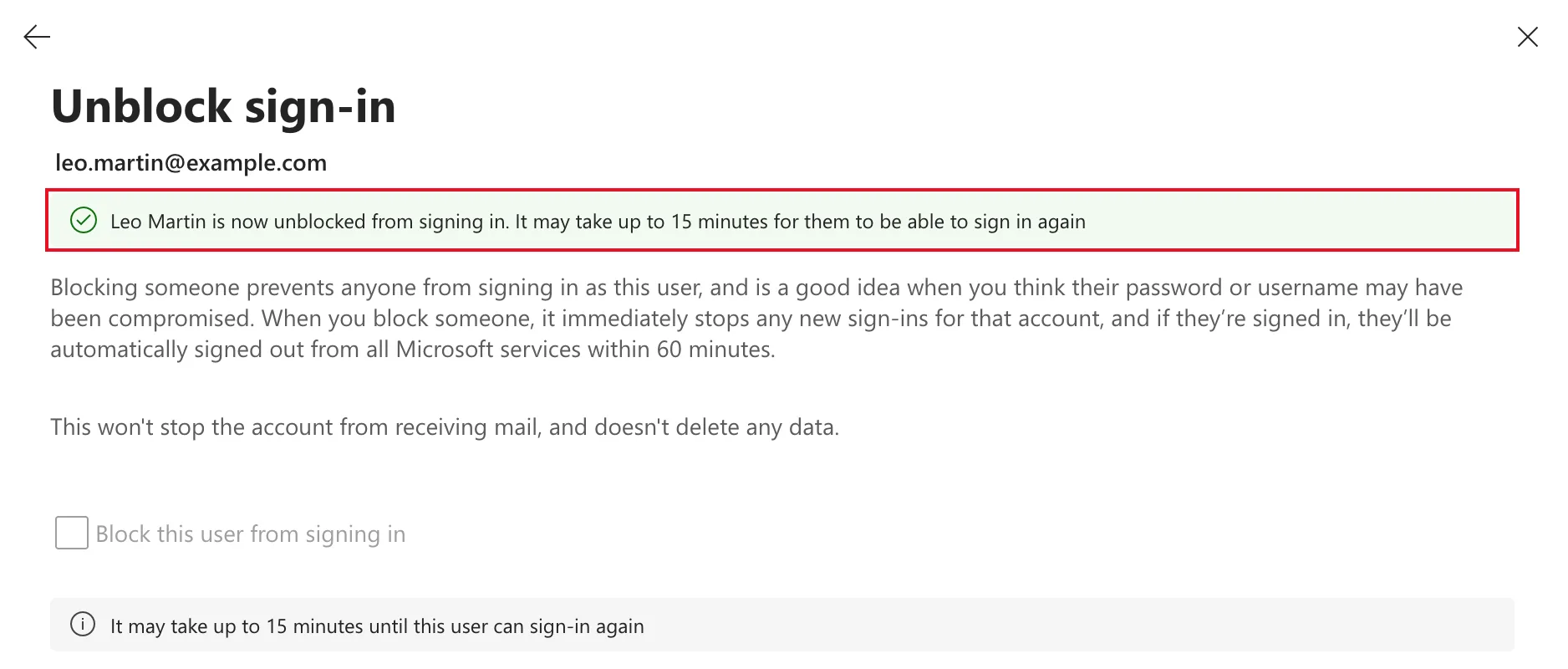
The pane confirms the change: Leo Martin is now unblocked from signing in. It may take up to 15 minutes for them to be able to sign in again.
Step 4: Check the Account
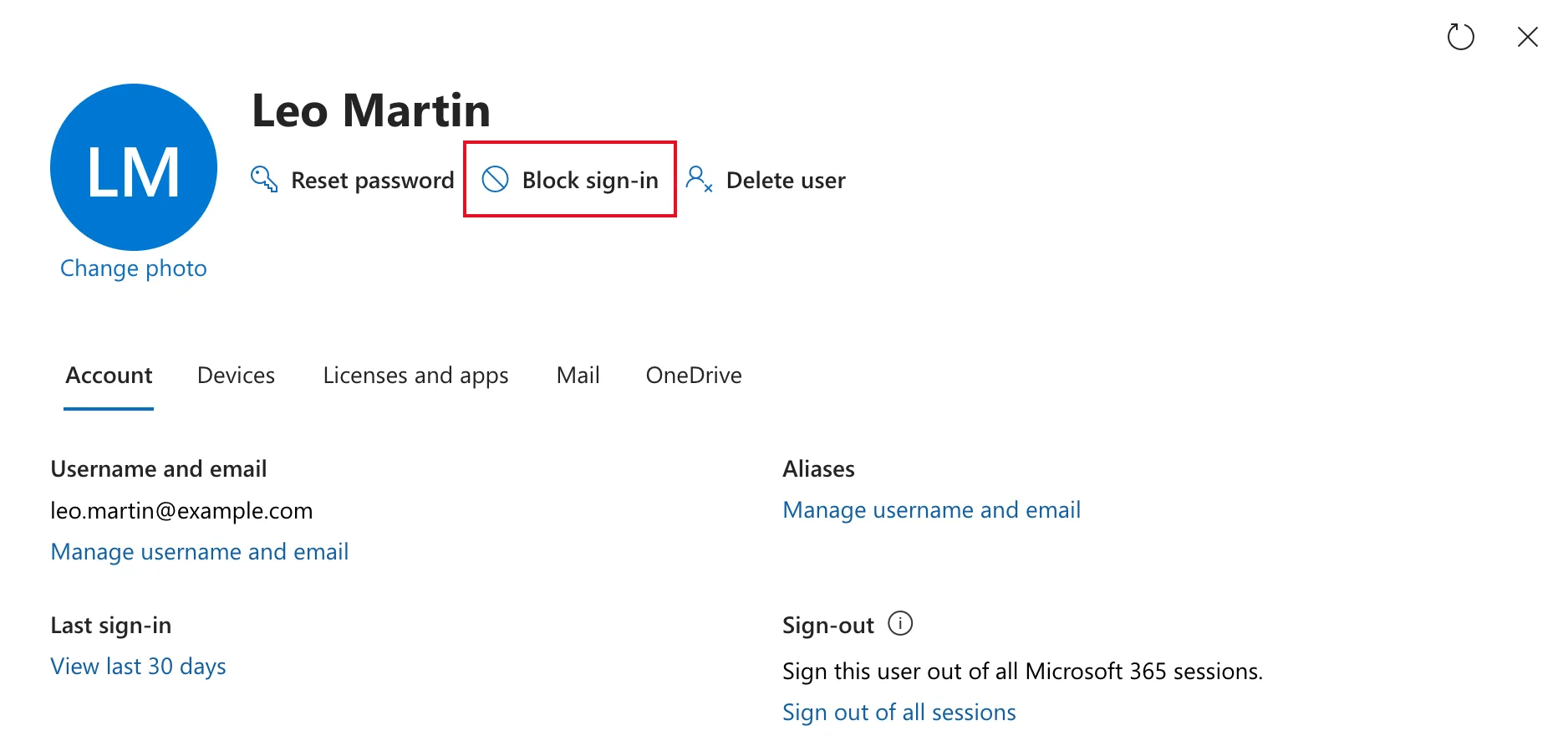
Go back to Leo's details with the arrow at the top of the pane. Sign-in blocked has gone, the action reads Block sign-in again, and the Sign-out section is back on the Account tab:
In the Microsoft Entra admin center, his Account enabled column changes from No to Yes, as How to Show Job Title, Department and Account Enabled Columns shows.
Do It with PowerShell
Blocking and unblocking are the same Microsoft Graph setting, accountEnabled. How to Block Sign-In for a User in Microsoft 365 sets it with Update-MgUser, and Microsoft's article Block Microsoft 365 user accounts with PowerShell unblocks with the same command and $true instead of $false.
Common Mistakes
| Mistake | What happens | Do this instead |
|---|---|---|
| Expecting the person to sign in straight away | It can take up to 15 minutes | Tell them to wait a few minutes before trying |
| Unblocking a leaver by mistake | Their account works again | Check you've opened the right person before saving |
| Forgetting their license | A blocked account keeps its license, but if it was removed they can sign in and can't use the apps | Check Licenses and apps and assign one if needed |
Troubleshooting
| Symptom | Likely cause | Fix |
|---|---|---|
| The person still sees Your account has been locked | The unblock hasn't reached every service yet | Wait up to 15 minutes and try again |
| Unblock sign-in isn't offered | The account isn't blocked | Nothing to do |
| The admin center refuses the change | Your role can't manage this user | Ask a Global Administrator for a role that manages users |
FAQ
Does unblocking restore their data?
There's nothing to restore. Blocking never deleted anything, so their mailbox, files and group memberships are as they were.
Will they need a new password?
No. Their password is unchanged. If you reset it while they were blocked, give them the new one.
Can I unblock several people at once?
Yes, with PowerShell, by running Update-MgUser with accountEnabled = $true for each of them.
Conclusion
To let someone back in: Active users → the person → Unblock sign-in → clear Block this user from signing in → Save changes. Allow up to 15 minutes before they try.
Additional Resources
- Block Microsoft 365 user accounts with PowerShell
- Step 1 - Prevent user sign-in and block access to Microsoft 365
