How to Turn On More .NET C# Code Analysis Rules with AnalysisLevel (latest-recommended and latest-all)

Every .NET project already runs Microsoft's code analyzers, but out of the box only a handful of their rules report anything. One property, AnalysisLevel, turns on a bigger set, from "recommended" to "all". This guide sets it on a real solution, shows exactly which new warnings appeared, and how to choose the level.
Code Analysis Is Already On
Microsoft's code analysis overview: "These analyzers are included with the .NET SDK and you don't need to install them separately." And: "If your project targets .NET 5 or later, code analysis is enabled by default."
But the default is gentle: "In the default analysis mode (Default), only a small number of rules are enabled as build warnings." My solution, a web API made from the dotnet new webapi template plus a class library, built without a single warning:
Restore complete (0.6s)
  Dewiride.Inventory.Data net10.0 succeeded (0.2s) → src/Dewiride.Inventory.Data/bin/Debug/net10.0/Dewiride.Inventory.Data.dll
  Dewiride.Inventory.Api net10.0 succeeded (0.4s) → src/Dewiride.Inventory.Api/bin/Debug/net10.0/Dewiride.Inventory.Api.dll

Build succeeded in 1.2s
Prerequisites
- A .NET 5 or later project. The examples use .NET 10.
- A
Directory.Build.props, to set the level once for the whole solution: How to Share Build Settings Across .NET C# Projects with Directory.Build.props.
Step 1: Choose a Level
AnalysisLevel combines a version and a mode. The MSBuild reference: "Compound values take the form <version>-<mode>". The useful ones:
| Value | Rules that warn |
|---|---|
latest (the default) | The small default set |
latest-minimum | "Certain suggestions that are highly recommended for build enforcement" |
latest-recommended | "More aggressive mode than Minimum mode, where more rules are enabled as build warnings" |
latest-all | "All rules are enabled as build warnings", apart from a few legacy rules |
latest means the rules of the SDK you build with, so a newer SDK can bring new rules. The docs on the default: "you always get the latest code analysis rules as you move to newer versions of the .NET SDK."
Step 2: Turn On the Recommended Set
<Project>
  <!-- See https://aka.ms/dotnet/msbuild/customize for more details on customizing your build -->
  <PropertyGroup>
    <!-- Stop the build on any compiler, analyzer or NuGet warning, so problems get fixed early. -->
    <TreatWarningsAsErrors>true</TreatWarningsAsErrors>
    <!-- Turn on the recommended set of .NET code-quality rules for the newest SDK. -->
    <AnalysisLevel>latest-recommended</AnalysisLevel>
  </PropertyGroup>
</Project>
To see what the new rules report without failing on it, I built once with warnings as errors switched off for that build:
dotnet build -p:TreatWarningsAsErrors=false
Restore complete (1.5s)
  Dewiride.Inventory.Data net10.0 succeeded (0.2s) → src/Dewiride.Inventory.Data/bin/Debug/net10.0/Dewiride.Inventory.Data.dll
  Dewiride.Inventory.Api net10.0 succeeded with 1 warning(s) (0.4s) → src/Dewiride.Inventory.Api/bin/Debug/net10.0/Dewiride.Inventory.Api.dll
    /Users/you/projects/dewiride-inventory-api/src/Dewiride.Inventory.Api/Program.cs(36,8): warning CA1852: Type 'WeatherForecast' can be sealed because it has no subtypes in its containing assembly and is not externally visible (https://learn.microsoft.com/dotnet/fundamentals/code-analysis/quality-rules/ca1852)

Build succeeded with 1 warning(s) in 2.2s
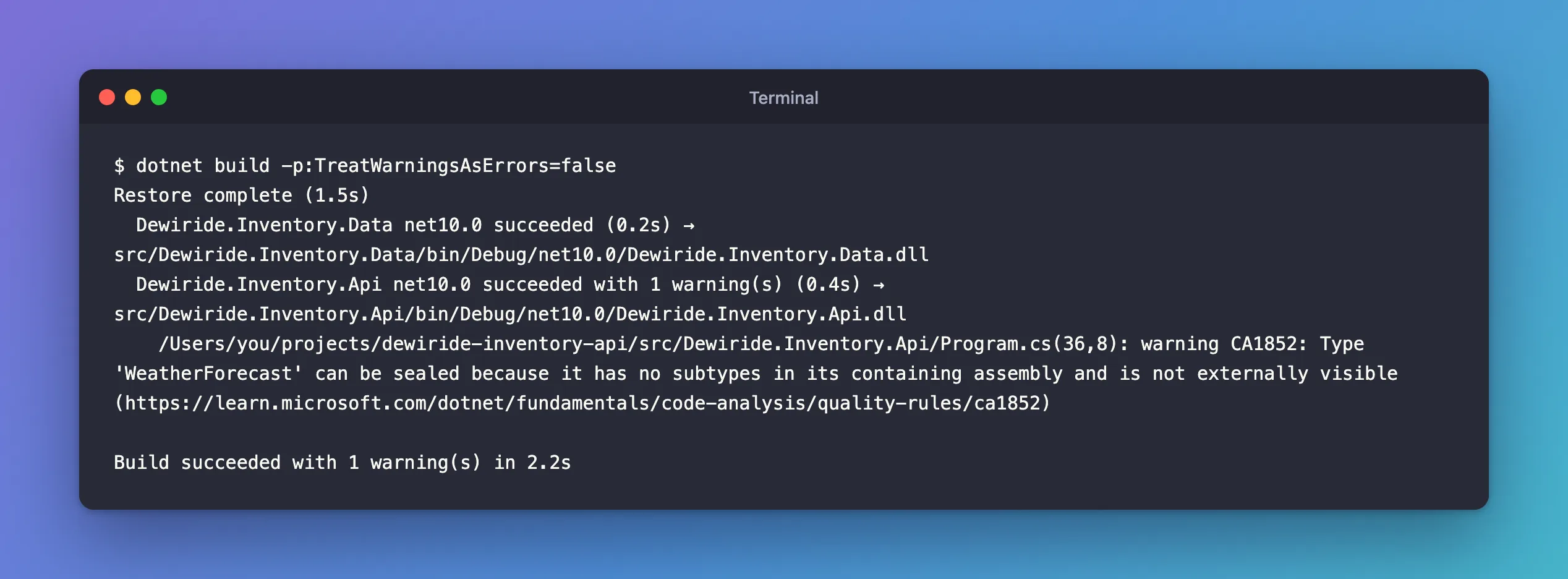
One new warning, in the template's own code: CA1852, "Seal internal types". The rule's page: "When a type isn't accessible outside its assembly and has no subtypes within its containing assembly, it can be safely sealed. Sealing types can improve performance." With TreatWarningsAsErrors on, the normal build failed on it, as error CA1852. Fixed: error CA1852 shows the one-word fix.
Step 3: See What "All" Adds
To compare, the same build with every rule:
dotnet build -p:AnalysisLevel=latest-all -p:TreatWarningsAsErrors=false
Restore complete (1.3s)
  Dewiride.Inventory.Data net10.0 succeeded (0.2s) → src/Dewiride.Inventory.Data/bin/Debug/net10.0/Dewiride.Inventory.Data.dll
  Dewiride.Inventory.Api net10.0 succeeded with 3 warning(s) (0.6s) → src/Dewiride.Inventory.Api/bin/Debug/net10.0/Dewiride.Inventory.Api.dll
    /Users/you/projects/dewiride-inventory-api/src/Dewiride.Inventory.Api/Program.cs(26,13): warning CA5394: Random is an insecure random number generator. Use cryptographically secure random number generators when randomness is required for security. (https://learn.microsoft.com/dotnet/fundamentals/code-analysis/quality-rules/ca5394)
    /Users/you/projects/dewiride-inventory-api/src/Dewiride.Inventory.Api/Program.cs(27,23): warning CA5394: Random is an insecure random number generator. Use cryptographically secure random number generators when randomness is required for security. (https://learn.microsoft.com/dotnet/fundamentals/code-analysis/quality-rules/ca5394)
    /Users/you/projects/dewiride-inventory-api/src/Dewiride.Inventory.Api/Program.cs(36,8): warning CA1852: Type 'WeatherForecast' can be sealed because it has no subtypes in its containing assembly and is not externally visible (https://learn.microsoft.com/dotnet/fundamentals/code-analysis/quality-rules/ca1852)

Build succeeded with 3 warning(s) in 2.2s
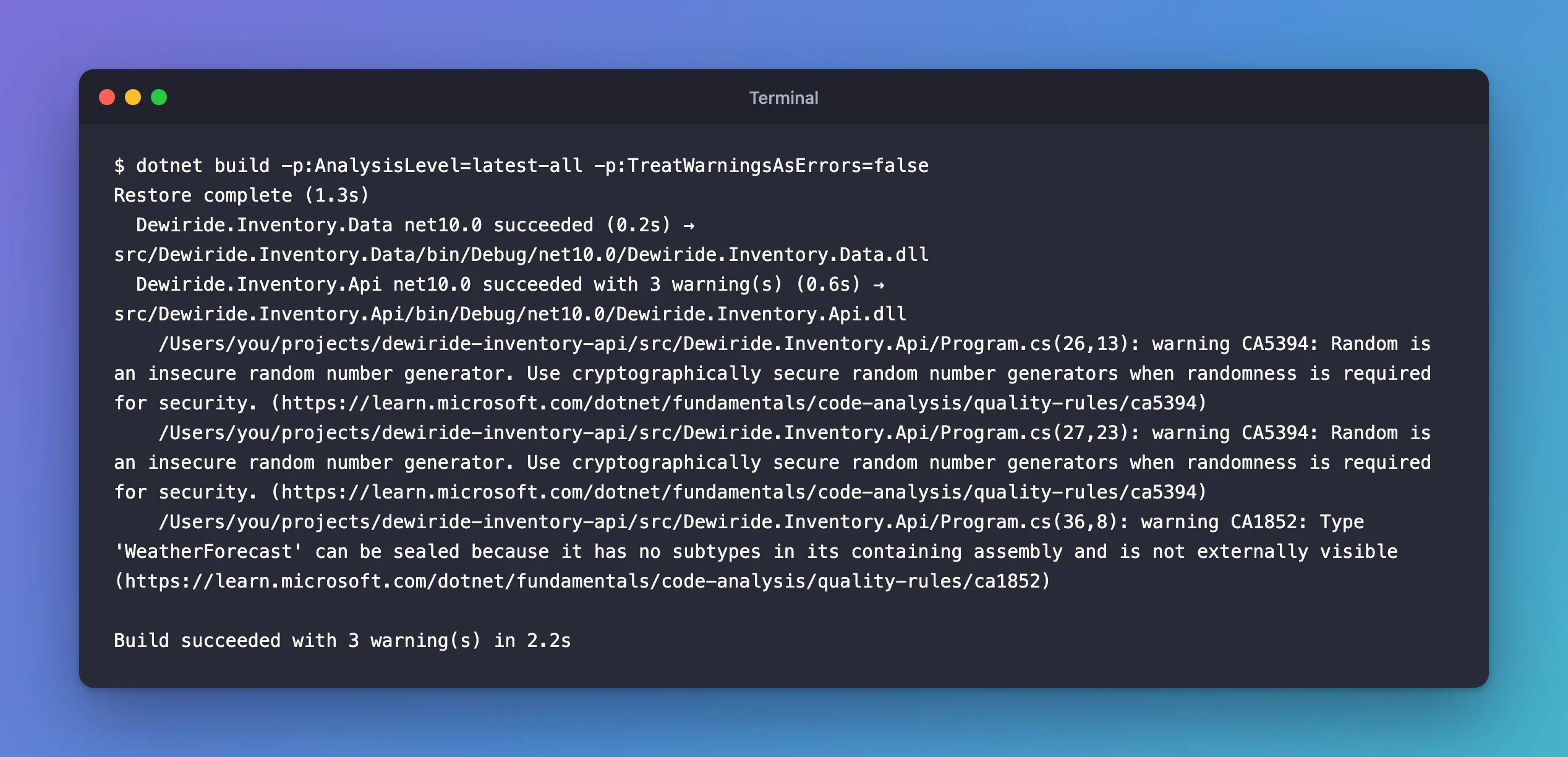
Two more: CA5394, "Do not use insecure randomness", on the template's Random.Shared calls that invent temperatures. The rule's reasoning: "Using a cryptographically weak pseudo-random number generator may allow an attacker to predict what security-sensitive value will be generated." For a weather sample that's harmless, and that's the trade-off with all: more real findings, and more findings that don't apply.
Which Level to Use
- New projects:
latest-recommended. It catches real issues and stays quiet on ordinary code. Fix what it finds as it appears. - Strict codebases:
latest-all, then turn off, per rule, what doesn't fit, as the docs suggest: "You can selectively opt out of individual rules to disable them." How to Turn Off a .NET Analyzer Rule for One Folder with .editorconfig shows how. - Existing large codebases: start with
latest-minimum, fix, then step up.
Combine it with TreatWarningsAsErrors, or the new warnings are easy to ignore.
Common Mistakes
| Mistake | What happens | Do this instead |
|---|---|---|
Setting both AnalysisLevel with a mode and AnalysisMode | The docs: "AnalysisLevel takes precedence over AnalysisMode" | Use the compound AnalysisLevel value only |
Turning on latest-all with warnings as errors in an old codebase | The build fails on hundreds of findings | Step up from minimum, or disable rules first |
Pinning a version, such as 9.0-recommended, and forgetting it | New SDKs bring rules you never get | Use latest-… unless you need a fixed set |
| Suppressing a security rule everywhere because of one sample | Real issues elsewhere go unreported | Turn it off only where it doesn't apply |
FAQ
Do I need a NuGet package for these analyzers?
No. They come with the .NET SDK, as the overview says.
What about the IDE00xx code-style rules?
Those are separate, and off in command-line builds by default. How to Enforce .NET Code Style Rules on Build with EnforceCodeStyleInBuild turns them on.
Conclusion
.NET's analyzers run on every build, but the default level only warns about a few rules. <AnalysisLevel>latest-recommended</AnalysisLevel> in Directory.Build.props turns on a useful bigger set for the whole solution; on a fresh template it found one real issue, an unsealed type. latest-all goes further and needs rule-by-rule decisions. Pair either with TreatWarningsAsErrors, so what they find gets fixed.
