How to Turn On Modern Controls and Themes in Power Apps

Modern controls are the newer set of Power Apps controls, built on Microsoft's Fluent 2 design system. They look current, work better with screen readers and keyboards, and all take their colors from one theme. In some apps they're switched off, and the Insert pane only offers the older, classic controls. Here's how to turn them on.
What Changes When You Turn Them On
| Before | After |
|---|---|
| Only classic controls in Insert | Modern controls in the normal categories; classic ones under Classic and Classic icons |
| Theme on the command bar, with classic themes | A Themes pane with modern themes |
| Each control styled on its own | Controls follow the app's theme |
Microsoft's modern controls overview describes the same switch.
Prerequisites
- A canvas app open in Power Apps Studio. See How to Create a Canvas App Inside a Solution in Power Apps. The example is the Career Development Plan app from the Career Development Plan series.
Step 1: Open Settings and Go to Updates
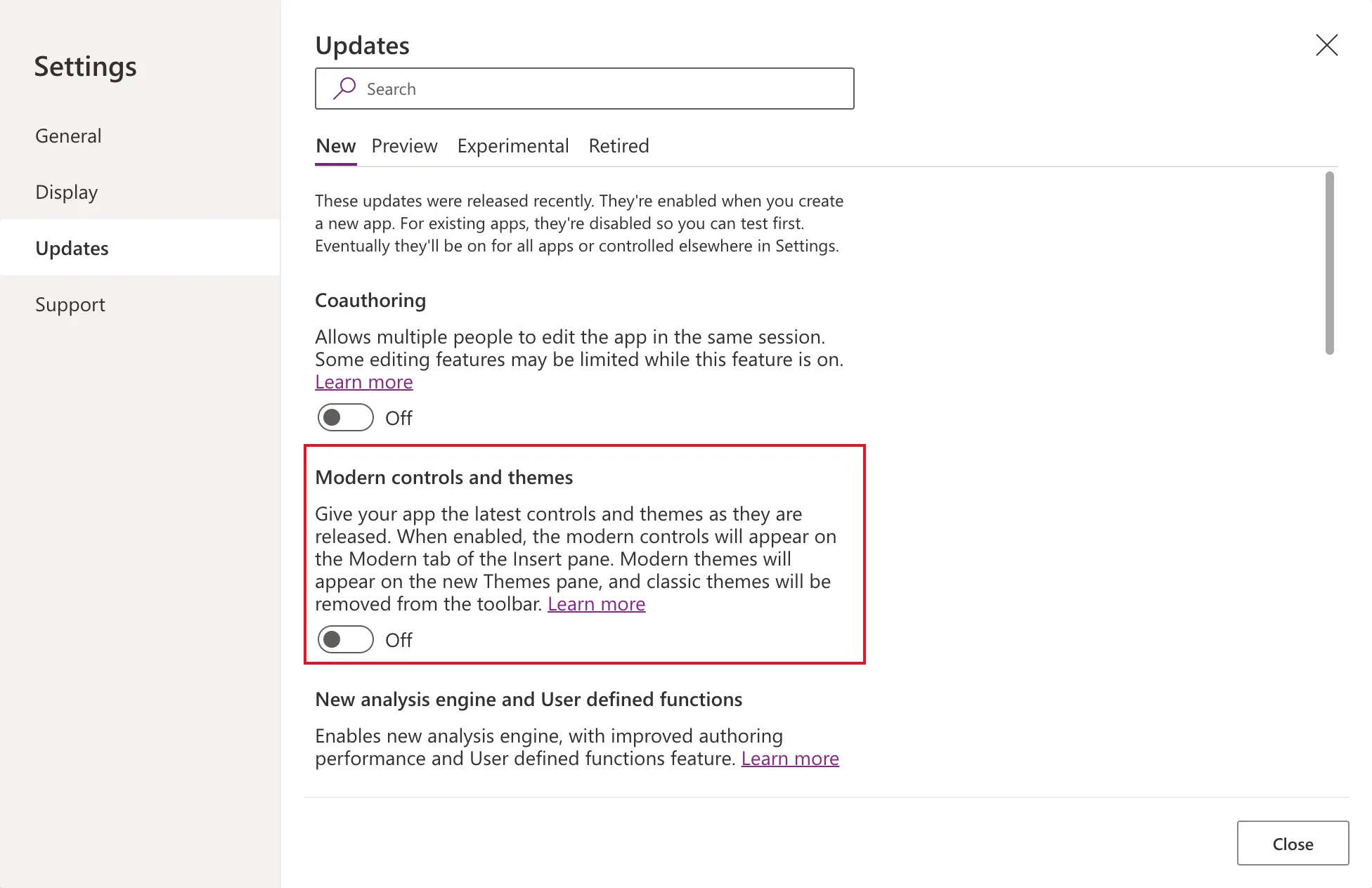
In Studio, open Settings and select Updates. The New tab lists recently released features. Its own description explains why some are off:
These updates were released recently. They're enabled when you create a new app. For existing apps, they're disabled so you can test first.
In the example app, created inside a solution the day before, Modern controls and themes was Off:
Step 2: Turn On Modern Controls and Themes
Select the switch so it reads On. No refresh or save was needed in the example; the change applied straight away.
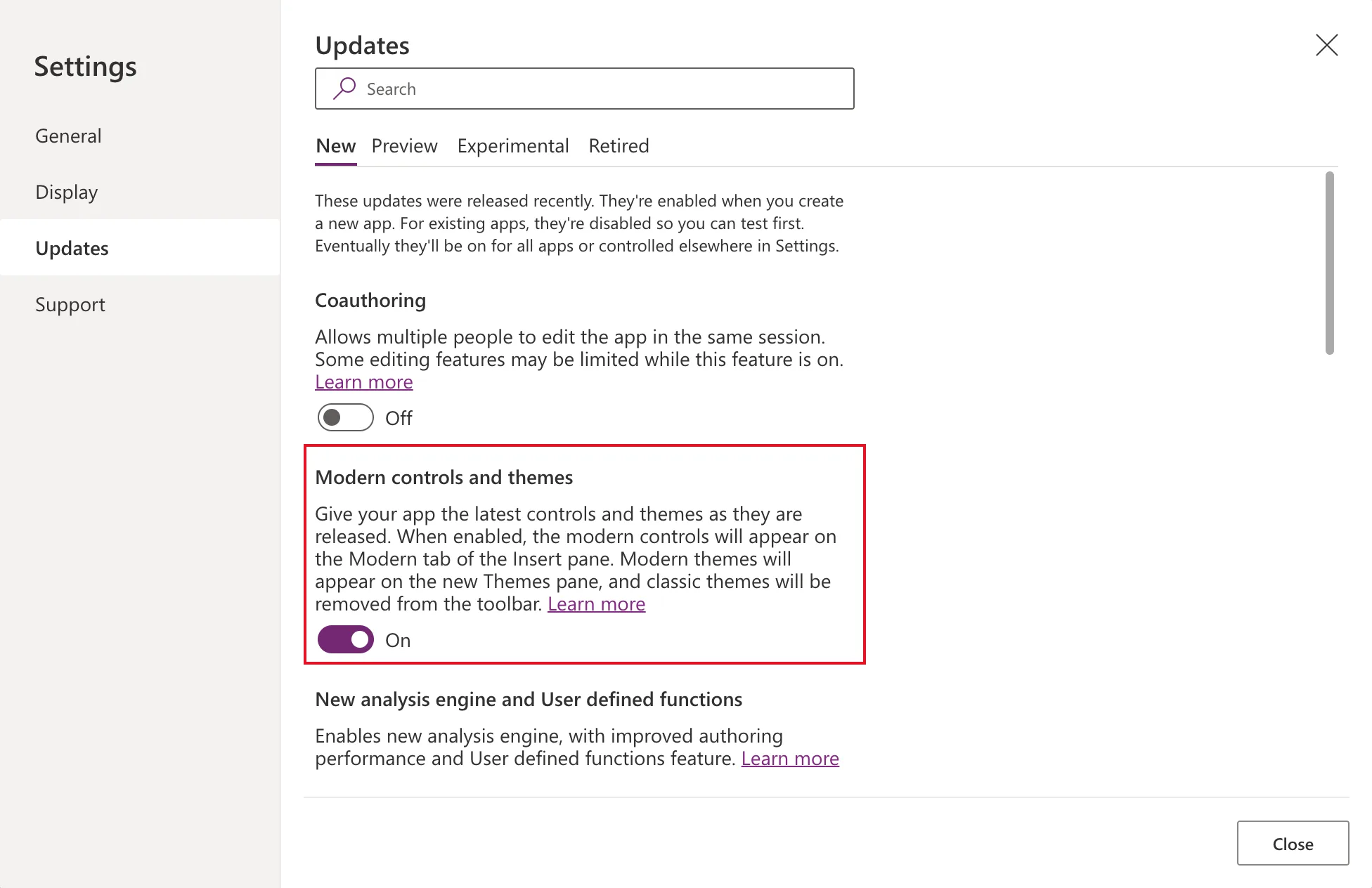
Close Settings. The command bar no longer has Theme; Background color and Background image stay:

Themes now have their own pane on the left; How to Apply a Modern Theme in Power Apps covers it.
Step 3: Find the Modern Controls
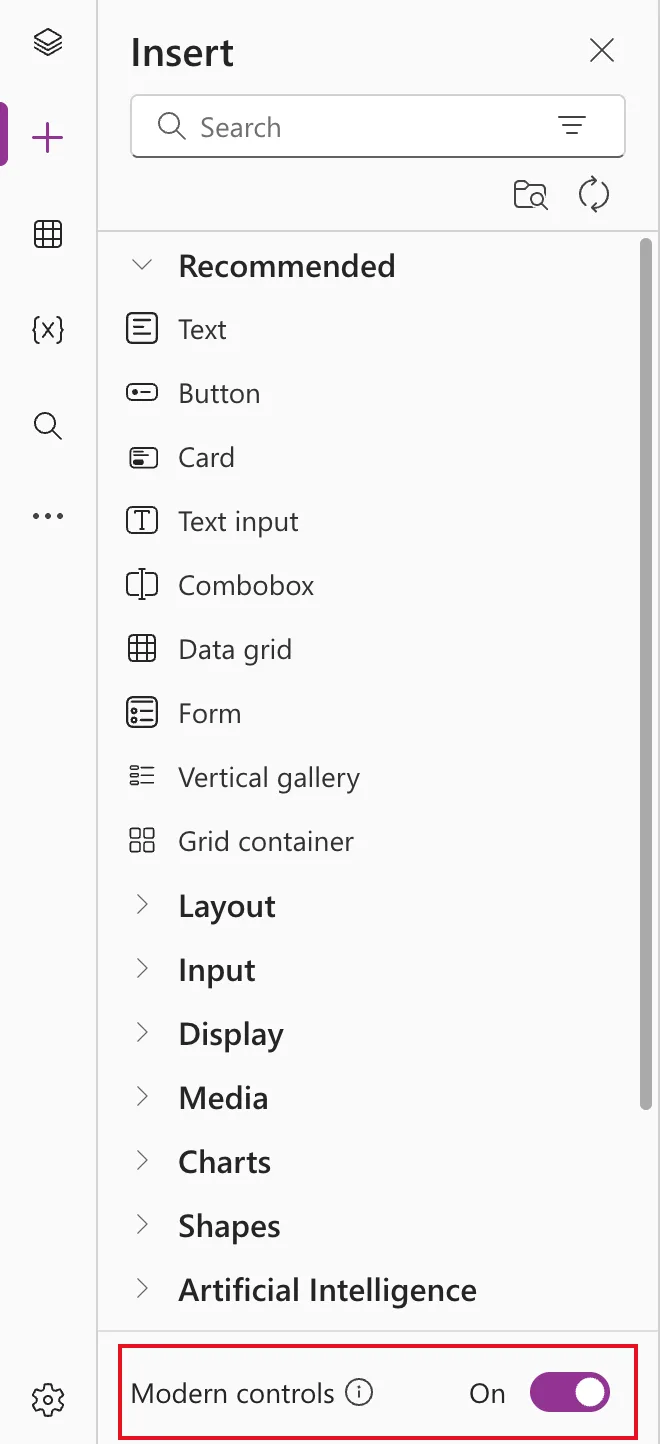
Open Insert (the + on the left). Modern controls sit in the usual categories: Recommended starts with Text and Button, then Layout, Input, Display and more. At the bottom of the pane, a Modern controls switch shows On:
The older controls are still there. Scroll down to Classic and Classic icons:
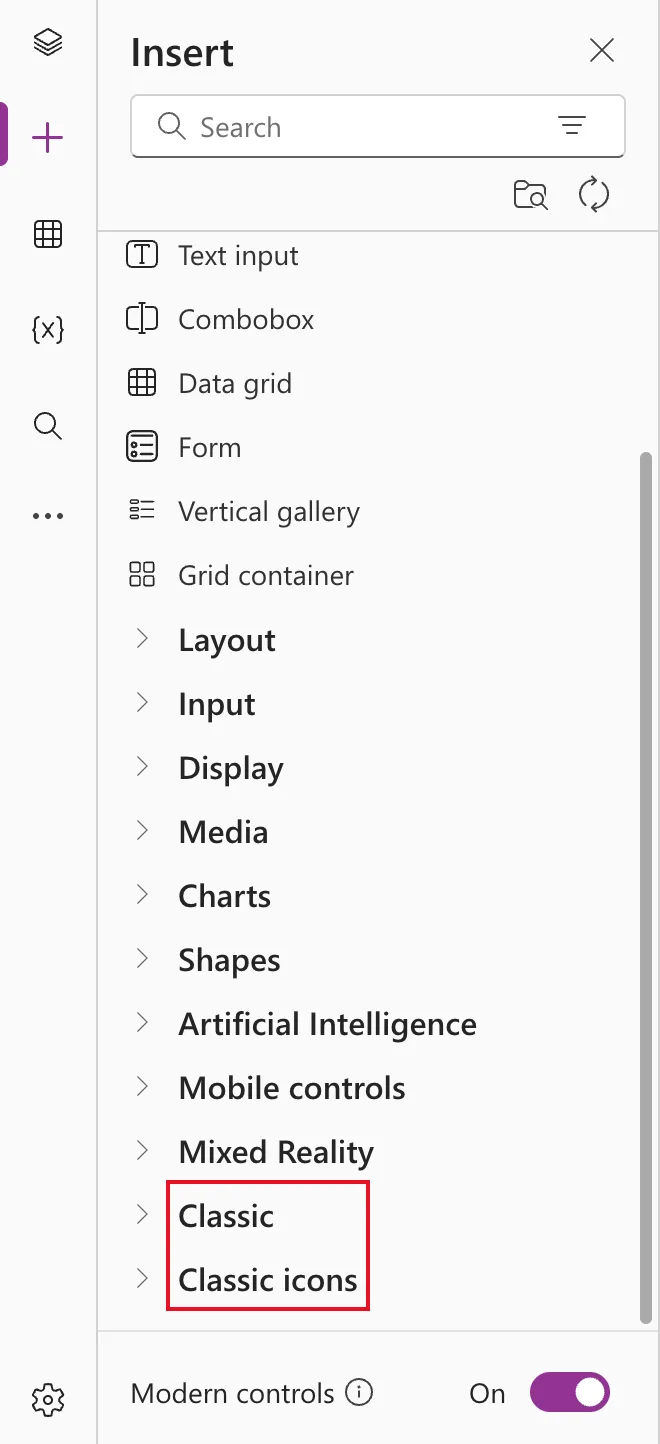
You'll still use a classic control now and then, when a modern one doesn't have a property you need. For example, only the classic Text label has a heading role for screen readers; see How to Add a Heading for Screen Readers in Power Apps.
Watch for Preview Controls
Some modern controls are still in preview, and Studio labels them, such as Table under Layout with a Preview tag. Microsoft's guidance is that preview features shouldn't be used in production apps. Prefer the controls without the tag for anything you ship.
Common Mistakes
| Mistake | What happens | Do this instead |
|---|---|---|
| Looking for Theme on the command bar | It's gone once modern themes are on | Use More (…) → Themes in the left menu |
| Using controls labelled Preview in a production app | They can change before release | Use generally available controls |
| Mixing modern and classic controls without a reason | Two looks on one screen | Use modern controls, and classic only where a property requires it |
Troubleshooting
| Symptom | Likely cause | Fix |
|---|---|---|
| Can't find Modern controls and themes | It's further down the New list | Type "Modern" in the Search box at the top of Updates |
| Modern controls don't appear in Insert | The switch is off for this app | Turn it on as in Step 2 |
| Classic themes are gone | Expected with modern themes on | Use the Themes pane |
FAQ
Is the setting per app?
Yes. Each app has its own Updates settings, so turn it on in every app that needs it.
Do I have to replace my classic controls?
No. Existing classic controls keep working. Modern and classic controls can sit on the same screen.
Does it cost anything?
No. Modern controls are part of Power Apps itself, with no extra license.
Conclusion
Settings → Updates → New → Modern controls and themes turns on the Fluent 2 controls and the Themes pane for one app. The classic controls stay available under Classic, for the occasional property only they have.
Additional Resources
- Overview of modern controls and themes in canvas apps: turning the feature on.
- Modern controls and properties in canvas apps: every modern control and its properties.
- Understand new, preview, experimental, and retired features: how the Updates tabs work.
