How to Turn On Content Approval for a SharePoint List with the REST API in Power Automate

With content approval on, a SharePoint list item stays Pending until someone approves it, and only approvers and its author see it until then. A flow can turn it on with one REST request, the same setting as Require content approval for submitted items in the list's versioning settings.
Syntax
The request goes through Send an HTTP request to SharePoint (How to Use Send an HTTP Request to SharePoint). It's a MERGE, which changes only the properties in the body (How to Change SharePoint List Settings with the REST API in Power Automate):
| Field | Value |
|---|---|
| Method | POST |
| Uri | _api/web/lists/getbytitle('<list name>') |
| Headers | Accept: application/json;odata=nometadata |
Content-Type: application/json;odata=verbose | |
IF-MATCH: * | |
X-HTTP-Method: MERGE |
{
  "__metadata": { "type": "SP.List" },
  "EnableModeration": true,
  "DraftVersionVisibility": <who sees drafts>
}
<list name>: the list's title, as in Site contents.EnableModeration:trueturns content approval on. Microsoft's Lists and list items REST API reference describes it as whether content approval is enabled for the list.<who sees drafts>: the minimum permission required to view minor versions and drafts, in the same reference's words:0for Reader,1for Author,2for Approver. Write it without quotes.
The Example
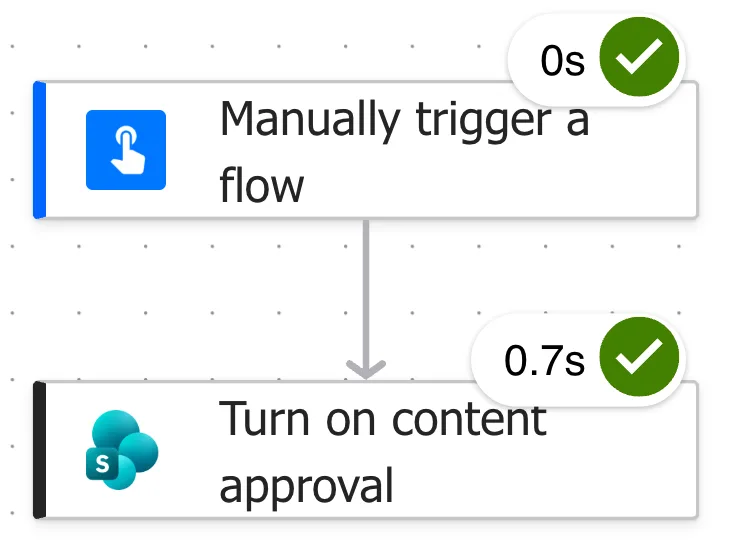
A list called Announcements, on the root site contoso.sharepoint.com, should hold each new announcement back until it's approved, and show drafts only to approvers and the announcement's author. The flow, Turn On Content Approval, has two parts:
- Manually trigger a flow (How to Create an Instant Cloud Flow Inside a Solution in Power Automate).
- Turn on content approval, the MERGE.
Prerequisites
- An account that can change the list's settings, such as a site owner, for the flow's SharePoint connection.
Step 1: Add the Request
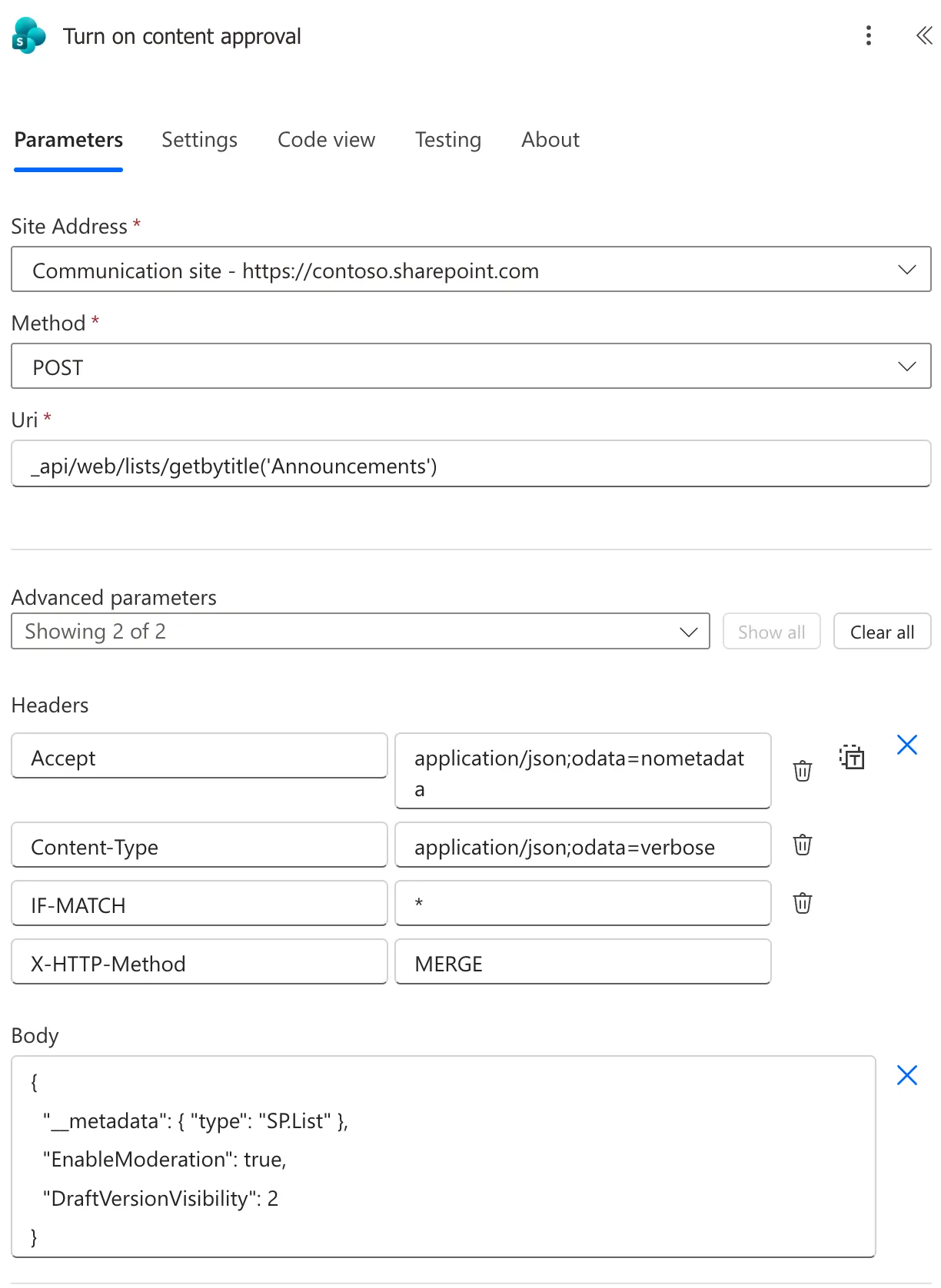
Add Send an HTTP request to SharePoint and rename it Turn on content approval:
| Field | Value |
|---|---|
| Site Address | Your site |
| Method | POST |
| Uri | _api/web/lists/getbytitle('Announcements') |
| Headers | Accept: application/json;odata=nometadata |
Content-Type: application/json;odata=verbose | |
IF-MATCH: * | |
X-HTTP-Method: MERGE |
{
  "__metadata": { "type": "SP.List" },
  "EnableModeration": true,
  "DraftVersionVisibility": 2
}
Step 2: Run the Flow
Save the flow and test it manually (How to Test a Cloud Flow Manually in Power Automate):
The Result
List settings > Versioning settings now has Require content approval for submitted items? set to Yes, and Who should see draft items in this list? set to Only users who can approve items (and the author of the item):
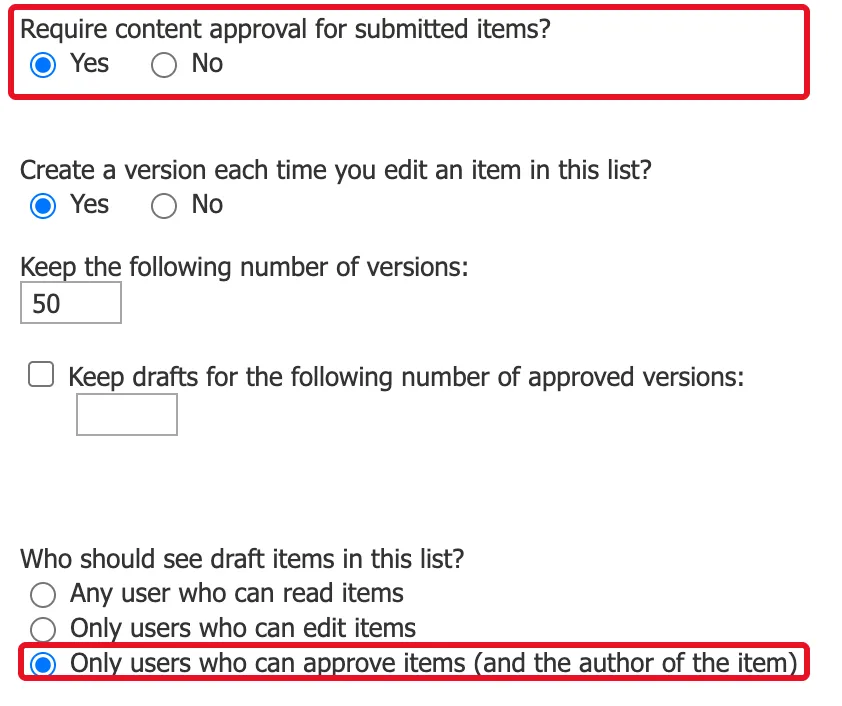
The request did more than the two settings, just as turning approval on by hand does. SharePoint added an Approval Status column to the All Items view, and created two views, Approve/reject Items and My submissions. A new item, Office closed on Friday, added with New, started as Pending:

Common Mistakes
| Mistake | What happens | Do this instead |
|---|---|---|
| Turning approval on without anyone to approve | Items stay Pending and hidden from readers | Decide who approves before you turn it on |
Leaving out DraftVersionVisibility | Who sees drafts stays as it was | Set it in the same request |
Leaving out IF-MATCH or X-HTTP-Method | The POST isn't a MERGE | Add both headers |
Troubleshooting
| Symptom | Likely cause | Fix |
|---|---|---|
| New items aren't Pending | The MERGE went to another list | Check the title in getbytitle('…') |
| Readers can't see an item | It hasn't been approved yet | Approve it |
| An access-denied error | The connection's account can't change the list | Use a site owner's account |
FAQ
How is an item approved?
In the list, with Approve/Reject on the item (How to Approve or Reject an Item in a SharePoint List), or from a flow with Set content approval status (How to Approve or Reject a SharePoint Item in Power Automate).
What happens when someone edits an approved item?
It goes back to Pending until it's approved again, which is why content approval suits records that need a second look after every change.
Can I do this without a flow?
Yes, in Versioning settings: How to Turn On Content Approval for a SharePoint List and How to Choose Who Can See Draft Items in a SharePoint List.
Conclusion
POST to _api/web/lists/getbytitle('<list name>') with X-HTTP-Method: MERGE, IF-MATCH: * and {"__metadata": {"type": "SP.List"}, "EnableModeration": true, "DraftVersionVisibility": 2}. New and edited items then wait as Pending, visible to approvers and their authors, and the list gets the Approval Status column and the approval views.
Additional Resources
- Lists and list items REST API reference:
EnableModerationandDraftVersionVisibility. - Complete basic operations using SharePoint REST endpoints: MERGE requests.
