How to Turn On Content Approval for a SharePoint List

With content approval on, every new or edited item in a SharePoint list waits with the approval status Pending until someone allowed to approve it does. It's one setting in the list's Versioning settings, and it adds an Approval Status column that only approvers can change.
The Overtime Timesheet series uses it so an overtime entry can't be approved by the person who logged it, and so changing an approved entry sends it back for approval. This guide turns it on for the OvertimeEntries list and tests both.
Prerequisites
- Owner of the site. Microsoft's Require approval of items in a list or library: "Only users with Full Control or Design permissions can alter SharePoint library settings."
- A list. See How to Create a List and Add Columns in SharePoint Online.
Step 1: Open Versioning Settings
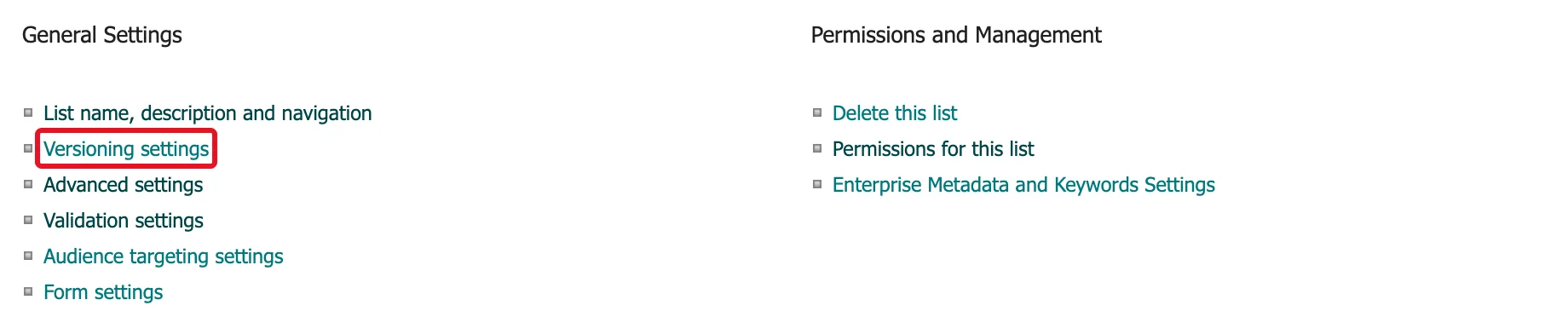
Open the list, then Settings → List settings. Under General Settings, select Versioning settings:
Step 2: Look at the Current Settings
The page has three sections. On this list, Require content approval for submitted items? was No, version history was already on with 50 versions kept, and Draft Item Security was greyed out:
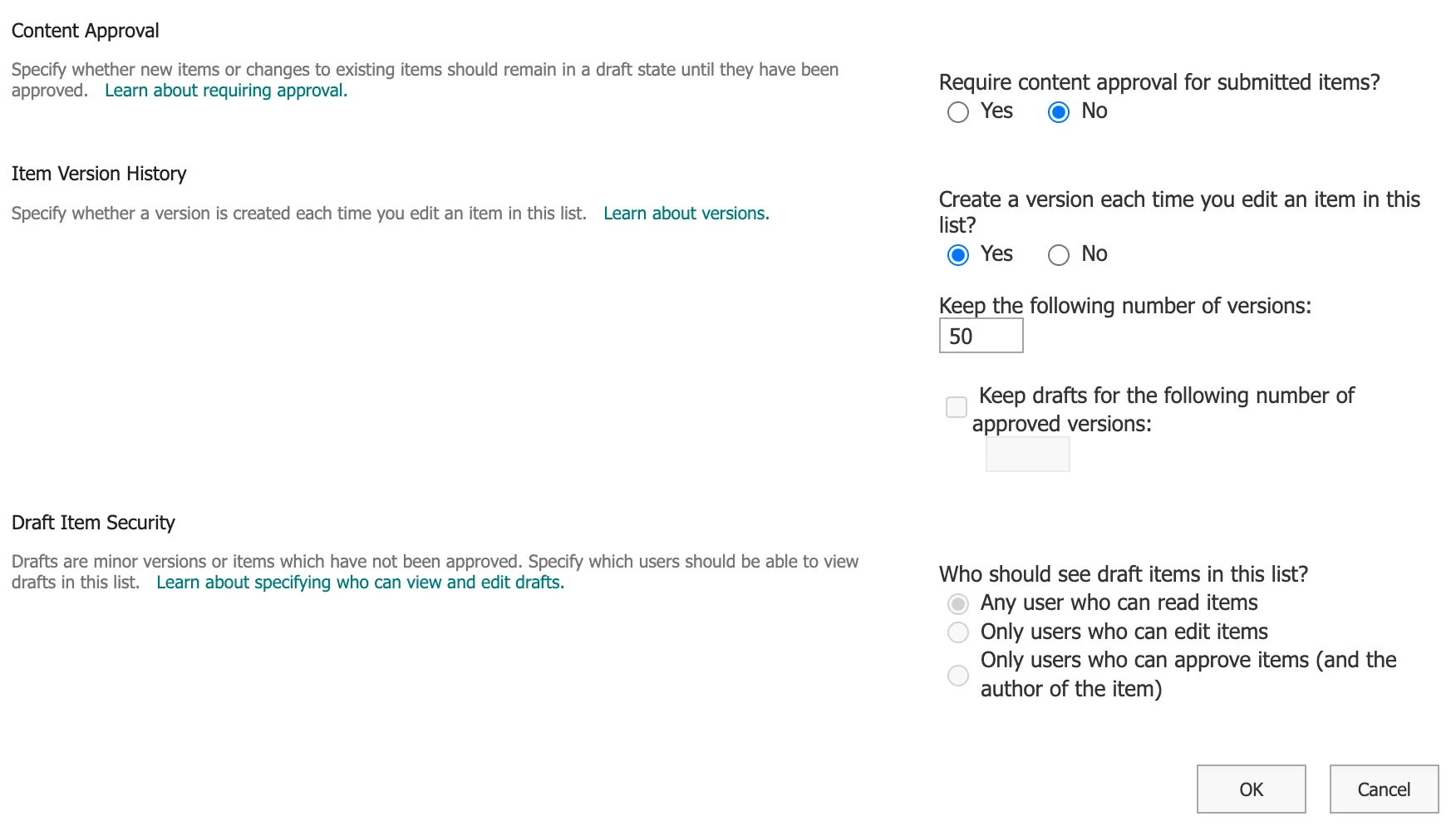
The Content Approval section explains the setting: "Specify whether new items or changes to existing items should remain in a draft state until they have been approved."
Step 3: Select Yes
Under Require content approval for submitted items?, select Yes. Draft Item Security becomes available and, on this list, switched to Only users who can approve items (and the author of the item) on its own:
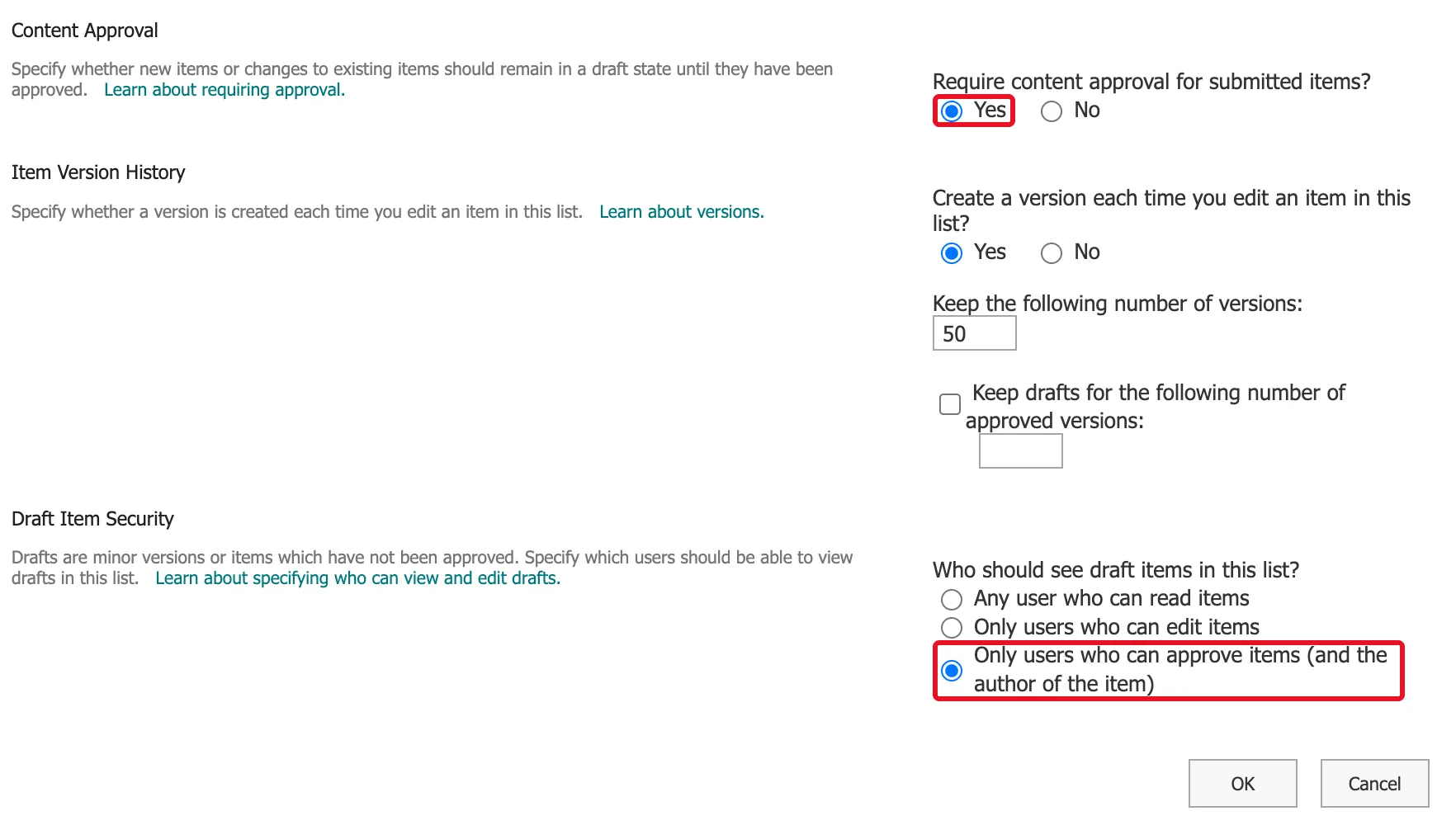
That's the strictest choice and the one this list needs. How to Choose Who Can See Draft Items in a SharePoint List explains the three choices.
Keep Create a version each time you edit an item in this list? at Yes: each change, and each approval, is then recorded in the item's version history.
Step 4: Save with OK
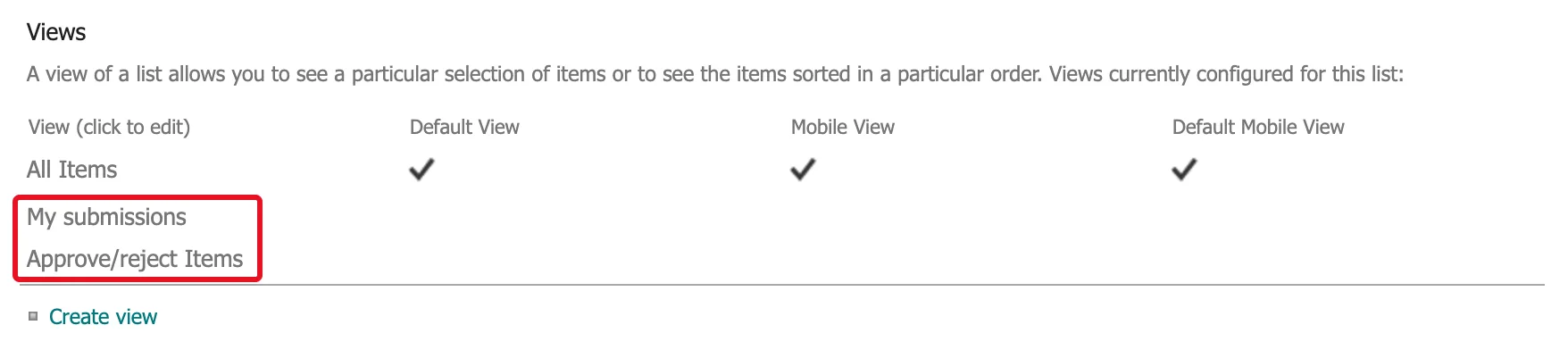
Select OK at the bottom of the page. SharePoint goes back to the list's Settings page. Two new views now appear under Views, My submissions and Approve/reject Items:
Microsoft's article adds: "If you require content approval for a list or library that already contains items, all of the items in the library are marked Approved." This list was empty, so nothing was approved that way.
What a New Item Looks Like
Aisha Khan, a member of the staff group, added her Saturday overtime. In the My submissions view her entry is grouped under Approval Status: Pending:

The view's first column is Title, which this list doesn't use, so the entry has no title there.
Editing a Column Can't Approve an Item
The list also has its own Status column, a choice of Pending, Approved or Rejected. Aisha edited her entry and set it to Approved:

SharePoint saved her change, but the Approval Status stayed Pending:

A column in a list can be changed by anyone who can edit the item: none of SharePoint's permissions applies to a single column. The Approval Status is different: only someone with the Approve Items permission can change it, with Approve/Reject or, later in the series, a flow. On this site only Design and Full Control include that permission. Trust the Approval Status, and treat any column of your own as a copy. Aisha then set her Status back to Pending.
Editing an Approved Item Sends It Back
The site owner approved Aisha's entry: How to Approve or Reject an Item in a SharePoint List. Its Approval Status became Approved. Then Aisha changed the reason on her approved entry and saved it. The Approval Status went straight back to Pending:

An approver has to look at the changed entry again. That's what makes approvals hold: approving an item approves exactly what was in it at the time.
Common Mistakes
| Mistake | What happens | Do this instead |
|---|---|---|
| Using your own Status column as the approval | Anyone who can edit the item can change it | Trust Approval Status; keep your column as a copy |
| Turning it on for a list with items in it | Microsoft's article: they're all marked Approved | Turn it on before the list is used, or review existing items |
| Giving the people who submit items Design or Full Control | They can approve their own items | Give them Contribute or a level like it |
| Turning off version history | Approvals and edits leave no history | Keep Create a version each time you edit at Yes |
Troubleshooting
| Symptom | Likely cause | Fix |
|---|---|---|
| No Approve/Reject command | You don't have Approve Items | Ask an owner, or someone with Design |
| Draft Item Security is greyed out | Content approval is still No | Select Yes first |
| No Approval Status column in a view | The view doesn't include it | Use My submissions or Approve/reject Items, or add the column to the view |
FAQ
Who can approve?
People with the Approve Items permission. On this communication site that's Design and Full Control. The Overtime Timesheet series approves through a flow, built in a later part, that runs with the owner's connection.
How do approvers know something is waiting?
Pending items are listed in the Approve/reject Items view. Microsoft's Require approval of documents in SharePoint using Power Automate calls checking by hand tedious, because it "requires receiving notifications about the pending document(s), finding the appropriate document(s) for approval," and suggests a flow instead. The Overtime Timesheet series sends approvals to Teams and Outlook with a flow in a later part.
Can I turn it off again?
Yes, by selecting No in the same place. Microsoft's article warns that afterwards "All users who have permission to view the list or library can view all content that resides there."
Conclusion
List settings → Versioning settings → Require content approval for submitted items? → Yes → OK. New and edited items then wait as Pending, only people with Approve Items can approve them, and editing an approved item sends it back.
Additional Resources
- Require approval of items in a list or library
- Enable and configure versioning for a list or library
