How to Turn On a Runtime Switch with AppContext.SetSwitch in C#

AppContext.SetSwitch("Greeter.UseFormalGreeting", true) turns on a named switch for the whole app, and any code can check it with AppContext.TryGetSwitch. Libraries read switches like this, so that an app can choose how they behave.
The .NET reference on SetSwitch: Sets the value of a switch. It's called by an application (or a library) to declare the value of a switch (which is always a Boolean value) that a dependent library defines. And on TryGetSwitch: Tries to get the value of a switch.
Syntax
AppContext.SetSwitch("<switchName>", <isEnabled>);
bool <found> = AppContext.TryGetSwitch("<switchName>", out bool <value>);
| Part | What it is |
|---|---|
"<switchName>" | The switch's name, spelled exactly as the code that reads it spells it |
<isEnabled> | true to turn the switch on, false to turn it off |
<found> | What TryGetSwitch returns: true if switchName was set and the isEnabled argument contains the value of the switch; otherwise, false. |
out bool <value> | The switch's value, or false when it wasn't found |
The code that reads a switch decides its name. The Azure SDK, for example, reads one named Azure.Experimental.EnableActivitySource, and its documentation says: Set the Azure.Experimental.EnableActivitySource context switch to true in your app’s code. The example here uses a name of its own.
The Example
A console app called AppContextSwitch has a Greeter class that reads a switch named Greeter.UseFormalGreeting, the way a library would. The program asks TryGetSwitch about the switch and greets Asha, turns the switch on with SetSwitch, then does both again.
Prerequisites
- The .NET 10 SDK.
dotnet --versionprints a version that starts with10.0.
Step 1: Create a Console App
dotnet new console -n AppContextSwitch
cd AppContextSwitch
The template "Console App" was created successfully.

Processing post-creation actions...
Restoring /Users/you/source/AppContextSwitch/AppContextSwitch.csproj:
  Determining projects to restore...
  Restored /Users/you/source/AppContextSwitch/AppContextSwitch.csproj (in 47 ms).
Restore succeeded.
dotnet new console -n AppContextSwitch creates a folder named AppContextSwitch with a project file and a Program.cs, and cd moves into it. Everything this example uses is part of .NET, so there's no package to add. Open the folder in VS Code, or AppContextSwitch.csproj in Visual Studio.
Step 2: Write the Code
Replace everything in Program.cs. First the statements that check and set the switch:
// Before SetSwitch, nobody has set the switch, so TryGetSwitch returns false.
bool found = AppContext.TryGetSwitch(Greeter.FormalSwitch, out bool isEnabled);
Console.WriteLine($"Before: found = {found}, enabled = {isEnabled}");
Console.WriteLine(Greeter.Greet("Asha"));

// Turn the switch on for this app.
AppContext.SetSwitch(Greeter.FormalSwitch, true);

found = AppContext.TryGetSwitch(Greeter.FormalSwitch, out isEnabled);
Console.WriteLine($"After:  found = {found}, enabled = {isEnabled}");
Console.WriteLine(Greeter.Greet("Asha"));
AppContext.TryGetSwitch(Greeter.FormalSwitch, out bool isEnabled)returns whether the switch was set, and puts its value inisEnabled.AppContext.SetSwitch(Greeter.FormalSwitch, true)turns the switch on. The reference: Calling the AppContext.SetSwitch(String, Boolean) has application scope; that is, it affects only the application.- The same check runs before and after
SetSwitch, to show what changed.
Then the class that reads the switch, after those statements:
// Code that reads the switch, the way a library does.
static class Greeter
{
    // The switch's name: the code that reads the switch decides it.
    public const string FormalSwitch = "Greeter.UseFormalGreeting";

    public static string Greet(string name)
    {
        if (AppContext.TryGetSwitch(FormalSwitch, out bool formal) && formal)
        {
            return $"Good morning, {name}.";
        }

        return $"Hi, {name}!";
    }
}
FormalSwitchkeeps the switch's name in one constant, so the code that sets the switch and the code that reads it spell it the same way.AppContext.TryGetSwitch(FormalSwitch, out bool formal) && formalistrueonly when the switch was set and its value istrue. ThenGreetanswers formally.
Step 3: Run It
Run it in VS Code's terminal, or press Ctrl+F5 in Visual Studio:
dotnet run
Before: found = False, enabled = False
Hi, Asha!
After:  found = True, enabled = True
Good morning, Asha.
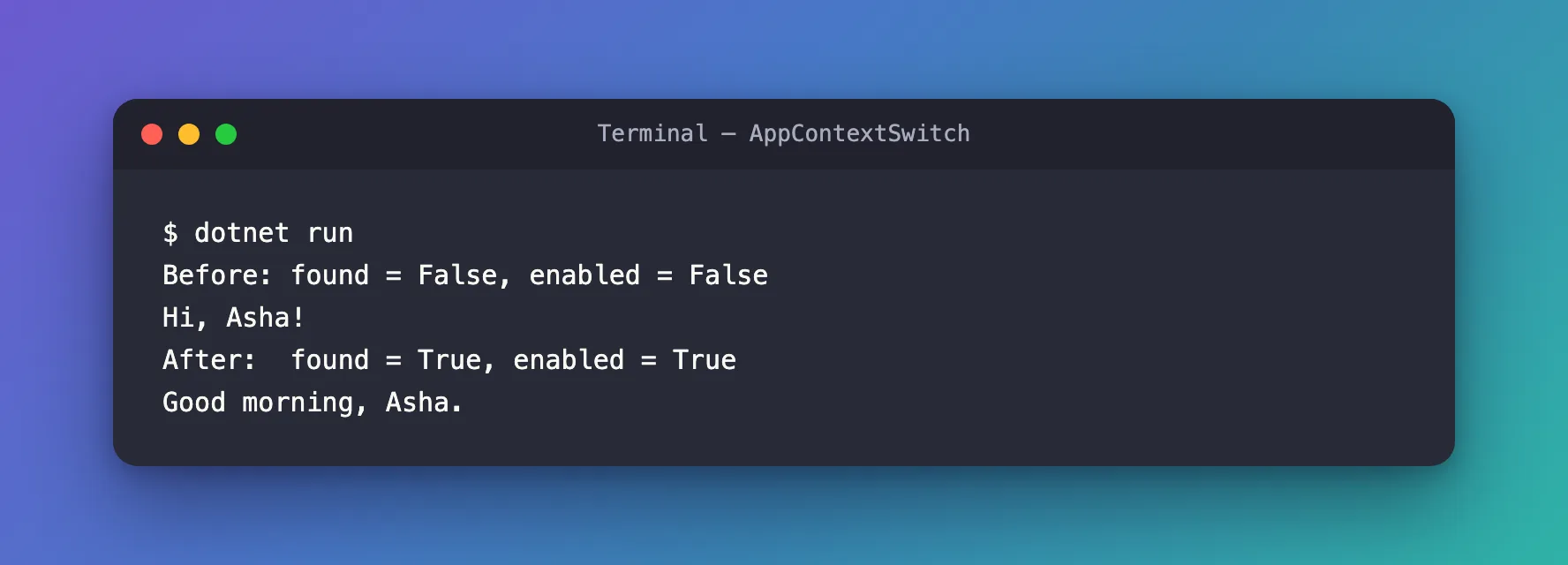
Before SetSwitch, TryGetSwitch found nothing, and Greet used the everyday greeting. After it, the switch was found and on, and the same call to Greet answered Good morning, Asha.
The Complete File
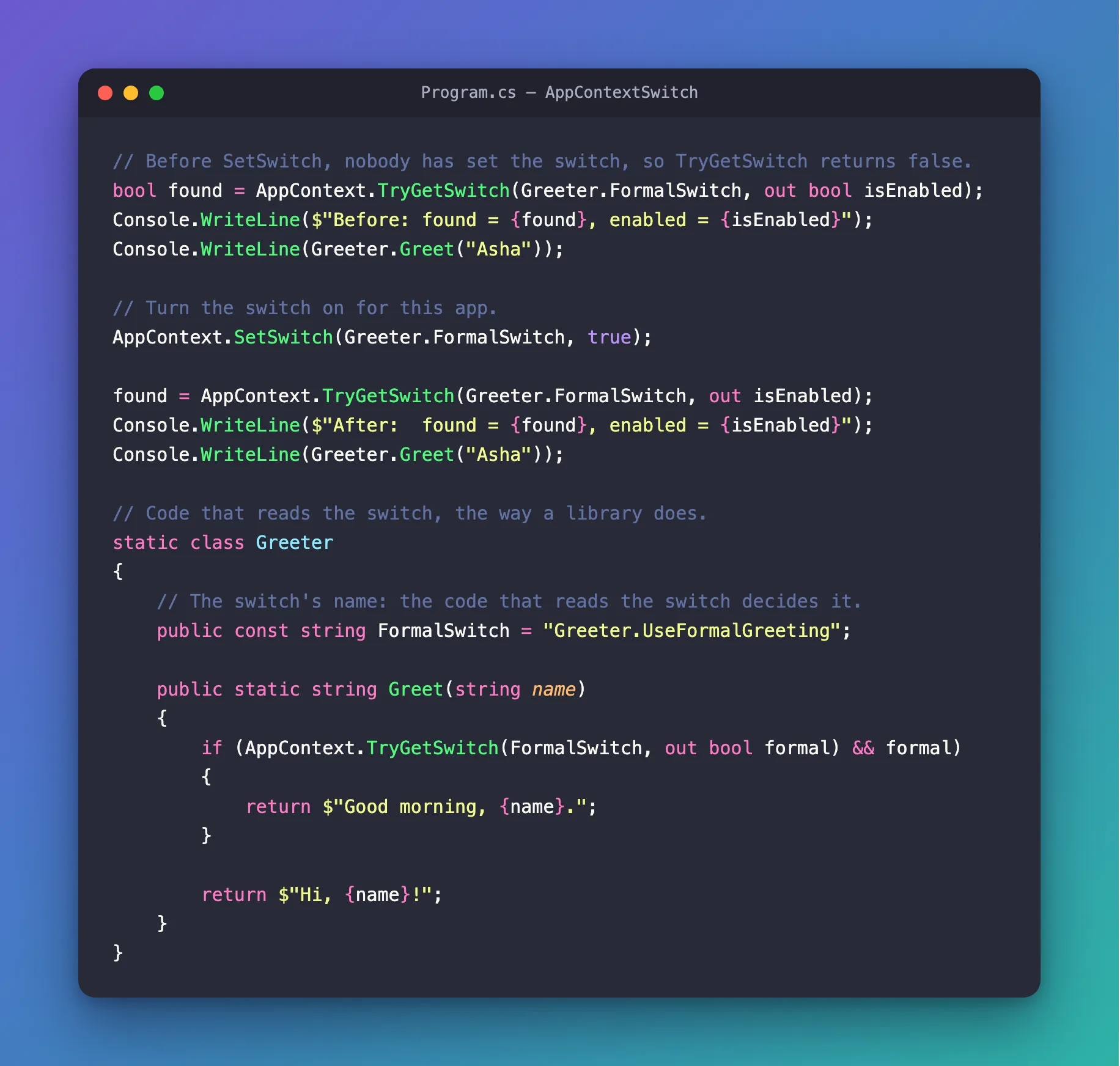
// Before SetSwitch, nobody has set the switch, so TryGetSwitch returns false.
bool found = AppContext.TryGetSwitch(Greeter.FormalSwitch, out bool isEnabled);
Console.WriteLine($"Before: found = {found}, enabled = {isEnabled}");
Console.WriteLine(Greeter.Greet("Asha"));

// Turn the switch on for this app.
AppContext.SetSwitch(Greeter.FormalSwitch, true);

found = AppContext.TryGetSwitch(Greeter.FormalSwitch, out isEnabled);
Console.WriteLine($"After:  found = {found}, enabled = {isEnabled}");
Console.WriteLine(Greeter.Greet("Asha"));

// Code that reads the switch, the way a library does.
static class Greeter
{
    // The switch's name: the code that reads the switch decides it.
    public const string FormalSwitch = "Greeter.UseFormalGreeting";

    public static string Greet(string name)
    {
        if (AppContext.TryGetSwitch(FormalSwitch, out bool formal) && formal)
        {
            return $"Good morning, {name}.";
        }

        return $"Hi, {name}!";
    }
}
Set the Switch in the Project File
A switch can also be set in the project file. The runtime configuration guide: For runtime configuration settings that don't have a specific MSBuild property, you can use the RuntimeHostConfigurationOption MSBuild item instead. Use the runtimeconfig.json setting name as the value of the Include attribute. An ASP.NET Core guide sets one of its switches there so that it applies before any app code runs.
Add an ItemGroup with the switch to AppContextSwitch.csproj:
<Project Sdk="Microsoft.NET.Sdk">

  <PropertyGroup>
    <OutputType>Exe</OutputType>
    <TargetFramework>net10.0</TargetFramework>
    <ImplicitUsings>enable</ImplicitUsings>
    <Nullable>enable</Nullable>
  </PropertyGroup>

  <ItemGroup>
    <RuntimeHostConfigurationOption Include="Greeter.UseFormalGreeting" Value="true" />
  </ItemGroup>

</Project>
Then replace the statements at the top of Program.cs with these, which don't call SetSwitch, and keep the Greeter class:
// No SetSwitch here: the project file sets the switch.
bool found = AppContext.TryGetSwitch(Greeter.FormalSwitch, out bool isEnabled);
Console.WriteLine($"found = {found}, enabled = {isEnabled}");
Console.WriteLine(Greeter.Greet("Asha"));
dotnet run
found = True, enabled = True
Good morning, Asha.
The switch was on from the start. The guide: When a project is built, an [appname].runtimeconfig.json file is generated in the output directory. Here that file holds the switch:
{
  "runtimeOptions": {
    "tfm": "net10.0",
    "framework": {
      "name": "Microsoft.NETCore.App",
      "version": "10.0.0"
    },
    "configProperties": {
      "Greeter.UseFormalGreeting": true,
      "System.Runtime.Serialization.EnableUnsafeBinaryFormatterSerialization": false
    }
  }
}
Common Mistakes
| Mistake | What happens | Do this instead |
|---|---|---|
| A typo in the switch's name | Nothing fails: after SetSwitch("Greeter.UseFormalGreting", true), one letter short, Greet still answered Hi, Asha! | Spell the name exactly as the reading code does. Keeping it in one constant, as Greeter.FormalSwitch does, helps |
| Setting the switch after the code has read it | A Greeter that read the switch once, into a static readonly field, kept its first answer: Hi, Asha! came back before and after SetSwitch | Set switches at the very start of the program, before any code that reads them, or in the project file |
FAQ
How do I turn a switch off again?
Call SetSwitch with false. The switch stays set, now with the value false:
AppContext.SetSwitch("Greeter.UseFormalGreeting", true);
AppContext.SetSwitch("Greeter.UseFormalGreeting", false);

bool found = AppContext.TryGetSwitch("Greeter.UseFormalGreeting", out bool isEnabled);
Console.WriteLine($"found = {found}, enabled = {isEnabled}");
found = True, enabled = False
Conclusion
Turn a switch on with AppContext.SetSwitch("<name>", true) at the start of the program, or with a RuntimeHostConfigurationOption in the project file, and read it with AppContext.TryGetSwitch. Spell the name exactly as the reading code does: a misspelled switch doesn't fail, it's just a switch that nothing reads.
Additional Resources
- AppContext.SetSwitch — setting the value of a switch.
- AppContext.TryGetSwitch — reading the value of a switch.
- .NET runtime configuration settings — runtimeconfig.json and the RuntimeHostConfigurationOption item.
