How to Turn Off MLflow Telemetry

Since version 3.2.0, open-source MLflow collects anonymous usage data by default: which features you use, your MLflow and Python versions, your operating system. It doesn't collect your data, parameters or file names, but you may still want it off. One environment variable turns it off for your scripts, the tracking server and the UI. This guide sets it on macOS, Linux and Windows, and proves it worked.
Syntax
MLflow's documentation names two environment variables. Set either one to true before MLflow starts:
MLFLOW_DISABLE_TELEMETRY=true
DO_NOT_TRACK=true
| Variable | What it is |
|---|---|
MLFLOW_DISABLE_TELEMETRY | MLflow's own switch. This guide uses it |
DO_NOT_TRACK | A general "do not track me" switch, which MLflow also honours |
How you set a variable depends on your shell, and on whether it's for one terminal or for good. Step 1 shows both, for macOS, Linux and Windows.
What MLflow Collects
MLflow's documentation, "Usage Tracking", says: "Starting with version 3.2.0, MLflow collects anonymized usage data by default. This data contains no sensitive or personally identifiable information." The data includes:
- a random ID for each session and each installation;
- the MLflow, Python and operating system versions;
- the kind of tracking URI you use, such as
sqliteorhttp; - which features you use, with a few boolean settings, such as whether a model was registered;
- clicks in the MLflow UI.
It's sent to MLflow's telemetry service, mlflow-telemetry.io. The documentation lists every collected field and event.
Step 1: Set the Environment Variable
This guide uses MLFLOW_DISABLE_TELEMETRY. For the current terminal:
- macOS / Linux
- Windows (PowerShell)
export MLFLOW_DISABLE_TELEMETRY=true
$env:MLFLOW_DISABLE_TELEMETRY = "true"
For every new terminal from now on, as the documentation recommends, add it to your shell's startup file:
- macOS / Linux
- Windows (PowerShell)
echo 'export MLFLOW_DISABLE_TELEMETRY=true' >> ~/.zshrc
[Environment]::SetEnvironmentVariable("MLFLOW_DISABLE_TELEMETRY", "true", "User")
The PowerShell command saves it for your Windows user account; open a new terminal for it to apply.
Step 2: Prove It's Off
MLflow's documentation gives a check. Save it as telemetry_check.py in any project that has MLflow:
from mlflow.telemetry import get_telemetry_client

assert get_telemetry_client() is None, "Telemetry is enabled"
print("Telemetry is off")
Run it in a terminal where the variable is set:
uv run python telemetry_check.py
Telemetry is off
The same check passes with DO_NOT_TRACK=true instead, and in PowerShell after $env:MLFLOW_DISABLE_TELEMETRY = "true". If telemetry were on, the assert would stop the script with AssertionError: Telemetry is enabled.
Step 3: Turn It Off for the Server and the UI
Set the variable in the terminal before you start the tracking server. The documentation says: "Setting this environment variable before running mlflow server also disables all UI telemetry." The UI's Settings page then shows it off:
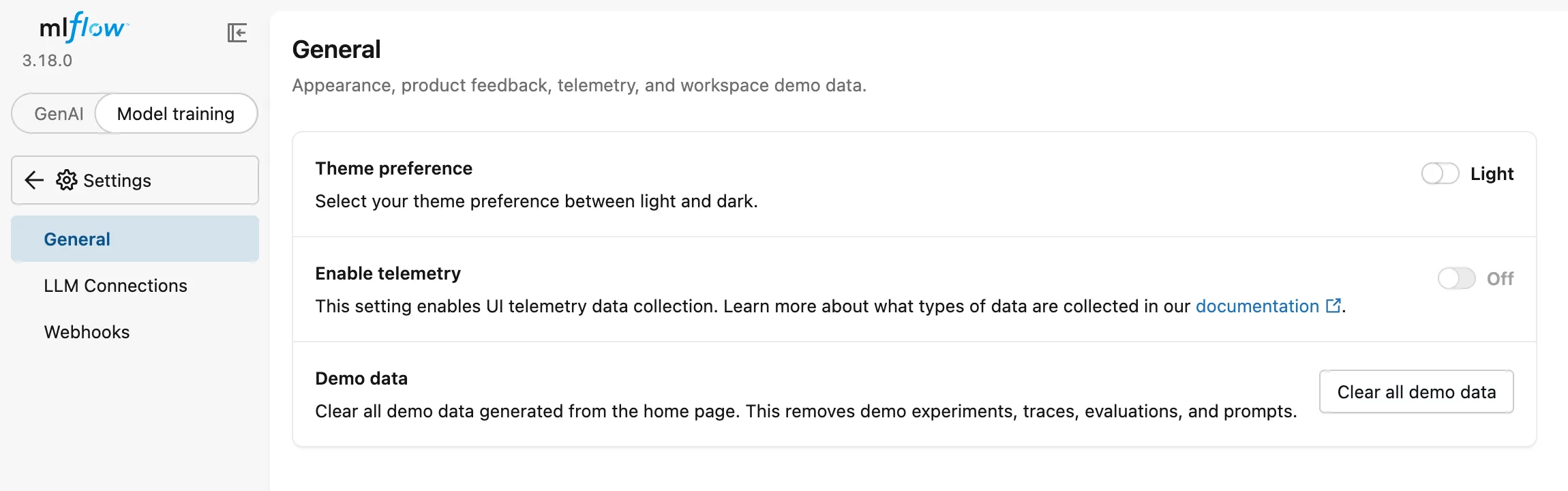
If you use a server someone else runs and can't set its variables, the same Enable telemetry switch on the Settings page turns UI telemetry off for your browser. MLflow added it in version 3.8.0.
Where the Variable Must Be Set
The documentation is precise about scope: "The environment variable only takes effect in processes where it is explicitly set or inherited." So set it everywhere MLflow runs:
| Where MLflow runs | Set the variable in |
|---|---|
| Your training scripts | The terminal you run them from, or your shell's startup file |
| The tracking server, and the UI it serves | The terminal you start the server from |
| Programs started with a clean environment | Pass it to them explicitly |
MLflow also turns telemetry off by itself in some CI systems, such as GitHub Actions. An organization can opt out for everyone by blocking mlflow-telemetry.io; when that domain is unreachable, telemetry is disabled.
Common Mistakes
| Mistake | What happens | Do this instead |
|---|---|---|
| Setting the variable after starting the server | The server and its UI keep their telemetry setting | Set it, then start the server |
| Setting it in one terminal and running scripts in another | The other terminal's scripts still send data | Add it to your shell's startup file |
DO_NOT_TRACK=1 | Telemetry stays on: MLflow 3.18.0's code only accepts DO_NOT_TRACK=true (it compares the value with "true") | Use DO_NOT_TRACK=true, or MLFLOW_DISABLE_TELEMETRY, which accepts true or 1 |
Troubleshooting
| Symptom | Likely cause | Fix |
|---|---|---|
AssertionError: Telemetry is enabled | The variable isn't set in this terminal | Set it, then run the check again |
FAQ
Is MLflow's telemetry spyware?
No. It's documented, anonymous, and approved under the Linux Foundation's telemetry policy, according to MLflow's documentation. It doesn't include your parameters, data, file names or IP addresses. You turn it off because it's your choice, not because it's dangerous.
Does turning telemetry off change anything else?
No. MLflow works exactly the same.
Does managed MLflow collect it too?
The documentation says telemetry "is only enabled in Open Source MLflow"; ask your vendor about managed services.
Conclusion
MLFLOW_DISABLE_TELEMETRY=true (or DO_NOT_TRACK=true) turned MLflow's usage telemetry off. Set in the shell's startup file, it covers every script; set before mlflow server, it covers the server and its UI, whose Settings page then shows Enable telemetry: Off. MLflow's own check, get_telemetry_client() is None, proved it.
Additional Resources
- Usage Tracking — MLflow's documentation of what it collects and how to opt out.
- MLflow environment variables — every variable MLflow reads.
- LF Projects telemetry policy — the Linux Foundation policy MLflow follows.
