How to Turn Off Attachments and Hide a SharePoint List from Search

A new SharePoint list accepts file attachments on every item, and anything in it can turn up in your organization's search results. That suits a team's task list. It doesn't suit a list an app writes private records to. Four settings on the list's settings page fix that.
What You Will Change
In this guide you'll change four settings on a list called CompetencyResponses, which holds employees' written responses for the Career Development Plan app:
| Setting | Where | Value | Why |
|---|---|---|---|
| Description | List name, description and navigation | A sentence about the list | Tells the next admin what the list is for |
| Version history | Versioning settings | On, 50 versions (the default) | Records who changed what, and when |
| Attachments | Advanced settings | Disabled | The app doesn't use files, so nobody should add them |
| Search | Advanced settings | Not in search results | Keeps private responses out of organization-wide search |
The steps are the same for any list.
Prerequisites
- A list. See How to Create a List and Add Columns in SharePoint Online.
- Edit, Design or Full Control on the site. Changing a list's settings, including whether it appears in search, needs the right to manage lists.
Step 1: Open List Settings
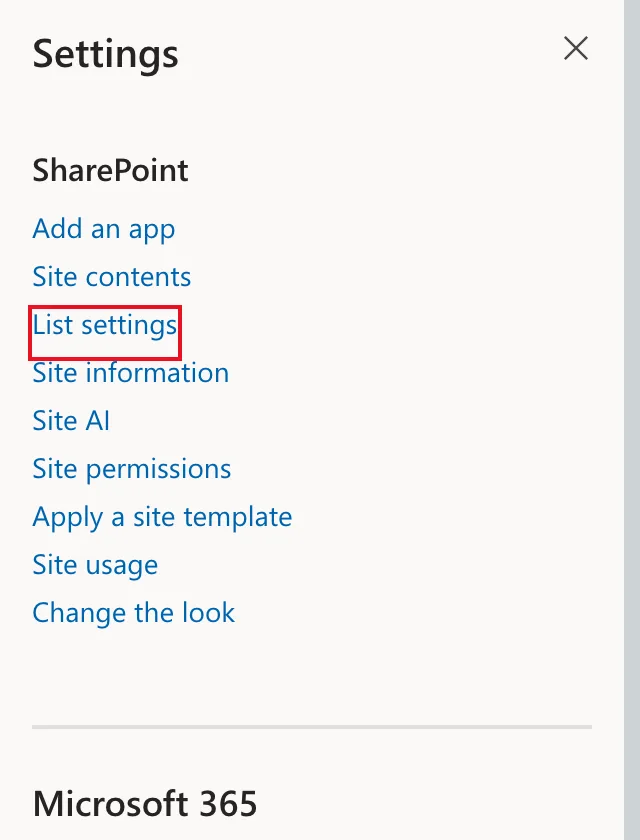
Open the list, then select Settings (the gear at the top right) → List settings.
The classic settings page opens. At the top, List Information shows the list's name, web address and description. Under General Settings are the links this guide uses.
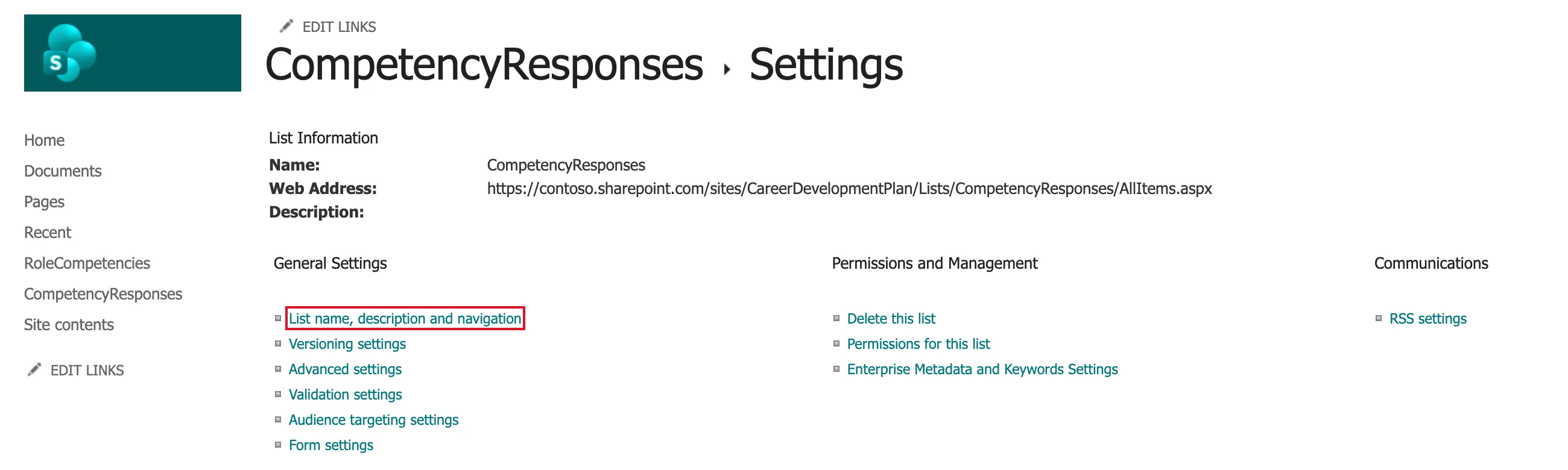
Delete this list is on the same page, under Permissions and Management. Steer clear of it.
Step 2: Add a Description
Select List name, description and navigation. Type a description that says what the list holds and who uses it:
Employees' responses to their competencies, and their managers' reviews. Used by the Career Development Plan app.
Leave the name as it is, and leave Display this list on the Quick Launch? on Yes. Select Save.
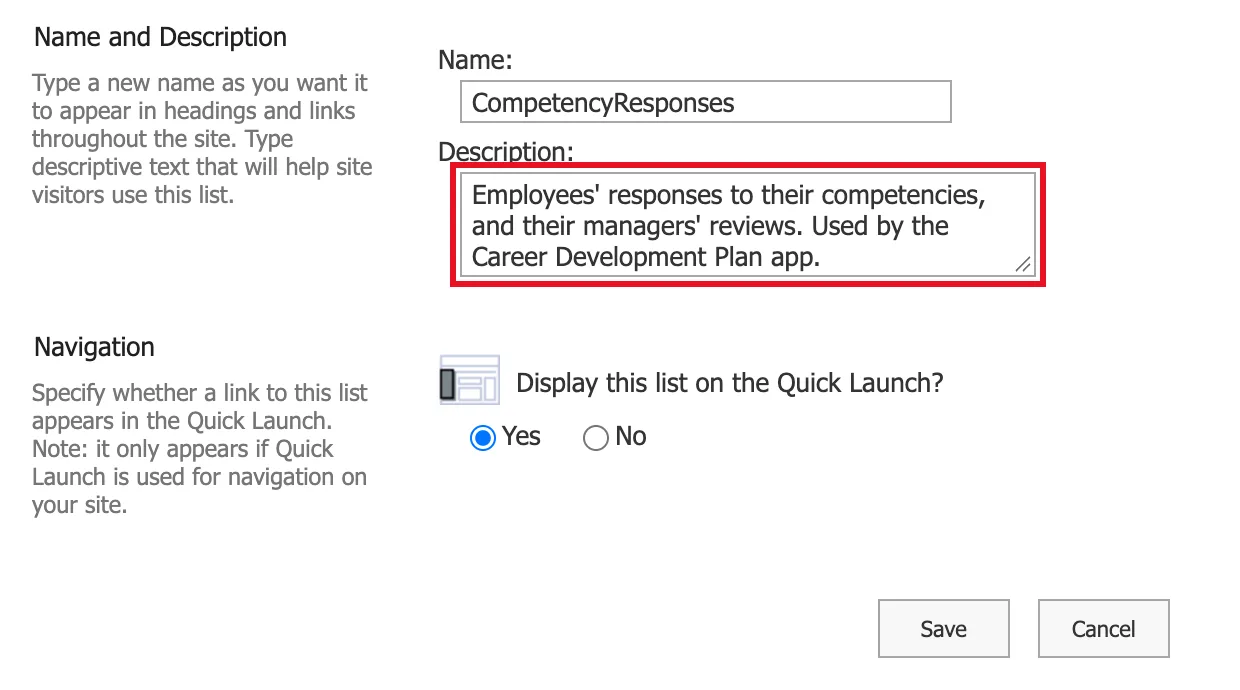
Don't rename the list here unless you mean to: apps that use the list may refer to it by name.
Step 3: Check Version History
Back on the settings page, select Versioning settings. For a new list, SharePoint has already turned version history on:
- Require content approval for submitted items? No
- Create a version each time you edit an item in this list? Yes
- Keep the following number of versions: 50
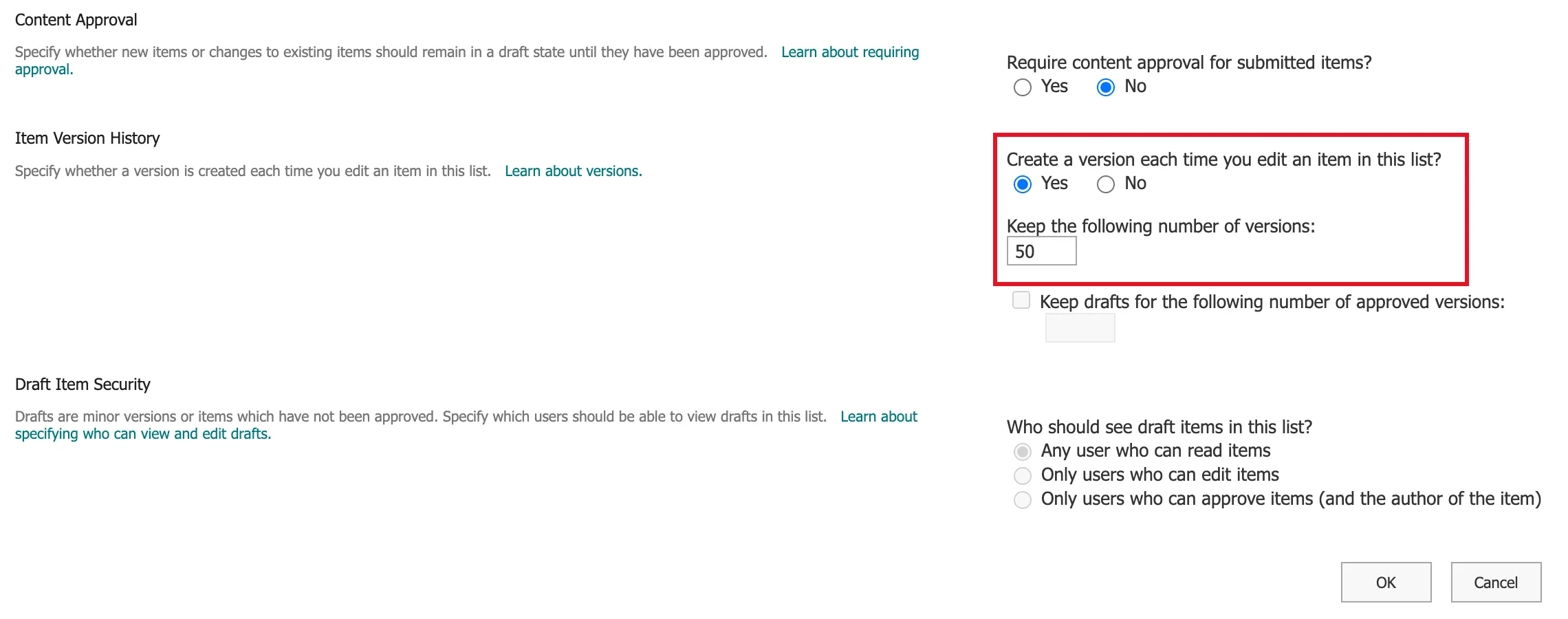
Nothing needs changing, so select Cancel. With versioning on, every change to an item is kept as a version, recording who made it and when. Open an item's menu (…) and select Version history to see them. Keeping 50 versions per item is plenty for most lists.
Step 4: Turn Off Attachments
Select Advanced settings. This page holds a dozen settings. Find Attachments and set Attachments to list items are: to Disabled.

Turning attachments off removes Add attachments from the item form. People can't attach files to items any more, so the list holds only the data its columns describe.
Don't select OK yet. Do Step 5 first, then save both together.
Step 5: Hide the List from Search
On the same page, find Search and set Allow items from this list to appear in search results? to No.

Read the description next to the setting: people who don't have permission to see items never see them in search results, whatever this setting says. So what does No add? Without it, everyone who can open the list also finds its items whenever they search the organization. A manager searching for "leadership" would get a list of other people's private responses mixed into their results. No keeps the items out of the search index altogether.
What it doesn't do is make the list private. Anyone with permission on the site can still open the list directly. Permissions decide who can reach the data; this setting only decides whether search shows it to them.
Step 6: Save, and Confirm the Warning
Scroll to the bottom of Advanced settings and select OK.
Because you disabled attachments, SharePoint asks you to confirm. The warning says that saving deletes all attachments and images already in the list. A new, empty list has none, so confirm. On a list that's been in use, check for attachments first: whatever is attached is deleted when you confirm.
You're back on the settings page, and List Information now shows the description.
Other Settings on the Advanced Page
You don't need these for an app's list, but it helps to know what's there:
- Item-level Permissions can limit people to reading or editing only the items they created. That breaks any design where someone else, such as a manager, has to read those items.
- Comments lets people comment on list items.
- Folders decides whether New Folder is available. Leave it off for app data.
- Automatic Index Management lets SharePoint add column indexes by itself. How to Index a Column in a SharePoint List explains indexes.
Common Mistakes
| Mistake | What happens | Do this instead |
|---|---|---|
| Treating Search: No as security | Everyone with permission can still open the list | Control access with permissions; use search settings to keep results tidy |
| Disabling attachments on a list in use without checking | Existing attachments are deleted when you confirm | Check items for attachments first |
| Turning versioning off "to save space" | You lose the record of who changed what | Leave it on; 50 versions per item is modest |
| Renaming the list on List name, description and navigation | Apps that refer to the list by name can break | Change only the description |
| Selecting OK after each Advanced setting | More page loads, and a warning for each save | Set everything on the page, then select OK once |
Troubleshooting
| Symptom | Likely cause | Fix |
|---|---|---|
| List settings isn't in the Settings panel | You only have Read or Contribute on the site | Ask an owner for Edit or higher |
| Items still appear in search after you chose No | The search index hasn't caught up yet | Give it time; searches update as SharePoint re-crawls |
| Add attachments still shows on the form | The setting wasn't saved | Make sure you selected OK and confirmed the warning |
| Version history is missing from an item's menu | Versioning is off for this list | Turn it on under Versioning settings |
FAQ
Does hiding a list from search make it private?
No. It only keeps the list's items out of search results. Who can open the list is decided by the site's and the list's permissions.
Can I turn attachments back on later?
Yes, by setting Attachments to list items are: back to Enabled. But SharePoint's warning says existing attachments are deleted when you disable them, so don't count on getting those back.
Who can see an item's version history?
Anyone who can read the item. People with Contribute or higher can also delete versions, so version history is a helpful record, not tamper-proof auditing.
Why keep version history on an app's list?
When someone asks "who approved this, and when?", the answer is in the item's version history: every change, by whom, and when.
Do these settings affect a Power Apps app that uses the list?
Not in a way the app notices if it doesn't use attachments. The app reads and writes items through the list's permissions, whatever the search setting.
Conclusion
Four settings make a list fit for an app's private data. Give it a description, so people know what it's for, and keep version history on to see who changed what. Disable attachments, so the list only holds its columns' data. Keep the items out of search, so they don't surface for everyone with access.
Remember what search settings don't do: they don't restrict access. Permissions do that.
Next, make sure the list stays fast as it grows: How to Index a Column in a SharePoint List.
Additional Resources
- Build a Career Development Plan App in Power Apps — Part 1: the app whose responses this list stores.
- Edit list settings: a tour of the list settings page.
- Enable and configure versioning for a list or library: every versioning option.
- How versioning works in lists and libraries: what a version records, and viewing and restoring versions.
- Enable content on a site to be searchable: Microsoft's steps for keeping lists and libraries out of search.
- Permission levels in SharePoint: what Contribute and Edit include, such as deleting versions.
