How to Turn Dark Mode On or Off in OneDrive

OneDrive for the web has a Dark Mode switch in its Settings pane. It changes OneDrive's colours for you only. I keep it off while capturing screenshots, so they match the light Microsoft 365 pages around them.
Prerequisites
- A Microsoft 365 work or school account with OneDrive, open in the browser.
Step 1: Open Settings
Select the gear icon at the top right of OneDrive, labelled Settings:

Step 2: Find Dark Mode
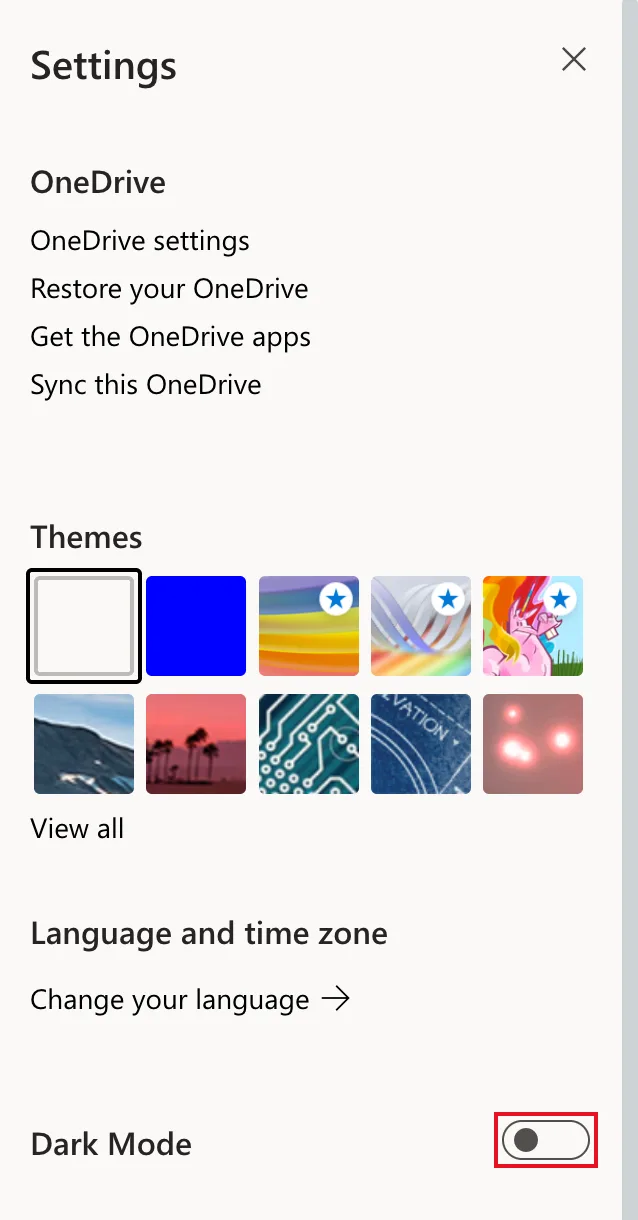
The Settings pane has links to OneDrive settings, a row of Themes, Language and time zone, and a Dark Mode switch. Here it's off:
Step 3: Turn It On
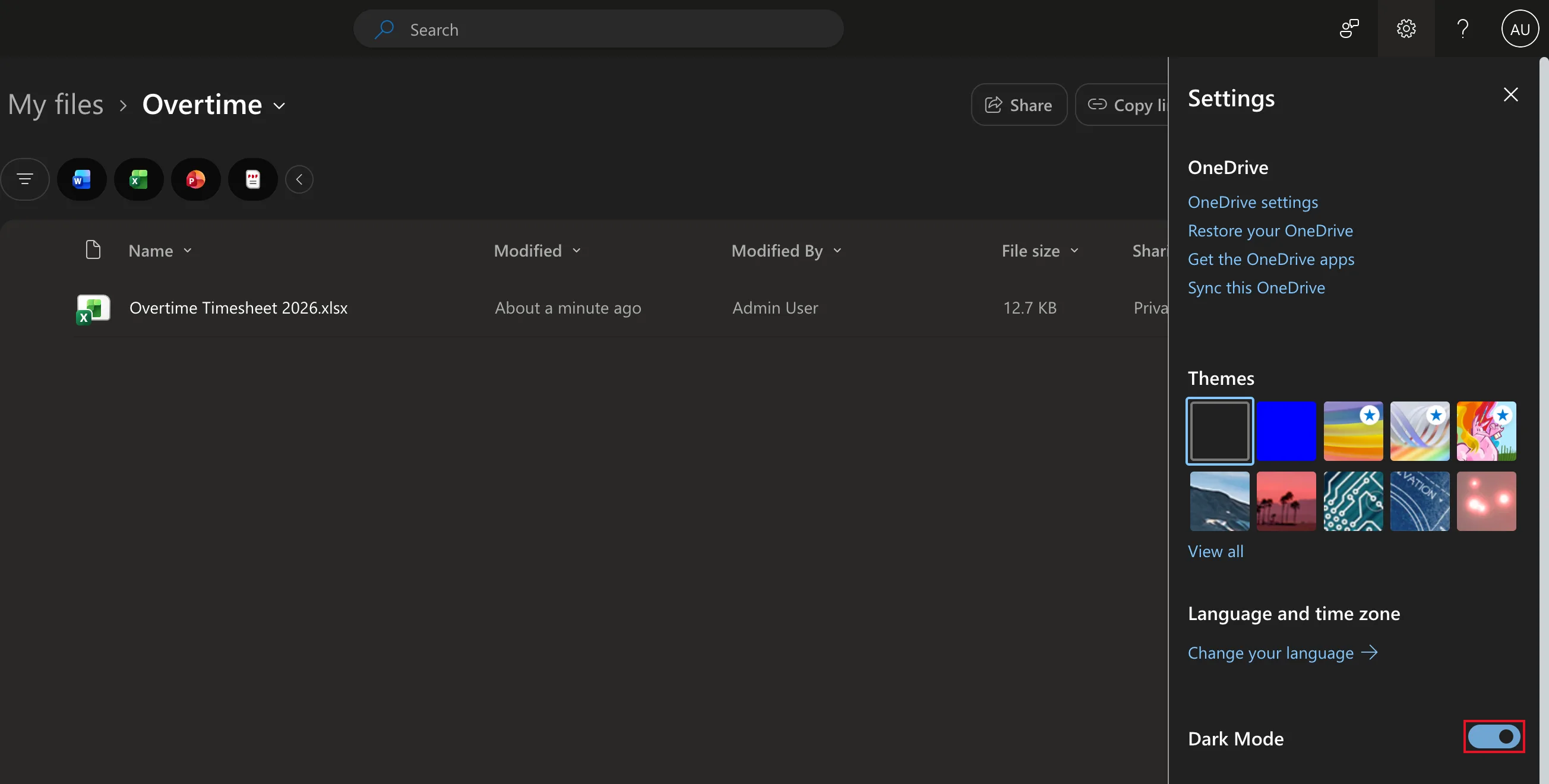
Select the switch. OneDrive turns dark straight away, including the file list behind the pane:
Step 4: Turn It Off
Select the switch again to go back to light mode:
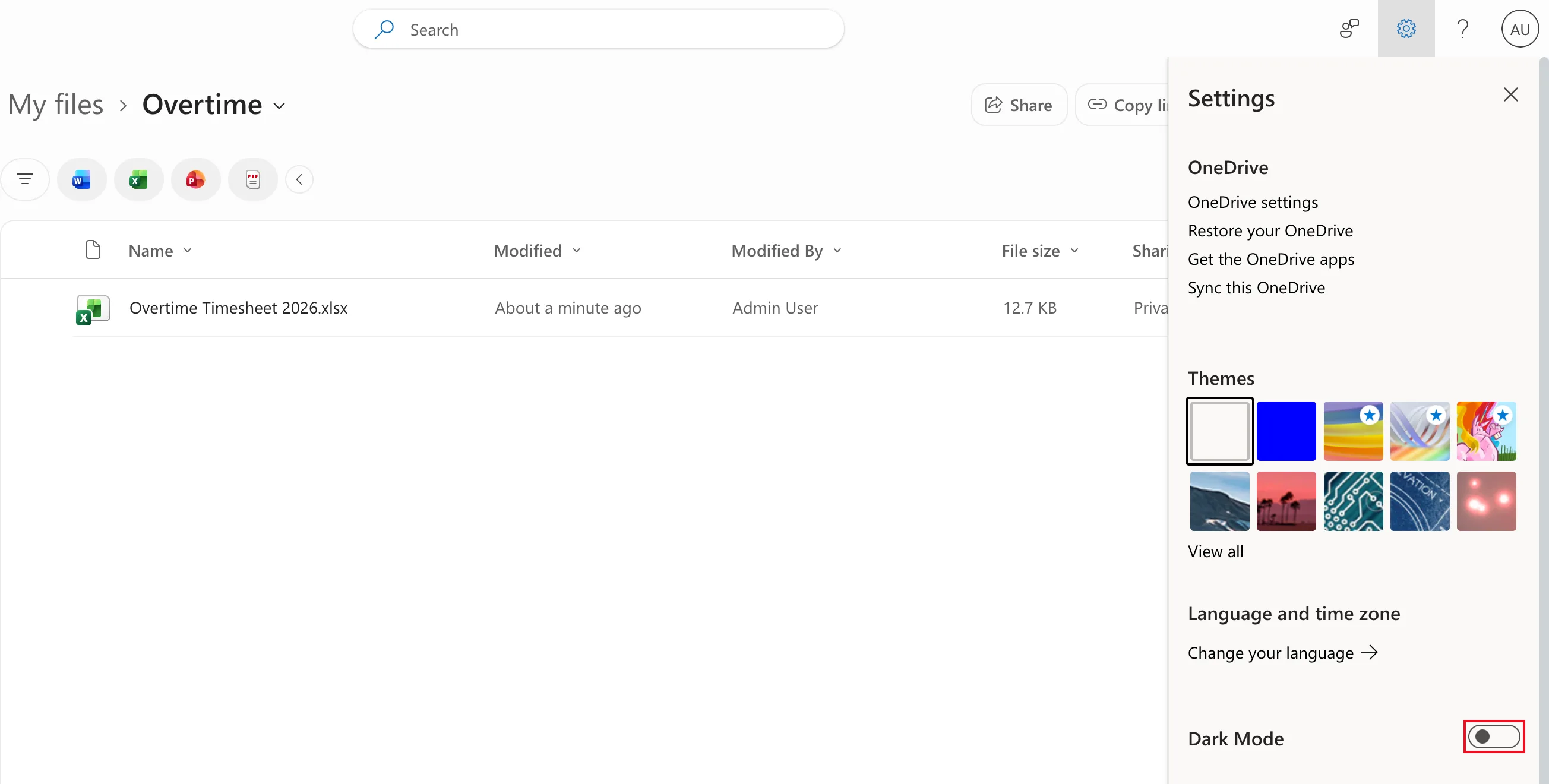
Close the pane with the X at its top right.
Common Mistakes
| Mistake | What happens | Do this instead |
|---|---|---|
| Capturing screenshots for light-coloured documents with dark mode on | They don't match the pages around them | Turn dark mode off first |
| Looking for the switch in the Themes row | Themes are pictures and colours, not the dark mode switch | Use the Dark Mode switch below Language and time zone |
Troubleshooting
| Symptom | Likely cause | Fix |
|---|---|---|
| You can't see Dark Mode in the pane | The pane is taller than your window | Scroll down inside the Settings pane |
FAQ
Does this change OneDrive for anyone else?
No. It's a setting for your account only.
Is it the same as my computer's dark mode?
No. This switch is OneDrive's own, in the browser.
Conclusion
Settings gear → Dark Mode. One switch changes OneDrive's colours for you, and the same switch changes them back.
