How to Total Only Visible Rows in Excel with SUBTOTAL

SUBTOTAL is a total that can leave out the rows you've hidden. Its first argument is a code that says what to do, such as 9 for a sum, and whether hidden rows count: 9 includes them and 109 leaves them out. Rows hidden by a filter are always left out.
Syntax
=SUBTOTAL(function_num, ref1, [ref2], ...)
From Microsoft's SUBTOTAL function article:
function_num: a number that picks the calculation. 1-11 includes manually-hidden rows, while 101-111 excludes them; filtered-out cells are always excluded.ref1: the first range to total, such asB2:B4.ref2, ...: more ranges, if you need them, up to 254 in all.
The codes, from the same article:
| Includes hidden rows | Leaves out hidden rows | Calculation |
|---|---|---|
| 1 | 101 | AVERAGE |
| 2 | 102 | COUNT |
| 3 | 103 | COUNTA |
| 4 | 104 | MAX |
| 5 | 105 | MIN |
| 6 | 106 | PRODUCT |
| 7 | 107 | STDEV |
| 8 | 108 | STDEVP |
| 9 | 109 | SUM |
| 10 | 110 | VAR |
| 11 | 111 | VARP |
"Hidden rows" here means rows hidden with a Hide Row command. Rows a filter hides are left out whichever code you use.
The Example
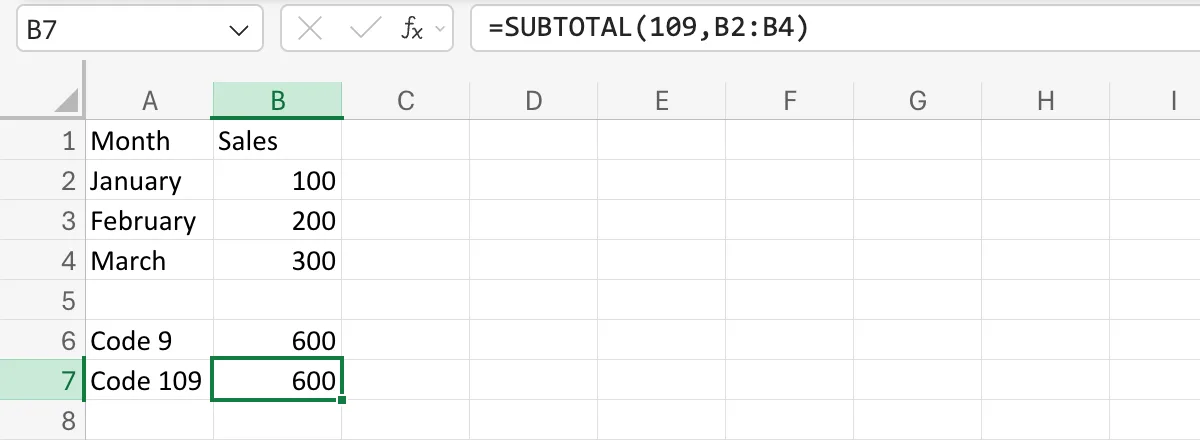
A Sales sheet lists three months: January 100, February 200 and March 300, in A1:B4. Below them are two totals of the same cells, one with each code, so hiding a row shows the difference.
Step 1: Type the Two Totals
In A6 type Code 9, and in B6:
=SUBTOTAL(9,B2:B4)
In A7 type Code 109, and in B7:
=SUBTOTAL(109,B2:B4)
To type a formula, see How to Enter a Formula in Excel. With every row showing, both totals are 600:
Step 2: Hide a Row
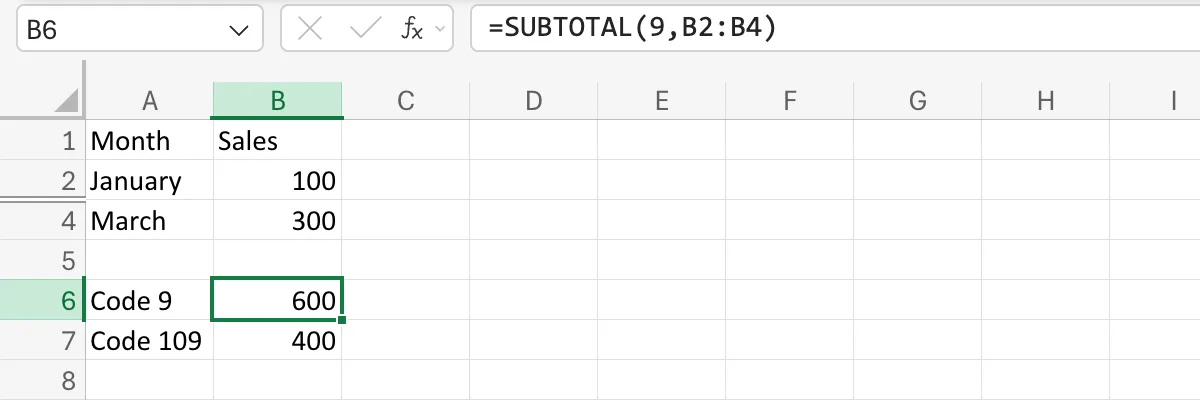
Right-click the row number 3, February's row, and select Hide Row 3. Row 3 disappears and a double line marks where it was.
The Result
B6, code 9, still says 600: it counts the hidden row. B7, code 109, says 400, January plus March:
In Excel for the web, B7 didn't change at first: it stayed at 600 until I selected it, pressed F2 and then Enter, which is the step Microsoft's article gives for its own example. That problem has its own post: Fixed: SUBTOTAL 109 Still Includes a Hidden Row in Excel for the Web.
Common Mistakes
| Mistake | What happens | Do this instead |
|---|---|---|
| Code 9 when hidden rows shouldn't count | The total still includes them | Use 109 |
| Expecting code 9 to include filtered-out rows | SUBTOTAL leaves out rows a filter hides, whatever the code | Clear the filter |
SUBTOTAL across a row, then hiding a column | The article says hiding a column doesn't change it: SUBTOTAL is made for columns of data | Total down a column |
Troubleshooting
| Symptom | Likely cause | Fix |
|---|---|---|
| A 109 total keeps the hidden row in Excel for the web | The formula hasn't recalculated | Select it, F2, Enter (the fix) |
#VALUE! | The article says a 3-D reference, across several sheets, gives #VALUE! | Total each sheet separately |
| Both totals are the same after hiding a row | The row was hidden by a filter, which both codes leave out, or the 109 total hasn't recalculated | Check how the row was hidden, then select the 109 total, F2, Enter |
FAQ
Why does a grand total ignore the subtotals inside it?
The article says nested subtotals are ignored to avoid double counting, so a SUBTOTAL over a range that already has SUBTOTALs in it adds only the plain values.
Is this what a table's Total Row uses?
Yes. Its drop-down writes a SUBTOTAL with a code from 101 to 111, such as 109 for Sum (How to Add a Total Row to an Excel Table).
Can I average or count only the visible rows?
Yes: 101 averages them, 102 counts the numbers in them, and 103 counts every cell that isn't empty.
Conclusion
=SUBTOTAL(109, range) adds up only the rows you can see; =SUBTOTAL(9, range) adds hidden rows too. Both leave out rows a filter hides. The other codes average, count and more, in the same two versions.
