How to Total Hours by Person and Month in Excel with SUMIFS

A log of shifts answers "who worked when"; payroll asks "how many hours did each person do each month?" One SUMIFS formula, copied across a grid of names and months, answers it: it adds up Hours where the Employee matches the row and the Date falls in the column's month.
The example is the Monthly totals sheet of the old overtime timesheet from Part 1 of the Overtime Timesheet series, which reads the OvertimeLog table on the Overtime log sheet.
Prerequisites
- A table of shifts with Employee, Date and Hours columns, named as in How to Rename a Table in Excel.
- A sheet for the totals: How to Add a Worksheet in Excel for the Web.
Step 1: Lay Out the Grid
On the totals sheet:
- A1:
Employee, and the names in A2:A4: Aisha Khan, Ben Harris, Maya Patel. - B1 and C1: the first day of each month, 01/10/2026 and 01/11/2026, formatted as months: How to Show a Date as Month and Year in Excel.
Step 2: Write the Formula for the First Cell
In B2, Aisha Khan's October total:

=SUMIFS(OvertimeLog[Hours],OvertimeLog[Employee],$A2,OvertimeLog[Date],">="&B$1,OvertimeLog[Date],"<"&EDATE(B$1,1))
| Part | Means |
|---|---|
OvertimeLog[Hours] | Add up the Hours column |
OvertimeLog[Employee],$A2 | where Employee is the name in column A of this row |
OvertimeLog[Date],">="&B$1 | and Date is on or after this column's month start |
OvertimeLog[Date],"<"&EDATE(B$1,1) | and Date is before the next month's start |
SUMIFS adds only the rows where every condition is true. The date conditions are explained in How to Sum Values Between Two Dates in Excel with SUMIFS, and $A2 and B$1 in How to Use Absolute and Mixed Cell References in Excel.

Step 3: Copy It Across the Grid
Copy B2 and paste it into B2:C4. Each copy picks up its own row's name and column's month. Then add totals with SUM: D2 =SUM(B2:C2) for each person, B5 =SUM(B2:B4) for each month (How to Add Up a Row or Column with SUM in Excel).
Step 4: Check the Totals
| Employee | Oct 2026 | Nov 2026 | Total |
|---|---|---|---|
| Aisha Khan | 16.5 | 9.5 | 26 |
| Ben Harris | 15 | 0 | 15 |
| Maya Patel | 11.75 | 7.5 | 19.25 |
| Total | 43.25 | 17 | 60.25 |
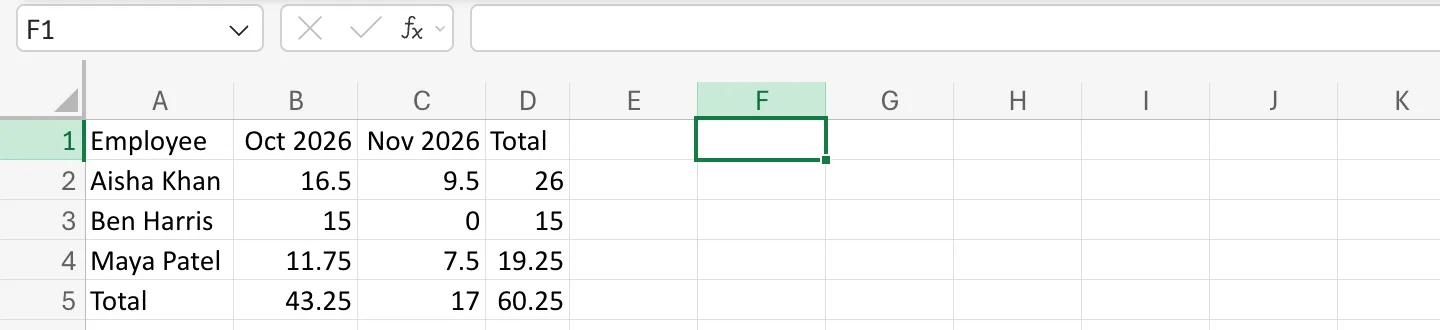
Aisha's October includes a shift she covered in Radiology: the formula totals by person, not by department.
Common Mistakes
| Mistake | What happens | Do this instead |
|---|---|---|
Putting the month dates in as text, like Oct 2026 | The date conditions compare with text and total 0 | Put real dates in the headings |
$B$1 instead of B$1 | Every month column totals October | Fix only the row |
| Summing Time worked instead of Hours | Totals come out as times that wrap at 24 hours | Total decimal hours |
Troubleshooting
| Symptom | Likely cause | Fix |
|---|---|---|
| Everyone shows 0 | Names in column A don't match Employee exactly | Copy the names from the data |
| A month includes the next month's 1st | The end condition used <= | Use "<"&EDATE(B$1,1) |
#VALUE! | The criteria ranges are different sizes | Use whole table columns, as here |
FAQ
Can I total by department instead?
Yes. Put departments in column A and use OvertimeLog[Department] instead of OvertimeLog[Employee].
Will new rows in the log be counted?
Yes. OvertimeLog[Hours] and the other table columns grow with the table.
Conclusion
One SUMIFS with a mixed reference to the name and the month fills a whole grid of totals: hours where the person matches and the date falls in the month.
