How to Test Row-Level Security in Power BI

Before anyone opens a report with row-level security, check what it shows them. The Power BI service's Test as role opens the report as a role would see it, and Now viewing as switches to other roles or to a specific person. Here's how.
Microsoft's row-level security article describes Test as role and what to check: the report displays only data rows that match the filter expression defined in the role, and for dynamic rules, the data corresponds to the identity shown in the Now viewing as header. The example tests two roles of a model of expense claims (How to Add Row-Level Security Roles in Power BI in the Browser):
- Own expenses: each person sees their own claims.
- Category managers: each manager sees the claims of the categories they manage.
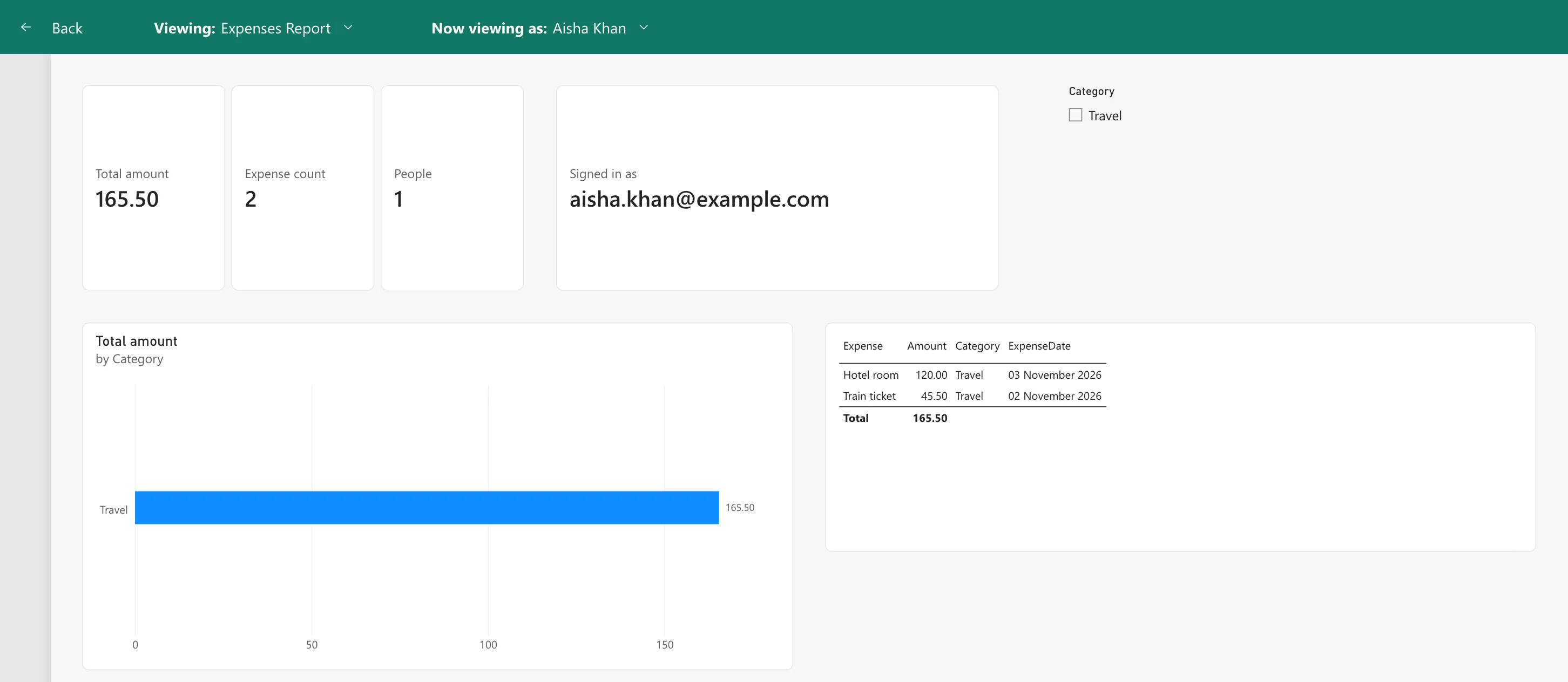
Its report, Expenses Report, shows the total, count and people on cards, a Signed in as card with the viewer's user principal name, a category slicer, a chart and a table.
Step 1: Test a Role as Yourself
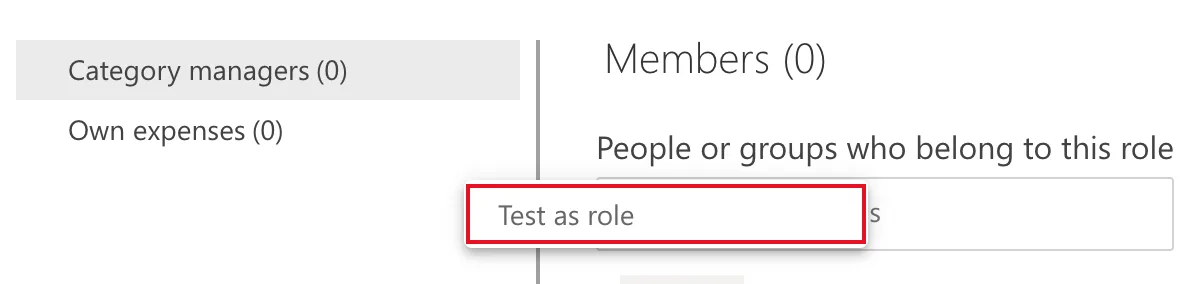
In the workspace, open the model's More options (...) > Security. On the Row-Level Security page, hover over the role, select its More options (...), and select Test as role:
The report opens with a green bar: Viewing: Expenses Report and Now viewing as: Own expenses. As myself, I saw only my own claim, the 75.00 client dinner:
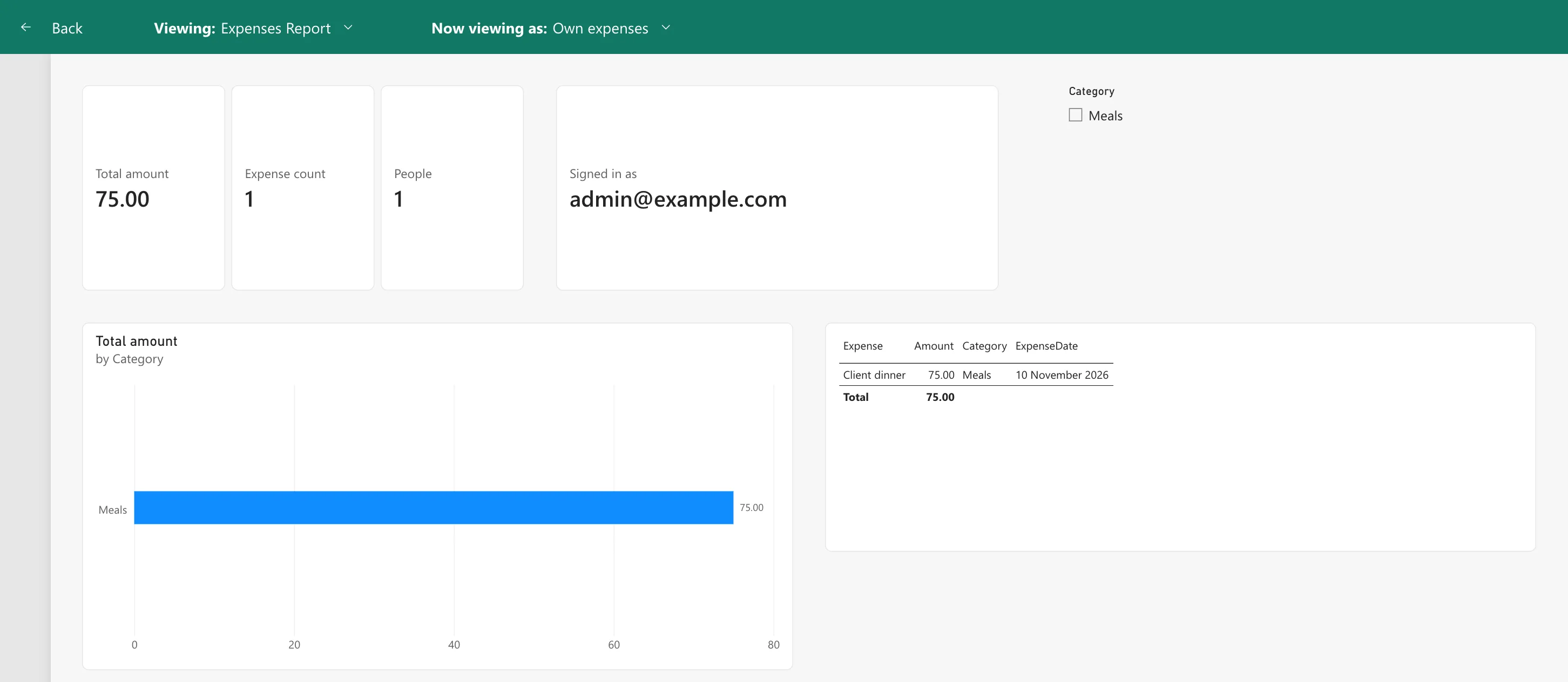
The article explains why it's my claim: Test as role uses your own identity when evaluating dynamic RLS expressions, so USERPRINCIPALNAME() returns your name.
Step 2: Switch to Another Role
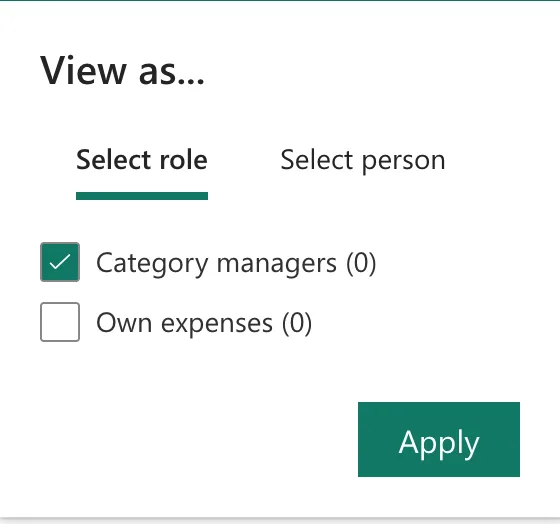
Select Now viewing as. The View as... panel has two tabs. On Select role, tick the role to test, here Category managers, untick the others, and select Apply:
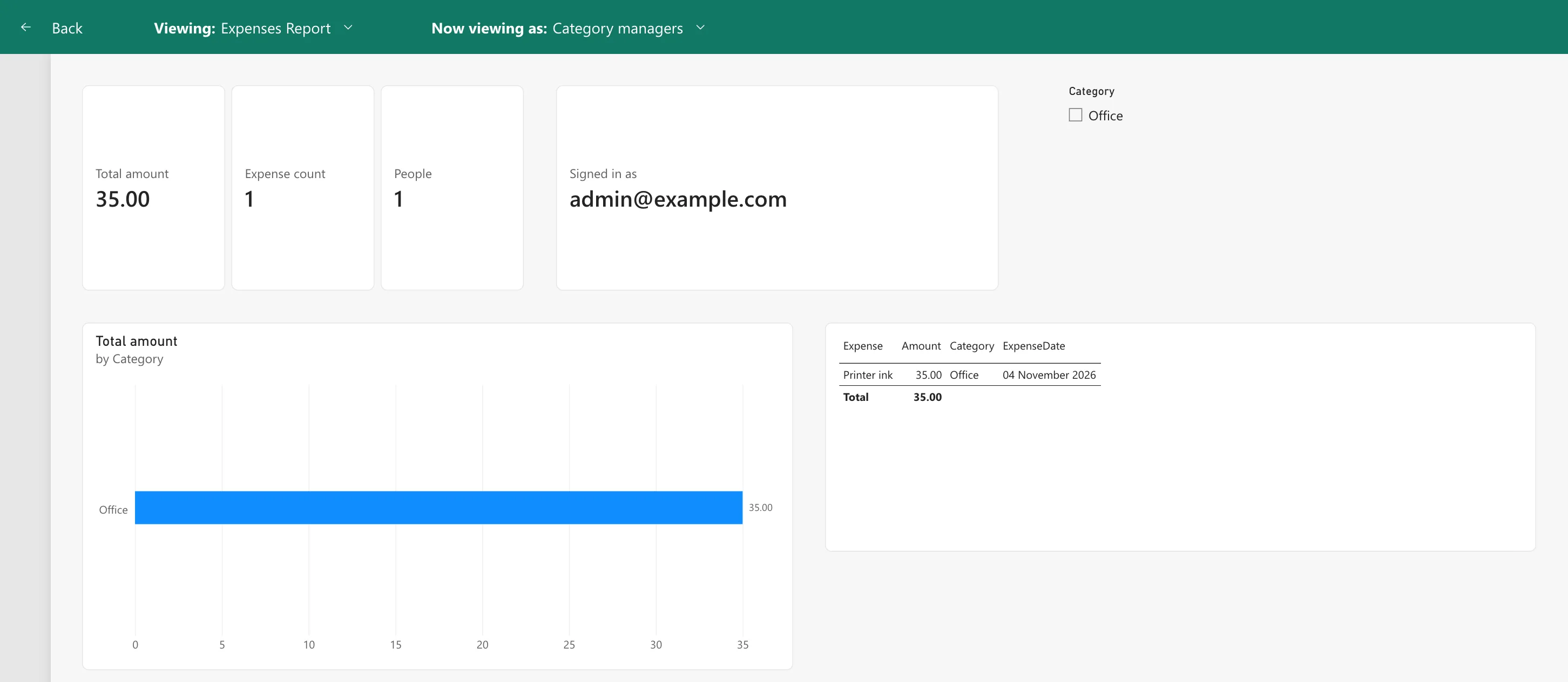
As a manager of Office only, I saw the one Office claim, 35.00:
Step 3: View as a Specific Person
To see the report as someone else, select Now viewing as again, then Select person, and type their name. The panel shows what Power BI knows about them: Effective permission, Assigned roles, Email, UPN and Username. For Aisha Khan, a member of Own expenses:
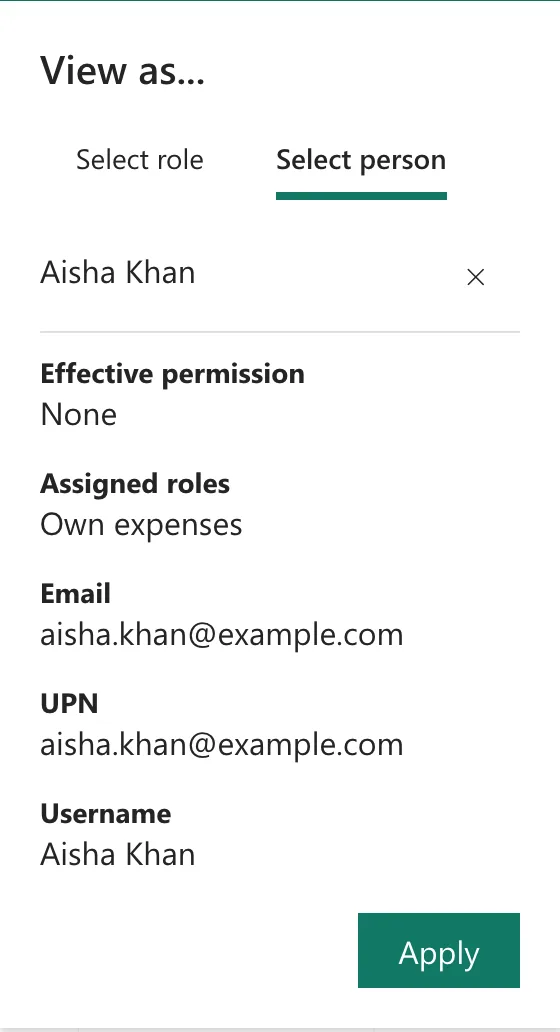
Effective permission said None: she wasn't in the workspace yet, and the report warned This user does not have access to the dataset or report. (Fixed: "This User Does Not Have Access to the Dataset or Report" in Power BI). Once she was a Viewer of the workspace, the warning was gone, and the report showed her two Travel claims, 165.50, with her own name on the Signed in as card:
Select Back on the green bar to return to the Row-Level Security page.
Common Mistakes
| Mistake | What happens | Do this instead |
|---|---|---|
| Testing a dynamic role only as yourself | You see your rows, not theirs | Also view as a specific person |
| Testing as an Admin or Member by opening the report normally | RLS doesn't apply to them | Use Test as role |
| Ticking two roles by mistake | You see what both roles allow | Tick one role at a time |
Troubleshooting
| Symptom | Likely cause | Fix |
|---|---|---|
| This user is not configured for any row-level security roles | The person isn't in a role (Fixed: "This User Is Not Configured for Any Row-Level Security Roles" in Power BI) | Add them, or their group, to a role |
| This user does not have access to the dataset or report | The person isn't in the workspace | Make them a Viewer |
| Blank visuals as yourself | Your own email matches no rows | Expected for a dynamic rule; view as someone who should see rows |
FAQ
Do the test views change anything?
No. Testing only shows the report; members and data stay as they are.
Can I test reports in other workspaces?
The article says you can only test reports located in the same workspace as your semantic model.
Is Test as role exactly what the person will see?
Close, but the article notes it simulates role membership but doesn't fully replicate the authentication context of another user, especially for guests. For guests, sign in as one.
Conclusion
Security > the role's More options (...) > Test as role, then Now viewing as to switch roles or view as a person. The example showed 75.00 for my own claims, 35.00 for the Office manager, and 165.50 for Aisha Khan.
