How to Test an Agent with Authentication in the Microsoft 365 Agents Playground

By default, the Microsoft 365 Agents Playground sends messages without a token, and your agent answers without one. That's enough for most testing, but not for anything that needs the agent's own identity, such as proactive messages. In its authenticated mode, the Playground signs in as your agent's app registration and sends a token with every message, and your agent uses the same app registration to answer.
What Authenticated Mode Changes
Microsoft's documentation describes the two modes: The Agents Playground supports both anonymous and authenticated modes. For anonymous testing, no other configuration is required. If you want to test with authentication, you need to configure Microsoft Entra ID app registrations for both the Agents Playground and your application. In authenticated mode, Agents Playground acquires a JWT token using the provided authentication settings and includes it in the Authorization header when communicating with the application.
| Anonymous mode | Authenticated mode | |
|---|---|---|
| What the Playground sends with each message | No token | A token for your app registration |
| What the agent needs | Nothing | A connection with the same app registration's client ID, secret and tenant |
| What the agent knows about the message's identity | Nothing: no claims | The token's claims, such as aud, the app's client ID |
This guide uses one app registration for both sides: the Playground signs in as it, and the agent answers as it.
The Example
The agent for this guide answers every message with what it heard, and with whether the message came with a token:
using Microsoft.Agents.Builder;
using Microsoft.Agents.Builder.App;
using Microsoft.Agents.Builder.State;
using Microsoft.Agents.Core.Models;

namespace AuthEcho;

public class EchoAgent : AgentApplication
{
    public EchoAgent(AgentApplicationOptions options) : base(options)
    {
        OnActivity(ActivityTypes.Message, EchoAsync);
    }

    private async Task EchoAsync(ITurnContext turnContext, ITurnState turnState, CancellationToken cancellationToken)
    {
        string? audience = turnContext.Identity?.FindFirst("aud")?.Value;

        string tokenInfo = audience is null
            ? "No token came with this message."
            : $"This message came with a token for {audience}.";

        await turnContext.SendActivityAsync($"You said: {turnContext.Activity.Text}. {tokenInfo}", cancellationToken: cancellationToken);
    }
}
turnContext.Identity holds the claims of the message's token. aud, the audience, says which app the token was issued for. It's an ASP.NET Core project with the Agents SDK 1.9.205, hosted with AddAgentDefaults().AddAgent<EchoAgent>() and MemoryStorage, listening on port 3978.
Prerequisites
- The Microsoft 365 Agents Playground.
agentsplayground --versionshould print0.2.30. If the command isn't found, install it withnpm install -g @microsoft/m365agentsplayground. - A Microsoft Entra app registration for the agent, single tenant, with a client secret, and permission to read its Application (client) ID and Directory (tenant) ID.
Step 1: See Anonymous Mode
Run the agent with dotnet run, and in a second terminal start the Playground the usual way:
agentsplayground -e http://localhost:3978/api/messages -c emulator
Send hello:
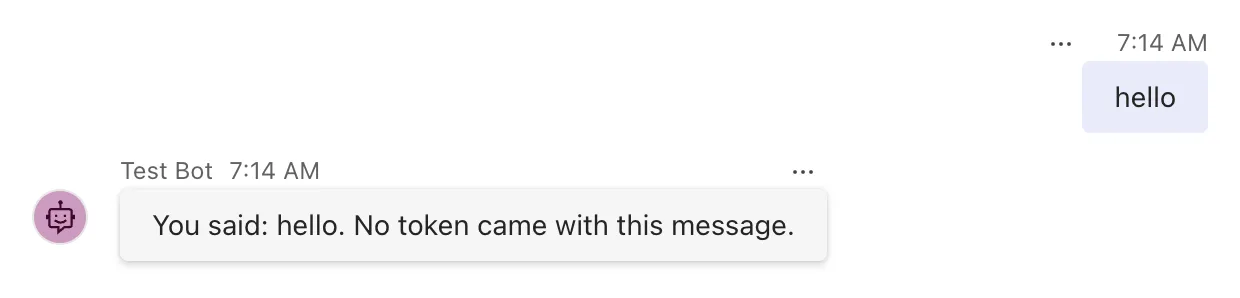
No token, so no claims. The agent's terminal agrees: it logs Anonymous access is enabled for channel: emulator. for every activity it receives, as Fixed: "Anonymous access is enabled for channel: emulator" explains. An agent with no connection configured also starts with No connections found in configuration. Stop both with Ctrl+C.
Step 2: Give the Agent Its Identity
The agent needs the SDK's authentication package, which gets tokens with a client secret:
dotnet add package Microsoft.Agents.Authentication.Msal --version 1.9.205
Add a connection to appsettings.json, with your app registration's Application (client) ID as ClientId and its Directory (tenant) ID at the end of AuthorityEndpoint. The app registration shows both on its Overview page:
{
  "Logging": {
    "LogLevel": {
      "Default": "Information",
      "Microsoft.AspNetCore": "Warning"
    }
  },
  "AllowedHosts": "*",
  "Connections": {
    "ServiceConnection": {
      "Settings": {
        "AuthType": "ClientSecret",
        "ClientId": "22222222-2222-2222-2222-222222222222",
        "AuthorityEndpoint": "https://login.microsoftonline.com/11111111-1111-1111-1111-111111111111",
        "Scopes": [
          "https://api.botframework.com/.default"
        ]
      }
    }
  },
  "ConnectionsMap": [
    {
      "ServiceUrl": "*",
      "Connection": "ServiceConnection"
    }
  ]
}
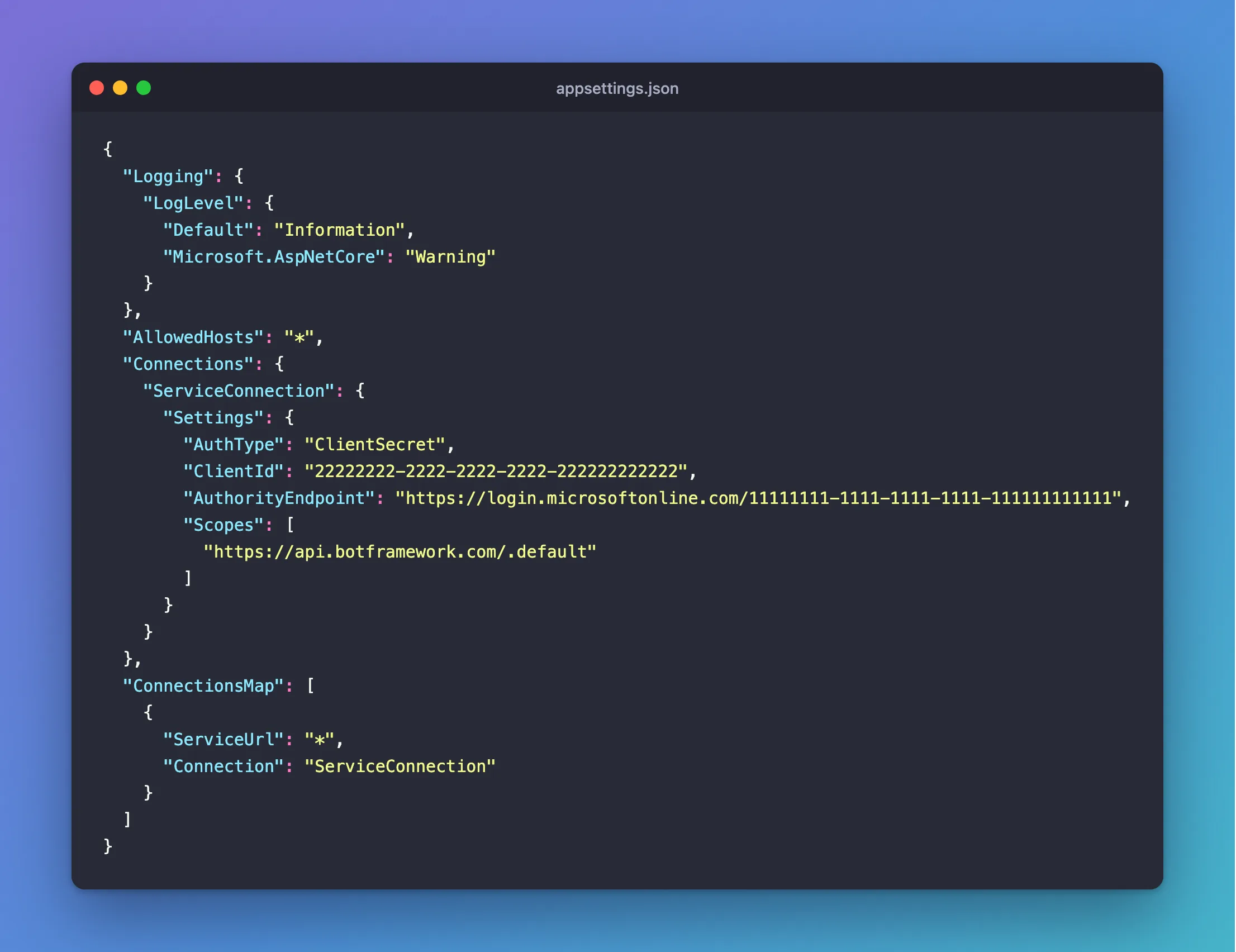
AuthType: ClientSecretmakes the agent get its tokens with a client secret. Microsoft's documentation says a client secret should only be used for testing and development purposes.Scopessays what the agent's tokens are for:https://api.botframework.com/.default, as in Microsoft's configuration examples.ConnectionsMapsends every channel to this connection. Without it, the agent still works, but warns at start that there's no map.
The secret goes in .NET user secrets, never in this file. Create the secret, then store it as How to Store Secrets with .NET C# User Secrets Instead of appsettings.json explains:
dotnet user-secrets init
dotnet user-secrets set "Connections:ServiceConnection:Settings:ClientSecret" "<your client secret>"
Successfully saved Connections:ServiceConnection:Settings:ClientSecret to the secret store.
Step 3: Start the Playground with the Same App
Run the agent again with dotnet run. In the second terminal, give the Playground the same three values in its environment variables, then start it. Use your own values in the first three lines:
- macOS / Linux
- Windows (PowerShell)
export AUTH_CLIENT_ID="22222222-2222-2222-2222-222222222222"
export AUTH_CLIENT_SECRET="<your client secret>"
export AUTH_TENANT_ID="11111111-1111-1111-1111-111111111111"
agentsplayground -e http://localhost:3978/api/messages -c emulator
$env:AUTH_CLIENT_ID = "22222222-2222-2222-2222-222222222222"
$env:AUTH_CLIENT_SECRET = "<your client secret>"
$env:AUTH_TENANT_ID = "11111111-1111-1111-1111-111111111111"
agentsplayground -e http://localhost:3978/api/messages -c emulator
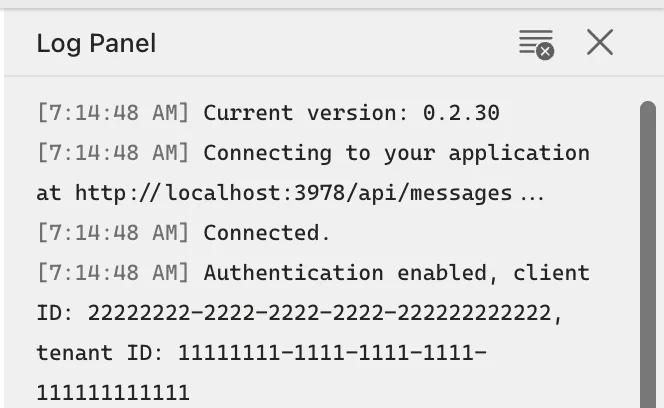
The variables last until you close that terminal. The Playground also takes the same values as --client-id, --client-secret and --tenant-id. The Log Panel on the right confirms the mode as soon as the Playground connects:
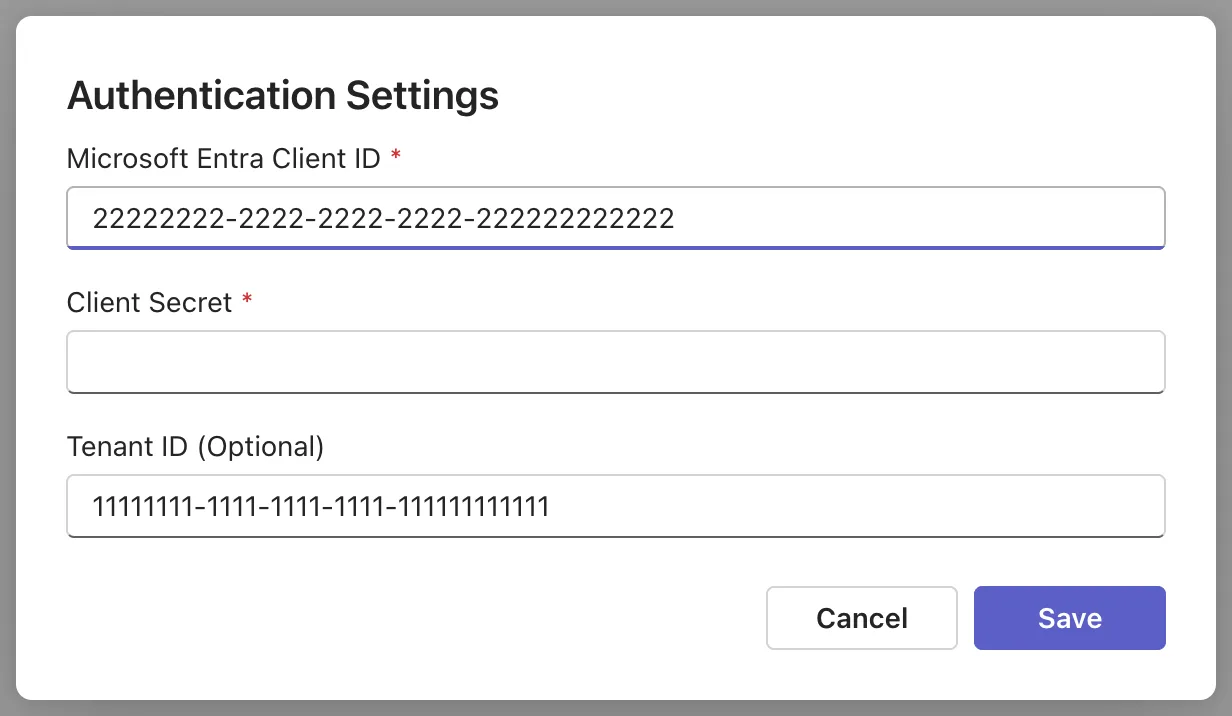
The Playground also has a Configure Authentication button in its top bar, which opens the same three settings in a form, so you can turn authentication on without restarting:
Step 4: See the Token Arrive
Send hello again:
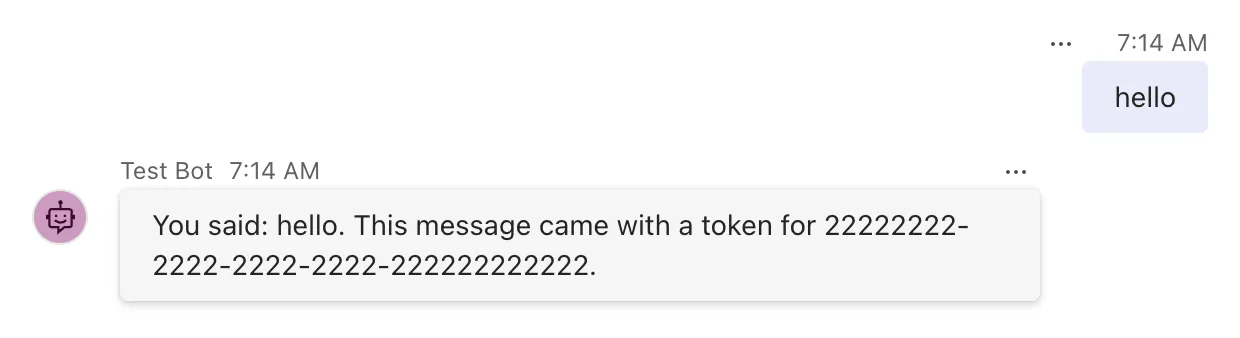
The message came with a token, and its aud is the agent's own client ID. The agent's terminal no longer logs Anonymous access is enabled for channel: emulator., and its answer went back with a token of its own, which the agent got from Microsoft Entra ID with the client secret.
Stop and Clean Up
Stop the agent and the Playground with Ctrl+C in their terminals. When you no longer need authenticated mode, delete the app registration's client secret, and remove it from user secrets with dotnet user-secrets remove "Connections:ServiceConnection:Settings:ClientSecret".
Common Mistakes
| Mistake | What happens | Do this instead |
|---|---|---|
| Configuring only the Playground | The agent can't get a token to answer with | Give the agent the connection too |
| Configuring only the agent | Messages still arrive without a token | Start the Playground with the same app's values |
Putting the client secret in appsettings.json | It ends up in source control | Use user secrets |
| Leaving out the Msal package | The agent has no way to get tokens with a client secret | dotnet add package Microsoft.Agents.Authentication.Msal |
Troubleshooting
| Symptom | Likely cause | Fix |
|---|---|---|
| No Authentication enabled line in the Log Panel | The variables were set in another terminal, or misspelled | Set all three in the terminal that starts the Playground |
| No connections found in configuration. at the agent's start | The Connections section is missing or misnamed | Check the section names in appsettings.json |
| No connections map found in configuration. | No ConnectionsMap | Add the map, as in Step 2 |
FAQ
Do I need two app registrations, one for the Playground and one for the agent?
Microsoft's documentation speaks of registrations for both, and one registration can play both parts, as in this guide: the Playground signs in as the app, and the agent answers as the same app.
Is the token checked by the agent?
Not by this agent: its Program.cs doesn't set up token validation, so the SDK reads the token's claims, such as aud, without checking the token. An agent that faces a real channel, such as Microsoft Teams, has to validate every incoming token as well.
Conclusion
The Agents Playground's authenticated mode makes local tests behave like a real channel: every message carries a token for your agent's app registration, and your agent answers with a token of its own. Give the agent a connection with the app's client ID, tenant and secret, start the Playground with the same three values, and look for Authentication enabled in the Log Panel.
Additional Resources
- Test your agent locally in Microsoft 365 Agents Playground — the two modes and the
--client-id,--client-secretand--tenant-idoptions. - Configure Agents Playground for authentication — environment variables, the form, and how the tokens are used.
- Configure authentication in your agent — the agent's connection settings.
